How to fix
“This computer’s hardware may not support booting to this disk” error
on Windows
Resolve the "This computer’s hardware may not support booting to this disk" error in Windows 10 and 11 quickly with expert-tested solutions. Fixed in mi…

![[Fix] “This computer’s hardware may not support booting to this disk” error in Windows](https://ugetfix.com/wp-content/uploads/articles/askit/fix-this-computers-hardware-may-not-support-booting-to-this-disk-error-in-windows_en-768x432.jpg)
What causes [Fix] “This computer’s hardware may not support booting to this disk” error in Windows?
- Incompatibilities between the PC's BIOS settings and the disk's format
- Using BIOS with a GPT disk
- Using UEFI with an MBR disk
- Incorrect boot mode configuration
- Disk format not matching firmware type
Repairs Windows system files, removes malware, and restores a clean OS state — without reinstalling.
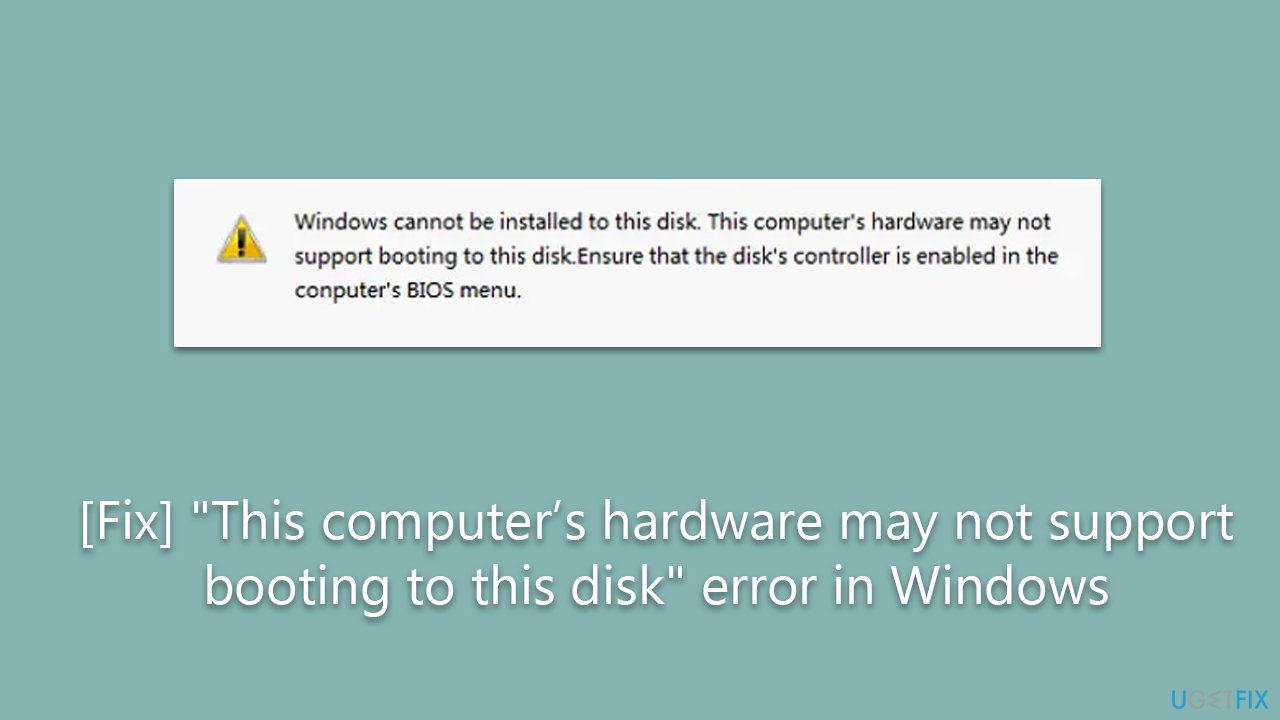
I tried to reinstall Windows because, frankly, almost nothing worked properly, and I received an error "Windows cannot be installed on this disk. This computer’s hardware may not support booting to this disk" during this process. Any tips on how to bypass this error, seeing how Windows was previously installed on my computer?
If you've ever tried installing Windows and encountered the error message "Windows cannot be installed to this disk. This computer’s hardware may not support booting to this disk," you're not alone. This common error often arises due to incompatibilities between the PC's BIOS settings and the disk's format.
Typically, this error is associated with how your motherboard's BIOS or UEFI firmware is configured to boot the system. BIOS and UEFI are two types of firmware interfaces for computers that initialize hardware during the booting process. Older systems use BIOS, while modern systems use UEFI.
If your computer is using BIOS, it only supports Master Boot Record (MBR) disks, whereas UEFI supports both MBR and GUID Partition Table (GPT) disks. If you're trying to install Windows on a GPT disk with BIOS, or an MBR disk with UEFI, the error will occur.
To resolve this issue, check your BIOS or UEFI settings. If changing the boot mode doesn't help, you might need to convert the disk's format from GPT to MBR or vice versa, matching your firmware type. Be cautious while performing this task, as it will erase all data on the disk. Always back up important data before proceeding.
For detailed guidance, follow the instruction we provide below. For your system's optimization and various error fixes, we recommend using [d1] - a PC repair tool that is an exceptional utility software designed to tackle a variety of computer issues. It automates diagnosing and repairing problems that may be affecting your computer's performance, such as invalid registry entries, fragmented files, and slow internet connection.
1. Change the boot mode
The first thing you should do is check whether your system supports UEFI. To do so, follow these steps:
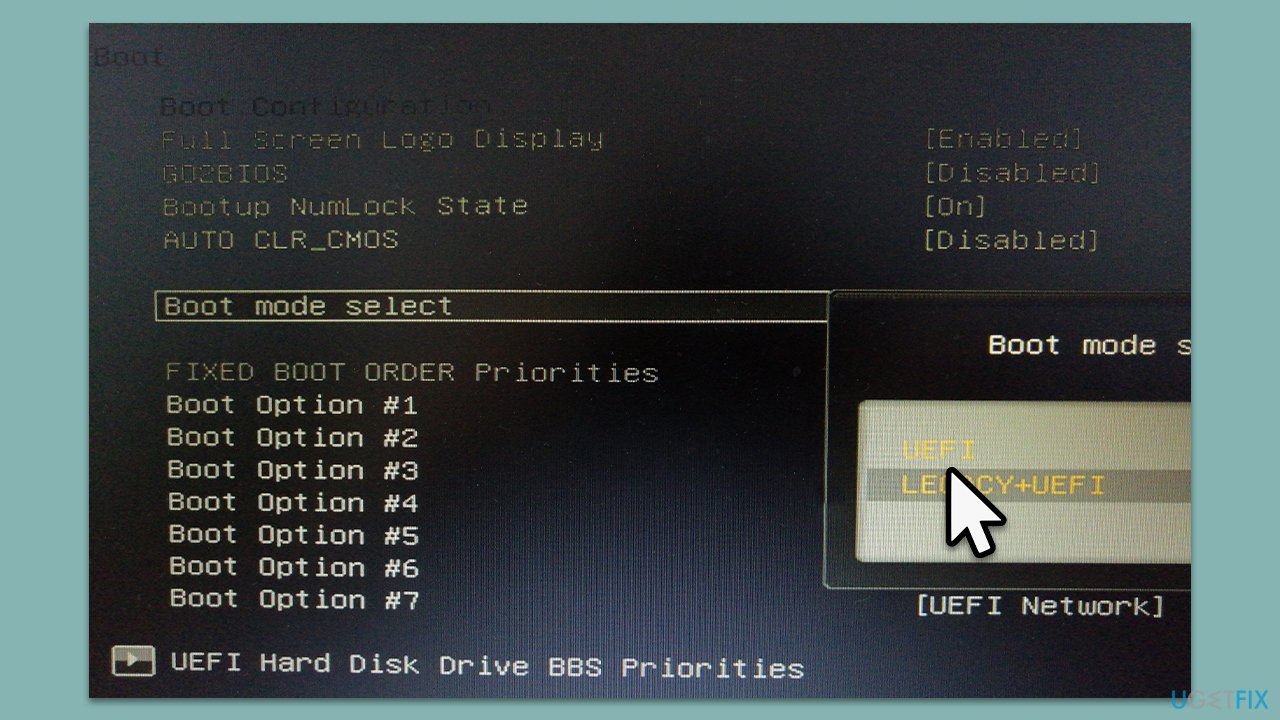
- Restart your computer and boot into your system's BIOS or UEFI settings. This is usually done by pressing a specific key during startup, often F2, F12, Delete, or Esc. The specific key varies by manufacturer.
- Once in the BIOS or UEFI settings, navigate to the "Boot" or "Startup" options.
- Look for the boot mode. If it's set to "Legacy" or "BIOS," change it to "UEFI." If it's set to "UEFI," change it to "Legacy" or "BIOS." Save your changes and exit the settings.
- Try installing Windows again. If you still encounter the error, you will need to convert the disk's format.
2. Convert to MBR
Back up all important data before proceeding, as converting the disk format will erase all data on the disk.
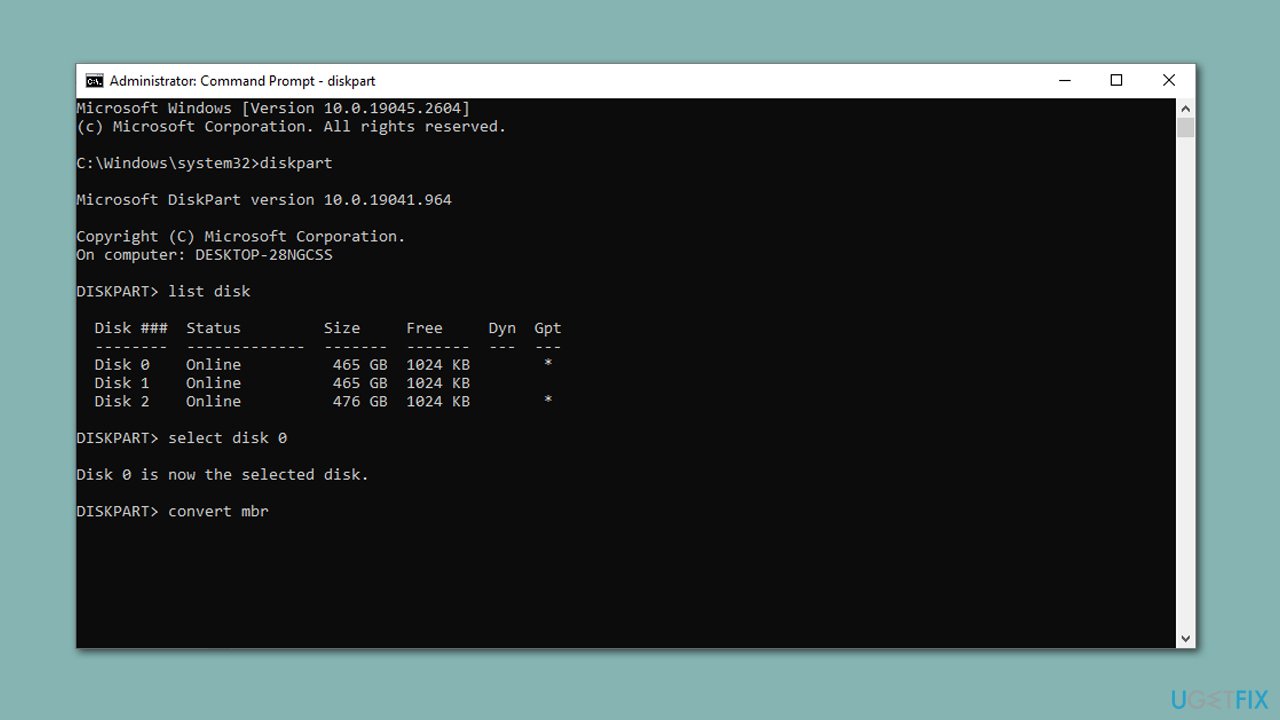
- Insert the Windows installation disk and wait for the Windows Setup to show up.
- Then, press Shift + F10 on your keyboard to open Command Prompt.
- When Command Prompt opens, type diskpart and press Enter.
- Type list disk and press Enter.
- You will now see all your drives listed - your goal is to select the disk you want to install Windows on. To select it, type select disk 0.
- Finally, enter convert mbr.
3. Conver to GPT
If your computer has a UEFI setting and is running MBR, you'll have to convert it to GPT to fix the "This computer’s hardware may not support booting to this disk" error.
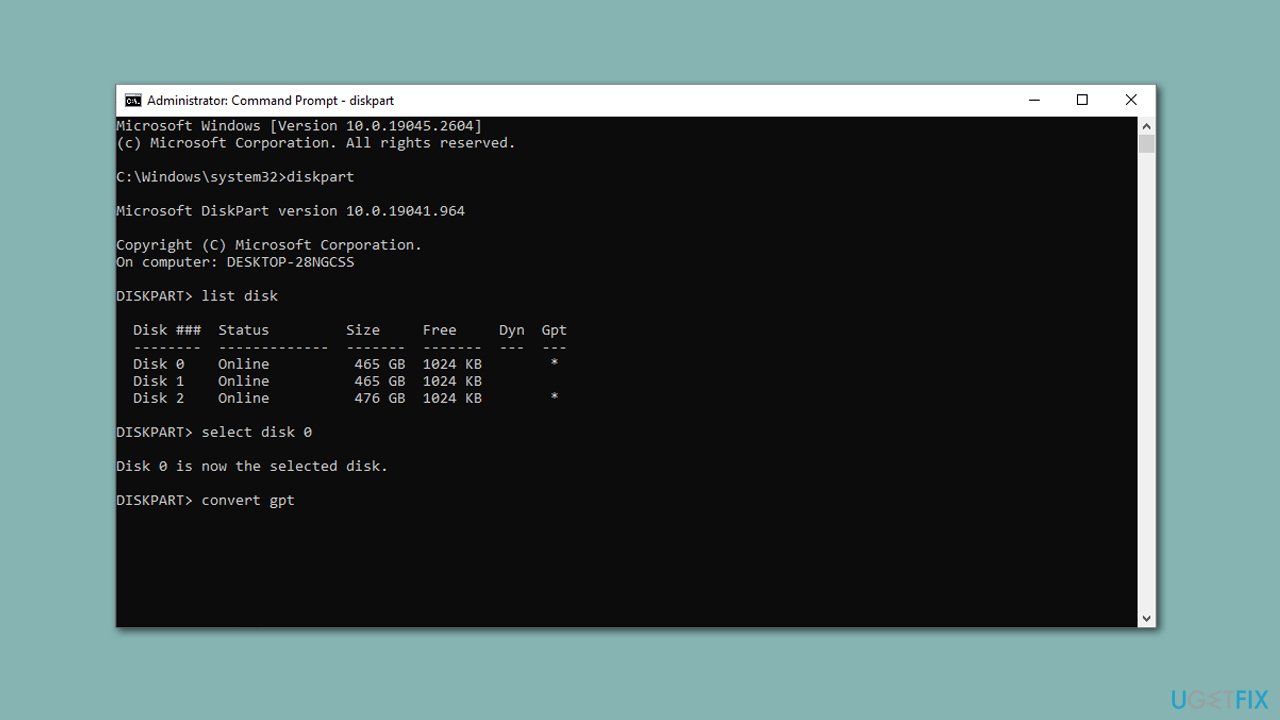
- Follow the steps in the previous solution to open Command Prompt.
- Use diskpart and list disk commands again, and select the disk in question by using select disk 0 command.
- Finally, use convert gpt command to convert the disk to GPT.
Bottom line
To resolve the error, check your BIOS or UEFI settings and change the boot mode if necessary. If that does not help, consider converting the disk's format from GPT to MBR or vice versa. If none of these solutions work, ensure you have backed up your data and seek further assistance.
Frequently asked questions
This error usually occurs due to incorrect BIOS settings, incompatible disk formats, or issues with the hard drive itself. Ensuring that your BIOS is set to the correct boot mode (UEFI or Legacy) can help resolve the issue.
You can try repairing the boot sector using the Windows Recovery Environment by selecting 'Repair your computer' and then 'Startup Repair'. If that doesn't work, consider using the Command Prompt to rebuild the BCD.
Yes, you can configure your BIOS settings to allow booting from an external hard drive, but ensure that the drive is properly formatted and contains a bootable Windows installation. If the error persists, check the compatibility of the external drive with your hardware.




Report an issue
What's wrong with this guide? We review every report and update or remove content.
Report received — thank you. We'll review and fix it.
You need a free account to submit a report.
Be the first to comment