How to fix
This device cannot find enough free resources that it can use (code 12)
on Windows
Resolve the "This device cannot find enough free resources" error in Windows 10/11 effortlessly. Expert-tested solutions guarantee quick fixes!

![[Fix] This device cannot find enough free resources that it can use (code 12)](https://ugetfix.com/wp-content/uploads/articles/askit/how-to-fix-this-device-cannot-find-enough-free-resources-that-it-can-use-code-12_en-768x432.jpg)
What causes [Fix] This device cannot find enough free resources that it can use (code 12)?
- Hardware conflict
- Devices trying to use the same I/O port
- Integrated or dedicated graphics card issues
- Network adapter malfunction
- Sound card interference
Repairs Windows system files, removes malware, and restores a clean OS state — without reinstalling.
Hello. I have received a wireless adapter error "This device cannot find enough free resources that it can use (code 12)." As evident, I can't use the internet without it. Is there anything that I can do to fix this? The answer would be appreciated.
Some computer issues are just worse than the others, and "This device cannot find enough free resources that it can use (code 12)" results in people not being able to use a particular device at all. Luckily, this issue can be fixed, and we are here to help you do just that.
Usually, the malfunction is related to either integrated or dedicated graphics cards (GPUs)[ref en-1] or network adapters. Having both of these hardware pieces not working is quite a bit of a problem - GPU provides a better experience when it comes to graphical rendering (e.g., gaming), and network adapter[ref en-2] provides internet connectivity. Sound cards can also be affected by this bug.
The error can be seen within the Device Manager, under device properties - people head there when a particular computer component is not responding or not working. Here's the full message of the error:
This device cannot find enough free resources that it can use (code 12). If you want to use this device, you will need to disable one of the other devices on this system.
The message simply suggests disabling the other device in order to operate properly. As evident, this is not an optimal choice, and there are plenty of things you could do to fix the error in other ways.
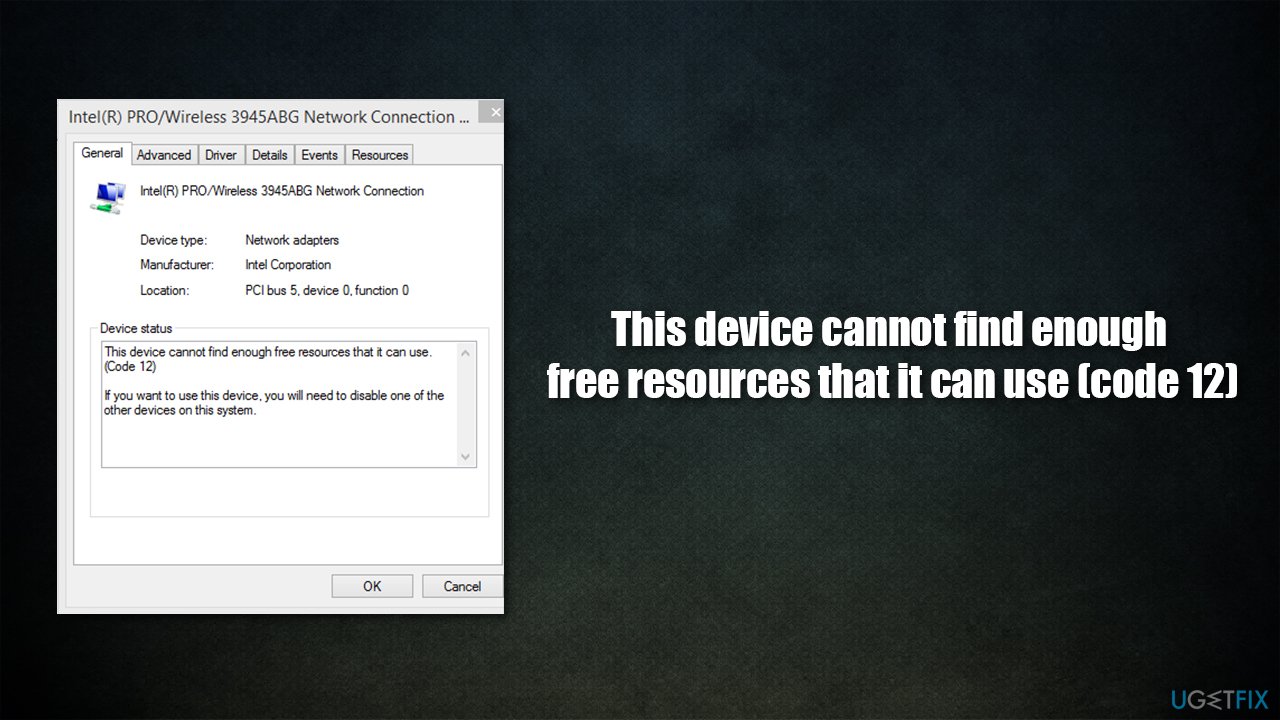
The main reason for the issue to arise is a hardware conflict. To be more precise, there are two devices that are trying to use the same I/O port - it is a computer socket that the cable is plugged into. In some cases, the reasons could be something different.
Before you proceed with the solutions below, we strongly recommend running a scan with a PC repair tool [d1], which can automatically find and repair the most common Windows errors, BSODs,[ref en-3] crashes, and other issues.
Method 1. Update Windows
Ensure you are running the latest version of the OS:
- Type Update in Windows search and hit Enter
- Click Check for updates
- Wait till the required files are downloaded
- Also, choose to install all the optional updates
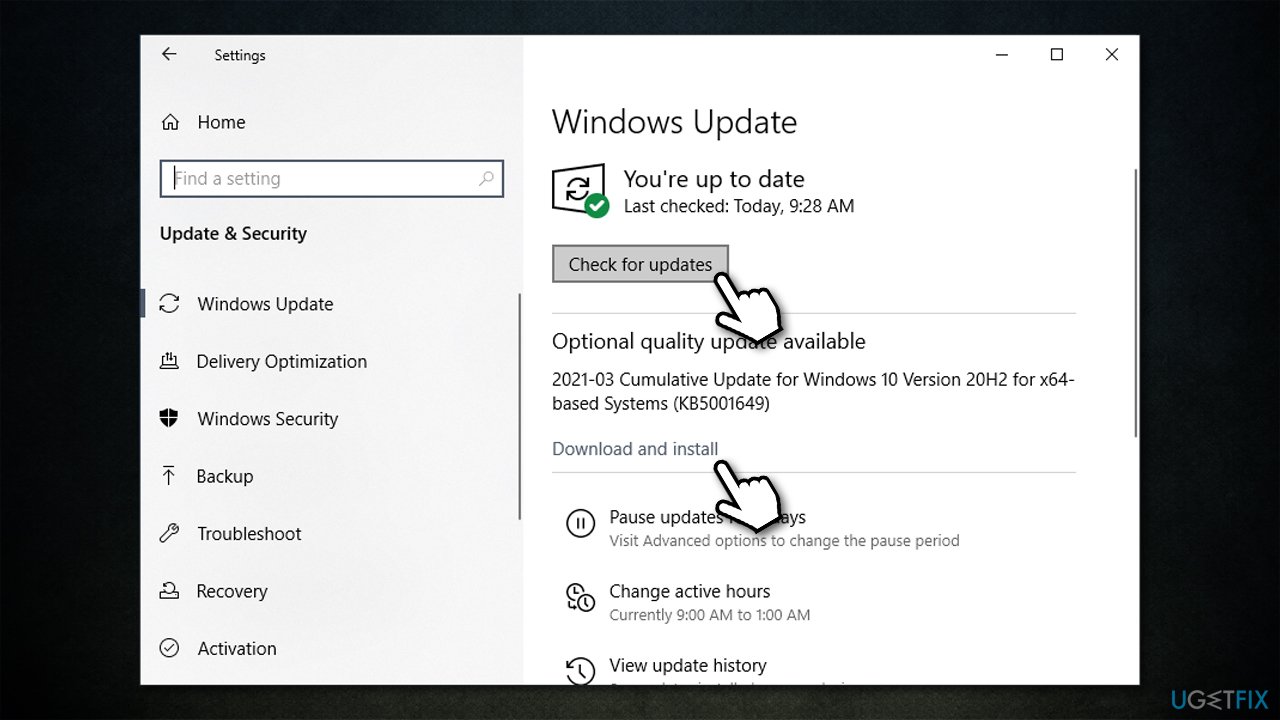
How to fix this device cannot find enough free resources that it can use code 12 install updates - Restart your device.
Method 2. Run hardware and devices troubleshooter
Initially, most of the troubleshooters can be found in Windows settings or Control Panel. However, not all of them are accessible that easily, especially if you run more recent Windows versions. To reach the needed troubleshooter, follow these steps:
- Copy and paste msdt.exe -id DeviceDiagnostic in Windows search bar and hit Enter
- In the new window, click Next
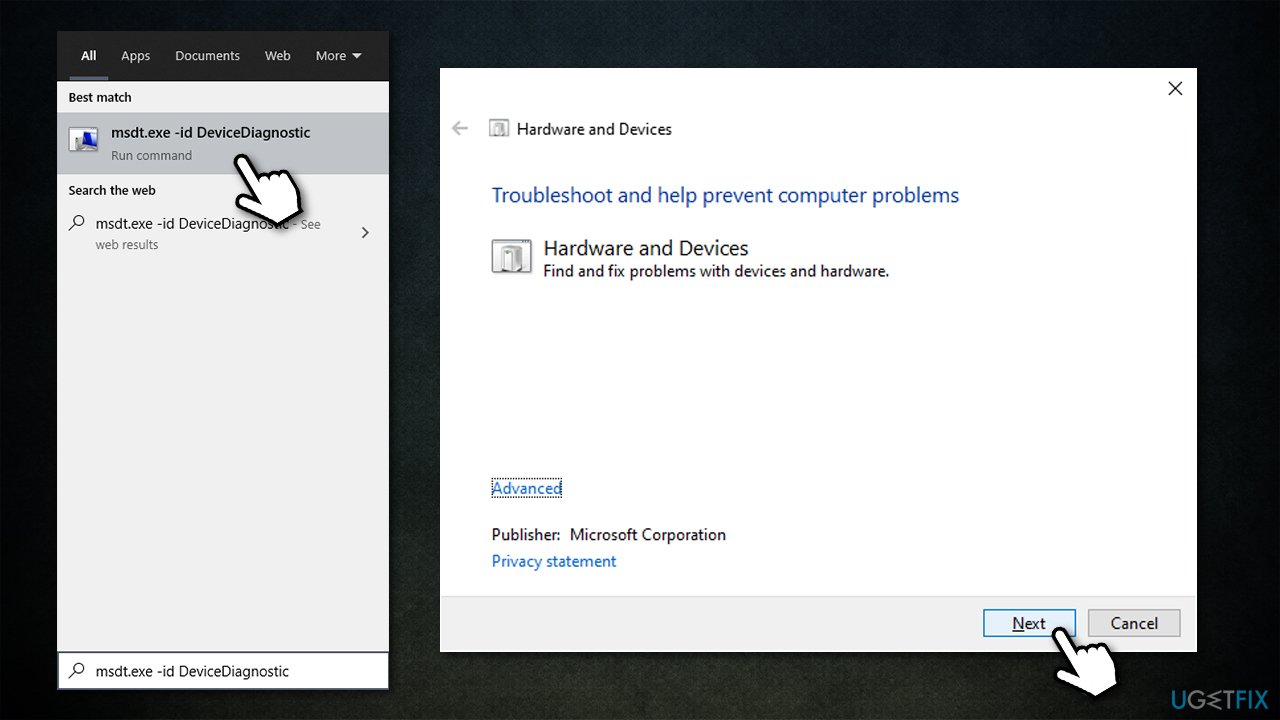
How to fix this device cannot find enough free resources that it can use code 12 run hardware and devices troubleshooter - Wait till the scan completes and apply the suggested fixes
- Restart your PC.
Method 3. Update drivers
Updating problematic drivers might help you solve the issue. Note that you should look for listings that have a small yellow exclamation mark next to them - this is how the problematic device is marked.
- Right-click on Start and pick Device Manager
- Expand Display adapters, Network adapters, or another section
- Right-click on your graphics card and select Update driver
- Next, select Search automatically for drivers
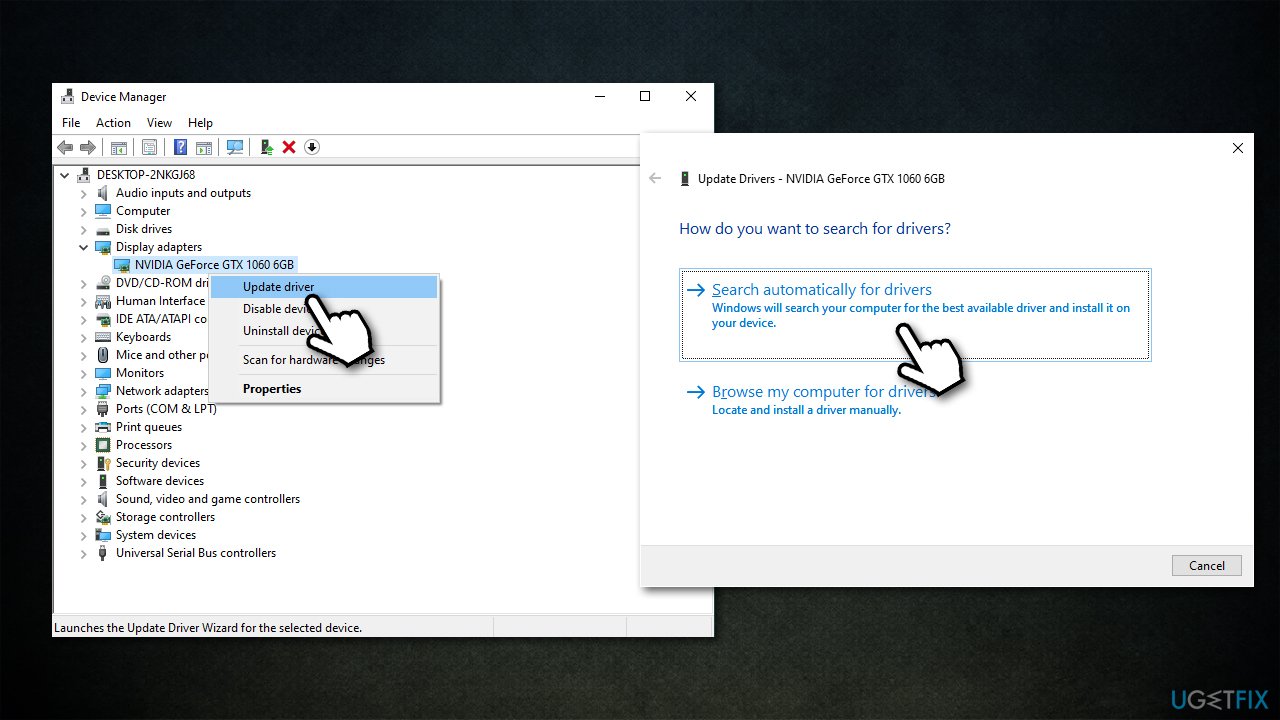
How to fix this device cannot find enough free resources that it can use code 12 update drivers
Keep in mind Device Manager is not the ideal tool to upgrade your drivers, especially if you are dealing with driver problems and GPU drivers. Instead, you should either download drivers from your device manufacturer's website (you need to know the model of your hardware component) or employ an automatic driver updater [rev id="DriverFix"] as a quicker option.
Method 4. Reinstall drivers
If the above method did not work, you should try reinstalling drivers.
- Open Device Manager
- Expand the relevant section, for example, Display adapters
- Right-click on the device and select Uninstall Device
- Tick the Delete the driver software for this device
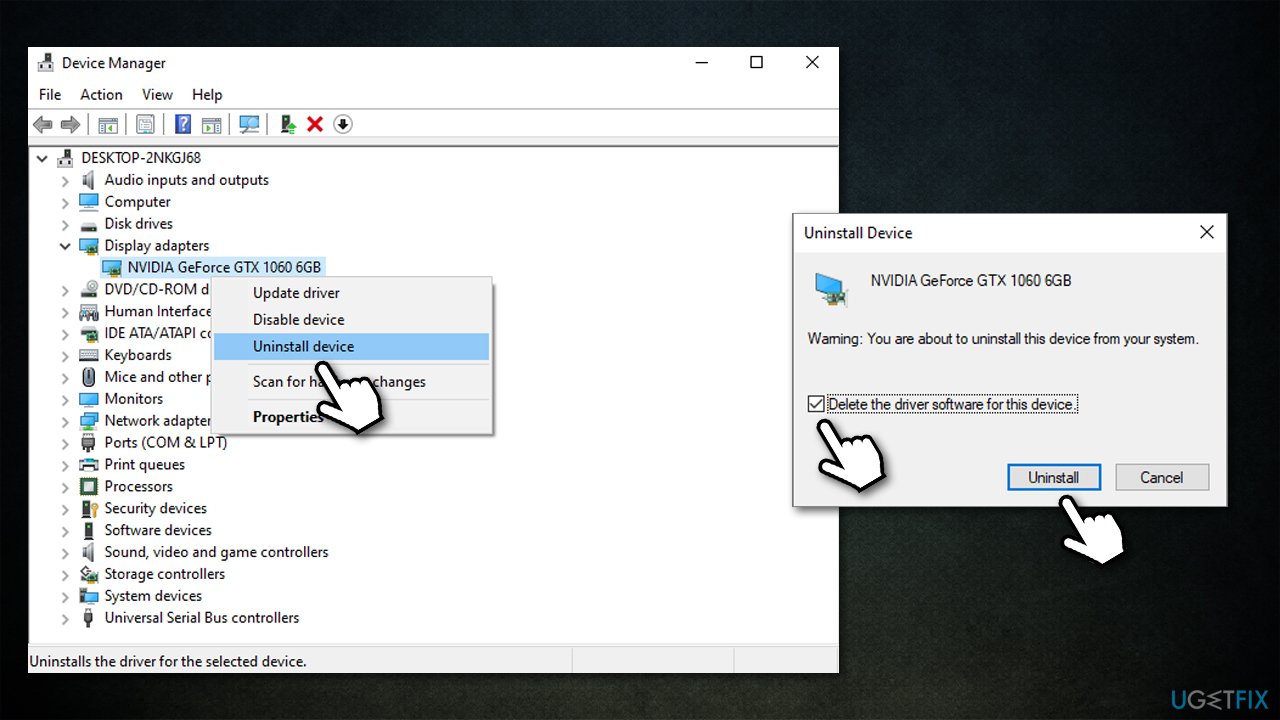
How to fix this device cannot find enough free resources that it can use code 12 reinstall drivers - Restart your PC.
Method 5. Disable a hidden device
Many users reported that disabling the device that is conflicting with the main one helped the fix the "This device cannot find enough free resources that it can use (code 12)" error.
- Open Device Manager
- Click on View > Show hidden devices
- Expand the category you are having problems with
- Look for the problematic device marked with an exclamation mark
- Right-click and select Disable.
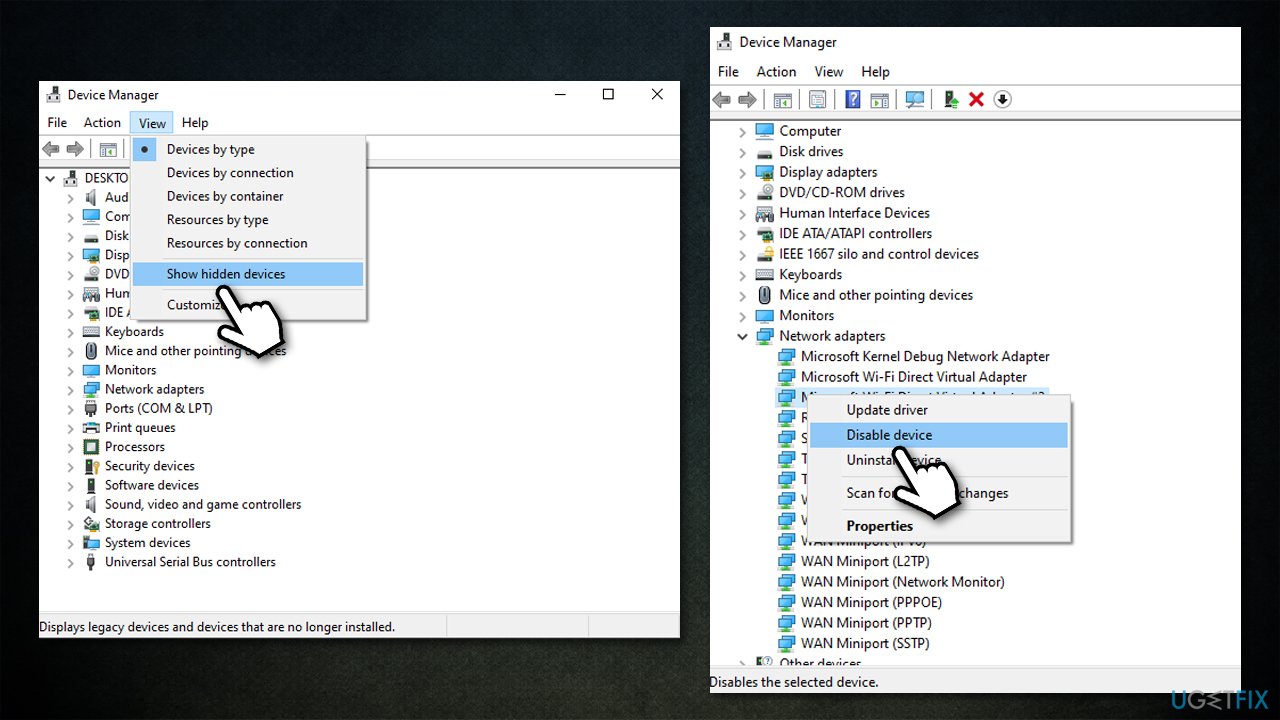
How to fix this device cannot find enough free resources that it can use code 12 disable device
Method 6. Update BIOS
You should skip this step if you are not sure what you are doing, as an incorrect BIOS update process might seriously meddle with your system.
- Type in System Information in Windows search and press Enter
- Note down the information under BIOS Version/Date and BaseBoard Product
- Once you have the relevant information, visit the official website of your motherboard manufacturer
- Download the latest version of BIOS for your motherboard model and install it
- Once done, reboot your computer.
Method 7. Use System Restore
If none of the above solutions helped, you could try using system restore.
- Copy and paste rstrui command into Windows search box, press Enter
- If available, pick Choose a different restore point and click Next
- Mark Show more restore points checkbox
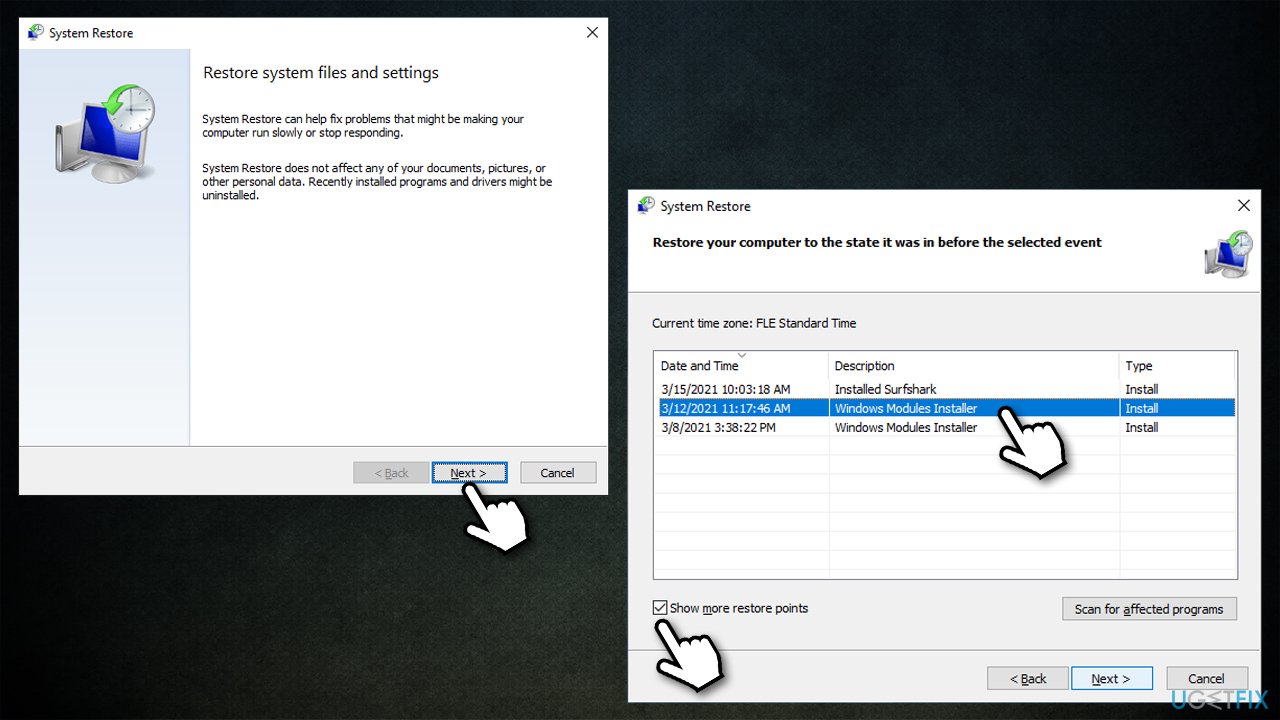
How to fix this device cannot find enough free resources that it can use code 12 use system restore - Select an appropriate point and click Next.
Bottom line
To fix the error, you can try disabling conflicting devices, running a PC repair tool, or checking for driver updates. If none of these solutions work, further investigation into hardware compatibility may be necessary.
Frequently asked questions
This error typically occurs when there are conflicts with hardware devices or insufficient system resources available for the device to function properly. It can happen due to outdated drivers or improper device settings.
To fix the code 12 error on Windows 11, try updating your device drivers through Device Manager or disabling conflicting devices that may be using the same resources. Additionally, adjusting the BIOS settings or changing the hardware configuration may help.
Yes, reinstalling the drivers for the affected device can often resolve the 'code 12' issue, as it refreshes the configuration and may eliminate conflicts. Make sure to check for the latest driver updates compatible with your Windows version.




Report an issue
What's wrong with this guide? We review every report and update or remove content.
Report received — thank you. We'll review and fix it.
You need a free account to submit a report.
Be the first to comment