How to fix
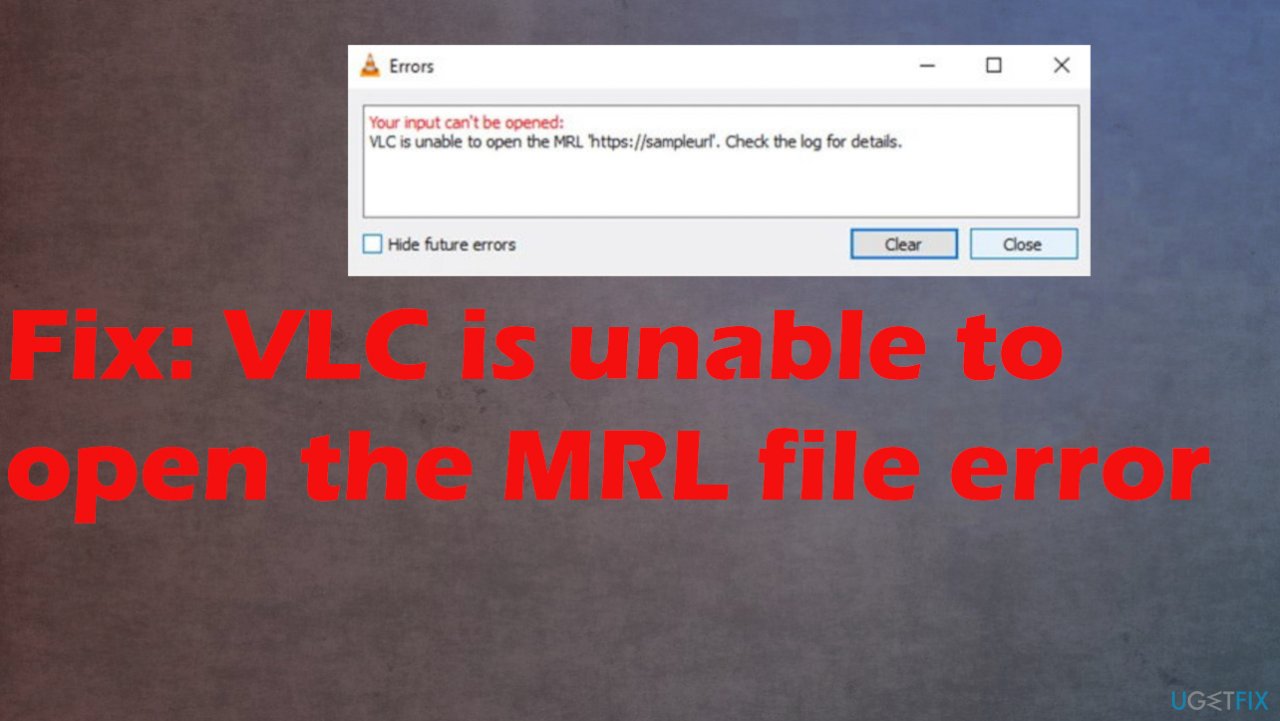
Fix: VLC is unable to open the MRL file error
on Windows
Resolve the VLC MRL file error on Windows 10 and 11 effortlessly. Quick solutions with screenshots and expert-tested methods ensure a smooth playback ex…


What causes Fix: VLC is unable to open the MRL file error?
- Media source blocking access to the file
- Internal firewall roadblock
- Program error within VLC
- System issues with files or functions
- Corruption of system files
Repairs Windows system files, removes malware, and restores a clean OS state — without reinstalling.
Hey. I try to run the DVD, and the error is coming up. "VLC is unable to open the MRL file" appears when I attempt to play media files via VLC. Have no idea what happened. Found some forum posts about the same issue when streaming. This is not a computer issue probably. Do you know any solution?
VLC is unable to open the MRL file error can trigger the failure of the VLC media player when the application was unexpectedly blocked. It can be because of the media source that prevents the player from accessing the needed file due to additional errors. It might also happen because of the system issue with files or functions.
The problem occurs with Blue-ray, DVD, and Streaming, but the main issue is with the VLC player, and it seems that users keep complaining about it even though the program already received upgrades.[ref en-1] People inform that the video playing is unsuccessful, and this frustrates them when the issue repeats again and again.[ref en-2]
It is possible that the error is the result of an internal firewall roadblock or a program error. It is most likely the fault of this application itself but can be triggered by the error with the remotely located content. You can take some steps to ensure that the VLC is unable to open the MRL file error caused by a particular problem.
If the problem is related to the Windows system and its issues, updating the operating system can help since there are many issues caused by the faulty upgrade or the version that requires patches.[ref en-3] Another useful method that can help deal with these errors - system file corruption check. When cyber infections and other issues with the machine trigger alterations to data in the system folders, functions can fail. Try to run [d1] and fix any found problems to avoid further damage to the computer.
This is one of the methods to troubleshoot or even fix the VLC is unable to open the MRL file error on Windows machines. Other steps below can show how to ensure the proper connections and possibly solve the issue with the media player by altering settings and preferences.
1. Change firewall settings
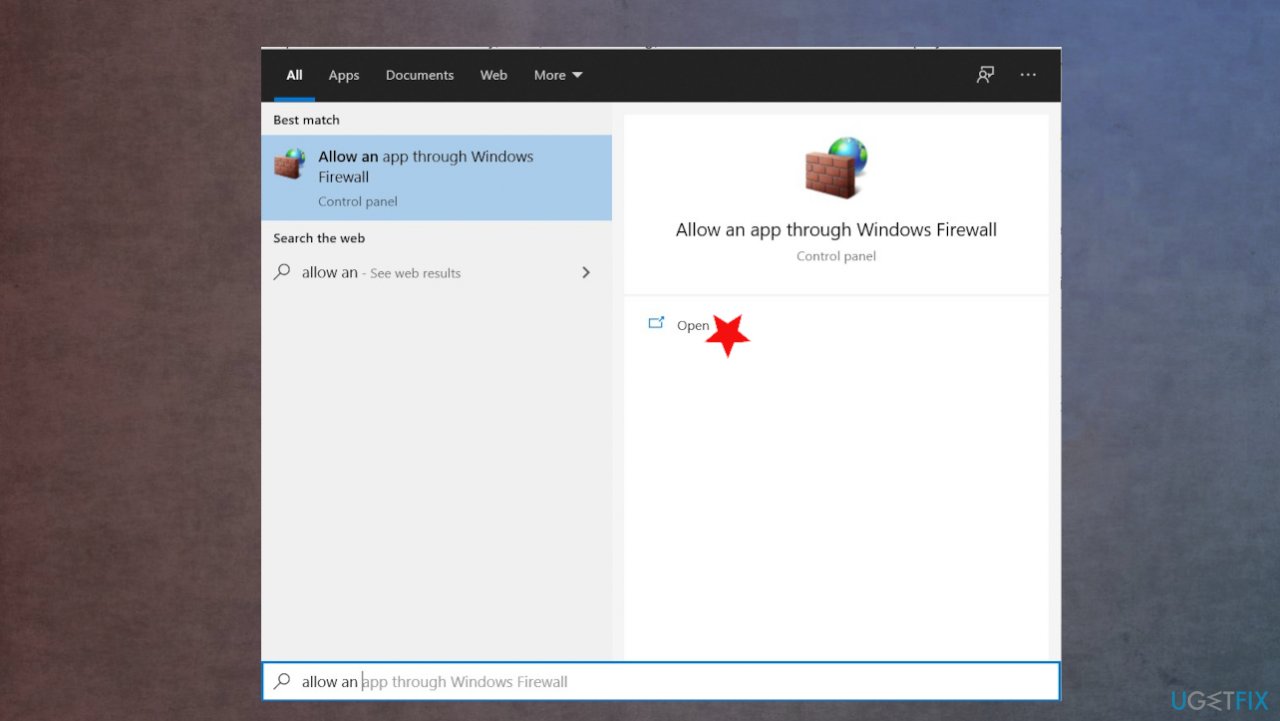
- Type Allow an app through the firewall in the search box and open the application.
Vlc unable to open file fix allow settings - In the Allowed apps window, click Change settings to get the opportunity for changes.
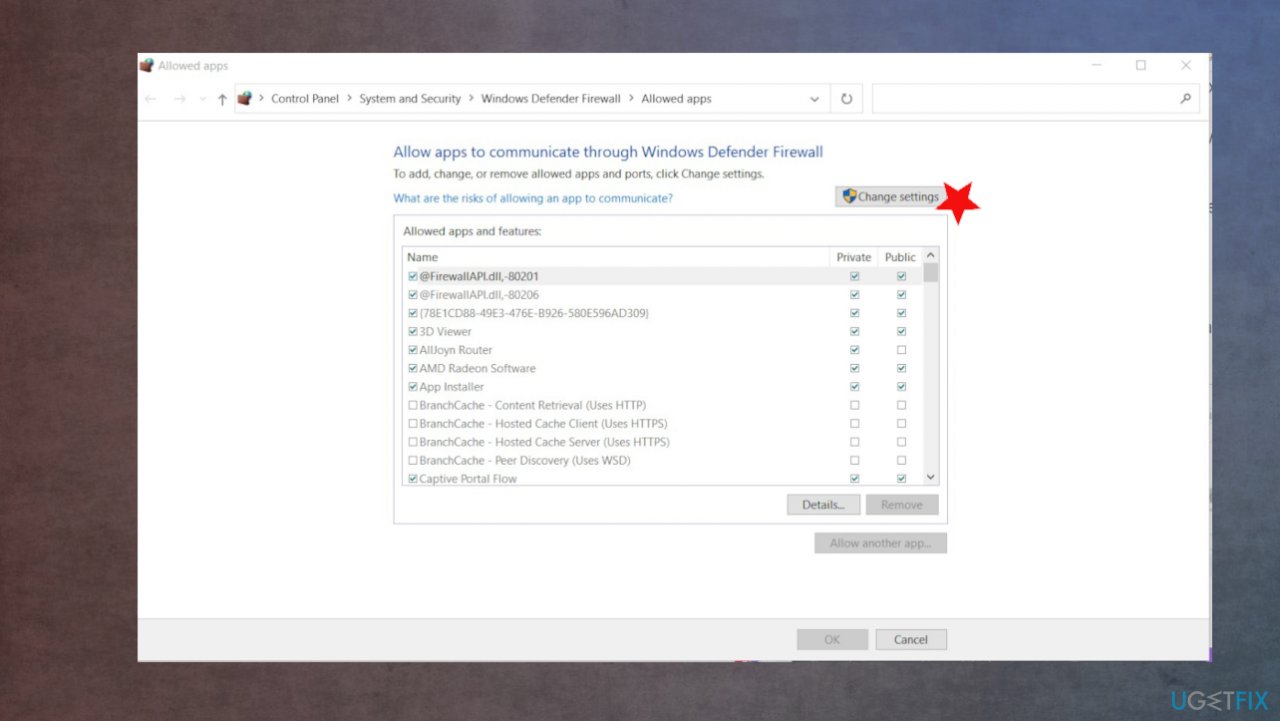
Vlc unable to open file fix allow apps - Then locate VLC Media Player in the list and put a tick in the box before the VLC media player.
- Check the boxes of Private and Public.
- Save the change and reboot the machine.
- Try to launch VLC player again.
2. Turn off the firewall
- Press Start and hit the gear icon to open up Settings.
- Search for Windows Defender Firewall and then select Windows Defender Firewall.
- Click on Turn Windows Defender Firewall on or off.
- Check the Turn off Windows Defender Firewall boxes under both settings.
3. Update the Player
- Open VLC media player.
- Open the Help drop-down menu at the top left of the window.
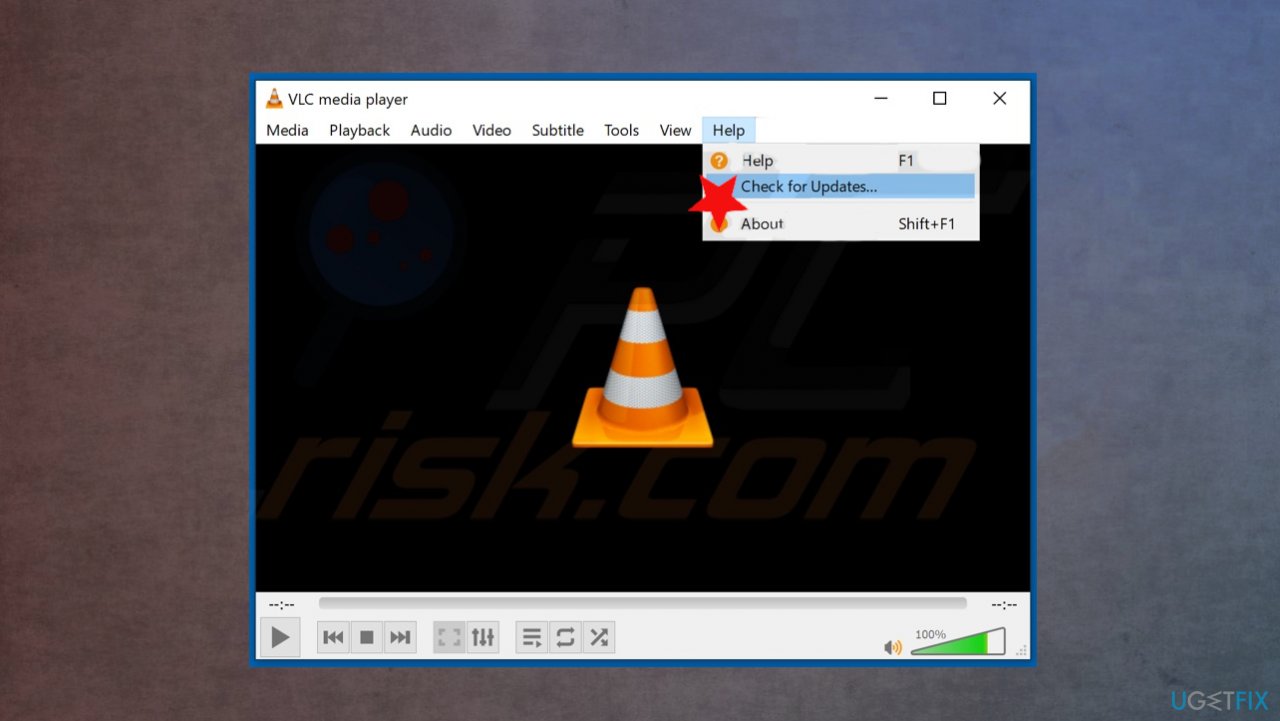
Vlc unable to open file fix check updates - Click Check for updates.
- The program will check for updates.
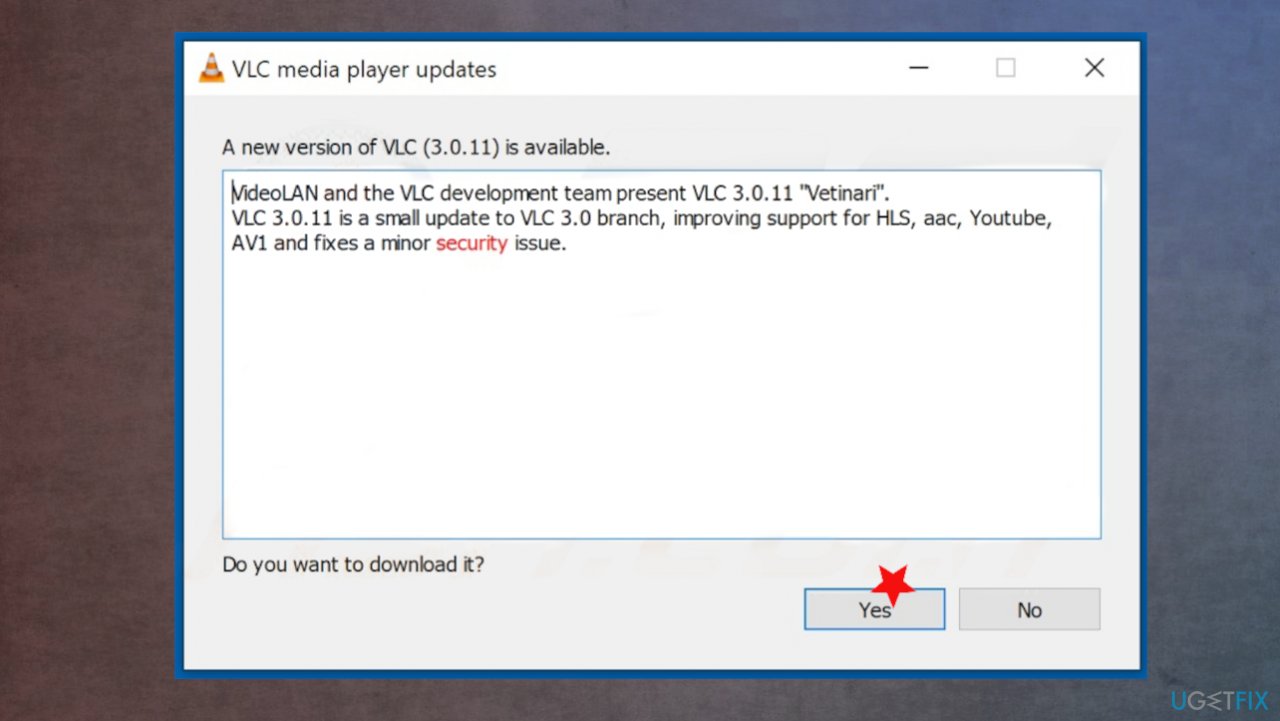
Vlc unable to open file fix check updates vlc - Follow the installation wizard.
4. Claim the ownership of the file
- Right-click on the file and choose Properties.
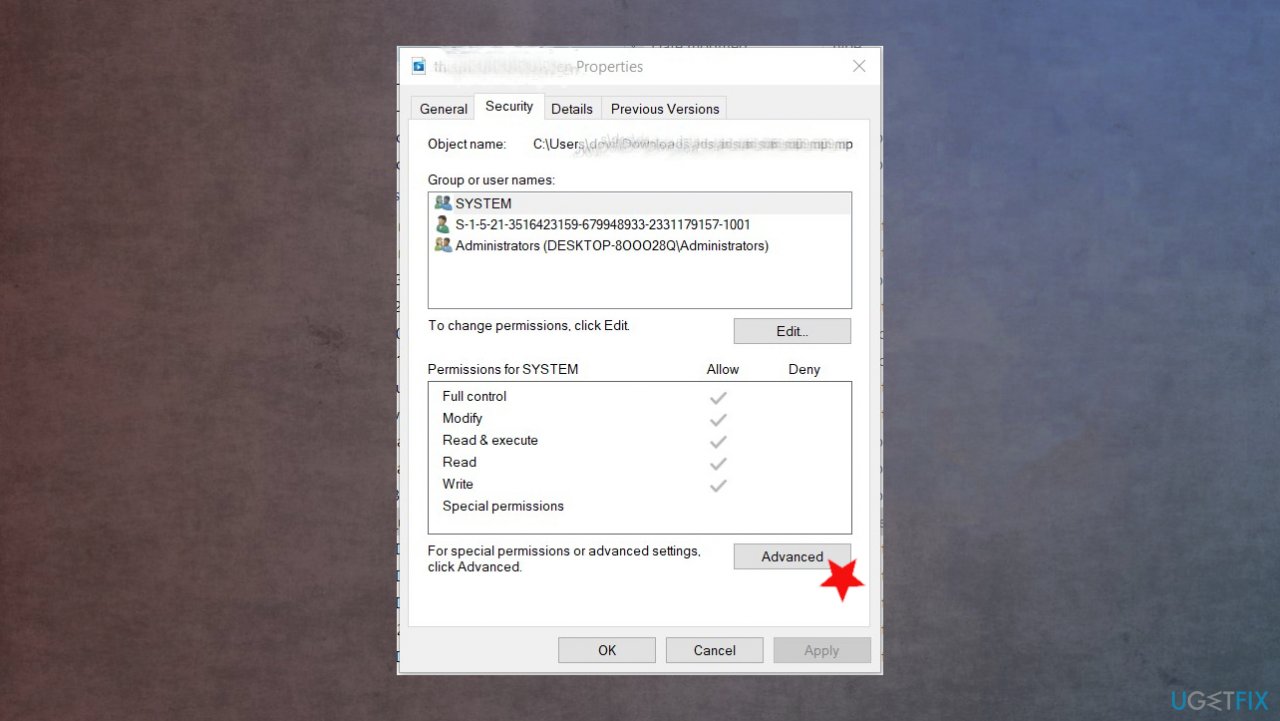
Vlc unable to open file fix properties - Go to the Security tab and click on the Advanced button associated with Permissions.
- Click the Change button at the top.
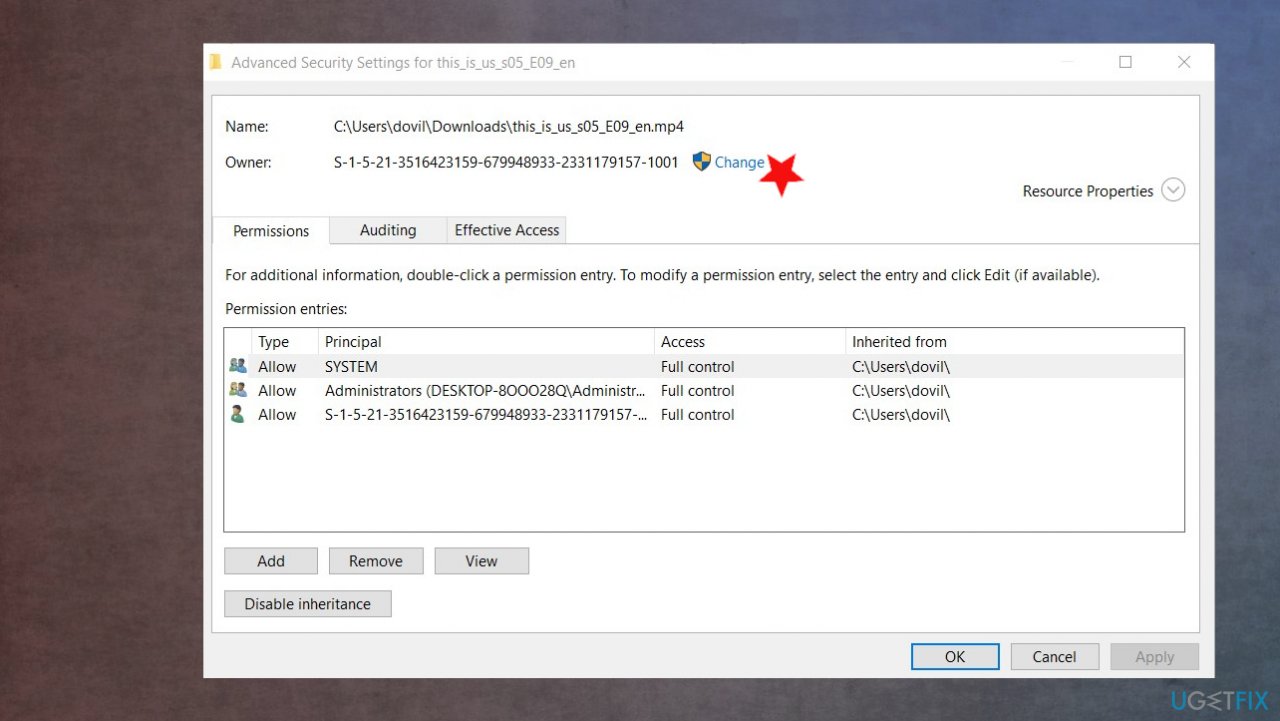
Vlc unable to open file fix change - Type Administrator in the box associated with Enter the object name to select and hit OK.
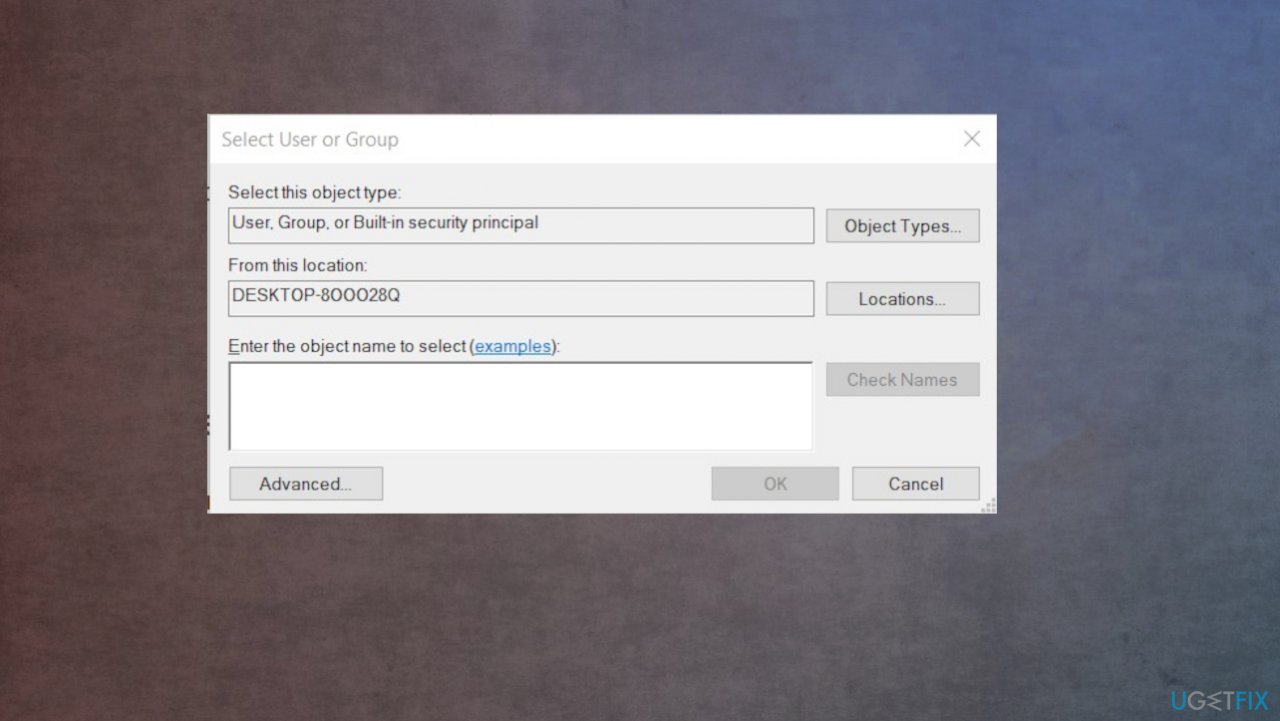
Vlc unable to open file fix enter administrator - Check the box associated with Replace all child object permission entries with inheritable permission entries from this object and click Apply.
- See if you are able to open the files.
Bottom line
To fix the 'VLC is unable to open the MRL file' error, consider updating your Windows operating system and running a system file corruption check. If these solutions do not resolve the issue, further troubleshooting may be necessary.
Frequently asked questions
This error typically indicates that VLC Media Player cannot access the specified file or stream due to an incorrect path, unsupported format, or network issue.
You can fix this error by checking the file path for correctness, ensuring the file is accessible, or adjusting the network streaming settings in VLC.
Yes, try updating VLC to the latest version, disabling any firewall that might block the connection, or resetting VLC preferences to resolve MRL errors.




Report an issue
What's wrong with this guide? We review every report and update or remove content.
Report received — thank you. We'll review and fix it.
You need a free account to submit a report.
Be the first to comment