How to fix
WiFi disconnects after launching games
on Windows
Resolve WiFi disconnections while gaming on Windows 10 and Windows 11. Get back to seamless gameplay with expert-tested solutions. Fixed in minutes!

![[Fix] WiFi disconnects after launching games on Windows](https://ugetfix.com/wp-content/uploads/articles/askit/fix-wifi-disconnects-after-launching-games-on-windows_en-768x432.jpg)
What causes [Fix] WiFi disconnects after launching games on Windows?
- Conflicting software
- Driver problems
- Network configuration errors
- Firewall or antivirus settings interference
- Outdated or incompatible network drivers
Repairs Windows system files, removes malware, and restores a clean OS state — without reinstalling.
Hello. When I launch a game on my Windows PC, the WiFi disappears. When I quit the game it connects again. What could be the issue? Any tips would be appreciated.
Windows users frequently encounter the annoying problem of their WiFi disconnecting after starting games, which can have a big negative effect on their gaming experiences. This problem usually appears when users start playing games and their WiFi connection suddenly disconnects. There are several potential root causes for this issue, most frequently conflicting software, driver[ref en-1] problems, or network configuration errors.
Because it breaks up the flow of their gaming sessions, players find this issue to be quite inconvenient. In addition to interfering with online multiplayer games, the abrupt disconnections also impact gamers participating in single-player activities that depend on an active internet connection for other purposes, such as game updates or online functionalities. Apart from gaming, users could encounter difficulties with other online activities like streaming videos or downloading files because of the frequent WiFi disruptions.
A possible explanation for this problem could be a clash between the gaming software and the current network configuration or drivers. Users need to consider the compatibility of their games with the network environment and ensure that both software and hardware components are up to date. WiFi disconnections may occasionally result from firewall or antivirus settings interfering with the smooth running of online games.
Network drivers that are out-of-date or incompatible could be another culprit causing this problem. One way to lessen the issue is to make sure the network drivers are up to date and work with both the operating system and the game program. In addition, network adapters may not enter power-saving modes when gaming, which could result in abrupt disconnects, if power management settings are checked and adjusted.
In this guide, you will find 5 steps that should help you fix WiFi disconnecting when launching games in Windows. You can also run a maintenance tool like [d1] that can fix most system errors, BSODs,[ref en-2] corrupted files, and registry[ref en-3] issues. Otherwise, follow the step-by-step instructions below.
Solution 1. Update Drivers
Outdated drivers could be the cause of this issue. In this case, you can fix it automatically by using [rev id="DriverFix"], which will scan your PC for missing and out-of-date device drivers. Or you can update them manually:
- Open Settings.
- Click on Update & Security.
- Click on Windows Update.
- Click the Check for updates button.
- Click the View optional updates option.
- Click the Driver updates tab.
- Select the driver you want to update.
- Click the Download and install button.
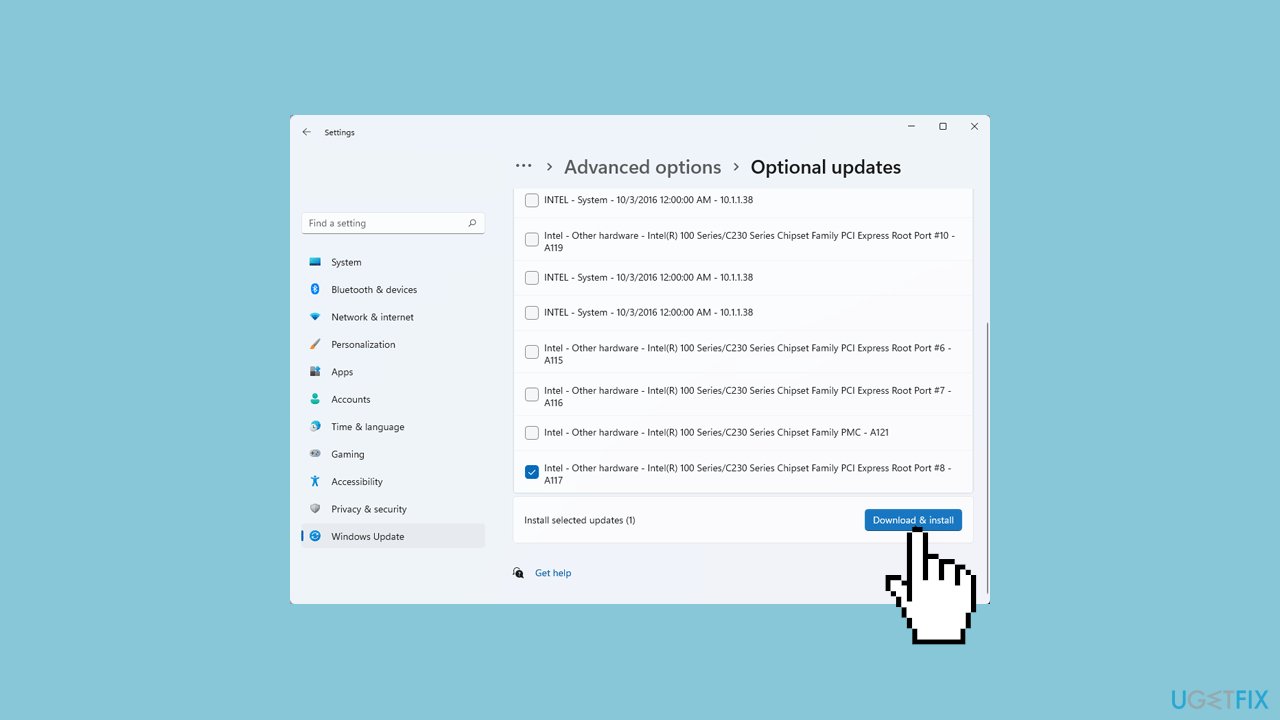
If the View optional updates link is not available after checking for updates, then Windows Update does not have any new drivers or any updates for other products at that particular time.
Solution 2. Run the Internet Connection Troubleshooter
- Press the Windows key + I to open Settings.
- Open the System tab in the left pane.
- In the right pane, scroll down and click on Troubleshoot.
- Under Options, click on Other troubleshooters.
- Click the Run button for Internet Connections.
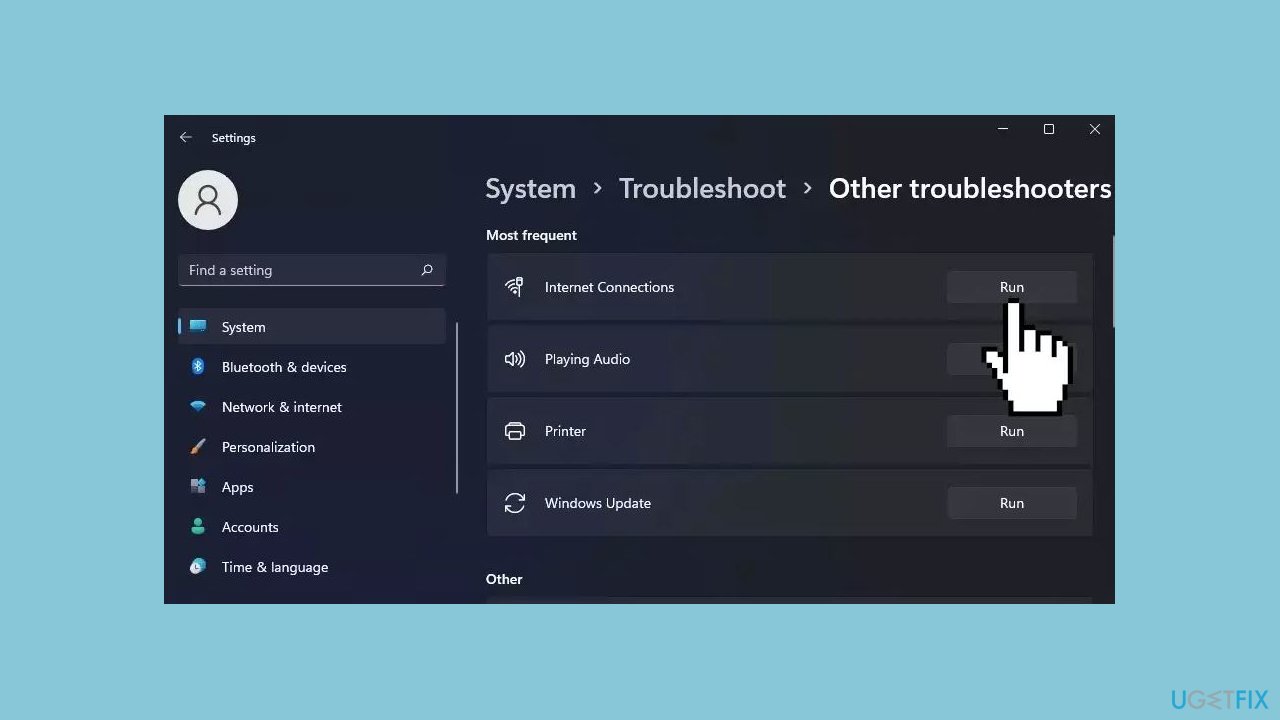
- Windows will launch the troubleshooter and show the issues that Windows can troubleshoot.
- Click on Troubleshoot my connection to the Internet.
- The troubleshooter will scan the system for issues and recommend potential fixes.
- Apply the fixes and check for any improvements.
- If the issues persist, run the Network Adapter troubleshooter.
- Press the Windows key + I to open Settings.
- In the System tab, go to Troubleshoot > Other Troubleshooters.
- In the troubleshooter window, select All network adapters and click Next.
Solution 3. Fix Corrupted System Files
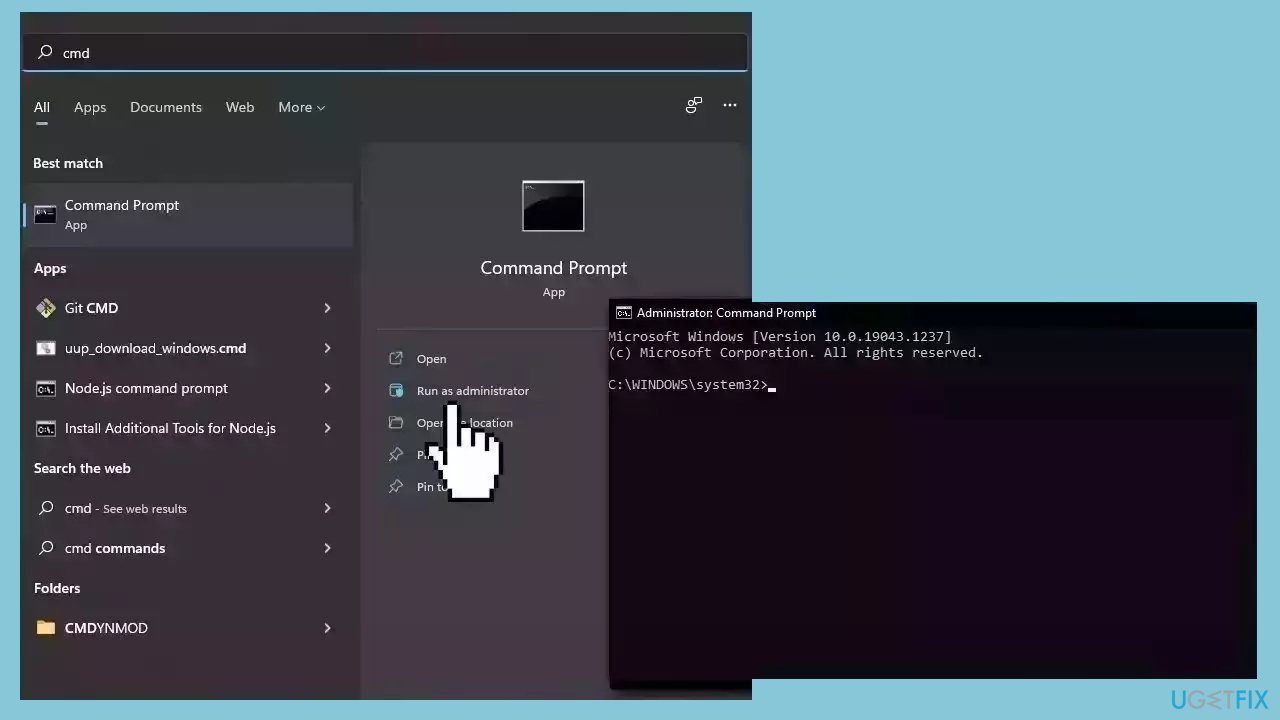
Use Command Prompt commands to repair system file corruption:
- Open Command Prompt as administrator
- Use the following command and press Enter:
sfc /scannow
- Reboot your system
- If SFC returned an error, then use the following command lines, pressing Enter after each:
DISM /Online /Cleanup-Image /CheckHealth
DISM /Online /Cleanup-Image /ScanHealth
DISM /Online /Cleanup-Image /RestoreHealth
Solution 4. Reset Network Settings
- Open Settings and click on the Network & Internet tab in the left pane.
- Scroll down and click on Advanced network settings to view all network devices and the network reset option.
- Scroll down to the More settings section and click on Network reset.
- Click the Reset now button for Network reset.
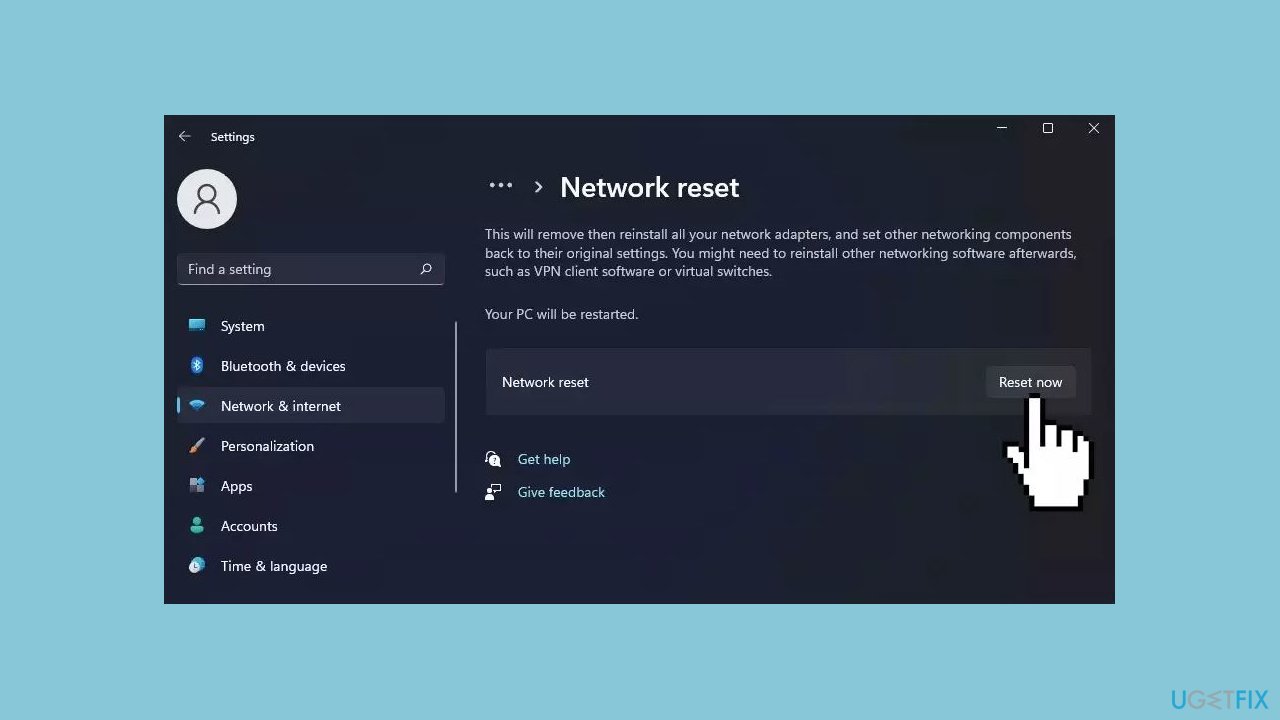
- Click Yes to confirm the action.
Solution 5. Repair Install Windows
- Visit the official Microsoft website to download Windows 11 or Windows 10 Installation Media
- Run the Media Creation Tool and select Create Installation Media for another PC.
- Select your USB drive.
- Let the Process complete of writing the Installation files to the USB drive.
- Click Finish.
- On the PC you wish to upgrade, Press Windows + E to open the File Explorer.
- Open the Removable drive and click Setup.exe.
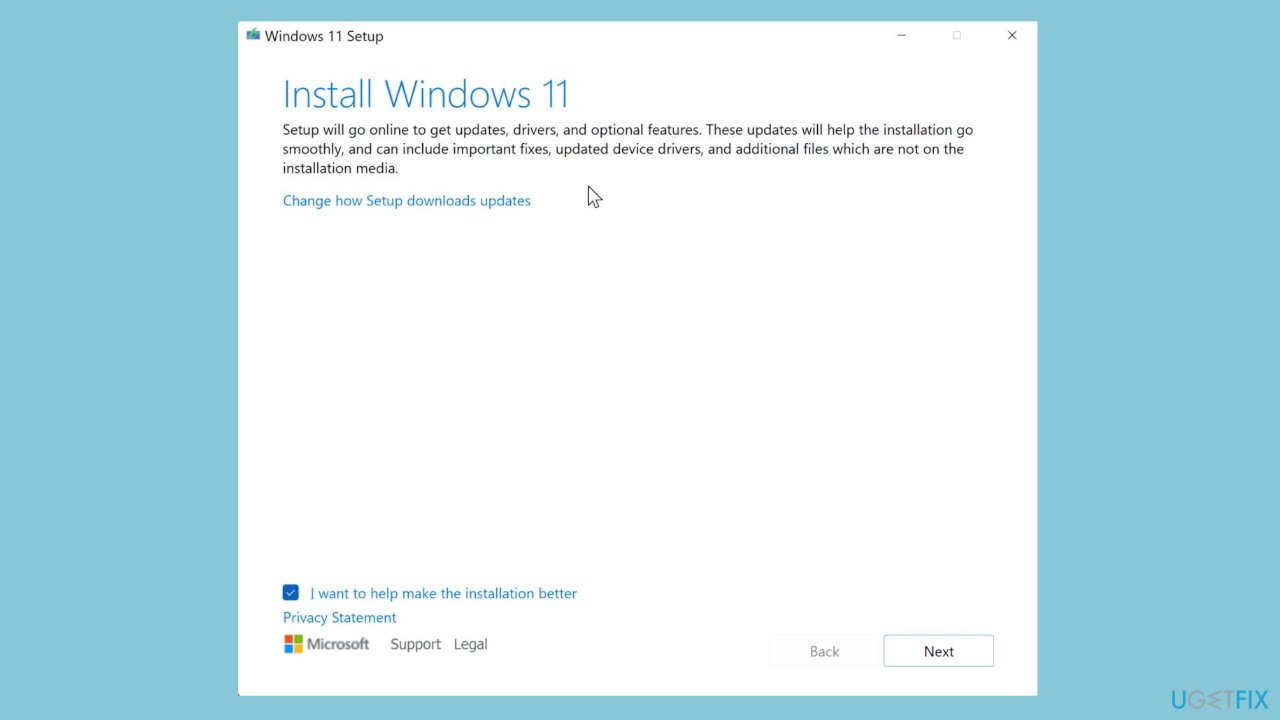
- Accept the license terms on the next screen.
- Confirm the Upgrade options – Files, apps and Settings are kept.
- Click Install, and the upgrade should start.
Bottom line
To fix the WiFi disconnections when launching games, ensure that your network drivers are up to date, check power management settings, and adjust firewall or antivirus settings if necessary. If these steps do not resolve the issue, consider running a maintenance tool to address system errors.
Frequently asked questions
This issue may be caused by network adapter settings or a conflict with the game’s network requirements. Adjusting power settings or updating your network drivers can often resolve the problem.
To prevent disconnections, you can try disabling the 'Allow the computer to turn off this device to save power' option in the network adapter properties. Additionally, ensuring your WiFi drivers are up-to-date can help improve stability.
You should check for any background applications that may be using bandwidth, as well as ensuring your router firmware is updated. Also, consider switching to a wired connection for a more stable gaming experience.




Report an issue
What's wrong with this guide? We review every report and update or remove content.
Report received — thank you. We'll review and fix it.
You need a free account to submit a report.
Be the first to comment