How to fix
Windows 11 freezes when alt-tabbing from the game
on Windows
Resolve Windows 11 freezing issues when alt-tabbing from games with proven solutions. Get back to gaming in no time—expert-tested fixes await!

![[Fix] Windows 11 freezes when alt-tabbing from the game](https://ugetfix.com/wp-content/uploads/articles/askit/fix-windows-11-freezes-when-alt-tabbing-from-the-game_en-768x432.jpg)
What causes [Fix] Windows 11 freezes when alt-tabbing from the game?
- Corrupted system files
- Registry settings for Alt+Tab
- Incompatibility with specific games
- Issues with Windows updates
- System performance problems
Repairs Windows system files, removes malware, and restores a clean OS state — without reinstalling.
Hello. My Windows 11 PC started freezing whenever I alt-tab from a game. It has happened multiple times and it is super annoying. Can I do anything to fix this?
Windows 11 is the newest operating system from Microsoft. It was released at the end of 2021 and it offers an updated user interface, design, and many other features.[ref en-1] However, many people noticed that there are issues with the newest version of Windows. There are various bugs, glitches, and freezes.
Recently, many people have flooded the online forums with a new problem - Windows 11 freezes when alt-tabbing from the game. Users report the screen freezing but the audio still playing and the mouse cursor working but not clicking on anything. The issue happens while playing Valorant, Forza, and other games.
While it is unknown why exactly Windows 11 could start freezing when alt-tabbing from the game, in this guide, you will find 6 steps that could help you fix it. You will learn how to uninstall Windows updates, use the system restore utility, and much more.
If you want to avoid a lengthy troubleshooting process, you can also use a maintenance tool like [d1] that can fix most system errors, BSODs,[ref en-2] corrupted files, and registry[ref en-3] issues. Otherwise, follow the step-by-step instructions below carefully.
Method 1. Fix Corrupted System Files
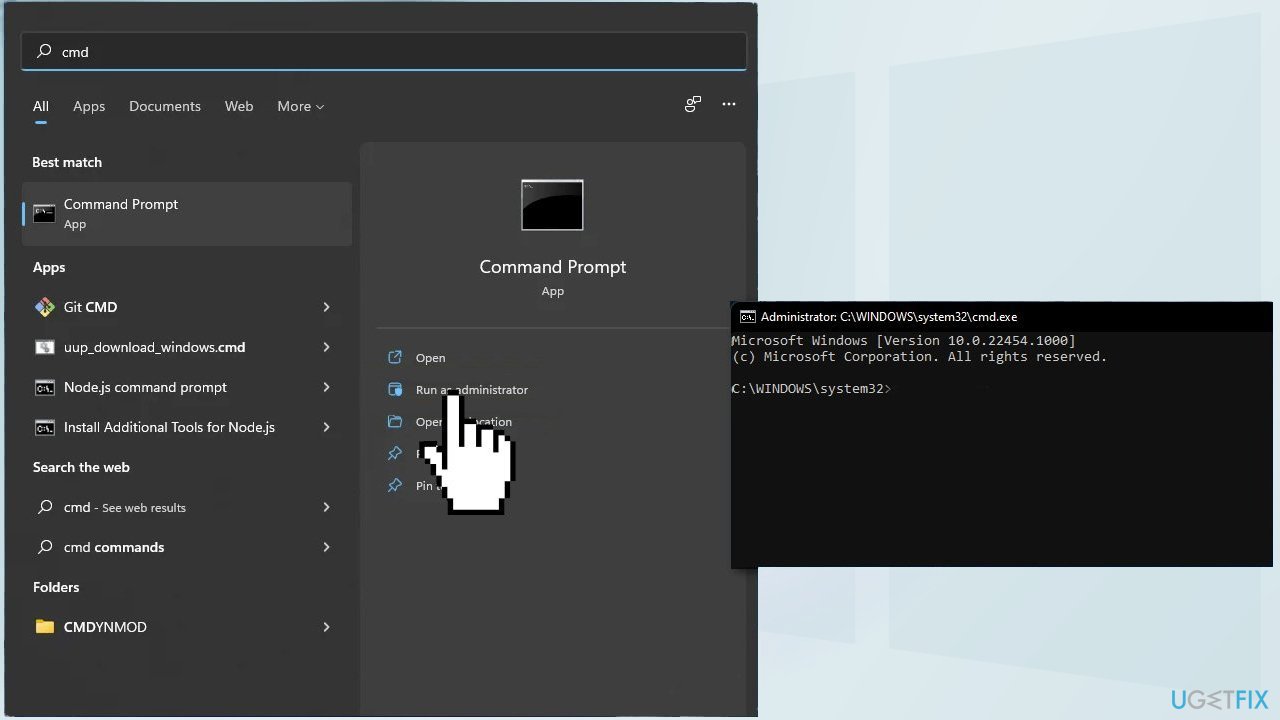
Use Command Prompt commands to repair system file corruption:
- Open Command Prompt as administrator
- Use the following command and press Enter:
sfc /scannow
- Reboot your system
- If SFC returned an error, then use the following command lines, pressing Enter after each:
DISM /Online /Cleanup-Image /CheckHealth
DISM /Online /Cleanup-Image /ScanHealth
DISM /Online /Cleanup-Image /RestoreHealth
Method 2. Revert to the old Alt+Tab System
- Click on the search bar and type in regedit
- Open the Registry Editor and visit this path:
HKEY_CURRENT_USER\\Software\\Microsoft\\Windows\\CurrentVersion\\Explorer
- Right-click on the Explorer folder and pick new, then DWORD value (32 bit)
- Set the name as AltTabSettings
- Double-click on the newly created AltTabSettings and change the value from 0 to 1
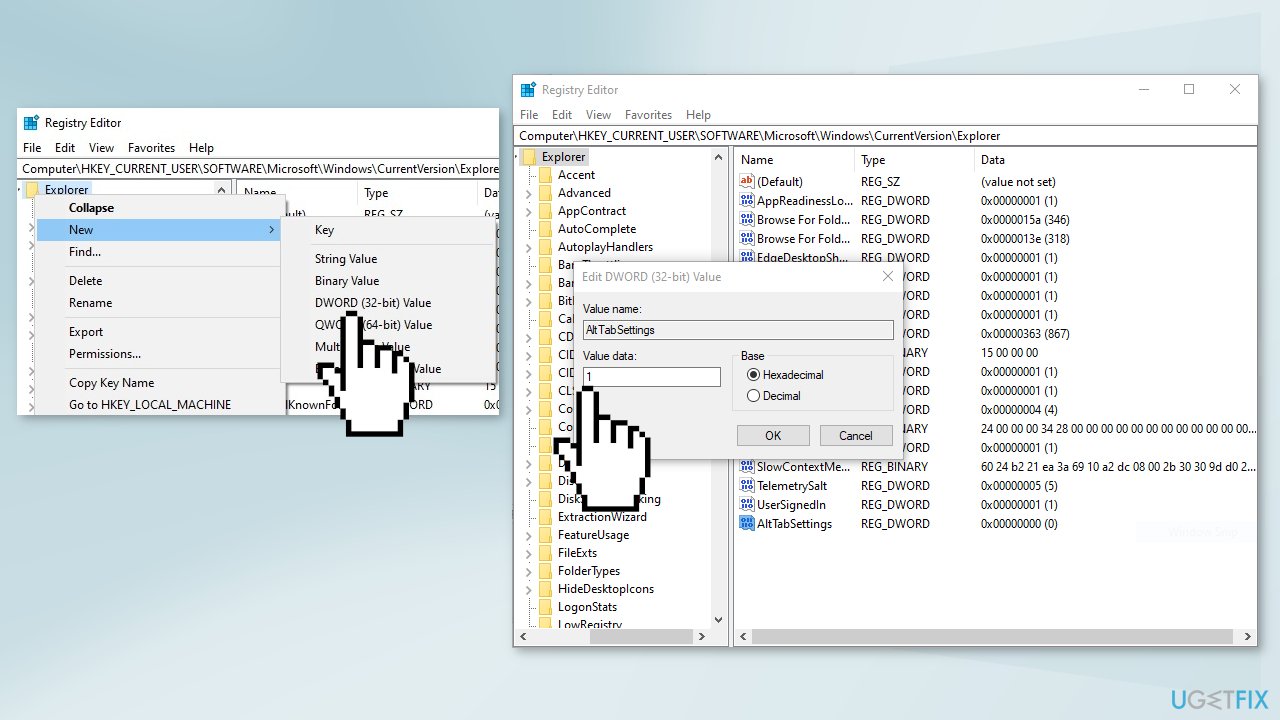
- Click OK and restart your system
Method 3. Switch from Fill to Letterbox in Valorant
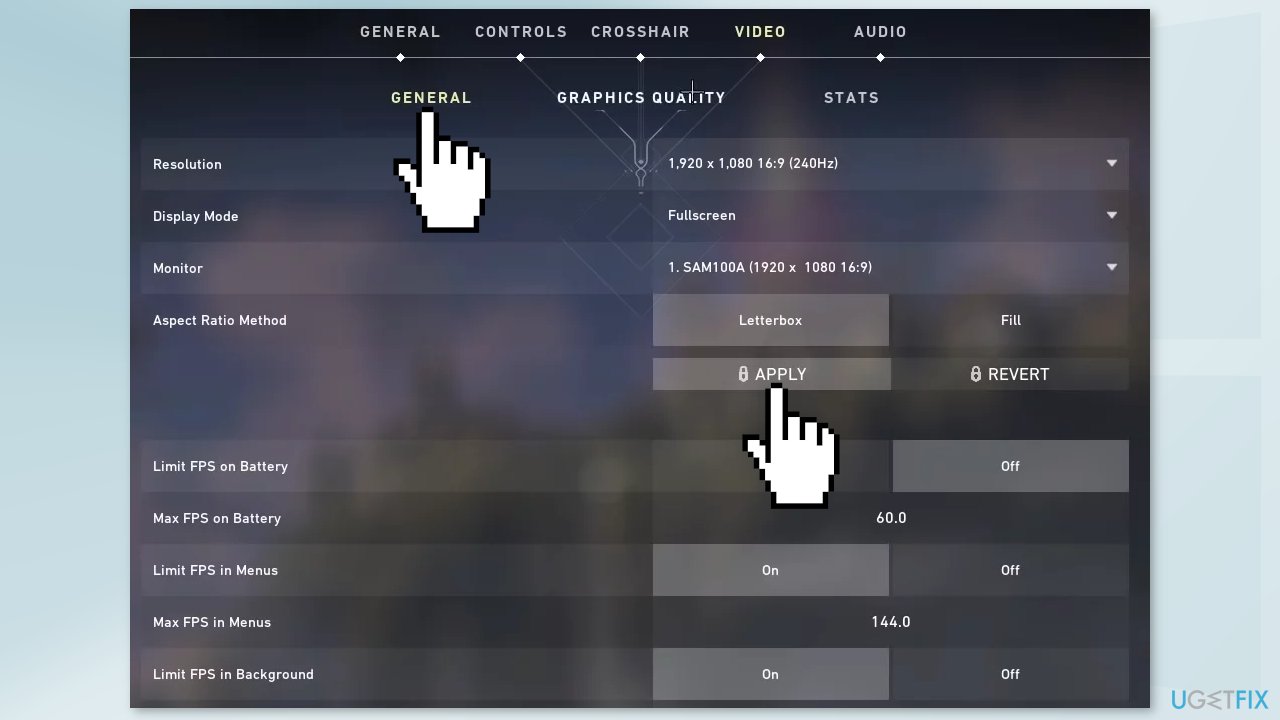
If you experience this issue while playing Valorant, you can try changing the settings, which some users say has helped make the crashes less frequent.
- Click on the Video tab on the top right
- Go to the General Settings and find the Aspect Ratio Method
- Choose Letterbox and press APPLY
Method 4. Uninstall Recent Windows Updates
Before proceeding, keep in mind that this can leave your device unprotected from the latest security threats.
- In Settings, from the left sidebar, select Windows Update
- On the Windows Update page, click Update History
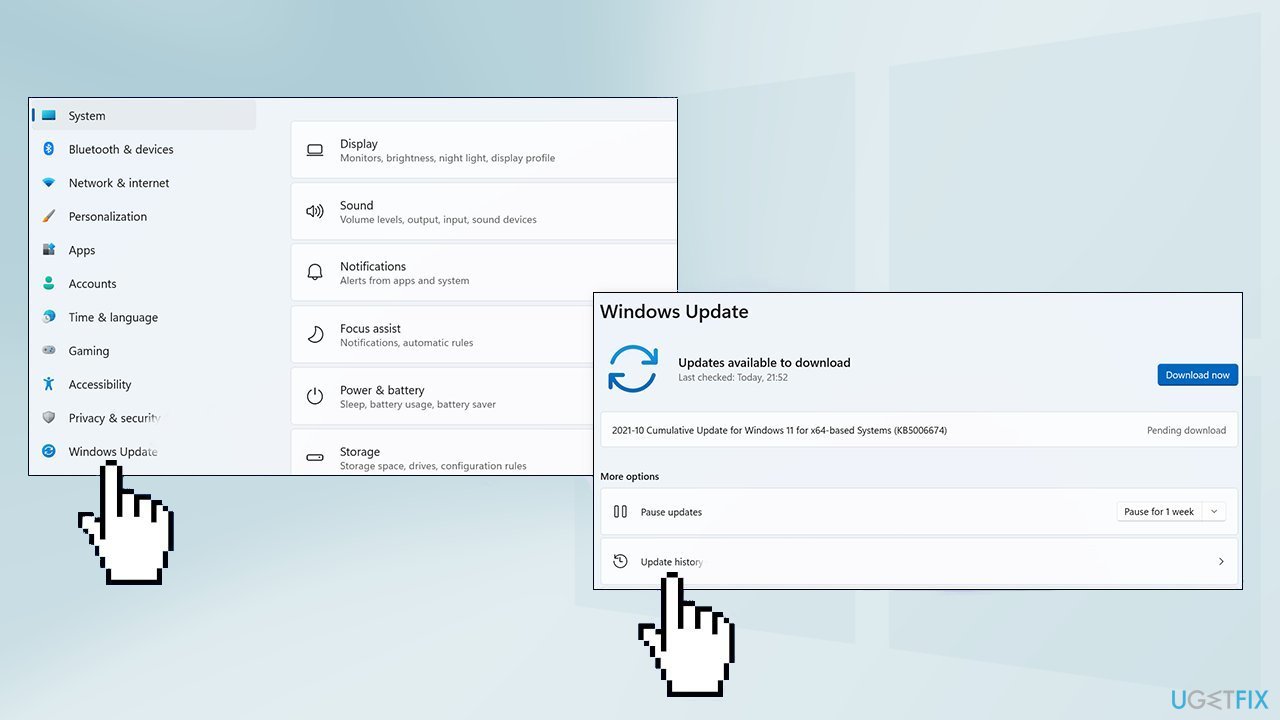
- From the Related Settings section, choose Uninstall Updates
- To remove an update, select it in the list and then click Uninstall
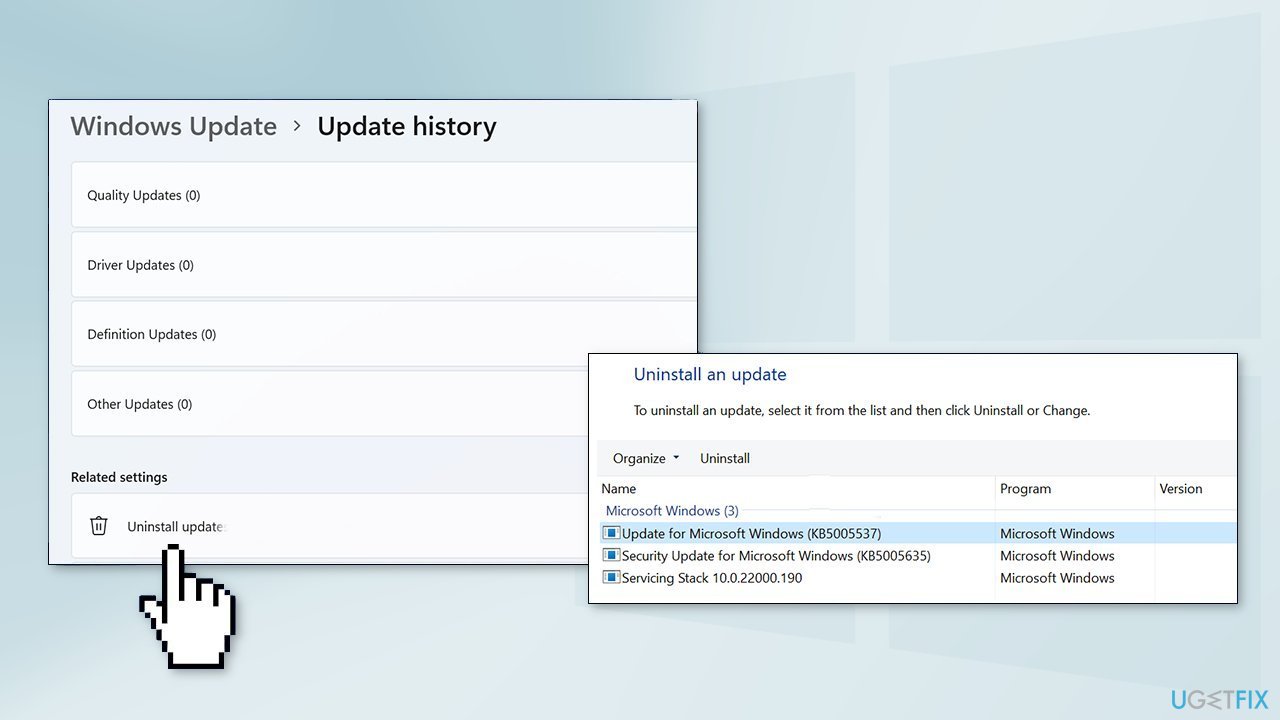
- Click Yes in the prompt to continue
Method 5. Perform a System Restore
- Go to the Start menu, type
restore, and click on Create a restore point - Click System Restore, then follow the prompts until you can select a restore point
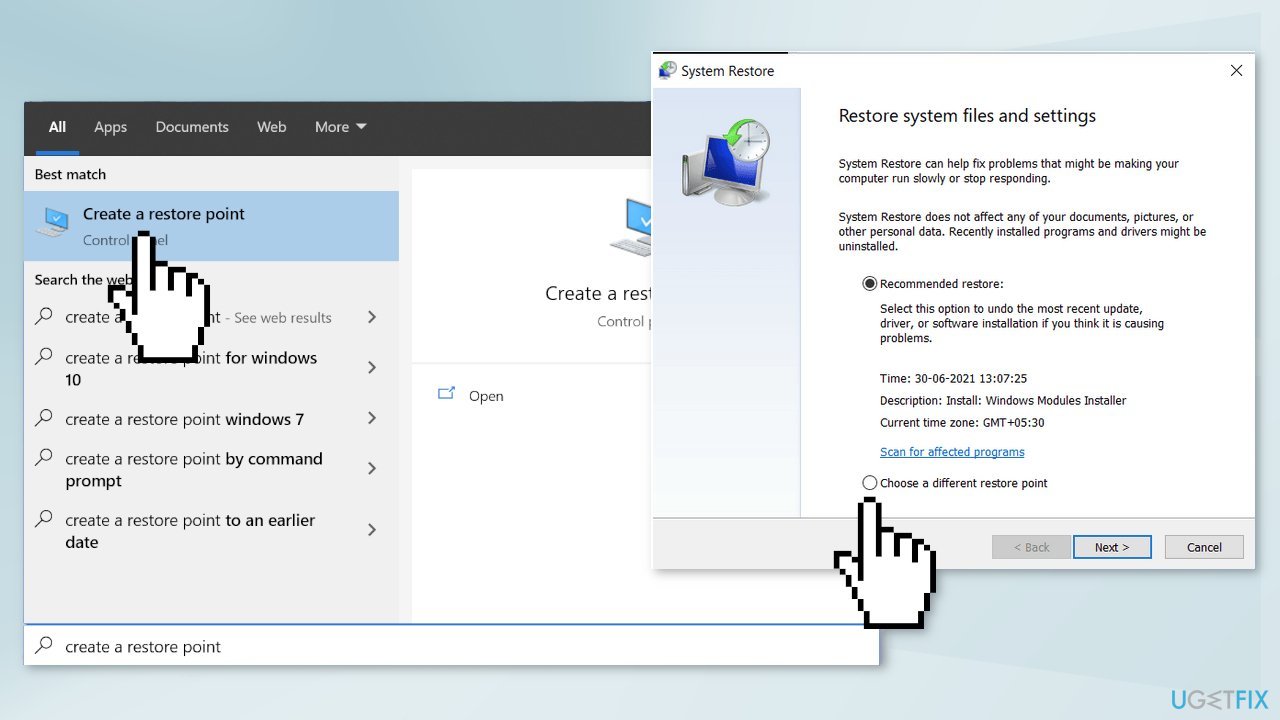
- Select the one you want (ideally before the freezing problems started) and go ahead with the process
Method 6. Perform a Repair Install
- Visit the official Microsoft website to download Windows 11 Installation Media
- Run the Media Creation Tool and select Create Installation Media for another PC
- Select your USB drive
- Let the Process complete of writing the Installation files to the USB drive
- Click Finish
- On the PC you wish to upgrade, Press Windows + E to open the File Explorer
- Open the Removable drive and click Setup.exe
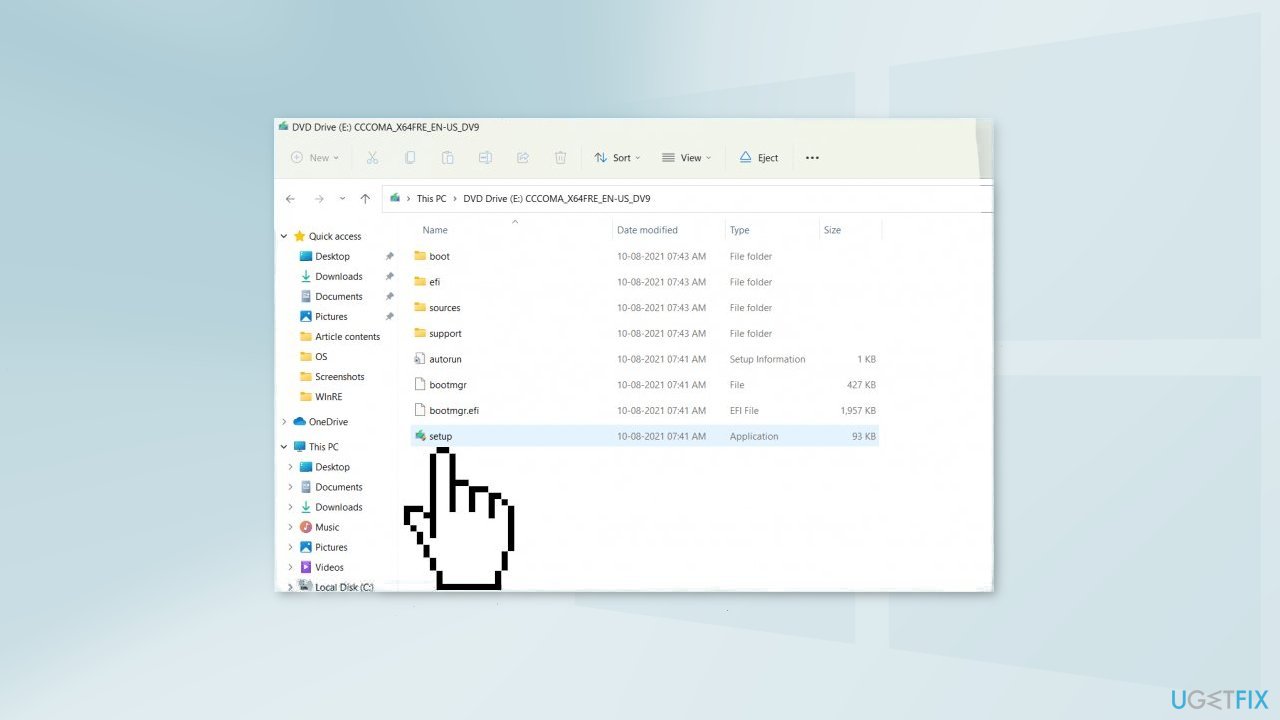
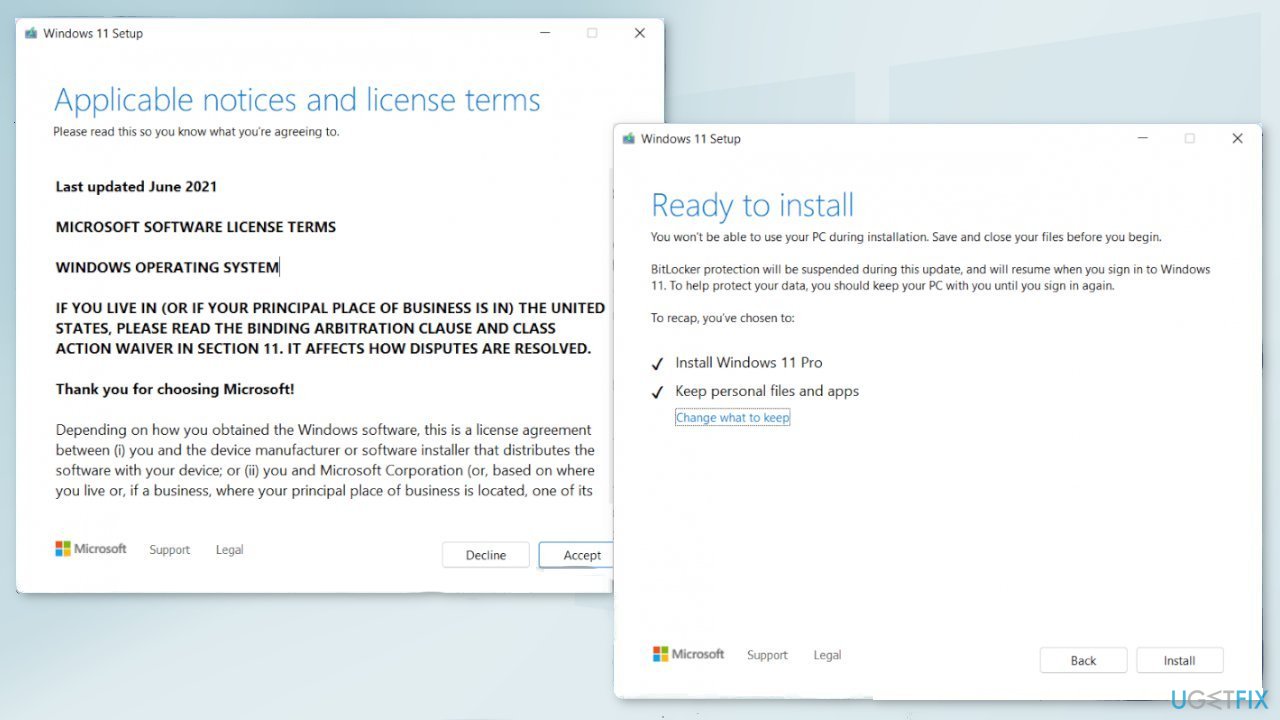
- Accept the license terms on the next screen
- Confirm the Upgrade options – Files, apps and Settings are kept
- Click Install, and the upgrade should start
Bottom line
To address the freezing issue when alt-tabbing from games in Windows 11, you can repair corrupted system files using Command Prompt, revert to the old Alt+Tab system through the Registry Editor, or adjust settings in specific games like Valorant. If these methods do not resolve the problem, consider using a maintenance tool to fix system errors.
Frequently asked questions
This issue may occur due to graphics driver conflicts or insufficient system resources while running games. Make sure your graphics drivers are updated and check if your system meets the game's requirements.
You can try adjusting your game's settings to lower graphics quality or disabling full-screen optimizations. Additionally, ensure that your Windows 11 is fully updated and perform a clean boot to minimize background processes.
Yes, you can use the built-in Windows Troubleshooter for gaming, check for Windows updates, or reinstall the game to resolve any corrupted files causing the freeze.




Report an issue
What's wrong with this guide? We review every report and update or remove content.
Report received — thank you. We'll review and fix it.
You need a free account to submit a report.
Be the first to comment