How to fix
Windows 11 is slow and freezing after adding a second monitor
on Windows
Resolve slow and freezing issues on Windows 11 after adding a second monitor. Get your system running smoothly again—expert-tested solutions await!

![[Fix] Windows 11 is slow and freezing after adding a second monitor](https://ugetfix.com/wp-content/uploads/articles/askit/freezing-windows-11-dual-display-fix_en-768x430.jpg)
What causes [Fix] Windows 11 is slow and freezing after adding a second monitor?
- Unsustainable resolutions due to low-end GPU
- Incompatible drivers
- Insufficient VRAM
- Power adapter bugs
- Conflicts with other programs
- Outdated BIOS or vBIOS versions
Repairs Windows system files, removes malware, and restores a clean OS state — without reinstalling.
Hello. My Windows 11 acts up. It slows down and starts freezing after I hook up my monitor to the computer. I use the laptop, and when I work, I want to have an additional display. But this issue keeps me from using the computer normally. Is it possible that the monitor additional slows down the PC so much? I guess it should not be an issue. Can you help me?
Windows 11 is slow, and freezing after adding a second monitor or ransom performance issues can be a common problem with the newest version of the Windows operating system. This OS was only available for the insider program for a while, so issues can be common if the system is not properly installed and upgraded.[ref en-1]
Users can encounter these issues due to the unsustainable resolutions when the low-end GPU is not capable enough to handle the resolution that is required to enforce. You can resolve these issues if you bring the screen resolution down. The issue with the ransom freezing can be related to incompatible drivers or insufficient VRAM too.
This issue is commonly reported by users[ref en-2] that have been annoyed by this system performance problem that keeps the machine from smooth running. Windows 11 is slow and freezing after adding a second monitor unexpectedly and can indicate some power adapter bugs, conflicts with other programs, or outdated BIOs or vBIOS versions.
These problems can be solved by improving the performance and updating all things that are possible to keep up-to-date. That might be OS upgrades, system preferences, or settings. The infection[ref en-3] might also leave some leftovers or damage, so running [d1] can be the first step towards improving the performance, and even fixing Windows 11 is slow and freezing after adding a second monitor issue.
1. Alter the screen resolution
- Right-click on the start icon and choose Settings from the context menu.
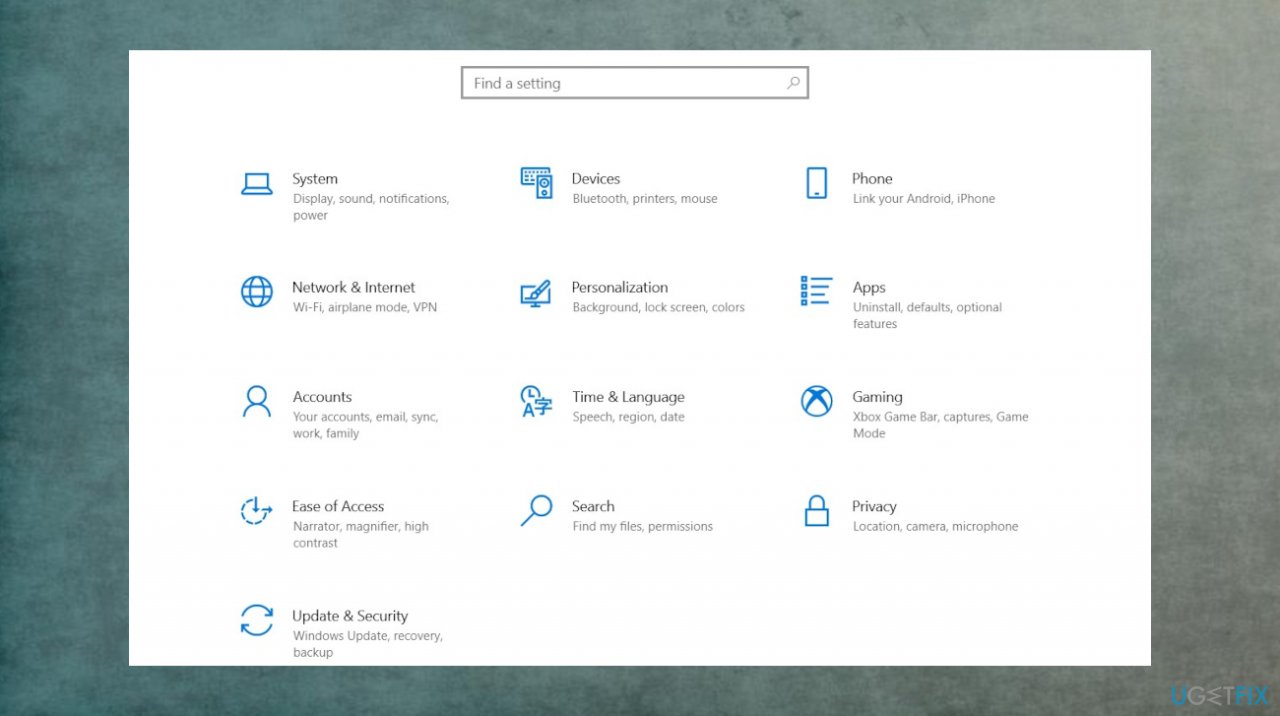
Freezing windows 11 dual display settings - In the Settings menu, tap on System.
- Move over to the right-side section of the screen and click on Display.
- Inside the Display tab.
- Scroll down to Scale & layout and adjust the Display Resolution to a lower value than the one that’s currently being used.
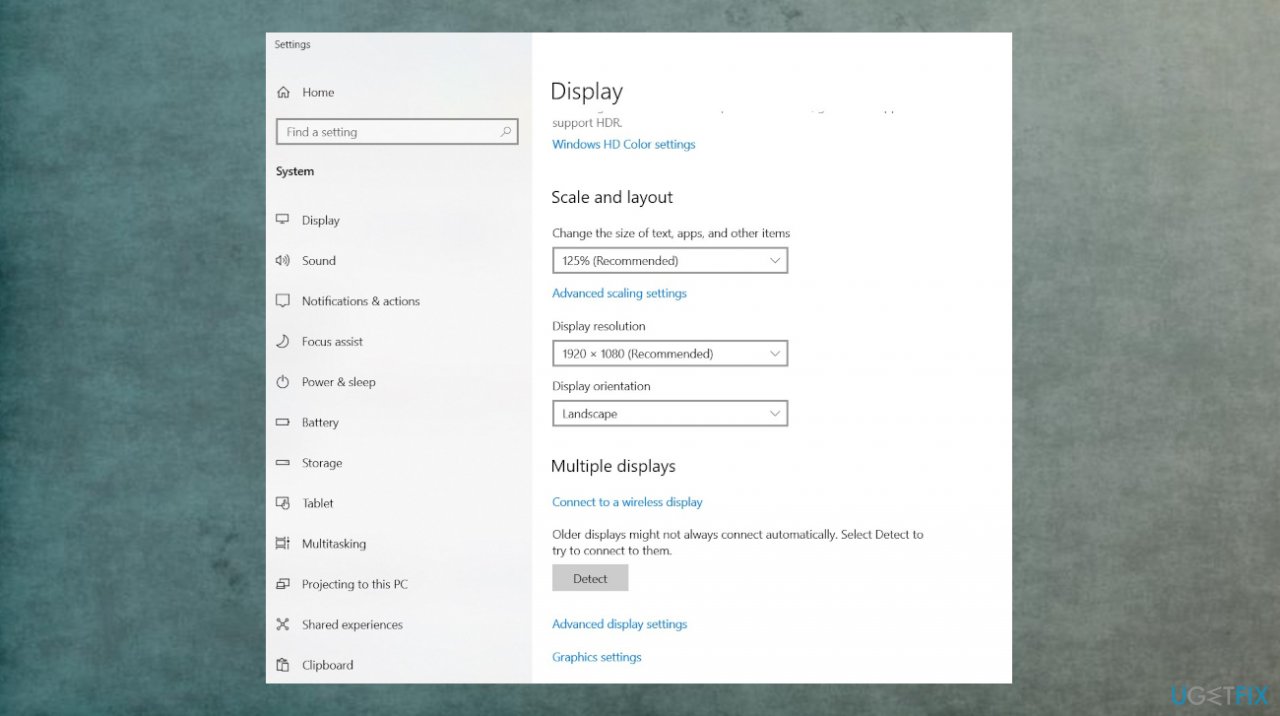
Freezing windows 11 dual display settings change - Click on Keep changes to make the resolution change permanent.
2. Adjust virtual memory settings
- Press Windows key + I to open up the Settings.
- Search for performance.
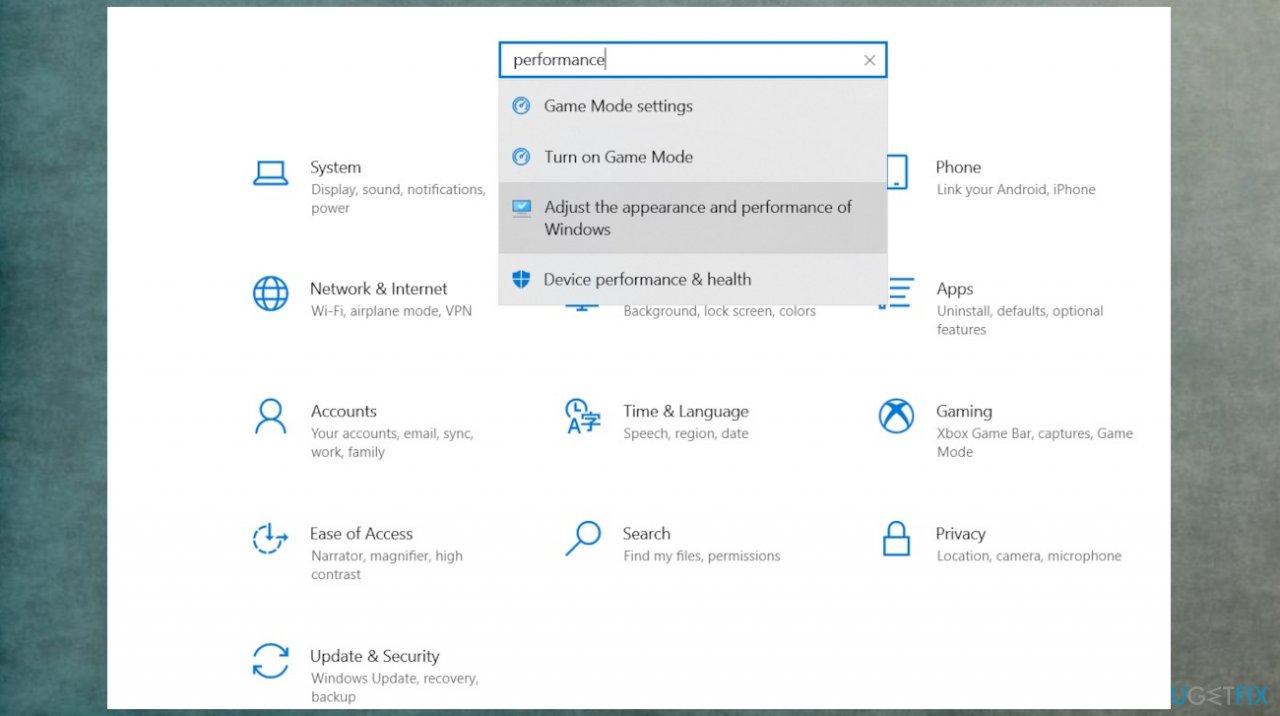
Freezing windows 11 dual display performance - Once the results are in, click on Adjust Appearance and Performance of Windows from the context menu.
- Select the Advanced tab using the menu at the top.
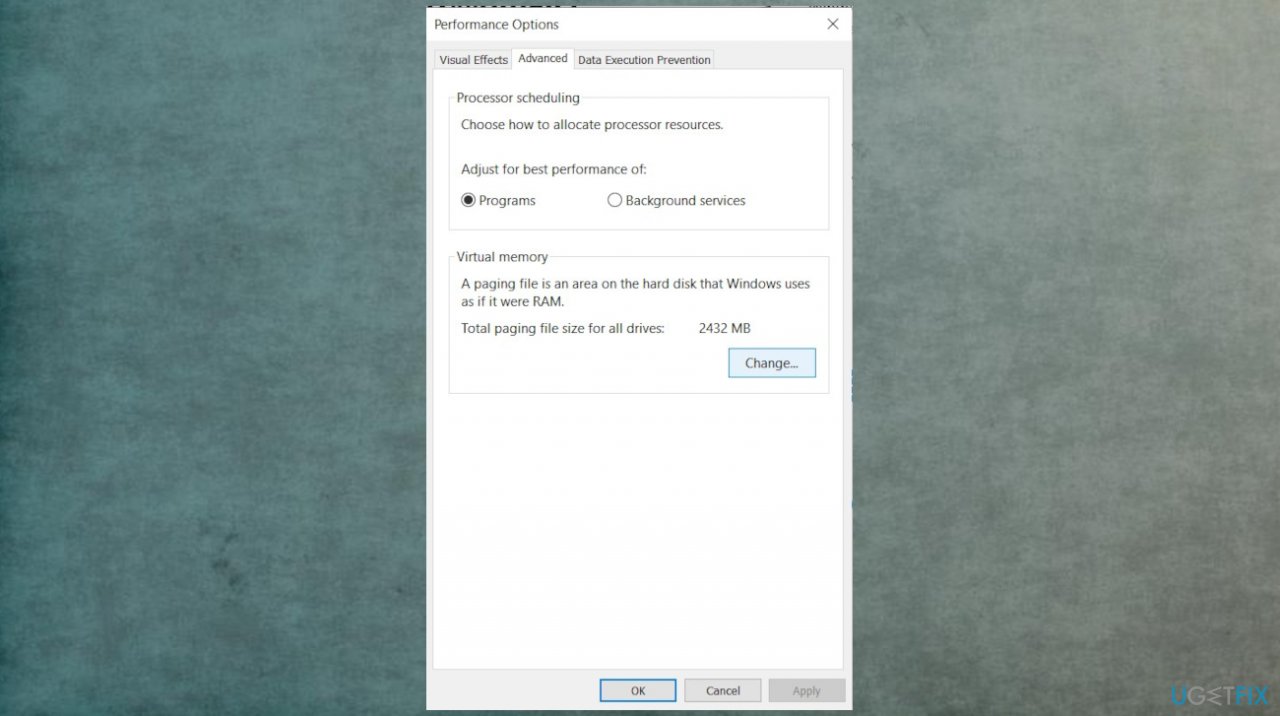
Freezing windows 11 dual display performance options - Click on the Change button (under Virtual Memory).
- Next, in the Virtual Memory window, start by comparing the Recommended paging file size value with the Currently allocated now.
- If the value of Currently allocated is lower than the Recommended value, uncheck the box associated with Automatically manage paging file size for all drivers.
- Select the C (OS drive) from the Paging file size for each drive.
- Then select the Custom size toggle instead.
- Enter the Recommended value into the Initial Size box and add an even larger figure into the Maximum Size Box.
- Click Ok to save the changes and restart the PC.
3. Update GPU drivers
- Press Windows key + R to open up a Run dialog box.
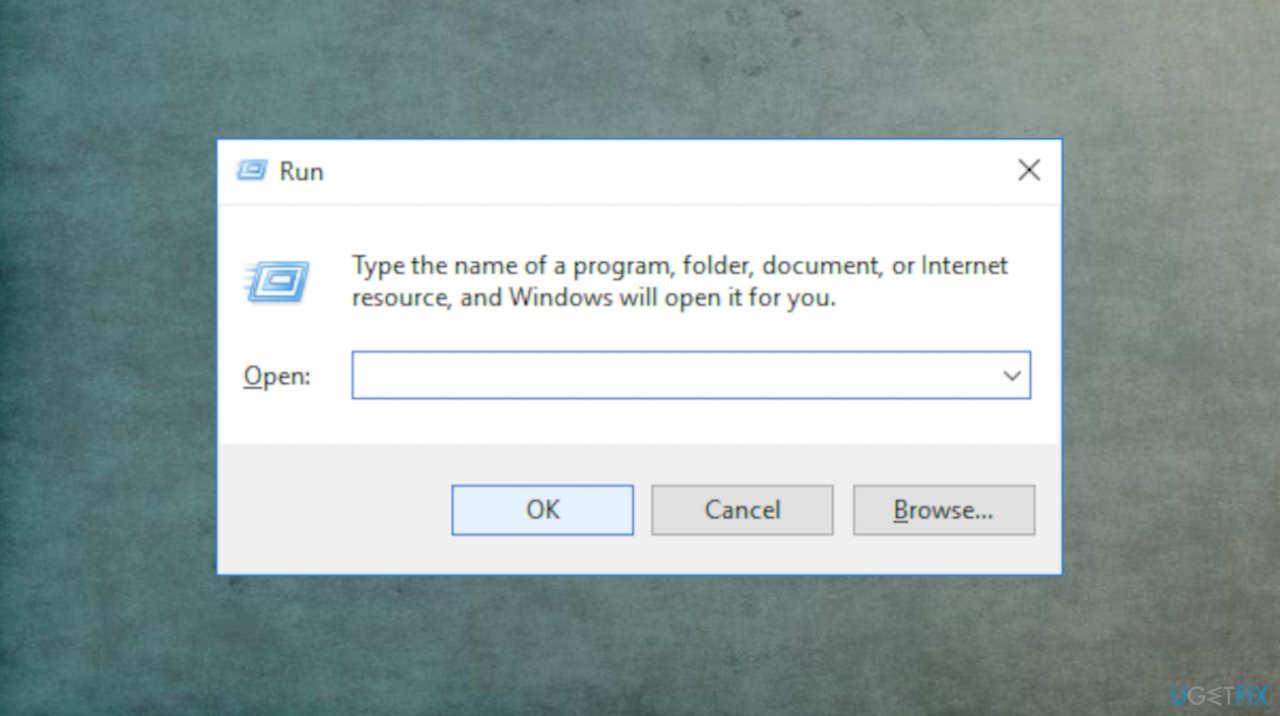
Freezing windows 11 dual display run box - Type devmgmt.msc inside the text box and press Enter to open up Device Manager.
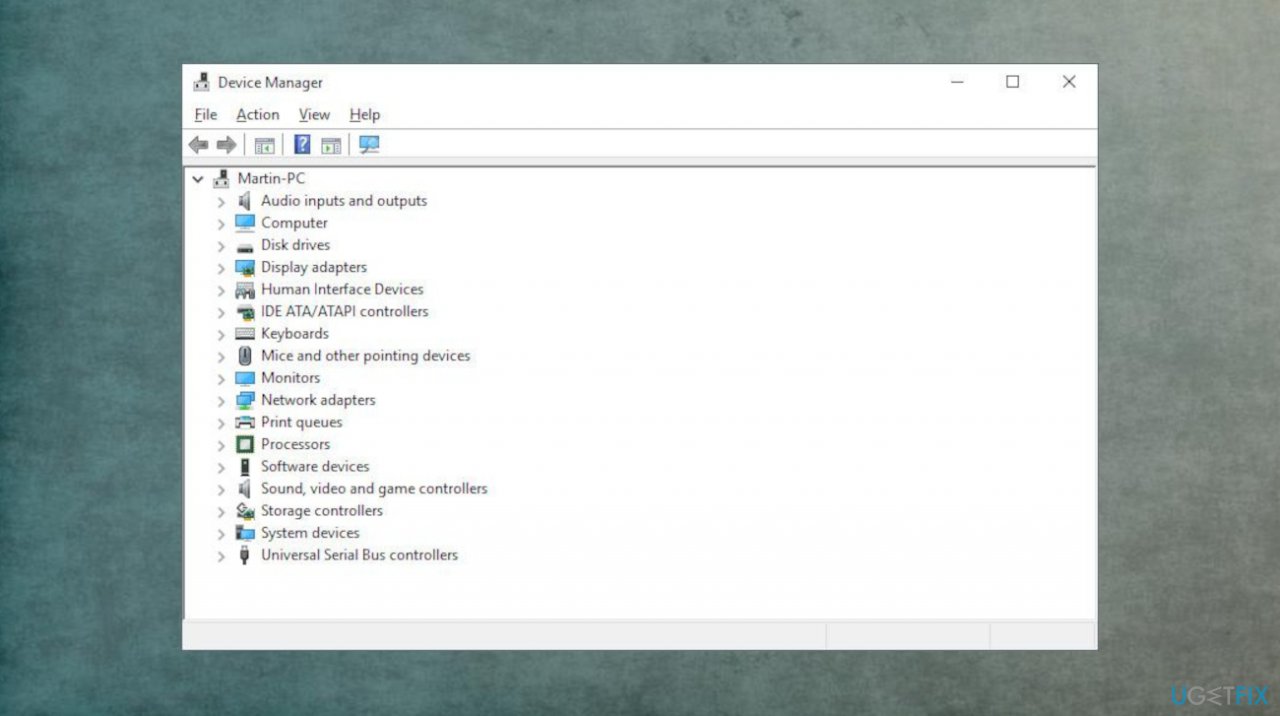
Freezing windows 11 dual display device manager - When you’re prompted by the User Account Control, click Yes to grant administrative privileges.
- Scroll down through the list of installed devices and expand the drop-down menu associated with Display Adapters.
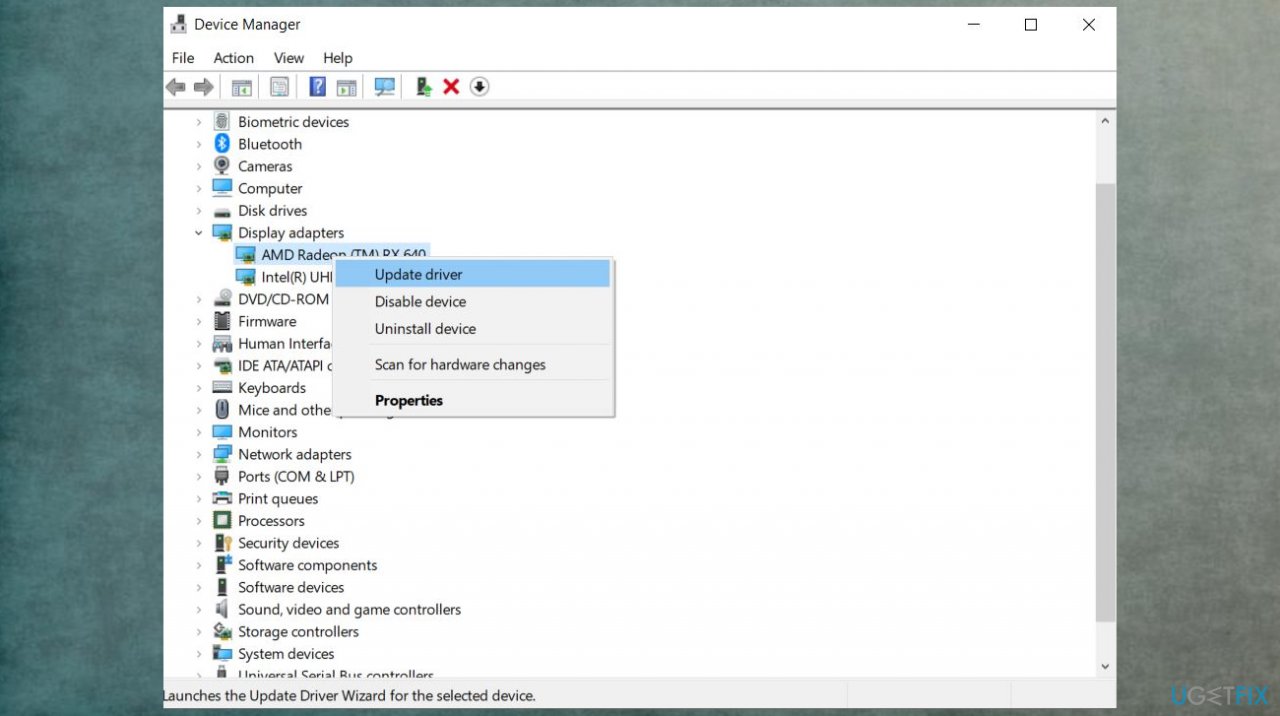
Freezing windows 11 dual display update driver - Right-click on your dedicated GPU and choose Update Driver from the context menu that just appeared.
- Click on Search Automatically for updated driver software and wait for the initial scan to complete.
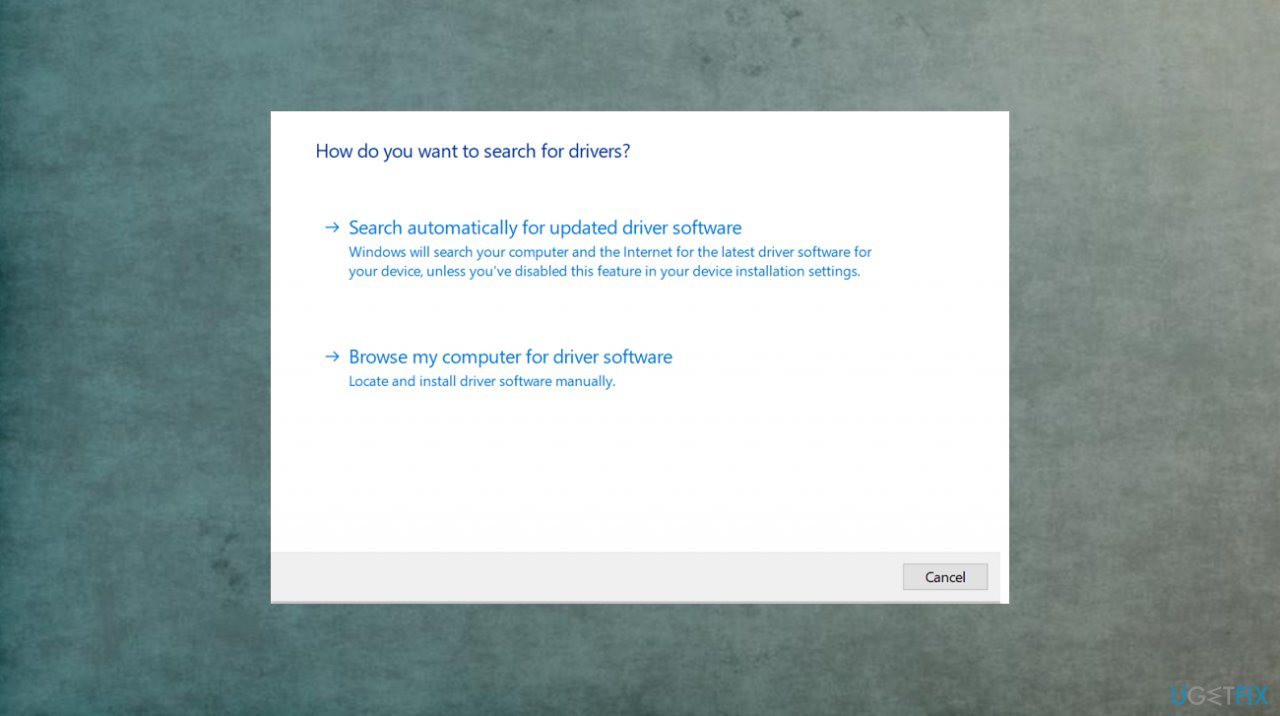
Freezing windows 11 dual display automatic - Follow the on-screen instructions.
Bottom line
To resolve the issue of Windows 11 being slow and freezing after adding a second monitor, you can alter the screen resolution, update drivers, and ensure your BIOS is up-to-date. If these fixes do not work, consider running a system scan to check for infections or other underlying issues.
Frequently asked questions
Adding a second monitor can increase the load on your GPU and RAM, causing slowdowns. Check your display settings and ensure your graphics drivers are updated to optimize performance.
If Windows 11 freezes, try disconnecting the second monitor to see if the issue persists. If it resolves, consider adjusting the display settings or updating your graphics drivers.
To enhance performance, adjust the resolution of the second monitor to match your primary display, and ensure that your system meets the hardware requirements for dual displays.




Report an issue
What's wrong with this guide? We review every report and update or remove content.
Report received — thank you. We'll review and fix it.
You need a free account to submit a report.
Be the first to comment