How to fix
Windows 11 missing taskbar, start menu and other UI elements on startup
on Windows
Resolve missing taskbar and Start menu issues on Windows 11 quickly and easily, with expert-tested solutions and visual guides for seamless navigation.

![[Fix] Windows 11 missing taskbar, start menu and other UI elements on startup](https://ugetfix.com/wp-content/uploads/articles/askit/fix-windows-11-missing-taskbar-start-menu-and-other-ui-elements-on-startup-copy_en-768x432.jpg)
What causes [Fix] Windows 11 missing taskbar, start menu and other UI elements on startup?
- Windows Explorer failure to launch
- System file corruption
- Incompatible updates
- Software incompatibilities
Repairs Windows system files, removes malware, and restores a clean OS state — without reinstalling.
Hello. When I load Windows 11, there is no desktop or taskbar present, and everything else is missing too. Task Manager works but I can't call up the Windows button either, so the only way I can start programs is by using Task Manager or Command Prompt, which is very annoying.
Similar to its predecessors, Windows 11 is primarily dependent on its user interface (UI) components, which include the desktop icons, start menu, and taskbar. These elements, which make it simple to access programs, settings, and notifications, are essential to the user's navigation and overall experience.
The start menu serves as a primary hub for software and system services, the taskbar offers rapid access to open and pinned apps, and desktop icons provide you easy access to files, folders, and shortcuts. When these components perform properly, they improve productivity and simplify the user's workflow.
However, some users face a major problem Windows 11 is missing taskbar, start menu, and other UI elements on startup. Users may notice that in certain scenarios, they are limited to using the Task Manager or specific keyboard shortcut commands. This significantly reduces user experience and makes the PC almost useless for most jobs.
The primary cause of this problem is frequently Windows Explorer, which manages the desktop, taskbar, and files. When Windows Explorer fails to launch or crashes, several critical user interface elements may disappear. This problem could be caused by system file corruption, incompatible updates, or software incompatibilities.
To fix the Windows 11 missing taskbar, start menu, and other UI elements on the startup issue, restarting Windows Explorer via Task Manager is a common solution. Additionally, conducting system scans for corruption and keeping the system up to date can assist. Additionally, starting the Explorer.exe task proved useful for many.
For users facing persistent issues with Windows UI elements, employing a PC repair tool such as [d1] can offer a convenient solution. Alternatively, proceed with the manual instructions below.
Fix 1. Restart File Explorer
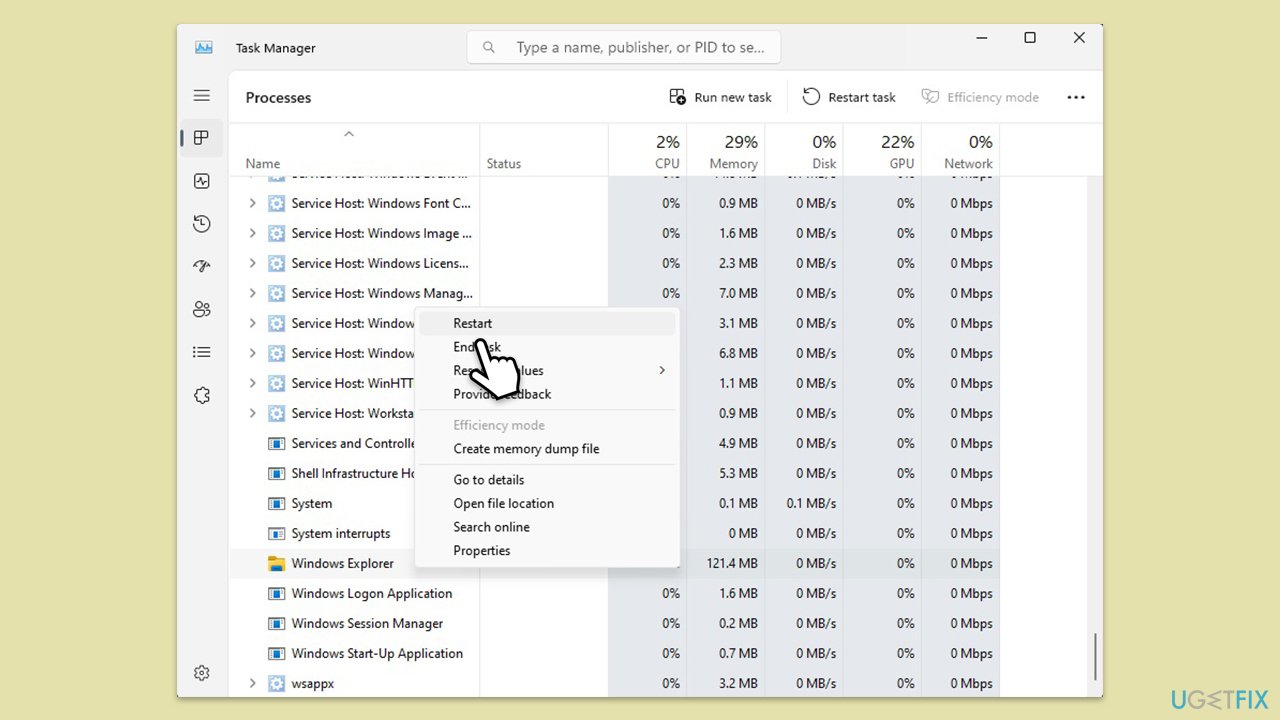
Restarting File Explorer can resolve issues where the taskbar, start menu, and other UI elements fail to appear on startup. File Explorer is the process that manages the desktop environment in Windows, and restarting it can refresh your system's UI components.
- Press Ctrl + Shift + Esc to open the Task Manager.
- Scroll through the list of processes until you find Windows Explorer.
- Right-click on Windows Explorer and select Restart.
- Wait a few moments for the process to restart. This should restore the missing UI elements.
Fix 2. Start Explorer.exe task via the Task Manager
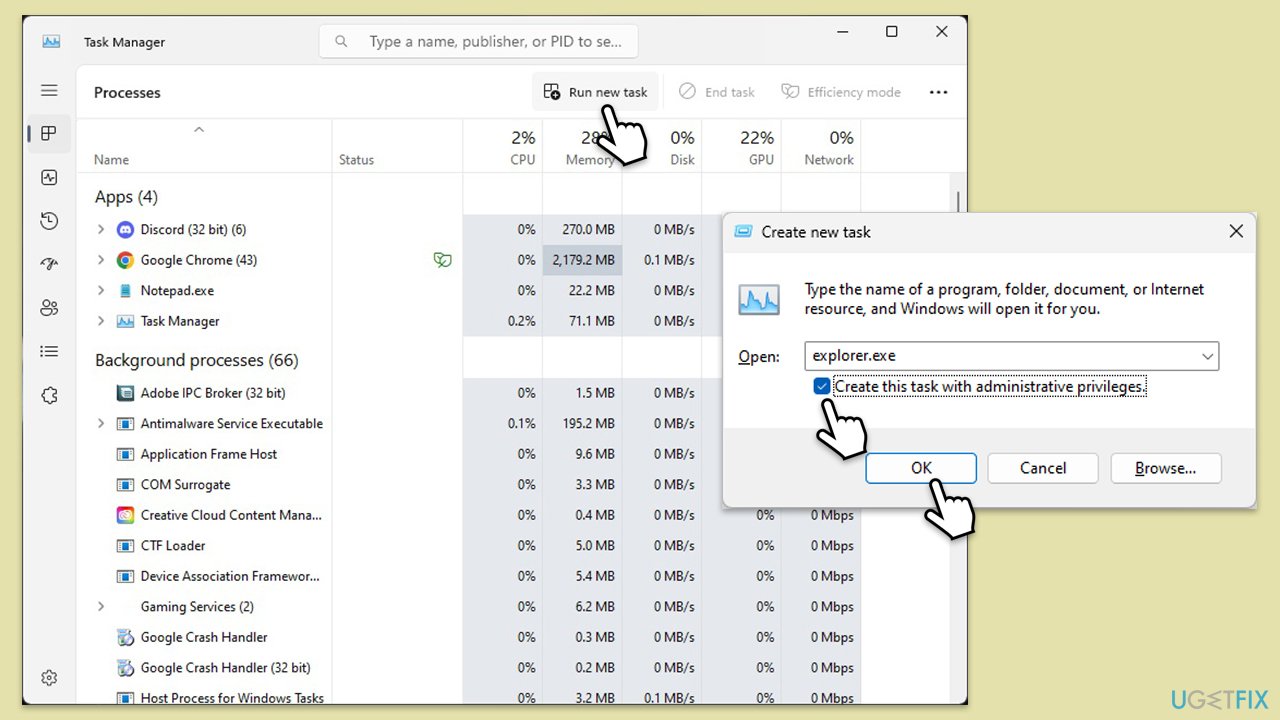
If Windows Explorer is not running, starting it manually can bring back the taskbar, start menu, and desktop icons.
- Open the Task Manager by pressing Ctrl + Shift + Esc.
- Click Run new task.
- Type explorer.exe into the text box.
- Mark the Create this task with administrative privileges checkbox and click OK.
- This action will initiate the explorer.exe process, which should restore the missing UI elements.
Fix 3. Repair system file corruption
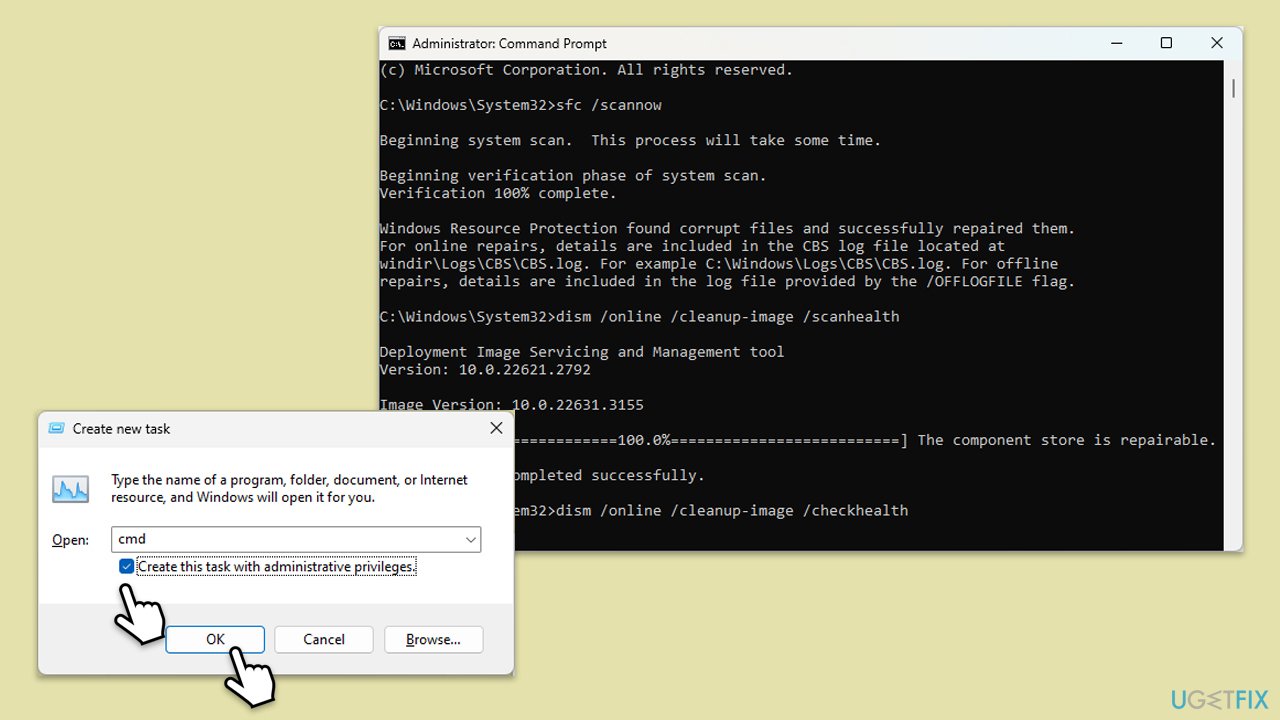
System File Checker (SFC) and Deployment Image Servicing and Management (DISM) scans can repair Windows system files and restore UI functionality.
- Open Task Manager with Ctrl + Shift + Esc.
- Click Run new task.
- Type cmd into the text box, check the box next to Create this task with administrative privileges and click OK.
- Click Yes when User Account Control asks for permission.
- In the Command Prompt window, type in the following command and hit Enter:
sfc /scannow - Once the scan is complete, use the following commands and press Enter after each:
Dism /Online /Cleanup-Image /CheckHealth
Dism /Online /Cleanup-Image /ScanHealth
Dism /Online /Cleanup-Image /RestoreHealth - (Note: if you get an error executing this last command, add /Source:C:\RepairSource\Windows /LimitAccess to it and try again).
- Restart your device.
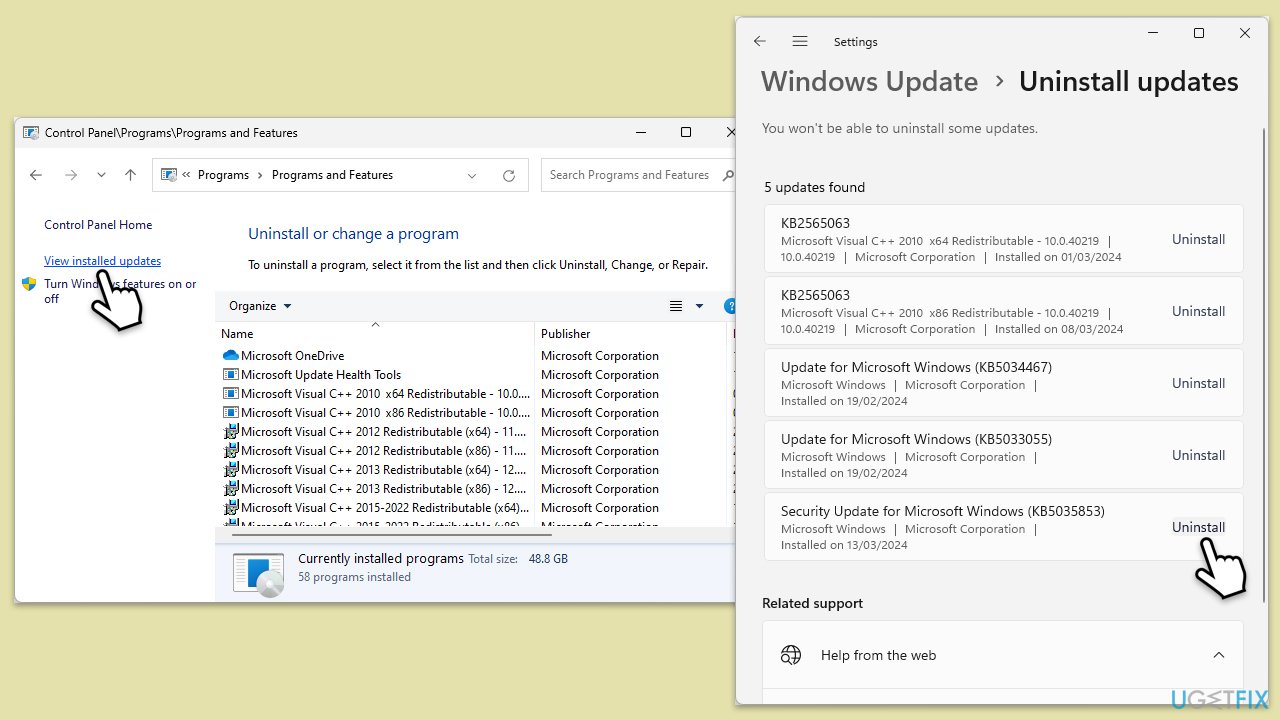
Fix 4. Uninstall the latest Windows update
If this issue started occurring after a recent Windows update, removing the update might resolve the problem. Updates can be uninstalled for a certain period after installation.
- Access Task Manager with Ctrl + Shift + Esc.
- Click Run new task.
- Type control panel into the text box and click OK to open the Control Panel.
- Go to Programs > Programs and Features > View installed updates.
- Look for the most recent update installed before the issue began, right-click it, and select Uninstall.
- Follow the prompts to complete the uninstallation and then restart your computer.
Fix 5. Repair-install Windows
A repair installation of Windows can fix underlying system issues without affecting personal files and applications. This process reinstalls Windows while keeping your files and programs intact.
Create Windows ISO
- Download Windows 11 Installation media from the official Microsoft website.
- Double-click the MediaCreationTool.exe file to launch it.
- When UAC shows up, click Yes.
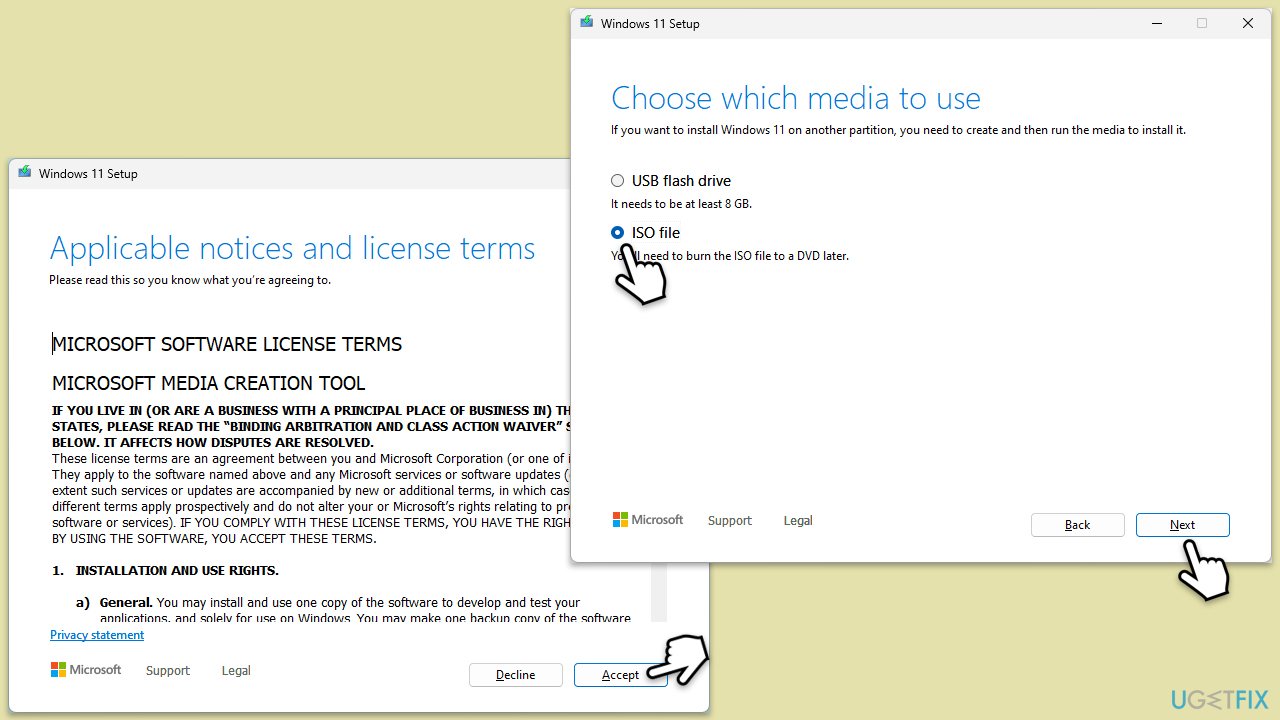
- Accept license terms.
- Select Language and Edition (make sure it matches the one you have currently installed) or simply mark the Use the recommended options for this PC and click Next).
- Select the ISO file and click Next.
- Pick the location for your ISO file and wait till all the needed files are downloaded, then click Finish.
Repair-install Windows
- Go to the location of your ISO file, right-click, and select Mount.
- Run the setup.exe file.
- You will be asked whether you want to update Windows to the latest version - pick Not right now and click Next.
- Accept Terms and Windows will make several checks to ensure everything is fine.
- Click Change what to keep.
- Here, you have several options: Keep your files and apps, Keep files only, or Keep nothing - choose what suits you the best. Click Next.
- Finally, click Install to begin the installation process.
Bottom line
To fix the issue of missing taskbar, start menu, and other UI elements on startup, users can restart Windows Explorer via Task Manager, conduct system scans for corruption, and ensure the system is up to date. Starting the Explorer.exe task may also help. If these solutions do not work, consider using a PC repair tool or following manual instructions.
Frequently asked questions
Try restarting your PC first; if that doesn't work, press Ctrl + Shift + Esc to open Task Manager, then restart Windows Explorer from the Processes tab.
You can run the System File Checker by opening Command Prompt as an administrator and typing 'sfc /scannow' to fix any corrupted system files.
Go to Settings > Personalization > Taskbar to ensure that the taskbar settings are correctly configured and that it is not set to auto-hide.




Report an issue
What's wrong with this guide? We review every report and update or remove content.
Report received — thank you. We'll review and fix it.
You need a free account to submit a report.
Be the first to comment