How to fix
Windows 11 reboots itself randomly
on Windows
Troubleshoot those pesky random reboots on Windows 11 with expert-tested solutions that ensure stable performance. Fix the issue in minutes!

![[Fix] Windows 11 reboots itself randomly](https://ugetfix.com/wp-content/uploads/articles/askit/fix-windows-11-reboots-itself-randomly-copy_en-768x432.jpg)
What causes [Fix] Windows 11 reboots itself randomly?
- Malfunctioning RAM
- Faulty power supply
- Overheating CPU
- Incompatible drivers
- Corrupted system files
Repairs Windows system files, removes malware, and restores a clean OS state — without reinstalling.
While using my desktop PC for regular tasks, it suddenly reboots itself, going through the entire boot-up process. What's weird is that this happens when I'm not doing much in particular, such as browsing the web or editing a document. What is happening and how can I fix it?
Experiencing random reboots on your Windows 11 system can be both frustrating and disruptive, often pointing to underlying problems that need to be addressed for smooth operation. This article explores the possible causes of these reboots and outlines potential solutions.
In Windows 11, a number of things might cause random reboots. Hardware issues, such as malfunctioning RAM, a faulty power supply, or an overheating CPU, frequently cause unexpected shutdowns and reboots. Keeping your devices well-maintained and cool enough will help lessen these issues.
Software conflicts can also result in instability and random reboots, which might be caused by incompatible drivers or apps. Maintaining system stability requires resolving these tensions. Sometimes Windows 11 itself is the problem because of flaws or corrupted system files. Reboots can be prevented by keeping your system updated with the most recent Microsoft patches, and corrupted data can be fixed by using repair and diagnostic tools.
Finding and fixing the root causes of Windows 11's unpredictable reboots is a necessary step towards tackling the problem. The ensuing sections will include comprehensive guidance for identifying and resolving these issues.
An easy option to keep your system stable and healthy is to use a [d1] PC repair app, which can help diagnose and fix underlying Windows issues with automatic remedies, saving you time and effort.

Fix 1. Check hardware components
Faulty hardware, such as RAM or power supply, can cause random reboots by failing to provide stable performance.
- Open your computer case.
- Check for loose connections.
- Ensure all hardware components are securely installed.
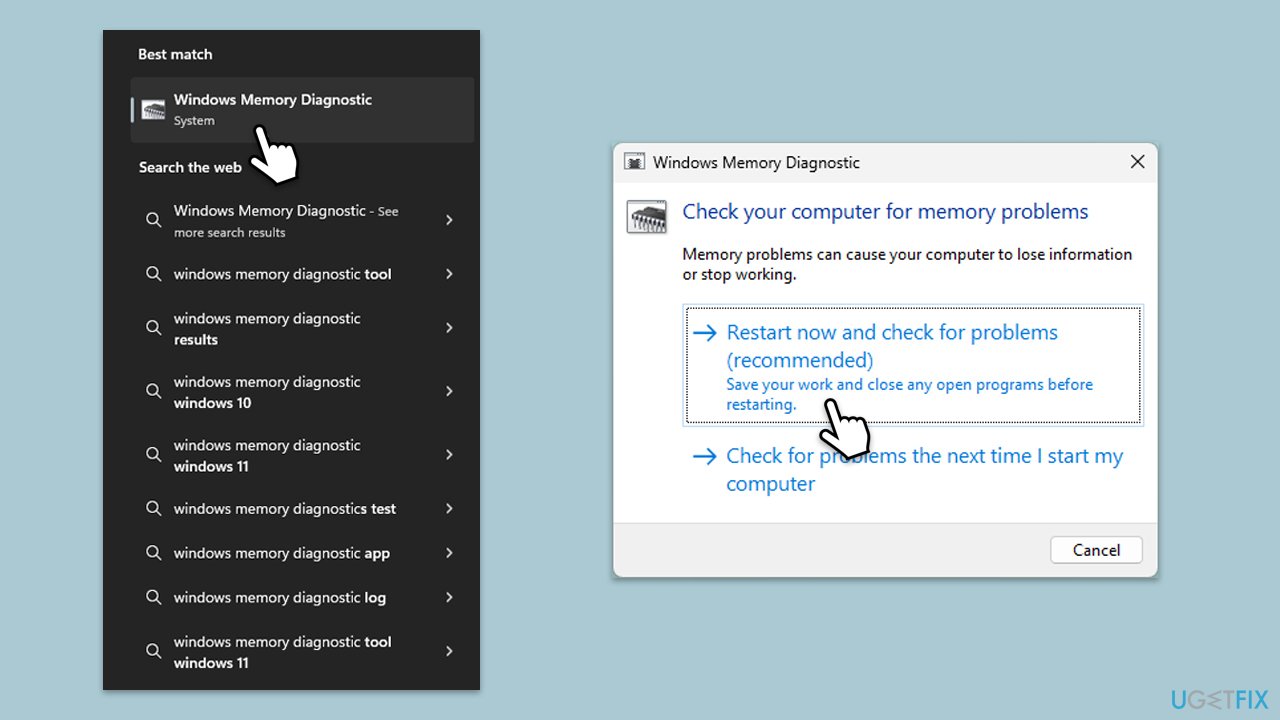
Once that is done and you see no loose connections, you can do some troubleshooting steps. First, check your memory using Windows Memory Diagnostics:
- Type Windows Memory Diagnostic and press Enter.
- Select Windows Memory Diagnostics result.
- Click Restart now and check for problems (recommended) (note that your PC will restart immediately).The
- A memory test will run during startup and display any detected errors - this might take a while.
- Replace faulty RAM module(s) if errors are found.
If you have another PC, try swapping components such as a graphics card and a PSU and see if that makes any difference. You can also use various diagnostics software - try using paid software or opt for open-source apps to be secure.
Fix 2. Update drivers
Outdated or incompatible drivers can cause conflicts leading to system instability and reboots. The easiest way to update all the drivers is by employing automatic tools such as [rev id=DriverFix"].
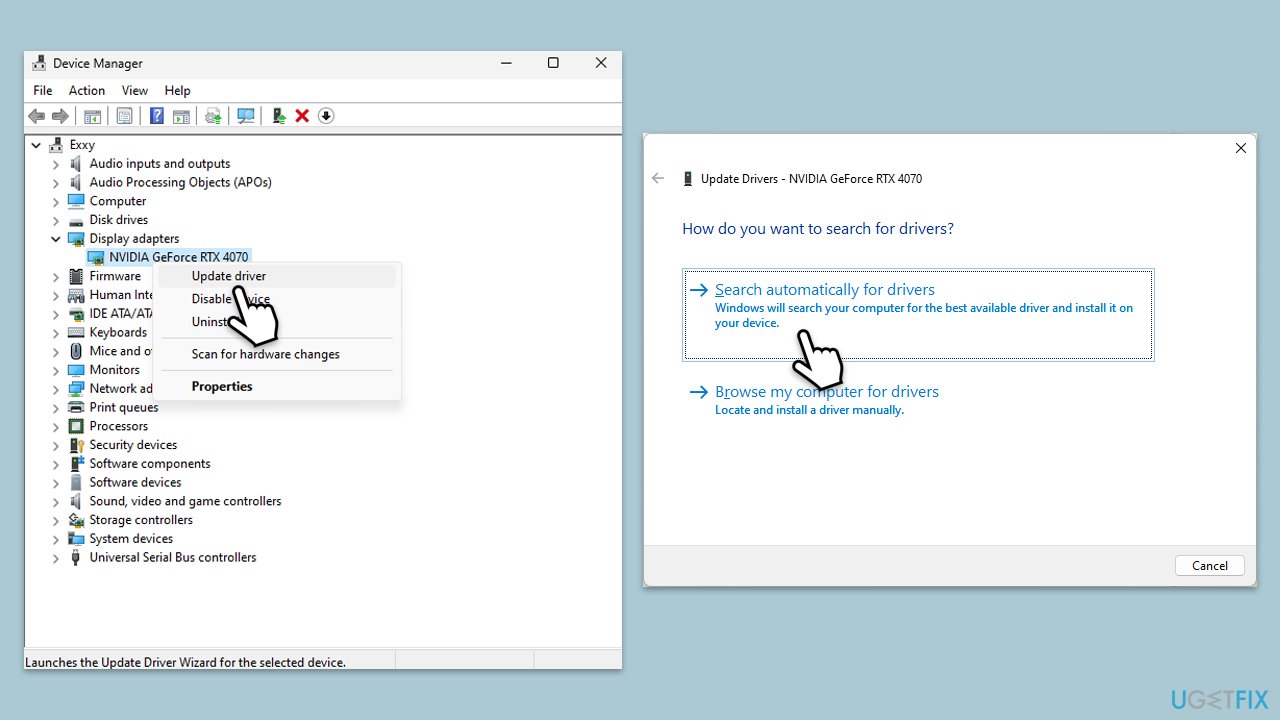
- Open Device Manager.
- Expand the section you want to update drivers for, for example, Display adapters.
- Right-click on your graphics card and choose Update driver.
- Select Search automatically for drivers.
- Follow the on-screen instructions to complete the process.
- Repeat this process for the other sections.
Fix 3. Run Windows Update
System updates often contain fixes for bugs and compatibility issues that might be causing reboots.
- Type Updates in Windows search and hit Enter.
- If updates are available, click Install updates.
- Otherwise, click Check for updates.
- If optional updates are available, install them as well.
- When all the update processes are complete, restart your computer.
Fix 4. Scan for malware
Malicious software can interfere with system processes, so make sure that you perform a scan using built-in Microsoft Defender (or another reputable security software).
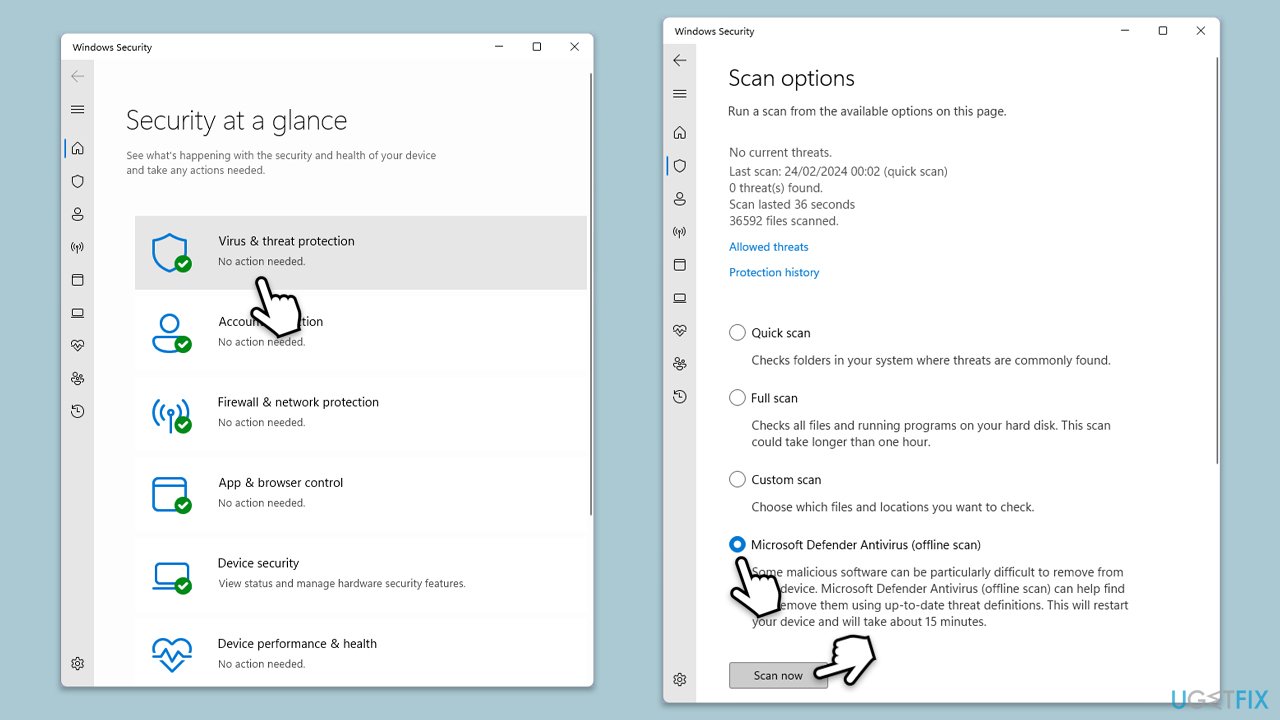
- Type Windows Security in the Windows search bar and hit Enter.
- Select Virus & threat protection.
- Pick Scan options.
- Choose Microsoft Defender Offline scan and click Scan now
- Your computer will immediately reboot and begin a deep scan.
Fix 5. Adjust power settings
Incorrect power settings can lead to instability and cause your system to reboot.
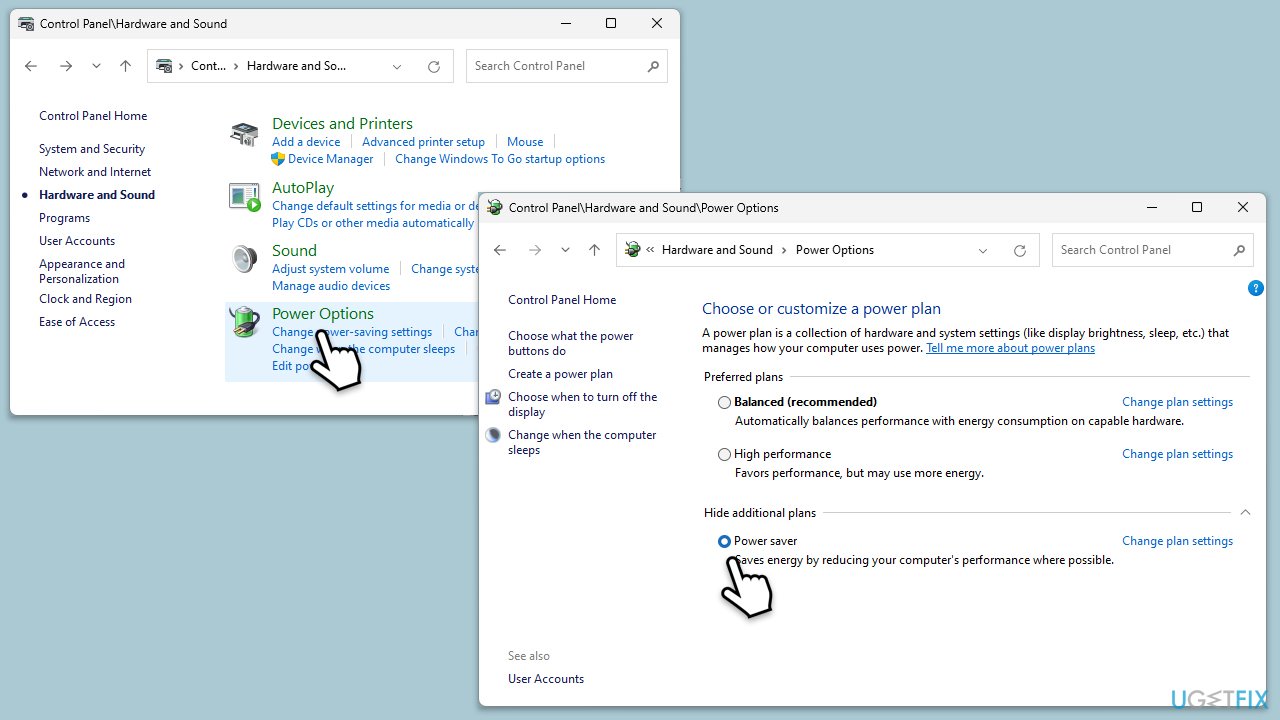
- Type Control Panel in Windows search and hit Enter.
- Here, go to Hardware and Sound > Power options.
- Here, you will see the listed plans.
- Click on Show additional plans.
- Change the plan from to Balance or Power Saver.
Fix 6. Check system temperature
Overheating can cause the system to shut down and reboot unexpectedly.
- Download and install a temperature monitoring tool.
- Open the tool and monitor CPU and GPU temperatures.
- Ensure your computer's cooling system is working properly.
- Clean any dust from fans and vents.
- Place your computer on a hard surface such as flooring or a desk; avoid carpets.
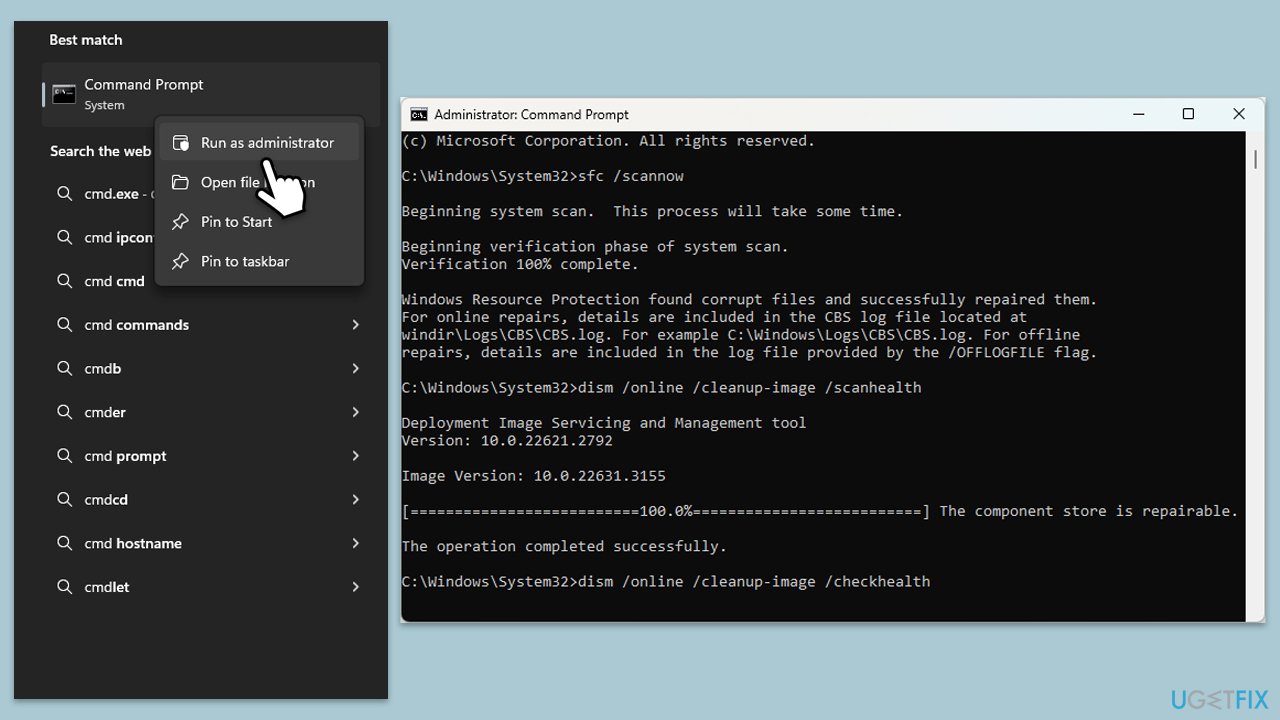
Fix 7. Run System File Checker and DISM
Corrupted system files can cause random reboots; SFC can detect and repair these files and DISM can fix Windows image issues.
- Type cmd in Windows search.
- Right-click on Command Prompt and pick Run as administrator.
- User Account Control will ask you whether you want to allow changes – click Yes.
- Copy and paste this command and hit Enter:
sfc /scannow - Wait for the scan to finish.
- As soon as it finishes, Windows will report whether integrity violations were found and if they could be fixed. Regardless of the outcome, use these commands next, pressing Enter after each:
Dism /Online /Cleanup-Image /CheckHealth
Dism /Online /Cleanup-Image /ScanHealth
Dism /Online /Cleanup-Image /RestoreHealth
(Note: if you get an error executing this last command, add /Source:C:\RepairSource\Windows /LimitAccess to it and try again). - Close down the Command Prompt and restart your system.
Fix 8. Perform a Clean Boot
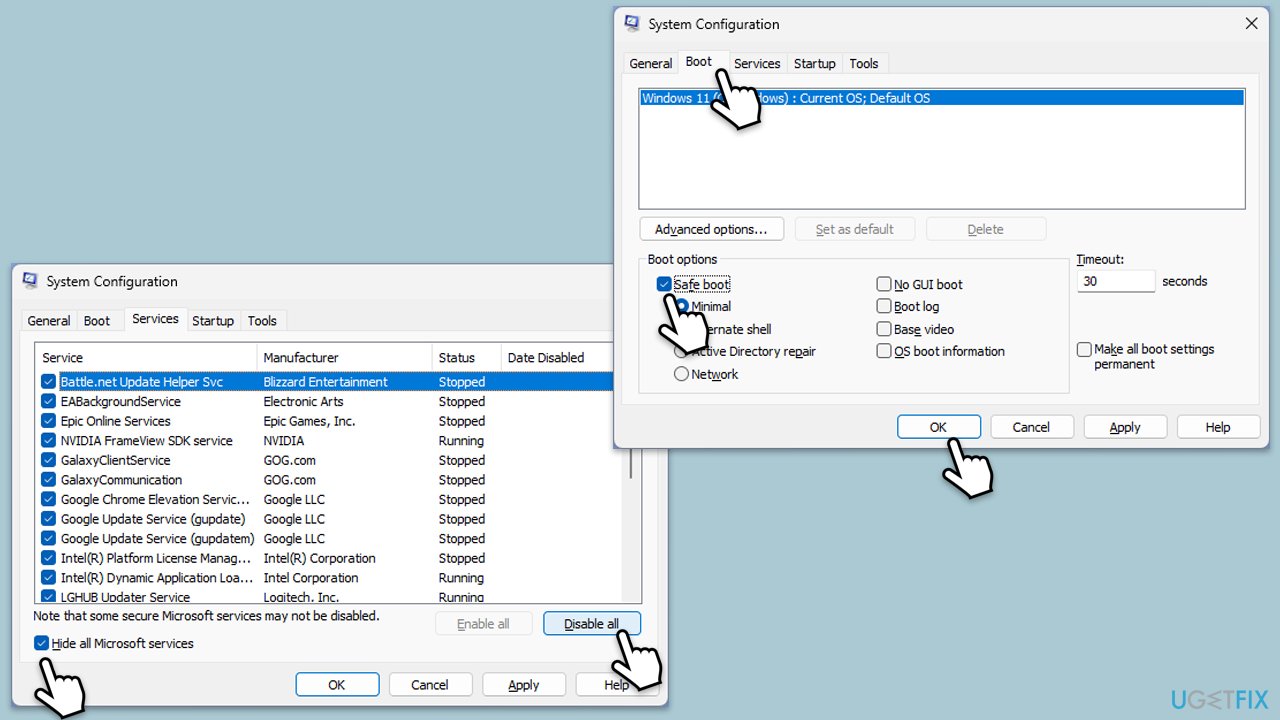
A clean boot can help identify if background applications are causing the reboots.
- Type msconfig in the Windows search box and press Enter.
- Pick the Services tab.
- Mark Hide all Microsoft services and select Disable all.
- Select the Startup tab and click Open Task Manager.
- In the Task Manager, right-click on each of the items and select Disable, then close the Task Manager.
- Go to the Boot tab, mark the Safe Boot option, then click Apply and OK.
- On the System Configuration window, click OK.
- Restart your computer.
Fix 9. Update BIOS/UEFI
An outdated BIOS/UEFI can cause system instability and random reboots.
- Before proceeding, backup your data as a precaution.
- Visit the manufacturer's website and download your specific model's latest BIOS update file (you can check which BIOS you are using by typing System information in Windows search and checking the BIOS Version/Date and BaseBoard Product entries there).
- Extract the BIOS update files and read any provided instructions or documentation.
- Create a bootable USB drive with the BIOS update files, if required.
- Update the BIOS using the manufacturer's recommended method, which may be through a built-in utility or booting from a USB drive.
- Restart your PC to complete the process.
Fix 10. Use System Restore
System Restore can revert your computer to a previous state before the random reboots started.
- Type System Restore in the search box and click Create a restore point.
- In the System Properties window, click System Restore.
- Click Next, choose a restore point from before the issues began, and click Next again.
- Follow the on-screen instructions to complete the restoration.
- Restart your computer after the process is completed.
Fix 11. Stop Windows updates restarting your PC
Windows updates can sometimes cause your computer to restart unexpectedly to apply updates.
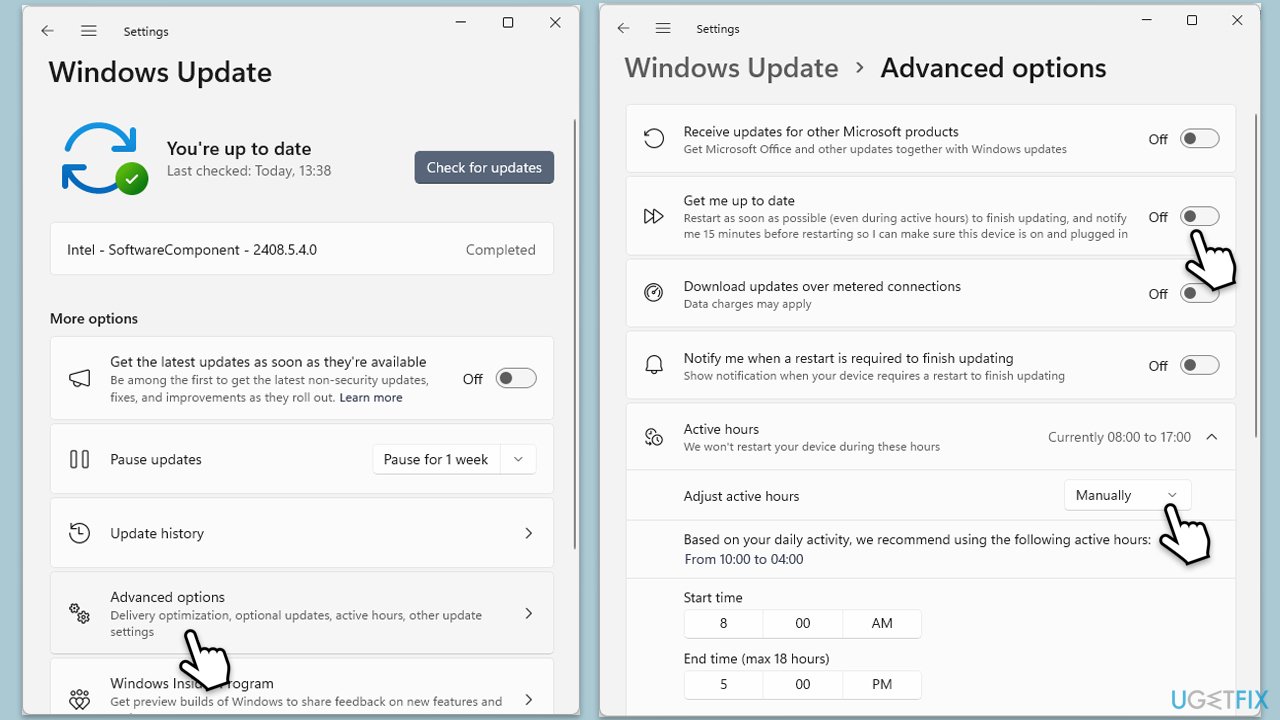
- Open Settings.
- Go to Windows Update.
- Select Advanced options.
- Disable the Get me up to date option (turn the switch to the Off position).
- Next, select Active hours.
- From the drop-down menu, pick Manually.
- Set the hours when you typically use your computer to prevent automatic restarts during those times.
- Your PC should no longer automatically restart.
Bottom line
To address random reboots in Windows 11, check your hardware components for loose connections and ensure they are securely installed. Additionally, use Windows Memory Diagnostics to check your memory and keep your system updated with the latest Microsoft patches. If these solutions do not resolve the issue, consider using a PC repair app for further diagnosis.
Frequently asked questions
Common causes include faulty hardware, outdated drivers, or system file corruption. Checking for recent updates and running a hardware diagnostic can help identify the issue.
You can disable automatic restart on system failure in the Startup and Recovery settings to prevent unexpected reboots. Additionally, ensure all drivers are up to date and check for any hardware issues.
You can use the Event Viewer to look for critical errors that occurred around the time of the reboot, which may point to a specific application or driver causing the issue.




Report an issue
What's wrong with this guide? We review every report and update or remove content.
Report received — thank you. We'll review and fix it.
You need a free account to submit a report.
Be the first to comment