How to fix
Windows backup app causing delay when logging off
on Windows
Discover how to resolve logoff delays caused by the Windows backup app in Windows 10 and 11. Expert-tested solutions for a smooth experience!

![[Fix] Windows backup app causing delay when logging off](https://ugetfix.com/wp-content/uploads/articles/askit/fix-windows-backup-app-causing-delay-when-logging-off_en-768x432.jpg)
What causes [Fix] Windows backup app causing delay when logging off?
- Delay caused by the new backup app linked to KB5029331 update
- Application updates causing log-off delays
- Prompt indicating 'Closing 1 app' during log-off
- Potential conflicts related to updates
- Corrupted system files affecting log-off procedure
Repairs Windows system files, removes malware, and restores a clean OS state — without reinstalling.
Hello. Ever since I installed the KB5029331 Windows update, the new backup app has caused delays when logging off. Is there something I can do to fix this?
Users are reporting an unanticipated problem with the log-off procedure as a result of the release of a new Windows backup software, which is linked to the KB5029331[ref en-1] update. Users specifically report delays while trying to log off or shut down their PCs, and this delay occurs every time an application is updated.
The log-off procedure continues as usual when an application hasn't been updated. However, the issue shows up after an application update. Users are then presented with a prompt informing them that the system is "Closing 1 app," citing "MicrosoftWindowsApplistbackupBackupNonMaintenance" as the cause of the delay.
Users may find this problem to be highly upsetting and unpleasant. Even though a delayed log-off is usually a simple and quick operation, it takes longer to complete. Users can discover that they must wait longer than anticipated for their computer to shut down or log off, which could cause annoyance and less effective workflow.
Numerous potential remedies might be investigated in order to resolve this problem and give users a flawless log-off experience once again. These fixes can entail making changes to the Windows backup application, dealing with potential update-related conflicts, or figuring out whether there are any underlying problems with the way the application works.
In this guide, you will find 4 steps that should help you fix the Windows backup app causing delay when logging off. You can also try using a maintenance tool like [d1] that can fix most system errors, BSODs,[ref en-2] corrupted files, and registry[ref en-3] issues. Otherwise, follow the step-by-step instructions below.

Solution 1. Fix Corrupted System Files
Use Command Prompt commands to repair system file corruption:
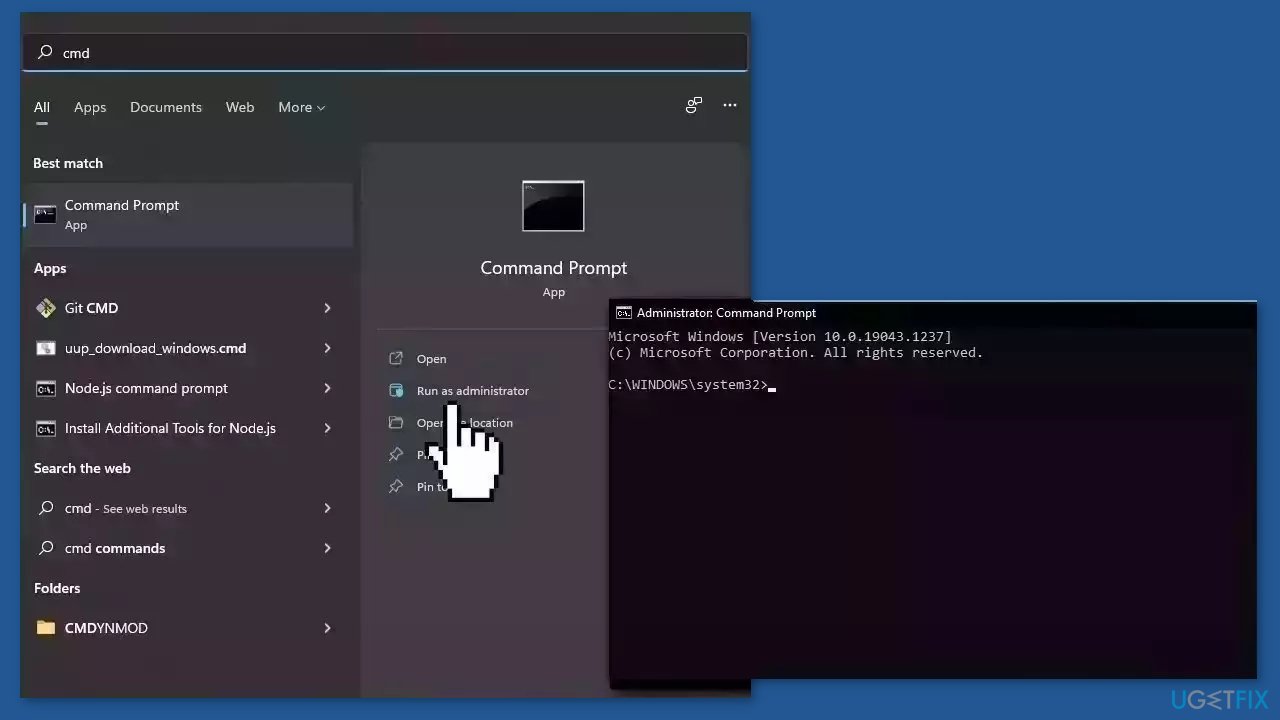
- Open Command Prompt as administrator
- Use the following command and press Enter:
sfc /scannow
- Reboot your system
- If SFC returned an error, then use the following command lines, pressing Enter after each:
DISM /Online /Cleanup-Image /CheckHealth
DISM /Online /Cleanup-Image /ScanHealth
DISM /Online /Cleanup-Image /RestoreHealth
Solution 2. Create a New User Account
- Go to Settings.
- Choose Accounts and then select Other User Accounts towards the left.
- Select Add account.
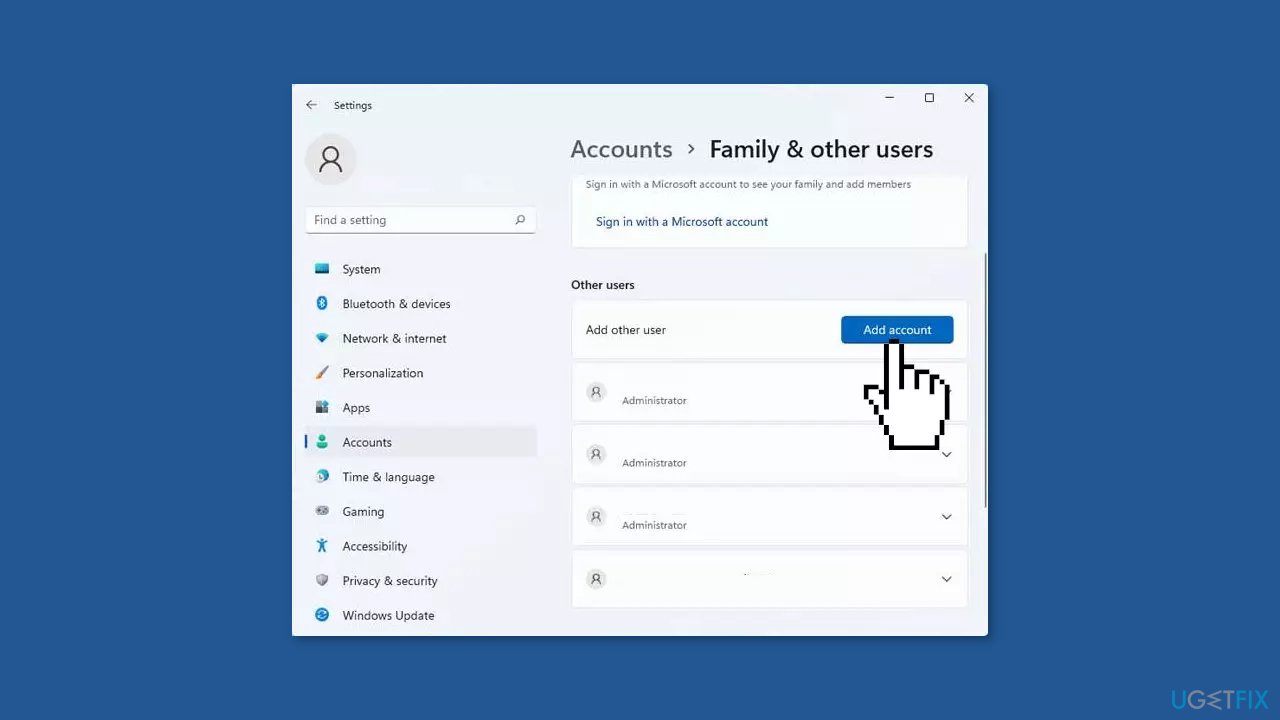
- Enter a user name and hit Next.
- Click on Finish.
- Sign out from the current Account and Log into the new account.
- Check if issue persists.
Solution 3. Force Uninstall the Windows Backup App
- Open PowerShell in elevated privileges.
- In PowerShell, execute the command:
Remove-WindowsPackage -Online -PackageName "Microsoft-Windows-UserExperience-Desktop-Package~31bf3856ad364e35~amd64~~10.0.19041.3393"
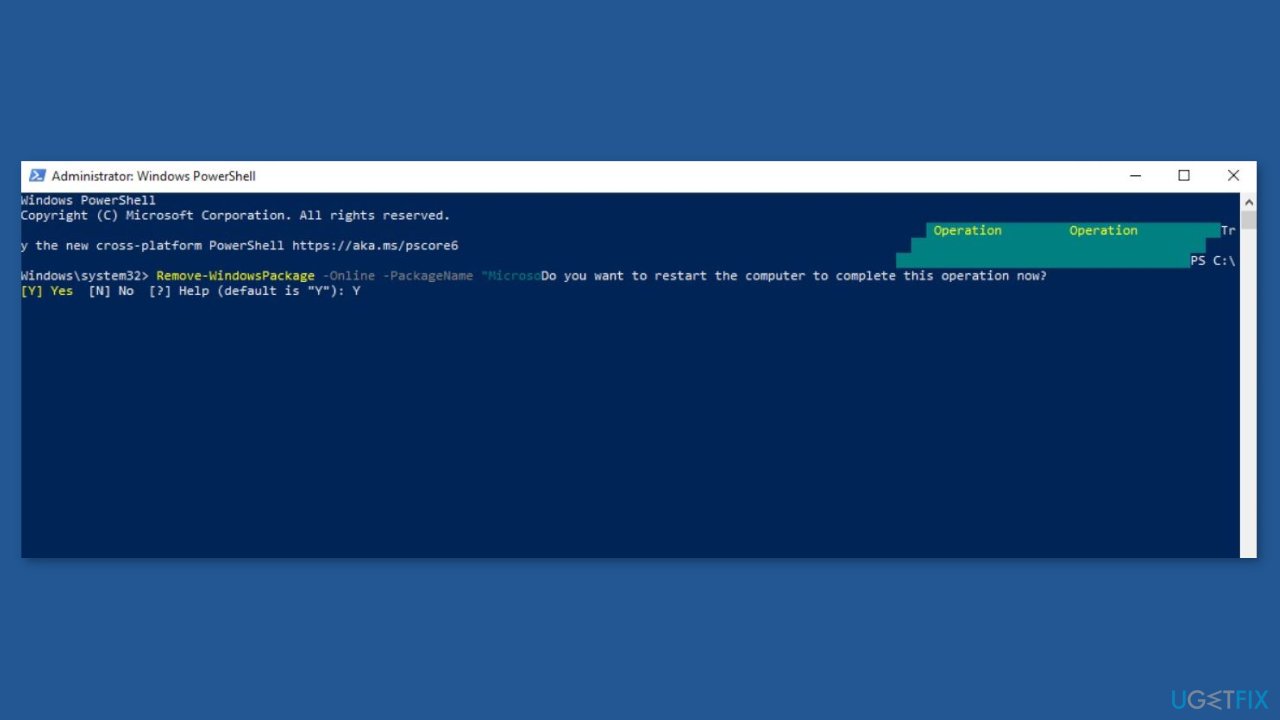
- Reboot your system by typing Y in the terminal.
- To revert to the previous state and restore the missing features, run the command:
DISM.exe /Online /add-capability /CapabilityName:Windows.Client.ShellComponents~~~~0.0.1.0
Solution 4. Uninstall the KB5029331 Update
- Open the Start Menu.
- Click on Settings.
- Select Update & Security.
- In the left-hand menu, choose Windows Update.
- Click on View update history.
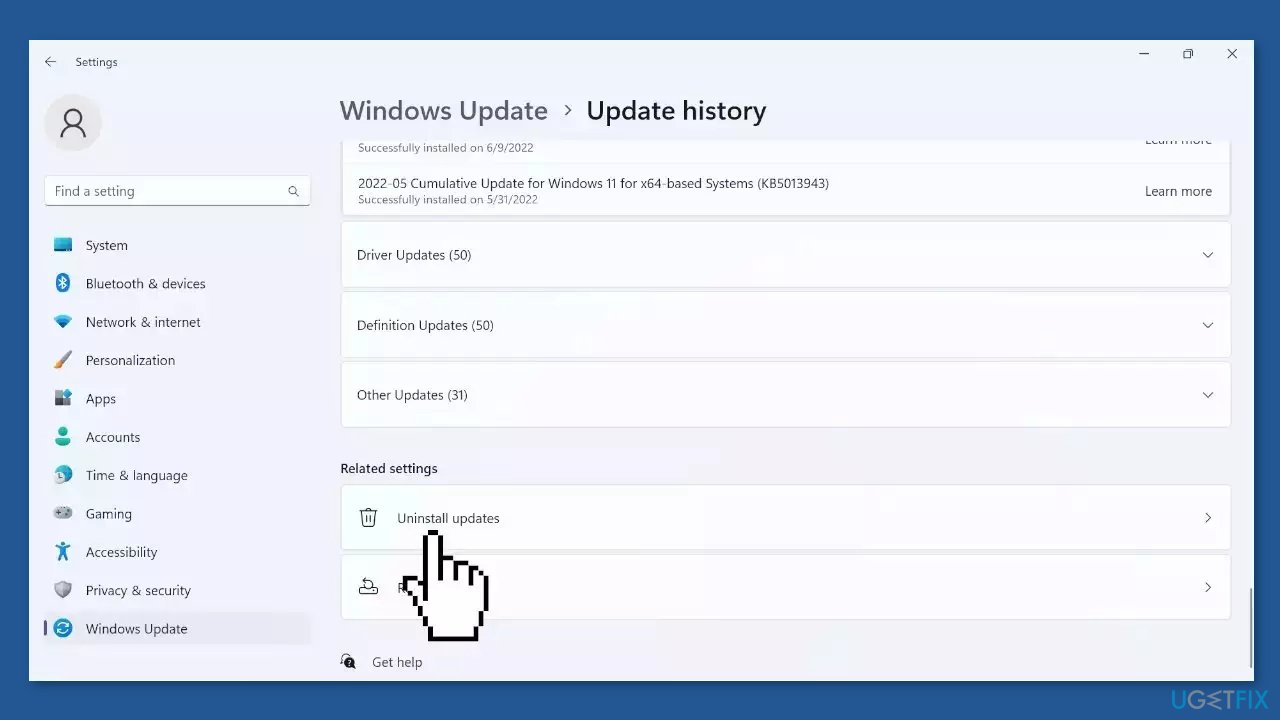
- Choose Uninstall updates.
- Locate the KB5029331 update.
- Right-click on the update.
- Select Uninstall.
- Follow the on-screen prompts to complete the uninstallation process.
- Restart your computer if prompted.
- Verify that the Windows update has been successfully uninstalled.
Solution 5. Use System Restore
System Restore is a feature in Microsoft Windows that allows users to revert their computer's state to a previous point in time. This can be helpful if you have made changes to your system that are causing problems.
- Press the Windows key + R on your keyboard to open the Run box.
- Type SystemPropertiesProtection and press Enter.
- Go to the System Protection tab.
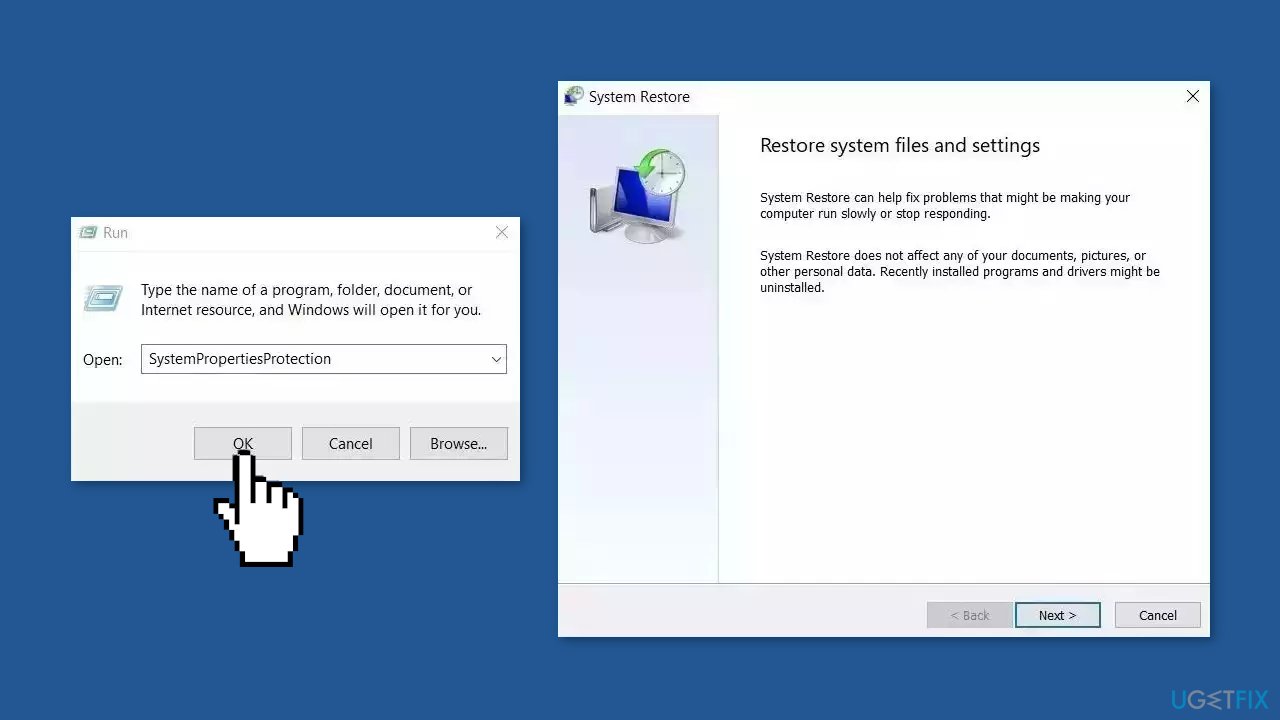
- You will see the System Restore… button. Click it to run System Restore.
- Follow the prompts until you can select a restore point.
- Select the one you want (ideally before the issue started occurring) and go ahead with the process.
Bottom line
To resolve the delays caused by the Windows backup app, users can repair corrupted system files using Command Prompt commands, including 'sfc /scannow' and DISM commands. If these solutions do not work, consider using a maintenance tool to fix system errors or investigate further underlying issues.
Frequently asked questions
The Windows backup app may be trying to complete backups or synchronize files during the log-off process, which can lead to delays. This is often due to large backup sizes or insufficient system resources.
You can adjust the backup settings to reduce the frequency of backups or pause them before logging off. Additionally, consider checking for any pending updates or optimizing your system performance.
Yes, you can run the built-in Windows Troubleshooter for backup and restore, and also check the Event Viewer for any error logs related to the backup app.




Report an issue
What's wrong with this guide? We review every report and update or remove content.
Report received — thank you. We'll review and fix it.
You need a free account to submit a report.
Be the first to comment