How to fix
Windows Help pages keep opening by themselves
on Windows
Resolve the issue of Windows 10 and 11 Help pages opening automatically with expert-tested solutions. Get your system running smoothly again!

![[Fix] Windows Help pages keep opening by themselves](https://ugetfix.com/wp-content/uploads/articles/askit/fix-windows-help-pages-keep-opening-by-themselves-copy_en-768x432.jpg)
What causes [Fix] Windows Help pages keep opening by themselves?
- Malfunctioning F1 key
- Malware or unwanted software
- Corrupted system files
- Incorrect settings
- Intermittent behavior
Repairs Windows system files, removes malware, and restores a clean OS state — without reinstalling.
I don't know what is going on but I hope you'll be able to help me fix this. Occasionally, my browsers (Edge/Chrome) start opening Windows Help pages even though I never click anything related to that in Windows itself. The number of tabs that are opened is ridiculous. There are days when none of this is happening and other times, I need to keep closing them for a while before I can proceed with my work.
Windows Help pages opening by themselves is a frustrating issue that many users encounter. This problem can manifest in various ways. For instance, one user reported that in browsers like Chrome and Edge, tabs with "How to get help in Windows" keep opening by themselves. The issue appears sporadically, with some days being problem-free while others are plagued by numerous tabs opening uncontrollably.
There are several reasons why Windows Help pages keep opening by themselves for some users. One common reason is a malfunctioning F1 key, which is often associated with triggering help windows in many applications. If this key is stuck or registering presses on its own, it can cause the help pages to open repeatedly.
Another possible cause is malware or unwanted software that interferes with the normal operation of the system. Corrupted system files or incorrect settings can also lead to this problem.
If you have this problem where Windows Help pages keep opening by themselves, it might make it difficult to perform daily tasks or use your computer for entertainment purposes. The problem is not consistent, making it hard to predict when it will occur. This intermittent behavior can be particularly frustrating, as it interrupts work without warning.
For those struggling with this issue, trying various troubleshooting steps provided below might help, but if the problem persists, using the [d1] repair app could help fix underlying Windows issues causing these disruptions. This tool can identify and repair system problems, potentially providing a more permanent solution to this annoying problem.

Fix 1. Clear browser cache
Clearing the browser cache can resolve issues caused by corrupted or outdated files stored in the cache.
Google Chrome
- Open Chrome.
- Click on Menu and select Settings.
- Under Privacy and security, pick Clear browsing data.
- Select All time under the time range.
- Select Browsing history, Cookies and other site data, as well as Cached images and files.
- Click Clear data.

Microsoft Edge
- Open Edge and click on three horizontal dots (Settings and more).
- Select Settings and then pick Privacy, search, and services on the left.
- On the right side of the window, scroll down to find the Clear browsing data section.
- Click Choose what to clear.
- Select All time under the time range.
- Pick all the sections and click Clear now.
Mozilla Firefox
- Click on the menu button (three horizontal lines) in the upper-right corner of the Firefox window.
- Select Settings from the drop-down menu.
- From the panel on the left side, click on Privacy & Security.
- Scroll down to the Cookies and Site Data section, and click on Clear Data.
- Ensure both boxes for Cookies and Site Data and Cached Web Content are checked, and then click on Clear.
Fix 2. Install Windows updates
If Windows Help pages opening automatically was a result of the bug, Windows updates should be able to iron it out.
- Type Updates in the Windows search box and press Enter.
- Click Check for Updates or Install all.
- Ensure optional and pending updates are installed as well.
- Wait till the process is finished.
- Restart your device.

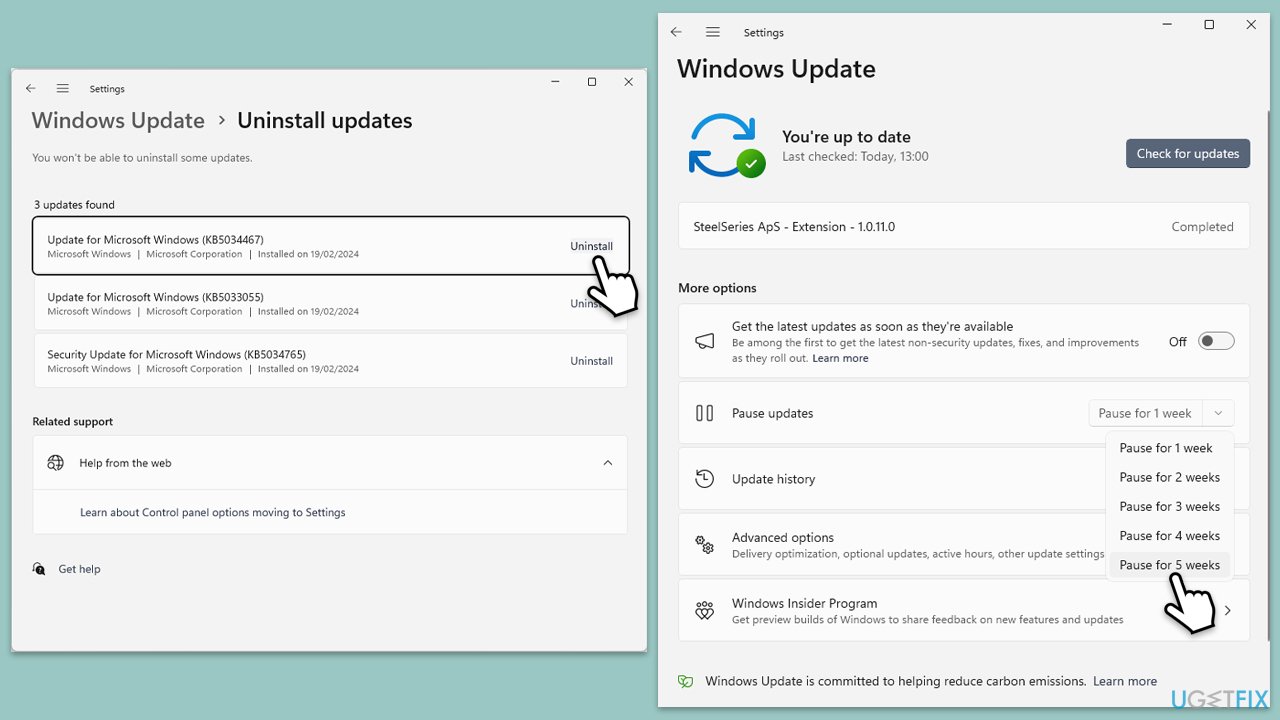
Fix 3. Uninstall the most recent Windows update
If the issue started after a recent update, uninstalling it may help.
- Type Control Panel in Windows search and press Enter.
- Select Programs > Uninstall a program.
- Click on View installed updates on the left side of the window.
- Uninstall the most recent update.
- Proceed with on-screen instructions.
- Don't forget to pause the update.
Fix 4. Run SFC and DISM
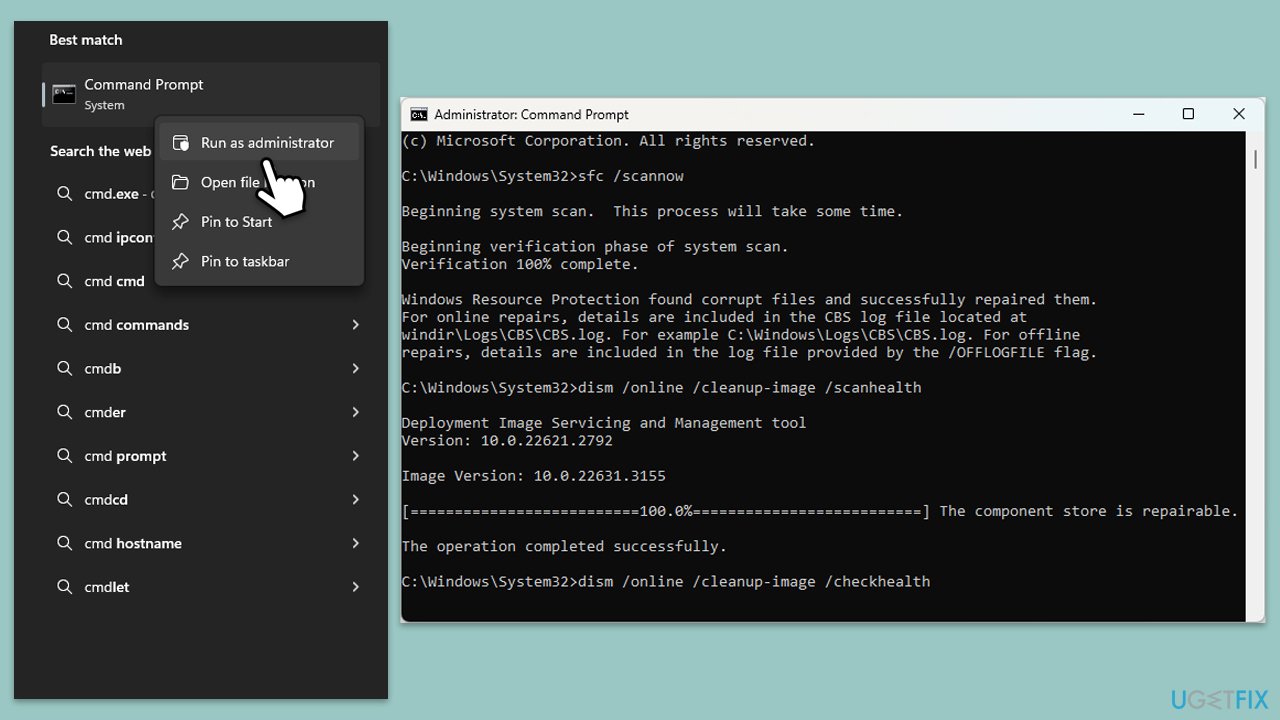
Running these tools can repair corrupted system files.
- Type in cmd in Windows search.
- Right-click on Command Prompt and select Run as administrator.
- In the User Account Control window, click Yes.
- In the Command Prompt window, paste the following command and hit Enter:
sfc /scannow - Next, use the following commands, pressing Enter each time:
Dism /Online /Cleanup-Image /CheckHealth
Dism /Online /Cleanup-Image /ScanHealth
Dism /Online /Cleanup-Image /RestoreHealth
(Note: if you get an error executing this last command, add /Source:C:\RepairSource\Windows /LimitAccess to it and try again). - Reboot your computer.
Fix 5. Try Clean Boot
Performing a clean boot can help identify if third-party software is causing the issue.
- Type msconfig in Windows search and hit Enter.
- Go to the Services tab and tick the Hide all Microsoft services checkbox.
- Select Disable all.
- Go to the Startup tab and click Open Task Manager.
- Here, right-click on each of the non-Windows entries and select Disable.
- Close down the Task Manager.
- Go to the Boot tab and tick the Safe boot option.
- Restart your device.
- Once in the Clean Boot state, check if you can open apps normally. If the error does not occur, enable services and startup items one at a time (or in groups) to pinpoint the conflict.

Fix 6. Run malware scan
Make sure you check your system is not infected. You can use any reliable third-party anti-malware, employ Microsoft Safety Scanner, or simply use Windows Defender:
- Type Windows Security in the Windows search bar and hit Enter.
- Select Virus & threat protection.
- Pick Scan options.
- Choose Microsoft Defender Offline scan and click Scan now.
- Your computer will immediately restart to begin a deep scan.

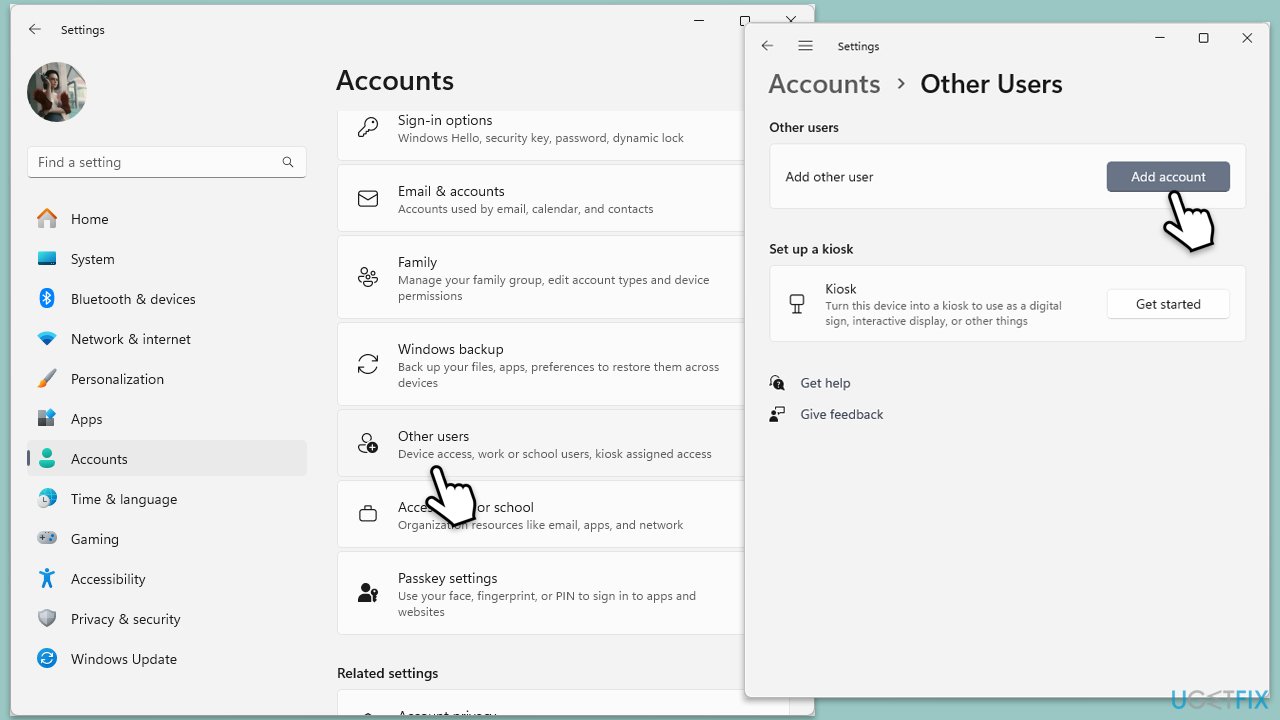
Fix 7. Create a new user account
Creating a new user account can help determine if the issue is user profile-specific.
- Open Windows Settings.
- Go to Accounts then Family/Family & other users.
- Under Other users, click Add account/Add someone else to this PC.
- Follow the prompts to create a new user account. If you don't have Microsoft account details, you can choose I don't have this person's sign-in information followed by Add a user without a Microsoft account.
- Assign a username and password for the new account and complete the setup.
- Then go back to the Accounts section. Under Family/Family & other users, select the newly created account and click Change account type.
- Under Account type, pick Administrator and click OK.
Fix 8. Repair-install Windows
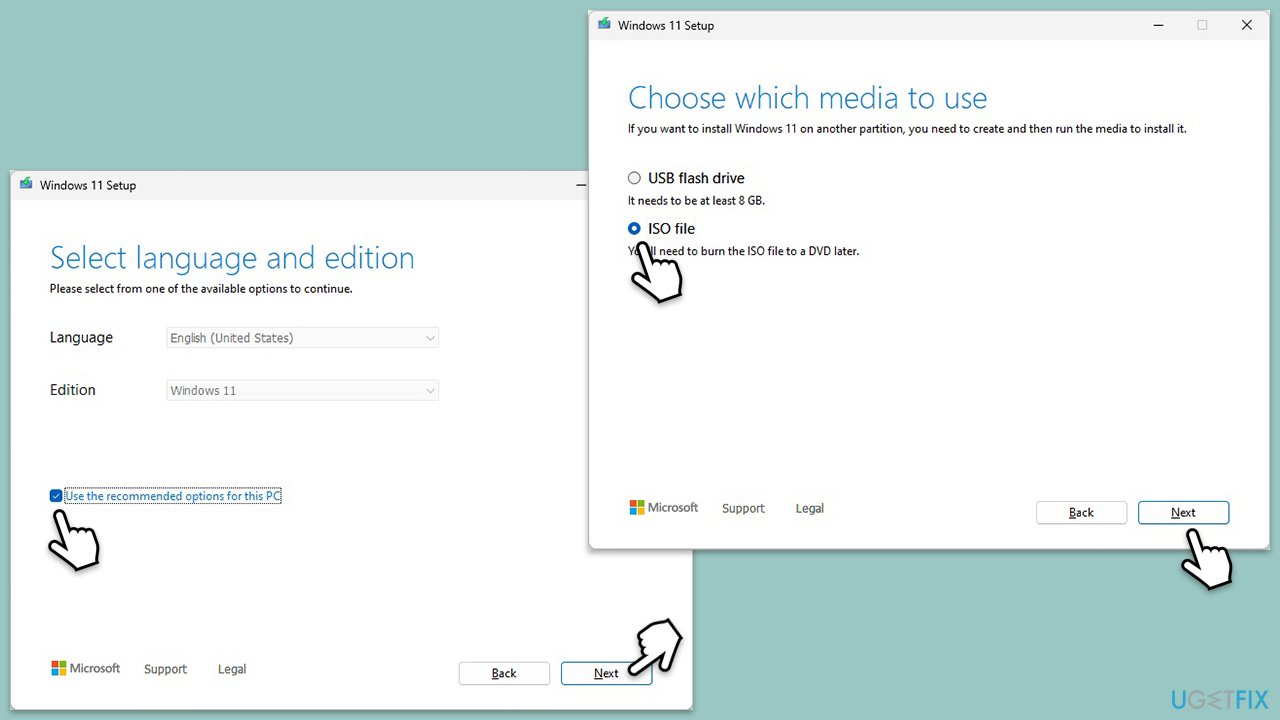
A repair installation can fix system issues without affecting your files.
- Visit the official Microsoft website and download Windows 10 installation media (Windows 11 version).
- Double-click the installer, select Yes when UAC shows up, and agree to the terms.
- Select the ISO file and click Next, then follow the instructions to finish the process.
- Right-click on ISO and click Mount.
- Open the location of the ISO, right-click on it, and select Mount.
- Launch the installer.
- Select Upgrade this PC now and click Next.
- Windows will start downloading the needed files.
- Agree to the terms once again and click Next.
- Before installing, ensure you are happy with your choices (otherwise, you can click the Change what to keep option).
- Finally, click Install to begin the upgrade process.
Bottom line
To address the issue of Windows Help pages opening by themselves, you can try clearing your browser cache, checking for malware, and repairing system files. If these steps do not resolve the problem, consider using a repair app to fix underlying Windows issues.
Frequently asked questions
This issue may be caused by a stuck key on your keyboard, a rogue application, or a malware infection affecting Windows 10 or Windows 11.
You can stop this behavior by checking for stuck keys, disabling suspicious startup programs, and scanning for malware using Windows Defender on Windows 10 or Windows 11.
If the issue continues, consider performing a system restore or resetting Windows 10 or Windows 11 to eliminate any software conflicts.




Report an issue
What's wrong with this guide? We review every report and update or remove content.
Report received — thank you. We'll review and fix it.
You need a free account to submit a report.
Be the first to comment