How to fix
Windows July 2022 KB5015807 update created duplicate copy of printer
on Windows
Resolve the printer duplication issue caused by the July 2022 KB5015807 update on Windows 10 and 11 effortlessly. Fix it in minutes with expert-tested t…

![[Fix] Windows July 2022 KB5015807 update created duplicate copy of printer](https://ugetfix.com/wp-content/uploads/articles/askit/fix-windows-july-2022-kb5015807-update-created-duplicate-copy-of-printer_en-768x432.jpg)
What causes [Fix] Windows July 2022 KB5015807 update created duplicate copy of printer?
- Windows Update KB5015807 creates a duplicate printer copy
- Duplicate printer has the suffix 'Copy 1'
- Original printer is set to default automatically
- User settings do not save after selecting 'Copy 1'
- Previous updates have caused printing issues
Repairs Windows system files, removes malware, and restores a clean OS state — without reinstalling.
Hello. After the installation of Windows Update KB501587, I cannot use my printer because Windows created a duplicate copy. Is there a way to fix this?
In July of 2022, Microsoft released a new update KB5015807[ref en-1] which breaks users' printers. The update installs a duplicate copy of the printer with the same name and the suffix "Copy 1", causing all printers not to print at all, including the original printer. Users have to go to the settings and manually pick "Copy 1" to be able to print.
However, the settings do not save, and the original printer gets set to default, so users have to do this process every time they want to print. This has been a big inconvenience for many people. The issue was officially confirmed by Microsoft but not yet fixed.
It is not the first time that Windows updates have caused printing issues. Back in 2021, we wrote about the network printing error 0x0000011b that affected many business owners. Even though Microsoft has not yet released a fix for the problem of the KB5015807 update creating duplicate copies of printers, luckily, we have found a workaround that has helped some people.
In this guide, you will find 4 steps that could help you use your printer after the KB5015807 update created a duplicate copy. We also recommend running a scan with a maintenance tool like [d1]. It can fix various system errors, BSODs,[ref en-2] corrupted files, and registry[ref en-3] issues. Otherwise, follow the step-by-step guide carefully.
Step 1. Delete Copy 1 Printer
- Open Settings and click on Devices
- Go to Printers & scanners
- Select the copy of your original printer and click Remove device
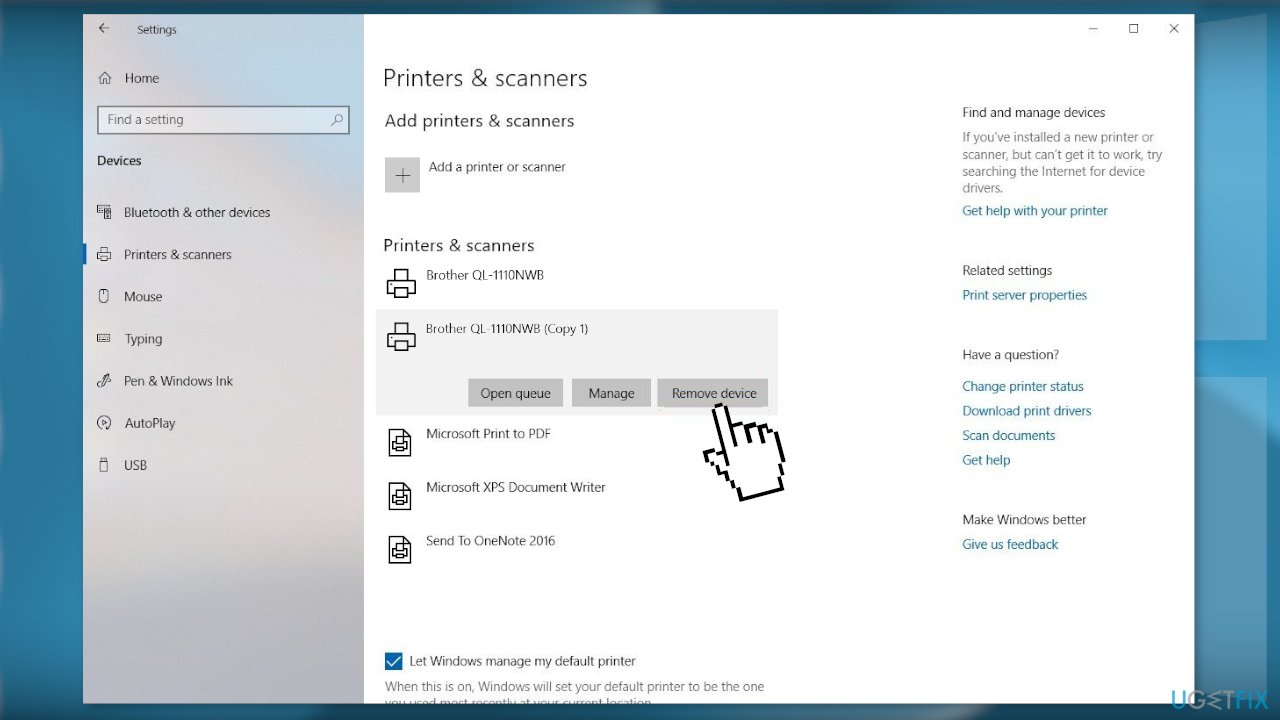
- Click Yes to confirm
Step 2. Delete the Original Printer in the Device Manager
- Press Windows key + R to open the Run box
- Type devmgmt.msc and press Enter
- Expand the Print queues drop-down menu, right-click on the printer and choose Uninstall Device
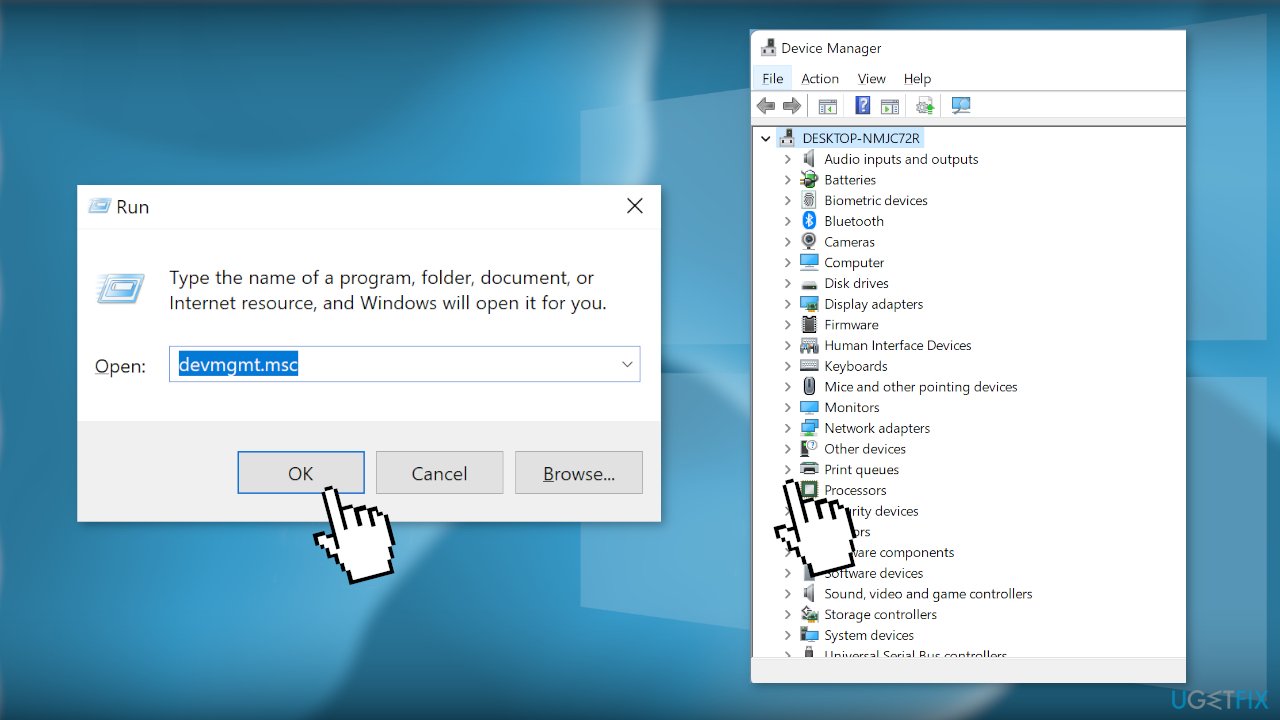
- Close Device Manager
- Disconnect the printer cable from the PC
Step. 3 Uninstall Printer Software and Drivers
- Open Settings and click on Apps
- Go to Apps & features and find the software you want to remove
- Click the Uninstall button and continue with the on-screen directions
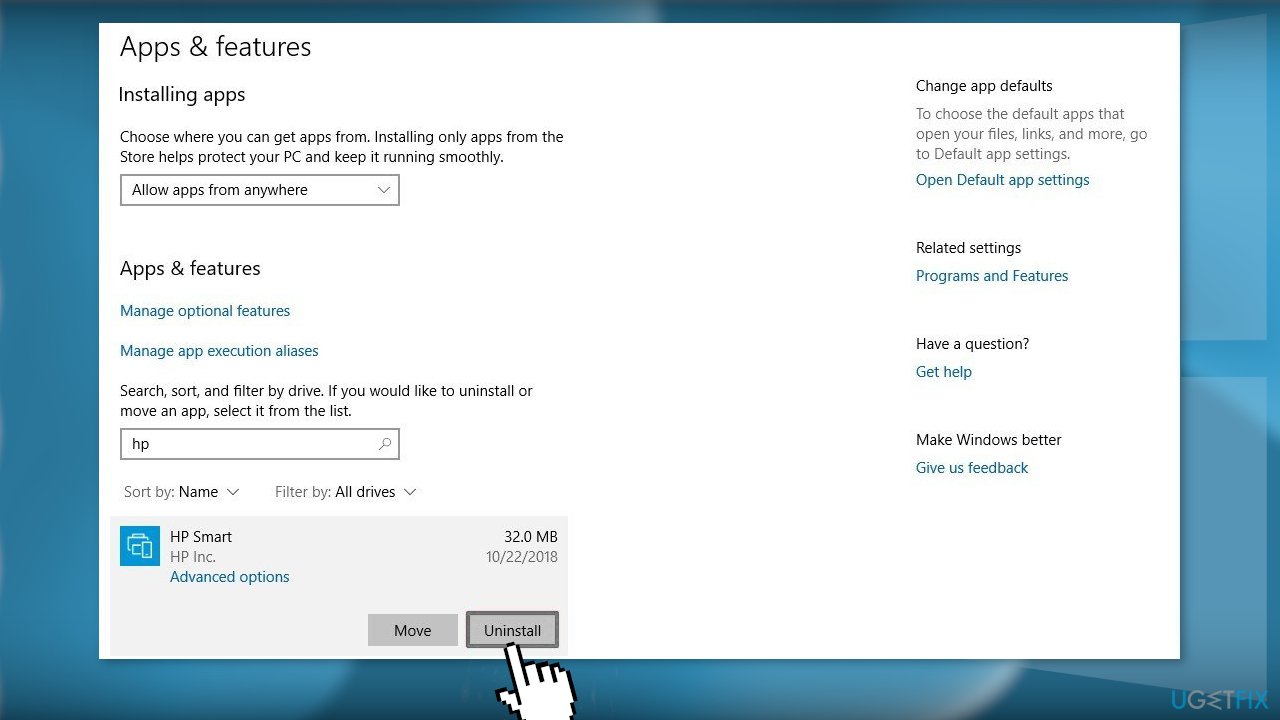
- Restart your PC, then power up the printer
Step 4. Reinstall Printer Drivers and Software
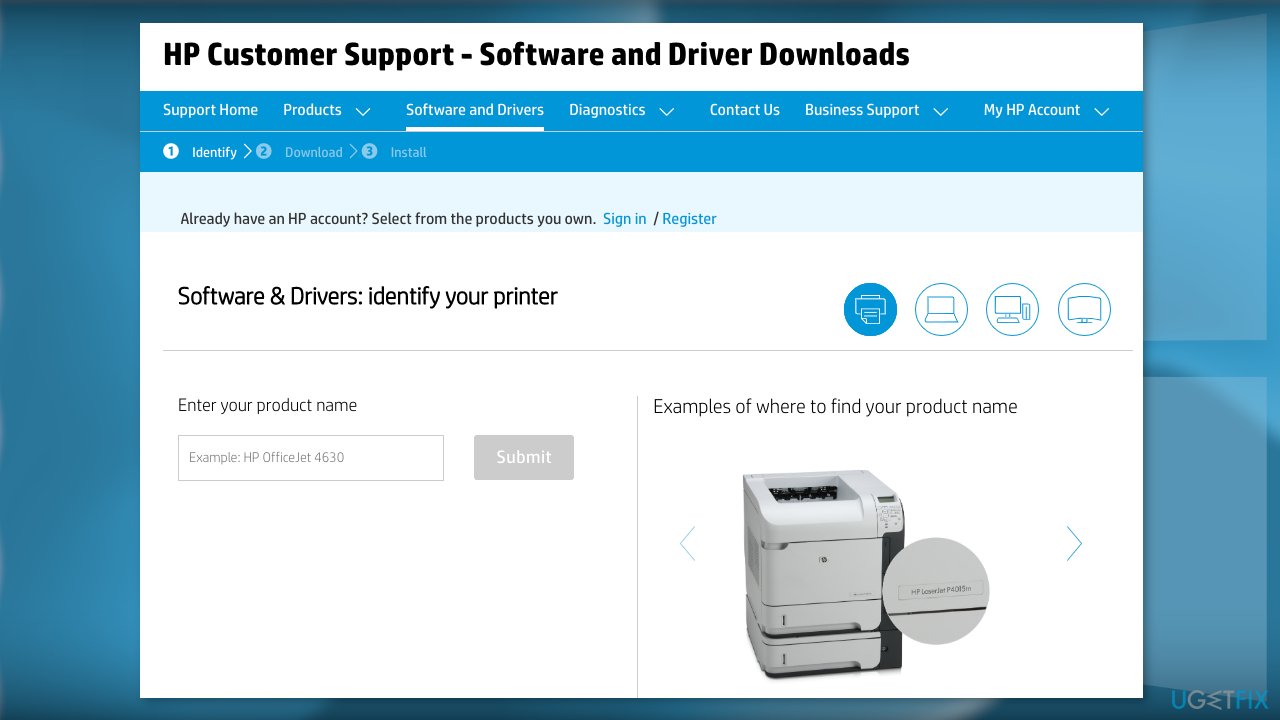
- Go to the official website of your printer manufacturer
- Find the needed drivers and software
- Install them using the instructions provided
Bottom line
To resolve the issue of the duplicate printer created by the KB5015807 update, users can delete the 'Copy 1' printer and uninstall the original printer from the Device Manager. If these steps do not work, it is recommended to run a maintenance tool to fix various system errors.
Frequently asked questions
You can remove the duplicate printer by going to Settings > Devices > Printers & scanners, selecting the duplicate entry, and clicking 'Remove device.' After that, restart your computer and re-add your printer if necessary.
Currently, there is no official fix to prevent this issue, but regularly checking for Windows updates can help, as Microsoft may release a patch to address it.
To reinstall your printer, remove the duplicate entry as mentioned, then go to Settings > Devices > Printers & scanners and click 'Add a printer or scanner' to set it up again.




Report an issue
What's wrong with this guide? We review every report and update or remove content.
Report received — thank you. We'll review and fix it.
You need a free account to submit a report.
Be the first to comment