How to fix
Windows keeps changing brightness automatically
on Windows
Discover effective solutions to stop Windows 10 and Windows 11 from automatically changing brightness. Expert-tested tips for a hassle-free experience!

![[Fix] Windows keeps changing brightness automatically](https://ugetfix.com/wp-content/uploads/articles/askit/windows-keeps-changing-brightness-automatically-fix_en-768x434.jpg)
What causes [Fix] Windows keeps changing brightness automatically?
- Adaptive brightness feature
- Ambient light sensor adjustments
- Corruption of system files
- Driver updates issues
- Malware or unwanted programs
Repairs Windows system files, removes malware, and restores a clean OS state — without reinstalling.
Hello. I want to solve the issue with my display. The brightness of the screen keeps changing automatically. It annoys me, but I can't find the particular setting for that to change. The adaptive brightness option is not in display options. Are there any other ways to fix this?
Windows keeps changing brightness automatically seems to be the issue that bothers users[ref en-1] a lot. The ambient light sensor that is in most of the newer machines ensures that the screen brightness is adjusted automatically based on the light of surrounding at a certain time. This is the Windows 10 feature mainly, but not all people like this unstable brightness of the display. This is not the issue of the updated or not properly upgraded OS, though.[ref en-2]
The function is also available in Windows 7 and Windows 8 but can only be visible when the particular hardware on the machine supports it. The screen can get dimmed out of nowhere and interfere with anything you are working on. This is the feature needed for the power plan and battery life.
In many cases, this is the problem with new computers and newly purchased laptops. Brightness keeps automatically changing on some older devices too. This issue might be occurring alongside other issues with the system. Some file damage, corruption of the system functions, and features can also interfere with the setting changes too.
It is common for machines to start performance strangely when the corruption of files or alterations in system data settings trigger issues. Driver updates, system upgrading in time, and registry issues are commonly overlooked. That also goes for malware[ref en-3] and potentially unwanted programs or unnoticed infections, intrusive applications.
These more common issues with the alterations in system data and functions, corruption of files, and missing or damaged pieces on the machine can be solved quickly. For that, you need a tool like [d1] that can find the issues and solve them by repairing any data and clearing possible infection leftovers or virus pieces that still affect the machine. From there, if any of the issues detected interfere with the further actions and solutions, you might increase your chances to fix the brightness problem with the instructions below. Do not skip the guide and try to follow all methods.
Fix 1. Disable Adaptive Brightness
- Press the Windows key + I keyboard shortcut to open Settings.
- Then click on the System category.
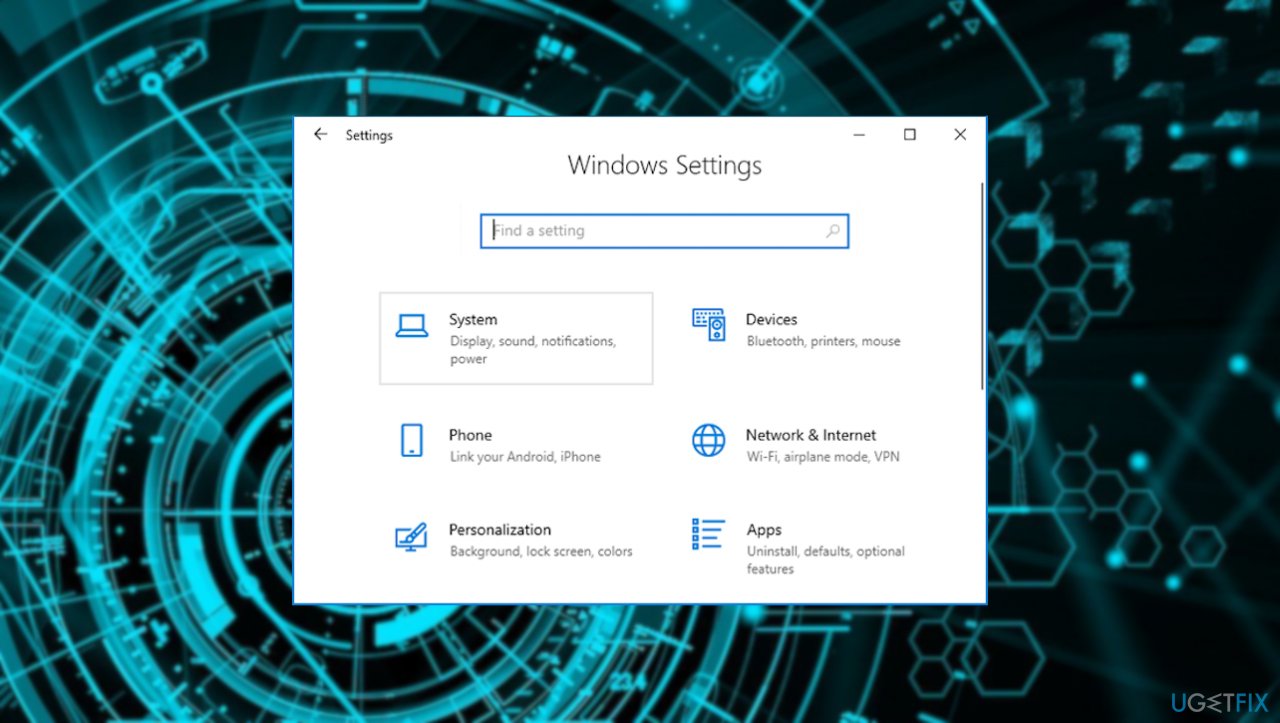
Windows keeps changing brightness automatically system - Select the Display menu on the left.
- Uncheck the Change brightness automatically when lighting changes option.
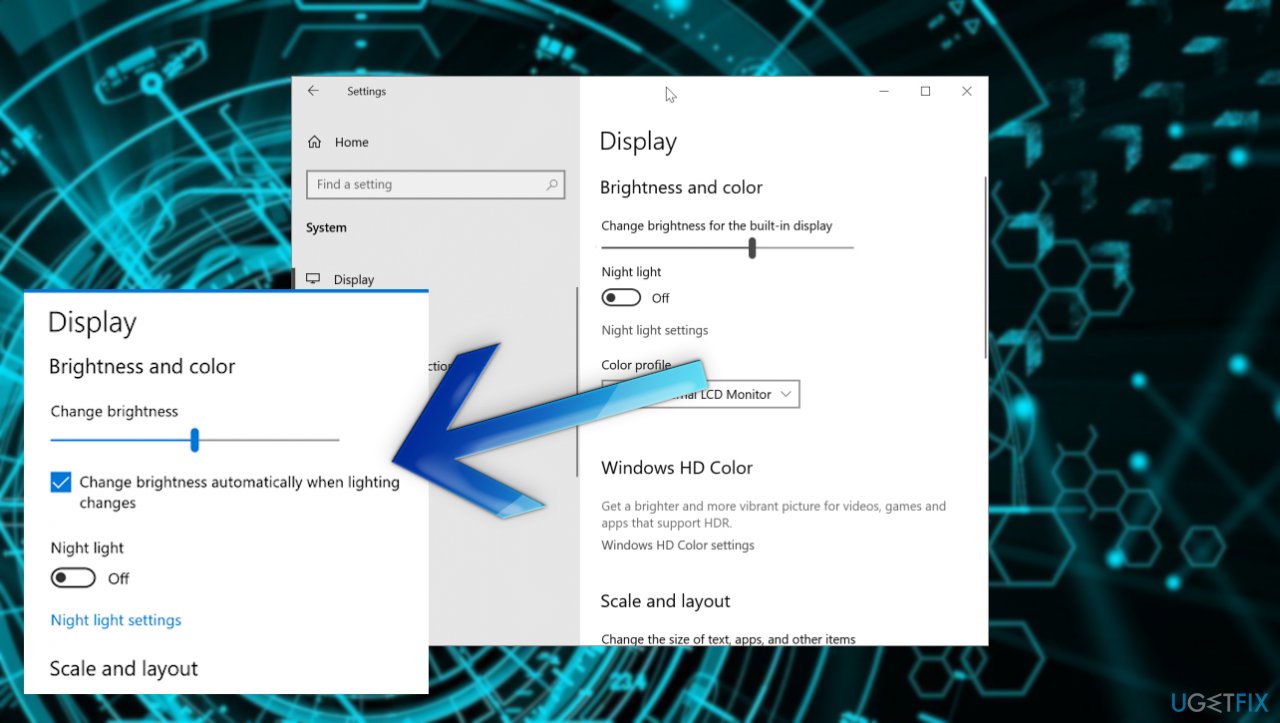
Windows keeps changing brightness automatically change brightness
Fix 2. Disable Auto screen dimming
- Open the Settings app and navigate to System.
- Find the Battery option.
- Click the checkbox next to Lower screen brightness while in battery saver.
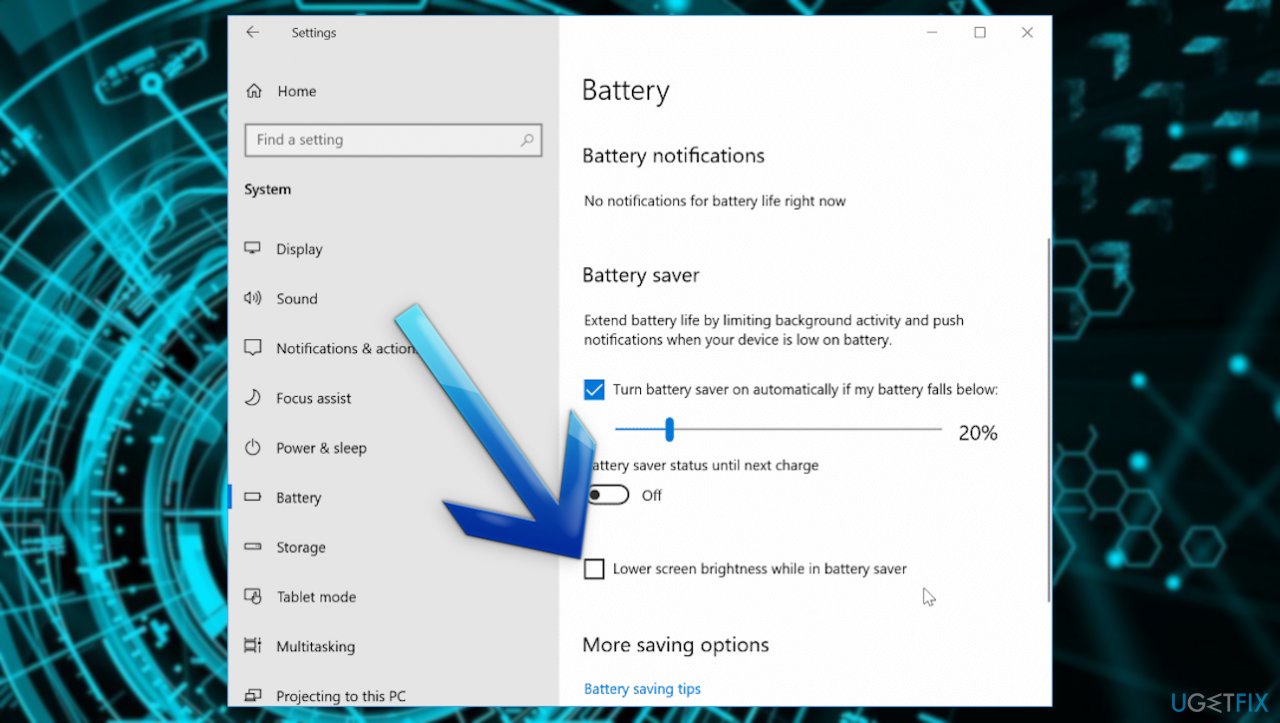
Windows keeps changing brightness automatically lower screen brightness - Disable Power Saving for Graphics Card.
Fix 3. Disable adaptive brightness via Control Panel
- Go to Control Panel.
- Find Hardware and Sound.
- Choose Power Options, then click on Change plan settings next to your active power plan.
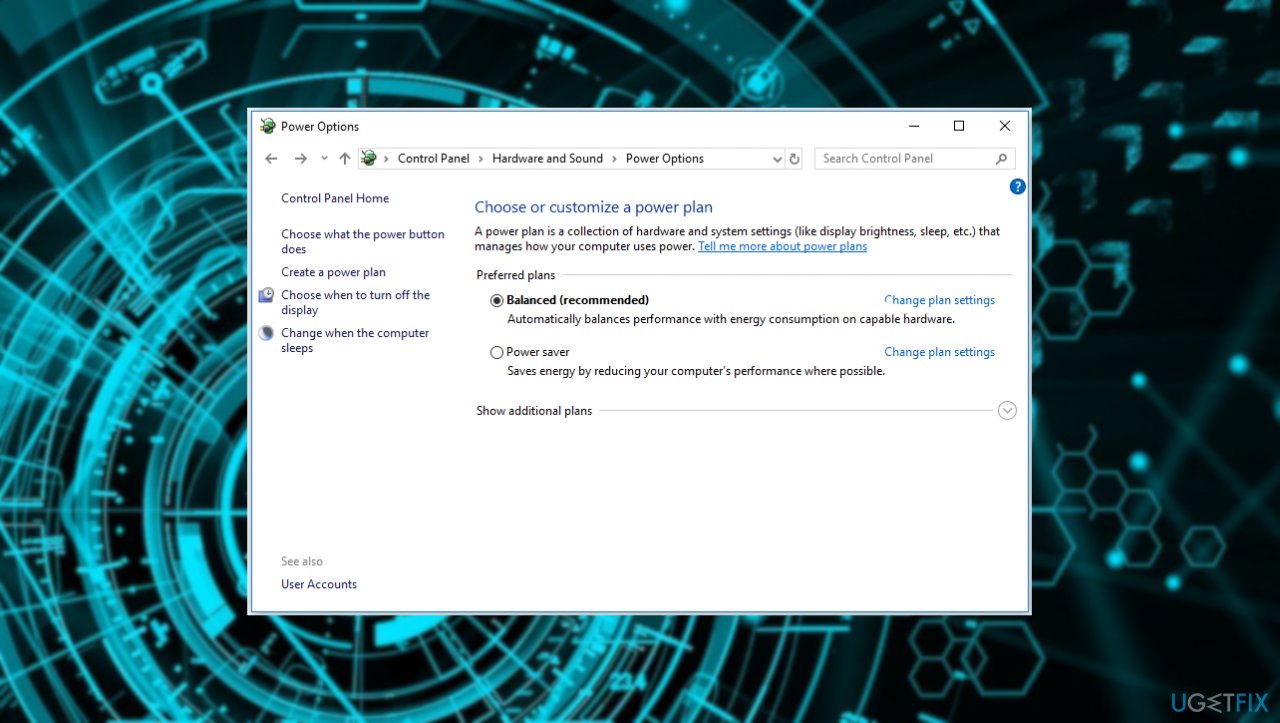
Windows keeps changing brightness automatically plan settings - Click on Change advanced power settings.
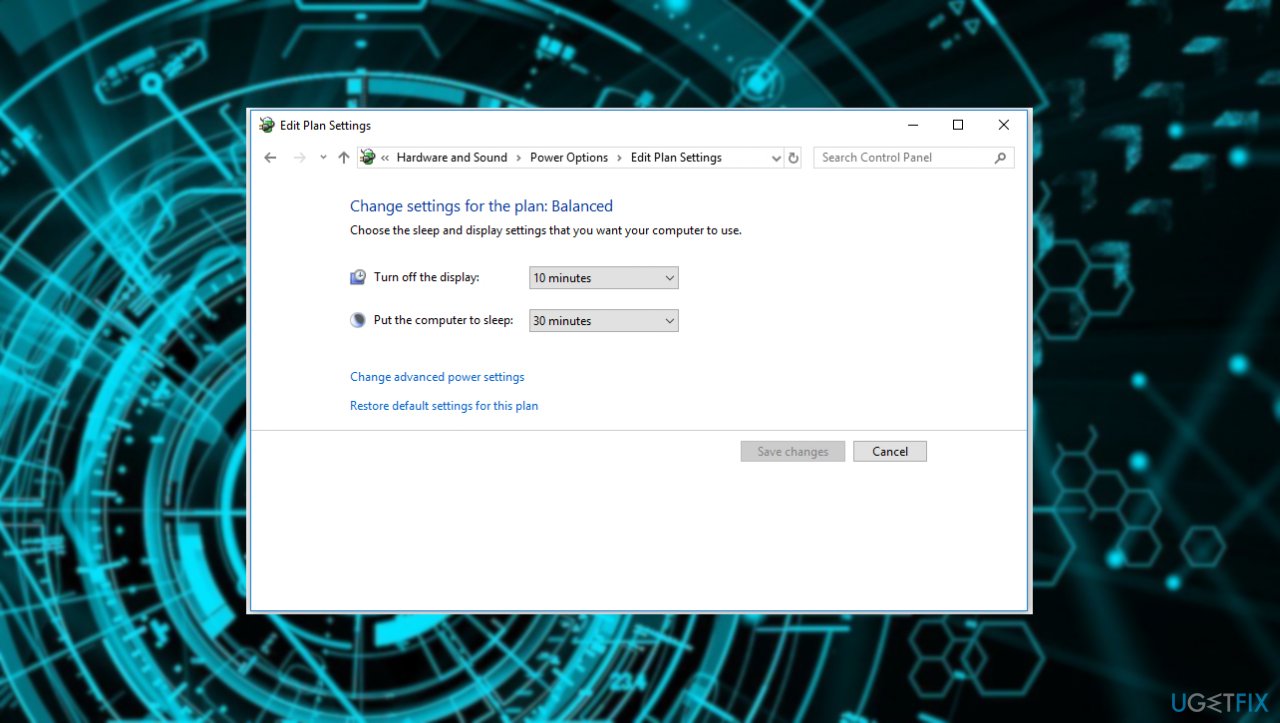
Windows keeps changing brightness automatically advanced power settings - Scroll down to Display.
- Under Enable adaptive brightness, switch it off for both the battery and plugged in modes.
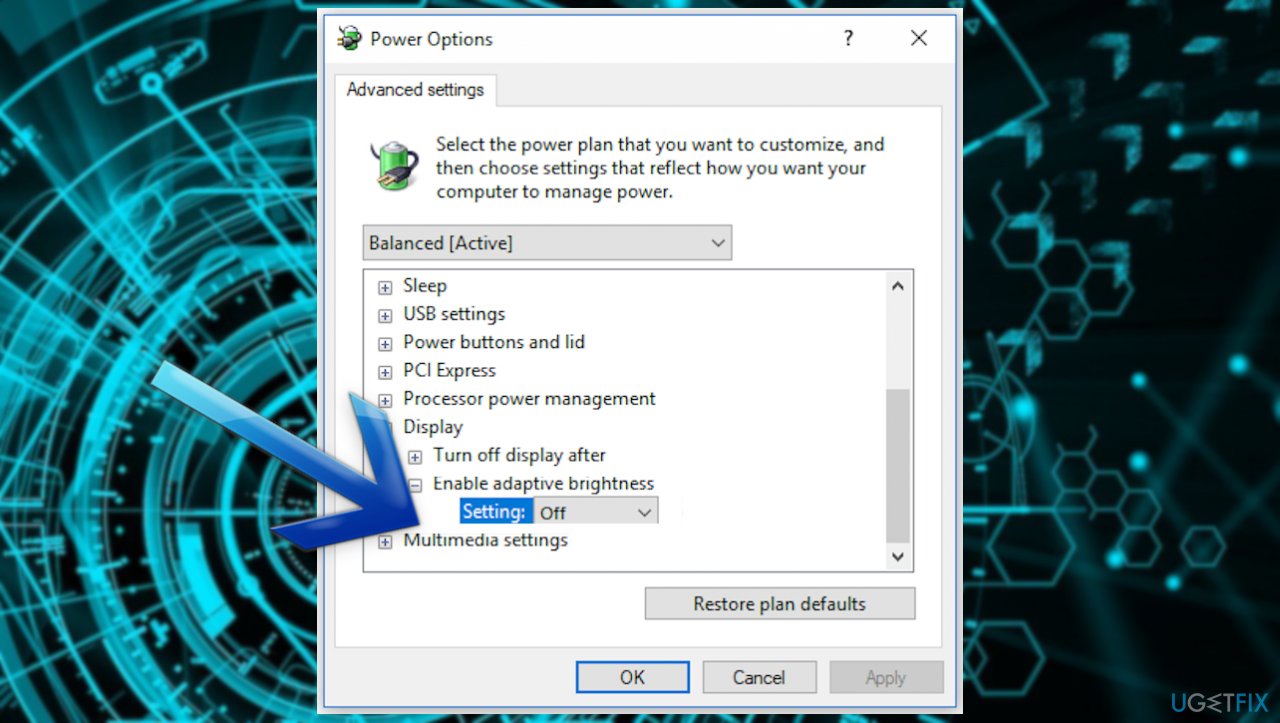
Windows keeps changing brightness automatically enable
Bottom line
To address the issue of Windows automatically changing brightness, consider checking the adaptive brightness settings, updating drivers, and scanning for malware. If these solutions do not resolve the problem, using a specialized tool to repair system data and remove infections may be necessary.
Frequently asked questions
This can happen due to a power management feature or adaptive brightness settings that may still be enabled. Check your display settings and power options to ensure all automatic adjustments are turned off.
To prevent Windows 11 from adjusting brightness automatically, go to Settings > System > Display and toggle off the 'Change brightness automatically when lighting changes' option.
If brightness issues persist, consider updating your graphics drivers or checking for recent Windows updates that might address known bugs.




Report an issue
What's wrong with this guide? We review every report and update or remove content.
Report received — thank you. We'll review and fix it.
You need a free account to submit a report.
Be the first to comment