How to fix
Windows Resource Protection found corrupt files but was unable to fix some of them
on Windows
Resolve Windows Resource Protection errors on Windows 10 or 11 effortlessly. Expert-tested solutions guarantee quick fixes and zero traces left.

![[Fix] Windows Resource Protection found corrupt files but was unable to fix some of them](https://ugetfix.com/wp-content/uploads/articles/askit/fix-windows-resource-protection-found-corrupt-files-but-was-unable-to-fix-some-of-them-copy_en-768x432.jpg)
What causes [Fix] Windows Resource Protection found corrupt files but was unable to fix some of them?
- Files being actively used by the system
- Cached copies being damaged
- Corrupt files having complex dependencies
- Issues with system stability
- Problems with the System File Checker (SFC) process
Repairs Windows system files, removes malware, and restores a clean OS state — without reinstalling.
I had some problems with my PC (apps would crash randomly. I also had a few Windows crases), so I ran an SFC scan in Command Prompt, which returned a message saying "Windows Resource Protection found corrupt files but was unable to fix some of them." How do I go around this one?
When running system checks on your Windows computer using the System File Checker (SFC) command in the Command Prompt, you might encounter the message: "Windows Resource Protection found corrupt files but was unable to fix some of them."
This typically appears after you've initiated a scan by entering "sfc /scannow" in the Command Prompt, a procedure often used when troubleshooting various system issues or after experiencing system instability.
What is Windows Resource Protection?
Windows Resource Protection (WRP) is a function that safeguards important system files, registry keys, and directories. WRP will try to restore the system files from a cached copy that is kept in a compressed folder at %WinDir%\System32\dllcache if it finds a violation. This protection technique includes an SFC scan that verifies the integrity of certain files.
The "Windows Resource Protection found corrupt files but was unable to fix some of them" message indicates that some files could not be fixed suggesting that the SFC scan found corrupt files but, for some reason, was unable to repair them. This could be due to files being actively used by the system, the cached copies being damaged, or the corrupt files having complex dependencies that prevent straightforward repair.
What's next?
If you encounter this error, it means that while some corrupt files were identified, the tool couldn't repair them automatically. As a result, you would have to bypass this in other methods, including running the scan in Safe Mode, performing a DISM (Deployment Image Servicing and Management) scan, or in more persistent cases, refreshing or reinstalling the operating system. You can find the instructions for these and other steps below.
Other solutions
For many, these procedures might seem complex or risky. If you prefer a simpler, more automatic approach to resolving these issues, consider using a PC repair tool [d1]. Such software is designed to fix underlying Windows issues automatically, especially effective with corrupted files.

Fix 1. Run DISM scans
The DISM tool repairs the Windows System Image and Windows Component Store in the Windows image. This tool is crucial when the System File Checker cannot repair corrupted files because it may fix the system image, enabling SFC to function effectively.
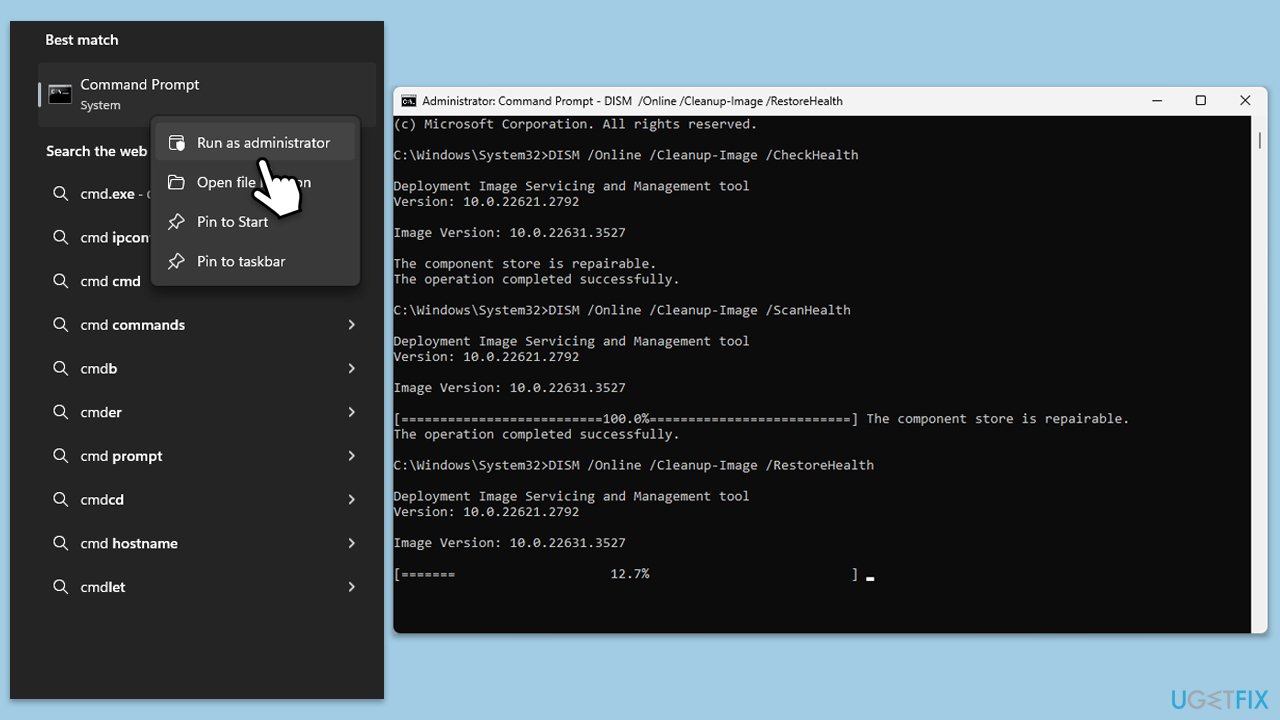
- Type cmd in Windows search.
- Right-click on Command Prompt and pick Run as administrator.
- User Account Control window will show up - click Yes when prompted.
- Use the set of the following commands, pressing Enter each time:
DISM /Online /Cleanup-Image /CheckHealth
DISM /Online /Cleanup-Image /ScanHealth
DISM /Online /Cleanup-Image /RestoreHealth - (Note: if you get an error executing this last command, add /Source:C:\RepairSource\Windows /LimitAccess to it and try again).
- Close down the Command Prompt and restart your computer.
- After DISM completes, run sfc /scannow again to check if the issue is resolved.
Fix 2. Try accessing Safe Mode and running SFC and DISM there
Safe Mode starts your PC with a minimal set of drivers and services. Running scans in Safe Mode can be more effective because it prevents other software from interfering with the repair process.
- From the login screen, hold the Shift key on your keyboard and click Power > Restart.
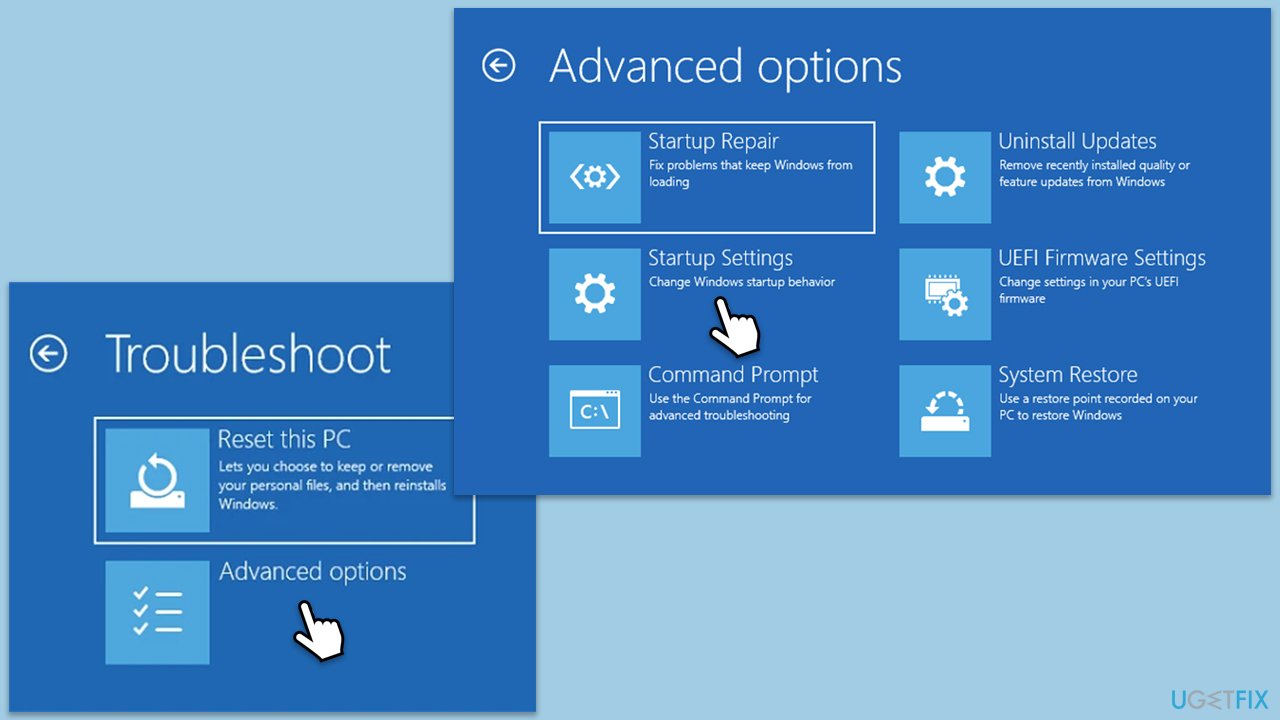
- Once you enter the recovery environment, go to Troubleshoot > Advanced options > Startup Settings.
- When prompted, click Restart.
- After restart, pick either 4/F4 for Safe Mode or 5/F5 for Safe Mode with Networking.
- Once in Safe Mode, run the sfc /scannow and follow it with the DISM commands mentioned in Fix 1 to enhance the chance of resolving the issue.
- When done, reboot your PC into normal more.
Fix 3. Perform Check Disk first
The Check Disk utility scans the hard drive for bad sectors and system errors that can cause file corruption. Running this tool can help identify and solve disk-level issues that might be causing file corruption.
- Open Command Prompt as administrator.
- Click Yes when UAC asks for access.
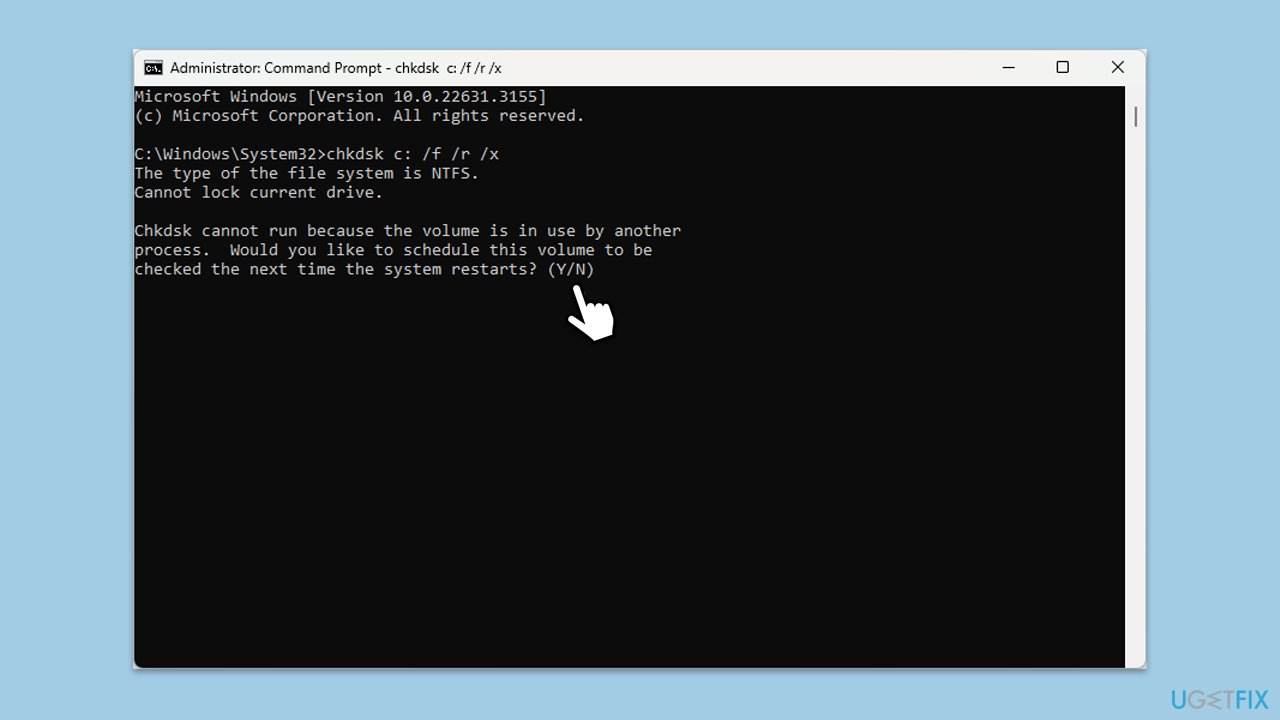
- Type in the following command and press Enter after:
chkdsk c: /f
(Note: use chkdsk c: /f /r /x command if you use SSD as your primary partition). - If you receive an error, type in Y, close down Command Prompt, and restart your computer.
- After a restart, Windows will begin to scan your disk. After your system boots back up, you can find the results in the Event Viewer.
- After completing the disk check, attempt the sfc /scannow command again to see if the problem persists.
Fix 4. Uninstall third-party security software
Sometimes, third-party security software can interfere with system files. Using a special uninstall tool provided by your antivirus vendor ensures that all components of the software are properly removed.
- Visit the official website of your antivirus provider and download the dedicated uninstall tool.
- Alternatively, you can find the full list of the links to official uninstallers here.
- Run the uninstall tool and follow the on-screen instructions to remove the security software completely.
- After uninstallation, restart your computer and run sfc /scannow again.
Fix 5. Replace the corrupted files manually
If the SFC cannot fix certain files, you can manually replace them using the information found in the CBS log.
- Open Command Prompt as an administrator.
- Type the following command and press Enter to extract SFC scan details to a file on your desktop:
findstr /c:"[SR]" %windir%\Logs\CBS\CBS.log >C:\Desktop\sfcdetails.txt - Open the sfcdetails.txt file on your desktop and search for lines that mention "cannot repair member file."
- Locate a healthy version of the corrupted file from another trusted Windows installation or online source, ensuring it matches your Windows version and system architecture.
- Replace the corrupted file by copying the healthy file to the exact location specified in the CBS log.
- Restart your PC.
Fix 6. Repair-install Windows
A repair installation reinstalls Windows' system files without affecting your personal files and settings. This can be the final step if all other fixes fail.
Create Windows ISO
- Download Windows 11 Installation media from the official Microsoft website. [Windows 10 version]
- Double-click the MediaCreationTool.exe file to launch it.
- When UAC shows up, click Yes.
- Accept license terms.
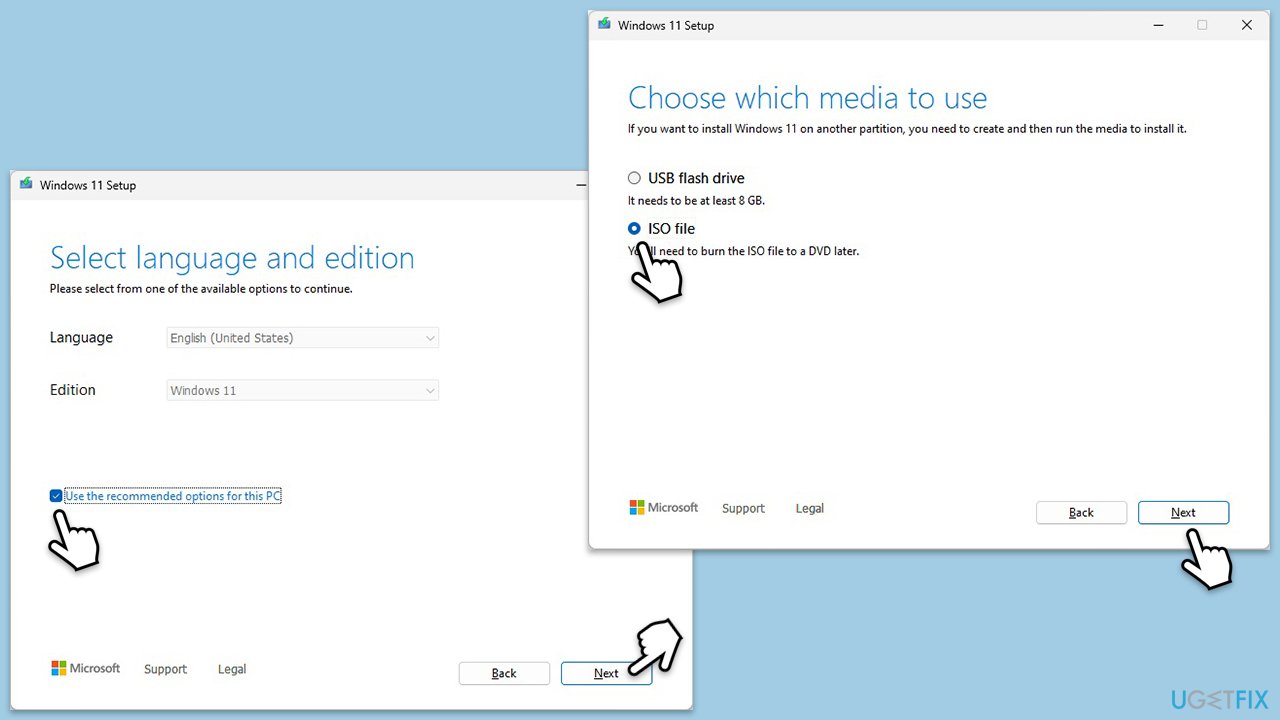
- Select Language and Edition (make sure it matches the one you have currently installed) or simply mark the Use the recommended options for this PC and click Next).
- Select the ISO file and click Next.
- Pick the location for your ISO file and wait till all the needed files are downloaded, then click Finish.
Repair-install Windows
- Go to the location of your ISO file, right-click, and select Mount.
- Run the setup.exe file.
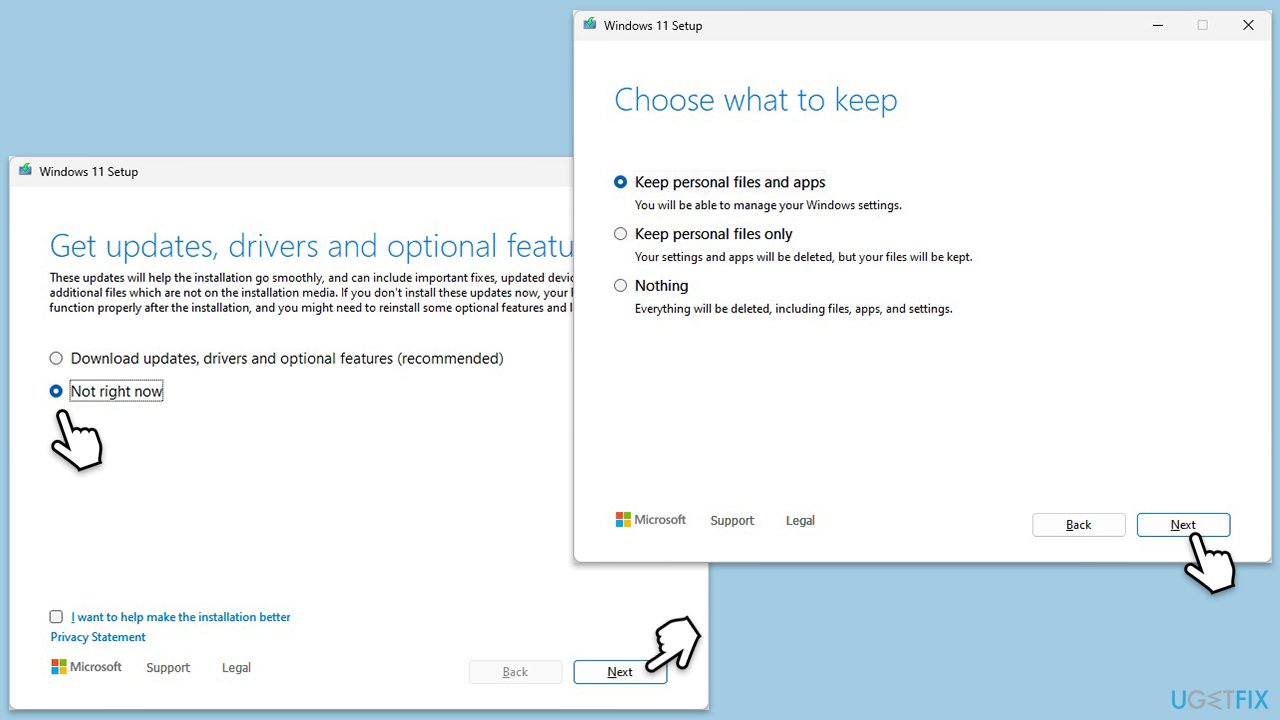
- You will be asked whether you want to update Windows to the latest version - pick Not right now and click Next.
- Accept Terms and Windows will make several checks to ensure everything is fine.
- Click Change what to keep.
- Here, you have several options: Keep your files and apps, Keep files only, or Keep nothing - choose what suits you the best. Click Next.
- Finally, click Install to begin the installation process.
Bottom line
If you encounter the message indicating that Windows Resource Protection found corrupt files but was unable to fix some of them, you can try running the scan in Safe Mode, performing a DISM scan, or refreshing/reinstalling the operating system. If none of these methods work, consider seeking professional assistance or using a PC repair tool.
Frequently asked questions
You can try running the DISM tool with the command 'DISM /Online /Cleanup-Image /RestoreHealth' in Command Prompt to repair the Windows image before running the SFC scan again.
The CBS.log file can be found in the C:\Windows\Logs\CBS directory, which contains detailed information about the issues detected by the System File Checker.
Yes, you can manually replace corrupt system files by obtaining the correct versions from another Windows installation or using installation media, but this requires advanced knowledge of system file structure.




Report an issue
What's wrong with this guide? We review every report and update or remove content.
Report received — thank you. We'll review and fix it.
You need a free account to submit a report.
Be the first to comment