How to fix
Windows Security Dashboard won’t open
on Windows
Resolve the Windows Security Dashboard issue in Windows 11 quickly and effortlessly with our expert-tested solutions. Get your PC secured in minutes!

![[Fix] Windows Security Dashboard won’t open in Windows 11](https://ugetfix.com/wp-content/uploads/articles/askit/windows-security-dashboard-wont-open-in-windows-11_en-768x432.jpg)
What causes [Fix] Windows Security Dashboard won’t open in Windows 11?
- Third-party antivirus software
- Corrupted system files
- Wrong registry configurations
- Corrupted installation of Windows 11
Repairs Windows system files, removes malware, and restores a clean OS state — without reinstalling.
Hello. I recently upgraded to Windows 11 and my Windows Security Dashboard won't open. I have tried several times. What should I do?
Windows security[ref en-1] is advanced antivirus software that is built into Windows. It is meant to defend against today’s cyber threats. It is also regularly updated by Microsoft. The Windows Security Dashboard makes it easier for users to view and control the security protections they choose and better understand the security features already protecting them.
However, some users report that they experience a weird issue after upgrading to Windows 11. Their Windows Security Dashboard won't open. It is unknown why exactly this issue occurs. It could be caused by third-party antivirus software, corrupted system files, wrong registry[ref en-2] configurations, or a corrupted installation of Windows 11.
In this guide, you will find 7 steps that should help you fix Windows Security Dashboard won't open in Windows 11. However, manual troubleshooting can be a lengthy process. You can try using a maintenance tool like [d1]. It can fix most system errors, BSODs,[ref en-3] corrupted files, and registry issues automatically. Otherwise, follow the step-by-step instructions below.
Solution 1. Run Powershell Command
- Press the Windows key + Q and type powershell
- Right-click on PowerShell and run it as administrator
- Copy and paste the code below and press Enter
Get-AppxPackage Microsoft.SecHealthUI -AllUsers | Reset-AppxPackage
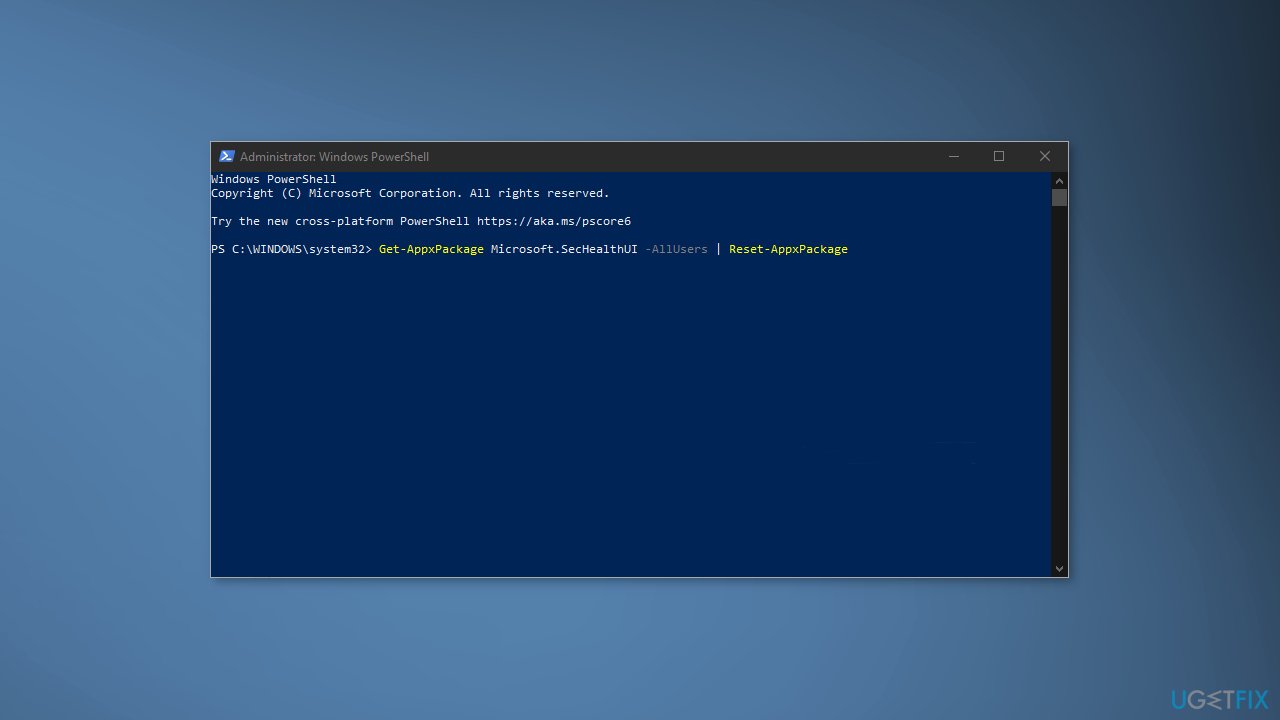
- Restart your computer and check if the issue is resolved
Solution 2. Repair Corrupted System Files
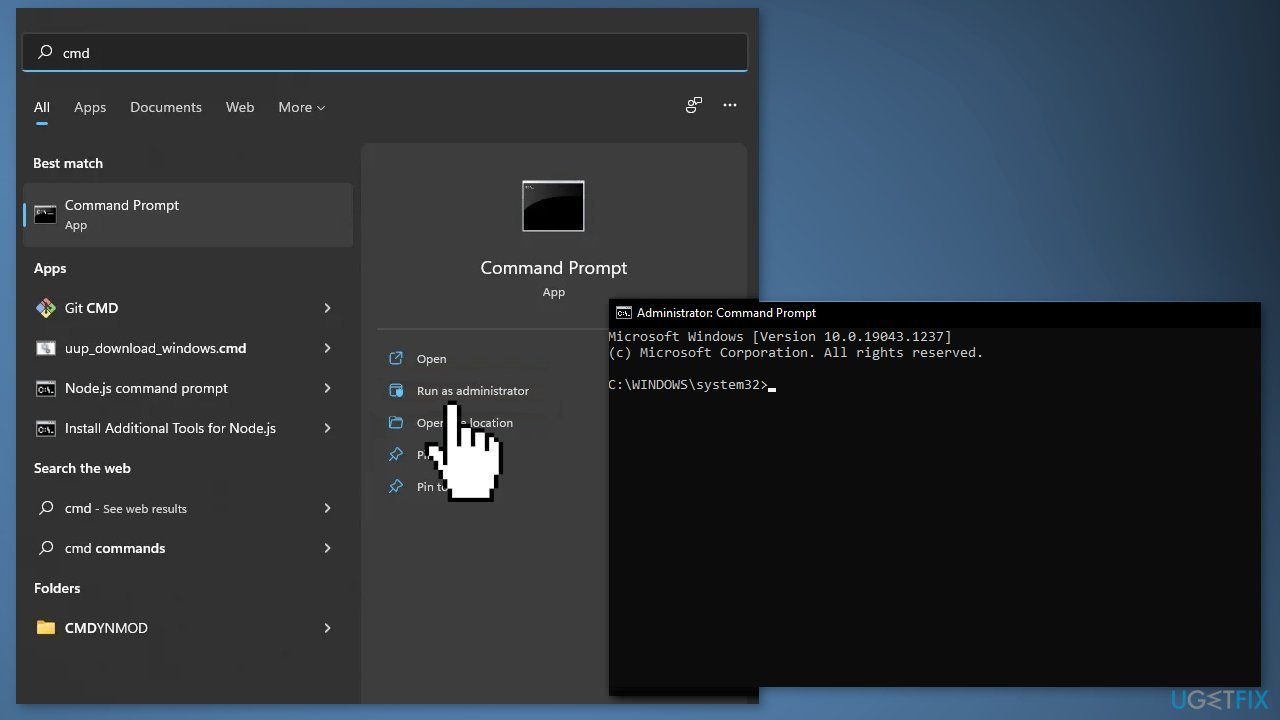
Use Command Prompt commands to repair system file corruption:
- Open Command Prompt as administrator
- Use the following command and press Enter:
sfc /scannow
- Reboot your system
- If SFC returned an error, then use the following command lines, pressing Enter after each:
DISM /Online /Cleanup-Image /CheckHealth
DISM /Online /Cleanup-Image /ScanHealth
DISM /Online /Cleanup-Image /RestoreHealth
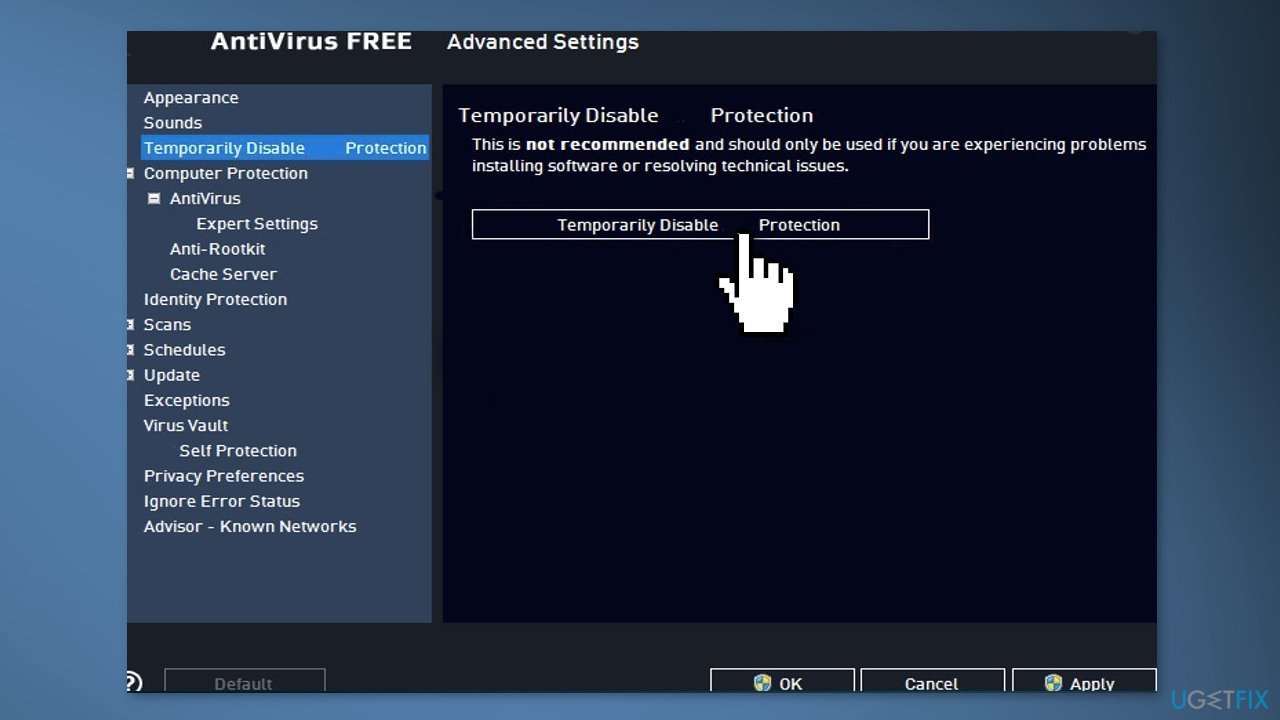
Solution 3. Disable Third-Party Antivirus
Sometimes antivirus software can block legitimate processes mistakenly. You should try disabling your antivirus and trying to open the Windows Security Dashboard again.
Solution 4. Reset the Windows Security App
- Press the Windows key + R to open the Run dialog box
- Type ms-settings:, then press Ctrl + Shift + Enter to open up the Settings menu
- At the User Account Control (UAC), click Yes to grant admin access.
- Click on the Apps icon
- Click on Installed apps and locate Windows Security
- Click on the action icon (three-dot), then click on Advanced options
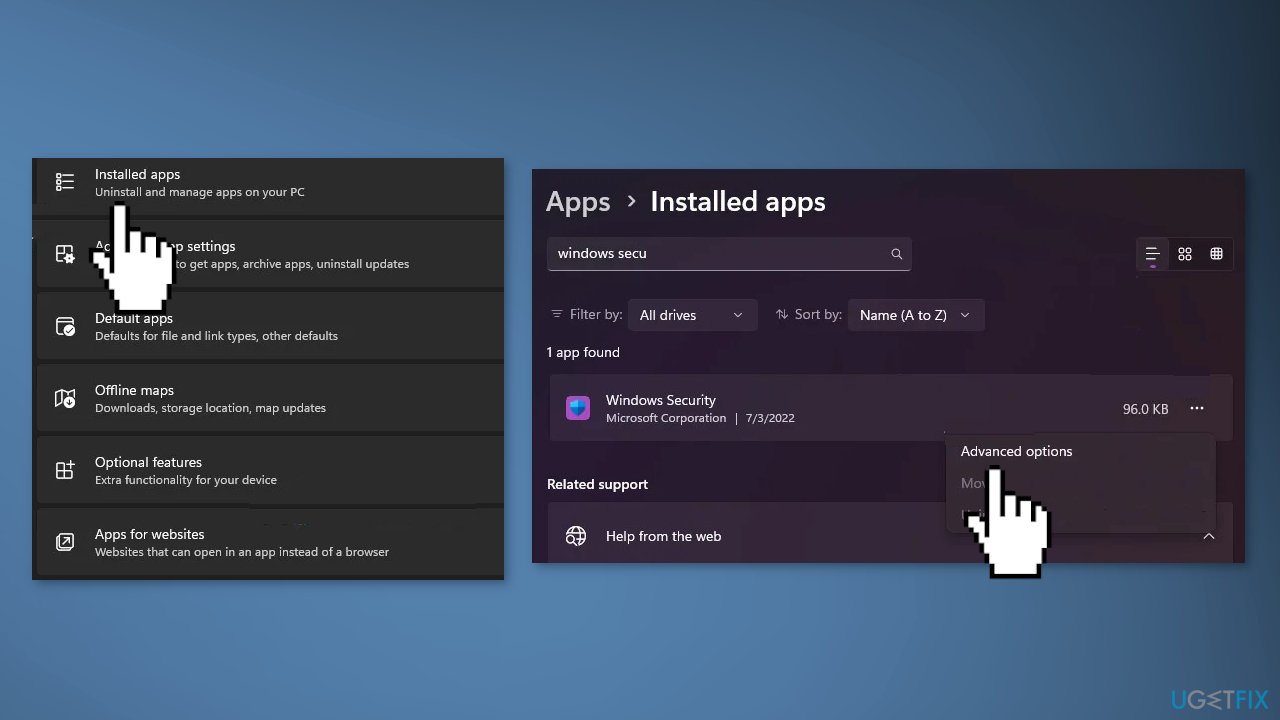
- Inside the Advanced Options, scroll down to the Reset tab, then click on the Reset button
- Confirm and wait until the operation is complete
- Reboot your computer and see if Windows Security is accessible
Solution 5. Enable Windows Security using the Registry Editor
- Press the Windows key + R to open up a Run dialog box
- Type regedit, then press Ctrl + Shift + Enter to open the Registry Editor with admin access
- At the User Account Control (UAC), click Yes to grant admin access
- Navigate to the following location:
HKEY_LOCAL_MACHINE\SOFTWARE\Policies\Microsoft\Windows Defender
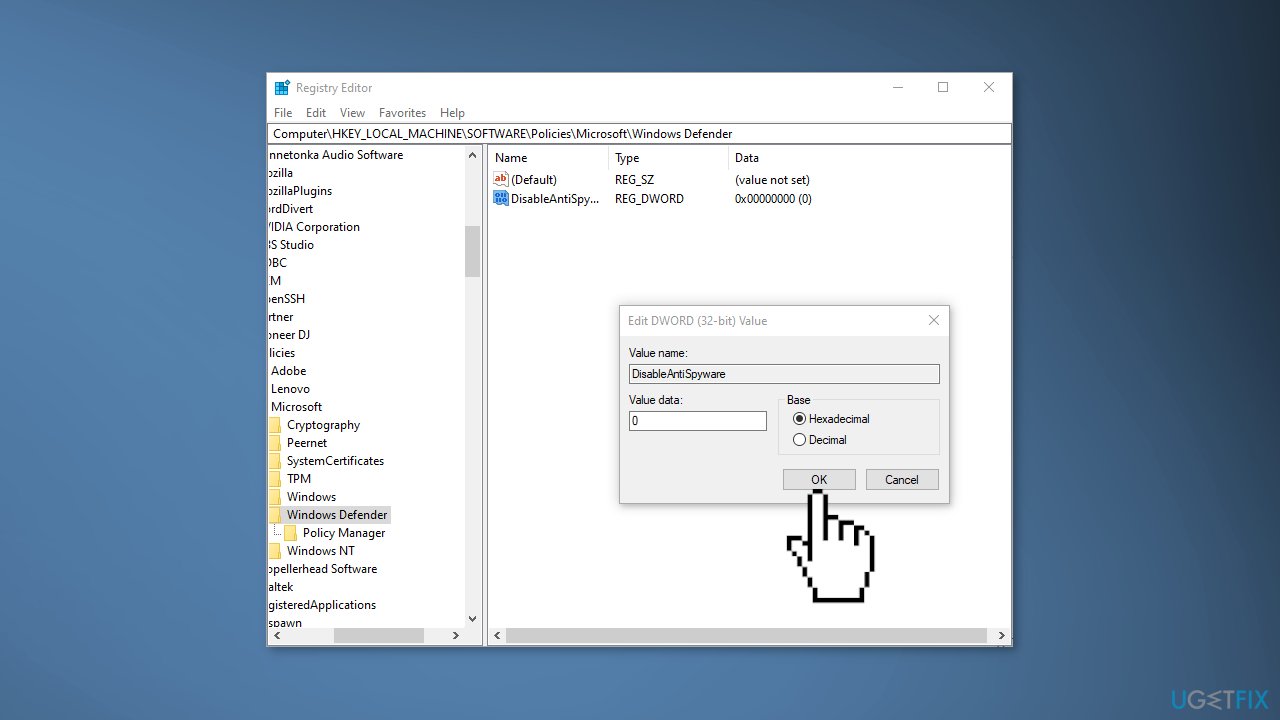
- Double-click on the DisableAntiSpyware registry value and change its Base to Hexadecimal and the Value data to 0 before clicking on Ok
- Restart your PC and see if the problem is now fixed
Solution 6. Reinstall Windows Security
- Press the Windows key + R to open the Run box
- Type powershell inside the text box, then press Ctrl + Shift + Enter to open up an elevated Powershell window with admin access
- At the User Account Control (UAC), click Yes to grant admin access
- Paste the following commands and press Enter to reinstall the Windows Store component:
Set-ExecutionPolicy Unrestricted
Get-AppXPackage -AllUsers | Foreach {Add-AppxPackage -DisableDevelopmentMode -Register "$($_.InstallLocation)\AppXManifest.xml"}
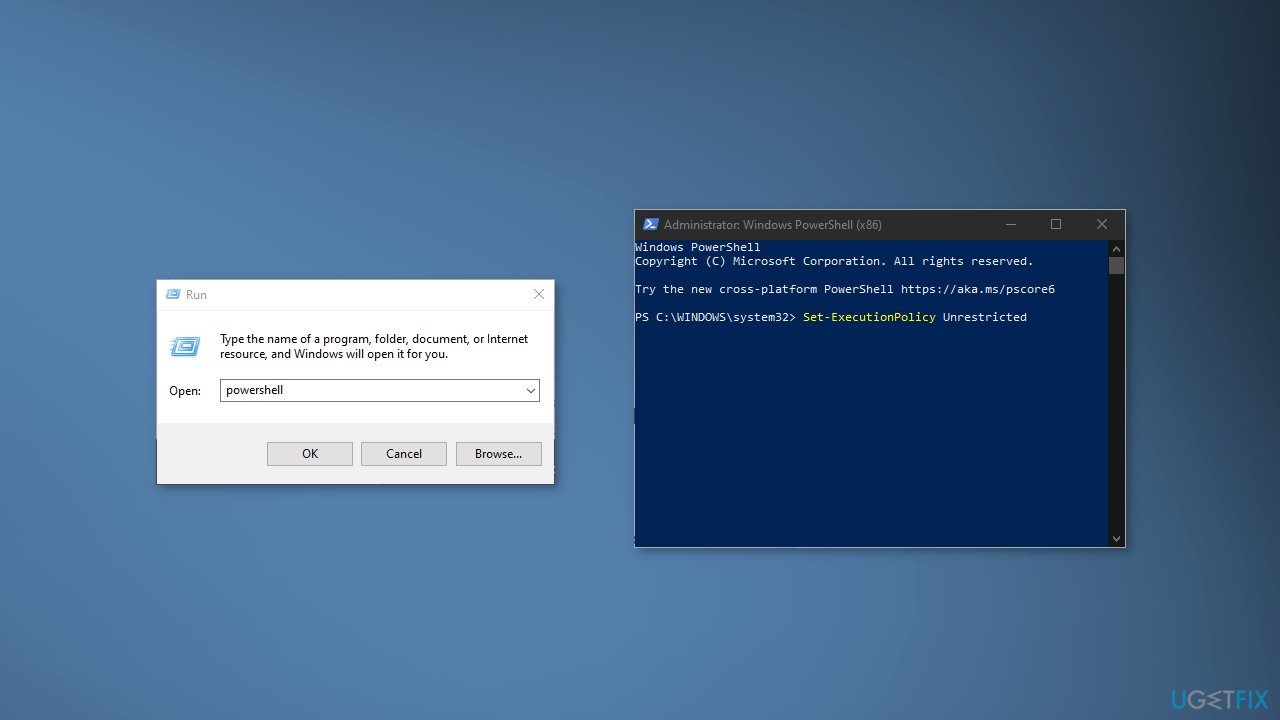
- Restart your PC and see if the problem disappeared
Solution 7. Repair Install Windows
- Visit the official Microsoft website to download Windows 11 Installation Media
- Run the Media Creation Tool and select Create Installation Media for another PC
- Select your USB drive
- Let the Process complete of writing the Installation files to the USB drive
- Click Finish
- On the PC you wish to upgrade, Press Windows + E to open the File Explorer
- Open the Removable drive and click Setup.exe
- Accept the license terms on the next screen
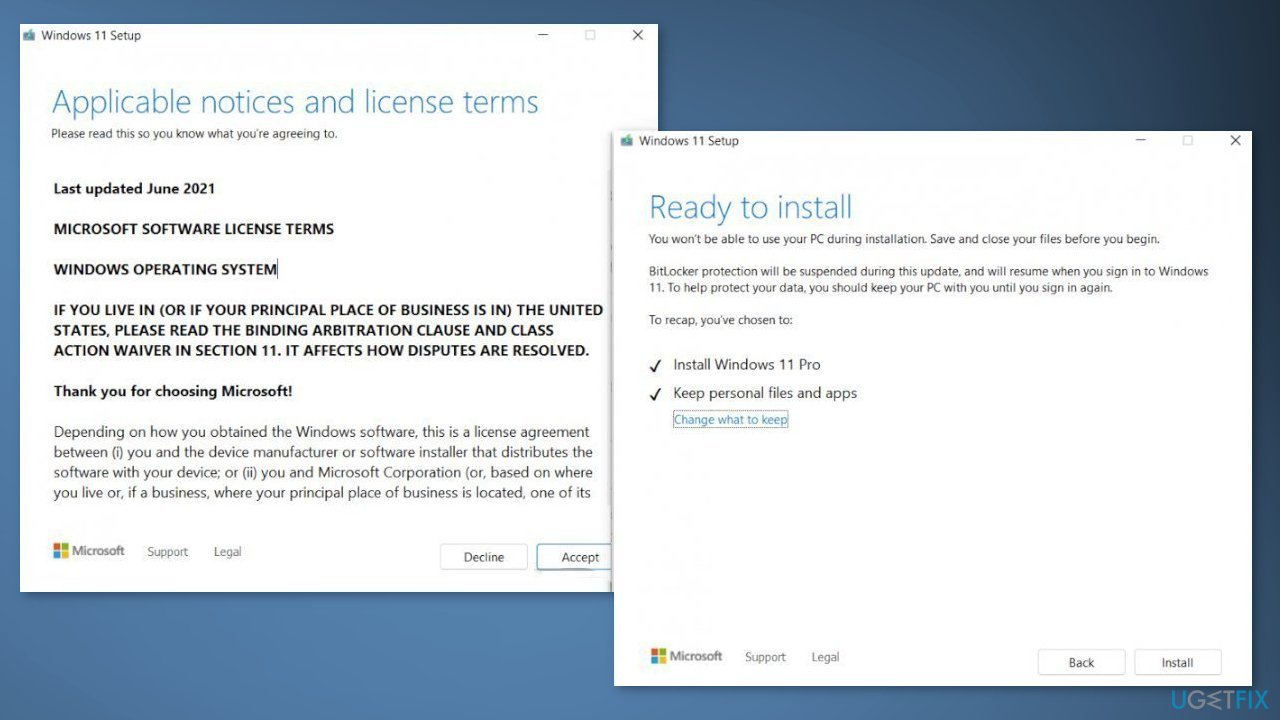
- Confirm the Upgrade options – Files, apps and Settings are kept
- Click Install, and the upgrade should start
Bottom line
To resolve the issue of the Windows Security Dashboard not opening, you can try several fixes including running a PowerShell command to reset the app, repairing corrupted system files using Command Prompt, and disabling any third-party antivirus software. If these steps do not work, consider using a maintenance tool or further troubleshooting.
Frequently asked questions
Try restarting your computer and then accessing the Windows Security Dashboard again. If that doesn't work, you may need to reset the Windows Security app through the Settings menu.
Yes, ensure that your Windows 11 installation is up to date by checking for updates in the Settings under 'Windows Update.' Sometimes, pending updates can cause features like the Windows Security Dashboard to malfunction.
Yes, third-party antivirus programs can interfere with the Windows Security Dashboard, preventing it from opening. Consider disabling or uninstalling any third-party antivirus software to see if that resolves the issue.




Report an issue
What's wrong with this guide? We review every report and update or remove content.
Report received — thank you. We'll review and fix it.
You need a free account to submit a report.
Be the first to comment