How to fix
Windows update stuck at “Cleaning up” phase
on Windows
Resolve the Windows update stuck at "Cleaning up" phase effortlessly. Get expert-tested solutions for Windows 10 and 11, fixed in minutes!

![[Fix] Windows update stuck at “Cleaning up” phase](https://ugetfix.com/wp-content/uploads/articles/askit/fix-windows-update-stuck-at-cleaning-up-phase-copy_en-768x432.jpg)
What causes [Fix] Windows update stuck at “Cleaning up” phase?
- Corrupted system files
- Insufficient disk space
- Conflicts with other software
- Incomplete update
Repairs Windows system files, removes malware, and restores a clean OS state — without reinstalling.
I restarted my computer to apply a Windows update, but now it's stuck at 0%, with the screen saying "cleaning up." What should I do next?
Windows updates are essential to maintaining the performance and security of your computer, as they introduce new features, fix bugs, and enhance overall system stability. However, you might face problems while installing them, such as being suck at the "Cleaning up" phase of the process.
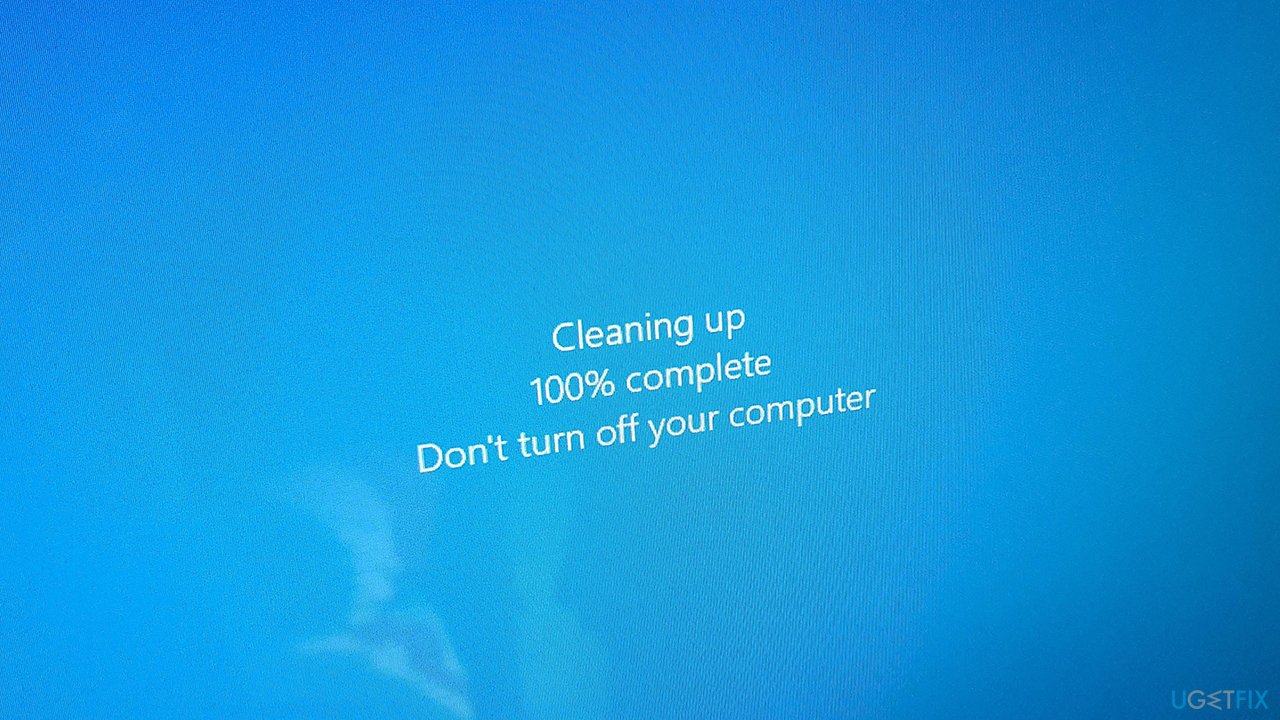
It usually happens when you restart your computer after starting a Windows update and see the message "Cleaning up" with a blue background. This means that the update process has stopped. At this point, the progress bar may remain at 0%, leaving you uncertain about what is happening or how long the process will take to complete.
To understand how to fix the issue, you should first know why the update may be stuck at the "Cleaning up" phase - and the reasons could be different for each of the machines involved. Some of the reasons may include:
- corrupted system files
- insufficient disk space
- conflicts with other software running on your computer
- incomplete update, etc.
There are a few ways to fix a Windows update that is stuck at the "Cleaning up" stage. These could be using the built-in Windows troubleshooting tools, making sure you have enough storage space, or restarting your machine. Sometimes, the only way to get around a stopped update and get back to regular operation is to manually stop the update process by entering safe mode or using system recovery tools.
To avoid dealing with these technical issues manually, consider using the [d1] PC repair tool, which can automatically resolve underlying Windows problems. If you prefer to tackle the issue yourself, follow the manual instructions below.
Before proceeding with any fixes, make sure you give the process enough time and wait. Depending on your computer configuration, hardware, and the action you were trying to perform, the time needed may vary greatly. For example, if you have an older PC or hard drive, it might take up to several hours.
Fix 1. Access Safe Mode
If you are unable to access Windows normally, you can go into Safe Mode instead to fix the issue at hand. If you can access Windows as normally, skip this step.
- Restart your computer.
- Once Windows starts booting, press the Power button, interrupting the loading process - do this two more times.
- After that, Windows will automatically enter Advanced Startup mode.
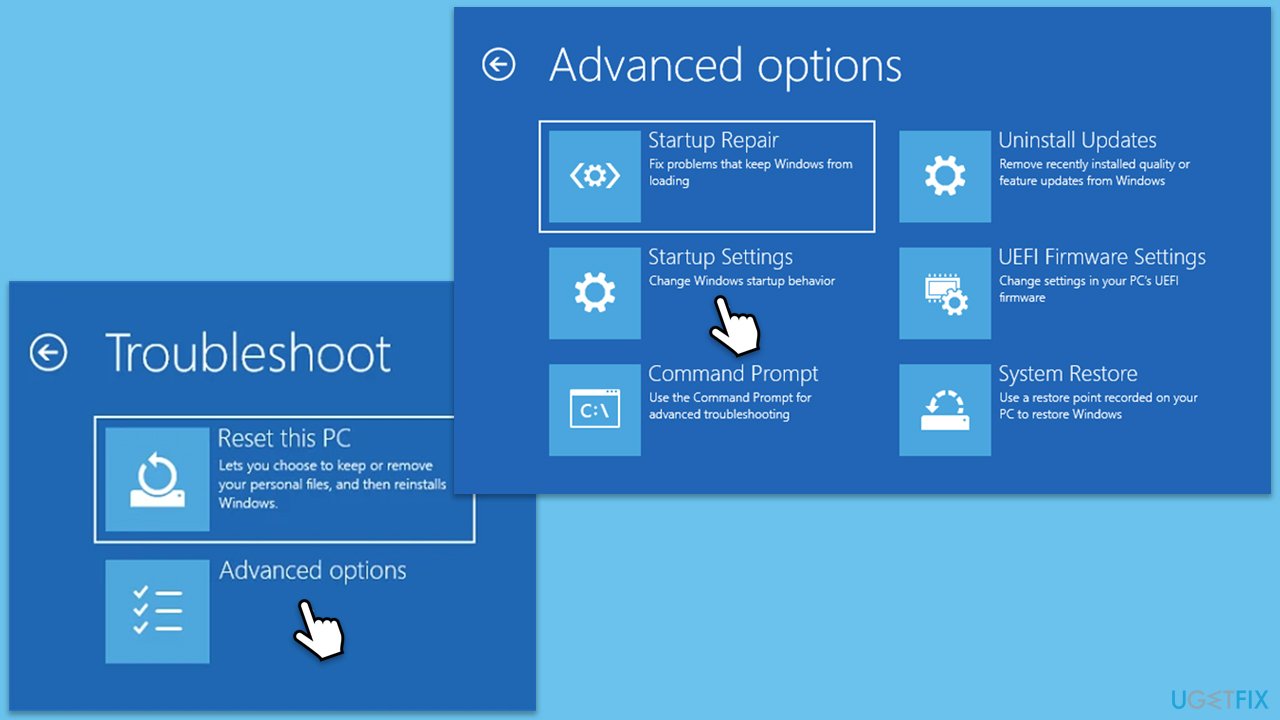
- Select Troubleshoot > Advanced options > Startup Settings and Restart.
- After a reboot, pick either 4/F4 for Safe Mode or 5/F5 for Safe Mode with Networking.
After this, you can proceed with the methods to resolve being stuck at the "Cleaning up" screen.
Fix 2. Perform Disk Cleanup
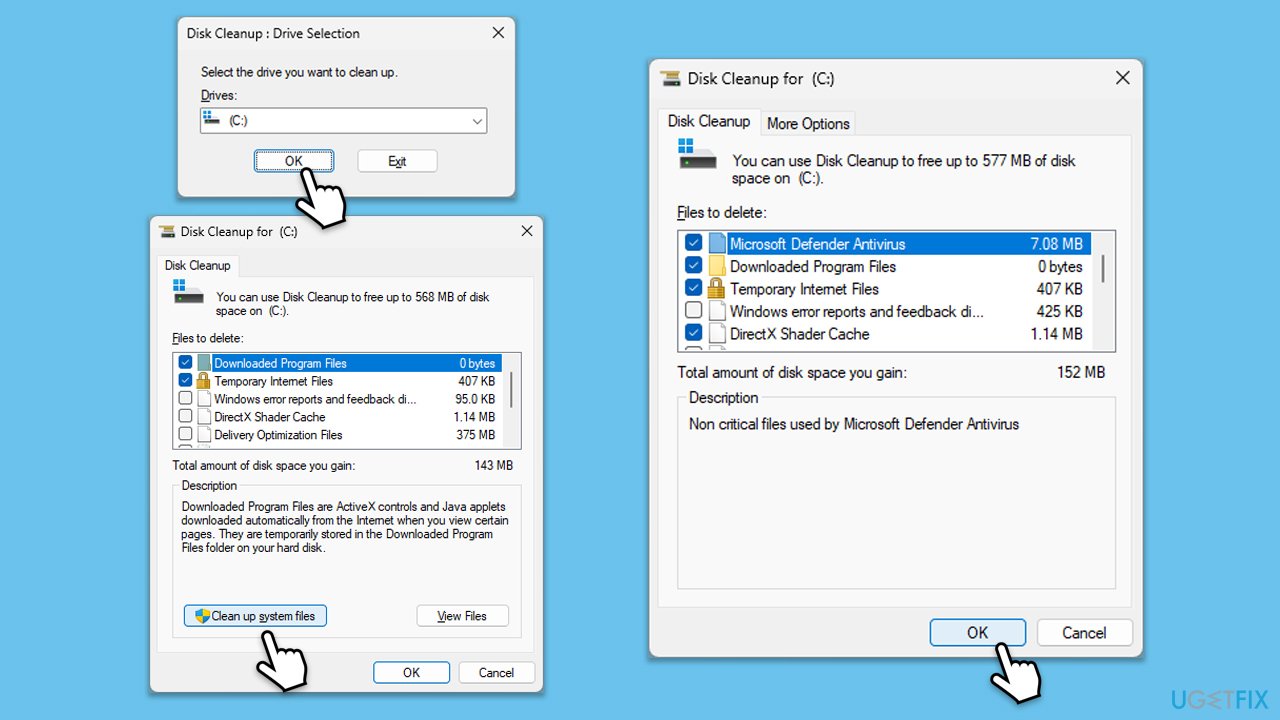
- Type Disk Cleanup in Windows search and press Enter to launch the utility.
- Pick the main drive (C: by default) and select the option for Clean up system files.
- Choose the drive once more and press OK.
- From the array of files that can be cleaned, choose those taking up the most space, for example, Temporary Internet Files, Windows Update, and Temporary Files, among others.
- Click OK to begin the cleanup process.
Fix 3. Perform Check disk
To check for issues with your hardware (namely your storage), follow these steps:
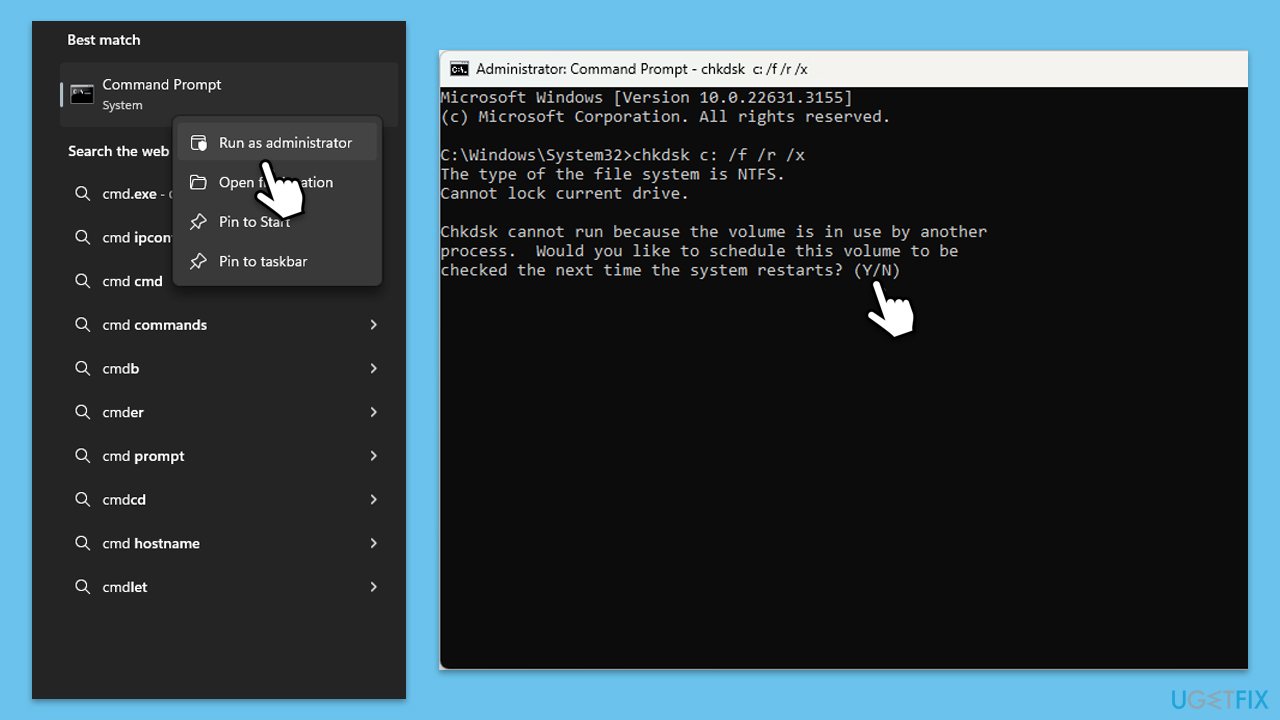
- Type in cmd in Windows search.
- Right-click on Command Prompt and select Run as administrator.
- In the User Account Control window, click Yes.
- In the new window, type in the following command and press Enter after:
chkdsk c: /f
(Note: use chkdsk c: /f /r /x command if you are using SSD as your primary partition. Also, replace c: with another drive letter if you are not using default) - If you receive an error, type in Y, close down Command Prompt, and restart your system.
- Wait till the scan is finished.
Fix 4. Reset Windows update components
- Open Command Prompt as administrator.
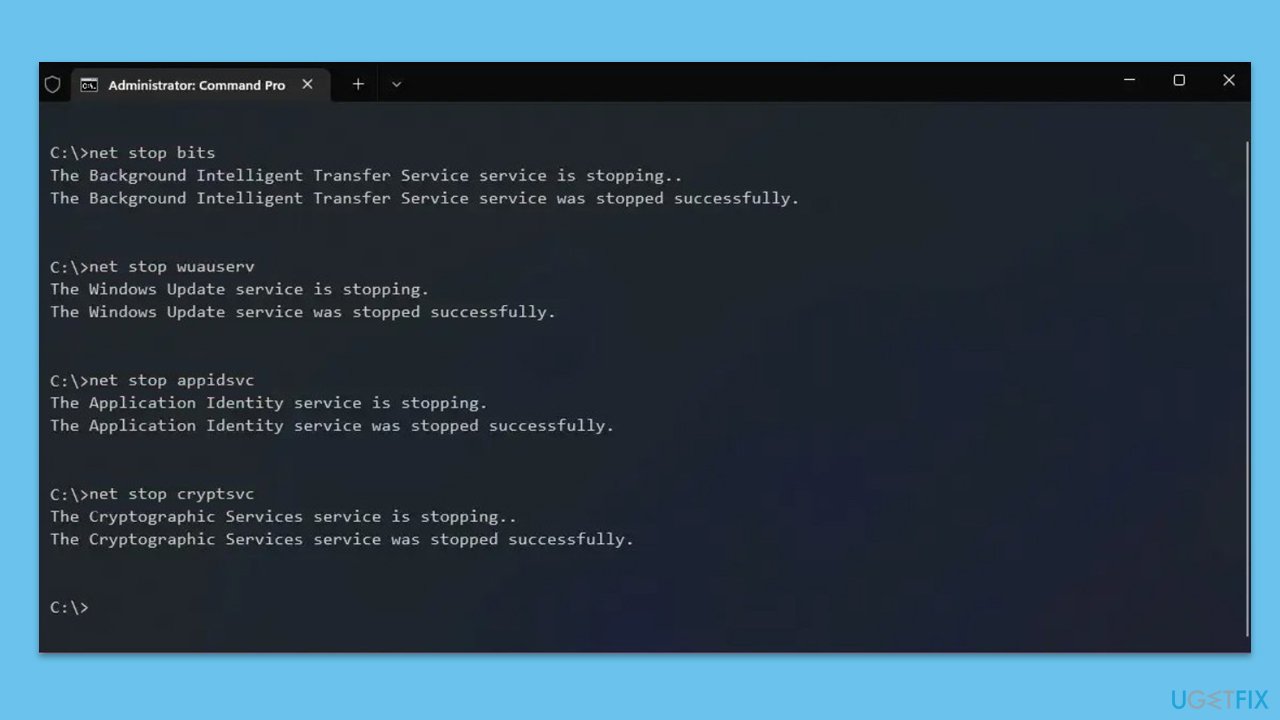
- In the new window, copy and paste the following commands, pressing Enter after each to execute them:
net stop bits
net stop wuauserv
net stop appidsvc
net stop cryptsvc
Del “%ALLUSERSPROFILE%\Application Data\Microsoft\Network\Downloader\*.*”
rmdir %systemroot%\SoftwareDistribution /S /Q
rmdir %systemroot%\system32\catroot2 /S /Q
regsvr32.exe /s atl.dll
regsvr32.exe /s urlmon.dll
regsvr32.exe /s mshtml.dll
netsh winsock reset
netsh winsock reset proxy
net start bits
net start wuauserv
net start appidsvc
net start cryptsvc - Restart your computer.
Fix 5. Perform Clean Boot
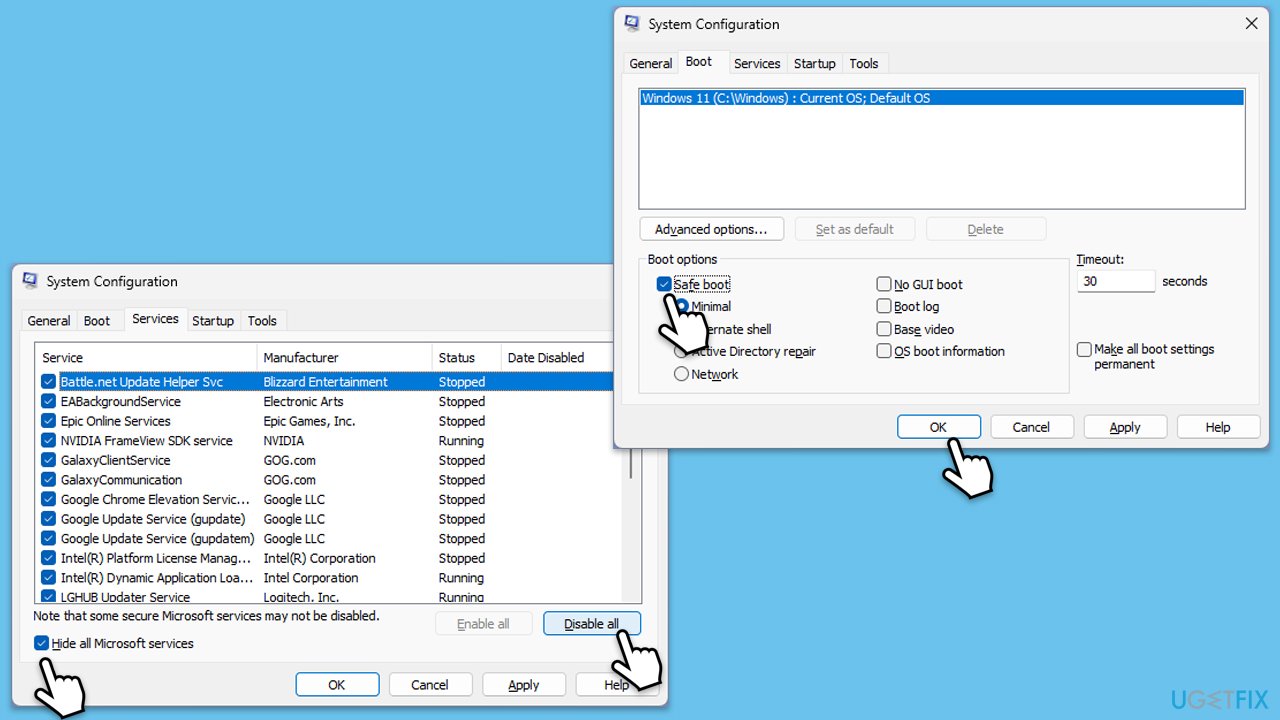
- Type msconfig inWindows Search and press Enter to open the System Configuration window.
- Click on the Services tab and check the Hide all Microsoft Services box.
- Click Disable all to disable non-Microsoft services, then click the Startup tab.
- Open the Task Manager, disable all startup items, and close the Task Manager.
- Go to the Boot tab and mark the Safe boot option.
- Click OK on the System Configuration window and restart your computer.
- If the problem does not exist, third-party software is at fault. To determine which app is causing it try enabling half of the available programs, restarting, and checking if the the problem is still absent. Continue till you find the offending software and either update or uninstall it.
Bottom line
To fix a Windows update stuck at the 'Cleaning up' phase, you can use built-in Windows troubleshooting tools, ensure you have enough storage space, or restart your machine. If the issue persists, consider entering safe mode or using system recovery tools. If none of these solutions work, you may want to use a PC repair tool to resolve underlying Windows problems.
Frequently asked questions
You can try restarting your computer and checking for updates again, or use the Windows Update Troubleshooter to help resolve the issue.
Ensure your internet connection is stable and consider freeing up disk space, as low storage can slow down the update process.
Forcing a shutdown is generally not recommended, but if the update has been stuck for several hours, it may be necessary; just be prepared for potential repair tasks afterward.




Report an issue
What's wrong with this guide? We review every report and update or remove content.
Report received — thank you. We'll review and fix it.
You need a free account to submit a report.
Be the first to comment