How to fix
Windows very slow after formatting
on Windows
Is your Windows 10 or 11 running slow post-formatting? Discover effective fixes to boost performance and enjoy a smooth experience again. Expert-tested!

![[Fix] Windows very slow after formatting](https://ugetfix.com/wp-content/uploads/articles/askit/fix-windows-very-slow-after-formatting_en-768x432.jpg)
What causes [Fix] Windows very slow after formatting?
- Incomplete installation
- Missing drivers for hardware components
- Default settings allowing background processes
- Outdated version of Windows
Repairs Windows system files, removes malware, and restores a clean OS state — without reinstalling.
Hi, I have recently formatted Windows because I couldn't get it to work properly. Unfortunately, after doing so, I am now faced with what si a very slow Windows PC. I have no idea why this is happening and would like to get some advice.
Formatting a computer essentially means erasing all the data on the hard drive and preparing it for a fresh installation of an operating system (OS) such as Windows. Individuals often resort to formatting when their computer starts malfunctioning or when it becomes bogged down with too much unnecessary data, which can cause performance issues. By formatting, you are essentially providing the computer with a clean slate, devoid of any software, files, or lingering problems that might have hampered its functionality.
After the format, a fresh installation of the OS is needed. This usually involves using a Windows installation disk or booting from a USB drive. The OS then sets itself up on the now-empty hard drive, offering a pristine version of Windows, unburdened by old data or settings.
However, some individuals encounter an unanticipated predicament after formatting. Instead of being greeted by a revitalized, efficient system, they notice that Windows becomes very slow after formatting.
One might wonder why this slowdown happens. One reason could be an incomplete installation. If the OS installation process gets interrupted or fails to complete correctly, it might leave behind fragmented files or configurations that can hamper performance.
Additionally, a newly installed Windows might not come equipped with the latest drivers for specific hardware components. Without these drivers, parts like the graphics card or sound system might not operate at their optimum, leading to diminished system speed.
Moreover, a fresh installation might have default settings that allow for numerous programs or processes to run in the background. These can consume a significant portion of system resources and lead to a slowdown. Another possibility is that the version of Windows you've installed isn't the latest one.

Consequently, it would lack recent patches or performance enhancements. Lastly, there's always the chance that the problem doesn't lie with the software but the hardware itself. Aging or malfunctioning hard drives can be culprits behind performance issues, even after a fresh OS installation.
If you're grappling with a sluggish performance after a format, it's essential to pinpoint the exact cause. This understanding can guide your corrective actions, whether it's downloading the latest drivers, tweaking certain settings, or ensuring the most recent Windows updates are in place.
For those on the lookout for an efficient, automated solution to various Windows issues, the [d1] PC repair tool stands out as a commendable option.
Fix 1. Run Check Disk in Command Prompt
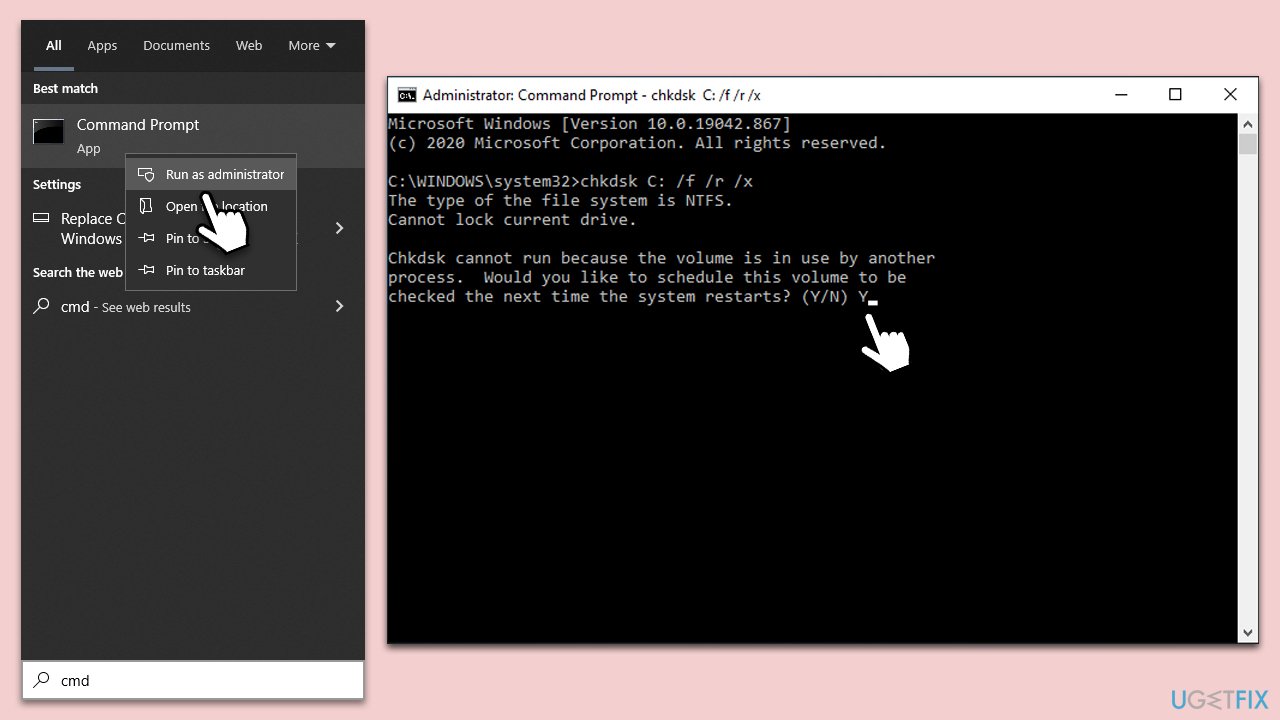
Check Disk or chkdsk, is a built-in Windows utility that checks for and repairs file system errors and bad sectors on your hard drive, which can sometimes cause a computer to slow down.
- Open the Start menu and type cmd.
- Right-click on Command Prompt and select Run as administrator.
- When UAC shows up, click Yes.
- In the new window, type in the following command and press Enter after:
chkdsk c: /f
(Note: use chkdsk c: /f /r /x command if you are using SSD as your primary partition) - If you receive an error, type in Y, close down Command Prompt and restart your system.
- Wait until the scan is finished - you can find the results in the Event Viewer.
Fix 2. Restart Sysmain service
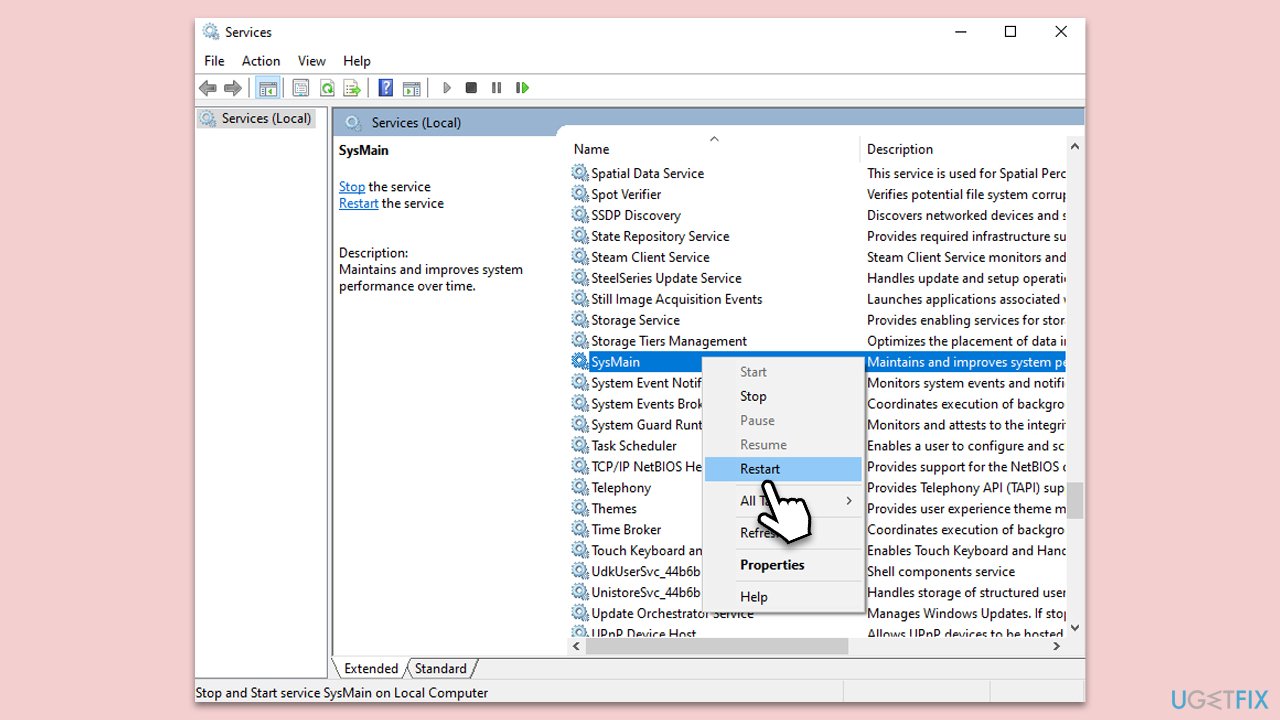
Sysmain, formerly known as Superfetch, aims to enhance your system's performance by managing the kind of data stored in your memory. Sometimes, restarting this service can help with system performance.
- In Windows search, type Services, and press Enter.
- In the new window that pops up, look for Sysmain in the list.
- Once you've located Sysmain, right-click on it. From the dropdown menu, select the Restart option. If Restart isn't an option, you can select Start instead.
- After a moment, the service will restart.
Fix 3. Update drivers
Drivers are software components that let your operating system communicate effectively with hardware components. Outdated drivers might lead to slower performance.
- Right-click on Start and pick Device Manager.
- Within Device Manager, you'll see a list of hardware categories. Expand these categories to check for any devices that have a yellow triangle icon next to them. This indicates a potential driver issue.
- For each device with a yellow triangle, right-click on it and choose the Update driver option. Follow any on-screen instructions.
- Alternatively, to bypass various driver problems, try using an automatic solution such as [rev id="DriverFix"].
Fix 4. Install Windows updates
Keeping Windows updated ensures your system has the latest security patches and performance enhancements.
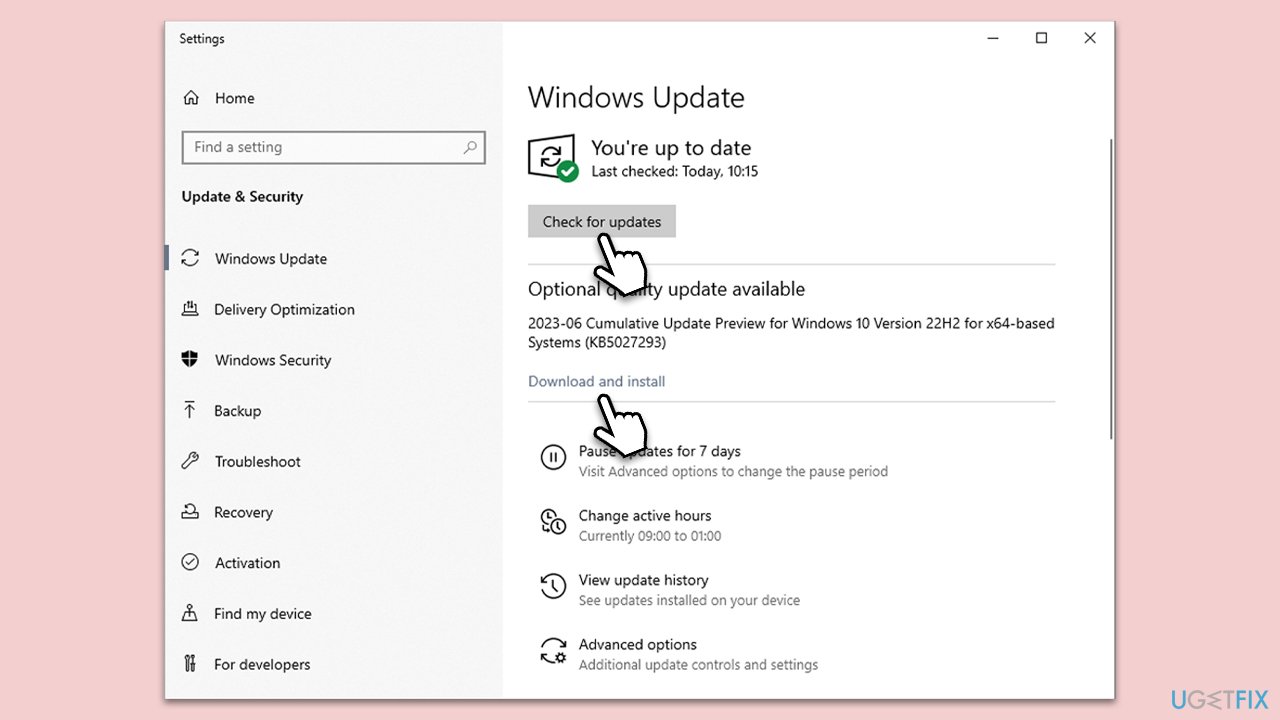
- Type Updates in Windows search and press Enter.
- Here, click Check for updates.
- Wait till Windows downloads and installs all the files.
- If optional updates are available, install them as well.
- Reboot your computer.
Fix 5. Disable unnecessary startup programs
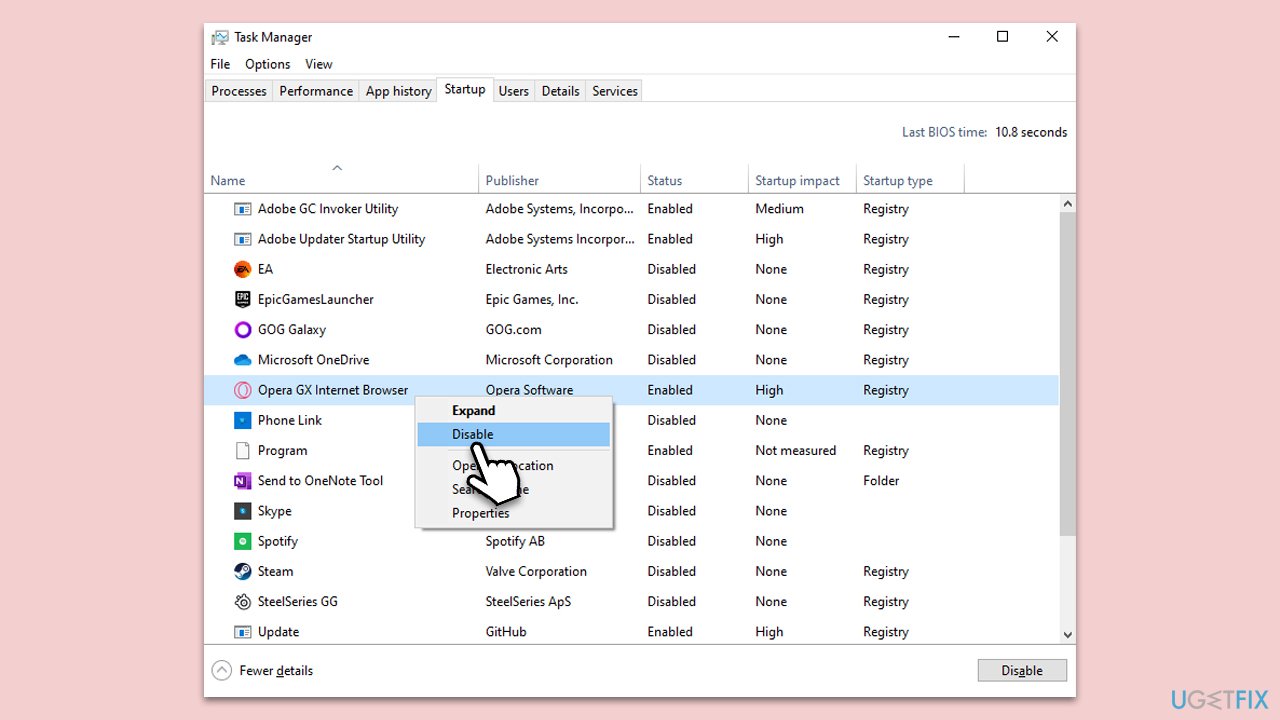
Programs that start automatically when Windows boots can slow down your computer. Limiting these can speed up your startup.
- To access the list of startup programs, press Ctrl, Shift, and Esc simultaneously. This will open the Task Manager.
- Navigate to the Startup tab.
- You'll see a list of programs with their startup impact. Right-click on those you feel are not essential and select the Disable option.
Fix 6. Optimize hard drive performance [HDD only]
Fragmented files can slow down data access on your hard drive. Defragmenting reorganizes these files for faster access. Please keep in mind this solution is only applicable to those with Hard Drives (HDD) and should not be performed on a Solid State Drive {SSD)
- Press the Windows key to open the Start menu.
- Type defragment into the search bar and press Enter.
- A window titled "Optimize Drives" will appear. Here, select your primary drive (usually labeled as C:).
- Click on the Optimize button. The process may take some time, so patience is recommended.
Fix 7. Adjust appearance settings
Windows offers many visual effects that, while pleasant to the eye, can strain system resources, especially on older computers. Reducing these effects can lead to a smoother experience.
- Right-click on an empty space on your desktop and choose Properties.
- Navigate to the Advanced system settings on the left side.
- Under the Performance section, click Settings.
- In the new window, you'll see a list of visual effects. For better performance, choose the option Adjust for best performance and click OK.
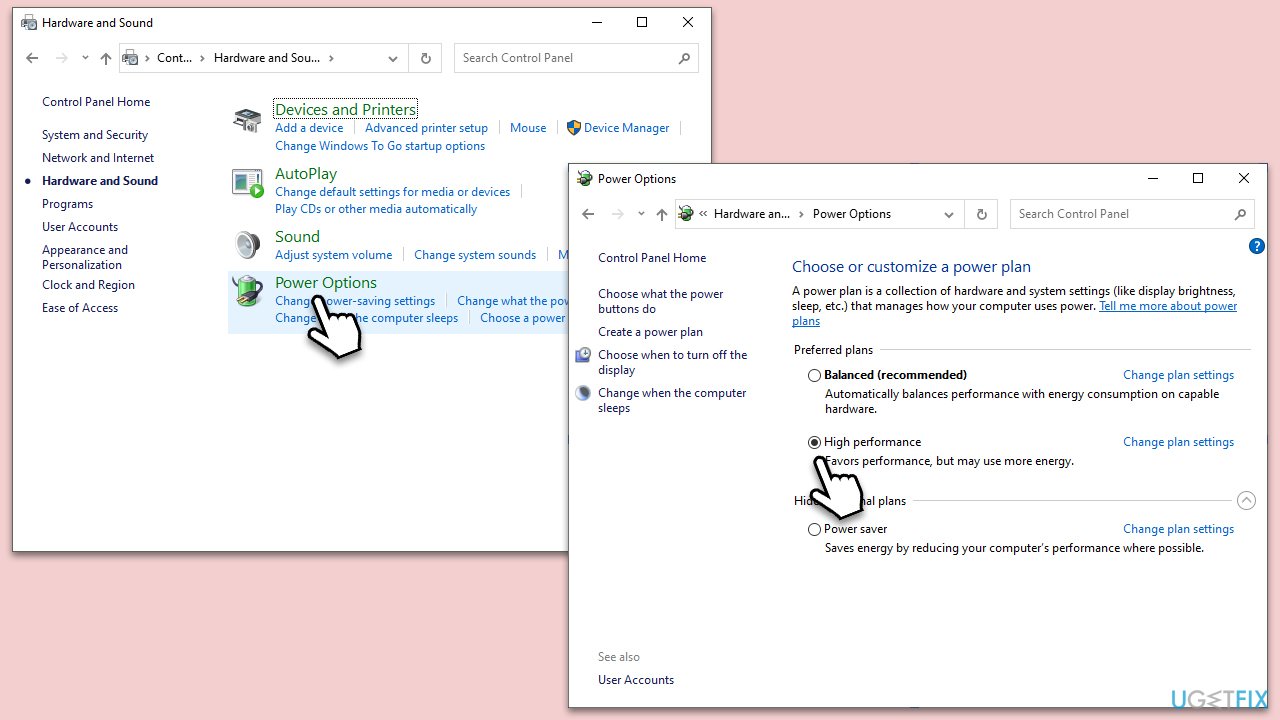
Fix 8. Set power plan to High Performance
Windows provides different power plans that balance performance and energy usage. Setting it to High Performance can sometimes boost system speed.
- Type Control Panel in Windows search and hit Enter.
- Here, go to Hardware and Sound > Power options.
- Here, you will see the listed plans.
- Change the plan from Power saver to High performance.
Fix 9. Perform a Clean Boot
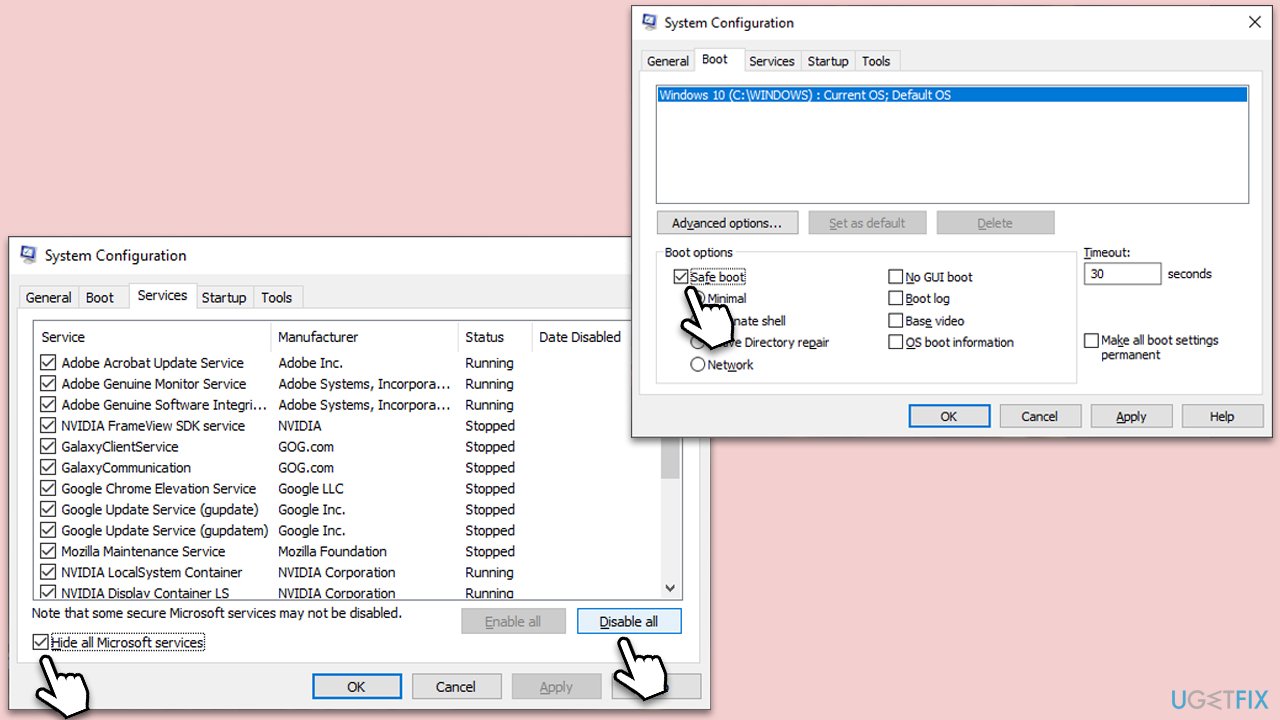
A clean boot starts Windows with the least number of drivers and startup programs. This can help identify if third-party applications are causing performance issues.
- Press the Win + R to open the Run dialog.
- Type msconfig and press Enter.
- In the System Configuration window, select Selective Startup, and uncheck Load startup items.
- Go to the Services tab and check the box Hide all Microsoft services, then click Disable all.
- Click on the Startup tab and open Task Manager.
- Disable all the startup items in the Task Manager.
- Click OK, and restart the computer.
- Gradually re-enable services in System Configuration, restarting after each change, to identify the problem source.
- Update or uninstall the problematic software or service.
- In System Configuration, select Normal startup, click OK, and restart.
Bottom line
To address the slow performance after formatting, ensure the OS installation is complete, install the latest drivers for your hardware, and adjust the default settings to limit background processes. If the issue persists, consider updating to the latest version of Windows or seeking further technical assistance.
Frequently asked questions
Your Windows 10 may be slow after formatting due to missing drivers or improper installation of updates. Ensure that all drivers are updated and that you have the latest Windows updates installed.
To speed up Windows 11 after formatting, disable unnecessary startup programs and optimize your system settings. Additionally, consider checking for any hardware issues that might be affecting performance.
If your Windows is still slow after a format and fresh install, run a performance troubleshooter and check for malware infections. It's also advisable to verify your hardware specifications meet the requirements for Windows 10 or Windows 11.




Report an issue
What's wrong with this guide? We review every report and update or remove content.
Report received — thank you. We'll review and fix it.
You need a free account to submit a report.
Be the first to comment