How to fix
Windows won’t boot into Safe Mode
on Windows
Resolve boot issues with Windows 10 or 11 and access Safe Mode effortlessly. Get expert-tested solutions to get you back on track in minutes.

![[Fix] Windows won’t boot into Safe Mode](https://ugetfix.com/wp-content/uploads/articles/askit/fix-windows-wont-boot-into-safe-mode_en-768x432.jpg)
What causes [Fix] Windows won’t boot into Safe Mode?
- Corrupt system files
- Faulty drivers
- Malware infections
- Hardware issues
Repairs Windows system files, removes malware, and restores a clean OS state — without reinstalling.
Hello. I tried to boot into Safe Mode to troubleshoot my Windows laptop but it does not work. Is there a way to fix this?
Safe Mode is a diagnostic startup mode in Windows that loads only the most basic drivers[ref en-1] and services, allowing users to troubleshoot and repair issues that may prevent Windows from booting normally. It is a useful tool for identifying and resolving problems, such as software or driver conflicts, malware infections, and system errors.
If Windows fails to boot into Safe Mode, users may not be able to access critical files and documents or perform necessary maintenance tasks on their computers. This problem can be aggravating and prevent users from using their computers as they should. The inability to access Safe Mode may also indicate more significant issues with the operating system or hardware.
Windows may not boot into Safe Mode for a variety of reasons, including corrupt system files, faulty drivers, malware infections, and hardware issues. To resolve this issue, users can try several solutions, such as running the Windows Startup Repair tool, resetting the BIOS to its default settings, or reinstalling Windows. However, the solution will be determined by the underlying cause of the problem as well as the user's technical expertise.
In this guide, you will find 4 ways to fix Windows won't boot into Safe Mode. You can also use a system repair tool like [d1] that can fix most system errors, BSODs,[ref en-2] corrupted files, registry[ref en-3] errors, or clear cookies and cache automatically. Otherwise, follow the step-by-step instructions below.
Method 1. Repair Corrupted System Files
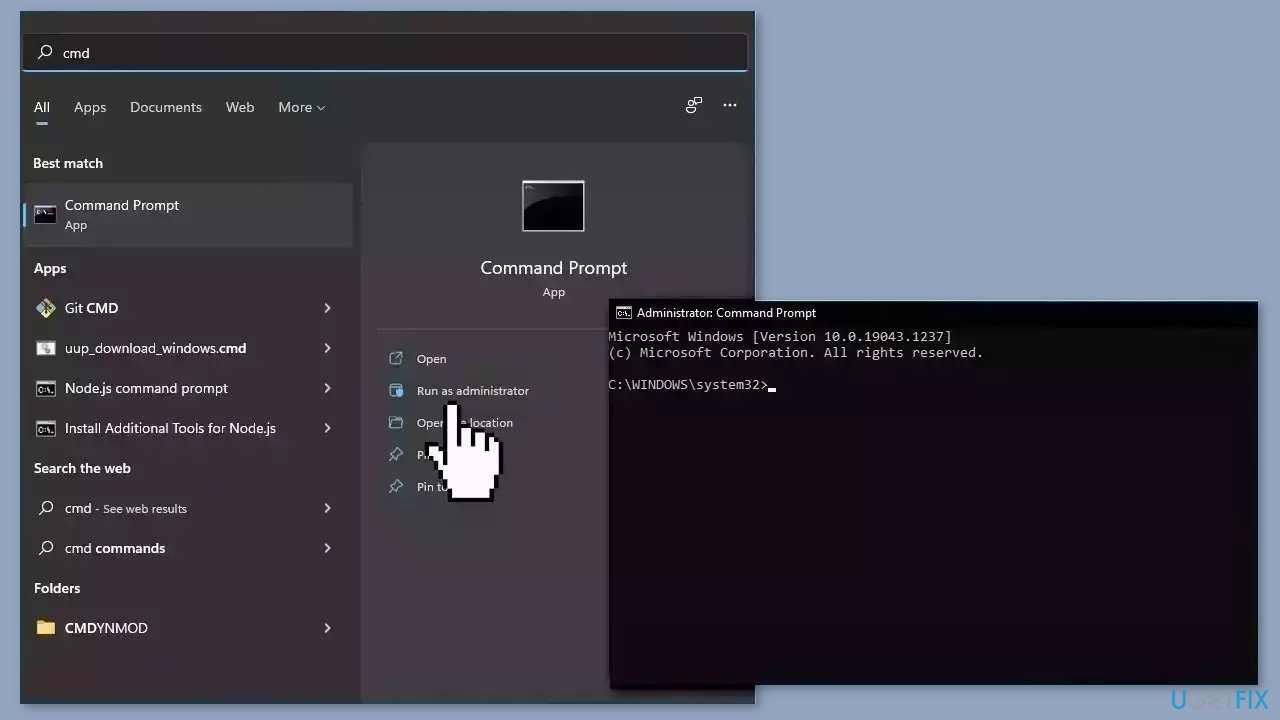
- Open Command Prompt as administrator
- Use the following command and press Enter:
sfc /scannow
- Reboot your system
- If SFC returned an error, then use the following command lines, pressing Enter after each:
DISM /Online /Cleanup-Image /CheckHealth
DISM /Online /Cleanup-Image /ScanHealth
DISM /Online /Cleanup-Image /RestoreHealth
Method 2. Use Windows Startup Repair
If Windows fails to boot, the Windows Startup Repair tool is another utility that can address boot problems, and it's usually effective. This tool can fix most boot issues, including those related to Safe Mode.
Windows Settings:
- Click on the Start button, which is typically located at the bottom left of the screen.
- Look for the little cog icon on the left of the Start menu, and click on it. This will open the Settings dashboard.
- On the Settings dashboard, look for the Update & Security option and click on it.
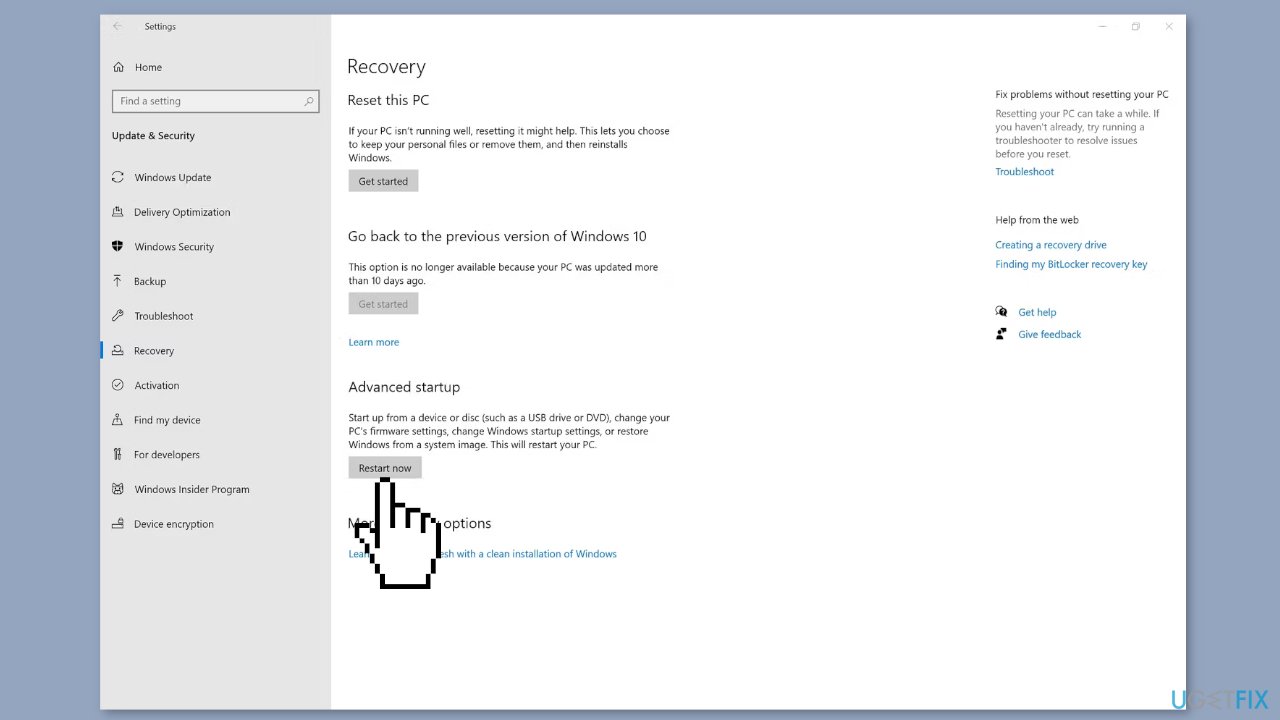
- This will open a new window. On the left navigation bar of this window, click on Recovery.
- Under the Advanced startup section, click on the Restart now button.
- Your computer will now restart and boot into a blue screen with various options.
- Look for the Troubleshoot option and click on it.
- Next, click on Advanced options.
- Finally, click on Startup Repair.
- Choose the user account for which you want to perform the Startup Repair.
- Enter the password for the selected user account.
- Click on Continue to begin the Startup Repair process.
Advanced options:
- Power on your computer.
- As soon as the manufacturer's logo appears, press and hold the power button until your PC shuts off. This will force your computer to shut down.
- Press the power button again to turn your computer back on.
- As soon as the manufacturer's logo appears, press and hold the power button until your PC shuts off. Do this 2-3 times until your computer enters the blue screen.
- On the blue screen, look for the Troubleshoot option and click on it.
- Next, click on Advanced options.
- Finally, click on Startup Repair.
- Choose the user account for which you want to perform the Startup Repair.
- Enter the password for the selected user account.
- Click on Continue to begin the Startup Repair process.
Method 3. Clear the CMOS
BIOS Menu:
Thankfully, there's no need to open up your PC for this trick as some motherboards offer the option to reset settings from the BIOS menu, eliminating the need to remove the CMOS battery.
- Click on the Start button, typically located at the bottom left of the screen.
- Open Settings by clicking on the gear icon on the left side of the Start menu.
- Navigate to Update & Security and click on it.
- Click on Recovery.
- Under Advanced Startup, click on Restart now.
- Your computer will now reboot into a blue screen.
- Look for the Troubleshoot option and click on it.
- Next, click on Advanced options.
- Click on UEFI Firmware Settings.
- Click on Restart.
- Your computer will now reboot into the BIOS menu.
- Look for options such as reset to default, default settings, etc. The name of the option may differ depending on your computer's manufacturer.
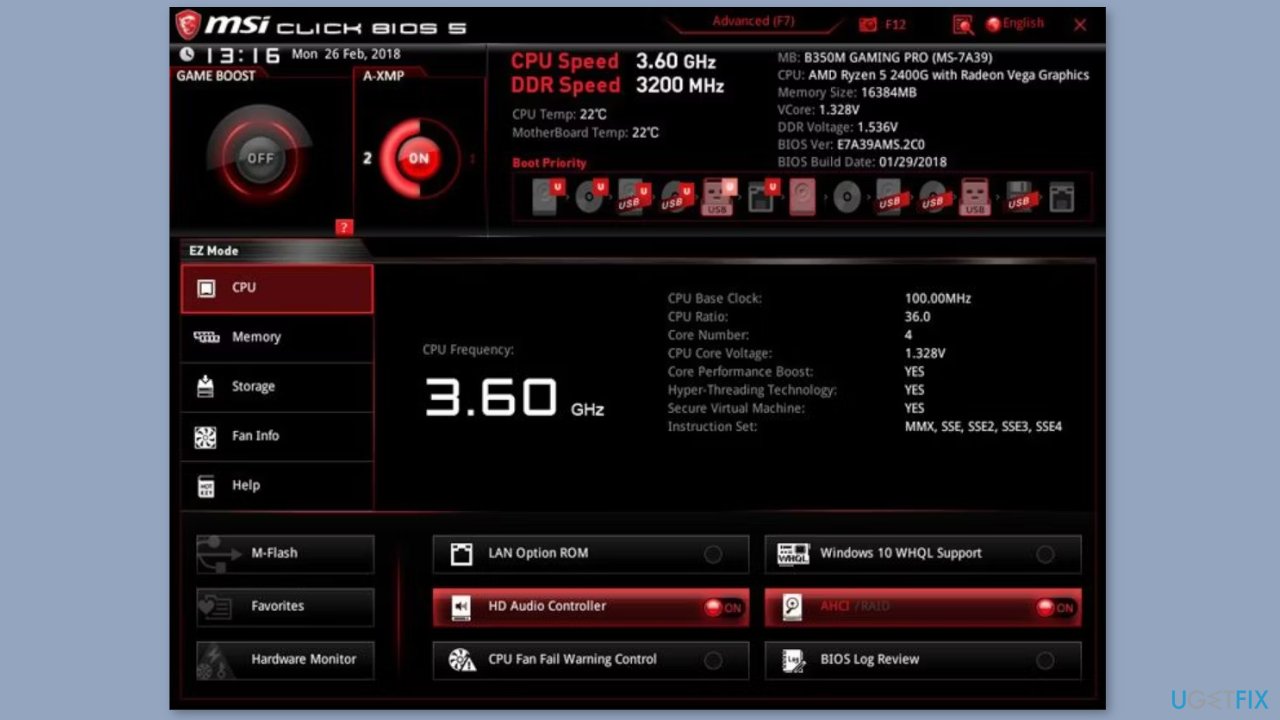
- Once you've located the option to reset your BIOS to its default settings, select it.
- Save the changes and exit the BIOS menu.
- Reboot your computer.
Reinstall the CMOS Battery:
If the option is not available in BIOS, you will have to remove the battery physically.
- Open your PC's case. Depending on the case, you may need to unscrew or slide off a side panel to access the motherboard.
- Look for the CMOS battery on the motherboard. It is a small, coin-shaped battery that looks similar to a watch battery.
- Carefully remove the CMOS battery from its slot.
- Wait for 10-15 seconds before reinserting the battery back into its slot.
- Make sure the battery is inserted correctly and securely.
- Put the case back together and power on your computer.
- The CMOS settings should now be reset to their default values.
- Try rebooting into Safe Mode to see if the issue has been resolved.
Method 4. Reset Windows
If none of the previous solutions resolve the issue, consider resetting Windows. Keep in mind that this is a time-consuming process, as the Windows reset will remove all your apps and require reinstallation.
- Press the Windows key + I to open Windows Settings.
- Press on Update & security.
- Click on Recovery in the left pane.
- In the right pane, click on Reset PC next to Reset this PC.
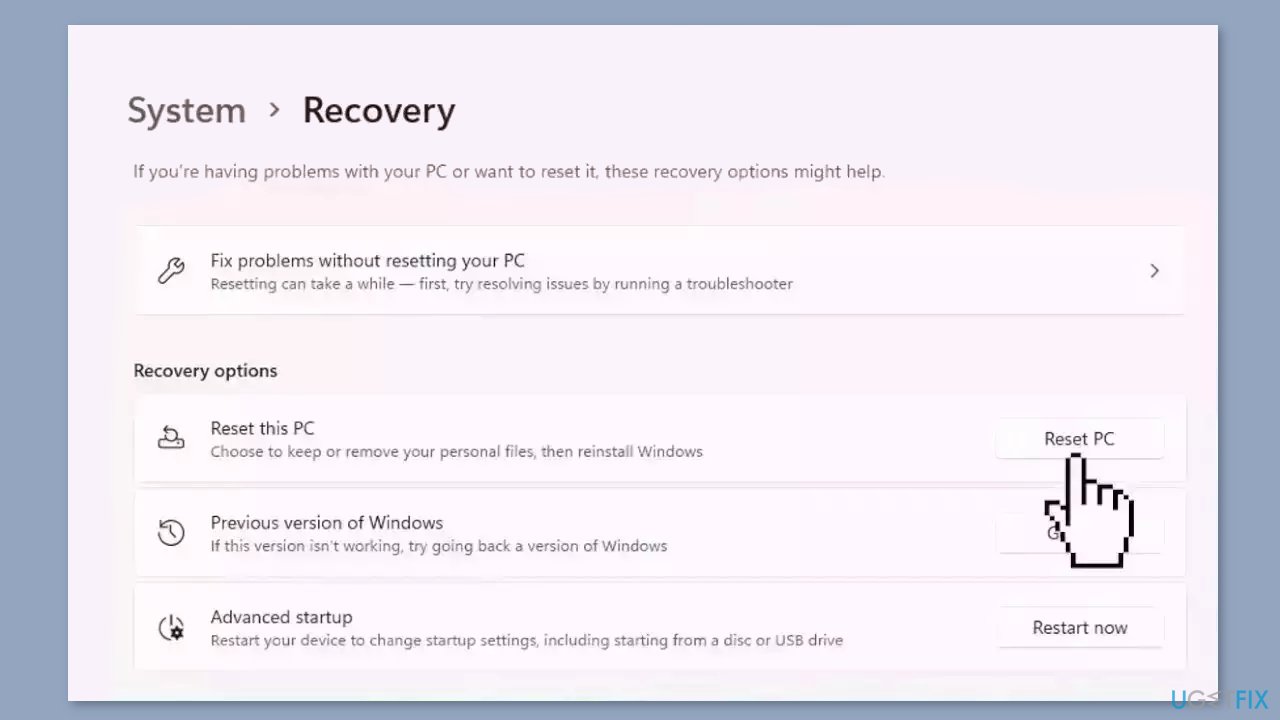
- Click on either Keep my files (if you want the computer to be reset without losing any of the user data stored on it) or Remove everything (if you want the computer to be reset and any and all user data stored on it to be deleted.
- If presented with a warning, simply click on Next.
- When prompted to do so, click on Reset.
Bottom line
To fix the issue of Windows not booting into Safe Mode, users can repair corrupted system files using the Command Prompt, or utilize the Windows Startup Repair tool. If these solutions do not resolve the problem, users may need to reset the BIOS or consider reinstalling Windows.
Frequently asked questions
You can try accessing the Advanced Startup Options by holding down the Shift key while clicking Restart. From there, navigate to Troubleshoot > Advanced options > Startup Settings and select Restart to enable Safe Mode options.
If your system hangs during booting into Safe Mode, you can attempt to perform a System Restore from the Advanced Startup Options to revert to a previous state where Safe Mode was accessible.
Yes, you can force Windows to enter Safe Mode by interrupting the boot process three times in a row, which will trigger the Automatic Repair environment, allowing you to select Safe Mode from the Troubleshoot menu.




Report an issue
What's wrong with this guide? We review every report and update or remove content.
Report received — thank you. We'll review and fix it.
You need a free account to submit a report.
Be the first to comment