How to fix
Xbox Game Bar missing Xbox Social tab
on Windows
Resolve the Xbox Game Bar missing Xbox Social tab issue on Windows 10 and 11 effortlessly. Get expert-tested solutions and enjoy seamless gaming!

![[Fix] Xbox Game Bar missing Xbox Social tab in Windows](https://ugetfix.com/wp-content/uploads/articles/askit/fix-xbox-game-bar-missing-xbox-social-tab-in-windows-copy_en-768x432.jpg)
What causes [Fix] Xbox Game Bar missing Xbox Social tab in Windows?
- Xbox Social tab not enabled in the widget menu
- Windows Store apps troubleshooter not run
- Xbox Game Bar application not updated
- Game Bar and Gaming services not reset
- Latest Windows updates not installed
Repairs Windows system files, removes malware, and restores a clean OS state — without reinstalling.
When I press the shortcut to open the Xbox overlay, the Xbox social tab is missing. How do I get it back?
The Xbox Game Bar in Windows is a powerful tool designed for gamers to enhance their gaming experience. It provides easy access to various features such as screen capture, broadcasting, and accessing your Xbox friends list and messaging system without the need to leave your game.
This overlay application seamlessly integrates with Windows, allowing users to quickly summon it with a simple Win + G shortcut during gameplay. One of the key components of the Xbox Game Bar is the Xbox Social tab, which connects gamers to their Xbox network, enabling social interactions, game invites, and the ability to see what friends are playing in real-time.
However, some users may find that the Xbox Social tab is missing from their Xbox Game Bar, leaving them unable to access their friends list or send messages directly from the Game Bar. This issue can hinder the social gaming experience, but fortunately, it can often be resolved by enabling the tab through the widget menu of the Game Bar itself.
The primary solution to this problem involves enabling the Xbox Social tab from the Game Bar's widget menu. This action typically restores access to the social features, allowing you to reconnect with your Xbox network friends and communities directly from the Game Bar interface.
In instances where the Xbox Social tab is missing from the widget menu as well, there are several steps that can be undertaken to address the issue. These include running the Windows Store apps troubleshooter, updating the Xbox Game Bar application, resetting the Game Bar and Gaming services, as well as installing the latest Windows updates. This can help ensure that all system components are functioning correctly and are fully compatible with the Xbox Game Bar.
For those who want to ensure that their Windows systems are working seamlessly, we recommend trying a PC repair application [d1], which can fix corrupted system files, resolve DLL or other system errors, and fix BSODs and other crashes automatically.
Fix 1. Enable in Game Bar settings
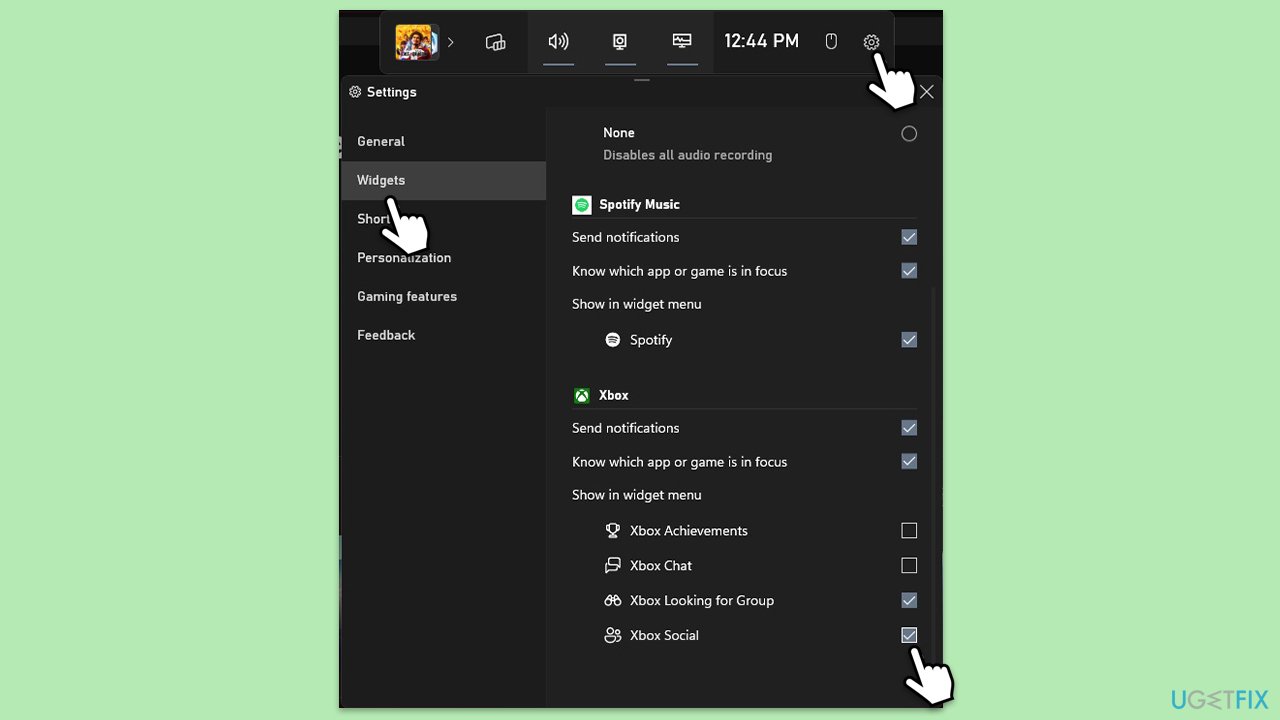
This solution involves manually enabling the Social tab through the Xbox Game Bar settings, which can be done within the Game Bar interface itself. This process allows users to customize their Game Bar experience by selecting which widgets, including the Social tab, are active and visible during gameplay.
- Press the Win + G to open the Xbox Game Bar.
- Click on the settings cogwheel to access the Game Bar settings.
- Navigate to the Widgets section within the settings menu.
- Scroll down to the bottom and click on the checkbox next to the Social tab option to enable it.
- Close the settings menu and the Social tab should now be visible on your Game Bar.
Fix 2. Update Xbox Game Bar via the Microsoft Store
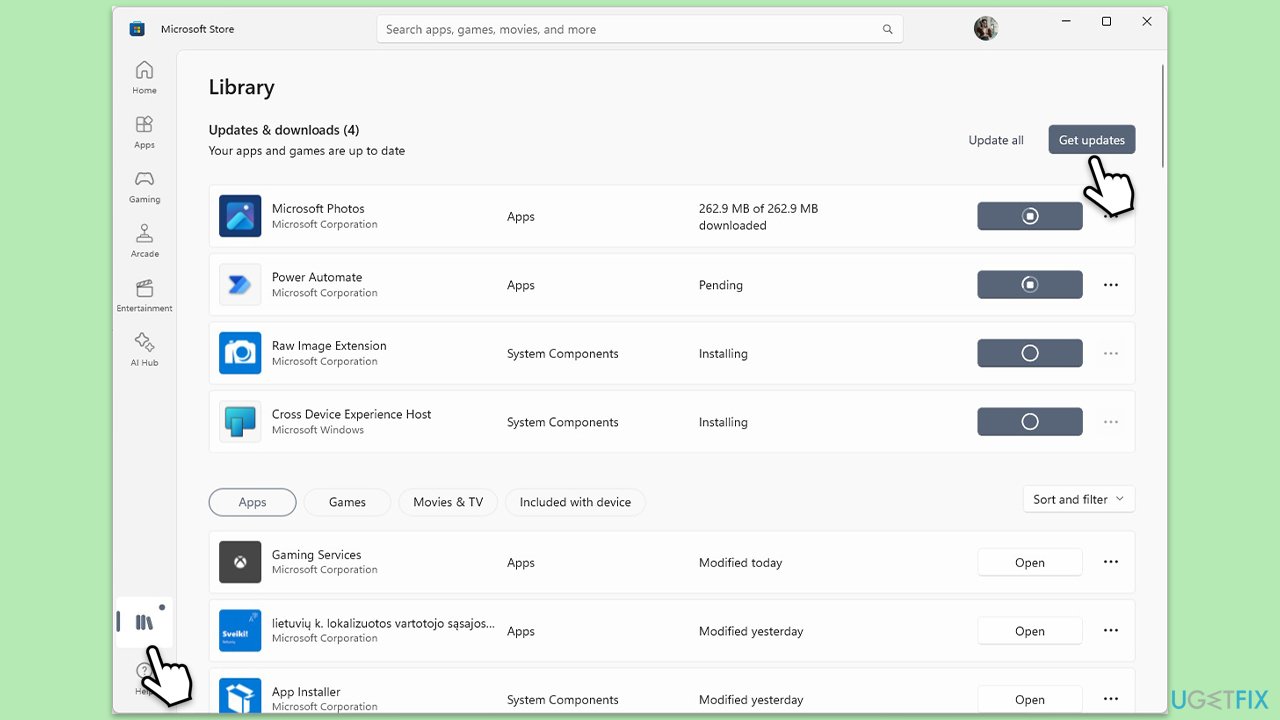
Updating the Xbox Game Bar ensures you have the latest version with all available features and bug fixes. This can resolve issues with missing tabs or functionalities.
- Open the Microsoft Store from the Start menu or search bar.
- At the bottom, click on Library.
- Click Get updates to search for available updates.
- If an update for Xbox Game Bar is available, it will be installed automatically.
- Once the update is installed, restart your computer and check the Game Bar for the Social tab.
Fix 3. Install all Windows updates
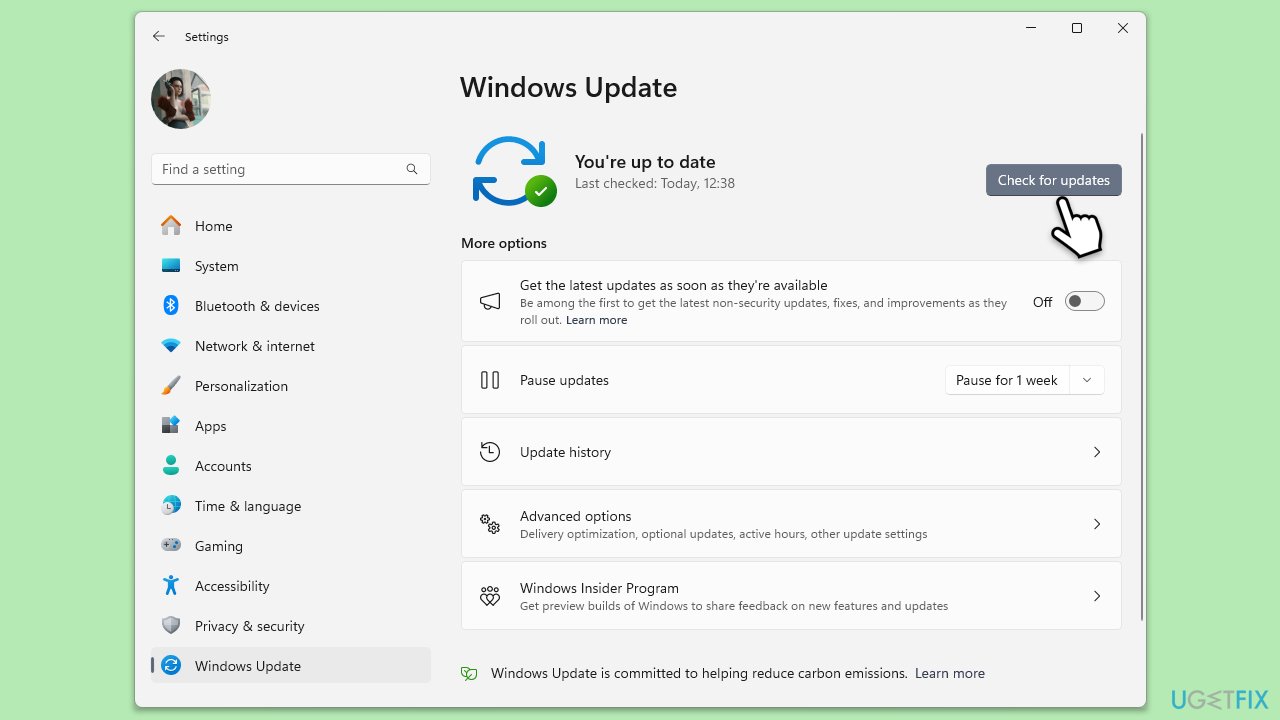
Ensuring your Windows is up to date is crucial for the smooth operation of integrated apps like Xbox Game Bar. Updates can provide necessary fixes and improvements.
- Type Updates in the Windows search box and hit Enter.
- Click Check for Updates and wait till all the needed files are downloaded.
- If optional updates come up, install them too.
- When all is done, restart your system to implement the changes.
Fix 4. Run Windows Store apps troubleshooter
The Windows Store apps troubleshooter can automatically identify and fix problems with apps downloaded from the Microsoft Store, including the Xbox Game Bar.
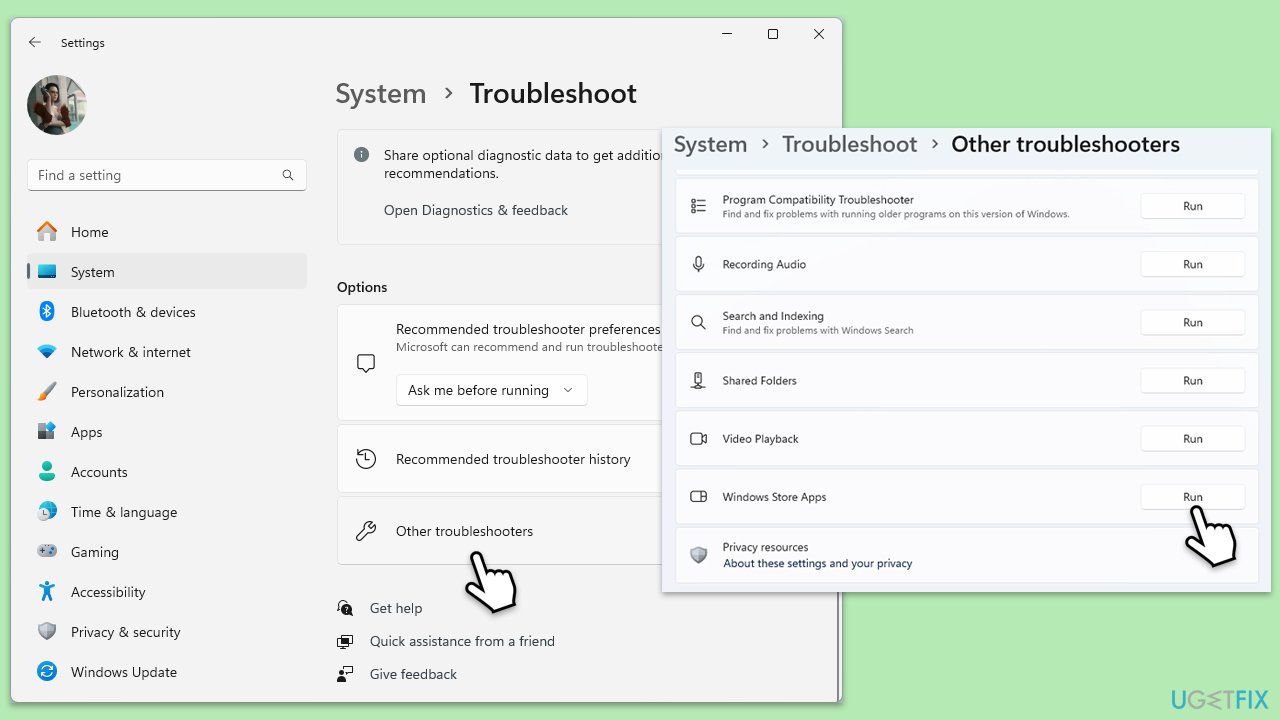
- Type Troubleshoot in Windows search and hit Enter.
- Click Additional troubleshooters/Other troubleshooters.
- Scroll down to find Windows store apps and select it.
- Click Run the troubleshooter/Run.
- Wait till the process is finished and apply the fixes.
Fix 5. Reset/repair the Game Bar and Gaming services
Resetting or repairing the Game Bar and Gaming services can resolve issues by restoring the app to its default state without affecting your data.
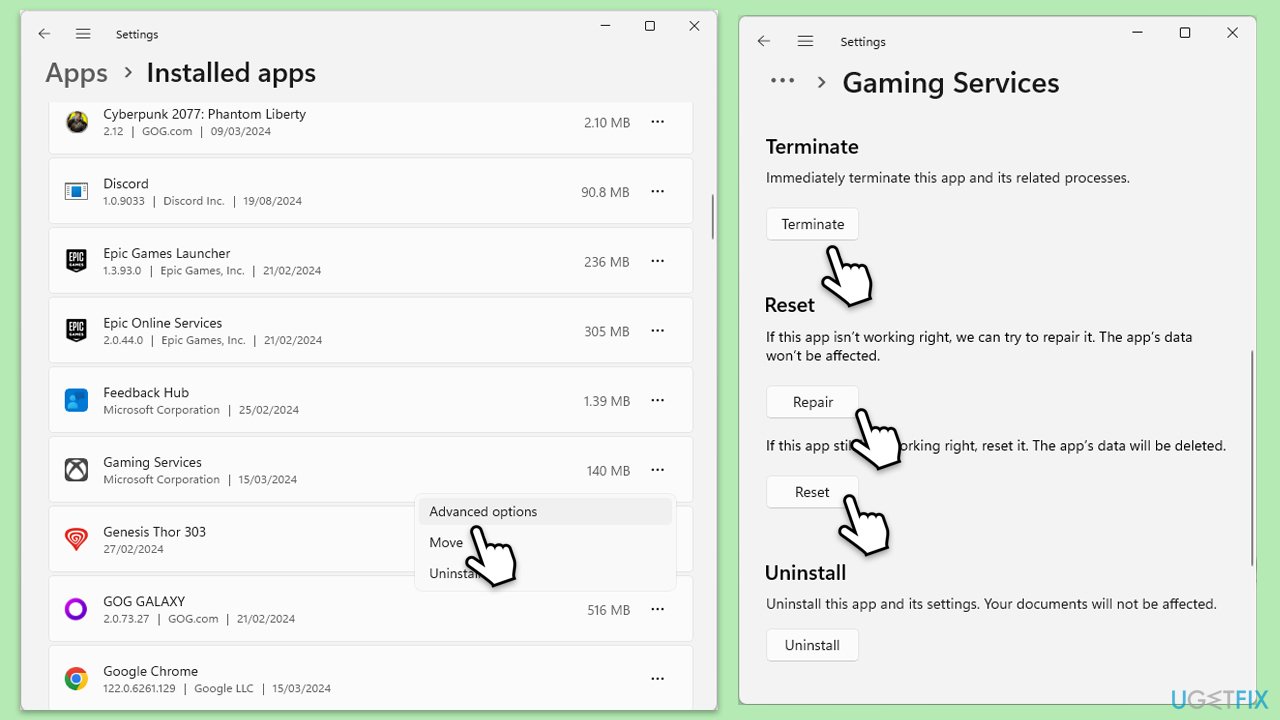
- Right-click on Start and pick Apps & Features/Installed apps.
- Scroll down to locate the Game Bar and click (three dots) Advanced options.
- Click Terminate and Repair.
- If that does not help, try the Reset option instead.
- Repeat the same with the Gaming Services.
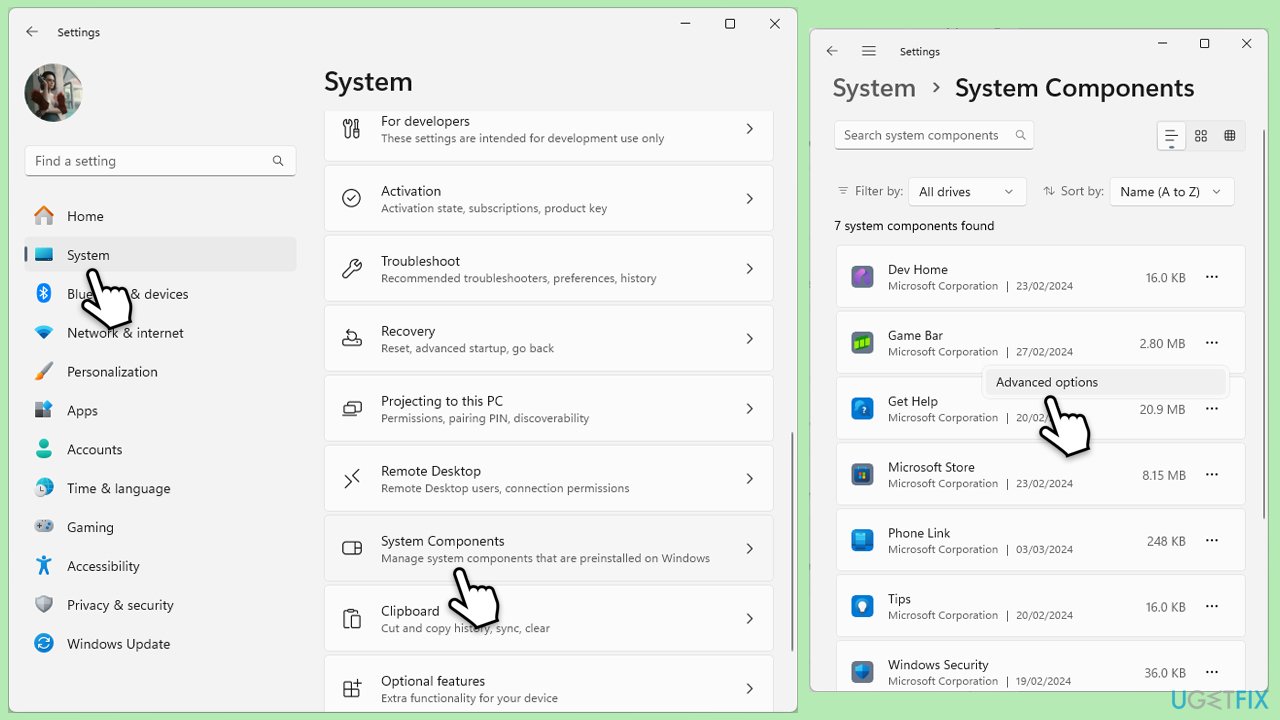
If you can't find Xbox Game Bar on the installed apps list on Windows 11, follow these steps:
- Click the Windows button and select Settings.
- Select System on the left.
- On the right side, scroll down to locate System Components and click it.
- Here, click on three dots > Advanced settings > Terminate > Repair/Reset.
Fix 6. Reinstall Game Bar
Reinstalling the Game Bar can help fix issues by completely removing and then reinstalling the app, ensuring a fresh installation.
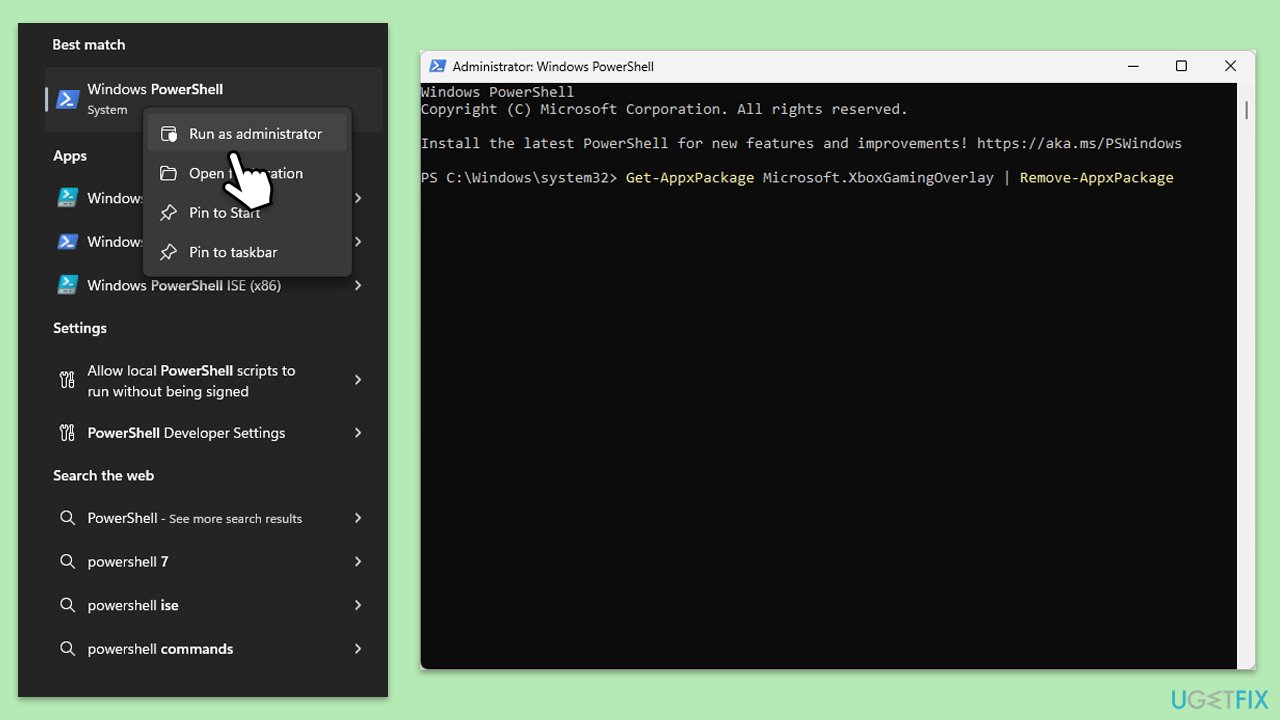
- Type PowerShell in Windows search.
- Right-click on it and select Run as administrator.
- User Account Control will ask whether you want to allow changes - click Yes.
- Next paste in the following command and press Enter:
Get-AppxPackage Microsoft.XboxGamingOverlay | Remove-AppxPackage - Visit the Microsoft Store to download and reinstall the Xbox Game Bar.
- Follow the on-screen instructions to install and then restart your computer.
Bottom line
To resolve the missing Xbox Social tab, you can enable it through the widget menu, run the Windows Store apps troubleshooter, update the Xbox Game Bar application, and reset the Game Bar and Gaming services. Additionally, ensure that your Windows system is up to date. If none of these solutions work, consider using a PC repair application to fix underlying system issues.
Frequently asked questions
Try resetting the Xbox Game Bar by going to Settings > Apps > Apps & features, selecting Xbox Game Bar, and clicking on 'Advanced options' to reset it. Restart your PC after resetting to see if the tab reappears.
Check for updates by opening the Microsoft Store, clicking on 'Library', and then selecting 'Get updates' to ensure you have the latest version of Xbox Game Bar installed.
The missing Xbox Social tab may be due to outdated software, incorrect settings, or network issues; ensure your Windows 10 or Windows 11 is fully updated and check your internet connection.




Report an issue
What's wrong with this guide? We review every report and update or remove content.
Report received — thank you. We'll review and fix it.
You need a free account to submit a report.
Be the first to comment