How to fix
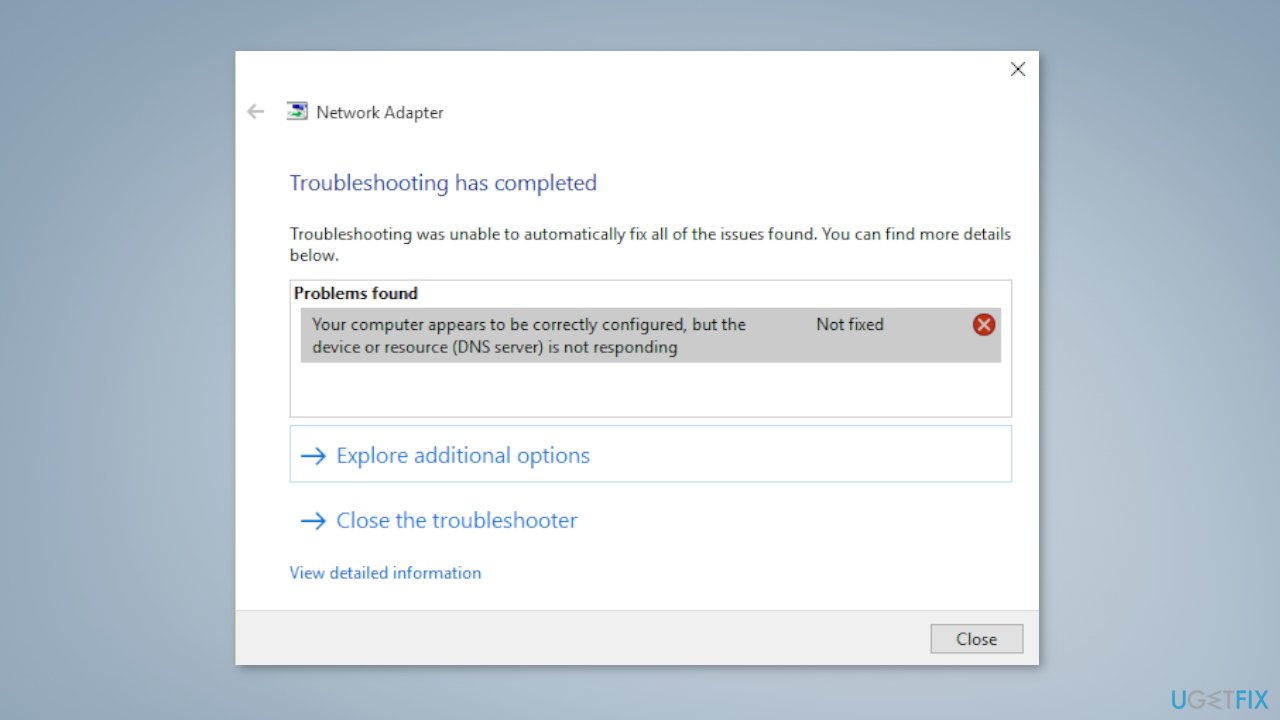
“Your computer appears to be correctly configured, but the device or resource is not responding”
on Windows
Resolve the "Your computer appears to be correctly configured" error on Windows 10 and 11 with expert-tested methods that fix issues in minutes.

![[Fix] “Your computer appears to be correctly configured, but the device or resource is not responding”](https://ugetfix.com/wp-content/uploads/articles/askit/your-computer-appears-to-be-correctly-configured-but-the-device-or-resource-is-not-responding_en-768x432.jpg)
What causes [Fix] “Your computer appears to be correctly configured, but the device or resource is not responding”?
- Network drivers are outdated
- Network settings are misconfigured
- Power management options for the network adapter are enabled
- Firewalls blocking the connection
- Antivirus programs interfering with the connection
- VPN software causing issues
Repairs Windows system files, removes malware, and restores a clean OS state — without reinstalling.
Hello. I tried to run the Network Troubleshooter in Windows and I received the "Your computer appears to be correctly configured, but the device or resource is not responding" message. What does it mean and how do I fix this?
The "Your computer appears to be correctly configured, but the device or resource is not responding" error message is a common issue that can occur when a user is trying to connect to a network or a specific resource on a network. This error message is typically seen when the user runs the Windows network troubleshooter.
This issue can impact users by preventing them from accessing network resources such as shared folders, printers, and websites. This can cause significant inconvenience, especially for users who rely on these resources for their work or personal use. There are several possible solutions to this issue, including updating network drivers,[ref en-1] checking network settings, and disabling power management options for the network adapter.
Additionally, resetting the TCP/IP stack and clearing the DNS cache can also help to resolve the issue. It is also recommended to check for any firewalls that can block the connection, check for any antivirus program that might be blocking the connection. Also, check for any VPN software or application running on the computer that might be causing the issue. It is important to note that it is necessary to check the network adapter and the router settings as well.
In this guide, you will find 6 steps that should help you fix "Your computer appears to be correctly configured, but the device or resource is not responding" error in Windows. To check for underlying Windows operating system issues, you can use a maintenance tool like [d1]. It can fix most system errors, BSODs,[ref en-2] corrupted files, and registry[ref en-3] issues. Otherwise, follow the step-by-step instructions below.
Method 1. Flush DNS
- Search cmd in the search box
- Right-click on the Command Prompt and click Run as administrator
- In the Command Prompt window, run the command: netsh int ip reset reset.log
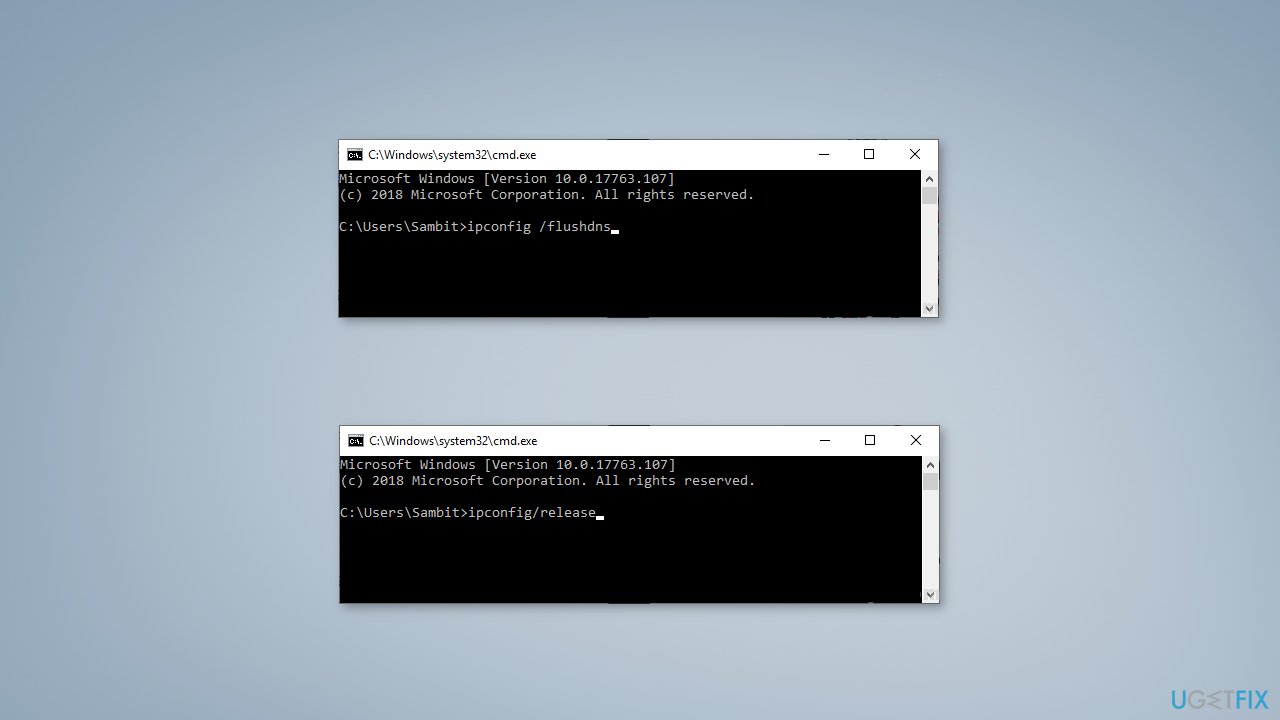
- To flush the DNS and re-register it, copy-paste these two commands in the Command Prompt window and hit Enter:
ipconfig /flushdns
ipconfig /registerdns
- To release and renew the IP configuration data, execute the following commands:
netsh winsock reset
ipconfig /renew
- Wait a few minutes for the process to complete
- Try to connect to the website and check if the problem still persists
Method 2. Set IPv4 Settings to Automatic
- Click on the Windows icon and type Network connections
- Click on View network connections to access it
- You will see a list of adapters available
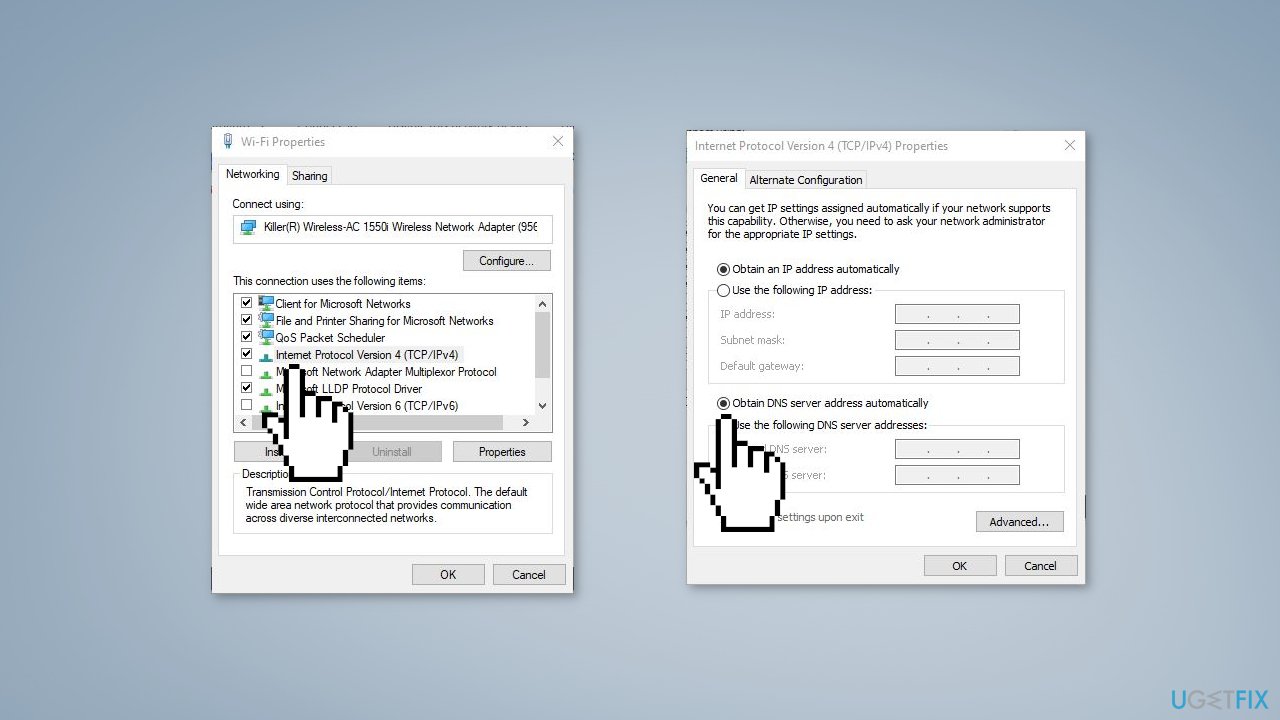
- To access the adapter properties, right-click on the network adapter you're having trouble with and click Properties
- To access the IPv4 settings, double-click on Internet Protocol Version 4 (TCP/IPv4)
- Click on the radio button next to Obtain an IP address automatically
- Select the Obtain DNS server address automatically option
- Click OK
- Double-click on Internet Protocol Version 6 (IPv6) settings
- Check the following options:
Obtain an IPv6 address automatically
Obtain DNS server address automatically
- Check the option Validate settings upon exit and click OK to save the settings
- The settings will be verified by your system
- Close the Network Connections window
- Reboot your computer to save the changes
Method 3. Change DNS Settings
- Click on the Windows icon and type Network connections
- Click on View network connections to access it
- You will see a list of adapters available
- To access the adapter properties, right-click on the network adapter you're having trouble with and click Properties
- To access the IPv4 settings, double-click on Internet Protocol Version 4 (TCP/IPv4)
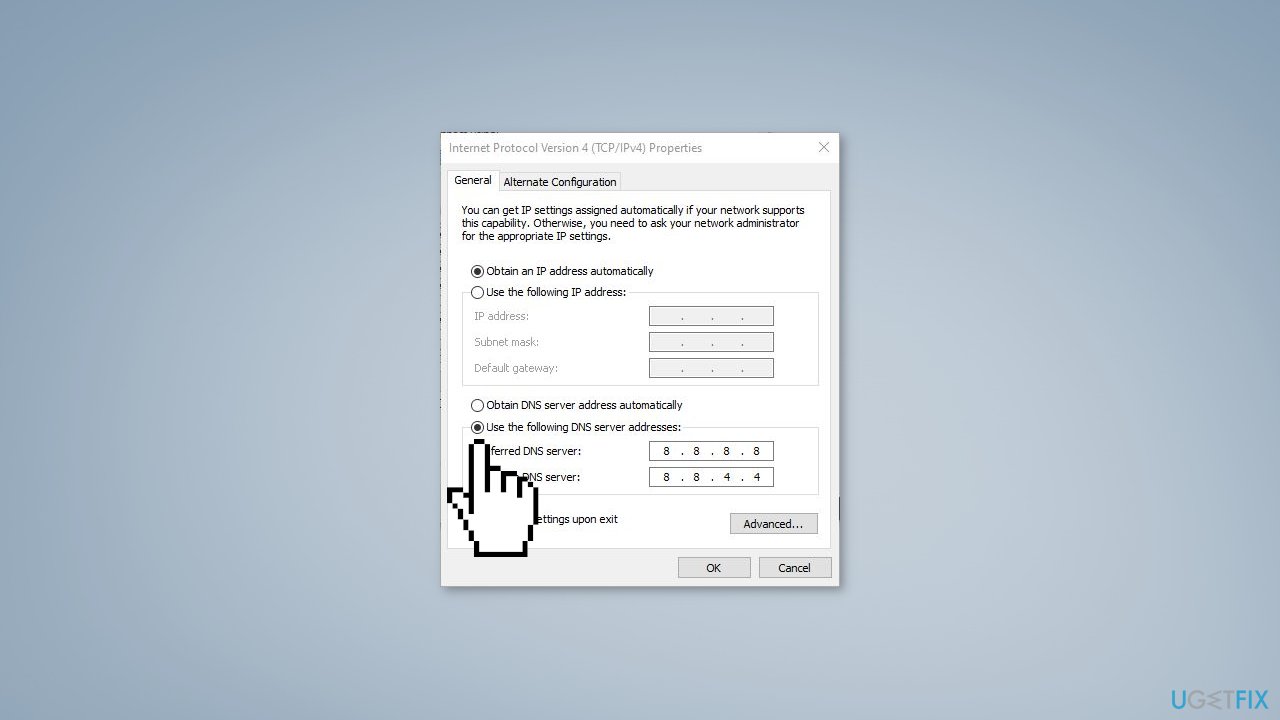
- If the above method does not work, change the DNS settings for IPv4 settings to Google DNS
- Click on Use the following DNS server address
- Type 8.8.8.8 in the Preferred DNS server field and 8.8.4.4 in the Alternate DNS server field
- Click OK and try again
Method 4. Update or Rollback the Network Driver
Update the Network adapter driver:
- Press the Windows key + R to open the Run box
- Type ncpa.cpl and hit Enter
- Look for the network adapter you're trying to use on your computer
- Press the Windows key + R again
- Type devmgmt.msc and hit Enter
- Click on the Network adapters drop-down to list the available adapter drivers
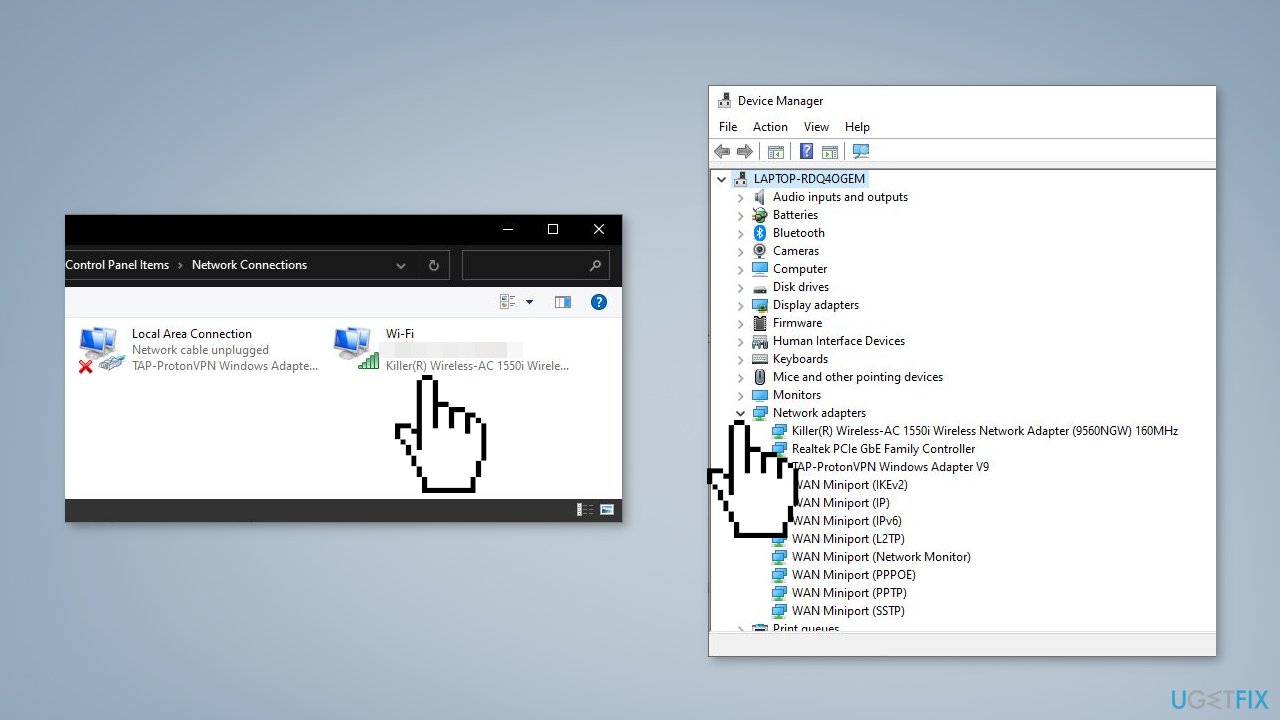
- Right-click on the network adapter driver and click Update driver
- Choose the option Search automatically for drivers and restart your computer once the update process is complete
If you have recently received an update for the network driver, consider rolling back the update:
- Access the Device Manager again on your computer
- Expand the network adapter section and double-click on the adapter you're using
- Go to the Driver tab
- Click on Rollback Driver to roll back the driver update from your device
Method 5. Disable Proxy Settings
- Right-click on the Windows icon and select Run
- Type inetcpl.cpl and click OK
- In the Internet Options window, navigate to the Connections tab
- Click on LAN Settings
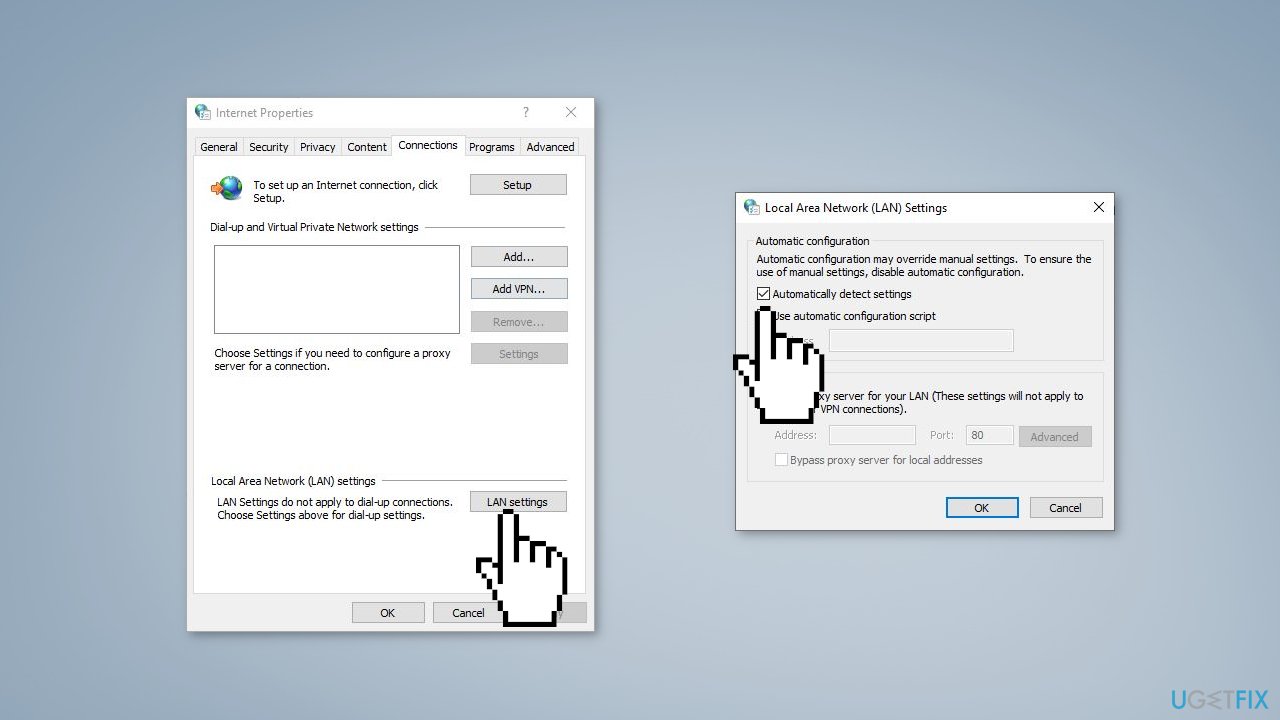
- Check the box next to Automatically detect settings
- Click OK and then Apply to save the changes
Method 6. Change Power Management Settings
- Press the Windows key and type devmgmt.msc in the search box
- Press Enter to open the Device Manager
- Double-click on the network adapter you are using
- Navigate to the Power Management tab
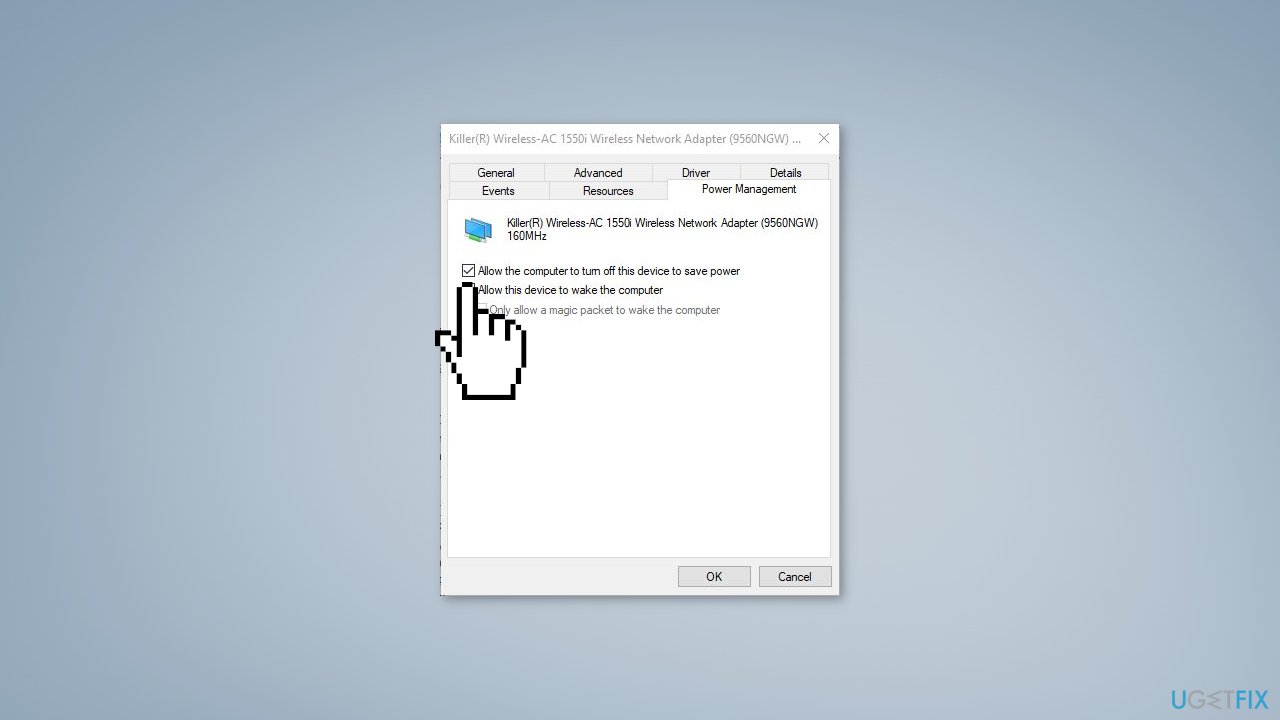
- Uncheck the option Allow the computer to turn off this device to save power
- Click OK to save the settings
Bottom line
To resolve the error, consider updating your network drivers, checking your network settings, and disabling power management options for the network adapter. Additionally, flushing the DNS, resetting the TCP/IP stack, and checking for any firewalls or antivirus programs that might be blocking the connection can be helpful. If none of these solutions work, using a maintenance tool to check for underlying Windows operating system issues may be necessary.
Frequently asked questions
Try resetting your network adapter by running the Command Prompt as an administrator and executing the commands 'netsh int ip reset' and 'ipconfig /flushdns'.
Ensure that your internet connection is stable and consider updating your network drivers through Device Manager to resolve any compatibility issues.
Yes, you can run the Network Troubleshooter found in Settings > Update & Security > Troubleshoot, which can automatically detect and fix network problems.




Report an issue
What's wrong with this guide? We review every report and update or remove content.
Report received — thank you. We'll review and fix it.
You need a free account to submit a report.
Be the first to comment