How to fix
Headphone Driver missing after Windows 10 update – how to fix
on Windows
Resolve missing headphone drivers after a Windows 10 update effortlessly. Follow our expert-tested fixes for a seamless audio experience!

What causes Headphone Driver missing after Windows 10 update – how to fix?
- Windows updates can be buggy
- Missing driver issues
- Driver or function issues after updates
- Hardware issues with headphone jack
- Headphones not working on different devices
Repairs Windows system files, removes malware, and restores a clean OS state — without reinstalling.
Hey. I got the latest Windows update, and now I experience some issues with the computer. The headphone driver is not found, so I cannot connect them. I tried a few different devices, and the computer cannot find and connect them. How can I fix this?
Headphone Driver missing is the problem that occurs when the Windows system cannot recognize the headphones. Any other audio problems and issues with the sound generally can all be related to missing driver issues. Users[ref en-1] complain about such problems all the time because it is a noticeable issue, but there are no quick fixes known to all.
driver or function issues after the update are common because Windows upgrades often are buggy or require fixes, patches right after the release.[ref en-2] Headphone Driver missing after Windows 10 update is a frustrating problem that can be fixed by rolling back the update or updating the machine again when the patch is released. However, it often takes time for the OS developers to release such fixes for the OS issues.
Headphone Driver missing after Windows 10 update problem was bothering people in 2018, but a few reports and many forum posts show that 2020 update has a similar issue. If you are facing this issue like other users, don't worry. This is not a crucial OS problem, and recovery is possible.
You might want to start with troubleshooting or even checking the hardware issues when you are trying to fix Headphone Driver missing after Windows 10 update. Most of the devices have jacks for headphones, including computers and laptops. You should check if it is working or not. Also, check those headphones you try to connect. If those are all okay and working well on different devices, you need other methods for this issue - driver and program management.
How to fix Headphone Driver missing after Windows 10 update
Headphone Driver missing after Windows 10 update is most definitely not a problem with applications or cyber infections.[ref en-3] You can be sure that the headphone jack is ok and those headphones are okay if the piece can work with other smartphones or computers. The issue is not prepared to applications, the main common problem is either with OS files or directly caused by driver issue.
It is possible to fix Headphone Driver missing after Windows 10 update quickly by rolling back the Windows update that created issues with your experience. That helps when you can't fix the problem by updating the OS with a newer version. Also, if the problem is with some of the files, you can run [d1] and repair system data, replace affected pieces.
Tools like [rev id="DriverFix"] can help too. This is the program that finds and replaces old drivers with new ones and can update your system automatically. These methods are helpful when the system acts up due to small issues with drivers and files, so you don't need to do anything to settings. Such manual fixes are for the more tech-savvy people. However, if you haven't solved the issue, you might want to go through the methods below too.
Re-install the driver yourself
- Go to Device Manager.
- Expand Sound, Video and game controllers from the list by clicking the arrow.
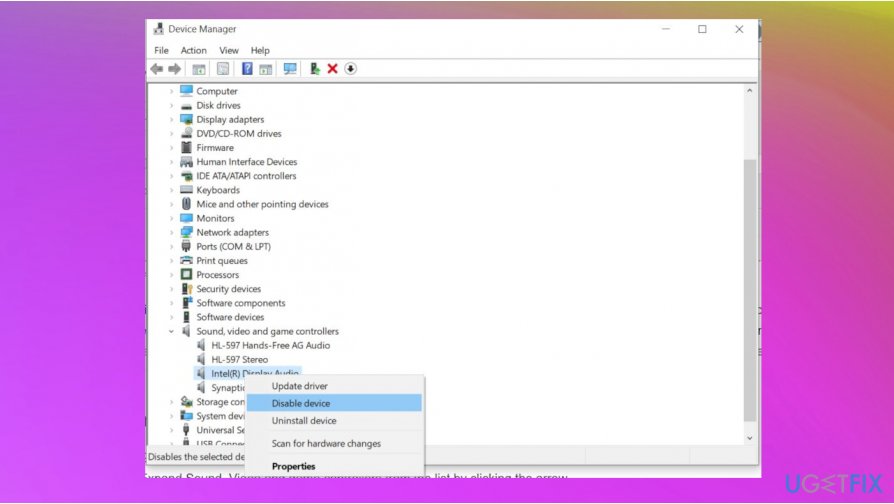
Headphone driver missing fix driver - Right-click on your audio driver from the list and click on it to get the opportunity to Uninstall.
- Reboot the machine.
Let Windows automatically update audio/sound drivers
- Right-click the Start button and go to Control Panel.
- Go to Hardware and Sounds.
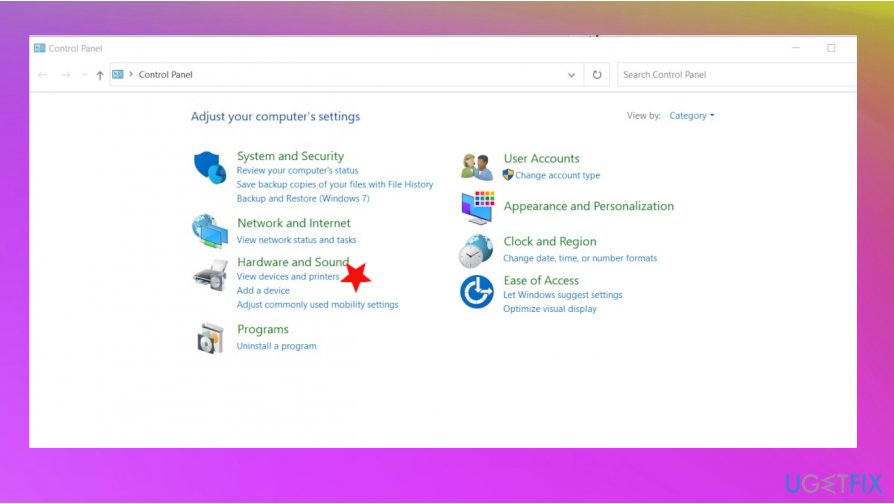
Headphone driver missing fix control panel - Choose Sound and go to Playback tab.
- Choose your headphones and click on Properties.
- Go to Controller Information and then click on Properties.
- Change Settings.
- Go to Driver tab and click Update Driver.
- Let the driver update automatically.
Enable Stereo mix to fix Headphone Driver missing
- Right-click on the volume icon in Taskbar.
- Click on Sounds.
- Go to the Recording tab.
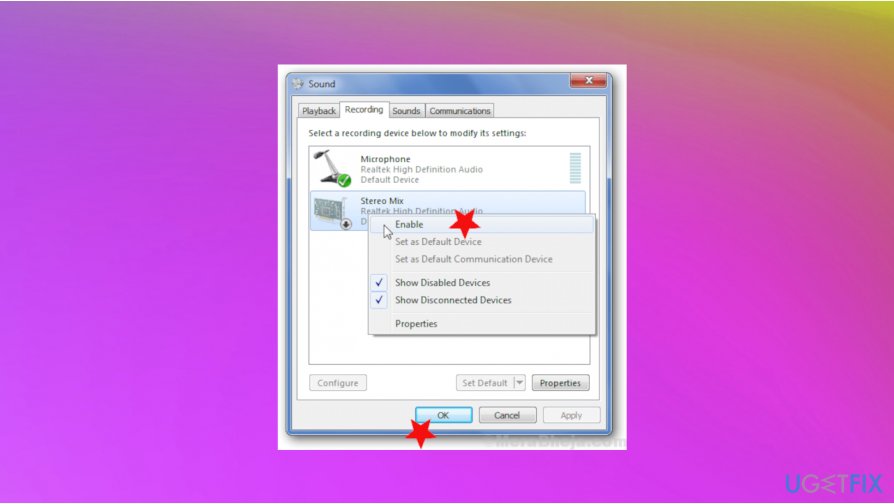
Headphone driver missing fix enable stereo - Right-click on the empty area and make sure to check View Disconnected Devices and View Disabled Devices.
- Right-click and make sure to choose the Enable on the Stereo Mix.
Enable Playback device
- Open the Control Panel.
- Choose large icons under the View option.
- Click Sound.
- The list appears. If the headphones are not showing up right-click and check Show Disabled Devices and Show Disconnected Devices.
- Right-click the Headphones and choose Enable.
- Click OK.
Disable front panel jack detection to fix Headphone Driver missing issue
- Go to:
C:\\Program Files\\Realtek\\Audio\\HDA - Click the RAVBg64 and open Realtek HD audio manager.
- Click on the folder at the top.
- Uncheck Disable Front panel jack selection.
Change the default sound format to fix Headphone Driver missing
- Go to Control Panel and click on Hardware and Sound.
- Choose Sound.
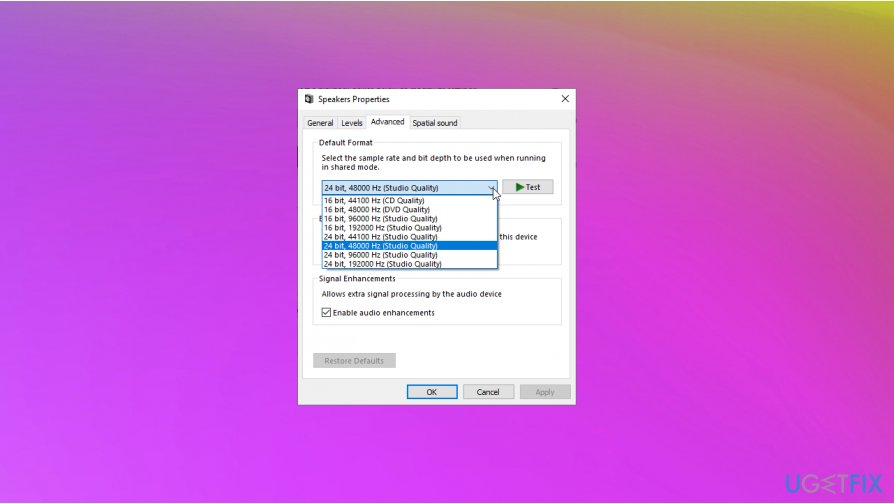
Headphone driver missing fix default changes - Under the Playback, double-click on the Default Playback device.
- Go to the Advanced tab.
- Change default sound format from the drop-down.
Bottom line
To fix the Headphone Driver missing issue after a Windows 10 update, you can try rolling back the update or updating the machine again when a patch is released. Additionally, check the headphone jack and the headphones themselves for any hardware issues. If none of these solutions work, further troubleshooting may be necessary.
Frequently asked questions
First, try updating your audio drivers manually through Device Manager by right-clicking on the Start menu and selecting 'Device Manager'. If that doesn't work, you may need to reinstall the audio drivers from the manufacturer's website.
Yes, you can roll back the update by going to Settings > Update & Security > Windows Update > View update history > Uninstall updates. This option is available for a limited time after the update.
Visit the manufacturer's website to find the latest drivers for your headphones, ensuring they specify compatibility with Windows 11 before downloading.




Report an issue
What's wrong with this guide? We review every report and update or remove content.
Report received — thank you. We'll review and fix it.
You need a free account to submit a report.
Be the first to comment