How to fix
Ho to fix Msosync.exe Application error
on Windows
Resolve the Msosync.exe application error in Windows 10 and 11 with our expert-tested guide. Get your system running smoothly again, fixed in minutes!

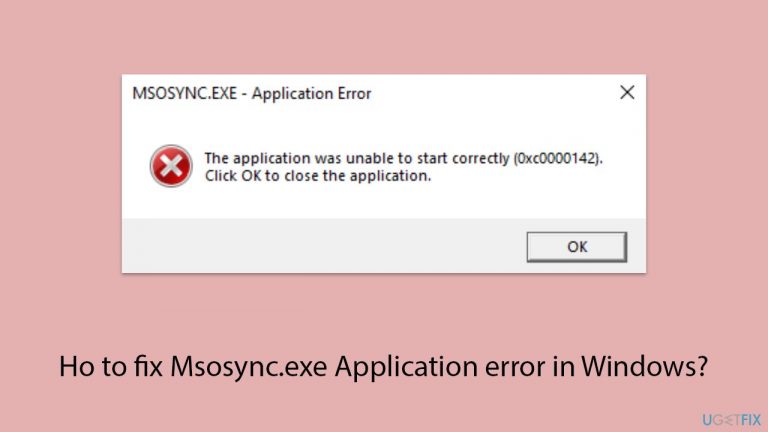
What causes Ho to fix Msosync.exe Application error in Windows?
- Corrupted system files
- Outdated Office installations
- Conflicts with other software
- Malware infections
Repairs Windows system files, removes malware, and restores a clean OS state — without reinstalling.
Hi, I am unable to save files on Office 365 - I keep getting a Msosync.exe Application error. How do I resolve this?
The Msosync.exe application error is a common issue that Windows users may encounter, particularly those who frequently use Microsoft Office products. This error pertains to the Microsoft Office Document Cache Synchronization executable, which plays a crucial role in managing document synchronization tasks for Office applications. When issues arise with Msosync.exe, users might experience disruptions in their workflow, including problems opening, saving, or syncing Office documents (on OneDrive).
At the core of the Msosync.exe application error are various underlying causes, ranging from corrupted system files and outdated Office installations to conflicts with other software or even malware infections. These factors can adversely affect the Msosync.exe process, leading to error messages that hinder productivity and create a need for technical resolution.
One of the primary steps to fix the Msosync.exe error involves ensuring that the Microsoft Office suite is up to date. Microsoft regularly releases updates to enhance functionality and fix known bugs, which can resolve existing issues. Additionally, checking for Windows updates is equally important, as these updates may include improvements or patches that impact the Office suite's performance and stability.
Another viable approach to mitigating the Msosync.exe error is to scan the system for malware. Since malware can interfere with legitimate processes and files, a comprehensive scan using reliable antivirus software can identify and remove any malicious entities that may be causing the error.
For users experiencing the Msosync.exe application error due to corrupted system or application files, utilizing built-in Windows tools like the System File Checker can prove beneficial - his tool scans for and repairs corrupted system files. Similarly, the Office Repair feature, accessible through the Control Panel, allows users to fix problems specifically within the Office suite.
In some cases, conflicts with other software or processes might be the root cause of the Msosync.exe error. Identifying and resolving these conflicts, whether through software updates, adjustments in settings, or temporary disabling of conflicting applications, can help restore normal functionality to Msosync.exe.
Lastly, for users who have exhausted other troubleshooting steps without success, considering a clean reinstall of the Microsoft Office suite might be necessary. This process removes the current installation and its associated files, allowing for a fresh installation that can eliminate persistent issues with Msosync.exe.
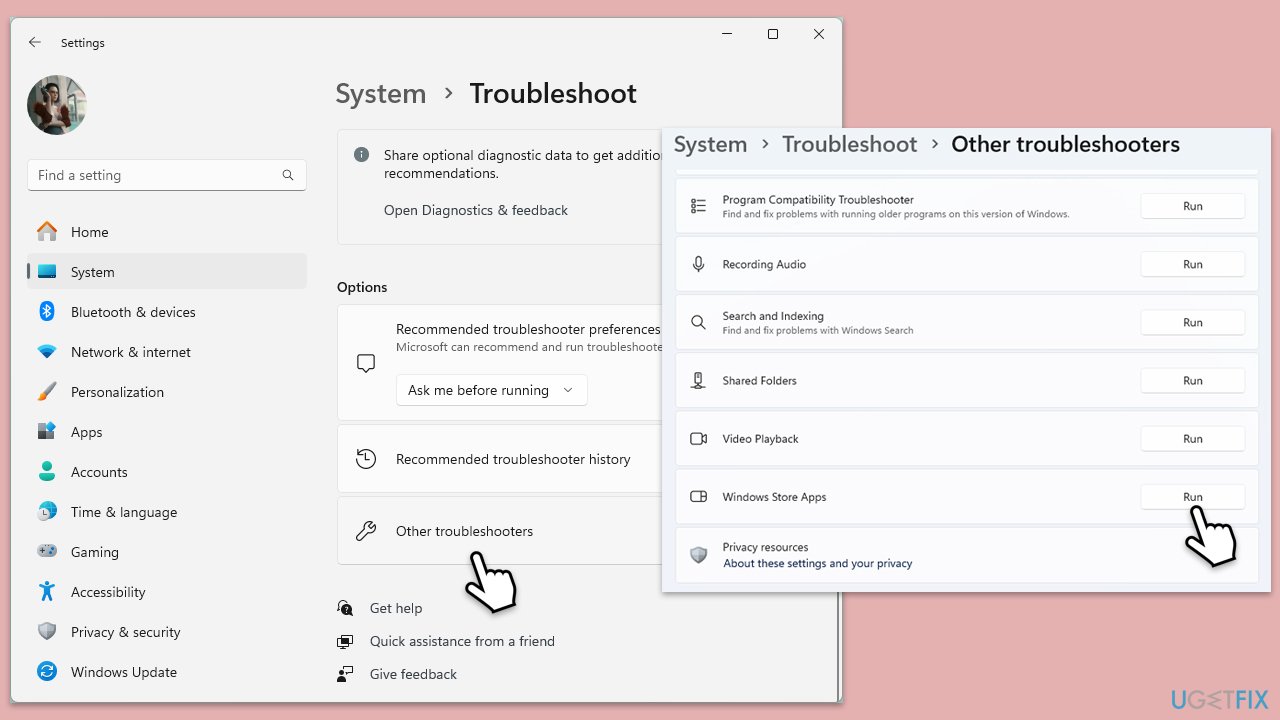
Fix 1. Run Windows Store apps troubleshooter
Windows includes a built-in troubleshooter specifically designed for diagnosing and fixing issues with apps downloaded from the Windows Store, which can be beneficial for resolving problems with apps not functioning as expected.
- Type Troubleshoot in Windows search and hit Enter.
- Click Additional troubleshooters/Other troubleshooters.
- Scroll down to find Windows store apps and select it.
- Click Run the troubleshooter/Run.
- Wait till the process is finished and apply the fixes, then try using Store again.
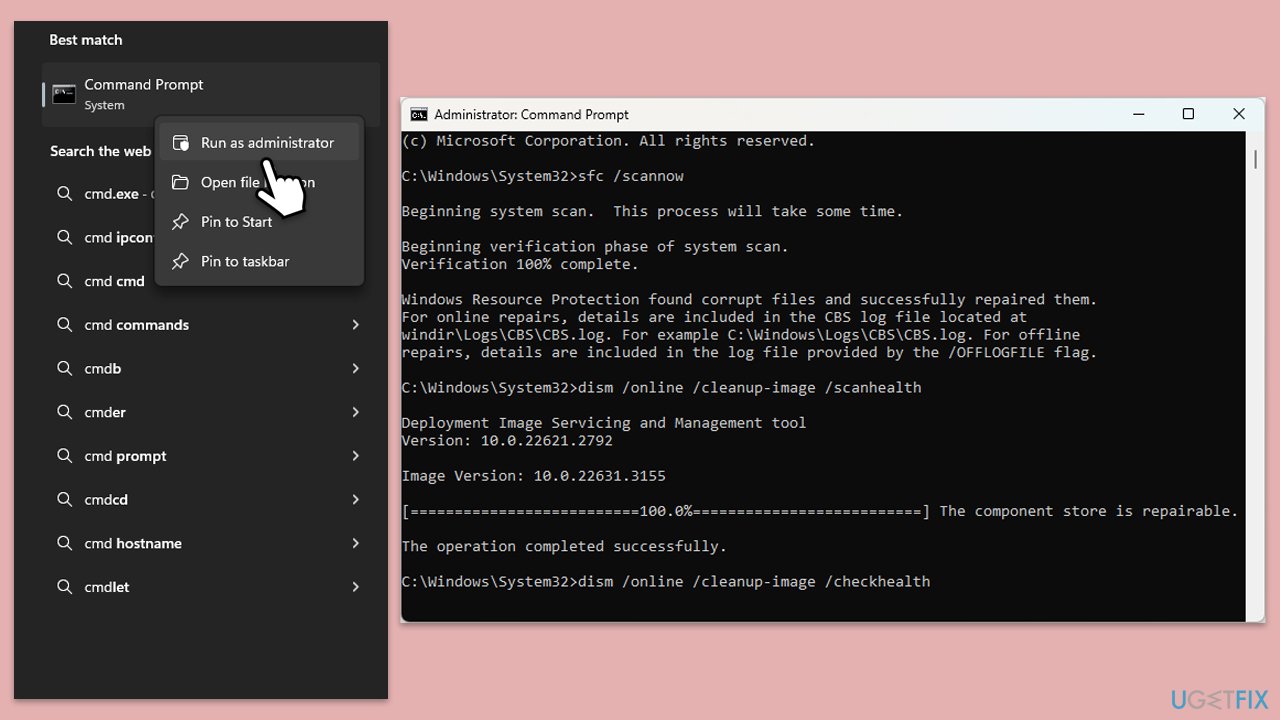
Fix 2. Perform SFC and DISM scans
These scans can help fix underlying system issues that might be causing problems with applications.
- Type in cmd in Windows search.
- Right-click on Command Prompt and select Run as administrator.
- In the User Account Control window, click Yes.
- In the Command Prompt window, paste the following command and hit Enter:
sfc /scannow - Next, use the following commands, pressing Enter each time:
Dism /Online /Cleanup-Image /CheckHealth
Dism /Online /Cleanup-Image /ScanHealth
Dism /Online /Cleanup-Image /RestoreHealth
(Note: if you get an error executing this last command, add /Source:C:\RepairSource\Windows /LimitAccess to it and try again). - Reboot your device.
Fix 3. Update Office apps
Keeping Office apps up to date ensures that you have the latest features, security updates, and fixes. Microsoft periodically releases updates that can resolve known issues and improve stability.
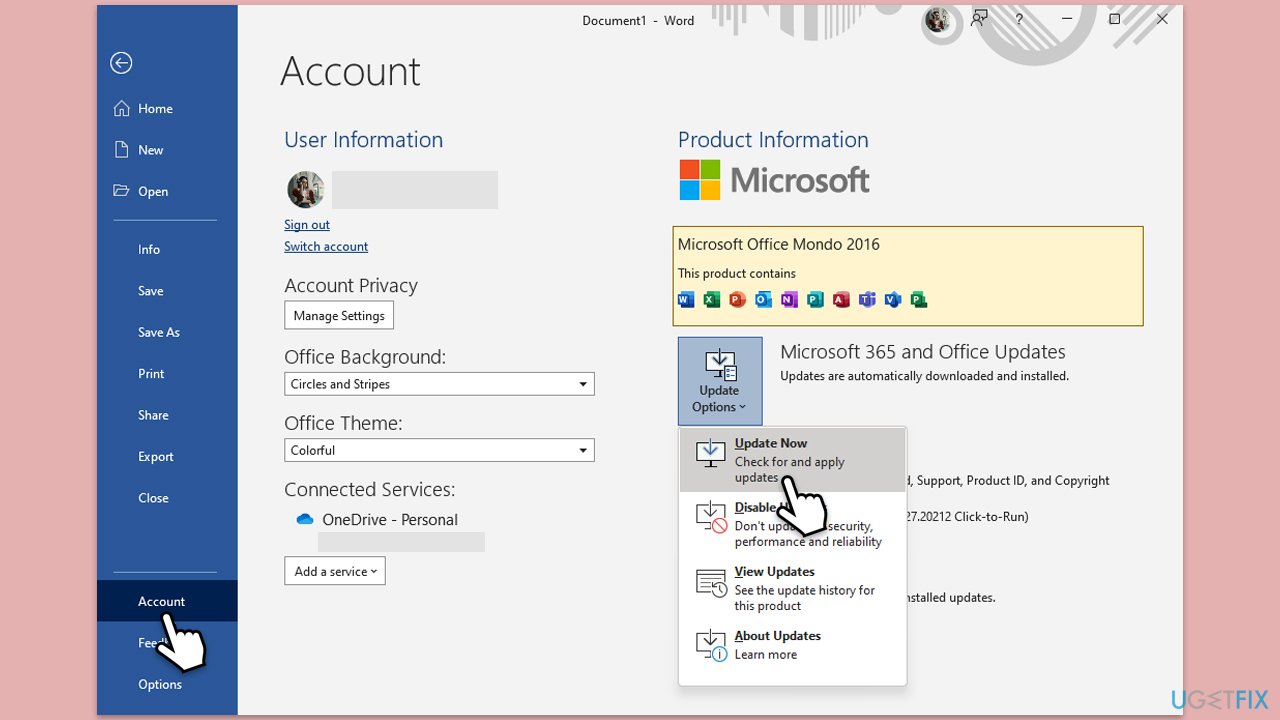
- Open any Microsoft app and navigate to File.
- From the file menu, select Account.
- Under Product Information, locate and click on Update Options.
- From the dropdown list, select Update Now. The program will then check for available updates and install them.
Fix 4. Install all Windows updates
Installing the latest Windows updates can improve system stability and performance, as well as fix known issues with software compatibility, including problems with Office apps.
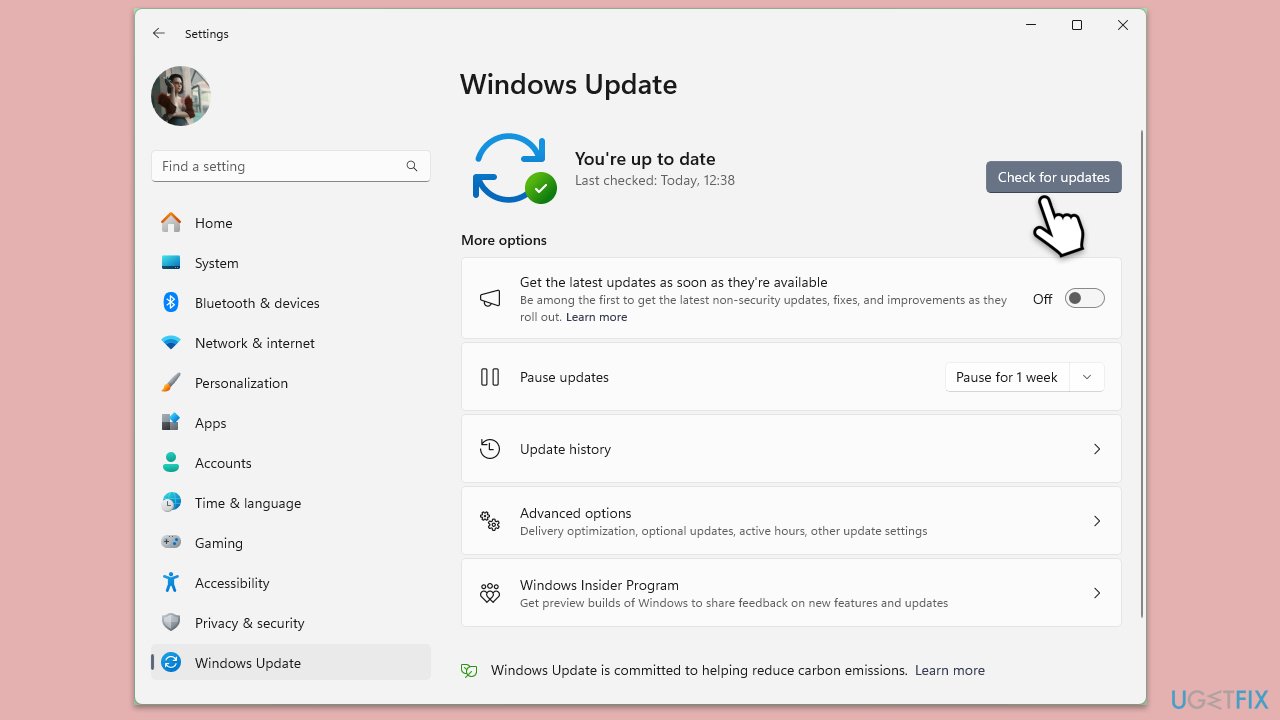
- Type Updates in Windows search and press Enter.
- Here, click Check for updates.
- Wait till Windows downloads and installs all the files.
- If optional updates are available, install them as well.
- Reboot your computer.
Fix 5. Repair MS Office
The Microsoft Office Repair tool can fix many common problems with Office apps by repairing the installation. This process can resolve issues without the need to uninstall and reinstall Office.
- Type Control Panel in Windows search and press Enter.
- Select Programs > Programs and Features.
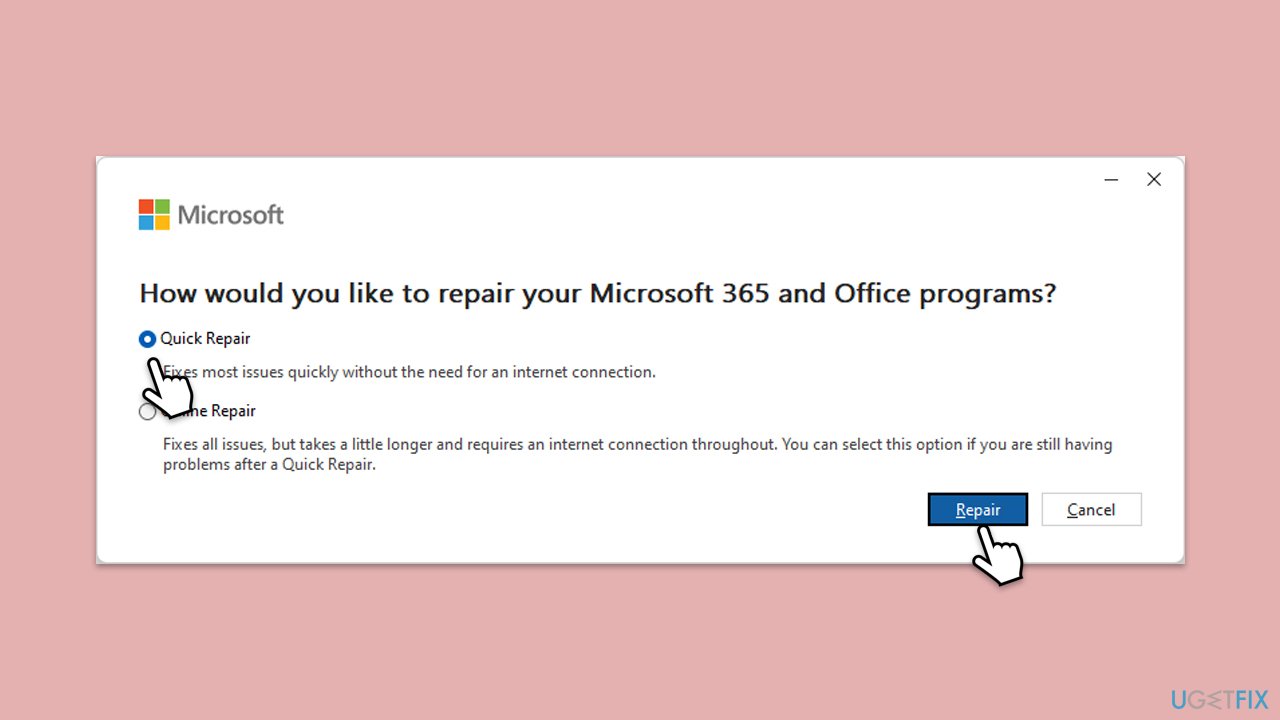
- Select Microsoft Office and click on Change.
- Choose the option for Online Repair and click Repair.
- Follow the prompts to finish the process.
Fix 6. Perform Clean Boot
Performing a clean boot starts Windows with a minimal set of drivers and startup programs. This can help identify if background programs are interfering with Office applications.
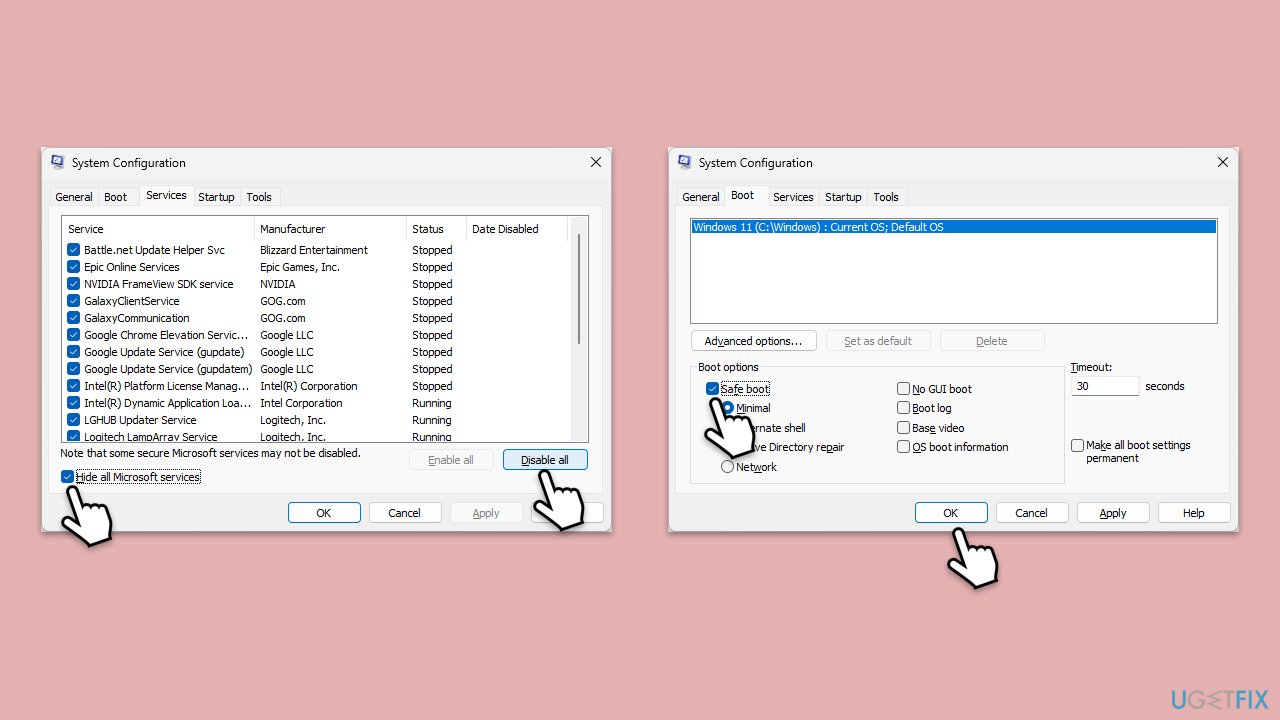
- Type msconfig in the Windows search box and press Enter.
- Pick the Services tab.
- Mark Hide all Microsoft services and select Disable all.
- Select the Startup tab and click Open Task Manager.
- In the Task Manager, right-click on each of the items and select Disable, then close the Task Manager.
- Go to the Boot tab, mark the Safe Boot option, then click Apply and OK.
- On the System Configuration window, click OK.
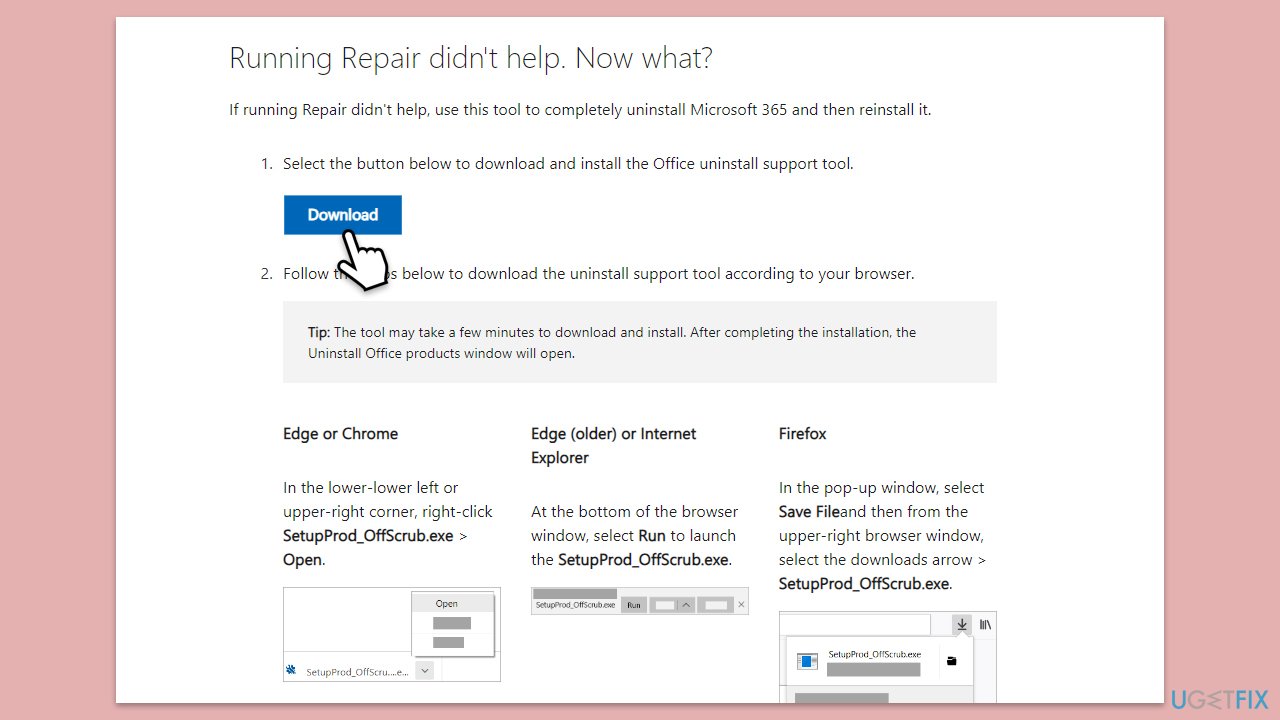
Fix 7. Reinstall Office using official Reinstall tool
If all else fails, reinstalling Office using the official Reinstall tool can provide a fresh start, removing any corrupt files or configurations that might be causing issues.
- Download the Office Reinstall tool from the official Microsoft website.
- Run the tool and follow the on-screen instructions to uninstall your current Office installation.
- Once the uninstallation is complete, restart your computer.
- Visit the Office website to download and reinstall the latest version of Office.
- Follow the installation prompts, then restart your computer one last time after the installation is complete.
Bottom line
To fix the Msosync.exe application error, ensure that Microsoft Office and Windows are up to date, scan for malware, and utilize built-in tools like the System File Checker and Office Repair feature. If these steps do not resolve the issue, consider identifying and resolving any software conflicts.
Frequently asked questions
Msosync.exe is a Microsoft Office component that syncs settings and files across devices. Application errors may occur due to corrupted files or issues with the Office installation in Windows 10.
To repair Msosync.exe errors on Windows 11, go to Settings, select Apps, find Microsoft Office, and choose the Repair option. This can fix any corrupted files associated with the application.
Yes, you can try reinstalling Microsoft Office, running a System File Checker scan, or disabling the sync feature in Office settings to resolve Msosync.exe application errors.




Report an issue
What's wrong with this guide? We review every report and update or remove content.
Report received — thank you. We'll review and fix it.
You need a free account to submit a report.
Be the first to comment