How to fix
Change Remote Desktop Port (RDP)
on Windows
Easily change the Remote Desktop port on Windows 10 to enhance your security and access. Trust our expert-tested guide for quick results!

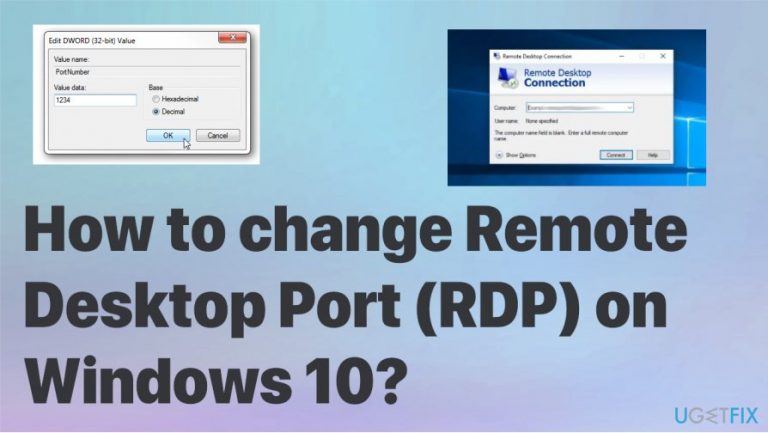
What causes How to change Remote Desktop Port (RDP) on Windows 10?
- Default Remote Desktop port is set to 3389
- Unprotected RDP can be targeted by brute-force attacks
- Changing the port incorrectly can lead to connection issues
- Not ensuring security measures can result in malware infections
- Using non-standard parameters may cause further complications
Repairs Windows system files, removes malware, and restores a clean OS state — without reinstalling.
Hello, I want to use the Remote Desktop feature to access the work PC from home. I run into the problem that I cannot set up the remote access and maintain the system safely. I need to modify those settings somehow, but do not know how to. I use Windows 10. Can you help to change Remote Desktop Port?
Changing Remote Desktop Port (RDP) on Windows 10 can be an important thing for many users who want to implement this feature and set up the remote access port to their computer. Modifying the RDP can trigger other issues and keep users from maintaining normally working devices.[ref en-1]
The well-known fact is that the default Remote Desktop port is set to 3389. It means that hackers can initiate the attack by brute-forcing the unprotected RDP.[ref en-2] Gaining access to your system can lead to serious issues, malware infections. So you need to be careful when you decide to change Remote Desktop Port yourself.
You need to be sure that when you change Remote Desktop Port (RDP) on Windows 10, you are not altering the meaning to the non-standard parameter and can avoid brute force attacks. It is important to make your connections and the system of the device more secure, not less.
RDP is the remote connection to your desktop. It is a special network protocol that allows the user to establish the connection between at least two computers, so the remote host can be accessed. It is often used, especially, during the time like pandemic[ref en-3] when many people tend to turn into working from home.
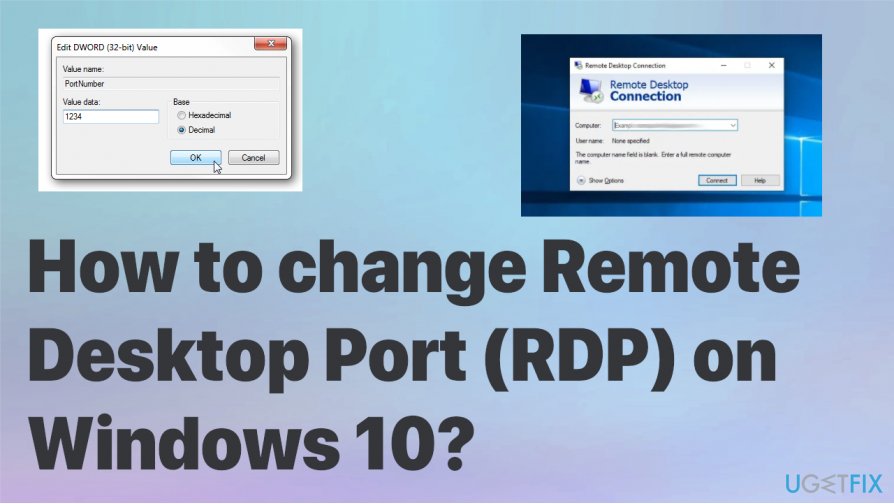
How to change Remote Desktop Port (RDP) on Windows 10
Any edition of Windows 10 devices, so the device that is the local becomes the client. To hos the remote session the device should be running Windows 10 Pro or Enterprise. You can connect to Windows 10 Remote Desktop host from another PC that runs on Windows 10 or even the earlier version. You do not need to have any particular software installed, so you need to follow the guide to see what steps are needed. There shouldn't be any other issues. However, you may check for the system corruption with [d1] before doing anything.
Change Remote Desktop Port (RDP) on Windows 10
- Open the Registry editor.
- Go to the following: HKEY_LOCAL_MACHINE\\System\\CurrentControlSet\\Control\\Terminal Server\\WinStations\\RDP-Tcp
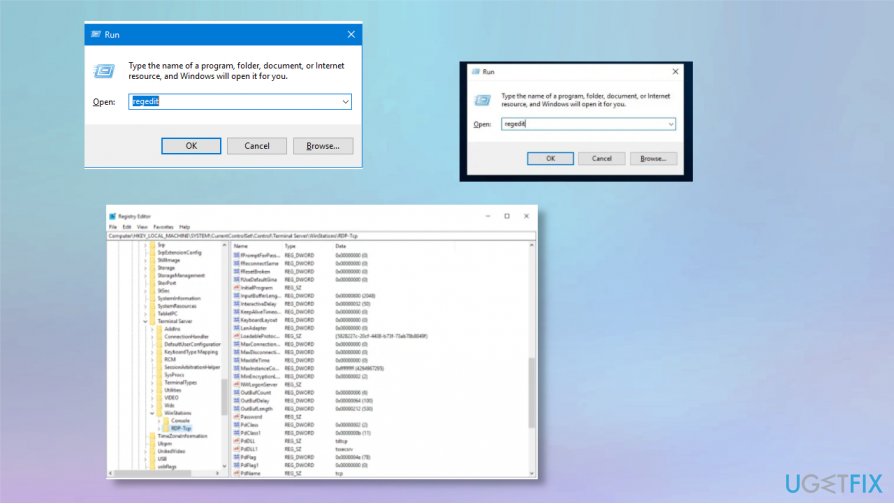
How to change remote desktop port rdp on windows 10 regedit - On the right side choose Edit and then Modify to alter the 32-bit DWORD value.
- Click OK.
- Switch to decimal and enter the new value for the port.
- The default port os 3389, you can change it to 3300 or 33089.
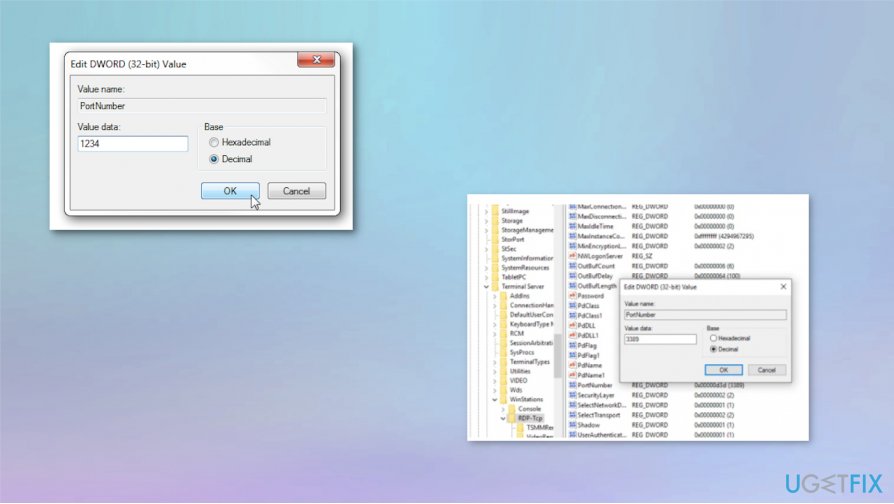
How to change remote desktop port rdp on windows 10 port numbers - Click OK.
- Restart the computer.
Check the access to see if you need to change Remote Desktop Port
- Press Win and R at the same time.
- Type mstsc and click OK.
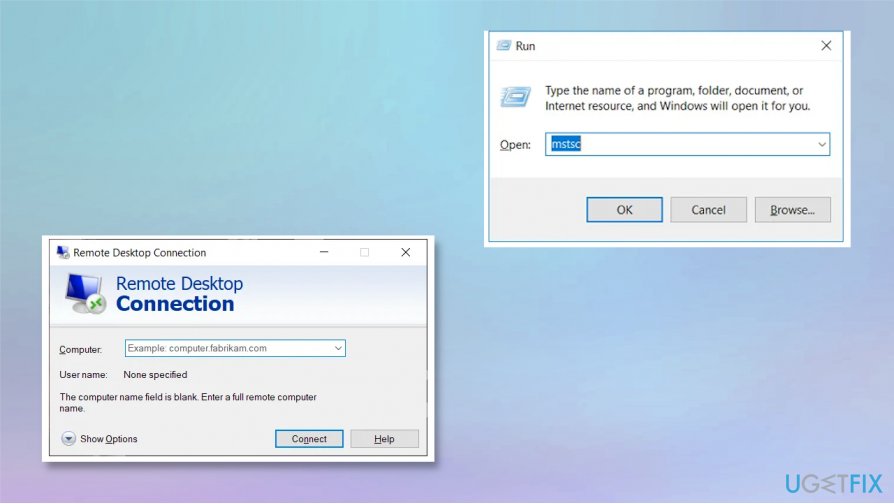
How to change remote desktop port rdp on windows 10 access tool - Put the IP address of your remote server and then the new port number.
- Enter.
Modify the existing Remote Desktop Port (RDP) on Windows 10
- Open the Remote Desktop again and click on Show Options or Mote Options.
- Provide username, check the flag on Allow me to save credentials.
- Click to save as.
- Create the new RDP shortcut and replace the existing shortcut with the new one.
Bottom line
To change the Remote Desktop Port on Windows 10, ensure you follow the correct steps to modify the settings safely. Be cautious to avoid security risks and maintain proper functionality. If these steps do not resolve the issue, consider seeking professional assistance.
Frequently asked questions
You can find the current RDP port by opening the Registry Editor and navigating to HKEY_LOCAL_MACHINE\SYSTEM\CurrentControlSet\Control\Terminal Server, then checking the value of 'PortNumber.'
To change the RDP port, access the Registry Editor, navigate to the 'PortNumber' value, modify it to your desired port number, and restart the Remote Desktop Services.
Yes, changing the RDP port on Windows 10 will require you to specify the new port number in the Remote Desktop client settings on any Windows 11 devices connecting to it.




Report an issue
What's wrong with this guide? We review every report and update or remove content.
Report received — thank you. We'll review and fix it.
You need a free account to submit a report.
Be the first to comment