How to fix
Disable Comodo Warning “URGENT! For Windows 10 Users?”
on Windows
Easily disable the Comodo "URGENT!" warning on Windows 10 and reclaim your peace of mind. Expert-tested solutions with screenshots included.

What causes How to Disable Comodo Warning “URGENT! For Windows 10 Users?”?
- Cumulative Update KB4022716 contains bugs that affect Windows 10 stability.
- Incompatibility of Comodo products with the latest Microsoft update.
- Unexpected changes in the Microsoft update that disrupt Comodo functionality.
- Common issues like web browser crashes and BSOD triggered by the update.
Repairs Windows system files, removes malware, and restores a clean OS state — without reinstalling.
Hello. I’ve already contacted Comodo team, but they did not respond yet, so maybe you’ll be faster. For the past week, my Comodo Internet Security started delivering an alert, where I’m urged not to install Windows 10 update KB4022716. For a very good reason, I can postpone Windows updates, but I’m not fond of doing so. I want my system stable, which is why I install updates as soon as they are released. Could you please comment something on that?
In the end of June, 2017, Microsoft released Cumulative Update KB4022716, which should address many bugs present in Creators Update. However, just like any other update, the KB4022716 has triggered many issues on Windows 10 desktops, including web browser’s crashes and BSOD. Besides, it turns out that some of the third-party security tools are incompatible with the above-mentioned update.
Comodo team recommends people postpone installation of KB4022716 update
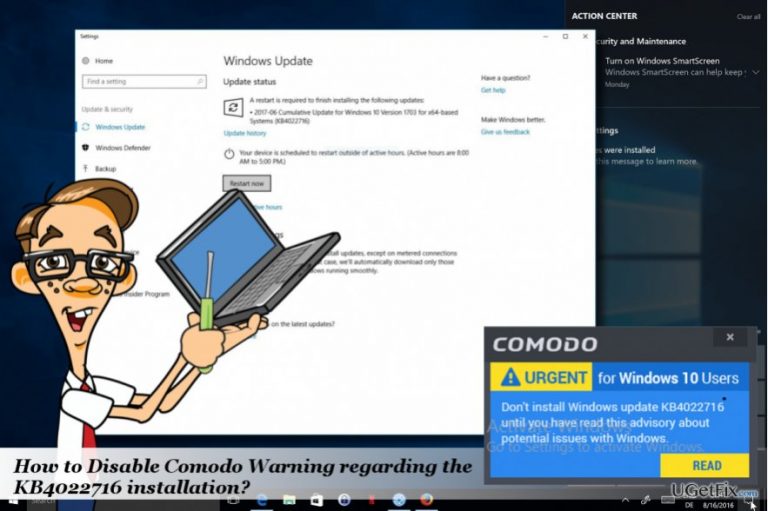
When the KB4022716 has been released, many Windows users reported a warning generated by Comodo products. The alert says:
URGENT! For Windows 10 Users
Don’t install Windows 10 update KB4022716 until you have read this advisory about potential issues with Windows.
The message contains a button ‘Read,’ which redirects the PC user to a Comodo website where all relevant information is provided. Comodo officially declared that Comodo Internet Security, Comodo Antivirus, Comodo Firewall, Comodo Cloud Antivirus, Internet Security Essentials, and Comodo Secure Shopping are corrupted and can cause some malfunctions on Windows 10 PCs that are updates to KB4022716. In addition to slowdowns, crashes, BSOD, and other common issues, people may also encounter common web browser’s crashes and login problems. The culprit of the malfunctioning Comodo products on Windows 10 is related to the unexpected changes in the latest Microsoft update, which made Comodo products incompatible with the update.
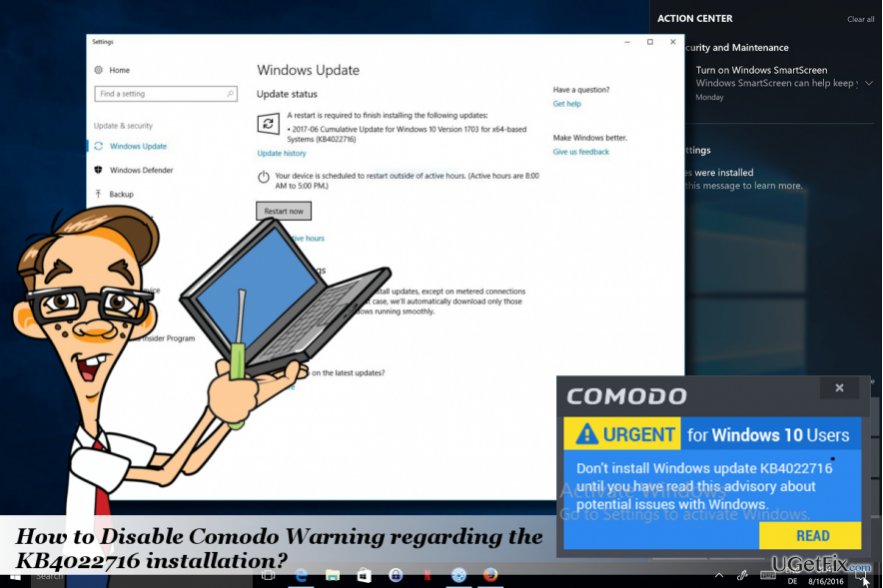
Disabling "URGENT! For Windows 10 Users" pop-up
If you received Comodo notification “Don’t install Windows 10 update KB4022716 until you have read this advisory about potential issues with Windows,” you may get confused about what to do. If you are very pleased with the Comodo products and opt for keeping it, the solution would be to postpone Windows updates until the release of the fixed Comodo products’ versions or the next cumulative Windows 10 update. To pause any of automatic Windows updates, please follow these steps:
- Press Windows key + I to open Settings app.
- Select Update & Security.
- Select Advanced Options and locate the Pause Updates option.
- Besides, you may turn off automatic Windows 10 updates completely.
If you opt for installing KB4022716 update, then you should uninstall Comodo (you will be able to install the fixed version later). If you cannot log into your PC after the installation of the mentioned update, you may need to boot the system into Safe Mode:
- Press Windows key and move your cursor over the Power button.
- Press and hold the Shift key and select Restart.
- When PC restarts, choose Troubleshoot → Advanced Options → Startup Settings.
- Click Restart.
- Press F5 to enable Safe Mode with Networking mode.
- Now open Control Panel -> Programs & Features.
- Find Comodo, click it and select Uninstall.
- Press Uninstall on the UAC window.
- Finally, press Windows key + R, type regedit, and press Enter.
- Click File -> Search and type Codomo.
- If some of the files associated with Comodo have been found, delete them all.
- Reboot the system.
Bottom line
To disable the Comodo warning, consider postponing the installation of the KB4022716 update until Comodo resolves the compatibility issues. If you prefer to keep using Comodo products, follow the guidance provided on their website. If none of these solutions work, consider reaching out to Comodo support for further assistance.
Frequently asked questions
To disable the Comodo 'URGENT!' warning on Windows 10, open Comodo, go to the 'Settings' menu, and adjust the notification settings to turn off alerts for urgent messages.
Disabling the Comodo warning does not compromise your Windows 11 security as long as the antivirus is still active and updated; it simply silences the alerts.
If the Comodo warning keeps reappearing on Windows 10, consider reinstalling Comodo or checking for updates, as this may resolve persistent notification issues.




Report an issue
What's wrong with this guide? We review every report and update or remove content.
Report received — thank you. We'll review and fix it.
You need a free account to submit a report.
Be the first to comment