How to fix
Disable the “To continue the work of your browser” pop-up on Chrome
on Windows
Eliminate the annoying "To continue the work of your browser" pop-up on Chrome in Windows 10 and 11. Get expert-tested solutions today!

What causes How to disable the “To continue the work of your browser” pop-up on Chrome?
- User installs a potentially unwanted program (adware)
- User installs a browser hijacker
- User visits a compromised website
- Pop-up is designed to distribute third-party extensions
Repairs Windows system files, removes malware, and restores a clean OS state — without reinstalling.
I’m receiving a pop-up asking me to install the extension to keep web browsing safely. I can only click the “Accept” button because everything else on the screen is frozen. That does not look a decent behavior of a browser. Each time I have to close Chrome by force and, consequently, close all currently opened tabs. I don’t want installing the extension. What can I do to disable the “To continue the work of your browser” pop-up?
“To continue the work of your browser” pop-up is a type of Google Chrome advertisement. Based on the latest research, it turned out that this pop-up advertisement is not malicious, which is good news. However, such behavior is not legitimate and is not tolerated in web security community.
When and why does the “To continue the work of your browser” pop-up occur?
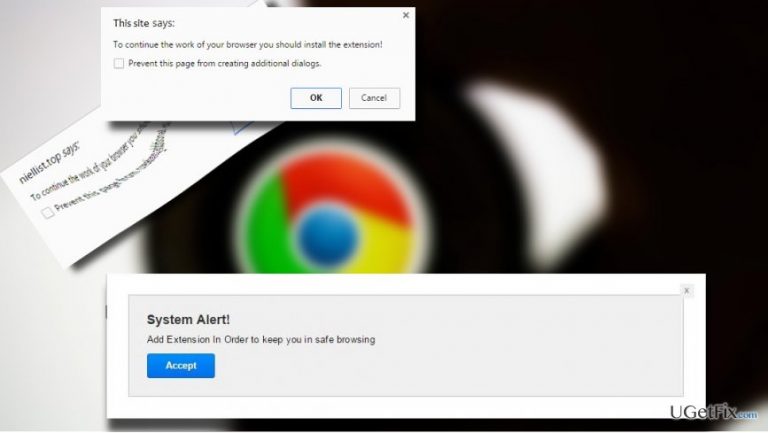
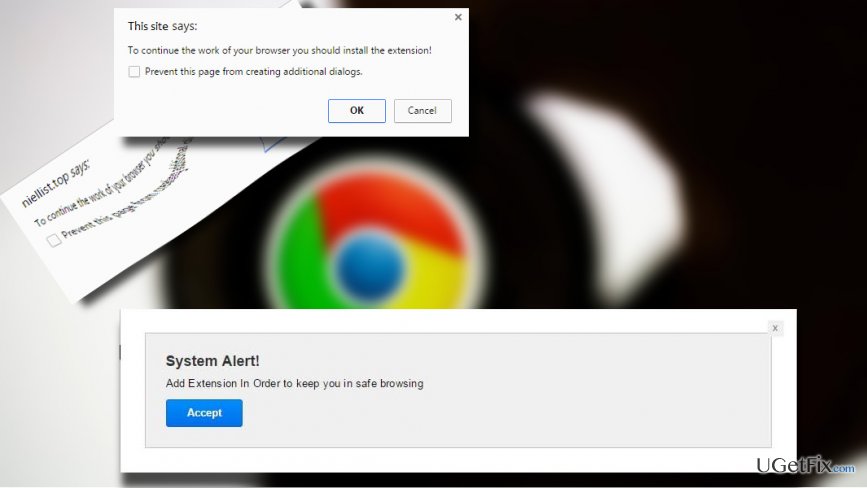
“To continue the work of your browser” alert is a potentially unwanted web browser advertisement, which purpose is to distribute third-party extensions. Typically, it starts striking Google Chrome web browser if the PC’s or laptop’s owner installs a potentially unwanted program (adware, browser hijacker) or lands on a compromised website. The pop-up completely freezes we browser’s screen by displaying two pop-up boxes, which say:
This site says:
To continue the work of your browser you should install the extension.
Prevent this page from creating additional dialogsSystem Alert!
Add Extension In Order to keep you in safe browsing.
Accept
The “Add Extension In Order to keep you in safe browsing” pop-up emerges randomly. As we have pointed out, it freezes the browser and does not let to continue to work unless you agree to install the extension. That’s an extremely annoying experience due to which people often lose some important work on the web. However, cyber security experts DO NOT recommend installing the extension because it may turn out to be another adware, browser hijacker or screen locker.
What should I do to disable “To continue the work of your browser” ads
If you have some urgent tasks to perform on the Internet, we would recommend using Mozilla Firefox, Microsoft Edge or another web browser until Google Chrome is corrupted. Once you are ready, fix “To continue the work of your browser” error by closing Chrome via Task Manager and run a scan with a powerful anti-malware, for example, [d1]. In case you prefer fixing your device manually, navigate to Control Panel and uninstall all unknown or suspicious/looking applications. Finally, reset Google Chrome and the “Add Extension In Order to keep you in safe browsing” alert should be gone.
Fixing “To continue the work of your browser” alert
1. Close your web browser. If it is currently locked by the “To continue the work of your browser” pop-up, press Ctrl + Alt + Del and open Task Manager.
2. Find Google Chrome process, click it, and select End Task.
3. Now run a scan with a professional anti-malware, say [d1]. It's advisable to do so while the system is booted in Safe Mode.
4. If you prefer manual malware removal, right-click on Windows key and open Control Panel.
5. Select Programs and Features.
6. Check what programs are running on the system and remove the ones that you are not familiar with. To do so, click on the app and select Uninstall.
7. Finally, reset Google Chrome's default settings. To start with, open Google Chrome.
8. Press on the menu icon and open Settings.
9. Click on Show advanced Settings option and navigate to Reset Settings.
10. Click Reset on the confirmation window and the restart Chrome.
Bottom line
To disable the 'To continue the work of your browser' pop-up, consider using alternative browsers like Mozilla Firefox or Microsoft Edge. Avoid installing the suggested extension as it may be harmful. If these solutions do not work, further investigation into your system for unwanted programs may be necessary.
Frequently asked questions
You can disable the pop-up by navigating to Chrome settings, clicking on 'Privacy and security', and then managing the site settings to block notifications from specific sites.
Try clearing your browser cache and cookies in Chrome settings, as this can help eliminate persistent pop-ups related to outdated data.
Yes, you can adjust the notification settings in Chrome to block all notifications or customize them to only allow those from trusted sites.




Report an issue
What's wrong with this guide? We review every report and update or remove content.
Report received — thank you. We'll review and fix it.
You need a free account to submit a report.
Be the first to comment