How to fix
Disable “Turn
on Windows
Stop the annoying "Turn on Windows Security Center Service" pop-up on Windows 10 with our effective troubleshooting tips. Fixed in minutes!


What causes How to Disable “Turn on windows security center service” Pop-Up on Windows 10?
- Security Center notifications are disabled
- Windows 10 has an additional Notification Center feature
- The Windows Security Center service is turned off
- Users find Security Center pop-ups annoying
- Notifications may appear on reboot or a schedule
Repairs Windows system files, removes malware, and restores a clean OS state — without reinstalling.
Hi guys! Is it possible to disable “Turn on windows security center service” warning?
“Security Center” feature comes by default in all Windows OS versions. It plays a crucial role in the system’s maintenance because it informs a PC owner about pending updates, missing software, security breaches, registry errors,[ref en-2] and similar problems. All “Security Center” notifications are displayed at the bottom-right corner of the screen in a form of a pop-up box.
Unfortunately, but most Windows[ref en-1] users find these pop-ups annoying and opt for disabling them. While in older Windows versions this feature could be disabled without problems, Windows 10 has an additional “Notification Center” feature, which starts throwing “Turn on windows security center service” pop-up once the “Security Center” notifications are disabled. This message shows up every time when the system is rebooted and, if it’s not rebooted for a long time, ay start showing on a particular schedule.
Turn on Windows Security Center service
The Windows Security Center service is turned off. Tap or click to turn it on.
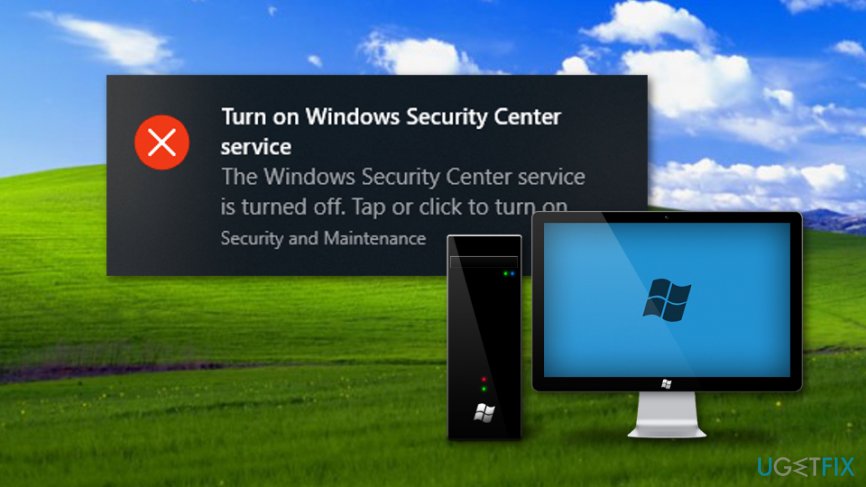
No need to say that “Turn on windows security center service” pop-ups are more than annoying having in mind that people turn off “Security Center” alerts purposely. Luckily, “Notification Center” warnings urging people to turn off security center service can be disabled as well, so in this short post, we are going to explain that.
How to Disable “Turn on windows security center service” Pop-Up on Windows 10?
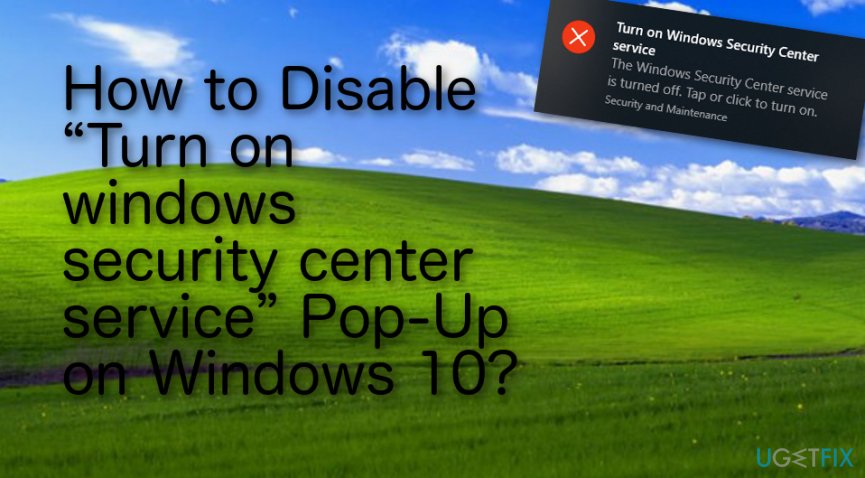
Method 1. Turn off Security and Maintenance Notifications
- Click Win key + I and navigate to System -> Notifications & actions.
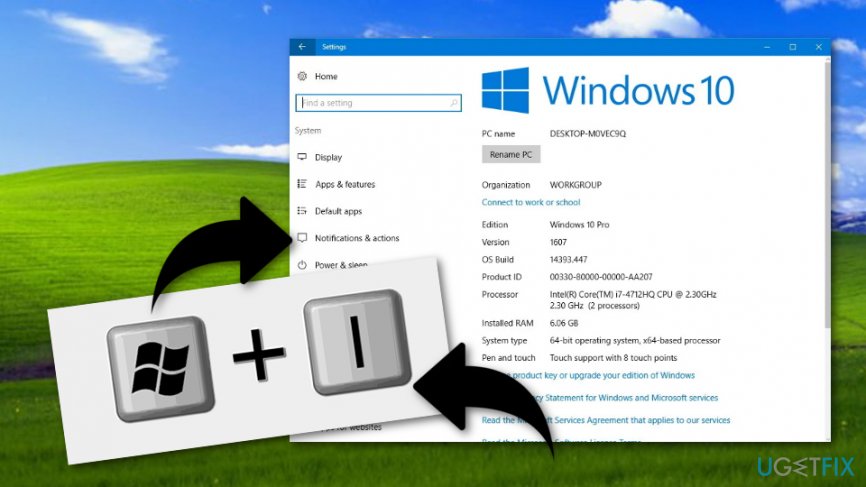
Fix method number one - Scroll down to find Get notifications from these senders option.
- Slide a toggle from On to Off.
Method 2. Turn Off All Notifications from Apps and Senders
Those who are using the latest Anniversary Update may not be allowed to turn off security and maintenance notifications via Settings. In this case, you should disable All Notifications from Apps and Senders, what can be done by performing the following steps:
- Click Win key + I and navigate to System -> Notifications & actions.
- Scroll down to find Show app notifications option.
- Slide a toggle from On to Off.
Method 3. Disable Action Center and Notifications
- Click Win key + R, type gpedit.msc, and press Enter to open Group Policy Editor.
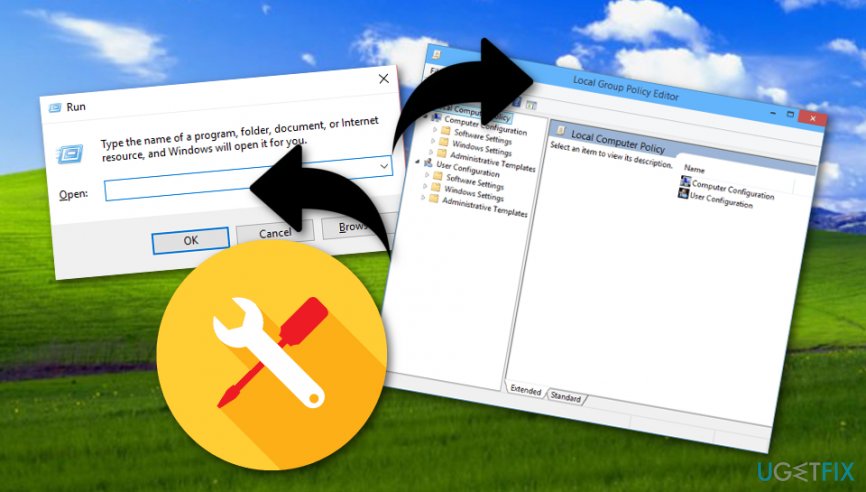
Fixing method number three - After that, navigate to User Configuration -> Administrative Templates -> Start Menu and Taskbar.
- Double-click on the Remove Notifications and Action Center option on the right pane and click Enabled.
- Apply the changes and reboot the system.
- After that, click Ctrl + Alt + Delete and select Task Manager.
- Click More Details and open Processes.
- Find Windows Explorer, click on it, and select Restart (at the bottom-right corner).
That’s it! You should have disabled “Turn on windows security center service” notifications successfully. In order to ensure a proper system’s maintenance, we would highly recommend installing [d1] anti-malware.[ref en-3] It will scan the system for errors, pending updates, inappropriate software, and similar issues that may be negatively influencing your PC’s performance.
Bottom line
To disable the 'Turn on windows security center service' pop-up, you can turn off Security and Maintenance notifications or disable all notifications from apps and senders. If these methods do not resolve the issue, consider checking for updates or consulting further technical support.
Frequently asked questions
This pop-up typically appears when the Windows Security Center service is disabled, which can prevent your system from properly monitoring security features.
You can disable the pop-up by ensuring that the Windows Security Center service is enabled and set to start automatically in the Services application.
Disabling the pop-up does not affect your system's security, but make sure that the Windows Security Center service is running to maintain proper security monitoring.




Report an issue
What's wrong with this guide? We review every report and update or remove content.
Report received — thank you. We'll review and fix it.
You need a free account to submit a report.
Be the first to comment