How to fix
Find an External Drive That Is Not Showing Up
on Windows
Resolve the issue of your external drive not appearing on Windows 10 or 11 with our expert-tested solutions. Get your data back in minutes!

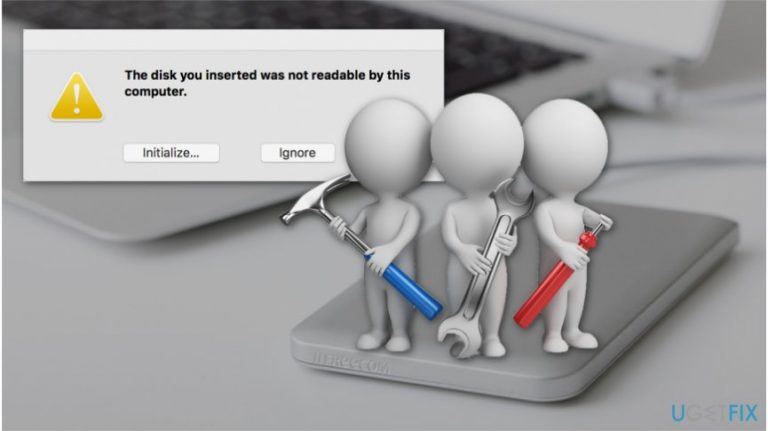
What causes How to Find an External Drive That Is Not Showing Up on Mac?
- The drive is not receiving enough power to connect
- Settings are set not to show the external devices on the desktop
- The external drive uses a format which is not recognized by Mac
- The drive is not plugged in properly
- The USB ports or cables may be damaged
Repairs Windows system files, removes malware, and restores a clean OS state — without reinstalling.
Hi! I can't find external drive on Mac even though it used to appear on my desktop when plugged in. I don't know what happened and hope you can help me. Thanks
External drives are perfect tools to store information and protect from various cyber threats. There are many options you can choose between, such as hard drive, USB flash drive and many others[ref en-1]. Usually, when you plug the external device into your Mac, it appears as an icon on the desktop or can be found on the sidebar in Finder.
However, sometimes you can't find external drive on Mac, and there are several reasons for that:
- The drive is not receiving enough power to connect;
- Settings are set not to show the external devices on the desktop;
- The external drive uses the format which is not recognized by Mac.
If you want to find an external drive which is not showing up, you should note that in most cases, people tend not to plug the drive properly which leads to the connection failure. Likewise, start by checking whether your device is mounted correctly, has enough power to operate and does have an external power supply (If it requires one).
Additionally, it is essential to make sure that the problem is with the external device itself and not the USB ports or cables. You should try to plug the same drive to another Mac and see if it works. Also, use new or different wires to check if they are not damaged.
Finally, If you still can't find external drive on Mac, it indicates that either your device is broken or it is formatted using the system which is unreadable for Mac. Therefore, you can learn how to fix external drive on Mac using the instructions below.
Fix external drive that is not showing up on Mac
There are numerous file formats which are designed for different operating systems. While Mac computers use Apple File System (APFS), Windows employ NTFS file format[ref en-2]. Note that operating systems older that Sierra used HFS+ file format. Sadly, but as Mac cannot read the format, Windows is using and vice versa.
Likewise, the external device should be formatted using either exFat or FAT32 to be readable for both, Windows and Mac[ref en-3]. We want to warn you that if it appears that the device is wrongly formatted, the operation requires erasing data stored in it. Therefore, you should make sure that you have a copy of your important data before proceeding to the instructions.
Method 1. Alter Finder Preferences to show the icon of external device
- Click on the Finder icon;
- Navigate to the top-left corner of your screen and click on Finder;
- Select Preferences.
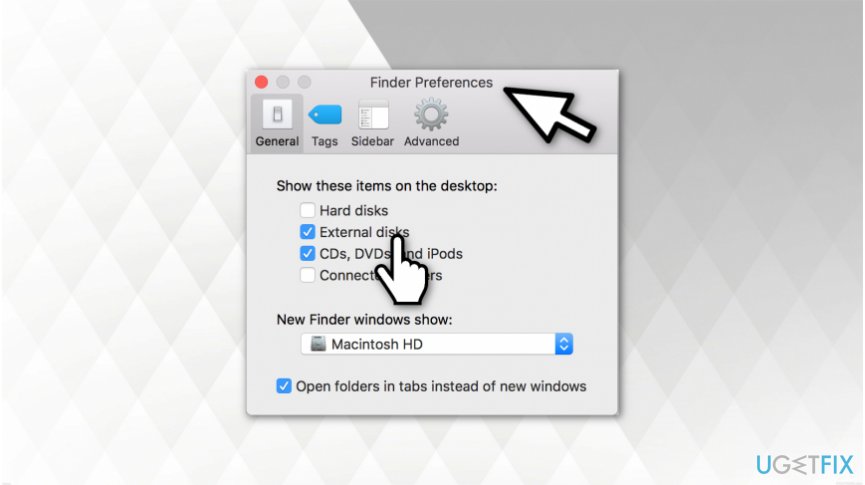
Open finder preferences - Check the external disks mark which allows to display its icon on desktop.
Method 2. Use First Aid to check the disk for errors
- Open Disk Utility program.
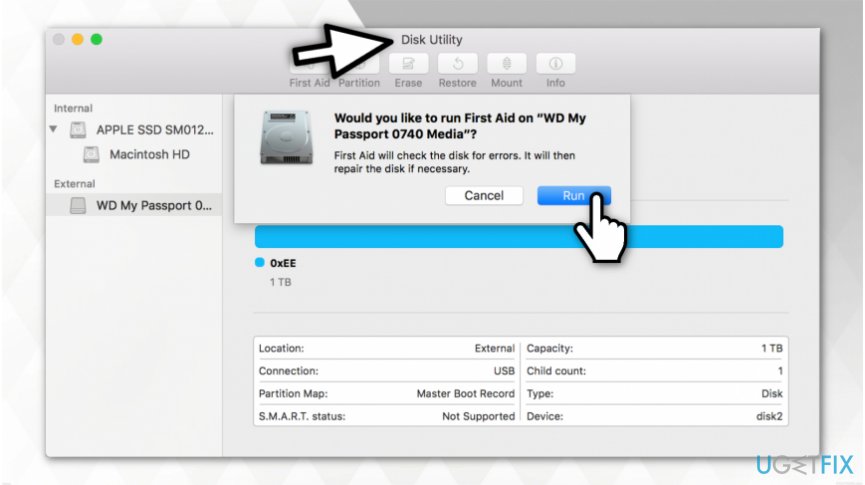
Run first aid - Click on First Aid tab and select Run button;
- If there are any errors found, choose Repair Disk option.
Note: If your Mac is unable to fix the disk, it might be broken or formatted using the wrong file system. Likewise, head to the guide below.
Method 3. Reformat the external drive
- Make sure to make copies of the data stored on the device.
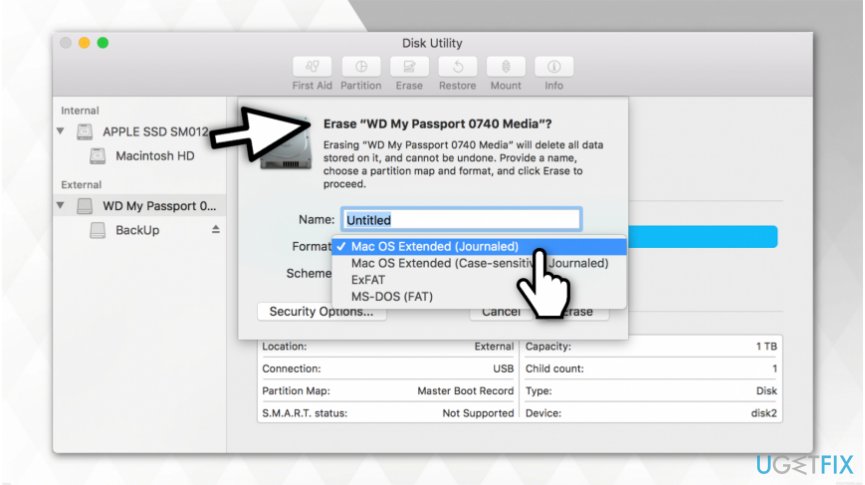
Reformat the hard drive - Click on Erase button;
- Select the Mac file formatting system.
If none of these methods have helped you to fix external device, it is probably broken. You should always eject it properly since most of the problems occur due to reason that people rush and recklessly remove it.
Bottom line
To fix an external drive that is not showing up on Mac, ensure the device is mounted correctly, check the power supply, and try different cables or ports. If the drive still does not appear, it may be broken or formatted in a way that is unreadable by Mac. In that case, consider seeking professional help.
Frequently asked questions
First, check if the drive appears in Disk Management by right-clicking the Start button and selecting 'Disk Management.' If it shows up there but not in File Explorer, it may need to be assigned a drive letter.
Ensure the USB ports are functioning by testing them with another device, and check Device Manager for any driver issues. If the drive is still not recognized, try connecting it to a different USB port or using a different cable.
Yes, if the external drive has physical damage or is malfunctioning, it may not be detected by Windows 10 or Windows 11. Running a hardware diagnostic or testing the drive on another computer can help identify the issue.




Report an issue
What's wrong with this guide? We review every report and update or remove content.
Report received — thank you. We'll review and fix it.
You need a free account to submit a report.
Be the first to comment