How to fix
0x0000007a BSOD error
on Windows
Resolve the 0x0000007a BSOD error on Windows 10 and 11 with our proven solutions. Get back to smooth performance—expert-tested and fixed in minutes!


What causes How to fix 0x0000007a BSOD error in Windows?
- Malfunctioning hard drives
- Corrupt sectors on the disk
- Problems with the RAM
- Loose or damaged cables on storage devices
- Conflict with device drivers
- Malware infections
Repairs Windows system files, removes malware, and restores a clean OS state — without reinstalling.
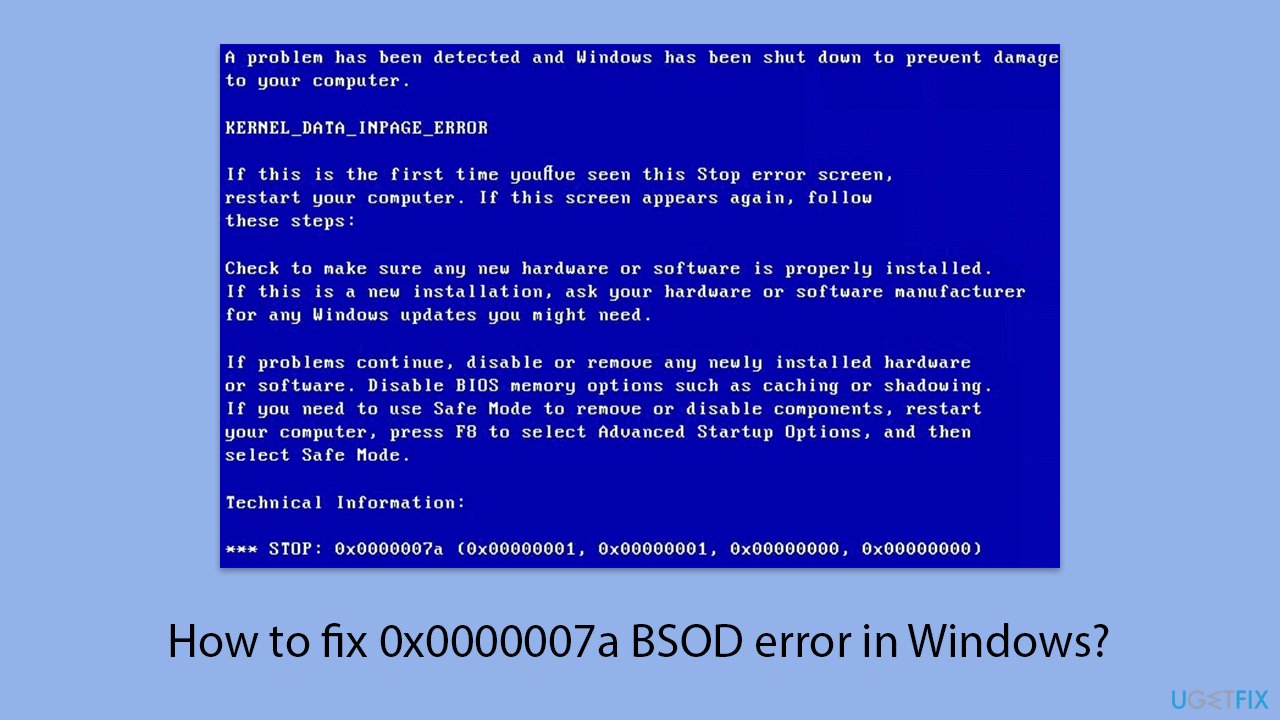
For the past several weeks, I've been experiencing BSOD crashes, and they are always marked with 0x0000007a error code - KERNEL_DATA_INPAGE_ERROR. Could you help me with this? What does that mean?
BSOD error 0x0000007a, commonly referred to as KERNEL_DATA_INPAGE_ERROR, usually occurs when Operating System has developed a severe problem while reading critical data from the hard disk paging file into memory. Accordingly, such systems crash mostly without warning and may further lead to data loss and instability.
The KERNEL_DATA_INPAGE_ERROR is usually brought about by hardware-related issues. Common culprits include malfunctioning hard drives, corrupt sectors on the disk, or problems with the RAM. This error can also be caused by loose or damaged cables on the storage devices and conflict with device drivers. This issue has also been triggered by some malware infections.
This BSOD error is often complained of by users who experience an instant system crash with the stop code 0x0000007a. Many have also noticed that the problem gets solved by inspecting and reseating memory modules and hard drive cables.
Testing memory and hard drives by running diagnostic tools is also one of the suggestions commonly made. Some users reported that updating or reinstalling device drivers resolved the error. Thorough malware scanning is also recommended as these types of system errors can result from an infection.
The KERNEL_DATA_INPAGE_ERROR can be fixed by going through a variety of troubleshooting steps, which range from hardware inspections to software diagnostics. For any automated solution to detect and repair underlying system issues, utilizing [d1] repair tool can be one effective approach toward restoring system stability and avoiding the occurrence of 0x0000007a BSOD error in the future.
Fix 1. Check for loose or damaged cables
A KERNEL_DATA_INPAGE_ERROR happens when the system loses access to the data of a paging file because of loose or defective cables of your hard drive or SSD.
- Turn off your computer and disconnect it from the power source.
- Open the case and inspect the cables connected to your storage devices.
- Ensure all connections are secure and replace any visibly damaged cables.
- Reconnect the power and turn the computer back on to see if the error persists.
Fix 2. Run a disk check
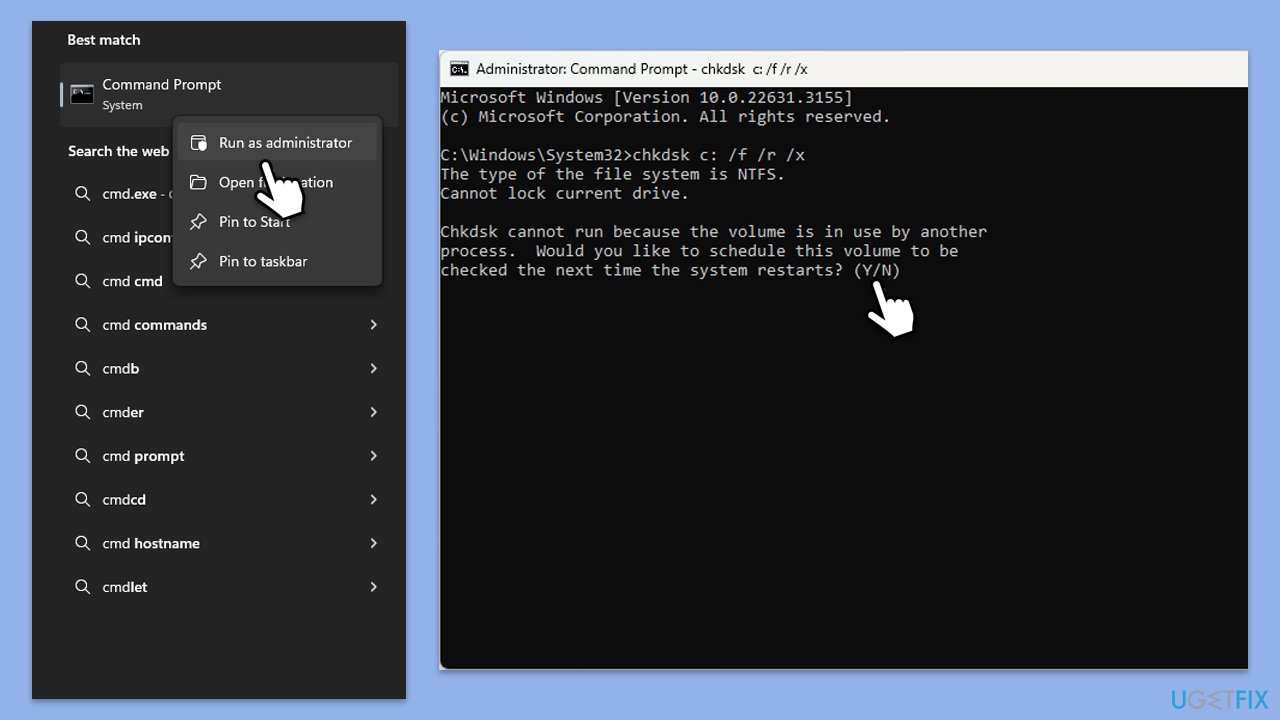
Disk errors or bad sectors can prevent the system from accessing data, triggering the 0x0000007a error. Running a disk check can identify and fix these issues.
- Type cmd in Windows search.
- Right-click on Command Prompt and pick Run as administrator.
- User Account Control window will show up - click Yes when prompted.
- Type in the following command and press Enter after:
chkdsk c: /f
(Note: use chkdsk c: /f /r /x command if you use SSD as your primary partition). - If you receive an error, type in Y, close down Command Prompt, and restart your computer.
- After a restart, Windows will begin to scan your disk. After your system boots back up, you can find the results in the Event Viewer.
Fix 3. Test your RAM
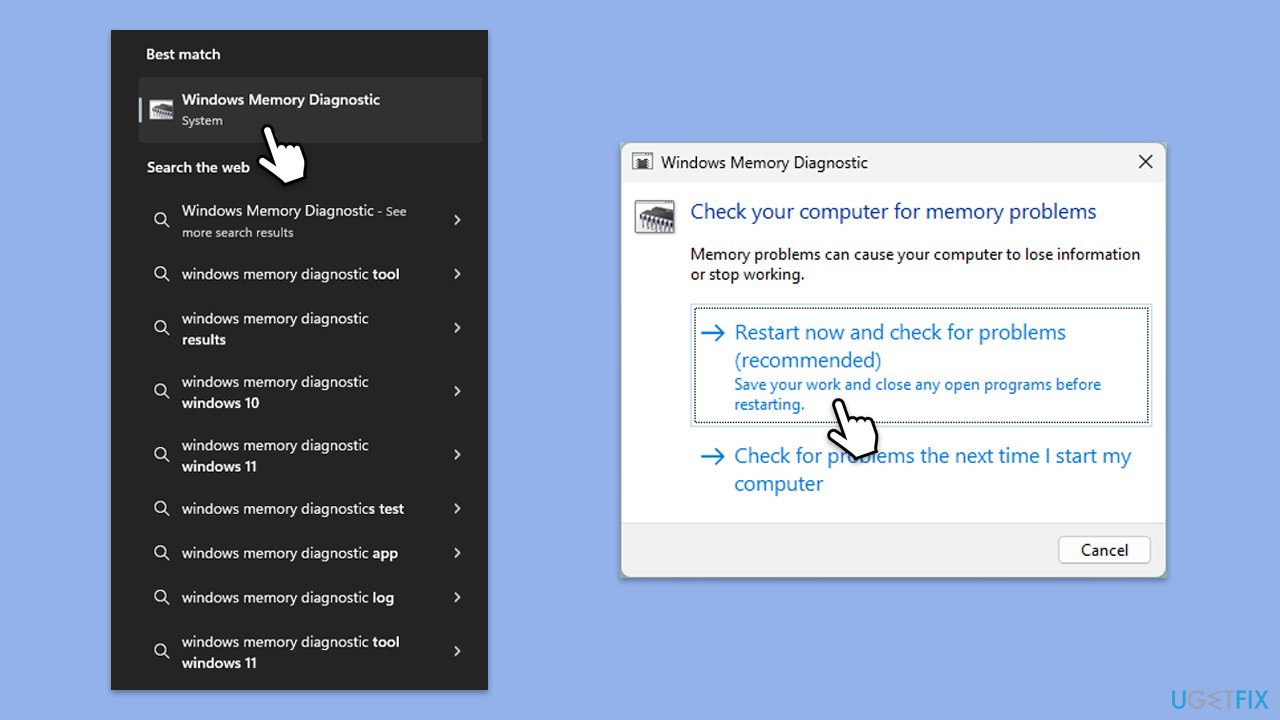
Faulty or failing RAM can cause the system to crash with this error. Testing your memory helps identify potential issues.
- Type Memory in Windows search and select Windows Memory Diagnostic result.
- Choose Restart now and check for problems.
- Let the tool run and complete the memory check.
- Review the results for any errors.
Fix 4. Update or reinstall drivers
Outdated or corrupted drivers can interfere with system operations, leading to BSOD errors. Updating or reinstalling drivers ensures compatibility and stability.
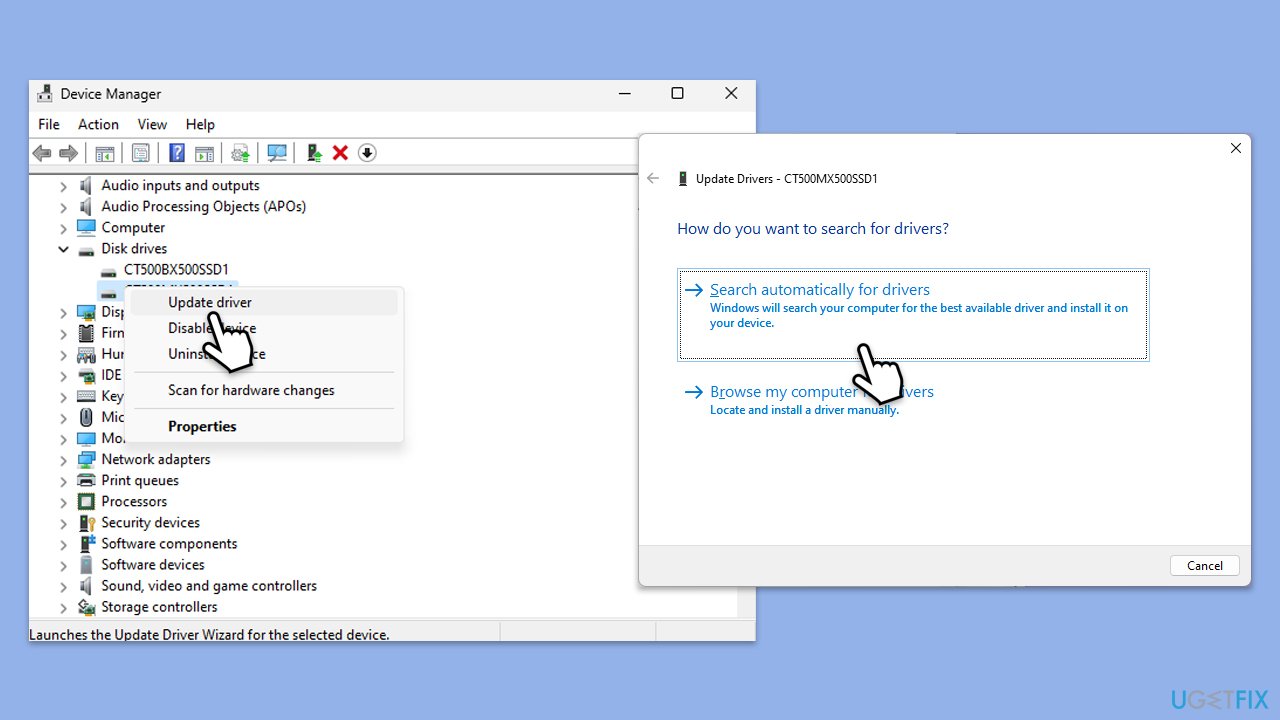
- Right-click on Start and pick Device Manager.
- Locate the Disk drives section by expanding it to see the list of connected storage devices, such as hard drives or SSDs.
- Also, expand the IDE ATA/ATAPI controllers section, which contains drivers for your system's storage interface.
- Right-click on each device listed under these sections and select Update driver.
- Select Search automatically for drivers option.
- Wait for the installation to be completed.
- Restart your computer to apply the changes.
- For a more straightforward solution, you can employ automatic tools like [rev id="DriverFix"].
Fix 5. Scan for malware
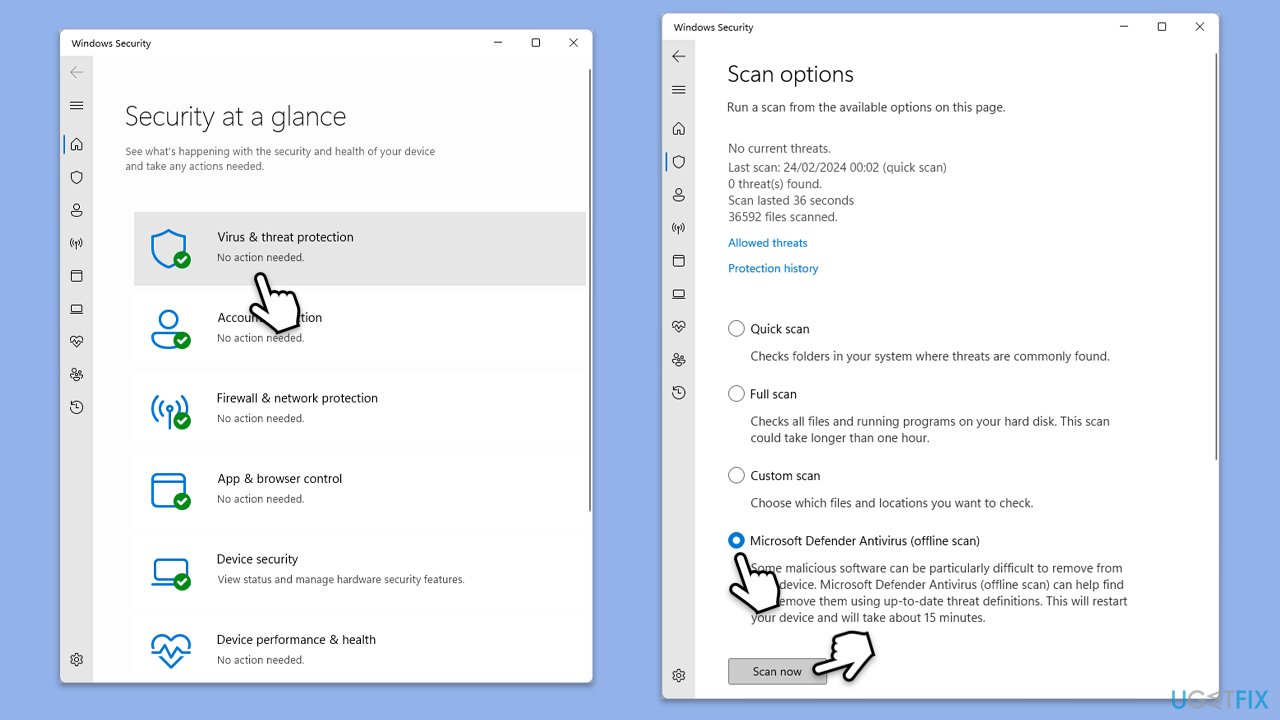
You can use Microsoft Safety Scanner or the built-in Windows Defender as follows:
- Type Windows Security in the Windows search bar and hit Enter.
- Select Virus & threat protection.
- Pick Scan options.
- Choose Microsoft Defender Offline scan and click Scan now.
- Your computer will immediately reboot and begin a deep scan.
Fix 6. Check for Windows updates
Windows updates often include fixes for system bugs or compatibility issues that could cause this error. Ensuring your system is up-to-date may resolve the problem.
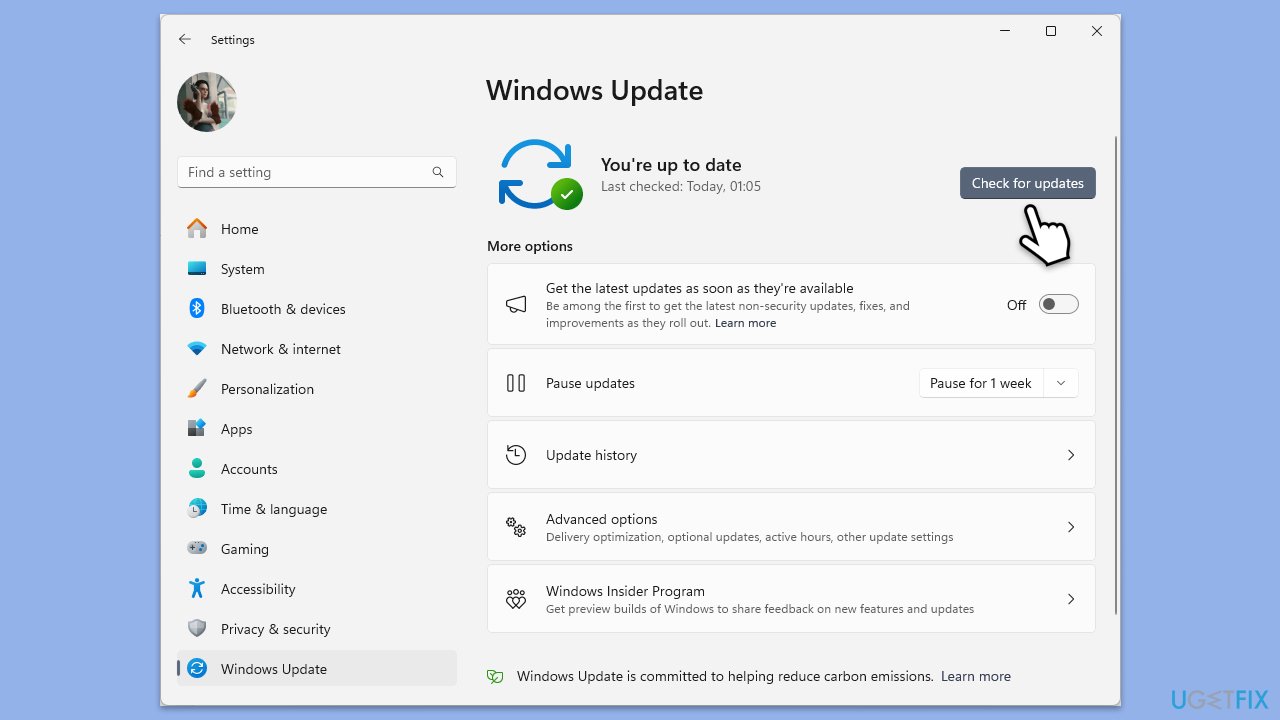
- Type Updates in Windows search and press Enter.
- Here, click the Check for updates or Install all button.
- Wait till all the available updates are installed - make sure optional updates are installed as well.
- Once done, restart your system.
Fix 7. Replace or repair hardware
If the KERNEL_DATA_INPAGE_ERROR persists, it may indicate failing hardware, such as a defective hard drive or RAM. Testing and replacing faulty components can resolve the issue.
- Use diagnostic tools provided by your hardware manufacturer to test your drives and memory.
- Replace any components that fail diagnostic tests to prevent future errors.
Bottom line
To fix the 0x0000007a BSOD error, you can check for loose or damaged cables, test memory and hard drives, and update or reinstall device drivers. Additionally, thorough malware scanning is recommended. If none of these solutions work, consider utilizing a repair tool to detect and repair underlying system issues.
Frequently asked questions
The 0x0000007a BSOD error typically occurs due to issues with hardware, such as a failing hard drive, or problems with drivers and system files that are corrupted or missing.
You can troubleshoot the 0x0000007a error by running the Check Disk utility to scan for disk errors, updating your drivers, or performing a system file check using the Command Prompt.
Yes, you can often fix the 0x0000007a error by performing repairs such as restoring the system to a previous state, using Windows Recovery Environment, or executing specific repair commands.




Report an issue
What's wrong with this guide? We review every report and update or remove content.
Report received — thank you. We'll review and fix it.
You need a free account to submit a report.
Be the first to comment