How to fix
0x0000009f crash error
on Windows
Resolve the 0x0000009f crash error on Windows 10 and 11 efficiently. Get expert-tested solutions to restore system stability in minutes.

What causes How to fix 0x0000009f crash error in Windows?
- Driver incompatibility
- Driver failure related to power management
- Recently added hardware causing conflict
- Incorrect power settings
- Failure to handle power state transitions
Repairs Windows system files, removes malware, and restores a clean OS state — without reinstalling.
So, my PC keeps rebooting at random times. After the crash, I checked the Event Viewer and the error indicated was 0x0000009f. What can I do to stop this?
System crashes in Windows operating systems are a critical concern for users, as they can lead to loss of data and productivity. Understanding the different types of system crashes is essential for diagnosing and addressing these issues effectively. Among the various errors that can cause system crashes, the 0x0000009f error is notable for its complexity and frequency of occurrence.
The 0x0000009f error, often accompanied by the "DRIVER_POWER_STATE_FAILURE" message, is predominantly related to driver issues within the system. This error can manifest in two distinct ways: either through a blue screen, which is a direct and immediate indication of the problem, or more subtly, where the error code only appears in the Event Viewer without an immediate system crash. The latter scenario can be particularly challenging to diagnose as it doesn't disrupt the normal operation of the system immediately but indicates an underlying issue that could lead to more serious problems.
The root cause of the 0x0000009f error typically lies in driver incompatibility or failure, especially related to power management. Drivers, which facilitate communication between your system's hardware and software, can sometimes conflict with new hardware additions or may not handle power state transitions effectively. This incompatibility or failure can trigger the error, leading to system instability.
To resolve this issue, you might consider removing any recently added hardware, as this could be causing the conflict leading to the 0x0000009f error. Additionally, incorrect power settings in your system can also contribute to this problem. Adjusting these settings to ensure they align with your hardware specifications may help mitigate the error.
Lastly, for a comprehensive solution, you may opt to use a PC repair tool like [d1]. Such tools are designed to automatically diagnose and rectify underlying Windows issues, potentially resolving the 0x0000009f error along with other system irregularities.
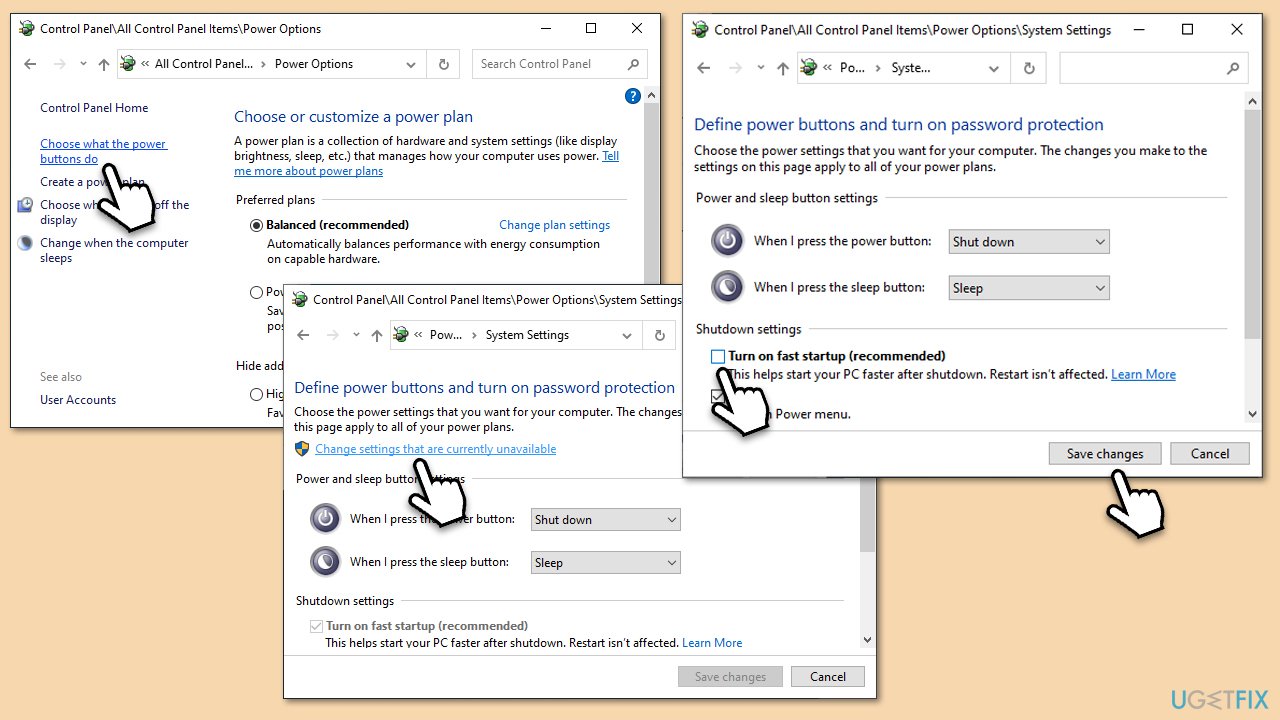
Fix 1. Disable Fast Startup
Fast Startup is a feature in Windows designed to reduce the time it takes for the computer to boot up from being completely shut down. However, this feature can sometimes cause compatibility issues with certain drivers, leading to the 0x0000009f error. Disabling Fast Startup can help determine if this feature is causing the issue and may resolve the problem.
- Type Control Panel in Windows search and hit Enter.
- Select Small icons view and pick Power options.
- On the left side of the window, select Choose what the power buttons do
- Pick the Change settings that are currently unavailable option at the top
- Remove the tick from the Turn on fast startup (recommended) option and select Save changes.
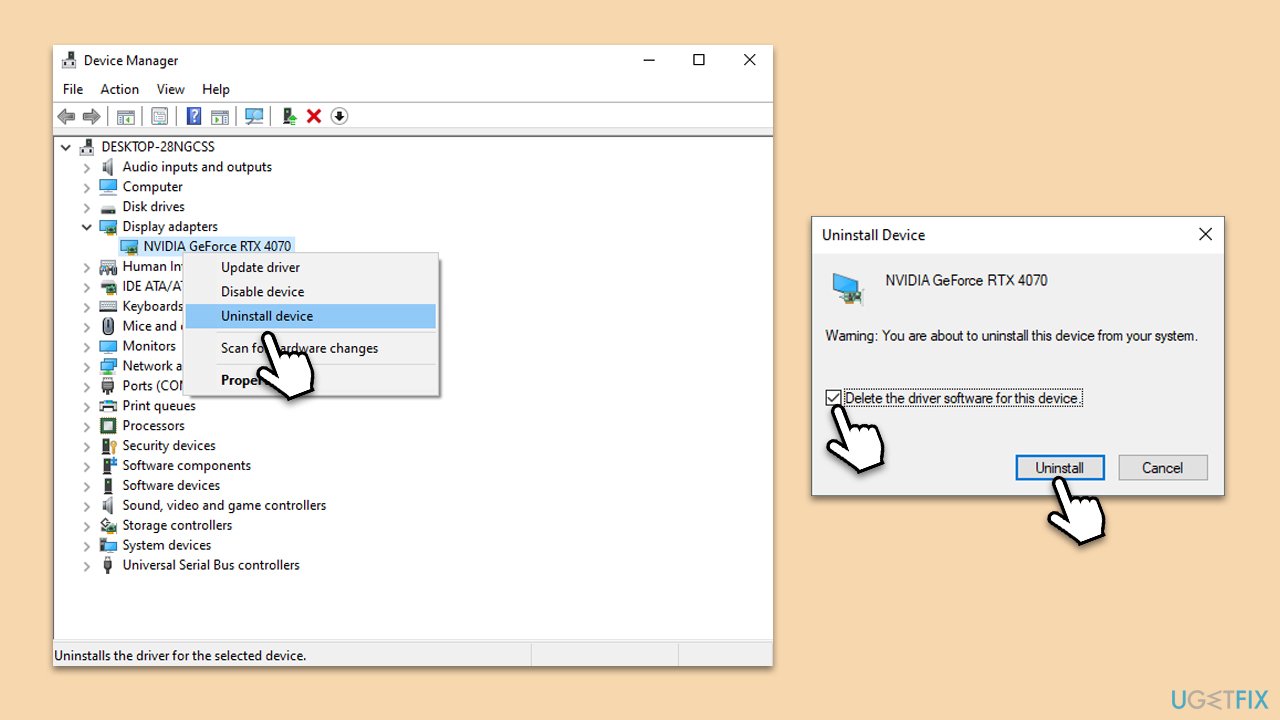
Fix 2. Reinstall audio and GPU drivers
Outdated or corrupt audio and GPU (Graphics Processing Unit) drivers can often lead to system instability and issues. Reinstalling these drivers ensures that your computer has the latest, most compatible versions, which can resolve conflicts and improve system performance.
- Right-click on Start and pick Device Manager.
- Expand Display adapters.
- Right-click on your GPU and select Uninstall device.
- Mark the Delete the driver software for this device tickbox.
- Click Uninstall and follow the instructions to finish the process.
- Do the same for audio drivers under the Sound, video, and game controllers section.
- Restart your PC.
For Nvidia GPUs, please follow our detailed guide. If you want a quick solution for your driver problems, we recommend employing [rev id="DriverFix"].
Fix 3. Check for file corruption
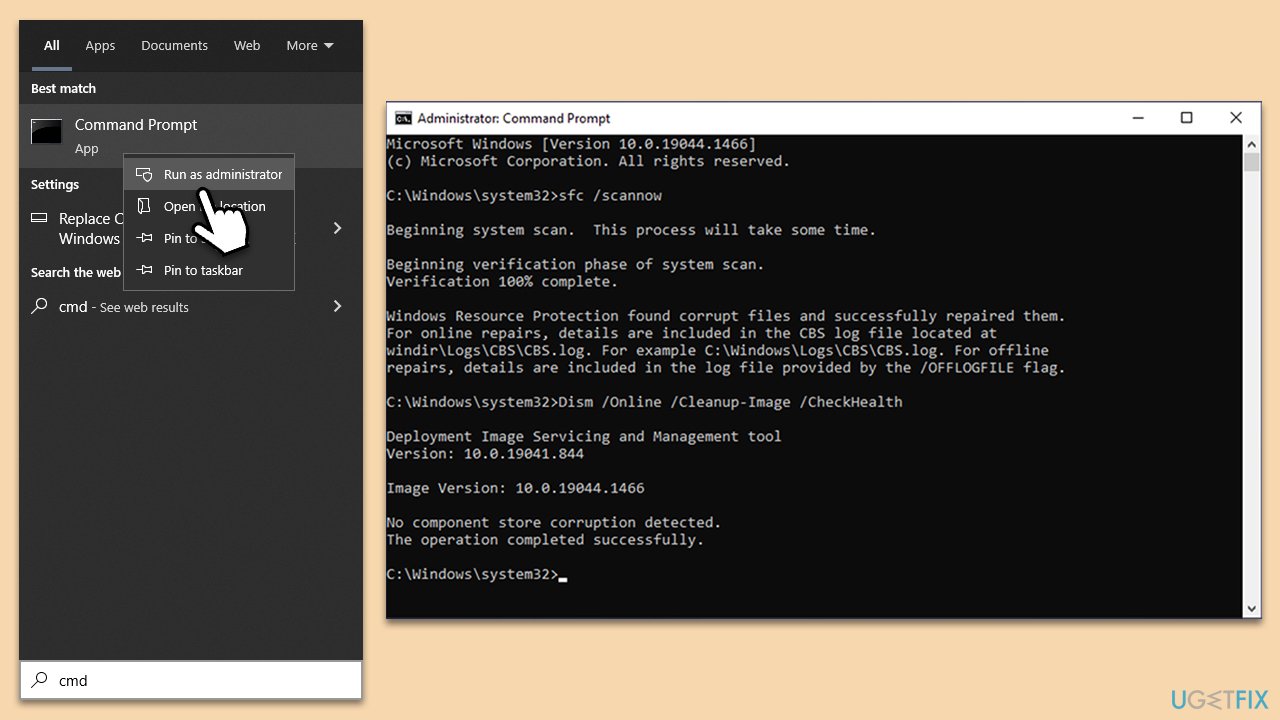
System File Checker (SFC) and Deployment Image Servicing and Management (DISM) are tools provided by Windows to repair corrupted system files and Windows image files, respectively.
- Type in cmd in Windows search.
- Right-click the Command Prompt result and pick Run as administrator.
- User Account Control will ask whether you want to allow changes - click Yes.
- Type this command and press Enter:
sfc /scannow - Wait for the scan to finish.
- Then, use the following commands, pressing Enter after each:
Dism /Online /Cleanup-Image /CheckHealth
Dism /Online /Cleanup-Image /ScanHealth
Dism /Online /Cleanup-Image /RestoreHealth - Restart your PC.
Fix 4. Update Windows
Ensuring that your Windows operating system is up to date is crucial for system stability and security. Updates often include patches for known bugs and compatibility improvements that can resolve existing system errors.
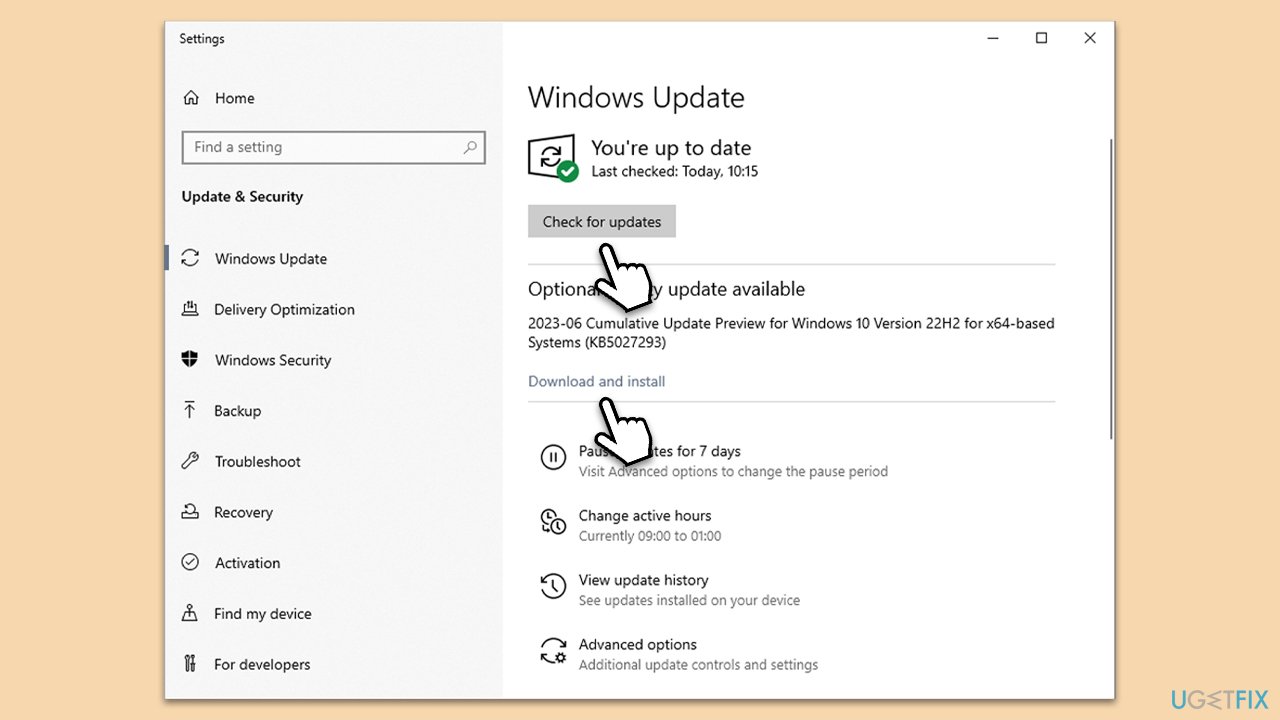
- Type Updates in Windows search and press Enter.
- Here, click Check for updates.
- Wait till Windows downloads and installs all the files.
- If optional updates are available, install them as well.
- Reboot your device.
Fix 5. Adjust Power Settings
Incorrect power settings can lead to system instability. Restoring power settings to their default state can sometimes resolve issues related to power management and driver conflicts.
- Open Control Panel.
- Go to Hardware and Sound and then pick Power Options.
- Click on Change plan settings next to your selected power plan.
- Click on Restore default settings for this plan.
- Confirm the changes and restart your computer.
Fix 6. Perform System Restore
System Restore can revert your computer's system files and settings to an earlier point in time, potentially resolving issues that started occurring recently.
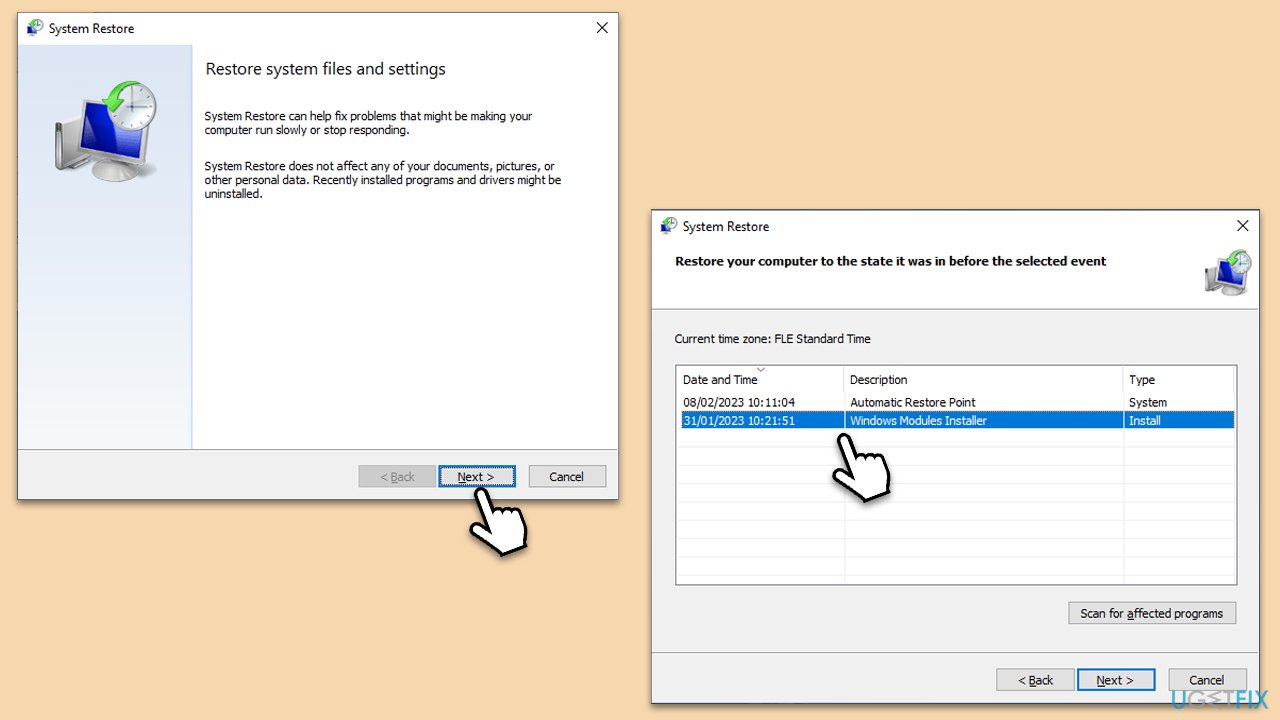
- Type Create a restore point in the Windows search bar and open it.
- Click on System Restore.
- In the new window, click Next or Choose a different restore point.
- If available, mark the More restore points checkbox.
- Select the point in time when the issue did not exist and click Next.
- Finally, click Finish.
Bottom line
To resolve the 0x0000009f error, you can disable Fast Startup, remove recently added hardware, and adjust power settings to align with your hardware specifications. If these solutions do not work, consider using a PC repair tool to diagnose and fix underlying issues.
Frequently asked questions
The 0x0000009f crash error is typically caused by power management issues, such as faulty drivers or hardware that fails to respond properly during sleep or hibernation modes.
You can update drivers by going to Device Manager, right-clicking on the device in question, and selecting 'Update driver.' Make sure to check for updates for your network adapters and display drivers.
Yes, resetting power settings to default can resolve the 0x0000009f error; you can do this by opening Command Prompt as an administrator and entering 'powercfg -restoredefaultschemes'.




Report an issue
What's wrong with this guide? We review every report and update or remove content.
Report received — thank you. We'll review and fix it.
You need a free account to submit a report.
Be the first to comment