How to fix
0x000000FE BSOD error
on Windows
Resolve the 0x000000FE BSOD error in Windows 10 and 11 effortlessly with our expert-tested solutions that ensure a smooth and quick fix. Updated 2025.

What causes How to fix 0x000000FE BSOD error in Windows?
- Bad motherboard memory
- Outdated drivers
- Incompatible drivers
- Conflicts between system processes
- Software conflicts
Repairs Windows system files, removes malware, and restores a clean OS state — without reinstalling.
Hello. My Windows PC suddenly crashed several times with a 0x000000FE BSOD error. How do I fix it?
BSOD, or Blue Screen of Death,[ref en-1] is a Windows error screen that appears when the operating system encounters a critical error from which it cannot recover. When the system crashes or encounters an error that prevents it from functioning properly, this error screen appears. BSOD errors can occur for a variety of reasons, including hardware failure, software conflicts, driver[ref en-2] issues, or operating system problems.
The 0x000000FE BSOD error is a type of BSOD error that occurs when a computer comes out of sleep or hibernation mode. This error can occur for a number of reasons, including bad motherboard memory, outdated or incompatible drivers, or conflicts between system processes and software programs.
This error can cause users' computers to freeze or crash after they exit sleep mode, resulting in lost work or data. Diagnosing and fixing the problem can also be frustrating and time-consuming, especially for users who are unfamiliar with technical troubleshooting.
Possible solutions for the 0x000000FE BSOD error may include updating drivers, running system checks for memory and disk errors, or disabling sleep and hibernation modes altogether. In this guide, you will find 7 steps that should help you fix 0x000000FE BSOD error in Windows. Follow the step-by-step instructions below.
Solution 1. Fix Corrupted System Files
Use Command Prompt commands to repair system file corruption:
- Open Command Prompt as administrator
- Use the following command and press Enter:
sfc /scannow

- Reboot your system
- If SFC returned an error, then use the following command lines, pressing Enter after each:
DISM /Online /Cleanup-Image /CheckHealth
DISM /Online /Cleanup-Image /ScanHealth
DISM /Online /Cleanup-Image /RestoreHealth
Solution 2. Check Disk
- Press the Windows key and type cmd
- Right-click on the result and choose Run as administrator
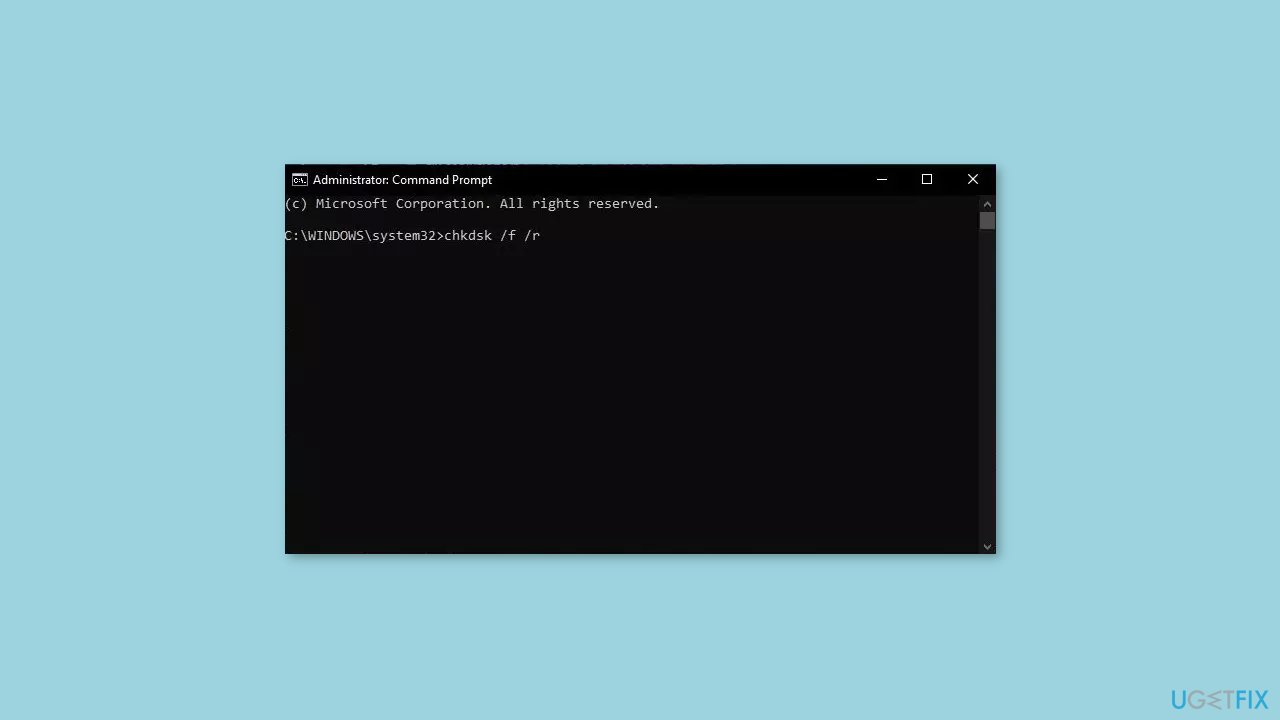
- Type chkdsk /f /r and press Enter
- Wait for the app to process your input
- Type Y and press Enter
- If you cannot boot Windows, you can also run this command from the recovery console by entering chkdsk /r C:
Solution 3. Install Windows Updates
- Press the Windows key + R to open the Run box
- Type ms-settings:windowsupdate in the text box and press Enter
- Click the Check for updates button
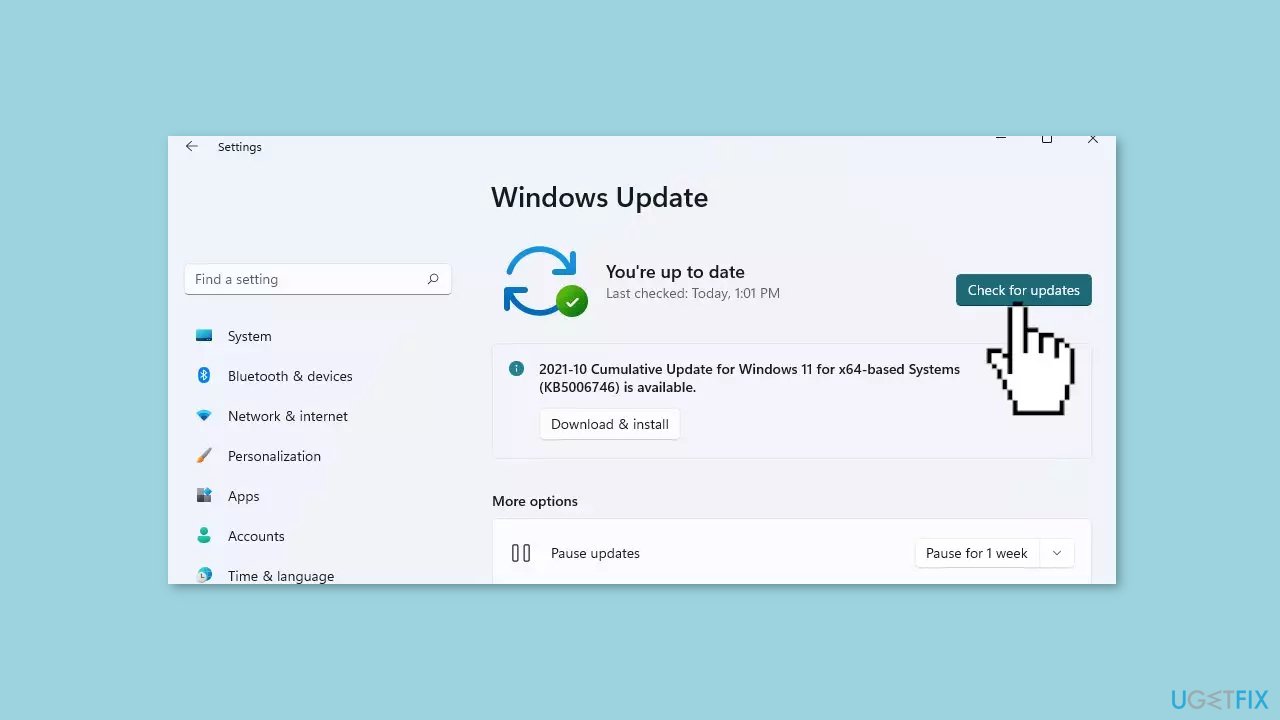
- If a new update is available, click the Download & Install all button.
- Restart your computer after the process is finished and check to see if the problem is fixed
Solution 4. Scan for Viruses
It is possible that a malware infection may be the cause of 0x000000FE Blue Screen in Windows. It is important to run a comprehensive security scan to rule out this possibility and ensure that the computer is not infected. This can help to prevent further issues with the Windows operating system and ensure that it is functioning properly.
If you have access to a security scanner, or if your organization pays for one, you can use it to scan your entire system to check for a virus infection. Otherwise, you can use Windows Defender to scan your system:
- Click on the Windows Start menu or press the Windows key on your keyboard.
- Type Microsoft Defender in the search bar and click on Microsoft Defender Antivirus to open the application.
- Click on the Virus & threat protection option in the left-hand menu.
- Click on the Quick scan or Full scan option, depending on your preference.
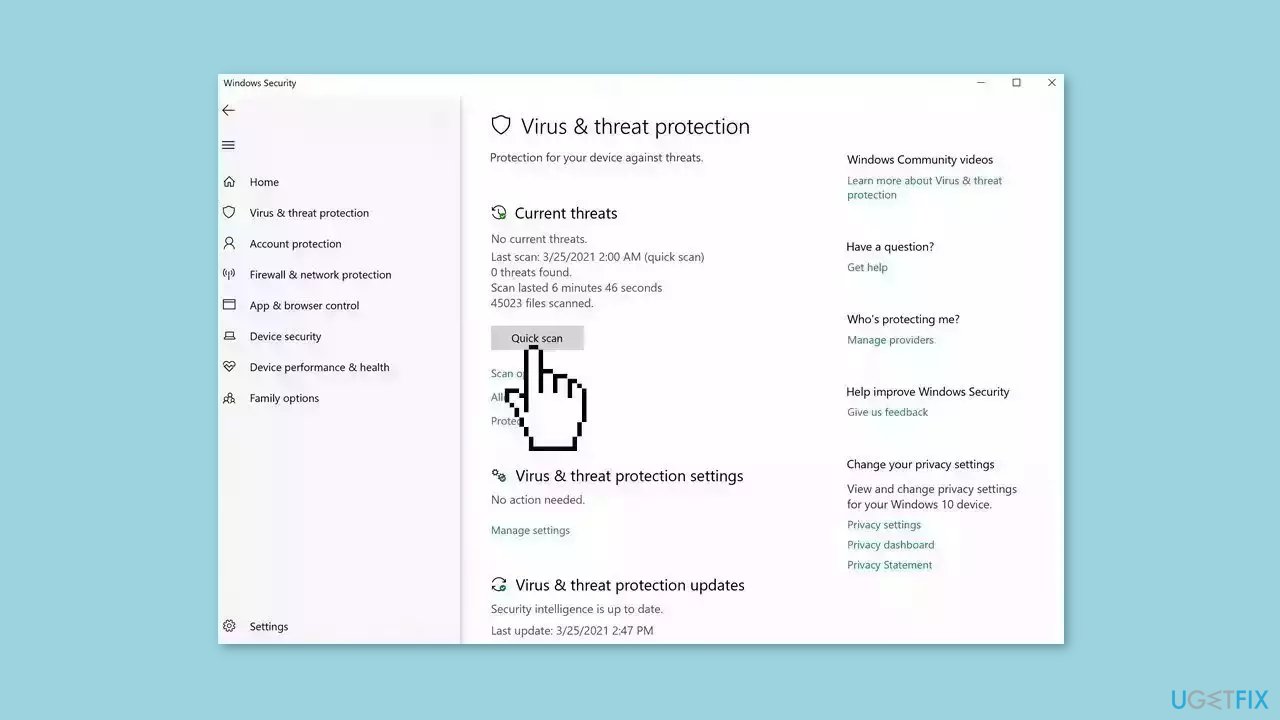
- If you choose Quick scan, Microsoft Defender Antivirus will scan the most vulnerable and commonly infected areas of your computer.
- If you choose Full scan, Microsoft Defender Antivirus will scan your entire computer, including all files, folders, and programs.
- Click on the Scan now button to start the selected scan type and wait for the scan to complete.
- The time it takes will depend on the size of your hard drive and the number of files being scanned.
- Once the scan is complete, you will be informed of any detected threats, and you can choose to quarantine or remove them.
- If no threats are found, Microsoft Defender Antivirus will inform you that your device is secure.
Solution 5. Update Display Driver
- Click on the Windows button located on the bottom left corner of your screen.
- Type Device Manager in the search bar.
- Click on Device Manager in the search results to open the Device Manager window.
- Scroll down the list of devices and click on Display adapters to expand the category.
- Right-click on your graphics card.
- Select Update driver from the context menu that appears.
- In the Update Drivers window, select Search automatically for drivers.
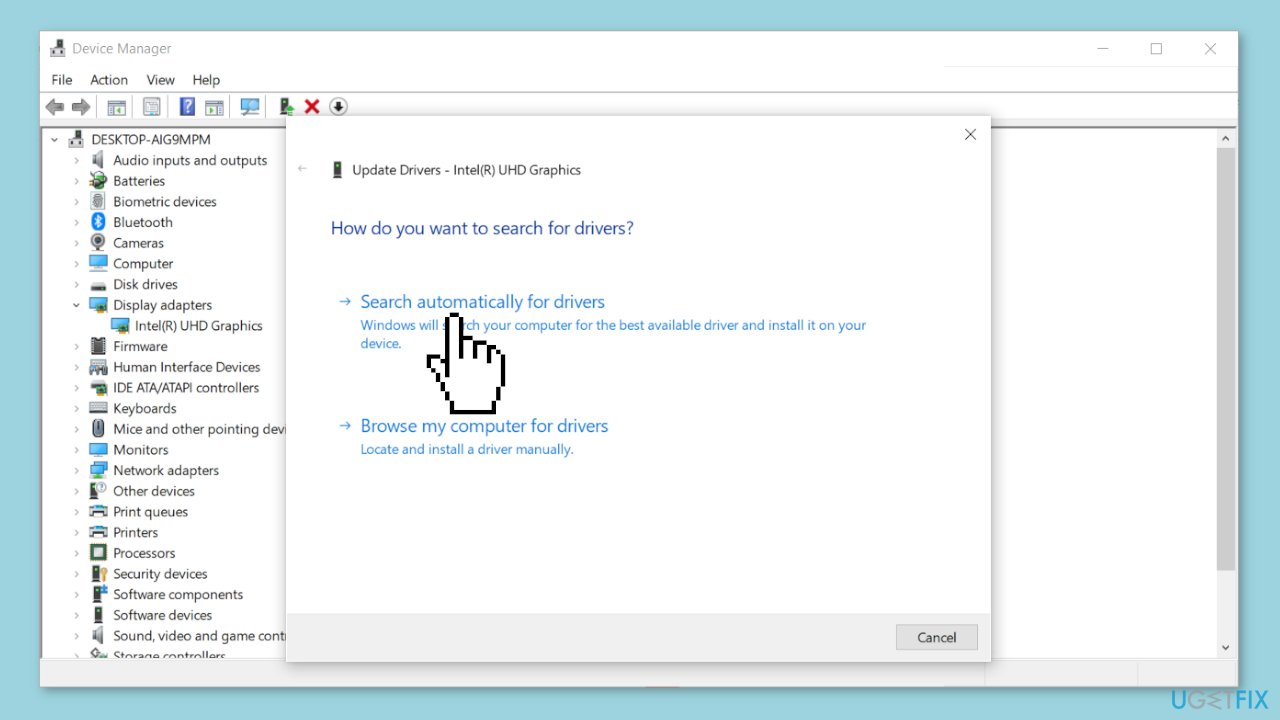
- Windows will now search for the latest drivers for your graphics card and install them if available.
- Wait for the update process to complete, and then restart your computer if prompted.
- Your graphics card driver should now be updated to the latest version available.
You can also use a dedicated utility like [rev id="DriverFix"] that can find the best drivers for your machine and install them automatically.
Solution 6. Disable USB Selective Suspend Settings
- Press the Windows key on your keyboard to open the Start menu.
- Type Edit power plan in the search box and click on Edit power plan in the search results to open the Power Options window.
- Click on Change advanced power settings to open the advanced power options.
- In the Power Options dialog box that opens, click on Change plan settings for the power plan you want to modify.
- In the next window, scroll down to locate the USB settings option and click on it to expand the menu.
- Click on USB selective suspend setting to access its options.
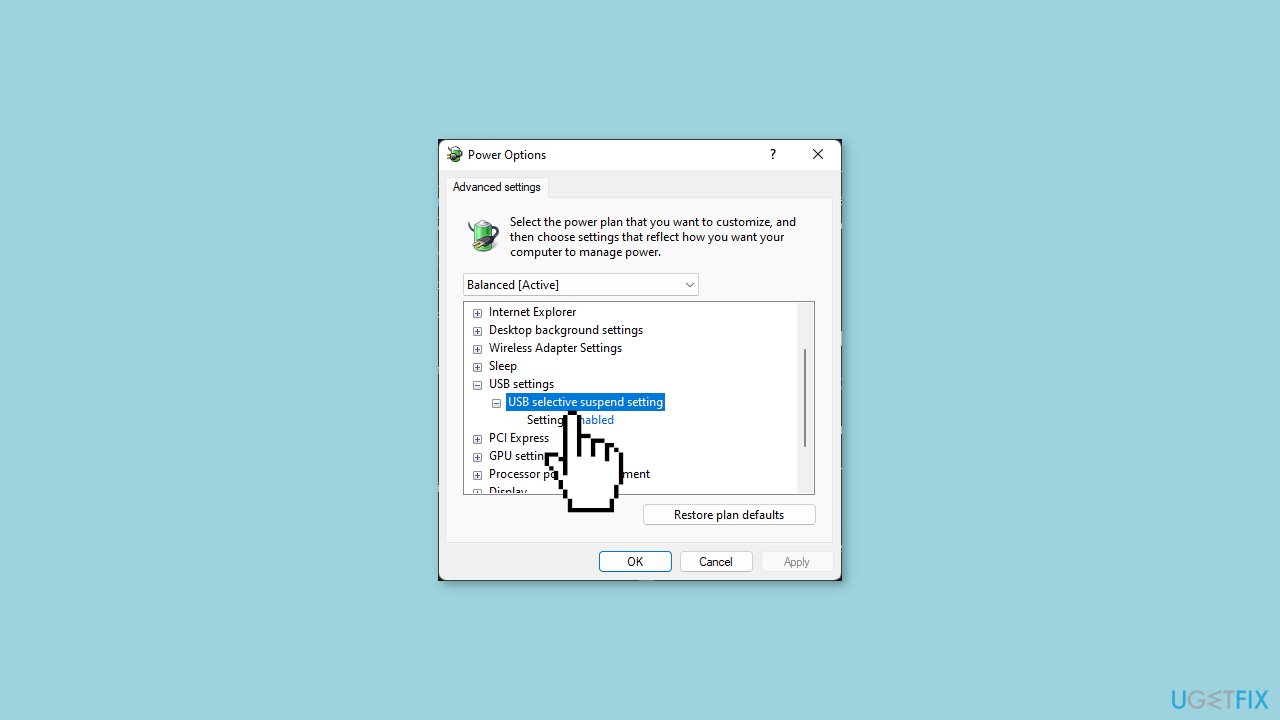
- In the drop-down menu, select Disabled to turn off the USB selective suspend setting.
- Click on Apply and then OK to save the changes you made.
- Close the Power Options window.
- The USB selective suspend setting is now disabled, and your USB devices should remain active even when your computer is idle.
Solution 7. Run a System Repair Tool
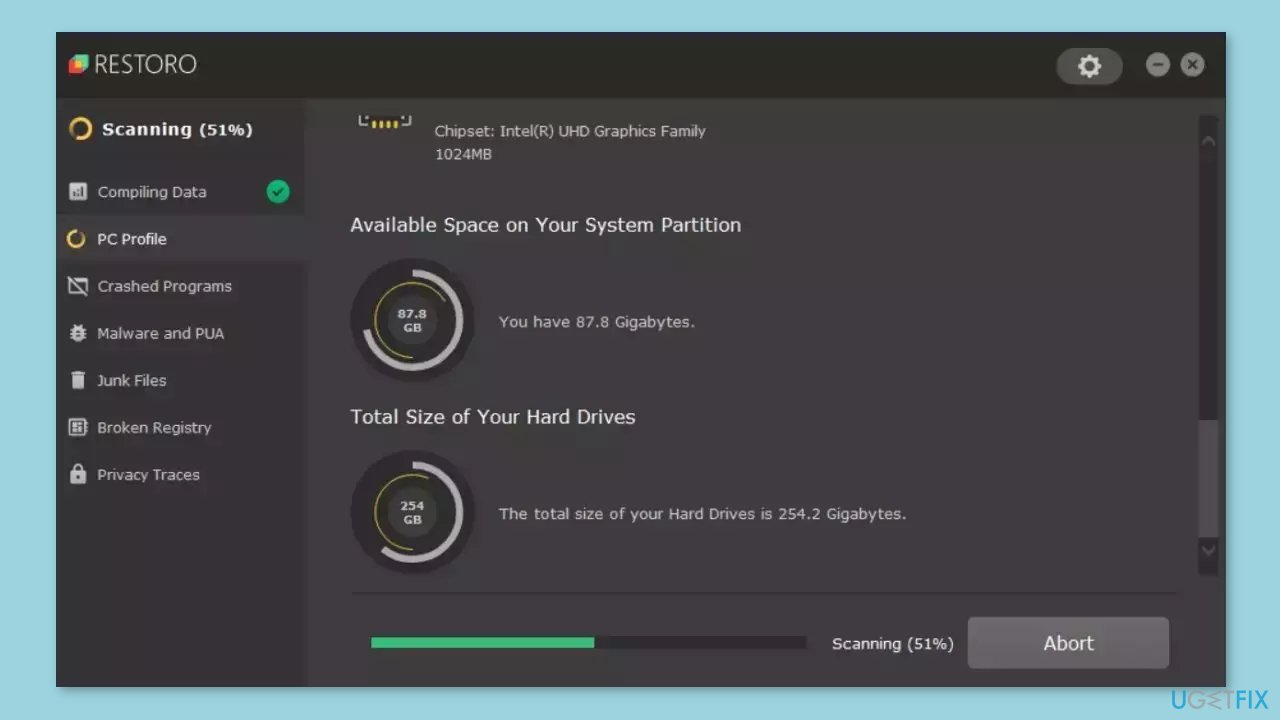
[d1] is a tool that is designed to diagnose and fix problems with a computer's operating system. It can effectively troubleshoot and repair system errors, BSODs, corrupted files, registry[ref en-3] issues, and other problems that can cause a computer to perform poorly or become unresponsive. Additionally, it can automatically clear cookies and cache which are often the cause of many malfunctions.
To identify and repair problems, the tool performs a scan of the system and replaces or repairs any damaged or corrupted files and other issues that it finds. While many users have reported that it is effective at fixing certain types of computer problems, it is important to note that it is not a guaranteed solution and may not work for all issues.
Bottom line
To fix the 0x000000FE BSOD error, you can repair corrupted system files using Command Prompt, check your disk for errors, and ensure that Windows updates are installed. If these solutions do not resolve the issue, consider disabling sleep and hibernation modes or seeking further technical assistance.
Frequently asked questions
The 0x000000FE BSOD error is typically caused by hardware issues, such as incompatible drivers or faulty peripherals, that prevent the operating system from functioning properly.
You can troubleshoot the 0x000000FE error by booting into Safe Mode, updating your device drivers, or disconnecting any recently added hardware to identify the source of the problem.
Yes, performing a system restore to a point before the error occurred can help resolve the 0x000000FE BSOD error if it was triggered by recent changes to your system.




Report an issue
What's wrong with this guide? We review every report and update or remove content.
Report received — thank you. We'll review and fix it.
You need a free account to submit a report.
Be the first to comment