How to fix
0x00000101 BSOD error
on Windows
Resolve the 0x00000101 BSOD error in Windows 10 and 11 with our expert-tested solutions. Get your system running smoothly in minutes!


What causes How to fix 0x00000101 BSOD error in Windows?
- Hardware failure
- Inadequate memory
- Outdated BIOS
- Damaged Windows images
- Corrupted system files
- Software conflicts
Repairs Windows system files, removes malware, and restores a clean OS state — without reinstalling.
Hello. I was working on my Windows PC when suddenly it crashed with a 0x00000101 Blue Screen of Death error. Is there a way to prevent this from happening?
The 0x00000101 BSOD error, often known as a Blue Screen of Death error, indicates a serious system failure in Windows. These errors, also known as stop errors, generally indicate major issues such as hardware failure or unforeseen problems with device drivers,[ref en-1] which result in the termination of critical operations and, in some cases, a complete system crash.
Several potential causes may contribute to the occurrence of the 0x00000101 error. Hardware problems, particularly those involving the hard disk, might be critical. Inadequate memory, outdated BIOS, damaged Windows images, corrupted system files, and software conflicts are also probable causes of this BSOD crash.
The consequences of encountering a 0x00000101 BSOD issue might be severe. System failures can result in data loss, paused workflows, and overall productivity interruption. Furthermore, the mystery surrounding the source of the problem can lead to user aggravation and anxiety, as the sudden and unexpected nature of many crashes makes identifying and addressing the root cause difficult.
Users can explore multiple options that could decrease the impact of the 0x00000101 BSOD error. Addressing potential hardware issues, ensuring appropriate system memory, updating the BIOS to the latest version, fixing or reinstalling broken Windows images, and resolving any corrupted system files are some examples. It may also be essential to identify and resolve software conflicts in order to restore system stability. While the complexity of these potential solutions varies, addressing the fundamental reasons for the 0x00000101 BSOD error is critical for keeping a stable and working Windows system.
In this guide, you will find 6 steps that should help you fix 0x00000101 BSOD error in Windows. You can also run a system repair tool like [d1] that can fix most system errors, BSODs,[ref en-2] corrupted files, and registry[ref en-3] issues. Otherwise, follow the step-by-step instructions below.
Method 1. Fix Corrupted System Files
Use Command Prompt commands to repair system file corruption:
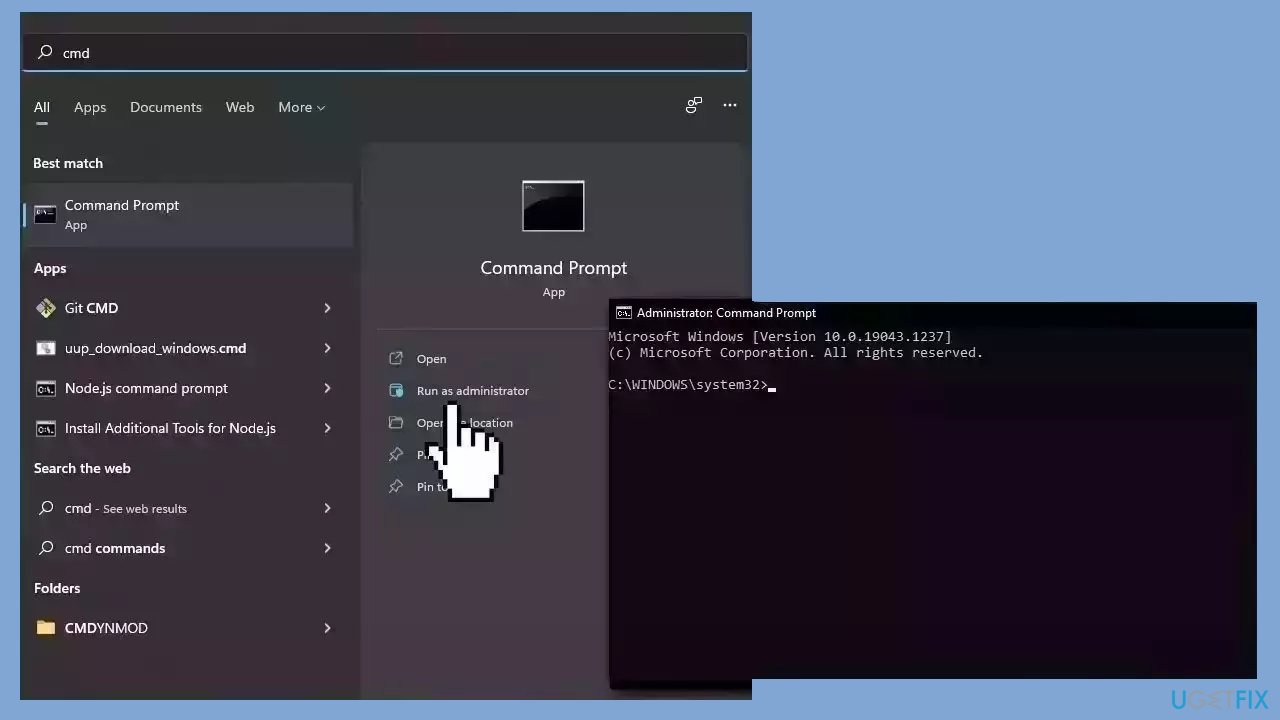
- Open Command Prompt as administrator
- Use the following command and press Enter:
sfc /scannow
- Reboot your system
- If SFC returned an error, then use the following command lines, pressing Enter after each:
DISM /Online /Cleanup-Image /CheckHealth
DISM /Online /Cleanup-Image /ScanHealth
DISM /Online /Cleanup-Image /RestoreHealth
Method 2. Scan for Malware
It is possible that a malware infection may be the cause of 0x00000101 BSOD error in Windows. It is important to run a comprehensive security scan to rule out this possibility and ensure that the computer is not infected. This can help to prevent further issues with the Windows operating system and ensure that it is functioning properly.
If you have access to a security scanner, or if your organization pays for one, you can use it to scan your entire system to check for a virus infection. Otherwise, you can use Windows Defender to scan your system:
- Click on the Windows Start menu or press the Windows key on your keyboard.
- Type Microsoft Defender in the search bar and click on Microsoft Defender Antivirus to open the application.
- Click on the Virus & threat protection option in the left-hand menu.
- Click on the Quick scan or Full scan option, depending on your preference.
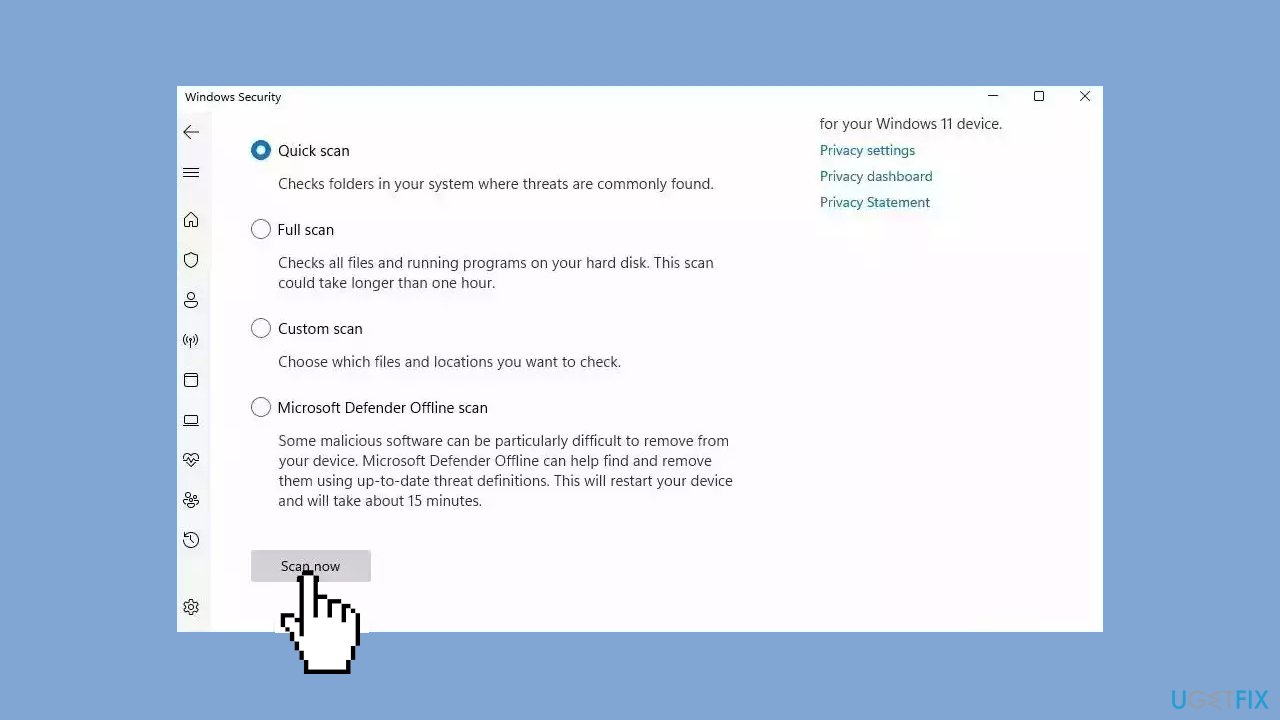
- If you choose Quick scan, Microsoft Defender Antivirus will scan the most vulnerable and commonly infected areas of your computer.
- If you choose Full scan, Microsoft Defender Antivirus will scan your entire computer, including all files, folders, and programs.
- Click on the Scan now button to start the selected scan type and wait for the scan to complete.
- The time it takes will depend on the size of your hard drive and the number of files being scanned.
- Once the scan is complete, you will be informed of any detected threats, and you can choose to quarantine or remove them.
- If no threats are found, Microsoft Defender Antivirus will inform you that your device is secure.
Method 3. Install Windows Updates
- Click Start and select Settings.
- Go to the Windows Update section.
- Click Check for updates and wait.
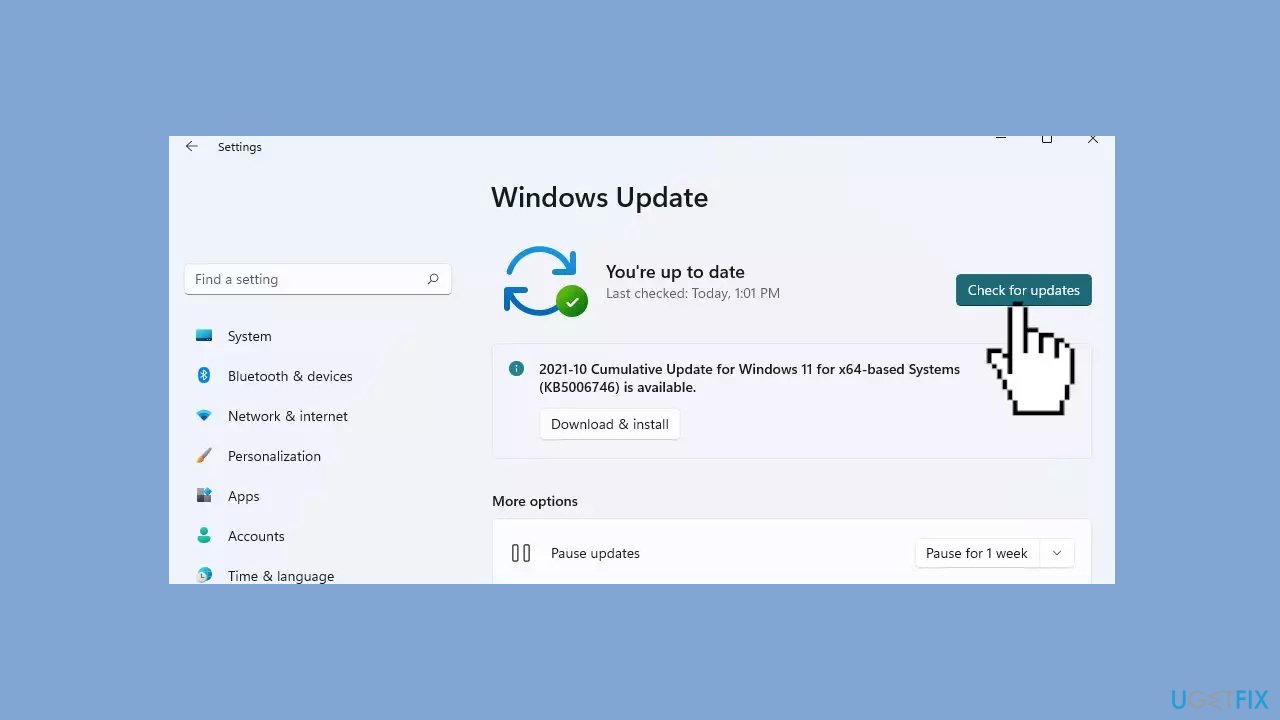
- Go to the Advanced options and install optional updates.
- Reboot your system.
Method 4. Update Drivers
Outdated drivers could be the cause of this issue. In this case, you can fix it automatically by using [rev id="DriverFix"], which will scan your PC for missing and out-of-date device drivers. Or you can update them manually:
- Open Settings.
- Click on Update & Security.
- Click on Windows Update.
- Click the Check for updates button.
- Click the View optional updates option.
- Click the Driver updates tab.
- Select the driver you want to update.
- Click the Download and install button.
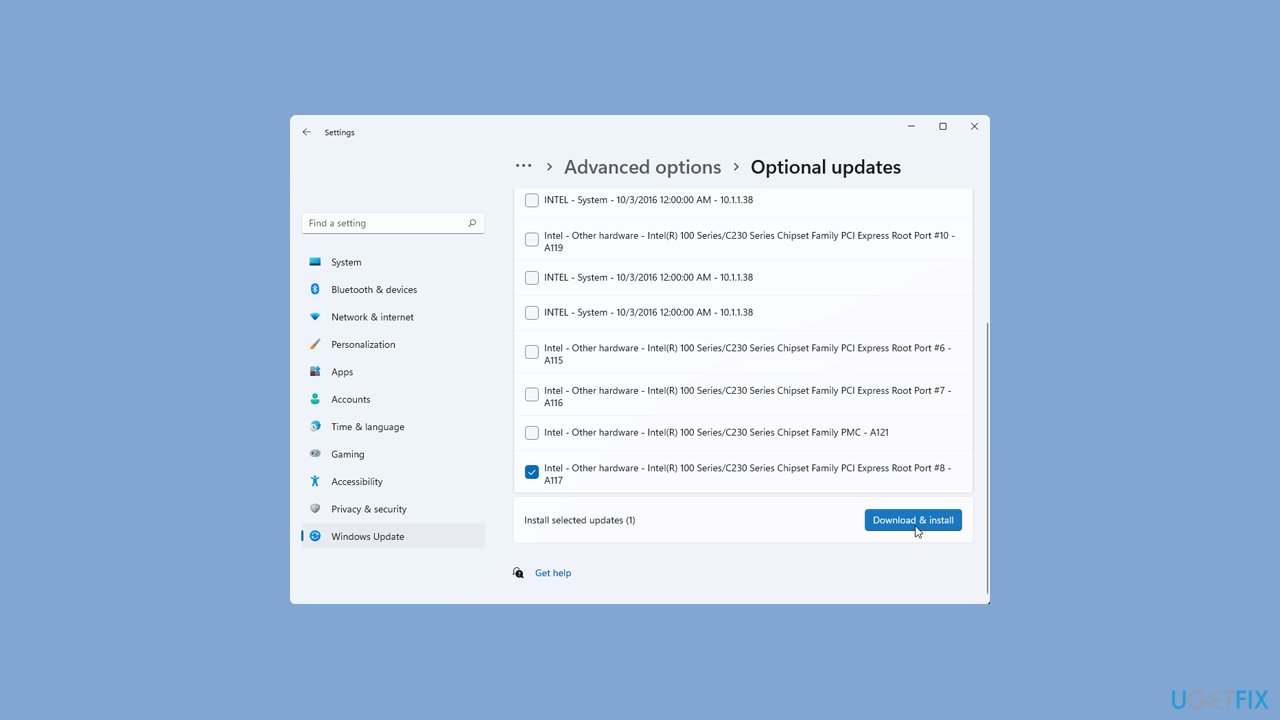
If the View optional updates link is not available after checking for updates, then Windows Update does not have any new drivers or any updates for other products at that particular time.
Method 5. Run Windows Memory Diagnostic Tool
- Press the Windows key + R to open the Run dialog box.
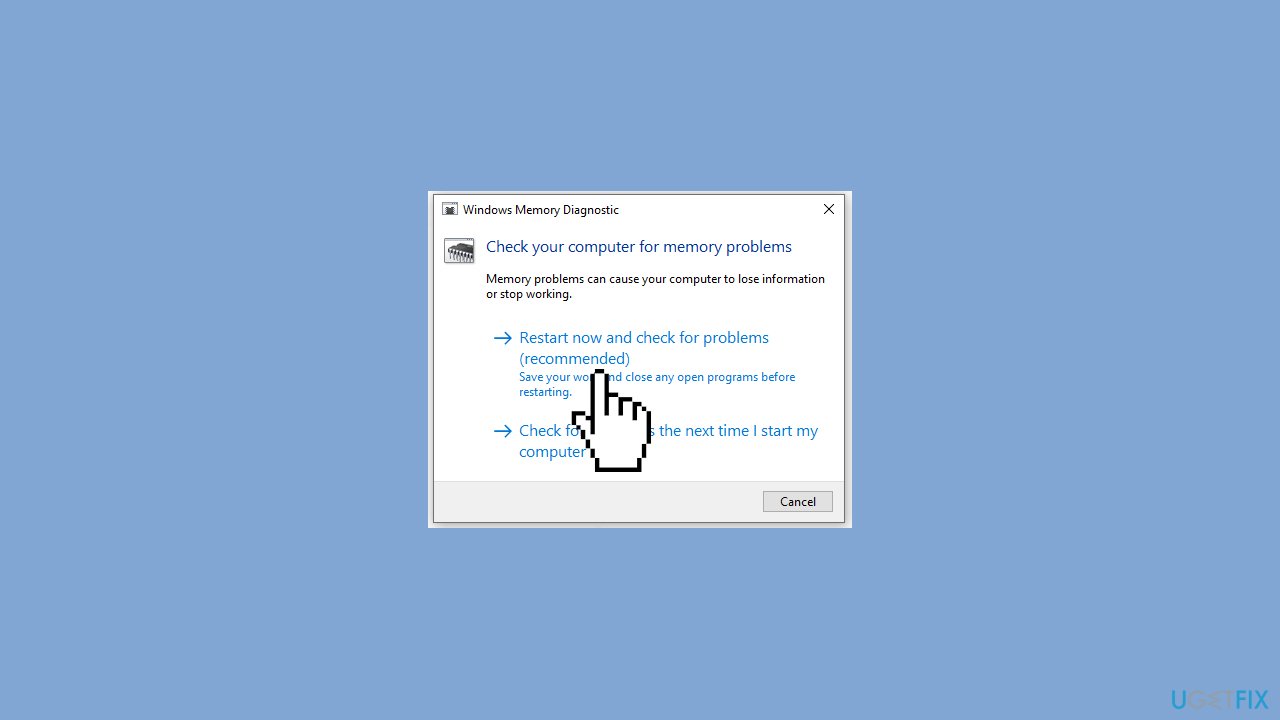
- Type mdsched.exe and press Enter to access Windows Memory Diagnostic.
- In the Windows Memory Diagnostic window, click on Restart now and check for problems (recommended).
- Allow your computer to restart immediately.
- Wait for approximately a minute for the diagnostic process to complete.
- Review the results displayed to determine if any memory problems have been detected.
Method 6. Check your Drives
- Open File Explorer and navigate to This PC.
- Right-click on the C: drive.
- Select Properties from the context menu.
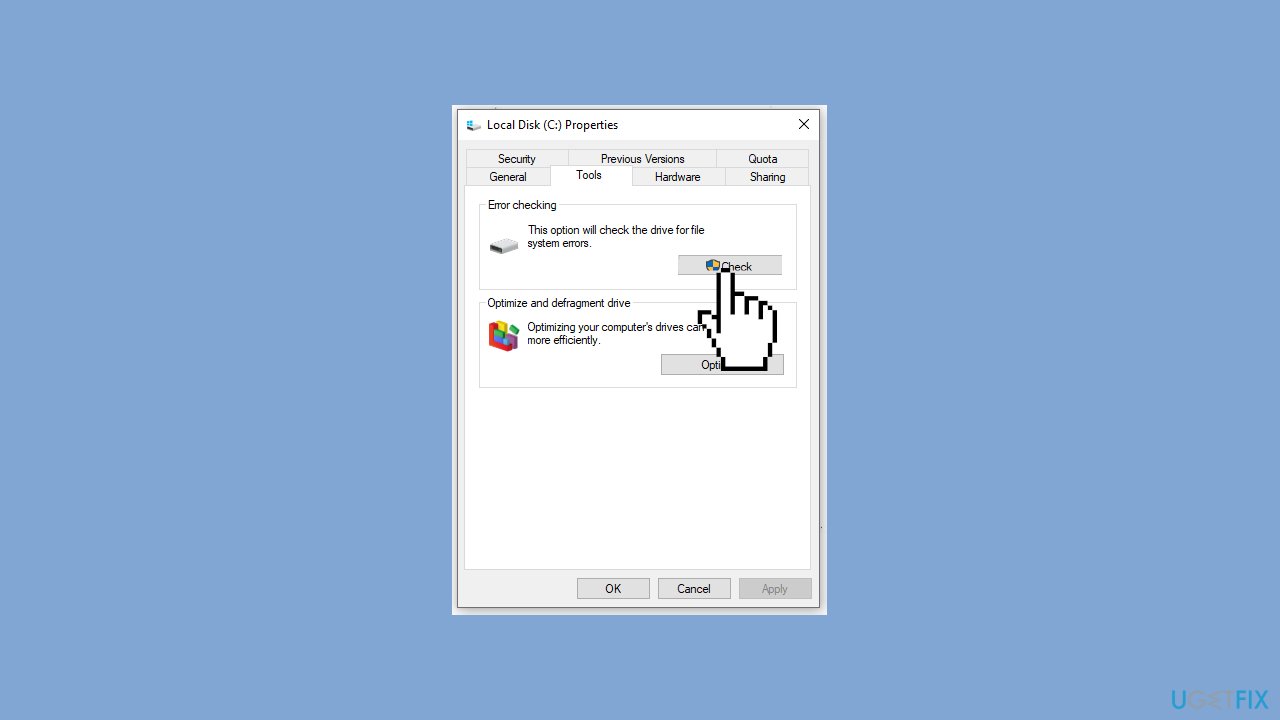
- Go to the Tools tab within the Properties window.
- Under the Error checking section, click on Check.
Bottom line
To fix the 0x00000101 BSOD error, you can address hardware issues, ensure adequate system memory, update the BIOS, repair or reinstall damaged Windows images, and resolve corrupted system files. If these steps do not resolve the issue, consider running a system repair tool to fix most system errors.
Frequently asked questions
The 0x00000101 BSOD error indicates a CLOCK_WATCHDOG_TIMEOUT issue, typically caused by hardware malfunctions or driver problems. It often occurs when the CPU fails to respond within the expected time frame.
To troubleshoot the 0x00000101 error on Windows 10, start by updating your device drivers and running hardware diagnostics. Additionally, check for overheating issues and ensure your BIOS is updated.
To prevent the 0x00000101 BSOD error in Windows 11, regularly update your system and drivers, and monitor your hardware for any signs of failure. Utilizing reliable antivirus software can also help prevent conflicts that may lead to this error.




Report an issue
What's wrong with this guide? We review every report and update or remove content.
Report received — thank you. We'll review and fix it.
You need a free account to submit a report.
Be the first to comment