How to fix
0x00000124 BSOD error
on Windows
Fix the 0x00000124 BSOD error in Windows 10 or Windows 11 effortlessly. Get expert-tested solutions to restore your system stability in minutes.

What causes How to fix 0x00000124 BSOD error in Windows?
- Hardware failure
- Driver conflict
- Overclocking
- Defective processor
- Overheated GPU
- Bug in RAM
Repairs Windows system files, removes malware, and restores a clean OS state — without reinstalling.
Hi. I have a relatively powerful computer (RTX 3070, Ryzen 7 5600X, 16GB RAM) and it continues to crash while I'm playing games. The bug check displayed is 0x00000124.
Understanding the 0x00000124 BSOD error in Windows
0x00000124 BSOD, or the "WHEA_UNCORRECTABLE_ERROR," is related to the error that appears when Windows experiences some kind of hardware problem or a low-level driver. Specifically, this error is associated with hardware components like the processor, RAM, motherboard, and even the hard drive.
This can also be an indication of an error in any driver involved with these components. Most users encounter this error while operating their computers for resource-intensive activities, such as gaming or launching resource-consuming applications.
What causes the 0x00000124 BSOD?
The 0x00000124 error generally points toward a hardware issue, and Windows is shut down to prevent damage to the system. Some causes are:
- Hardware failure. A defective processor, an overheated GPU, a bug in the RAM, or other failures on the motherboard.
- Driver conflict. Bugs in drivers due to obsolete or incompatible drivers also lead to malfunctioning of hardware and BSOD.
- Overclocking. This is another usual cause of this error. Users who overclock their CPUS or graphic cards will encounter this error when their hardware is not able to cope with the extra performance they demand from them.
How and when does it happen?
0x00000124 BSOD normally occurs when some kind of hardware component malfunctions or does not function properly. It may occur under high-performance situations, such as gaming, or it may also occur under normal usage if there is a critical fault with the hardware or a key system driver. Some users report seeing this error upon boot-up, which would indicate that the problem was there right at the time of boot-up.
If the 0x00000124 error persists and one tries to troubleshoot it, then using hardware diagnostics utilities like Windows Memory Diagnostic or third-party solutions like MemTest86 would make quite a lot of sense in order to identify problematic components.
Alternatively, a specific [d1] repair tool can diagnose Windows-related issues automatically, which will let one take a more effective approach toward solving this BSOD.
Fix 1. Disconnect external devices
Faulty or incompatible peripherals, such as USB drives or external hardware, can sometimes cause system crashes. Disconnecting them helps determine if any of these devices are triggering the issue.
- Shut down your computer completely.
- Disconnect all external devices, including USB drives, printers, external hard drives, and other peripherals.
- Power on your computer and check if the BSOD occurs again.
- If the system functions normally, reconnect each device one by one to identify what may be causing the error.
Fix 2. Update drivers
Outdated drivers, especially for hardware like the motherboard, GPU, or other critical components, can trigger BSOD errors.
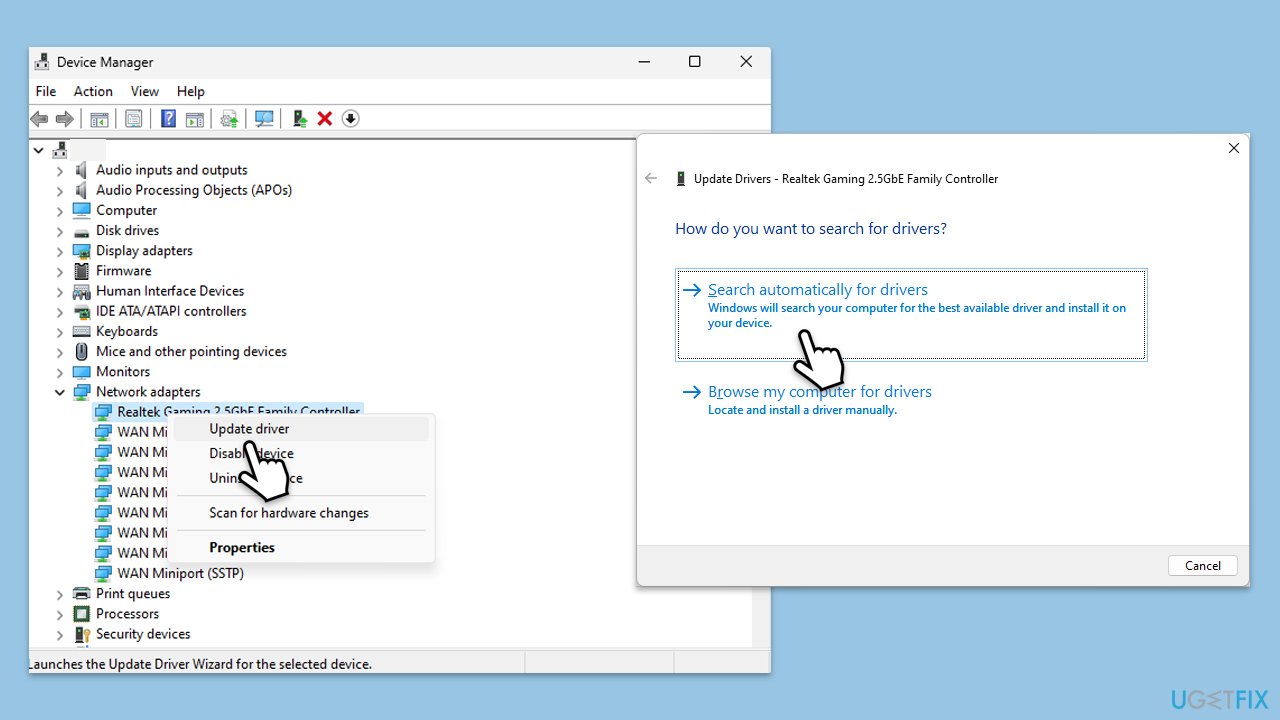
- Right-click on the Start button and select Device Manager from the menu.
- Expand the section you want to update, for example, the Display adapters section.
- Right-click on your device and select Update driver.
- Pick Search automatically for drivers.
- If updates are found, allow them to install.
- Repeat this for other devices, such as network adapters and chipset drivers.
- Once done, reboot your system.
For a quicker and more effective driver update process, we recommend using an automatic tool such as [rev id="DriverFix"].
Fix 3. Run Windows Update
Installing the latest Windows updates can fix bugs and improve system stability, which might resolve the BSOD.
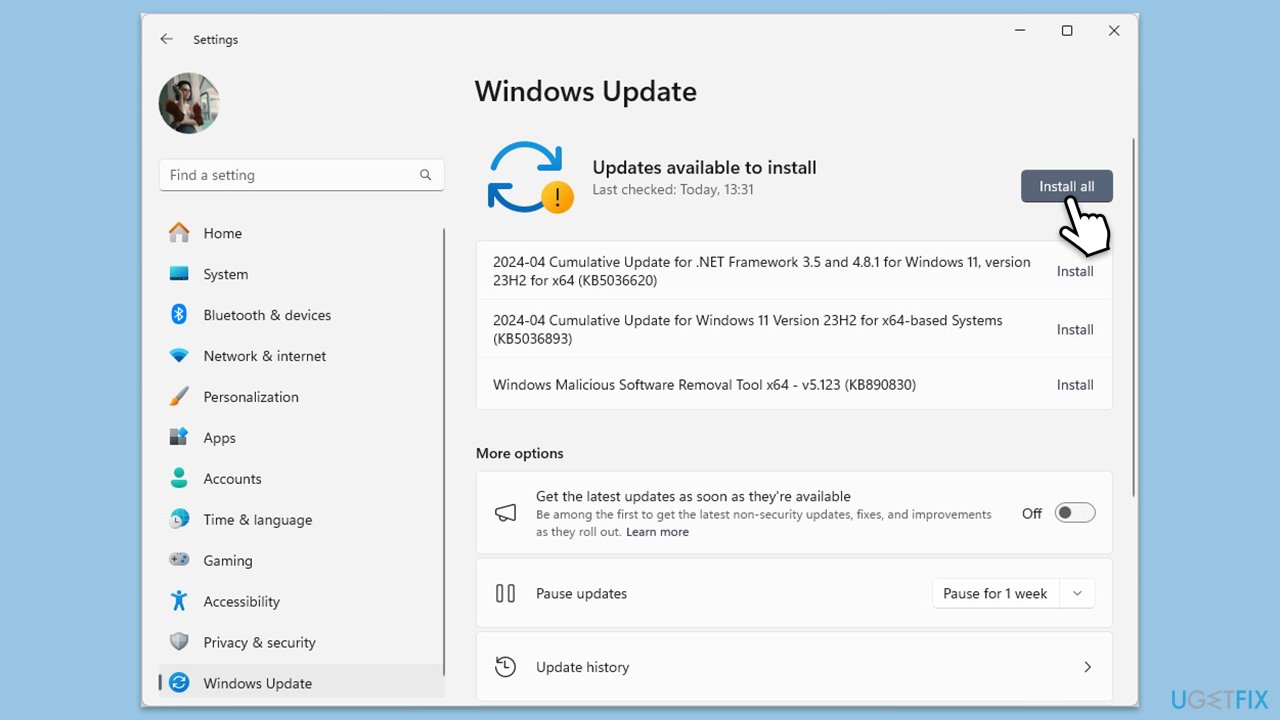
- Type Updates and press Enter.
- In the new window, click Install all (if pending) or Check for updates.
- Wait till all the files are downloaded and installed.
- If optional updates are available, install them as well.
- Restart your device when done.
Fix 4. Disable overclocking
Overclocking your CPU or GPU can cause instability and lead to BSOD errors like 0x00000124.
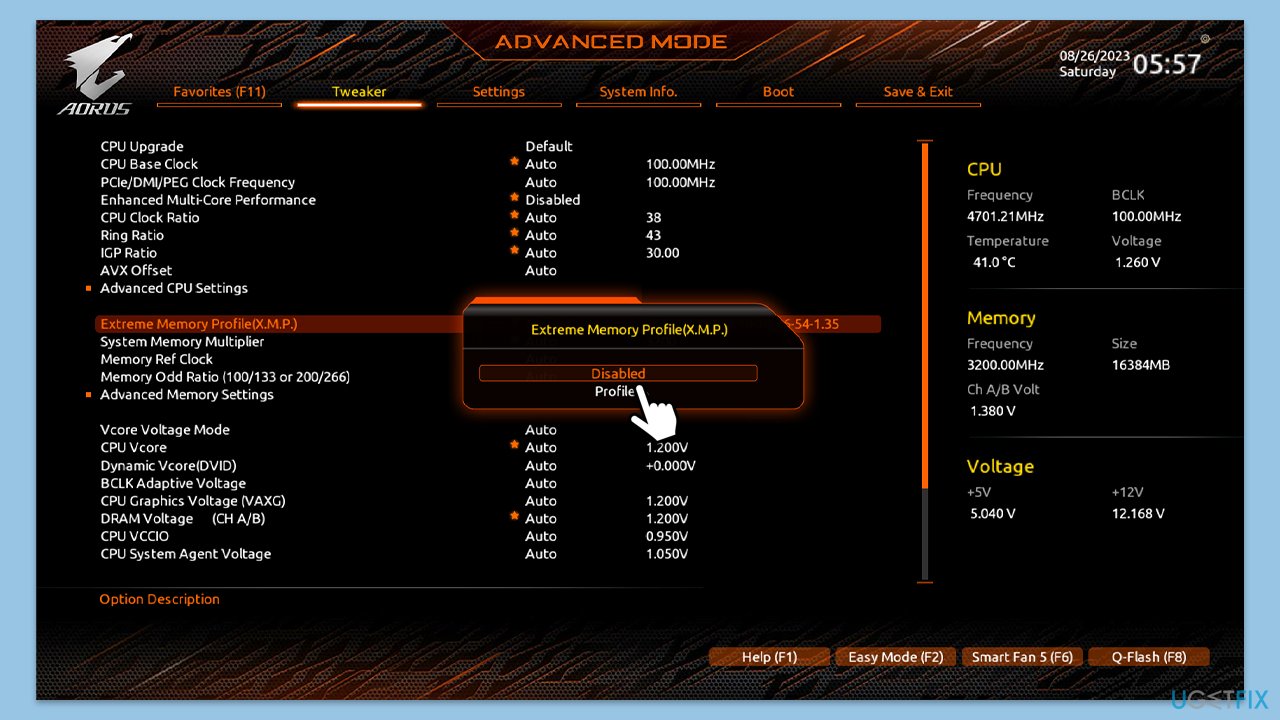
- Restart your computer and press the BIOS key as it begins to boot up (typically F2, F10, F12, or Del, depending on the manufacturer).
- In the BIOS interface, navigate to the Advanced, Performance, or Overclocking tab (the name varies by motherboard).
- Look for options such as CPU Configuration, Overclocking Settings, or similar.
- Reset these settings to default or disable the overclocking options, including XMP.
- Save and Exit from BIOS, which will reboot your system.
Fix 5. Check system temperatures
High temperatures can cause hardware failures, leading to BSODs. Monitoring and managing your system’s temperature can help prevent this.
- Download and install a temperature monitoring tool such as HWMonitor.
- Check the temperatures of your CPU, GPU, and other critical components.
- Ensure that all fans are functioning properly and clean any dust buildup.
Fix 6. Run Windows Memory Diagnostic
Faulty RAM is a common cause of BSODs. Running a diagnostic can help detect if there are any issues with your memory modules.
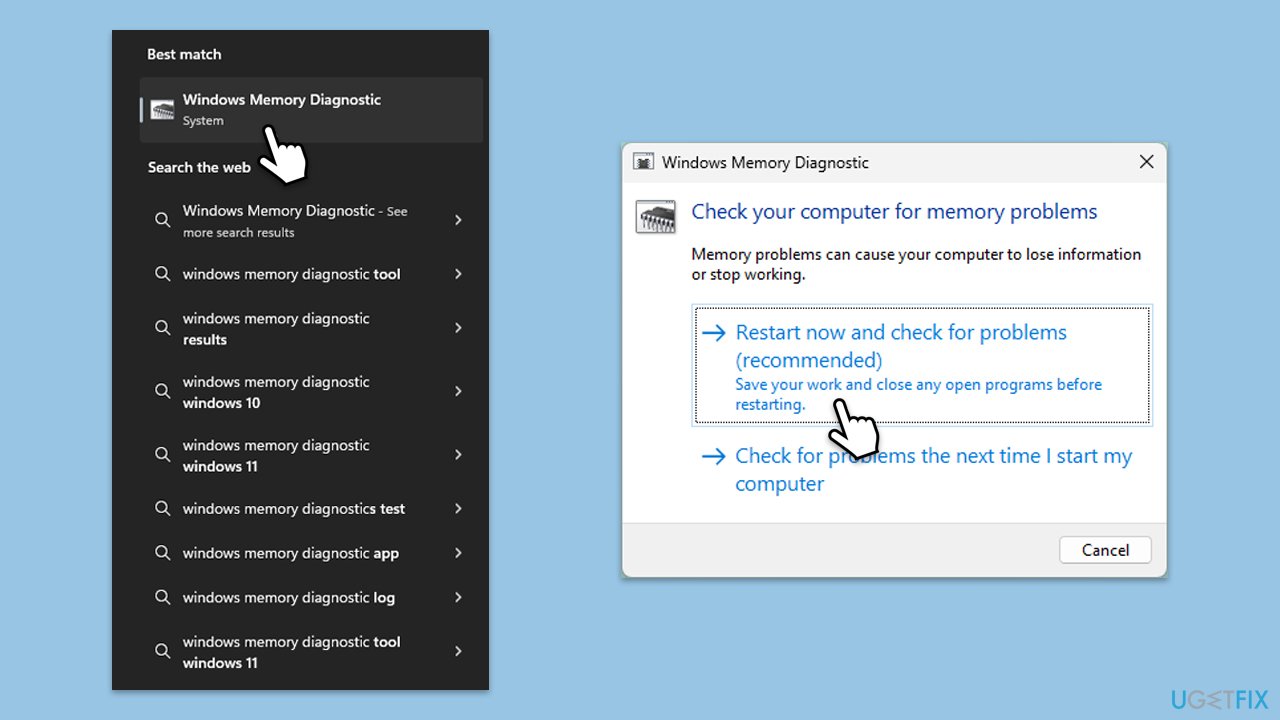
- Type Memory in Windows search and select Windows Memory Diagnostic result.
- Choose Restart now and check for problems (recommended).
- Let the tool run and complete the memory check.
- Review the results for any errors.
Fix 7. Perform a disk check
Corrupted sectors or errors on your hard drive can cause system issues. Running a disk check can identify and fix these problems.
- Type cmd in Windows search.
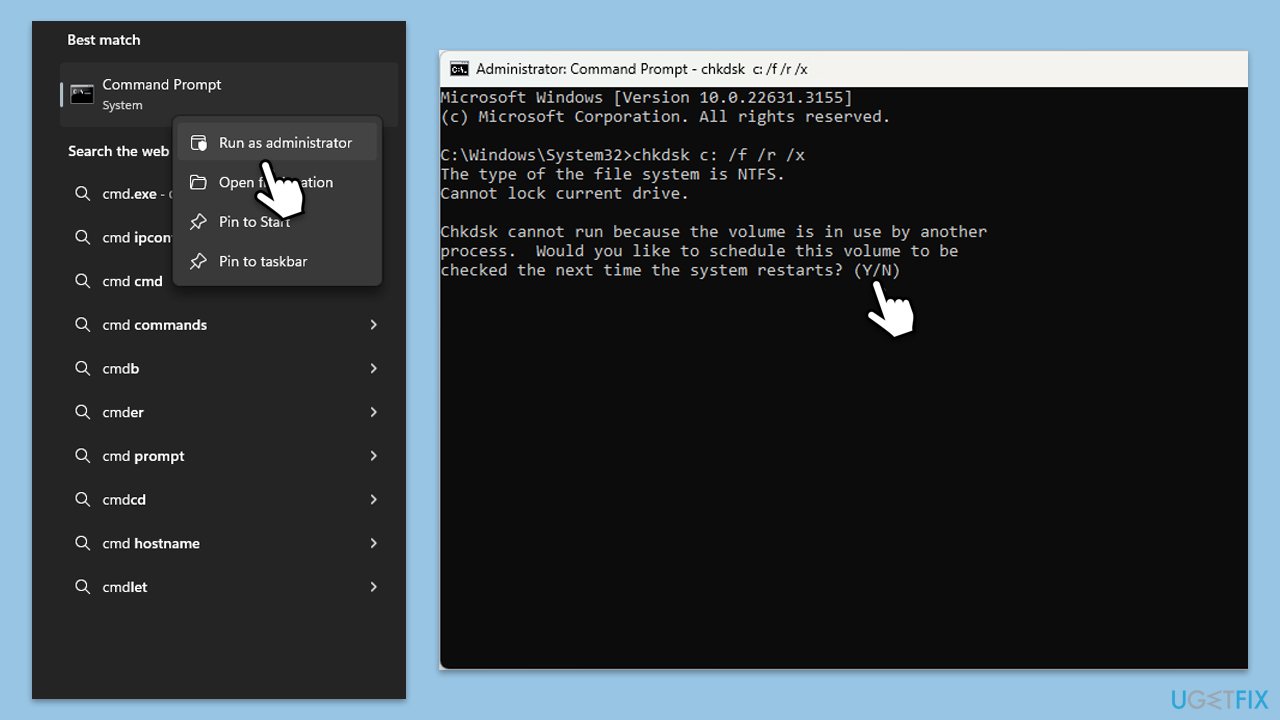
- Right-click on Command Prompt and pick Run as administrator.
- When UAC asks you whether you want to make changes, agree by pressing Yes.
- Type in the following command and press Enter after:
chkdsk c: /f
(Note: use chkdsk c: /f /r /x command if you use SSD as your primary partition). - If you receive an error, type in Y, close down Command Prompt, and restart your computer.
- After a restart, Windows will begin to scan your disk. After your system boots back up, you can find the results in the Event Viewer.
Fix 8. Run SFC and DISM
Corrupted system files can cause BSODs. Using the System File Checker (SFC) and Deployment Imaging Service Management (DISM) tools can help repair these files.
- Open Command Prompt as administrator.
- Copy and paste the following command, pressing Enter after:
sfc /scannow - Wait till the scan is finished. If Windows finds system file integrity violations, it will attempt to fix them. After this, use the set of the following commands, pressing Enter each time:
DISM /Online /Cleanup-Image /CheckHealth
DISM /Online /Cleanup-Image /ScanHealth
DISM /Online /Cleanup-Image /RestoreHealth
(Note: if you get an error executing the last command, add /Source:C:\RepairSource\Windows /LimitAccess to it and try again.) - Restart your computer.
Fix 9. Update BIOS
Keep in mind that you should not perform this carelessly or if you are not sure how to update BIOS correctly.
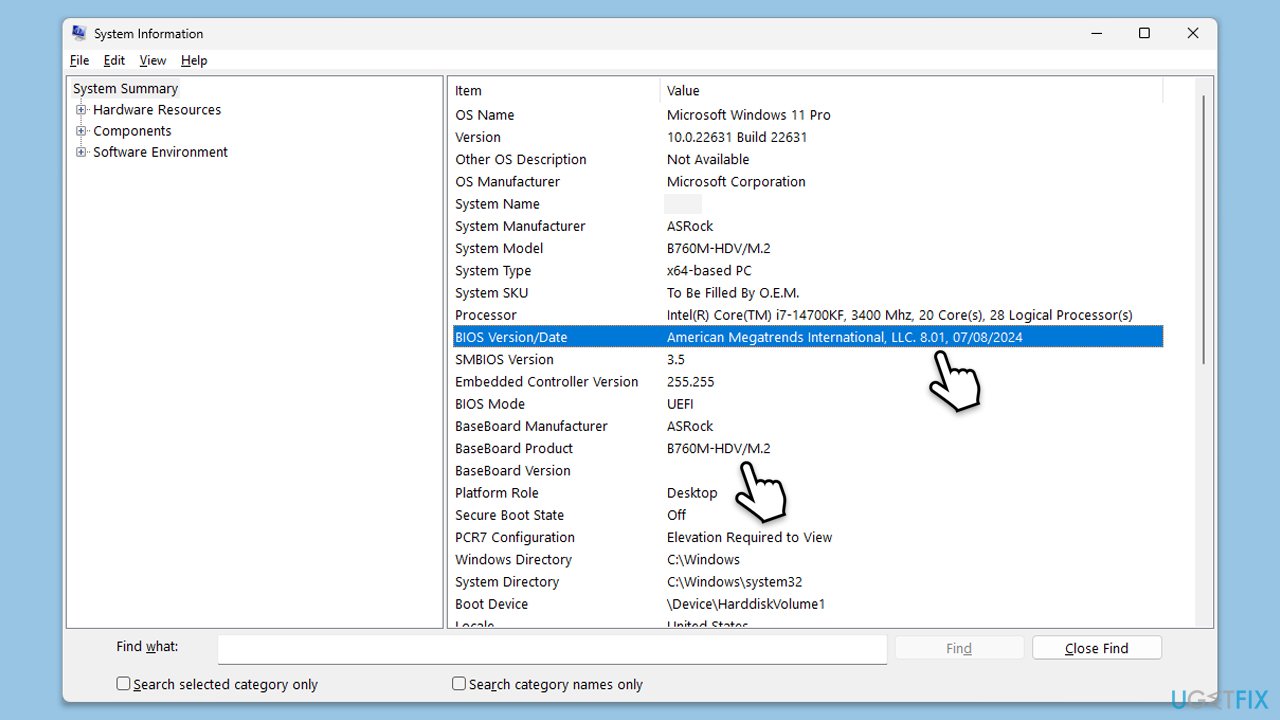
- Visit the manufacturer's website and download your specific model's latest BIOS update file (you can check which BIOS you are using by typing System information in Windows search and checking the BIOS Version/Date and BaseBoard Product entries there).
- Extract the BIOS update files and read any provided instructions or documentation.
- Create a bootable USB drive with the BIOS update files, if required.
- Update the BIOS using the manufacturer's recommended method, which may be through a built-in utility or booting from a USB drive.
- Restart your computer to complete the process.
Bottom line
To fix the 0x00000124 BSOD error, users can run hardware diagnostics utilities like Windows Memory Diagnostic or MemTest86 to identify problematic components. Additionally, checking for driver updates and avoiding overclocking can help resolve the issue. If none of these solutions work, consider using a specific repair tool to diagnose Windows-related issues automatically.
Frequently asked questions
The 0x00000124 BSOD error indicates a hardware issue, often related to the CPU, memory, or motherboard. It can also be triggered by overheating or faulty drivers.
To troubleshoot the 0x00000124 error on Windows 11, check for overheating components, update your drivers, and run hardware diagnostics. Additionally, ensure that your system's BIOS is up to date.
Yes, running Windows 10 in Safe Mode can help you diagnose and fix the 0x00000124 error by allowing you to uninstall problematic updates or drivers. This mode loads only essential drivers and services.




Report an issue
What's wrong with this guide? We review every report and update or remove content.
Report received — thank you. We'll review and fix it.
You need a free account to submit a report.
Be the first to comment