How to fix
0x00001338 error in Call of Duty: Modern Warfare 2
on Windows
Resolve the 0x00001338 error in Call of Duty: Modern Warfare 2 on Windows 10 and 11 quickly and easily, with expert-tested solutions and screenshots.

What causes How to fix 0x00001338 error in Call of Duty: Modern Warfare 2?
- Corrupted game files
- Corrupted Battle.net Cache
- Outdated GPU drivers
- Issues with system files
- Registry issues
Repairs Windows system files, removes malware, and restores a clean OS state — without reinstalling.
Hello. When I am playing Modern Warfare 2 I keep getting the 0x00001338 error which crashes the game. What can I do to fix this? Any suggestions would be appreciated.
Call of Duty: Modern Warfare 2 is a first-person shooter video game developed by Infinity Ward and published by Activision. It was released on November 10, 2009 for Microsoft Windows, Xbox 360, and PlayStation 3. The game is the sixth installment in the Call of Duty series and a direct sequel to Call of Duty 4: Modern Warfare.
It continues the story of the special forces operative Soap MacTavish and Task Force 141 in their fight against the Russian ultranationalist Vladimir Makarov. Modern Warfare 2 features a variety of multiplayer modes, including the "Special Ops" mode, which features cooperative play missions that follow the story of the single-player campaign.
The game also introduced new weapons and equipment, as well as new gameplay mechanics, such as the ability to use weapons while controlling a helicopter. The game was a commercial success, selling over 4.7 million copies on its first day of release and grossing over $550 million in its first five days.
However, many people are experiencing the 0x00001338 error, which prevents them from playing the game. The error has been reported to occur for some users during the startup of the game, preventing it from opening, while others have reported that the error occurs during gameplay and causes the game to crash.
There are several issues that can lead to the 0x00001338 error in Modern Warfare 2, such as corrupted game files, corrupted Battle.net Cache, outdated GPU drivers,[ref en-1] etc. In this guide, you will find 10 steps that should help you fix 0x00001338 error in Call of Duty: Modern Warfare 2.
Keep in mind that manual troubleshooting can be a lengthy process. Instead, you can use a maintenance tool like [d1]. It can fix most system errors, BSODs,[ref en-2] corrupted files, registry[ref en-3] issues, or clear cookies and cache.[ref en-4] Otherwise, follow the step-by-step instructions below.
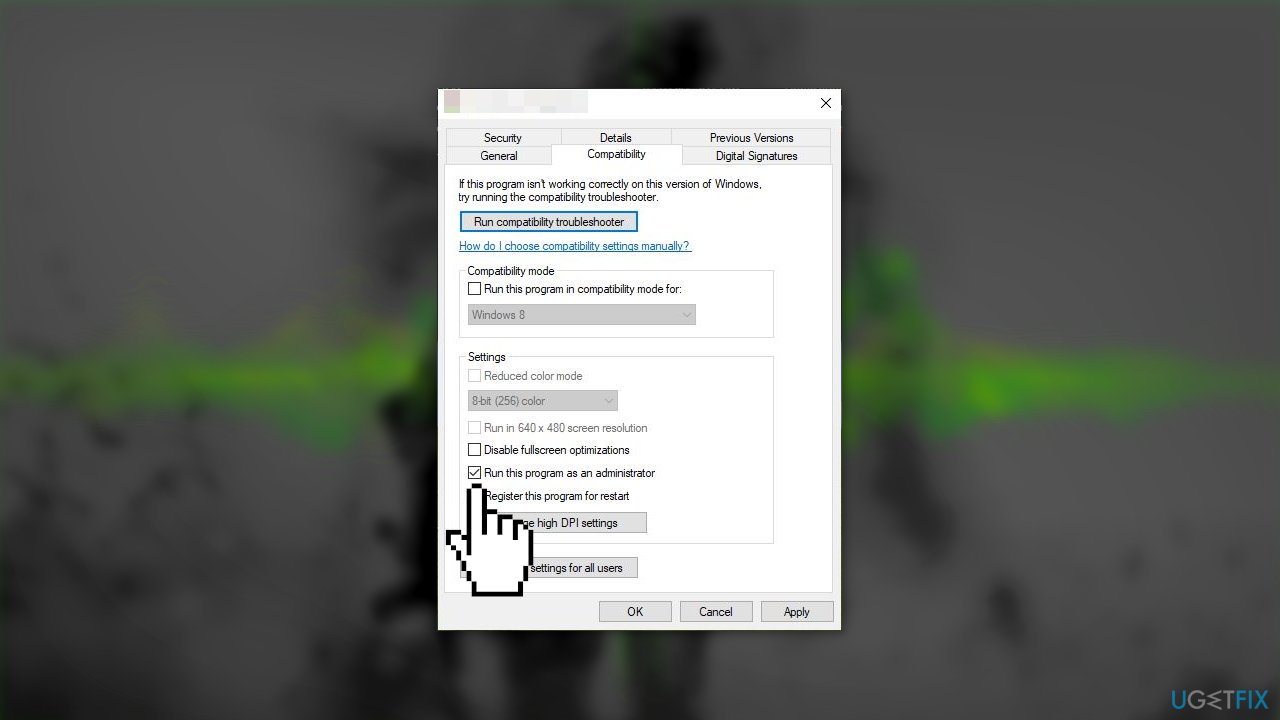
Solution 1. Run Modern Warfare as an Administrator
- Locate the installation folder of Modern Warfare 2
- Right-click on the file and choose the Properties option
- Go to the Compatibility tab and tick the checkbox next to Run this program as an administrator
- Press the Apply and OK to save changes
Solution 2. Repair Game Files
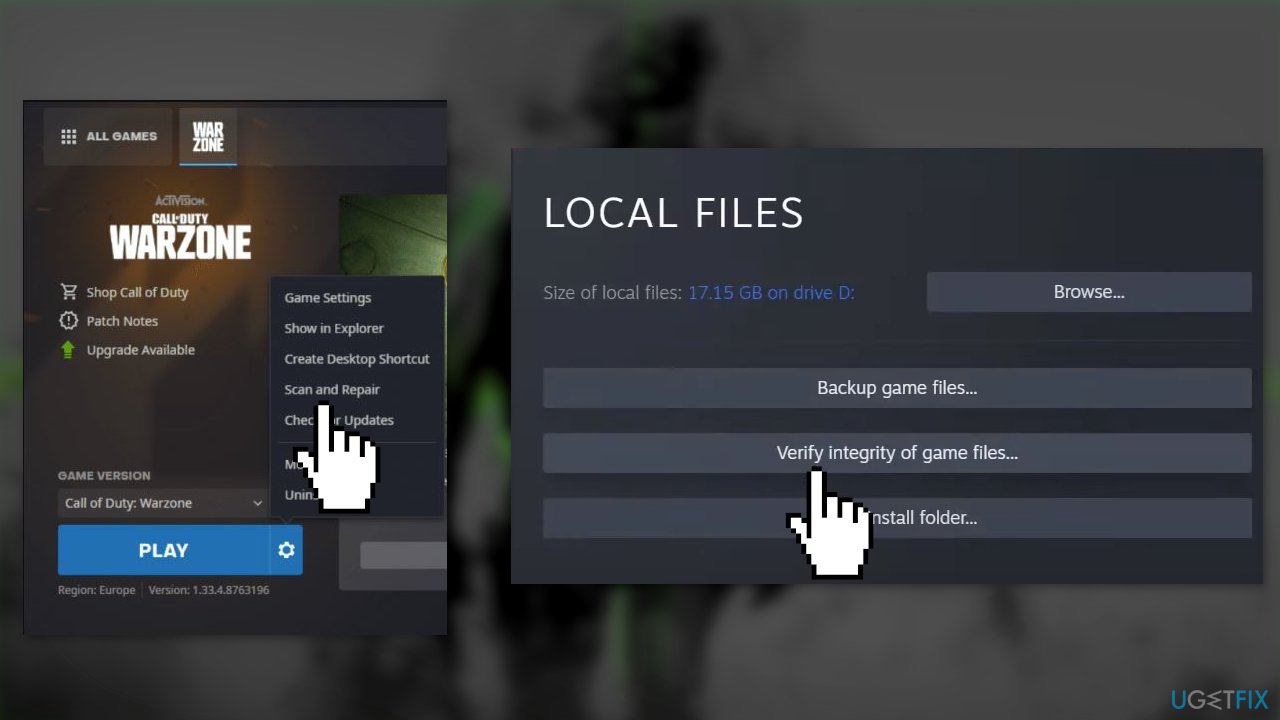
Battle.net:
- Open the Battle.net launcher and go to the GAMES tab
- Select Modern Warfare 2 and press the gear icon that is next to the Play button
- Click on the Scan and Repair option
- Let Battle.net verify the integrity of the game files
- When done, relaunch the game and check if the error is fixed
Steam:
- Open Steam and go to LIBRARY
- Right-click on Modern Warfare 2, and choose the Properties option
- Navigate to the LOCAL FILES tab and click on the Verify integrity of game files button
- When the process is done, you can reopen the game and check if the error disappeared
Solution 3. Clear Battle.net Cache
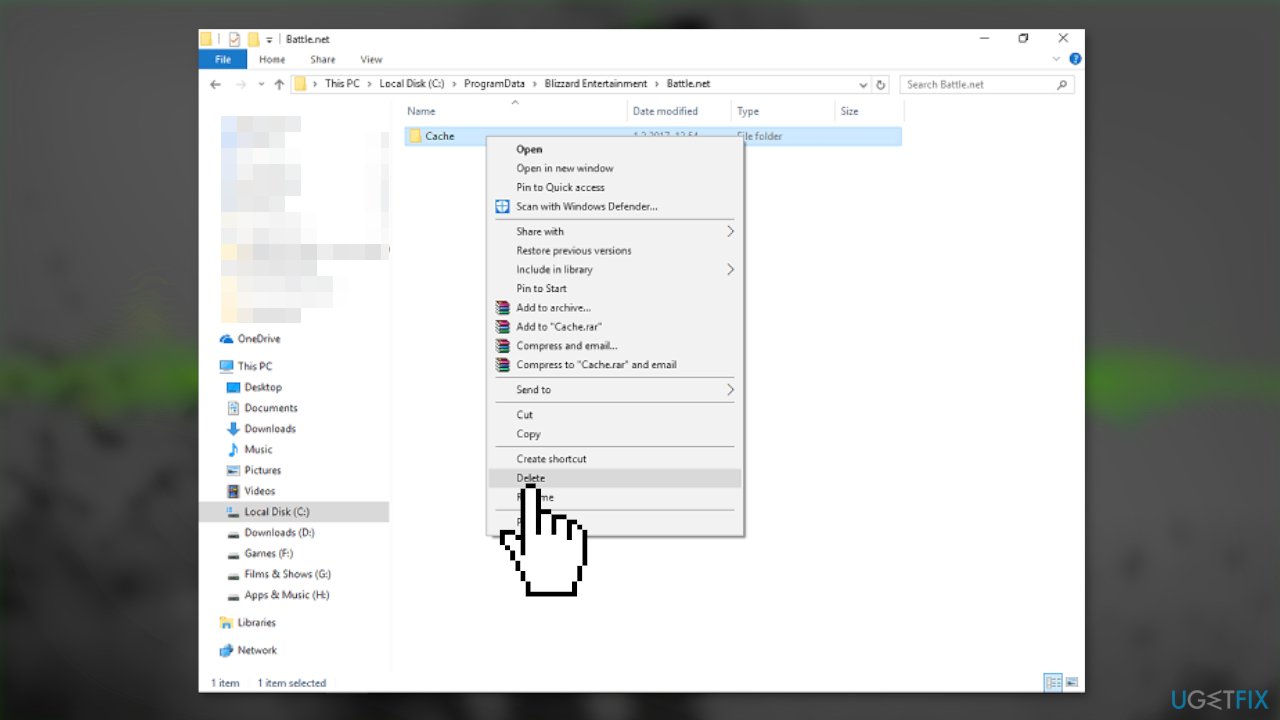
- Close the Battle.net application and all the related processes running in the background
- Press the Windows key + R to open the Run box
- Type %programdata% and press Enter
- Look for the folder named Blizzard Entertainment and open it
- Open the Battle.net subfolder and delete the Cache folder inside
- Reopen the Battle.net launcher and see if the issue is fixed
Solution 4. Update Graphics Driver
- Open Device Manager and expand the Display Adapters tab
- Right-click on your graphics driver and select Properties
- Go to the Driver tab and click on Update Driver
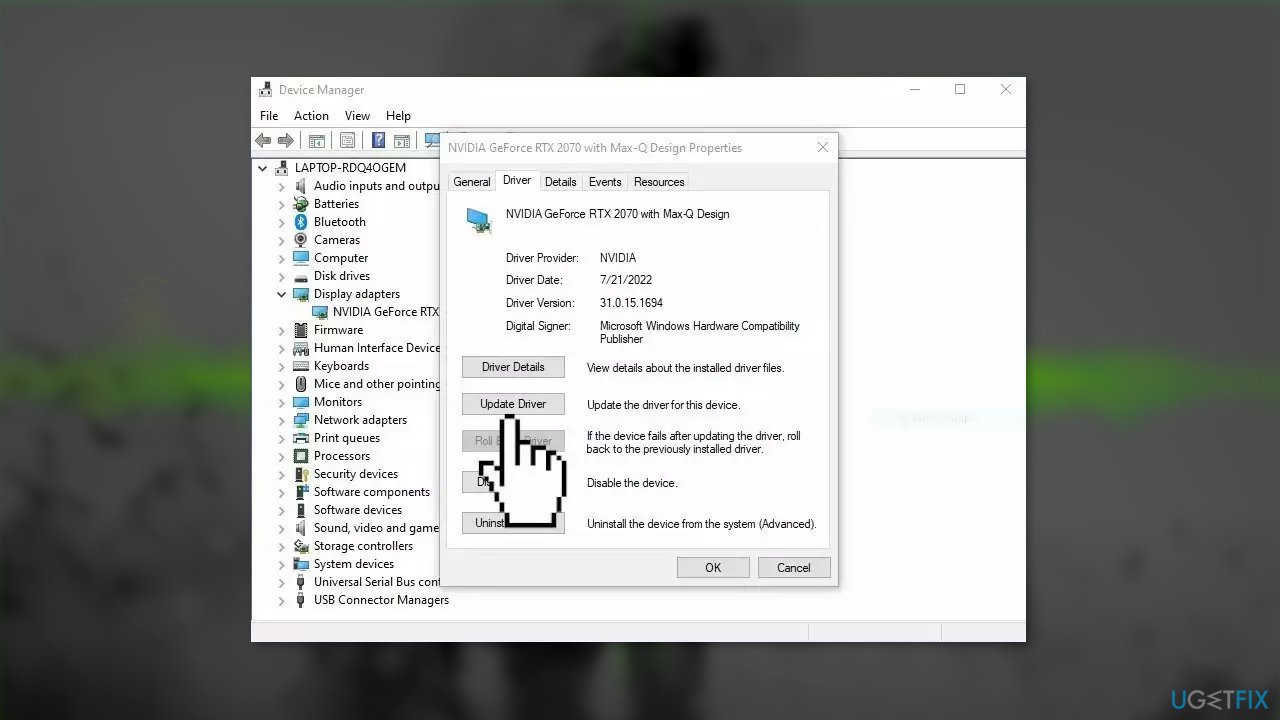
- Press on Search Automatically for Drivers
- If a graphic driver update is available, install it and then restart your PC
- Upon restart, launch the Modern Warfare game and check if it fixed the issue.
- You may also use a dedicated utility like [rev id="DriverFix"] that ca find the best drivers for your machine and install them automatically
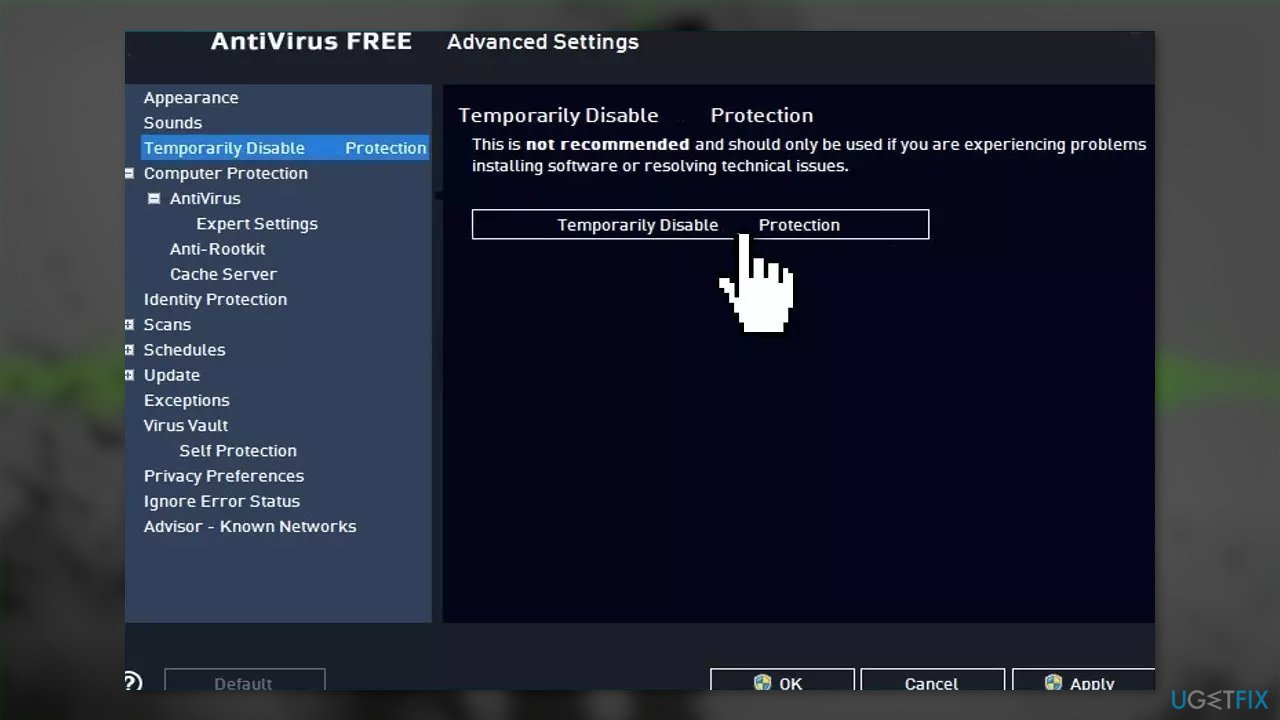
Solution 5. Disable Third-Party Antivirus
Sometimes antivirus software can block legitimate processes mistakenly. You should try disabling your antivirus and trying to launch Modern Warfare 2 again.
Solution 6. Allow Modern Warfare through Windows Firewall
- Press the Windows key on your keyboard to open the Start menu
- Type Security and enter
- Navigate to the Firewall & Network Protection section
- Select the Allow an app through firewall option
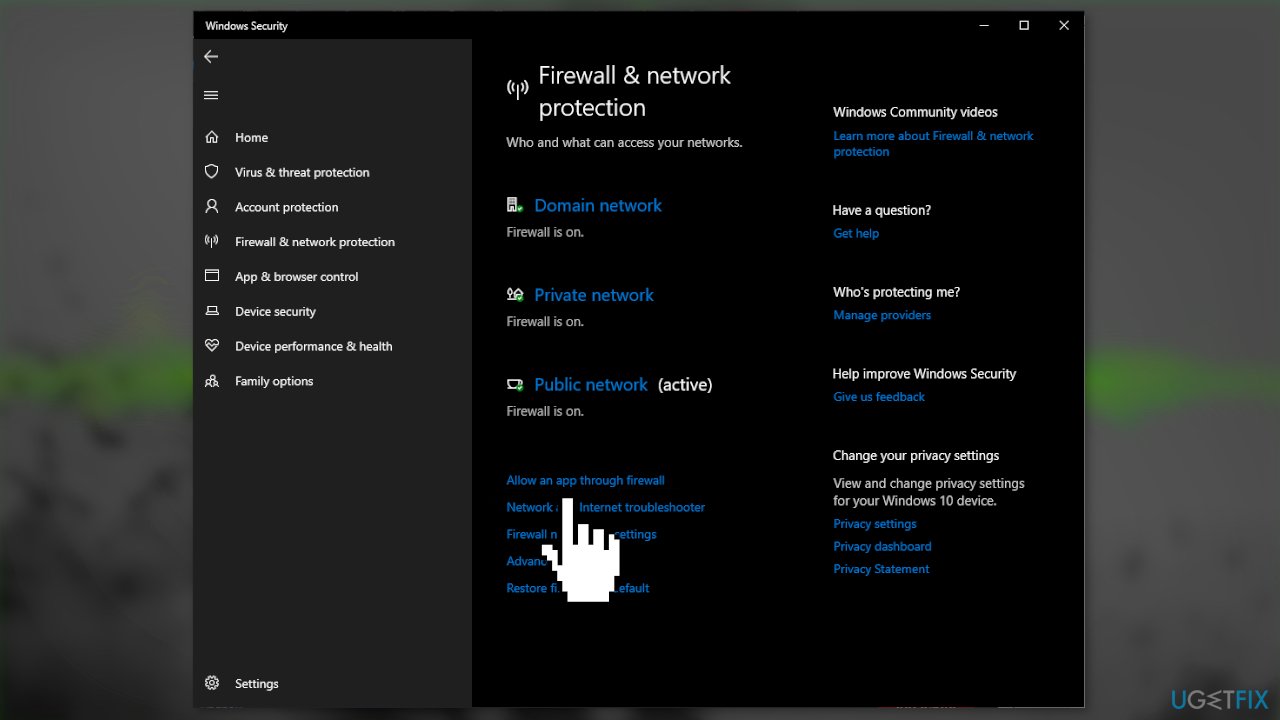
- In the Allowed Apps menu, press on Change settings
- Click Allow another app… at the bottom right
- Locate the .exe file of Modern Warfare 2 using File Explorer and double-click on it
- Put a checkmark next to the Modern Warfare .exe file
- Also, put a checkmark next to the Steam/Battle.net launcher
- Click OK
Solution 7. Install DirectX 12
- Open your browser and head to the official Microsoft website
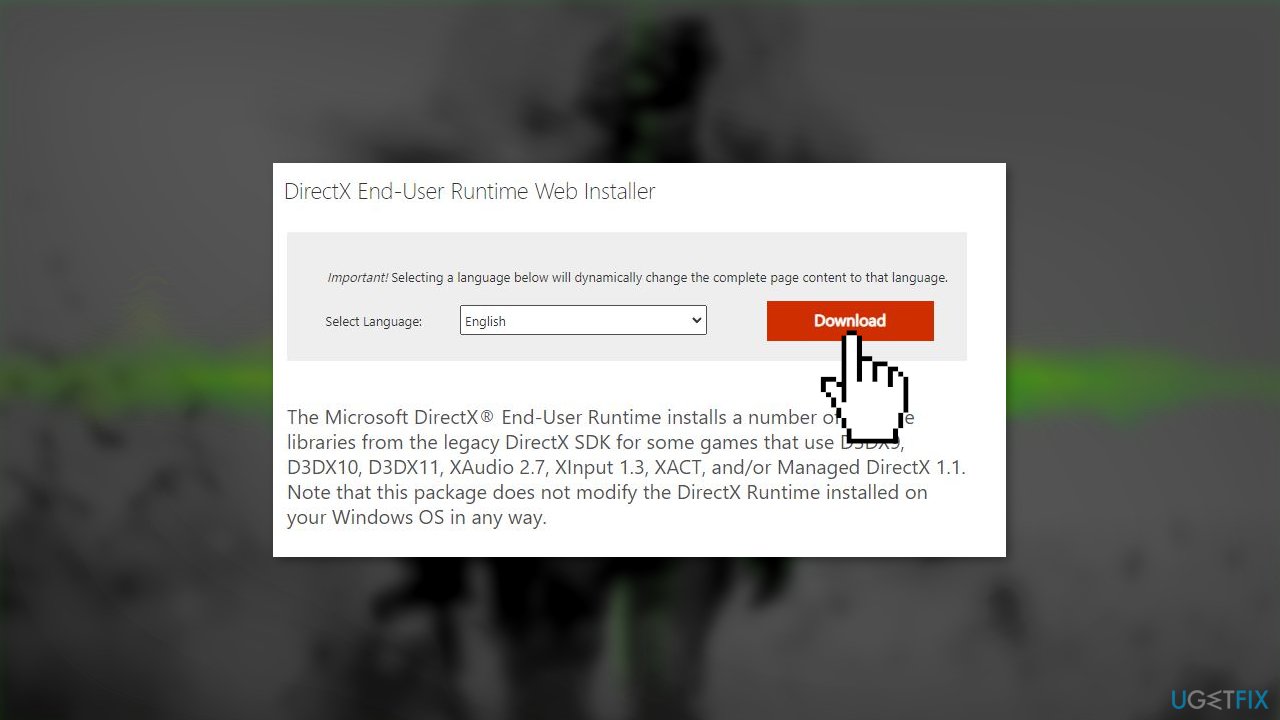
- Click on the Download button
- After it finishes downloading, right-click the file and select the Run as administrator option
- Click on I accept the agreement
- Click on Next
- Wait for the installation to finish and restart your PC
Solution 8. Update Microsoft Visual C++ Redistributable
- Go to the official Microsoft website
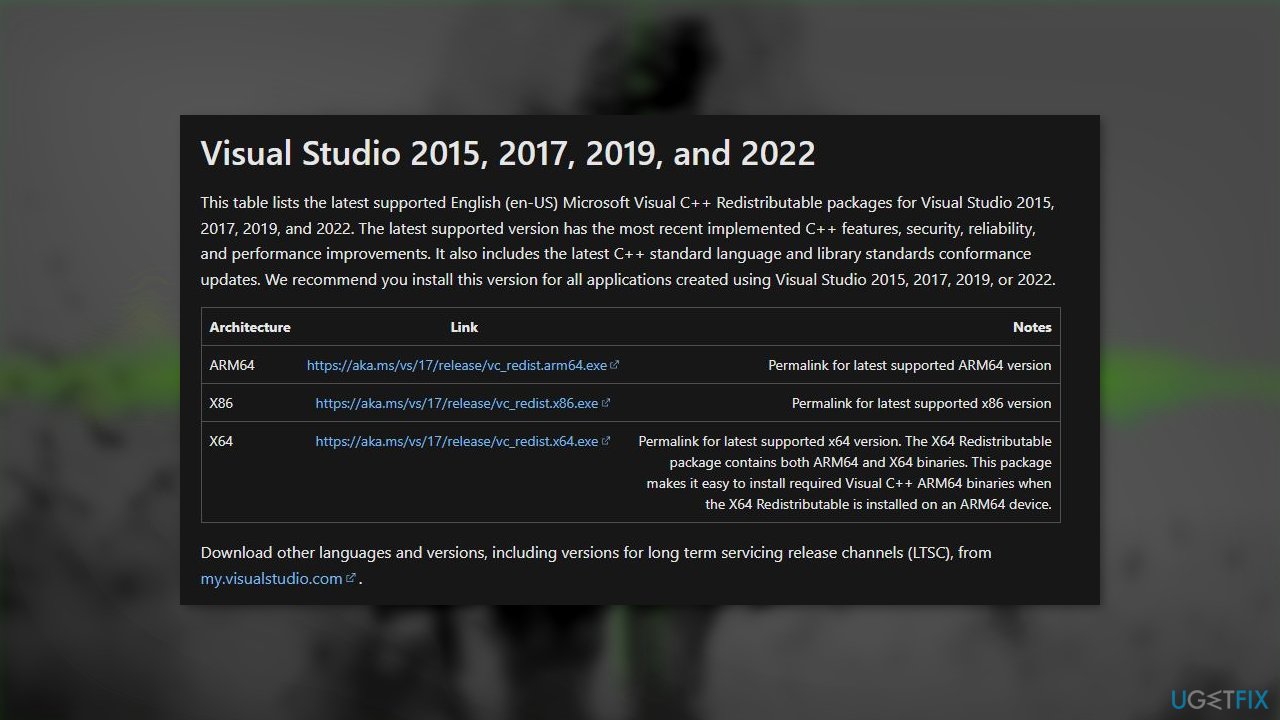
- Under the Visual Studio 2015, 2017, 2019, and 2022 section click on the link to download the installer file
- If you have a 32-bit processor, download the file with the x86 architecture
- If you have a 64-bit processor, download the x64 and x86 architecture files
- Open the downloaded file and select the Run option when the Security Warning appears
- Put a checkmark next to I agree to the license terms and conditions
- Click on Install
- Click Yes when asked whether you want to allow the installer to make changes to your device
- Wait for the installation to finish
Solution 9. Disable In-game Overlays
Steam:
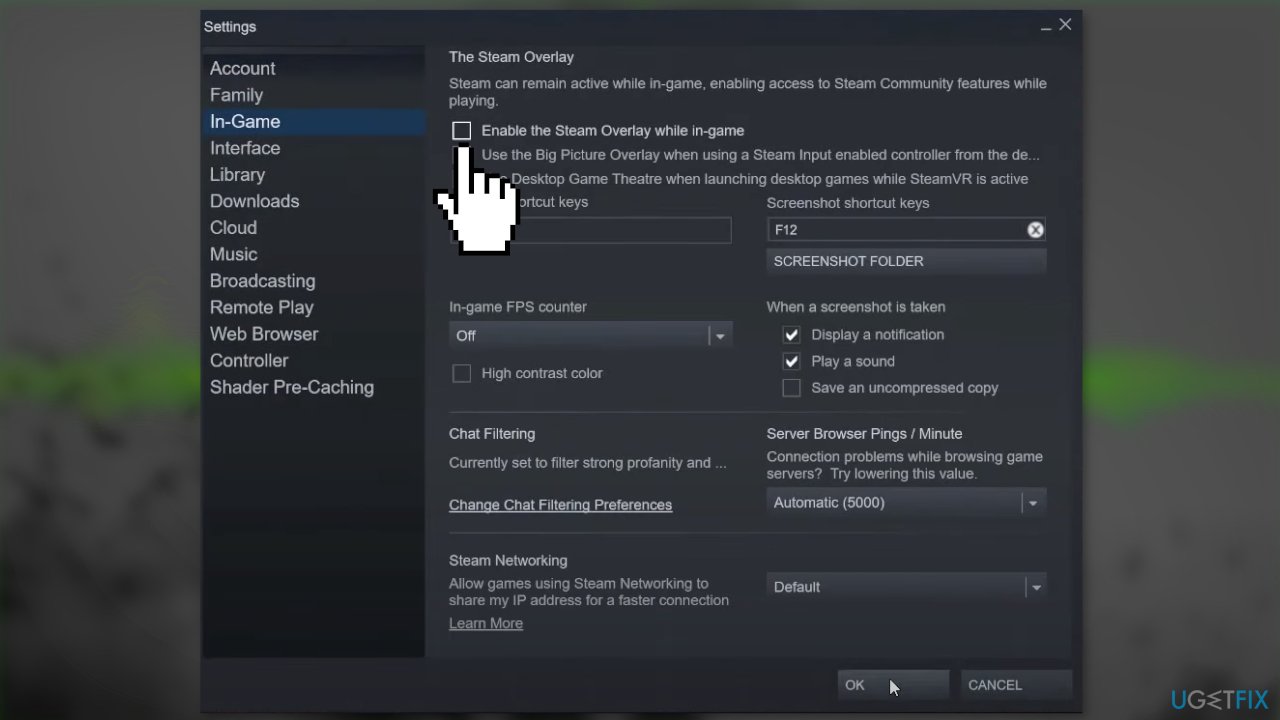
- Open the Steam app and go to the Settings
- Navigate to the In-Game tab and untick the Enable the Steam Overlay while in-game checkbox
Discord:
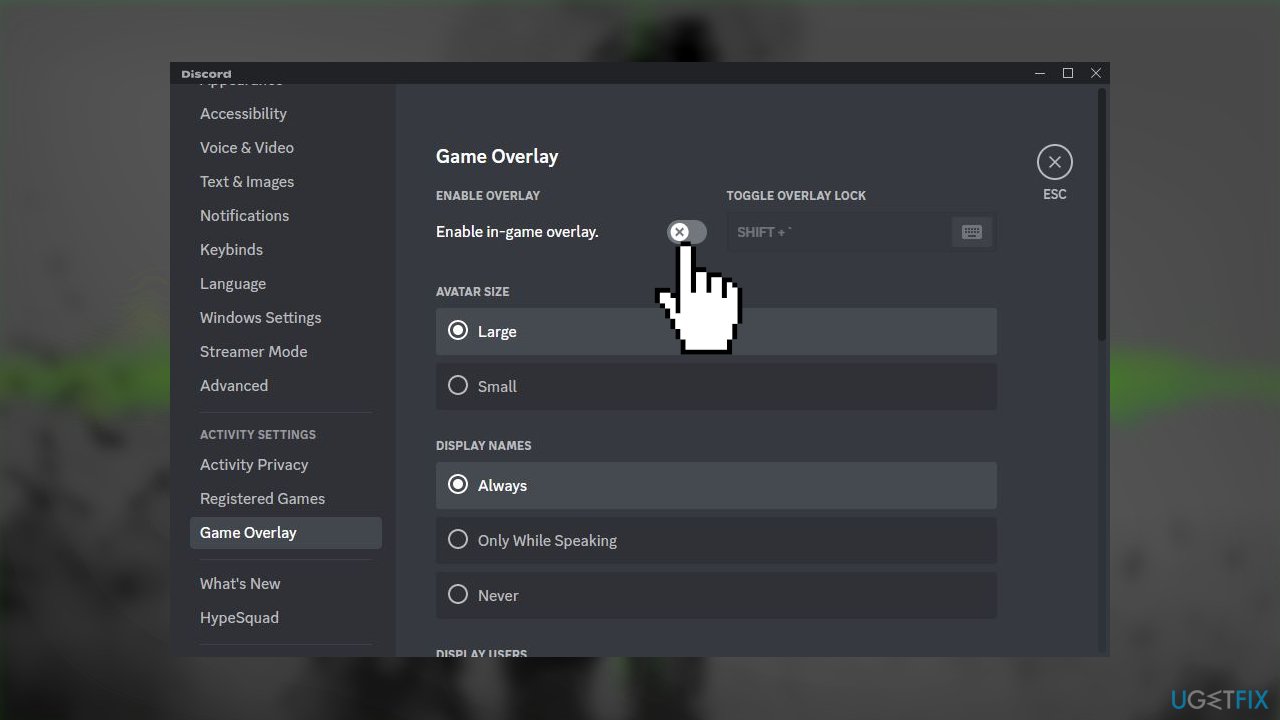
- Open your Discord app and press the User Settings (gear icon) button
- Locate the ACTIVITY SETTINGS section and move to the Game Overlay option
- Disable the Enable in-game overlay toggle from the right-side pane
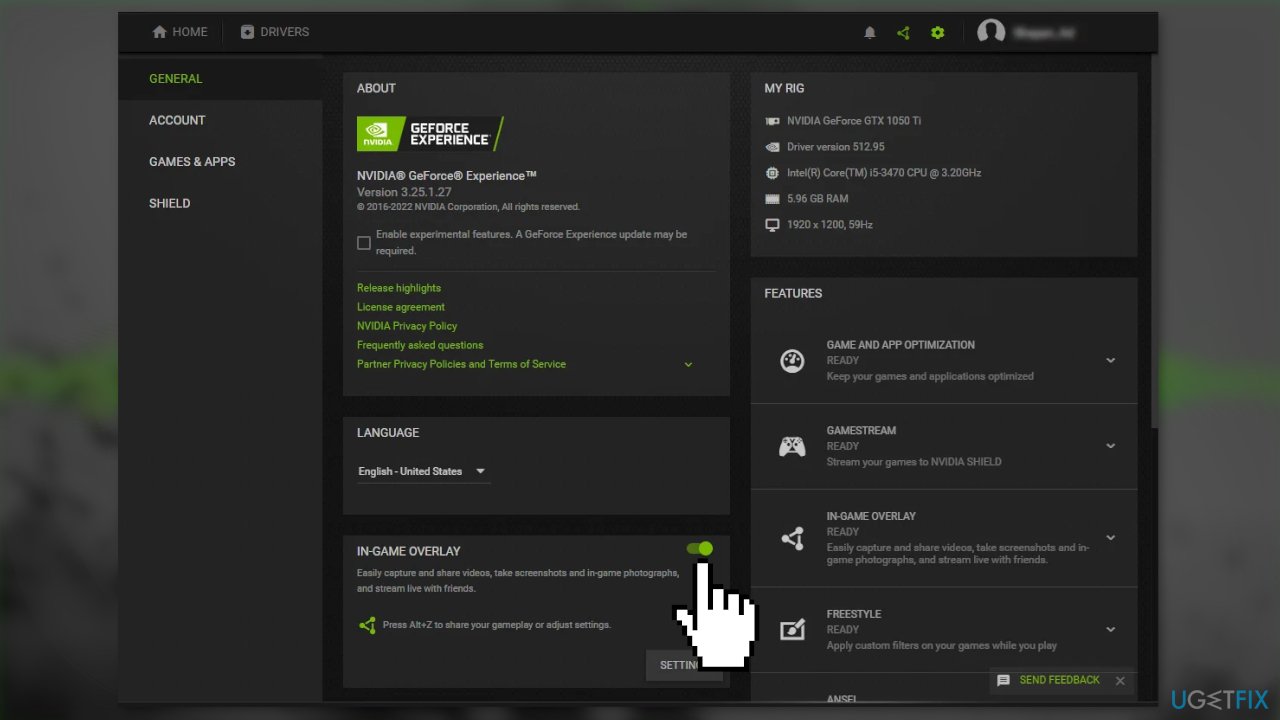
NVIDIA GeForce Experience:
- Open the GeForce Experience application and click on the gear-shaped icon from the menubar
- From the General section, disable the toggle associated with the In-Game Overlay option
Solution 10. Reinstall Modern Warfare 2
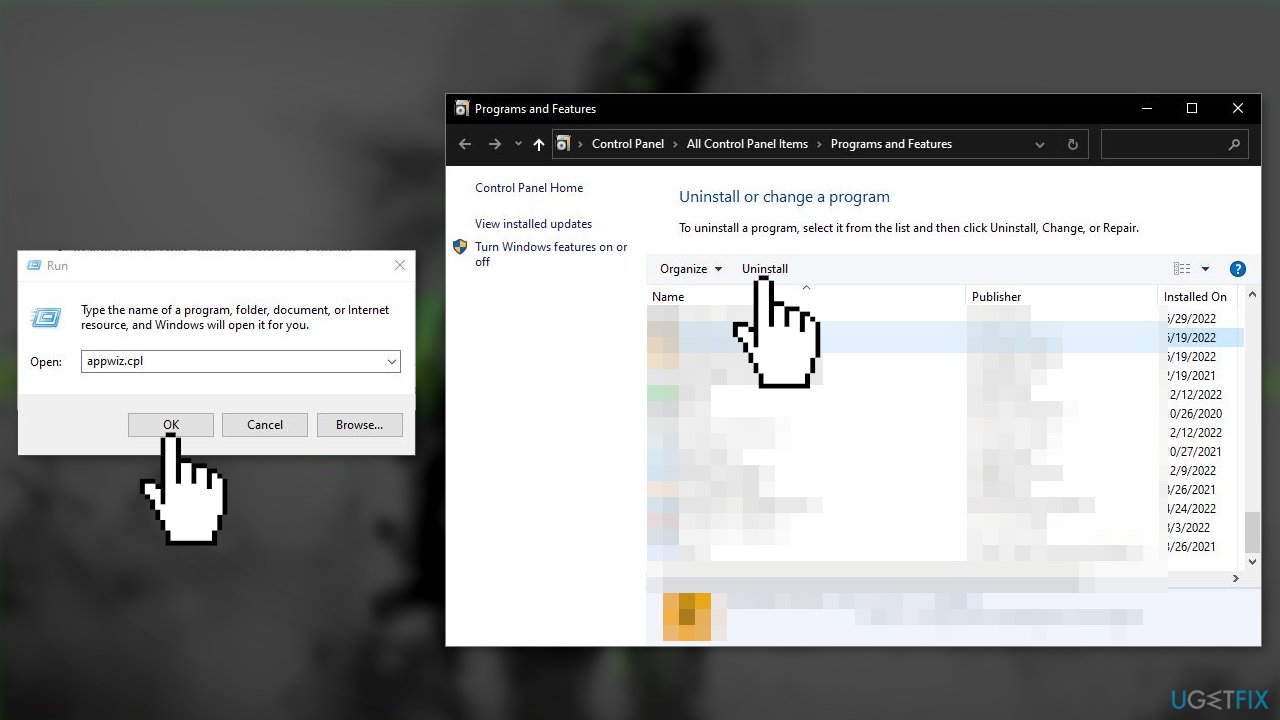
- Press Windows Key + R to open the Run box
- Type appwiz.cpl, and press Enter
- In the list of programs, look for Modern Warfare 2
- Right-click on Modern Warfare 2
- Select Uninstall and wait for the process to finish
- Install Call of Duty: Modern Warfare 2 again
Bottom line
To fix the 0x00001338 error in Call of Duty: Modern Warfare 2, you can try verifying the integrity of game files, clearing the Battle.net cache, and updating your GPU drivers. If these solutions do not resolve the issue, consider using a maintenance tool to address system errors or seek further assistance.
Frequently asked questions
The 0x00001338 error often occurs due to corrupted game files, outdated graphics drivers, or network issues affecting game connectivity on Windows 10.
You can repair corrupted game files by launching the Battle.net client, selecting the game, clicking on Options, and then selecting 'Scan and Repair' to fix any issues on Windows 11.
Yes, ensuring that your graphics drivers and Windows updates are current can help resolve the 0x00001338 error, as outdated drivers may lead to compatibility issues.




Report an issue
What's wrong with this guide? We review every report and update or remove content.
Report received — thank you. We'll review and fix it.
You need a free account to submit a report.
Be the first to comment