How to fix
0x80030001 error when copying files
on Windows
Resolve the 0x80030001 error in Windows 10 and 11 with expert-tested solutions that ensure smooth file copying. Fixed in minutes!


What causes How to fix 0x80030001 error when copying files in Windows?
- File transfer interrupted
- Incompatible USB cable
- Incorrect file location
- Insufficient storage space on PC
- Device not recognized by Windows
Repairs Windows system files, removes malware, and restores a clean OS state — without reinstalling.
Hello. When I try to copy files from my phone to my Windows PC I get the 0x80030001. How do I fix it?
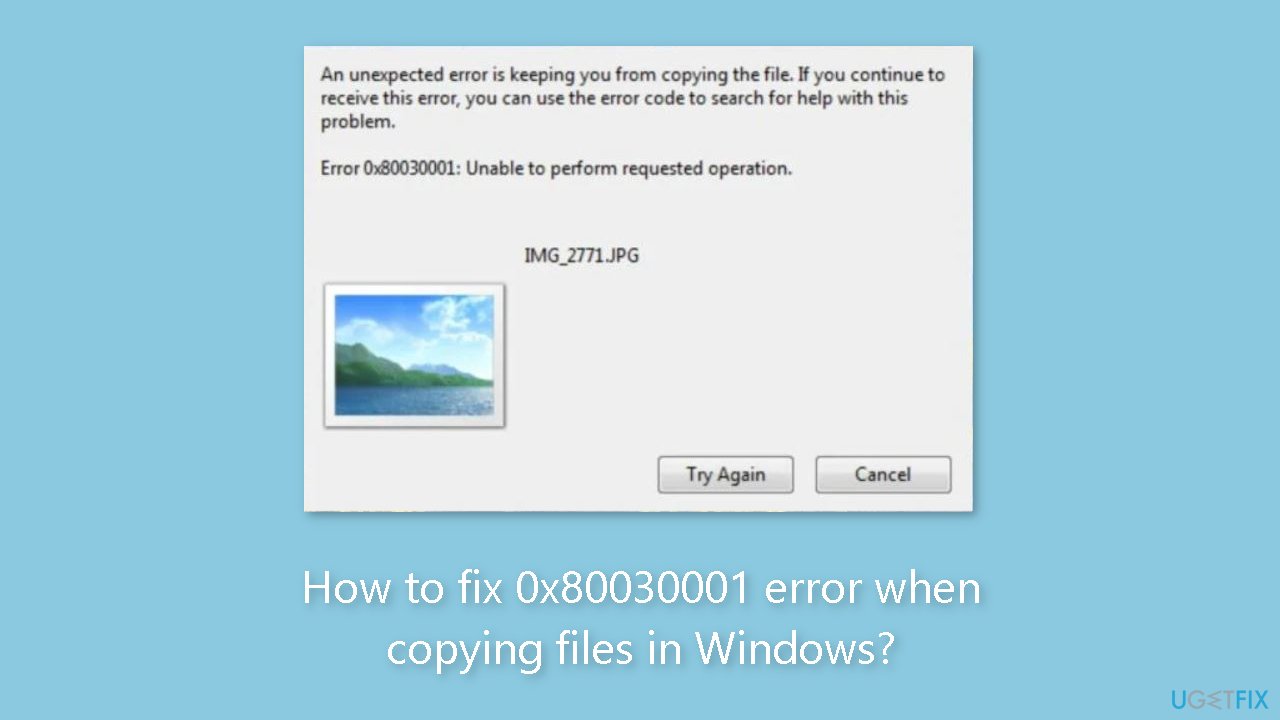
When attempting to copy files from their mobile phone storage to their Windows PC, Windows users may encounter the 0x80030001 error. The error message is usually "0x80030001: Unable to perform a requested operation." Windows is unable to complete the requested file copying operation, as indicated by the error code.
This problem may have a significant impact on users who rely on file transfers between their mobile devices and their PCs. It may hinder productivity and cause frustration, especially when users need to back up important media files, transfer documents, or simply organize their files.
The inability to copy files can cause problems with a variety of activities. For example, the 0x80030001 error prevents users from transferring photos or videos from their phone to their PC for editing, sharing, or storage. Individuals who frequently transfer documents, music files, or other media types may also encounter difficulties in their daily workflow.
Furthermore, users who need to free up storage space on their mobile devices by transferring files to their PC may be affected by this error. Users may find it difficult to effectively manage their device's storage without the ability to copy files, potentially leading to cluttered storage and decreased performance.
Following the step-by-step instructions provided can help resolve the 0x80030001 error while copying files in Windows. Users can avoid the error and successfully copy the desired files by using File Explorer and specific techniques, such as accessing the file's actual location and copying it from there. These detailed instructions walk users through the process, ensuring that they are able to overcome the 0x80030001 error and complete the file copying operation without interruptions.
- Start by plugging your smartphone into your Windows PC using a compatible USB cable.
- To open File Explorer, simultaneously press the Windows key + E on your keyboard.
- In the left pane of the File Explorer window, you will see a section labeled This PC. Click on it to select it.
- Look for your mobile phone or any other device you have connected to your PC. These devices will be listed under the Devices and drives section.
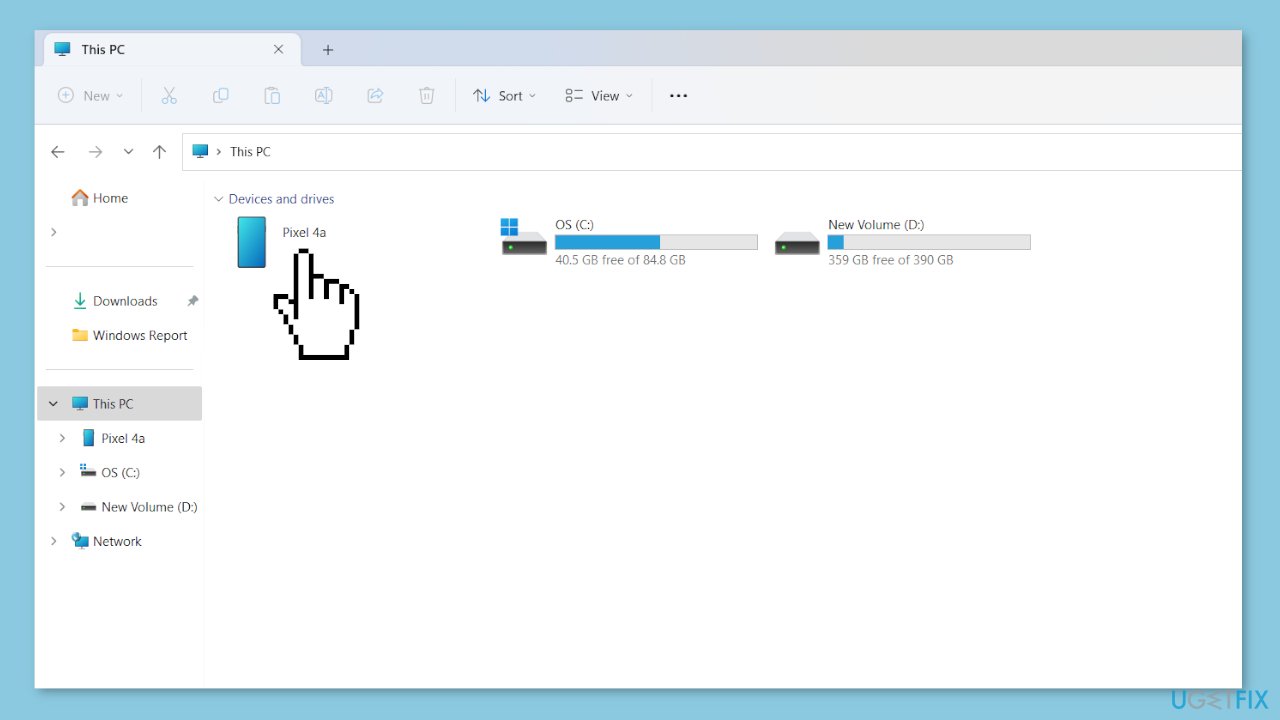
- Once you have located your device, click on it to access its contents. This will display the files and folders stored on your phone.
- To quickly locate a specific media file, such as an image or audio file, use the search bar located at the top right corner of the File Explorer window.
- Click on the search bar and type the name of the file or its file extension. For example, if you are looking for an mp3 file, type *.mp3.
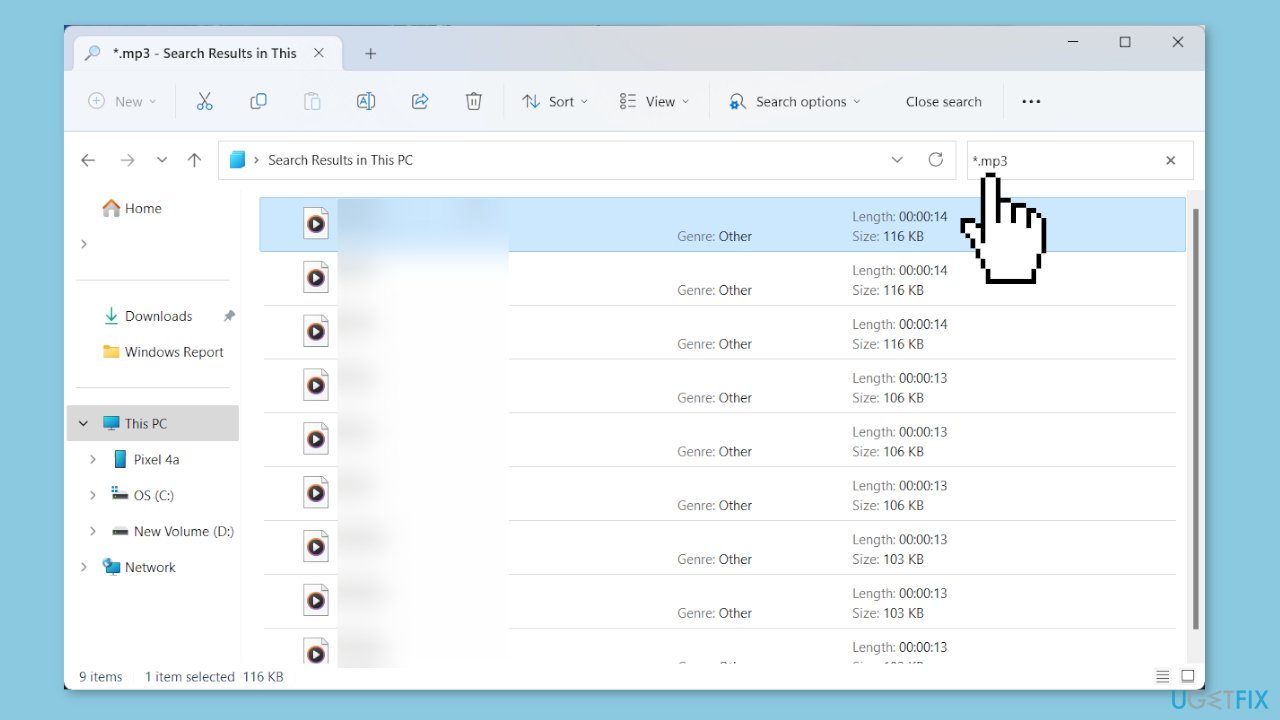
- As you type, File Explorer will start filtering the files based on your search criteria. Review the search results to find the desired media file.
- Once you have found the file you want to copy, do not copy it directly from the search results. Instead, right-click on the file.
- From the context menu that appears, select Open file location. This will take you to the actual folder where the file is located on your phone.
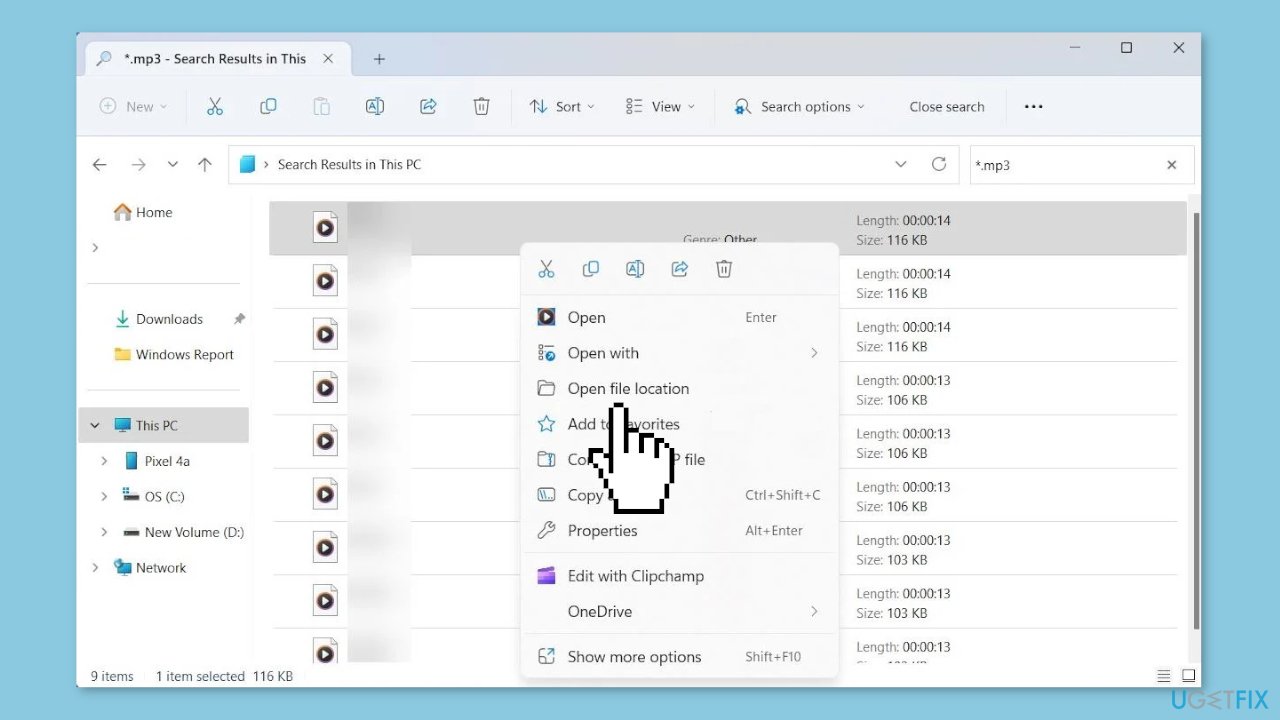
- You will now see the file in its original folder. Right-click on the file and choose the Copy option from the context menu.
- Now, navigate to the folder location on your Windows PC where you want to paste the file. You can do this by clicking on the appropriate folders in the left pane of File Explorer.
- Once you have reached the desired folder location, right-click inside the folder and select the Paste option from the context menu. Alternatively, you can use the Ctrl + V shortcut on your keyboard to paste the file.
- The file will be copied from your phone and pasted into the selected folder on your Windows PC.
If you experience any other operating system issues, you can use a maintenance tool like [d1] that can fix most system errors, BSODs,[ref en-1] corrupted files, and registry[ref en-2] issues.
Bottom line
To fix the 0x80030001 error, ensure your smartphone is properly connected, use a compatible USB cable, and access the correct file location. If the issue persists, check for sufficient storage space on your PC and ensure your device is recognized by Windows. If none of these solutions work, consider seeking further technical assistance.
Frequently asked questions
The 0x80030001 error indicates a problem with file access, often due to corrupted files or issues with the file system. This can prevent successful copying of files to your desired location.
To troubleshoot the 0x80030001 error in Windows 11, you can run the built-in Check Disk tool to scan and repair file system issues. Additionally, ensure that your files are not being used by another program and check for any permissions issues.
Yes, if you're encountering the 0x80030001 error while copying files from external drives in Windows 10, try reconnecting the drive or using a different USB port. Also, ensure that the drive is functioning properly by checking it for errors using the Disk Management tool.




Report an issue
What's wrong with this guide? We review every report and update or remove content.
Report received — thank you. We'll review and fix it.
You need a free account to submit a report.
Be the first to comment