How to fix
0x80042304: The volume shadow copy provider is not registered error
on Windows
Resolve the 0x80042304 volume shadow copy error in Windows 10 and 11 effortlessly. Follow our expert-tested guide for quick solutions and zero traces left.

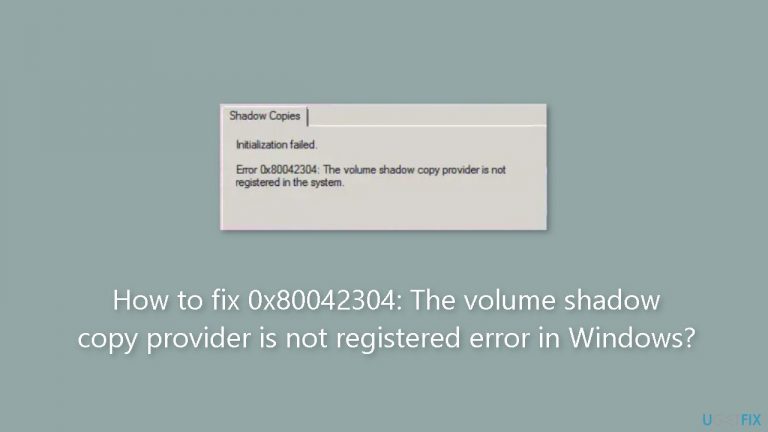
What causes How to fix 0x80042304: The volume shadow copy provider is not registered error in Windows?
- VSS provider not registered
- Issues with VSS components
- VSS service not active
- Software incompatibilities
- Driver problems
Repairs Windows system files, removes malware, and restores a clean OS state — without reinstalling.
Hello. I get the "Error 0x80042304: The volume shadow copy provider is not registered in the system" error. What should I do? Any tips would be appreciated.
The Volume Shadow Copy Service (VSS) in Windows operating systems frequently encounters the "0x80042304: The volume Shadow copy provider is not registered" error. This error often means that the VSS provider, which is in charge of managing and producing shadow copies of files and volumes for backup and system restoration purposes, is having issues. When this problem happens, it can affect users and system functionality in a number of different ways.
First off, users who depend on the backup and system restore tools may be seriously harmed by this issue. The ability to create backups and roll back individual files or a whole system depends on shadow copies. When the VSS provider is not registered or has a problem, it may lead to unsuccessful backups or the inability to restore files, which could result in data loss or make it impossible to fix system problems.
The "0x80042304" error may also have an effect on the performance and stability of the system. A number of system operations, including backup software, Windows Backup and Restore, and even some third-party apps that rely on VSS for data protection, depend on the Volume Shadow Copy Service. System inefficiency, freezes, or crashes might result from a malfunctioning VSS provider, interfering with user experience and productivity.
Users may need to think about other ways in order to resolve this problem. Re-registering the VSS components and accompanying DLL files is one option, which frequently solves problems with the VSS provider. Additionally, making sure the VSS service is active and set to "Automatic" can aid in avoiding recurrences of the problem. Checking for software incompatibilities or driver problems that can obstruct VSS functionality may also be necessary.
In this guide, you will find 2 steps that should help you fix 0x80042304: The volume Shadow copy provider is not registered error in Windows. You can also run a system repair tool like [d1] that can fix most system errors, BSODs, corrupted files, and registry issues. Otherwise, follow the step-by-step instructions below.

Method 1. Re-register the Volume Shadow Copy Provider or VSS DLL Files
- Launch the Command Prompt through Windows Search or the Run command box.
- Type the following commands one by one and press Enter after typing each command:
cd /d %windir%\system32
Net stop vss
Net stop swprv
regsvr32 ole32.dll
regsvr32 oleaut32.dll
regsvr32 vss_ps.dll
vssvc /register
regsvr32 /i swprv.dll
regsvr32 /i eventcls.dll
regsvr32 es.dll
regsvr32 stdprov.dll
regsvr32 vssui.dll
regsvr32 msxml.dll
regsvr32 msxml3.dll
regsvr32 msxml4.dll
Net start swprv
Net start vss

- After completing the above steps, you can proceed to perform the backup operation or configure the Shadow Copies. The error should not occur this time.
Method 2. Copy the Required Registry Files
- Open the Registry Editor.
- Copy the below path and paste it into the address bar of the Registry Editor, and hit Enter:
HKEY_LOCAL_MACHINE\SYSTEM\CurrentControlSet\Services\VSS\Providers
- Now, expand the Providers key.
- You will see some values under that key. Further expanding this value, you will see the CLSID key. For example, the subkey {b5946137-7b9f-4925-af80-51abd60b20d5} under the Providers key should contain the following values on the right side:
String Value - (Default) with the Value data Microsoft Software Shadow Copy provider 1.0.
DWORD (32-bit) Value - Type with the Value data 1.
String Value - Version with the Value data 1.0.0.7.
String Value -Version Id with Value data {00000001-0000-0000-0007-000000000001}.

- When you select the CLSID folder, it should show the (Default) String Value with the Value data {65EE1DBA-8FF4-4a58-AC1C-3470EE2F376A}.
- Open another healthy computer and navigate to the above-mentioned path in the Registry Editor.
- Now, export the same Registry subkey from that computer and move that key to your USB flash drive. In our example, the subkey is {b5946137-7b9f-4925-af80-51abd60b20d5}. It may be the same or different in your case.
- Connect the USB flash drive to your computer and double-click on the Registry file that you have exported from the healthy computer.
- Click Yes to merge that Registry file into your Registry.
- If the subkey {65EE1DBA-8FF4-4a58-AC1C-3470EE2F376A} is the same on your computer and its values are missing, you can also create the above-mentioned values manually.
Bottom line
To fix the 0x80042304 error, you can re-register the VSS components and ensure the VSS service is set to 'Automatic'. Additionally, check for any software or driver issues that may be affecting VSS functionality. If these steps do not resolve the issue, consider running a system repair tool.
Frequently asked questions
The 0x80042304 error typically occurs due to issues with the Volume Shadow Copy Service (VSS) not functioning correctly or because the VSS provider is not registered properly.
You can register the Volume Shadow Copy provider by running the command 'vssadmin list providers' in Command Prompt with administrative privileges and then executing 'sc config vss start= auto' followed by 'net start vss'.
Yes, ensuring that your Windows 10 or Windows 11 system is up to date with the latest patches can help resolve underlying issues with the Volume Shadow Copy Service.




Report an issue
What's wrong with this guide? We review every report and update or remove content.
Report received — thank you. We'll review and fix it.
You need a free account to submit a report.
Be the first to comment