
How to fix 0x80042444 - 0x4002F error when installing Windows 11 version 24H2?

Prefer to fix it yourself? The manual steps follow.
- 8methods
- 5 minutes to 1 hour
- Intermediate
Applies to Windows 11 24H2, 25H2 and 26H2 Setup: clean installs from a USB stick, and upgrades started with setup.exe from an ISO
8 methods in this guide
- What the error means
- Why it appears
- Where the cause is written
- The fixes
- 1. Use the previous Setup
- 2. Disconnect other drives
- 3. Fix a dynamic disk
- 4. RAID and VMD storage
- 5. Make a new USB stick
- 6. Wipe the target drive
- 7. Run Setup inside Windows
- 8. Check the drive
- If it is still there
- Keep it from coming back
- FAQ
Hey, I'm trying to install Windows 11 version 24H2 and I keep getting this error code 0x80042444 - 0x4002F during the installation process from a USB. I've tried different USBs and even re-downloaded the installer, but nothing seems to work. I tried to look it up online, but most of the results are written in languages I don't understand.
Error 0x80042444 - 0x4002F stops the new Windows 11 Setup when it scans the drives, usually right after you boot from a USB stick. The first code is a Virtual Disk Service error that means a group of dynamic disks is offline. Select Previous version of Setup first, then unplug every drive except the one you install to.
On the Select setup option screen, select Previous version of Setup in the lower left corner and install with the older Setup (Fix 1). Most readers who report the error get past it this way. If it comes back, shut down, disconnect every drive except the one you install to, and try again (Fix 2). A dynamic or Foreign disk is the most likely cause, because 0x80042444 means "the pack is offline".
| Error | Windows installation encountered an unexpected error. Error code: 0x80042444 - 0x4002F in the Windows 11 Setup window. |
|---|---|
| Where it appears | In the new Windows 11 Setup, after you choose the language and accept the license, when Setup looks for drives to install to. Less often when you run setup.exe from an ISO inside Windows. |
| Main cause | Setup's disk scan hits a dynamic disk group it cannot bring online. Microsoft lists 0x80042444 as VDS_E_PACK_OFFLINE, "The pack is offline." Foreign dynamic disks, old Windows software RAID and RAID or VMD storage without its driver are the usual sources. |
| Fastest fix | Previous version of Setup on the Select setup option screen (Fix 1). Then disconnect the other drives (Fix 2). |
| Also written as | 0x80042444-0x4002F, 0x80042444 0x4002f, error code: 0x80042444 - 0x4002f. Related codes in the same window: 0x8004240B - 0x4002F, 0x80070001 - 0x4002F and 0x80070005 - 0x4002F. |
| Affects | The new Setup that Microsoft introduced with Windows 11 24H2 media. The current media on Microsoft's download page is Windows 11 version 26H2. |
| Microsoft's status | Not a listed known issue. We read the 24H2 and 25H2 release health pages on 14 October 2026: neither mentions this code or a Setup disk problem. |
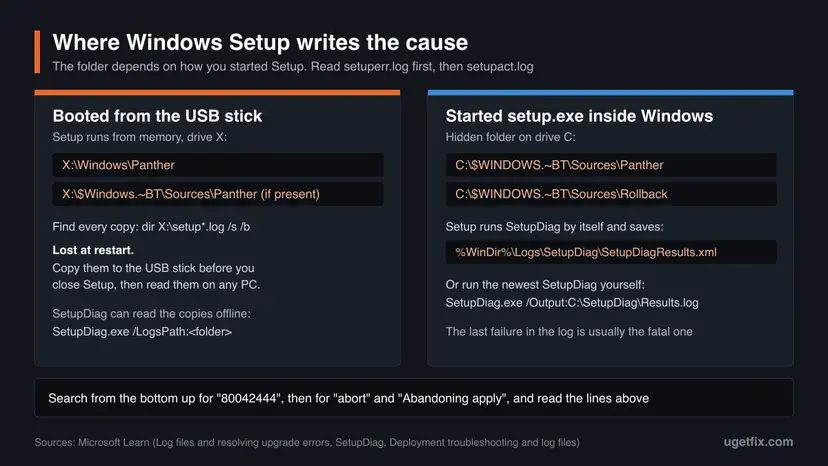
| Where the cause is written | setuperr.log and setupact.log in X:\Windows\Panther while Setup runs from the USB stick, or in C:\$WINDOWS.~BT\Sources\Panther after an upgrade attempt from inside Windows. SetupDiag reads both. |
| Time to fix | 5 minutes for Fix 1 and Fix 2. 15 to 30 minutes for Fix 3 to Fix 6. About an hour for a full install after any of them. |
Facts checked on 14 October 2026. Steps written for Windows 11 Setup from 24H2, 25H2 and 26H2 installation media, and Windows 10 22H2 as the starting system.
What error code 0x80042444 - 0x4002F means
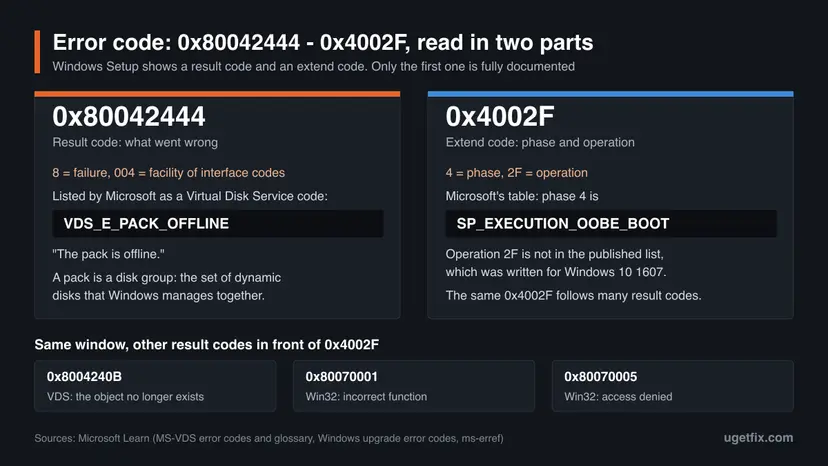
Windows Setup reports a failure with two codes joined by a dash. Microsoft's documentation of upgrade errors calls the first one the result code, which says what went wrong, and the second one the extend code, which says in which phase and operation it happened.
| Part | What Microsoft's documentation says | What it tells you |
|---|---|---|
| 0x80042444 | Listed in the Virtual Disk Service protocol as VDS_E_PACK_OFFLINE: "The pack is offline." | A pack is a disk group, the set of dynamic disks that Windows manages together. Setup asked for that group and it was not online. |
| 0x4002F | The first digit is the phase. In Microsoft's table, phase 4 is SP_EXECUTION_OOBE_BOOT. Operation 2F is not in the table, which stops at 20. | Microsoft says the table was written for Windows 10 version 1607 and might change. It does not describe the new Setup, so 0x4002F alone tells you little. |
| Windows installation encountered an unexpected error | The text of the new Windows 11 Setup window that shows both codes. | The same sentence appears with other result codes, so always read the first code. |
In a clean install the error appears before anything is copied, long before the out of box experience that phase 4 names. We found no Microsoft text that explains 0x4002F for the new Setup. Treat it as the new Setup's marker for a failure, and use the first code to choose the fix.
Other result codes appear in the same window with the same 0x4002F. The code 0x8004240B is also a Virtual Disk Service code, VDS_E_OBJECT_DELETED, with the text "The object no longer exists". The code 0x80070001 is the Windows error "Incorrect function", and 0x80070005 is "Access is denied". The fixes below are written for 0x80042444 and 0x8004240B, the two disk codes. Fix 5 covers 0x80070001.
Why Windows 11 Setup stops with 0x80042444 - 0x4002F
Microsoft has not published a cause for this code in Setup. The ranking below joins what the code means in Microsoft's disk documentation with what users report on Microsoft Q&A, Reddit and the Ventoy issue tracker. Each cause points to a fix.
| Cause | How often | How to tell | Fix |
|---|---|---|---|
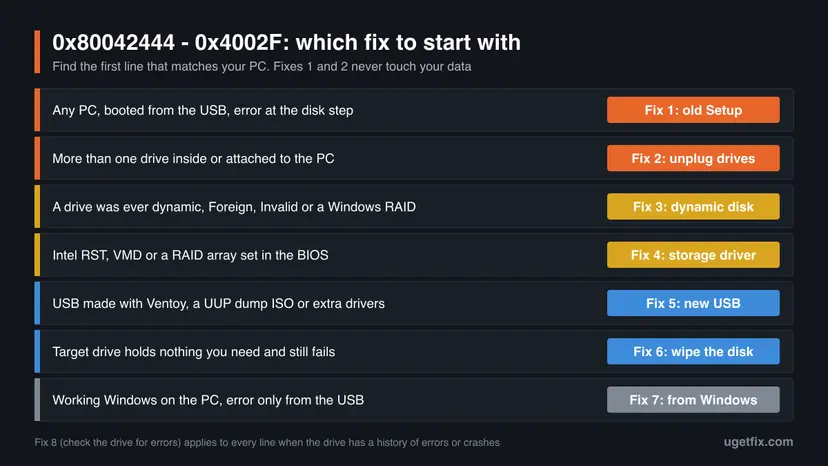
| The new Setup fails on a disk layout that the older Setup handles. | Most often reported | Any PC. The error appears at the disk step and the older Setup gets past it. | Fix 1 |
| A second drive is a dynamic disk, a member of an old software RAID, or marked Foreign. | Often | The PC has more than one drive, or a drive came from another PC. list disk shows a star in the Dyn column. | Fix 2, Fix 3 |
| Intel RST or VMD storage, or a RAID array made in the BIOS, without its driver in Setup. | Sometimes | Intel 11th generation or later, or a RAID 0 or RAID 1 array of NVMe drives. | Fix 4 |
| The USB stick was made with a multi-boot tool, a modified ISO or extra drivers. | Sometimes, mostly with 0x80070001 | Ventoy, an ISO from UUP dump or Tiny11, or a $WinPEDriver$ folder on the stick. | Fix 5 |
| Leftover partitions or damaged metadata on the target drive. | Less often | The drive was used in a NAS, a RAID or another operating system. | Fix 6 |
| File system errors or a failing drive. | Rarely | The PC crashed or lost power often, or the drive reports errors. | Fix 8 |
The reader above tried other sticks and a new download. That fits the first three causes: the fault is in how Setup sees the drives inside the PC, not in the stick. Only the fourth cause lives on the stick.
Where setupact.log, setuperr.log and SetupDiag show the real cause
You do not need the logs for Fix 1 and Fix 2. Read them when those two did not help, because the lines before the error name the disk or volume Setup tripped over. Microsoft calls setupact.log the most useful Setup log and says to review setuperr.log first, then setupact.log.
| How you started Setup | Where the logs are | What to know |
|---|---|---|
| Booted from the USB stick | X:\Windows\Panther, and on some media also X:\$Windows.~BT\Sources\Panther | Microsoft says Setup writes logs into memory until the drive is formatted, and that these logs are temporary. They are gone after a restart. |
Ran setup.exe inside Windows | C:\$WINDOWS.~BT\Sources\Panther, and C:\$WINDOWS.~BT\Sources\Rollback after a rollback | The folder is hidden. Turn on hidden items in File Explorer or type the path in the address bar. |
| Either way | SetupDiag result: %WinDir%\Logs\SetupDiag\SetupDiagResults.xml | Setup runs SetupDiag by itself after a failed upgrade. You can also run it yourself on copies of the logs. |
- Leave the error window open. Press Shift + F10 to open a command prompt. On some laptops you also hold Fn.
- List every Setup log in memory:
dir X:\setup*.log /s /b - Type
diskpart, thenlist volume, and note the letter of your USB stick. Typeexit. - Copy the logs to the stick. Replace
E:with its letter and the source folder with a path from step 2:mkdir E:\setuplogs copy X:\Windows\Panther\*.log E:\setuplogs - Type
notepad E:\setuplogs\setuperr.logto read it now, or open the copies later on any working PC. - In Notepad, press Ctrl + End, open Find with Ctrl + F, choose Up, and search for
80042444. Read the lines above the last hit.
- Each line has a time, a level such as Error, a component and a message. Microsoft names SP (setup platform), MIG and CONX as the most useful components.
- Search also for
Shell application requested abortandAbandoning apply due to error for object, the two strings Microsoft gives for finding the failing step. - Lines that name a disk number, a volume, a pack or VDS just above the code point to Fix 2, Fix 3 or Fix 6. A line about a driver or a storage controller points to Fix 4.
- We found no published log sample for 0x80042444. If nothing near the code names a disk, go through the fixes in order.
SetupDiag is Microsoft's tool that reads these logs and names the failure. On a working PC, download the newest version from Microsoft, open Terminal (Admin) in its folder and run SetupDiag.exe /Output:C:\SetupDiag\Results.log /LogsPath:E:\setuplogs for logs copied from the stick. Without /LogsPath it reads the logs of the PC it runs on. Microsoft notes that when several failures are found, the last one is usually the fatal one.
How to fix error 0x80042444 - 0x4002F in Windows 11 Setup
Fix 1 and Fix 2 change nothing on your drives and solve most cases. Fix 3 and Fix 4 deal with disk groups and storage drivers. Fix 5 rebuilds the USB stick. Fix 6 erases the target drive and comes late on purpose. Fix 7 avoids the disk step by starting Setup inside Windows, and Fix 8 checks the drive for errors.
| What you see or have | Start with |
|---|---|
| You booted from the USB stick and the error appeared at the disk step. | Fix 1 |
| The PC has two or more drives, or an external drive is plugged in. | Fix 2 |
| A drive was ever dynamic, part of a Windows mirror or stripe, or shows as Foreign. | Fix 3 |
| Intel VMD or RST is on, or the drives form a RAID array in the BIOS. | Fix 4 |
| The stick was made with Ventoy or from an ISO not downloaded from Microsoft, or the code is 0x80070001 - 0x4002F. | Fix 5 |
| The target drive holds nothing you need. | Fix 6 |
| A working Windows is on the PC and you want to keep your files. | Fix 7 |
Fix 1. Install with the previous version of Windows Setup
5 minutes, plus the installNo riskEveryone who booted from the USB stick and got the error at the disk step.
Since 24H2 the installation media starts a redesigned Setup, which Microsoft introduced in Insider build 26040. The same media still carries the older Setup, and users on Microsoft Q&A and GitHub report that it lists the drives where the new one fails with 0x4002F codes.
- Boot from the USB stick and choose your language, time and keyboard settings.
- On the Select setup option screen, select Previous version of Setup in the lower left corner. Older 24H2 media shows Launch the legacy experience as a third option instead.
- Select Next. The older Setup opens and asks for the language again.
- Select Install now, enter or skip the product key, choose the edition and accept the license terms.
- Choose Custom: Install Windows only (advanced).
- On Where do you want to install Windows?, select the partition or unallocated space on your target drive and select Next.
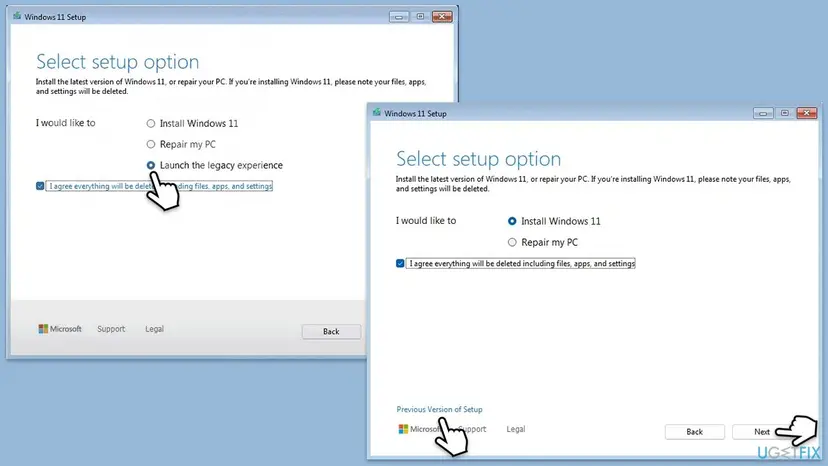
We could not confirm in Microsoft's documentation that every newer ISO keeps this link. If your media does not show it, go to Fix 2. The older Setup installs the same Windows version from the same media.
It worked if: The older Setup shows the familiar list of drives and partitions, and the install starts copying files after Next.
If not: If the older Setup shows an empty list or its own error, go to Fix 2. If it shows no drives at all, go to Fix 4.
Fix 2. Disconnect every drive except the one you install to
10 minutesNo riskThe PC has two or more drives, or a USB hard drive or memory card is plugged in.
0x80042444 says a disk group is offline, and Setup scans every drive it can see. A second drive that is dynamic, Foreign or half of an old mirror is the usual owner of that group. With the drive gone, Setup has nothing to stumble over.
- Shut down the PC and unplug it from power. On a laptop, also disconnect the charger.
- Unplug every external drive, memory card and USB hard drive except the installation stick.
- In a desktop, disconnect the data or power cable of each internal drive you are not installing to. Leave the target drive connected.
- On a laptop with two M.2 drives, either remove the second one or leave it and continue with Fix 3.
- Start the PC, boot from the USB stick and run Setup again.
- When Windows is installed and works, shut down and reconnect the other drives.
A user on Microsoft Q&A whose PC had several NVMe drives reports that disconnecting the extra drives, together with the older Setup, solved it. Microsoft's staff answer for a four-drive RAID 0 case also suggested a test on a single disk.
It worked if: Setup lists the one remaining drive and the install continues without the error.
If not: If the error comes back with only one drive connected, that drive itself is the problem: check it in Fix 3, then Fix 6.
Fix 3. Import or convert a dynamic or Foreign disk
15 to 30 minutesRead the warningA drive was ever dynamic, part of a Windows mirror, stripe or spanned volume, or came from another PC.
Dynamic disks keep a shared configuration database. Microsoft explains that a dynamic disk moved from another PC shows as Foreign, and that its volumes stay inaccessible until it is imported. That matches the offline pack the code names. Converting it back to a basic disk removes the group for good.
Microsoft's steps delete every volume before a dynamic disk can become basic. Back up the data first: Back up your files (Windows Backup, File History, Time Machine). The import in steps 1 to 3 keeps the data, so do that first when the disk holds files you need.
- If a working Windows is on the PC, start it, right-click Start and select Disk Management.
- Find a disk marked Foreign, Offline, Missing or Dynamic under its number on the left.
- For a Foreign disk, right-click it and select Import Foreign Disks. Microsoft says its volumes become visible and accessible after the import. Copy off what you need.
- To convert, right-click each volume on that disk, select Delete Volume and confirm with Yes.
- Right-click the disk itself and select Convert to Basic Disk.
- Restart from the USB stick and run Setup again.
Without a working Windows, use DiskPart from Setup. Press Shift + F10, type diskpart and then list disk. A star in the Dyn column marks a dynamic disk, and a missing disk shows as M0, M1 and so on. For a Foreign disk group that holds data, select disk 1 followed by import brings the whole group in.
Convert a dynamic disk that holds nothing you need (replace 1 with its number):
select disk 1
detail disk
clean
convert basic
exit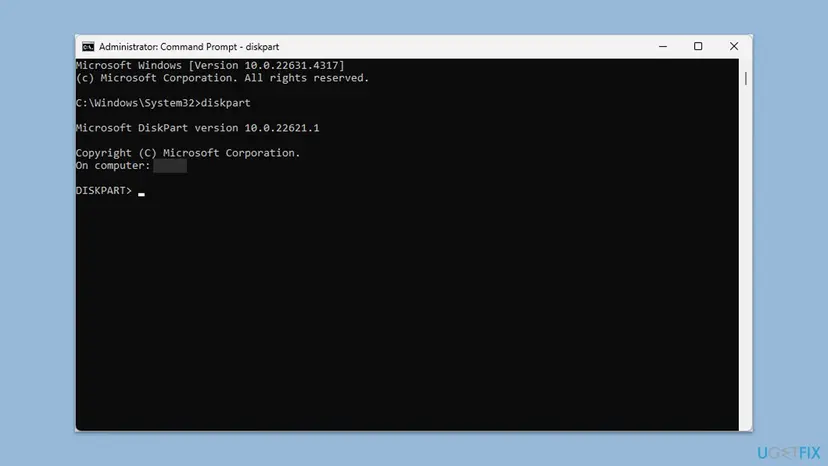
It worked if: Disk Management or list disk shows the disk as basic with no star under Dyn, and Setup lists the drives without the error.
If not: If no disk is dynamic or Foreign, the cause is elsewhere: go to Fix 4 when the PC uses RAID or Intel VMD, otherwise Fix 5.
Fix 4. Load the storage driver or change the storage mode for RAID and Intel VMD
15 to 30 minutesRead the warningThe PC has Intel RST or VMD turned on, or two or more drives form a RAID array set up in the BIOS.
Setup needs a storage driver to see drives behind a RAID or VMD controller. ASUS states that on Intel 11th to 14th generation platforms the Intel RST driver must be loaded during installation. In the Polish RAID 0 case on Microsoft Q&A, the code appeared exactly when Setup looked for those drives.
Turning VMD off or leaving RAID mode also removes a RAID array, so its data becomes unreadable. Back up first: Back up your files (Windows Backup, File History, Time Machine). Loading the driver in steps 1 to 5 changes nothing on the drives, so try it first.
- On a working PC, download the Intel RST VMD driver for your model from the PC or motherboard maker's support page.
- Extract it to a folder on the installation USB stick. You need the folder with
.inffiles, not an.exeinstaller. - Boot from the stick and use the older Setup from Fix 1 until Where do you want to install Windows?.
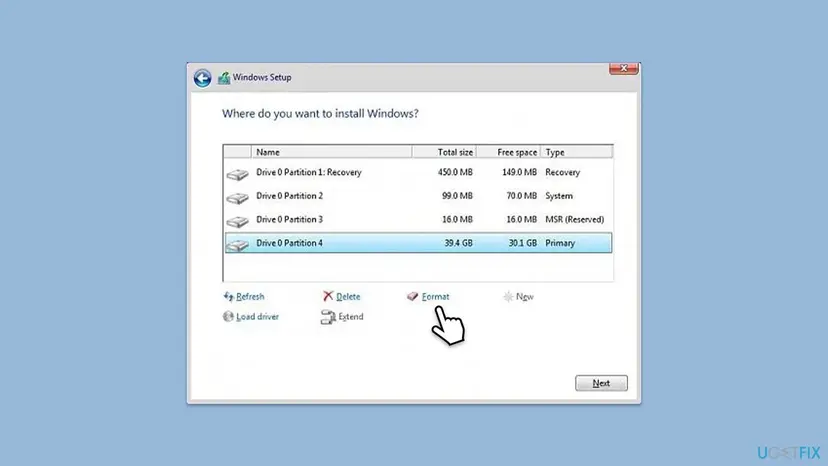
- Select Load driver, then Browse, and open the extracted driver folder.
- Select the Intel RST VMD Controller entry, select Next and wait until the drives appear.
- If you do not need RAID, you can instead turn VMD off in the BIOS. On ASUS boards the setting is Advanced > VMD setup menu > Enable VMD controller.
- For a RAID array of the BIOS, check the array in the BIOS RAID menu. Rebuild it only after a backup.
It worked if: After the driver loads, the RAID volume or the NVMe drives show in the list and the install continues.
If not: If the driver is refused or the drives still do not show, ask the PC maker for the exact driver. Then try Fix 5 with fresh media.
Fix 5. Make a new installation stick with the Media Creation Tool
20 to 40 minutesLow riskThe stick was made with Ventoy, with an ISO not downloaded from Microsoft, or with extra drivers, or the code is 0x80070001 - 0x4002F.
A multi-boot loader or a modified image changes how Setup sees its own boot device. Ventoy's release notes for version 1.1.04 of February 2025 list a fix for the 0x80070001 error when installing Windows 11. A stick from Microsoft's own tool rules the media out.
- On a working PC, open Microsoft's Download Windows 11 page and select Download Now under Create Windows 11 Installation Media.
- Plug in a USB stick of at least 8 GB. Microsoft says that everything on it is deleted.
- Run the tool, accept the license, keep or change the language and edition, and choose USB flash drive.
- Select the stick and wait until the tool says it is ready.
- Boot the PC from the new stick and run Setup again.
- If you must use Ventoy, update it to version 1.1.04 or later. Its maintainer closed the GitHub issue for 0x80070001 - 0x4002F as fixed.
- Remove any
$WinPEDriver$folder from the stick. In the same Ventoy thread, a user traced the error to large drivers in that folder. - The Media Creation Tool makes media only for x64 PCs. Arm PCs need the Arm64 ISO from Microsoft's separate page.
It worked if: Setup from the new stick reaches the drive list without an error.
If not: If a clean Microsoft stick gives the same 0x80042444, the fault is on the PC's drives: go back to Fix 2 and Fix 3, or Fix 6.
Fix 6. Wipe the target drive with DiskPart and let Setup create the partitions
10 minutesRead the warningThe drive you install to holds nothing you need, or you have a full backup of it.
Leftover partitions, old RAID metadata or a damaged partition table can make Setup's disk scan fail. Microsoft's own procedure for Setup wipes the drive with clean and converts it to GPT, so Setup starts from a single area of unallocated space.
clean removes all partitions on the selected disk. Back up first: Back up your files (Windows Backup, File History, Time Machine). Microsoft warns that with several drives you must make sure you wipe the right one: compare sizes, and disconnect the others as in Fix 2.
- Boot from the USB stick in UEFI mode and wait for the first Setup screen.
- Press Shift + F10 to open a command prompt.
- Type
diskpartand press Enter, thenlist diskand press Enter. - Find the target drive by its size. Type
select disk 0, using its number, anddetail diskto check the model. - Type
clean, thenconvert gpt, thenexit. - Close the command prompt and continue Setup. Select the unallocated space and select Next.
It worked if: The target drive shows as one area of unallocated space, and Setup creates its partitions and installs.
If not: If clean itself fails with an I/O error or the drive disappears, suspect the drive: check it in Fix 8 and read the section on hardware below.
Fix 7. Start Setup from inside Windows instead of booting from the USB
1 to 2 hoursLow riskA working Windows 10 or Windows 11 is on the PC and you want to keep your files, or to avoid the disk step.
Run from inside Windows, Setup installs over the current Windows on drive C and does not ask where to install, so it skips the disk scan that fails. Microsoft notes that the Installation Assistant needs Windows 10 version 2004 or later and 9 GB of free space.
- Back up the files you cannot lose: Back up your files (Windows Backup, File History, Time Machine).
- Download the Windows 11 ISO from Microsoft's Download Windows 11 page, or use the Installation Assistant on the same page.
- Right-click the ISO file and select Mount. A new drive letter opens in File Explorer.
- Double-click
setup.exeand follow the steps. Choose whether to keep files and apps when Setup asks. - If you wanted a clean install, choose to keep nothing. Setup still installs over drive C without scanning the other drives.
If this route fails too, the codes and logs move to C:\$WINDOWS.~BT\Sources\Panther, and SetupDiag runs by itself. Read the section on logs above, or free space first with Free up disk space and delete temporary files when the result names disk space.
It worked if: Setup restarts the PC a few times and ends at the Windows desktop or the first setup questions, on the new version.
If not: Run SetupDiag as described in the section on logs and look for the last failure. If it names a disk, return to Fix 3.
Fix 8. Check the target drive for file system errors
5 minutes to several hoursLow riskThe PC crashed or lost power often, or the drive reported errors before.
A Microsoft support answer on Q&A for this code suggested checking the disk first. File system damage can make the disk service fail to read a volume, and chkdsk finds and repairs it without erasing the drive.
- In Setup, press Shift + F10, type
diskpart, thenlist volume, and note the letter of your old Windows volume. Typeexit. - Type
chkdsk D: /f, using that letter, and press Enter. In Setup the drive is not in use, so the check runs at once. - Inside a working Windows, run the same check from an administrator command prompt: Check a disk for errors (chkdsk).
- Run Setup again when chkdsk reports that it found no problems or fixed them.
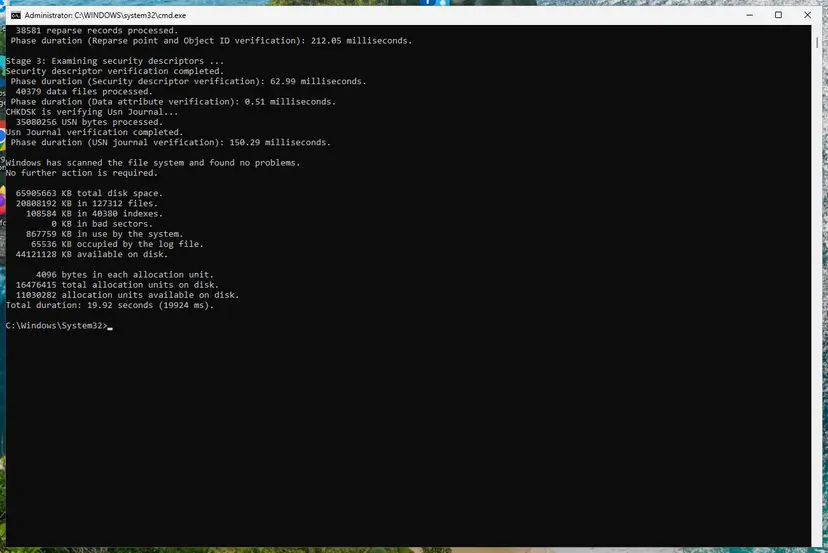
It worked if: chkdsk reports no problems or that it corrected them, and Setup gets past the disk step.
If not: If chkdsk reports bad sectors or cannot finish, the drive is failing. Read the next section before you install on it.
If error 0x80042444 - 0x4002F is still there
When the older Setup, a single drive and a clean stick all fail, the answer is in the logs. Copy them before you restart, as in the section on logs, because a restart from the USB stick erases them.
| What you find | What to do |
|---|---|
| The log names a disk number or volume just before 80042444 | Disconnect that disk (Fix 2) or convert it after a backup (Fix 3). |
| No drives at all in the older Setup | A storage driver is missing (Fix 4). Check that SATA mode in the BIOS matches what the PC maker's manual says. |
chkdsk cannot finish, or the drive vanishes during clean | Treat the drive as failing and replace it. Copy off what you can first. |
| A work or school PC | Ask the IT department: the PC may need their image or a storage driver they use. |
| You want Microsoft to look at it | After Windows runs on another PC or this one, file it in Feedback Hub under Install and Update > Windows Installation, with the codes and the copied logs. |
The code itself is about a disk group, not about failing hardware. The hardware signs are different: clicking noises, a drive that disappears from list disk, chkdsk reporting bad sectors, or Setup errors that change from one attempt to the next.
- What to send to support: both codes, whether you booted from USB or ran
setup.exe, the Windows version on the stick, and the output oflist disk. - Attach
setuperr.log,setupact.logand, if you ran it,SetupDiagResults.log. - Name the storage hardware: the drive models, RAID or VMD settings, and any drive that came from another PC.
How to keep 0x80042444 - 0x4002F from coming back
- Keep drives basic. Microsoft calls dynamic disks deprecated and not recommended for new setups. Use Storage Spaces or the RAID of your motherboard instead.
- Make installation media with Microsoft's tool from Microsoft's page, and make a fresh stick when a new Windows version comes out.
- Keep the storage driver for RAID or VMD on the stick before you start a clean install.
- Disconnect data drives before a clean install, and reconnect them when Windows runs.
- Do not move a drive with dynamic volumes into a new PC and install Windows next to it.
- Do not wipe a drive with
cleanuntildetail diskshows the right model. - Do not install from modified ISOs. They change Setup in ways no fix here can cover.
- Do not stay on Windows 11 24H2 Home or Pro for long after the install.
Microsoft's release health page states that Windows 11 24H2 Home and Pro reached end of updates on 13 October 2026. Microsoft recommends 25H2 or 26H2, and the media on its download page is now 26H2. Windows 10 left support on 14 October 2025.
Once Windows runs, keep it updated. If a monthly update later fails with its own code on a PC that was upgraded from an older version, read our guide to Windows update error 0x800f0993, which covers the update base that such PCs can miss.
Frequently asked questions
What does error code 0x80042444 mean?
0x80042444 is a Virtual Disk Service error. Microsoft's protocol documentation lists it as VDS_E_PACK_OFFLINE, with the text "The pack is offline." A pack is a disk group, the set of dynamic disks Windows manages together. In Windows 11 Setup it means that Setup's scan of the drives reached a disk group it could not bring online. It is not a download error and not a problem with your licence. The fixes are about the drives in the PC: use the older Setup, disconnect other drives, or import or convert the dynamic disk.
What is 0x4002F in Windows 11 Setup?
0x4002F is the extend code, the second half of the error. Microsoft's table of extend codes reads the first digit as the phase, and phase 4 is SP_EXECUTION_OOBE_BOOT. The operation 2F is not in the table, which Microsoft wrote for Windows 10 version 1607 and says might change. In practice the new Windows 11 Setup shows 0x4002F after several different result codes, such as 0x80042444, 0x8004240B, 0x80070001 and 0x80070005. Read the first code to find the cause.
How do I fix 0x8004240B - 0x4002F?
Use the same fixes as for 0x80042444, in the same order. 0x8004240B is also a Virtual Disk Service code, VDS_E_OBJECT_DELETED, "The object no longer exists." Setup looked for a disk or volume that was gone by the time it asked for it. Start with Previous version of Setup (Fix 1), then disconnect every drive except the target (Fix 2). If a drive is dynamic or Foreign, import or convert it (Fix 3). Copy the Setup logs before you restart if the error stays.
Why does the error appear with every USB stick I try?
Because in most cases the stick is not the problem. 0x80042444 is about the drives inside the PC: Setup scans them and fails on a disk group that is offline. A new stick with the same Windows version runs the same Setup and hits the same disk. That is why the reader's question above did not change after new sticks and a new download. Change the drives Setup sees instead (Fix 2 and Fix 3), or use the older Setup (Fix 1).
Is it safe to select Previous version of Setup?
Yes. It is part of Microsoft's installation media and installs the same Windows version, with the same edition choice and the same licence check. You lose only the new look of the setup screens. The older Setup also has the Load driver button you need for RAID or Intel VMD storage. Like any clean install, it erases the partition you install to, so pick that partition with care and keep your data drives disconnected if you can.
Will converting a dynamic disk to basic delete my files?
Yes. Microsoft's steps delete every volume on the disk before it can be converted, both in Disk Management and with DiskPart convert basic. Back up the data first. If the disk is marked Foreign, you can import it in Disk Management with Import Foreign Disks, which Microsoft says makes its volumes visible and accessible, copy the files off, and then convert it. Third-party partition tools claim to convert without data loss, but we have not tested any of them.
Where are the Windows 11 Setup logs when I boot from USB?
While Setup runs from the USB stick, it works from a RAM drive with the letter X:. Microsoft says Setup writes its logs into memory until the target drive is formatted. Look in X:\Windows\Panther and, on some media, X:\$Windows.~BT\Sources\Panther. Press Shift + F10 and run dir X:\setup*.log /s /b to find them. Copy them to the stick before you restart, because Microsoft describes these logs as temporary. SetupDiag can read the copies on another PC with /LogsPath.
Does 0x80042444 - 0x4002F appear when upgrading from Windows 10?
Reports of this code come mostly from clean installs that boot from a USB stick, where Setup scans every drive. When you run setup.exe from inside Windows 10 or Windows 11, Setup installs over drive C and does not ask for a target drive, so the disk scan that fails is not part of the process. That is why Fix 7 uses this route. If an upgrade from inside Windows fails, read C:\$WINDOWS.~BT\Sources\Panther and the SetupDiag result. Windows 10 left support on 14 October 2025.
Is 0x80042444 - 0x4002F a known issue that Microsoft will fix?
Not as far as Microsoft has said in public. We read the release health pages of Windows 11 24H2 and 25H2 on 14 October 2026, and neither lists this code or a Setup problem with disks. Microsoft's support staff on Q&A answered single cases with disk checks, driver updates and a single-disk test, not with a fix in an update. The Ventoy maintainers fixed the related 0x80070001 error on their side in version 1.1.04.
Does a hard drive failure cause error 0x80042444?
Usually not. The code describes a disk group that is offline, which is a configuration state of dynamic disks, not a hardware fault. A failing drive can cause it indirectly when the disk group's data on that drive is unreadable. Look for the hardware signs: clicking noises, a drive that disappears from list disk, chkdsk reporting bad sectors, or errors that change between attempts. If you see them, copy off your data and replace the drive.
Sources
- Microsoft Learn: Windows upgrade error codes (result codes and extend codes) (learn.microsoft.com)
- Microsoft Learn: [MS-VDS] 2.2.3 Error Codes (0x80042444 VDS_E_PACK_OFFLINE, 0x8004240B VDS_E_OBJECT_DELETED) (learn.microsoft.com)
- Microsoft Learn: [MS-VDS] Glossary (pack, disk group, dynamic disk) (learn.microsoft.com)
Did this fix work?
One click, no account. It tells the next reader which guides are worth their time.
Questions and experiences: fix 0x80042444 - 0x4002F error when installing Windows 11 version 24H2
Still broken, or found a fix we did not cover? Ask here: members and our editors answer. Reading is open; writing needs a free account.
…