How to fix
0x8004dec5 OneDrive error
on Windows
Resolve the 0x8004dec5 OneDrive error on Windows 10 and 11 effortlessly. Our expert-tested guide ensures quick fixes with zero traces left.

What causes How to fix 0x8004dec5 OneDrive error in Windows?
- Weak or unstable internet connection
- Corrupted or outdated cache and temporary files
- Outdated Windows operating system components
- Issues with router or modem configuration
Repairs Windows system files, removes malware, and restores a clean OS state — without reinstalling.
Hello. I can't sign into OneDrive on my Windows PC anymore because I get the 0x8004dec5 error. How can I fix this?
The 0x8004dec5 error is a common problem that occurs when users try to sign into OneDrive in Windows. OneDrive is a Microsoft cloud storage service that allows users to store, sync, and share files across multiple devices. It is a convenient solution for individuals and organizations who want to access and collaborate on files from anywhere.
The 0x8004dec5 error can have a significant impact on users because it prevents them from accessing and using their OneDrive account effectively. Users may encounter difficulties syncing their files, uploading new content, or accessing shared files and folders when this error occurs. This can stymie productivity and the seamless collaboration that OneDrive seeks to provide.
Checking the internet connection is one possible solution to the 0x8004dec5 error, as a weak or unstable connection can contribute to sign-in issues. Users should check that their network connection is stable and correctly configured. Resetting the router or modem can also help restore a stable connection.
Clearing the cache[ref en-1] and temporary files associated with OneDrive is another possible solution. These files can become corrupted or out of date, causing sign-in issues. Clearing the cache can help to resolve such issues and allow users to successfully sign in to OneDrive.
It is also worth checking for any pending Windows updates, as outdated operating system components can interfere with OneDrive's functionality. Installing the most recent updates can help to resolve compatibility issues while also improving overall system performance.
In this guide, you will find 8 steps that should help you fix 0x8004dec5 OneDrive error. You can also try out a system repair tool like [d1] - it can fix most system errors, BSODs,[ref en-2] corrupted files, and registry[ref en-3] issues. Otherwise, follow the step-by-step instructions below.
Method 1. Check Internet Connection
If you encounter difficulties while attempting to sign in to OneDrive, start by verifying your internet connection. Sign-in issues can arise due to slow or unreliable internet. Therefore, assess your connection speed and ensure it is robust enough for OneDrive usage. If required, reset your router or modem to restore the connection.
Method 2. Run the Network Troubleshooter
- Right-click on the Start button.
- Select Run from the menu list.
- In the dialog box, type the following command:
msdt.exe -id NetworkDiagnosticsWeb
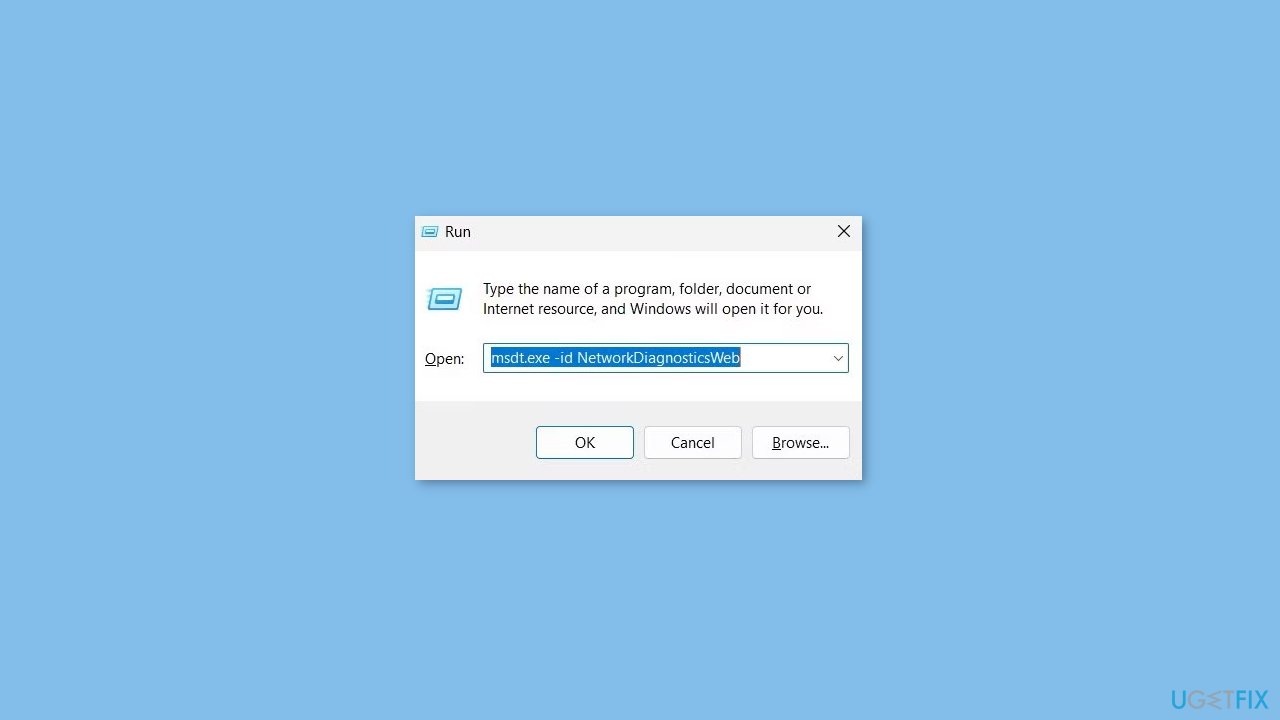
- Click OK to proceed.
- Click on Advanced.
- Check the box that says Apply repairs automatically.
- Click Next to continue.
- Follow the on-screen instructions to complete the troubleshooting process.
Method 3. Install Windows Updates
- Press the Windows key + I on your keyboard to open the Settings window.
- From the left sidebar, click on the Windows Update tab.
- Click on the Check for updates button.
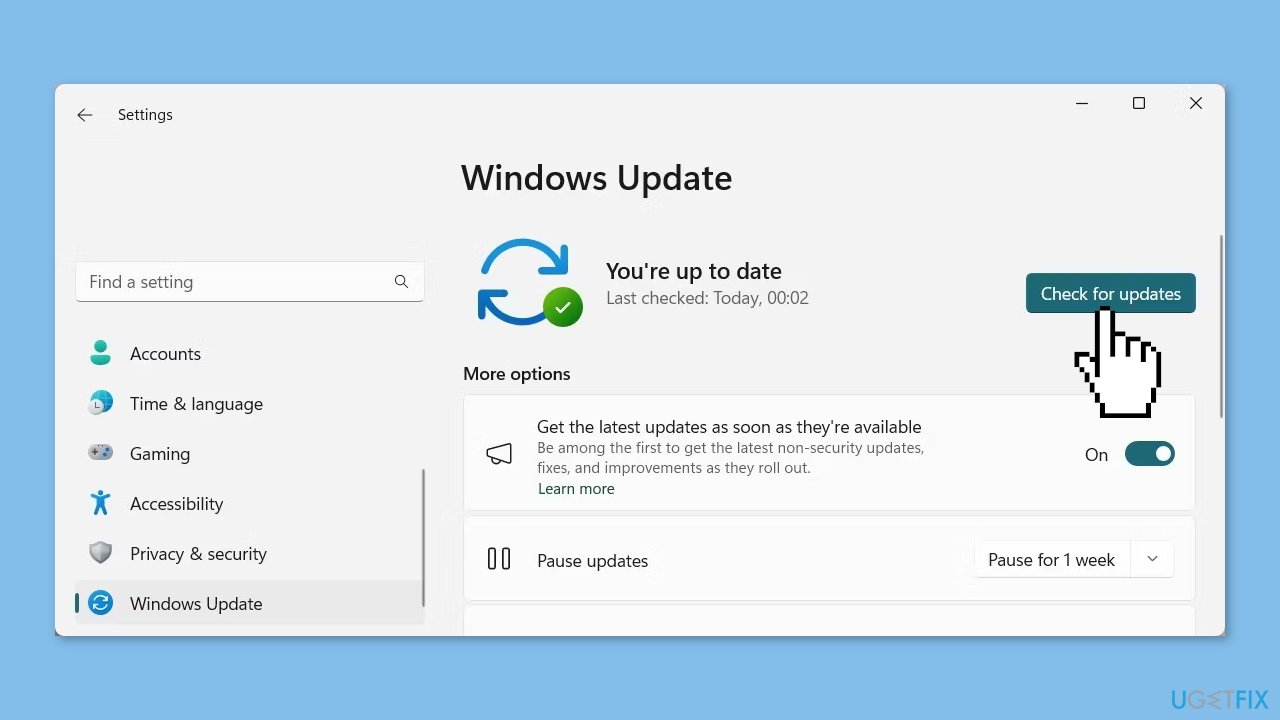
- Wait while Windows checks for available updates.
- If new updates are found, download and install them.
- Follow the on-screen instructions to complete the update process.
Method 4. Modify Windows Registry
- Press the Windows key + R on your keyboard to open the Run dialog.
- Type regedit in the search box and click OK.
- If the User Account Control (UAC) window appears, click Yes to proceed.
- In the Registry Editor window, navigate to the following path:
HKEY_CURRENT_USER\Software\Microsoft\Office\16.0\Common\Identity
- Right-click on the Identity folder.
- Select Delete from the menu that appears.
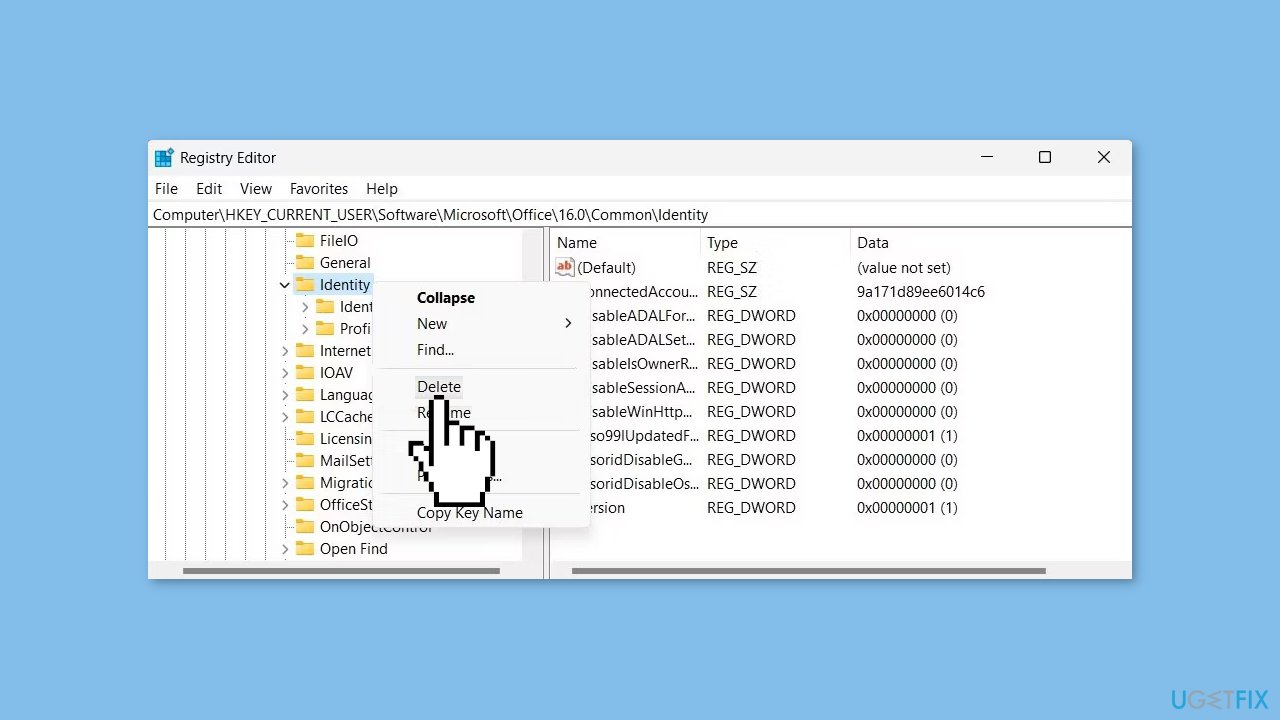
- Click Yes when asked to confirm your action.
- Close the Registry Editor.
- Restart your computer to apply the changes.
Method 5. Remove Cached Credentials Folders
- Press the Windows key + E on your keyboard to open File Explorer.
- In the File Explorer window, navigate to the following location:
C:\Users\Username\AppData\Local\Microsoft\IdentityCache
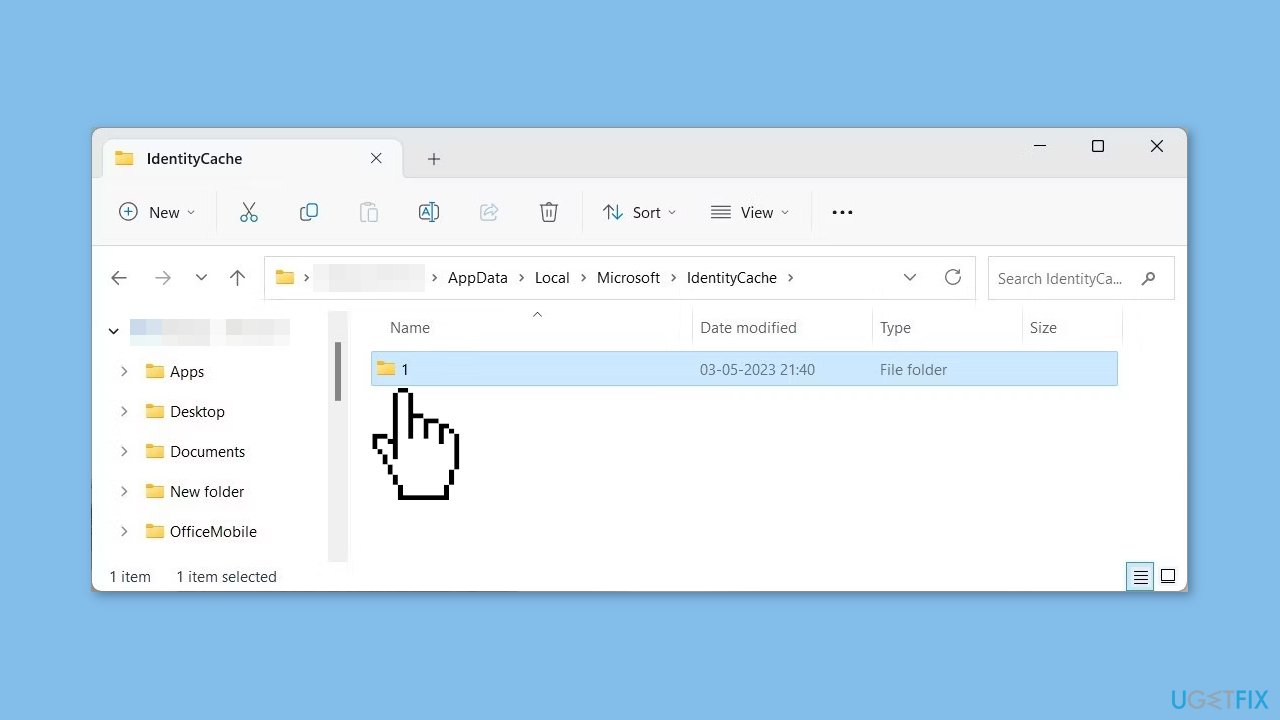
- Replace Username with your actual Windows username.
- Press Ctrl + A to select all files in the folder.
- Press the Delete key or right-click and select Delete from the context menu.
- Confirm the deletion if prompted.
- Now, navigate to the following location:
C:\Users\Username\AppData\Local\Microsoft\OneAuth
- Replace Username with your Windows username.
- Select all files in the folder.
- Press the Delete key or right-click and select Delete from the context menu.
- Confirm the deletion if prompted.
Method 6. Re-Link OneDrive Account
- Go to the right side of the taskbar and click on the OneDrive icon.
- Click on Help & Settings and select Settings from the menu list.
- In the Settings window, navigate to the Account tab.
- Under your OneDrive account, click on Unlink this PC.
- Confirm your action by clicking Unlink account.
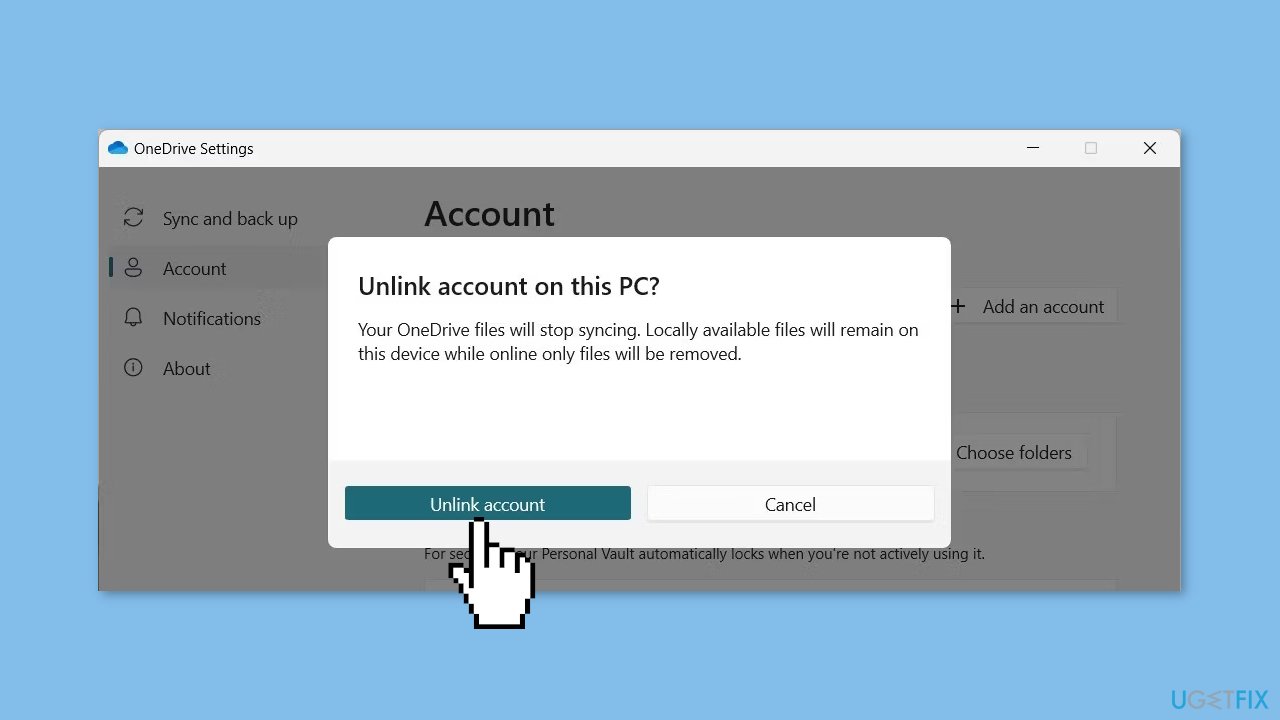
- After unlinking the account, open the OneDrive Settings window again.
- Click on Add an Account to relink your OneDrive account.
- Enter your OneDrive credentials and sign in to your account.
- Once the account is successfully relinked, close the Settings window.
- Open OneDrive and sign in with your new account credentials.
Method 7. Reset OneDrive
- Press the Windows key + X on your keyboard.
- From the menu that appears, select Installed apps.
- Scroll down the list of installed apps and locate OneDrive.
- Click on the three dots next to OneDrive.
- Select Advanced options from the menu.
- Scroll down to the Reset section.
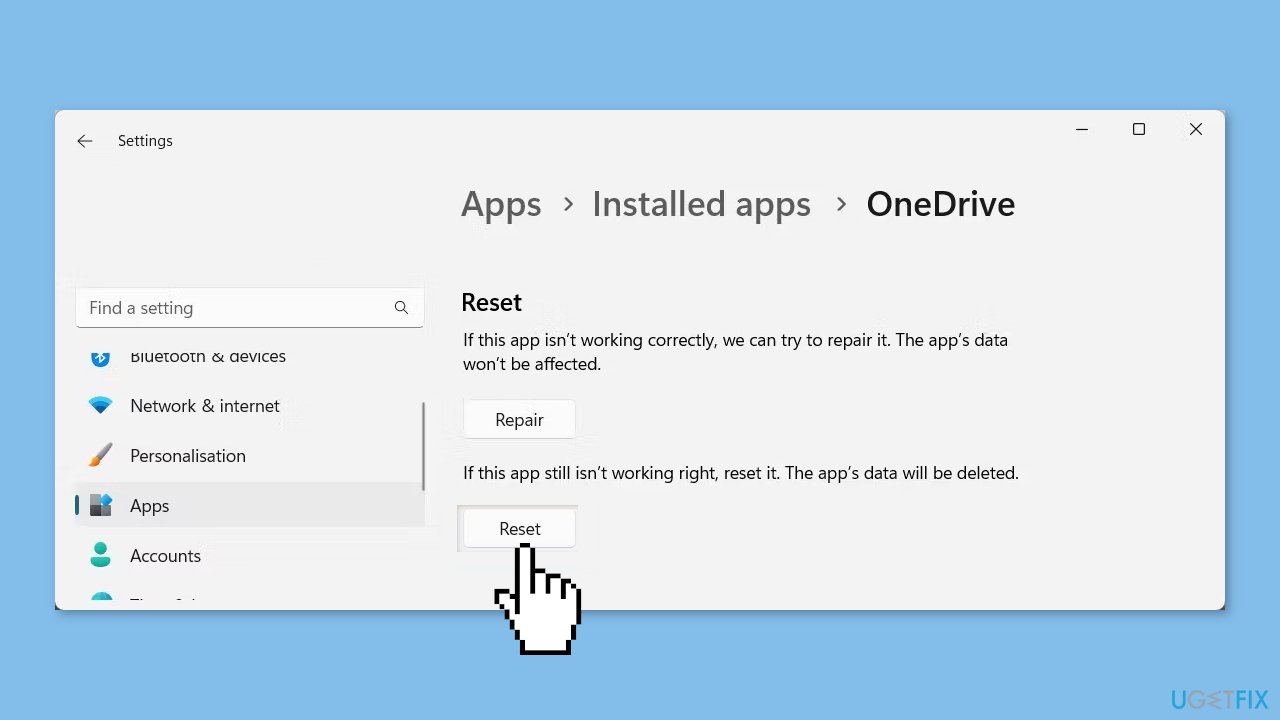
- Click on the Reset button.
- Confirm your action by clicking Reset again.
Method 8. Reinstall OneDrive
- Open Control Panel on your computer.
- Set the View by option to Category.
- Click on Programs and then select Uninstall a program.
- Locate OneDrive in the list of installed programs.
- Click on Uninstall. If a confirmation prompt appears, click Yes.
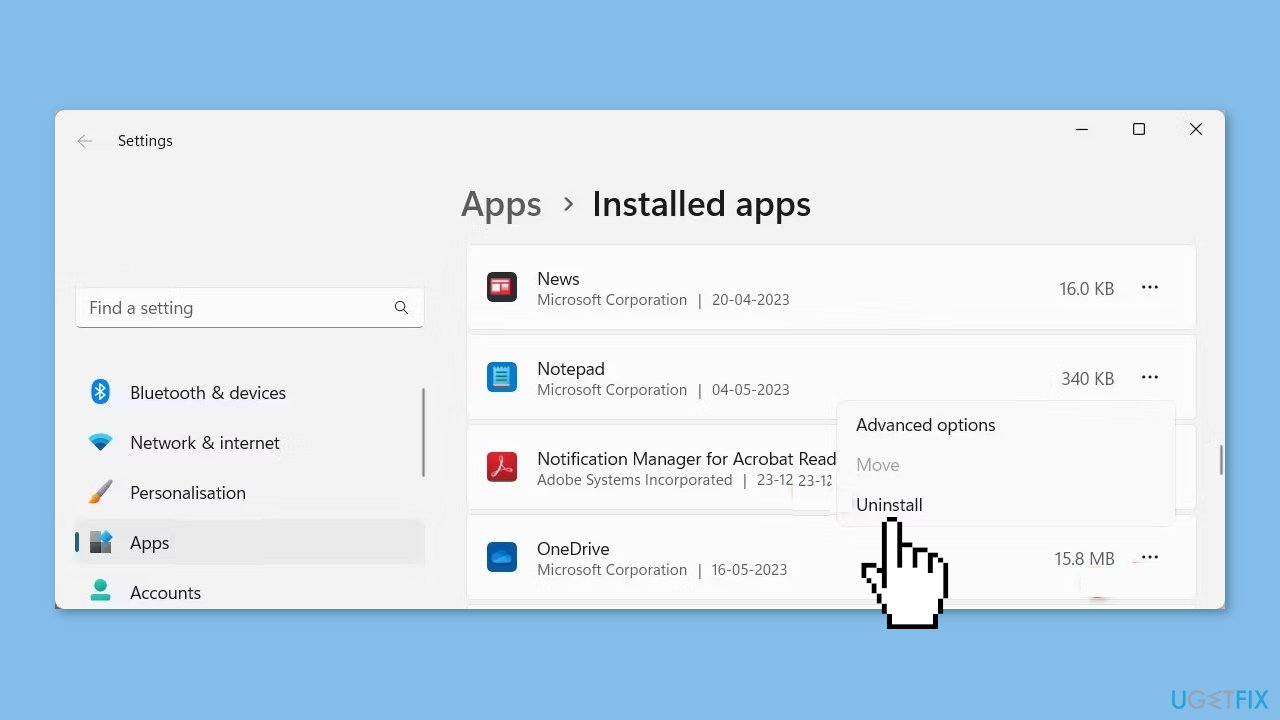
- Follow the on-screen instructions to complete the uninstallation process.
- After uninstalling, visit Microsoft's official website.
- Download the OneDrive installation package.
- Run the downloaded file to install OneDrive on your computer.
- Follow the on-screen instructions to complete the installation process.
Bottom line
To fix the 0x8004dec5 error, check your internet connection and ensure it is stable. Additionally, clear the cache and temporary files associated with OneDrive, and check for any pending Windows updates. If these solutions do not work, consider using a system repair tool or following further troubleshooting steps.
Frequently asked questions
The 0x8004dec5 error typically occurs due to issues with your OneDrive configuration, outdated Windows updates, or network connectivity problems.
To reset OneDrive, press Win + R, type 'onedrive.exe /reset', and press Enter; this will reinitialize OneDrive and may resolve the error.
In Windows 11, ensure that your system is updated and check your network settings, as a stable internet connection is vital for OneDrive to function correctly.




Report an issue
What's wrong with this guide? We review every report and update or remove content.
Report received — thank you. We'll review and fix it.
You need a free account to submit a report.
Be the first to comment