How to fix
0x8007003A error when copying files
on Windows
Resolve the 0x8007003A error on Windows 10 or 11 effortlessly. Follow our expert-tested guide for a quick fix and get back to copying files in minutes.


What causes How to fix 0x8007003A error when copying files in Windows?
- Network connectivity
- Server issues
- File corruption
- Permissions
- Hardware problems
Repairs Windows system files, removes malware, and restores a clean OS state — without reinstalling.
I keep getting a 0x8007003A error when I try to copy files from an external HDD to my PC. This started happening after I upgraded to Windows 11 recently, so there must be something wrong with it?
Encountering the 0x8007003A error when copying files in Windows can be quite frustrating. This error often indicates a problem with accessing the file or location from which you are attempting to copy. Let’s explore the causes and implications of this error to help you understand and address it effectively.
What is the 0x8007003A error?
It can be very annoying to run across the 0x8007003A error when copying files in Windows. This issue usually means that you are not able to access the file or place that you are trying to copy. To better understand and handle this error, let's examine its causes and effects.
Common causes
Several factors can contribute to the 0x8007003A error, including:
- Network connectivity. Unstable or interrupted network connections can prevent files from being copied, especially when dealing with network drives or remote servers.
- Server issues. Downtime or configuration problems on the server can lead to this error.
- File corruption. If the source file is damaged, Windows may not be able to copy it successfully.
- Permissions. Inadequate permissions to access or modify the files or destination can cause this issue.
- Hardware problems. Faulty external storage devices or connection issues can also be at fault.
0x8007003A error can disrupt your workflow and potentially lead to data loss if files are not copied correctly. Persistent issues may indicate deeper problems with your network or hardware, requiring prompt attention to avoid further complications.
Ensuring stable network connections, checking server status, verifying file integrity, and ensuring proper permissions are key steps that should help you fix the 0x8007003A error; we provide a comprehensive guide on how to perform each of the steps below.
For a more streamlined and effective solution, consider using a dedicated repair tool like [d1] - it is designed to diagnose and fix a wide range of Windows errors, ensuring smooth and reliable file operations.

Fix 1. Check network connection
A stable network connection is essential for successful file transfers, especially over a network. Ensuring your connection is stable and resolving any connectivity issues can help prevent the 0x8007003A error.
Windows 11
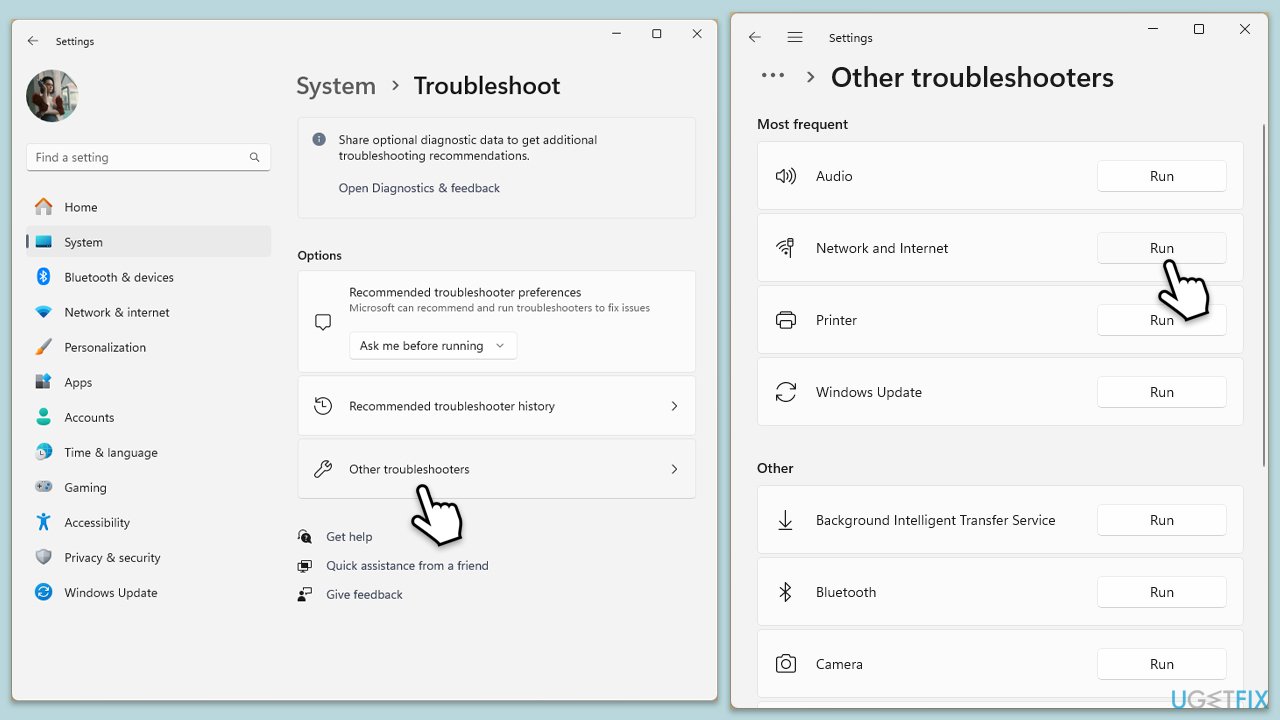
- Type Troubleshoot in Windows search and hit Enter.
- Select Other troubleshooters.
- Locate Network & Internet troubleshooter from the list and click Run.
- Wait till the process is finished and apply the recommended fixes.
- Restart your computer.
Windows 10
- Right-click on Start and pick Settings.
- Go to the Network & Internet section.
- On the right side, find the Advanced network settings section.
- Click Network troubleshooter and wait.
- The fixes will be automatically applied.
If Network troubleshooter did not provide any results, you can try other things that might help your connection:
- Ensure your network connection is stable.
- Restart your router.
- Reconnect to your Wi-Fi or wired network.
- Test the connection by accessing other network resources.
Fix 2. Verify server status
If the server you are trying to copy files from is experiencing issues, it could result in the 0x8007003A error. Verifying the server's status can help identify if the problem lies there.
- Check if the server is online and accessible.
- Confirm that there are no maintenance activities or outages.
- Restart the server if you have permission to do so.
Fix 3. Perform check disk
File system errors on your hard drive can cause issues when copying files. Running a check disk can help identify and repair these errors.
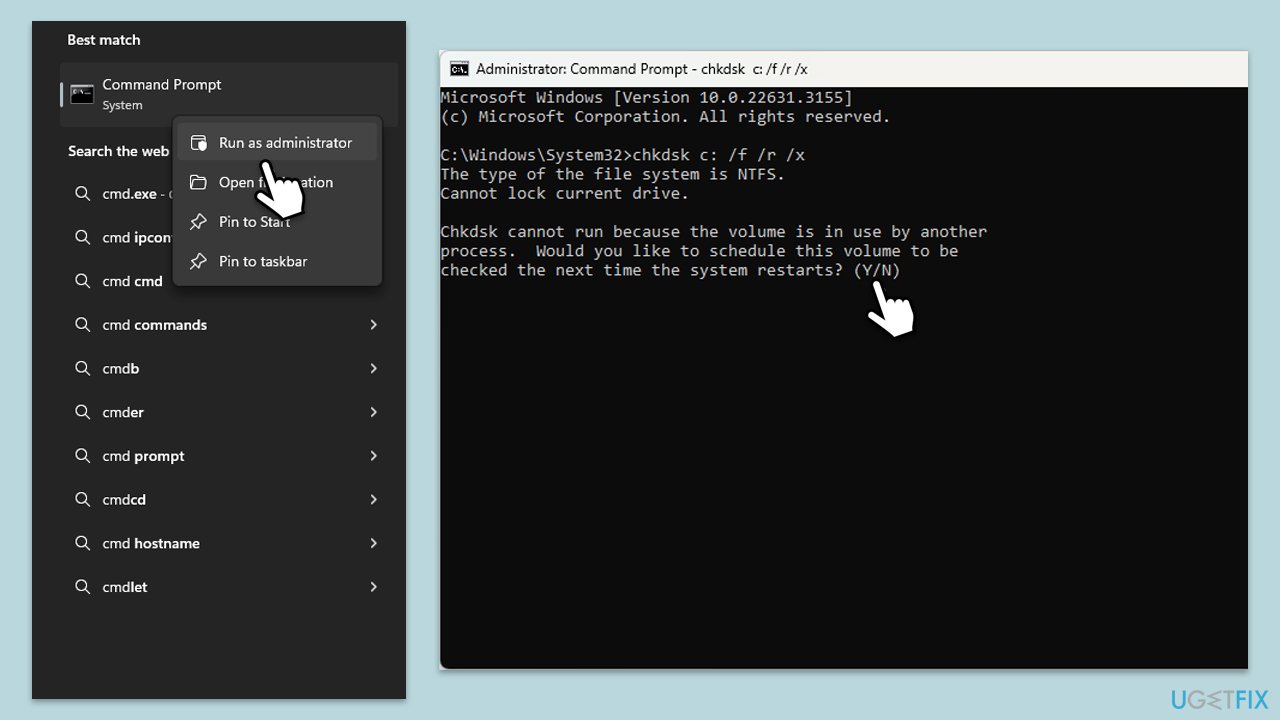
- Type cmd in Windows search.
- Right-click on Command Prompt and select Run as administrator.
- When UAC shows up, click Yes.
- In the new window, type in the following command and press Enter after:
chkdsk c: /f
(Note: use chkdsk c: /f /r /x command if you are using SSD as your primary partition. Also, replace c: with another drive letter if you are not using default) - If you receive an error, type in Y, close down Command Prompt and restart your computer.
- Wait till the scan is finished.
Fix 4. Restart workstation and server services
Sometimes, restarting key services on your workstation and server can resolve connectivity and access issues.
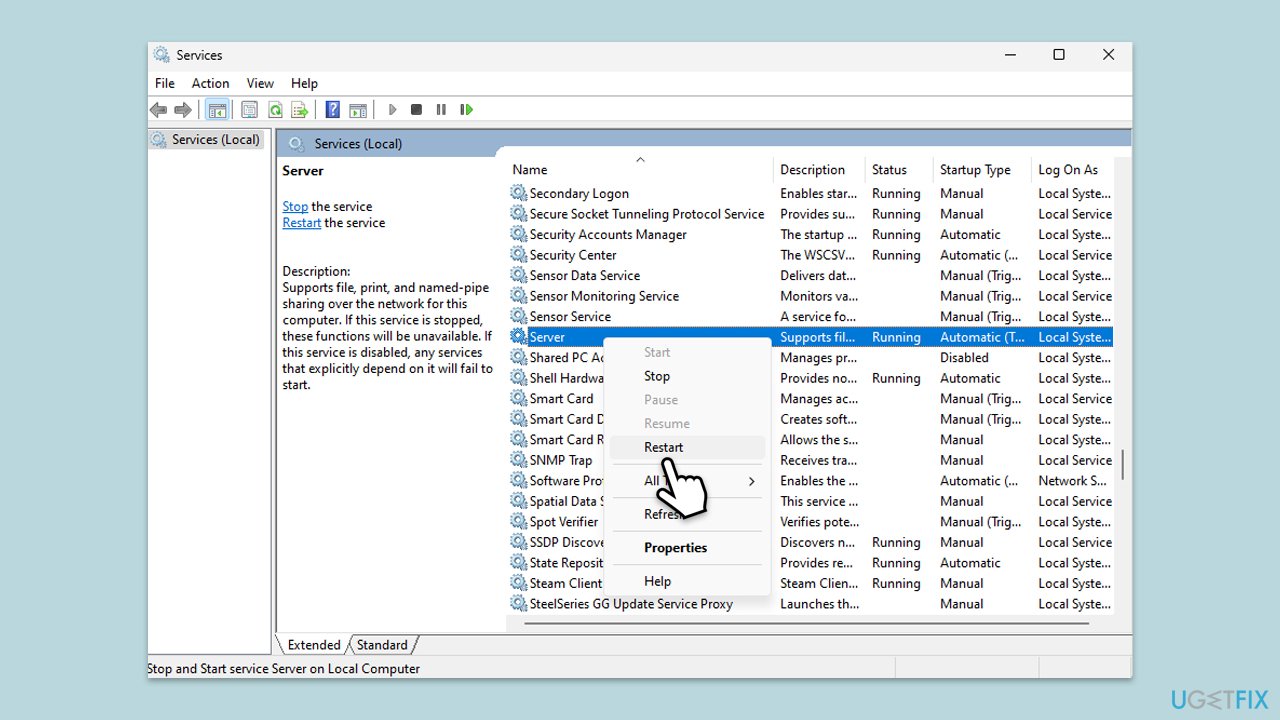
- Type Services in the Windows search bar and press Enter.
- Find the Workstation service, right-click, and select Restart.
- Find the Server service, right-click, and select Restart.
- Try copying the file again to see if the issue is resolved.
Fix 5. Adjust permissions
Inadequate permissions to access or modify the files or destination can cause the 0x8007003A error. Adjusting permissions can help ensure you have the necessary access rights.
- Right-click the file or folder you want to copy.
- Select Properties.
- Navigate to the Security tab.
- Click Edit to change permissions.
- Ensure you have Full Control over the file or folder.
Fix 6. Update network drivers
Outdated or corrupt network drivers can cause connectivity issues, leading to errors when copying files. Updating your network drivers can resolve these problems.
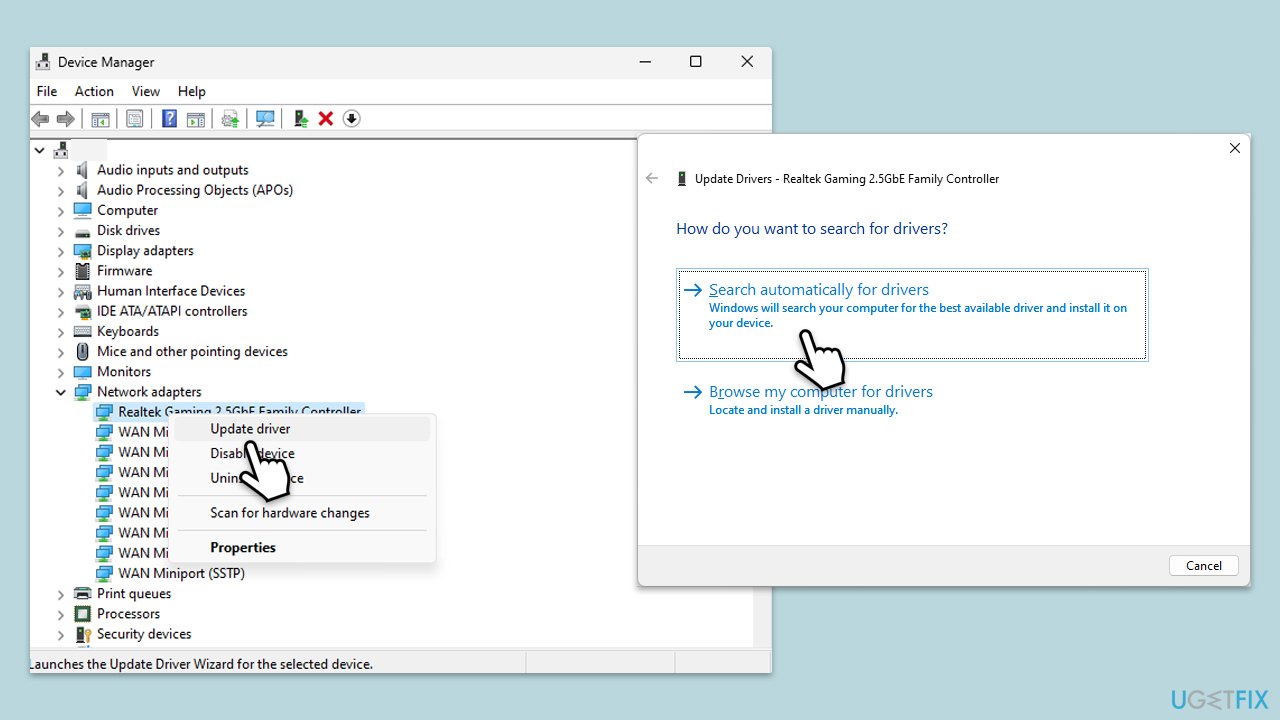
- Right-click on the Start menu and select Device Manager.
- Expand the Network adapters section.
- Right-click on your network adapter and choose Update driver.
- Select Search automatically driver.
- Follow the prompts to complete the driver update and restart your computer.
For a quicker solution, you can always rely on automatic tools like [rev id="DriverFix"].
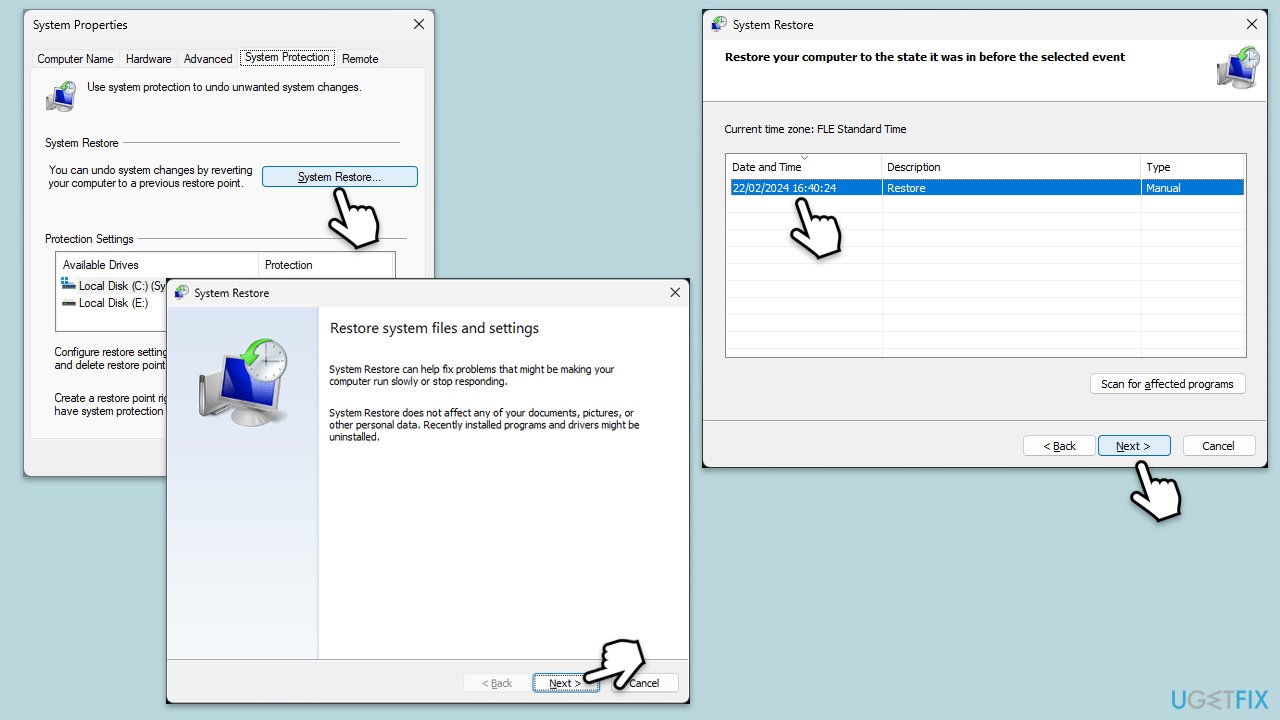
Fix 7. Run System Restore
Using System Restore can help revert your computer to a previous state before the error occurred, potentially resolving any underlying issues causing the problem.
- Type Create a restore point in the Windows search bar and press Enter.
- In the System Properties window, click System Restore.
- Choose a restore point from before the issue started occurring.
- Click Next and follow the on-screen instructions to complete the system restore.
- Restart your computer after the process is finished.
Bottom line
To fix the 0x8007003A error, ensure stable network connections, check server status, verify file integrity, and confirm proper permissions. If the issue persists, consider using a dedicated repair tool designed to diagnose and fix a wide range of Windows errors.
Frequently asked questions
The 0x8007003A error typically occurs due to network issues, corrupted files, or incorrect permissions when accessing shared folders. It can also be triggered by antivirus software blocking the file transfer.
To fix the 0x8007003A error, try temporarily disabling your antivirus software and ensure that you have the correct permissions for the file or folder you are trying to access. You can also run the Windows Troubleshooter for file and folder issues.
To prevent the 0x8007003A error in Windows 11, ensure your network connection is stable and regularly check for Windows updates that may fix underlying issues. Additionally, consider adjusting your firewall settings to allow file sharing.




Report an issue
What's wrong with this guide? We review every report and update or remove content.
Report received — thank you. We'll review and fix it.
You need a free account to submit a report.
Be the first to comment