How to fix
0x80070660 error
on Windows
Resolve the 0x80070660 error on Windows 10 effortlessly with our expert-tested solutions. Fix your issues in minutes, ensuring smooth performance.

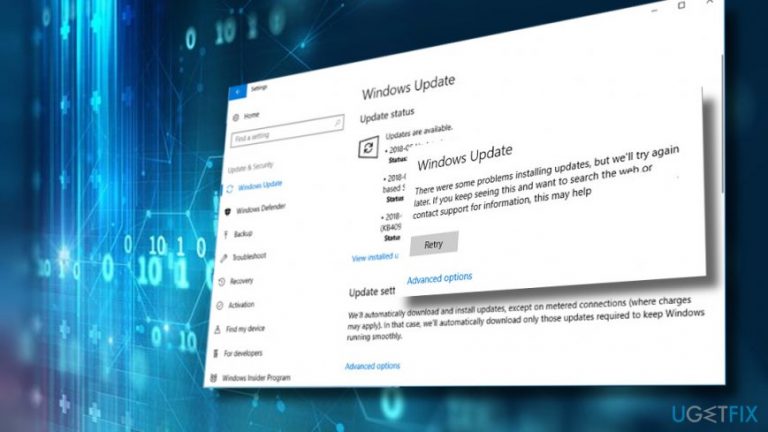
What causes How to fix 0x80070660 error on Windows 10?
- Windows Update Bug
- Corrupted Microsoft Visual C++ Redistributable Package
- Issues with Windows Update Services
- Problems with SoftwareDistribution or Catroot2 folders
Repairs Windows system files, removes malware, and restores a clean OS state — without reinstalling.
Hello! I wonder why I can't install the latest Windows 10 update? It keeps failing near the end of install phase with an error code 0x80070660. Any help would be appreciated.
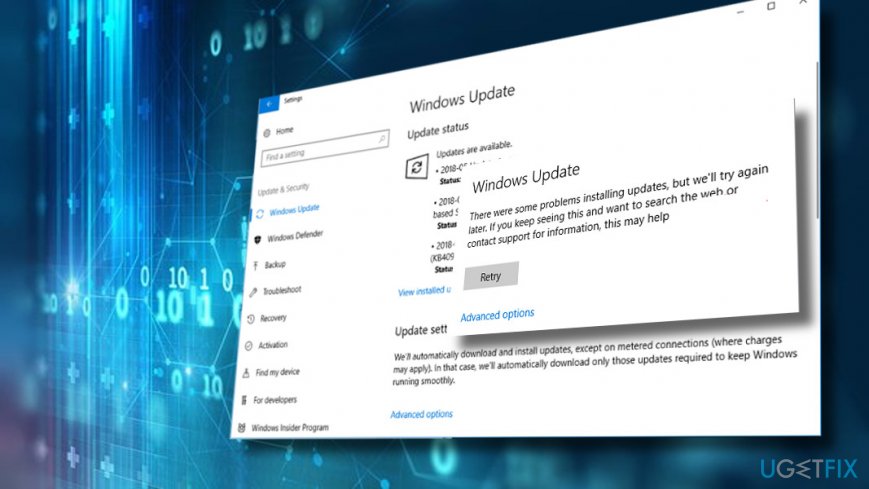
0x80070660 is a numeric code, which has been created by Microsoft to mark the Windows 10 Update error.[ref en-1] The system manifests the error message during the second phase of update installation process and informs the user that "There were some problems installing updates."
This particular error code is a newcomer. Microsoft hasn't yet acknowledged it, which is why there's currently no official information on the bug check, as well as instructions on how to fix the 0x80070660 error.
However, UgetFix team has been analyzing the issue in details, and it looks like to be an ordinary Windows Update bug. In other words, resetting Windows Update components or running Windows Update Troubleshooter may be sufficient to fix the 0x80070660 error.
Nevertheless, there's one exception. In some of the cases, the 0x80070660 error may be related to Microsoft Visual C++ Redistributable Package corruption.[ref en-2] Even though such issues are quite rare, we recommend you to uninstall C + + or at least update it to the latest version available if other fixes did not help.
Here is a video for your convenience:
[youtube _lYgah2_r_Y]
Run Windows Update Troubleshooter
The first remedy for most of the Windows Update problems is the inbuilt Windows Troubleshooter. To run it, you have to:
- Press Windows key + I and open Settings.
- Open Update & Security section and select Troubleshoot.
- Then press Windows Update and select Run troubleshooter.
- The scan may take some time. Wait until the process is completed and then try to check for updates. If that did not help, try the following fixes.
Reset Windows Update components
- Right-click on Windows key and select Command Prompt (Admin).
- Disable BITS, Cryptographic, MSI Installer, and the Windows Update Services by typing the commands given below in the Command Prompt window. Press Enter after each of them:
net stop wuauserv
net stop cryptSvc
net stop bits
net stop msiserver
ren C:\\\\Windows\\\\SoftwareDistribution SoftwareDistribution.old
ren C:\\\\Windows\\\\System32\\\\catroot2 Catroot2.old
- The last two commands are used for renaming SoftwareDistribution and Catroot2 folders. When all commands are executed, enable BITS, Cryptographic, MSI Installer and the Windows Update Services by typing these commands in the Command Prompt. Press Enter after each:
net start wuauserv
net start cryptSvc
net start bits
net start msiserver
Finally, close Command Prompt window and reboot your PC.
Clean Updates folder
It might be that there are some components from the previous updates confronting with the Windows update that you are trying to install now. Thus, try to remove the content from the Updates folder:
- Press Windows key + R to open Run.
- Paste the C:\\Windows\\SoftwareDistribution\\Download and click OK.
- Mark all content in it, right-click on it and select Remove or press the Delete button.
Change Windows Update Settings
- Press Windows key + I simultaneously and heed to Update and Security section.
- Open Advanced Options link and remove a check mark next to Give me updates for other Microsoft products when I update Windows box.
- After that, restart your PC, reset Windows Update components as explained above and try to check for Windows updates one more time.
Install the latest Microsoft Visual C ++ Redistributable Package
As we have already pointed out, the culprit of the 0x80070660 error may be a corrupted Microsoft Visual C ++ Redistributable Package. Thus, if neither of the above-listed fixes helped you to solve the problem, we would recommend upgrading Microsoft Visual C++ Redistributable Package to the latest version available.
- Access Microsoft Visual C ++ Redistributable Package download website.
- Based on your system type, start the download of the vc_redist.x64.exe or vc_redist.x84.exe file.
- When the download is over, close all the programs and double-click the file.
- Follow the on-screen instructions.
If the update did not help, try to uninstall C++ entirely from Control Panel or Settings applet and try to install Windows 10 April 2018 update. After that, reinstall the Microsoft Visual C ++ Redistributable Package.
Bottom line
To fix the 0x80070660 error, you can run the Windows Update Troubleshooter, reset Windows Update components, or uninstall and update the Microsoft Visual C++ Redistributable Package. If these fixes do not resolve the issue, further investigation may be necessary.
Frequently asked questions
The 0x80070660 error typically indicates a problem with Windows Update or issues related to corrupt system files. This error can prevent users from installing updates or software properly.
To fix the 0x80070660 error, you can run the Windows Update Troubleshooter and perform a system file check using the 'sfc /scannow' command in the Command Prompt. Additionally, ensure your Windows 10 is up to date.
On Windows 11, check your network settings and ensure that your firewall or antivirus isn't blocking updates, as these can contribute to the 0x80070660 error. You may also want to reset the Windows Update components.




Report an issue
What's wrong with this guide? We review every report and update or remove content.
Report received — thank you. We'll review and fix it.
You need a free account to submit a report.
Be the first to comment