How to fix
0x800706F9 error
on Windows
Resolve the 0x800706F9 error in Windows 10 or 11 effortlessly. Follow our expert-tested solutions for a quick fix and get back to work seamlessly.

What causes How to fix 0x800706F9 error in Windows?
- Driver or hardware issue
- Local storage issue
- Corrupted Excel file or Word file
- Corrupted or missing system file
Repairs Windows system files, removes malware, and restores a clean OS state — without reinstalling.
Hello. I am trying to copy some old files from 3.5 floppy disks, but I receive a message "Error 0x800706F9: The disk media is not recognized. It may not be formatted." How should I fix this?
Windows is one of the most popular operating systems in the world, but it still has a lot of errors and bugs that users can encounter. Microsoft releases Windows OS updates quite often. Despite that, some of the bugs or errors are still happening or even caused by the updates themselves.
One of the errors that some Windows users experience displays a code 0X800706F9 when they try to copy files from a 3.5 floppy disk that was previously written on Windows 2000 or Windows XP. For more than two decades, floppy disks were the primary external writable storage device. Most computing environments before the 1990s were non-networked, and floppy disks were the primary means to transfer data between computers, a method known as sneakernet.[ref en-1]
Some users are also receiving the same error with MS Office documents and images. The message that they see is:
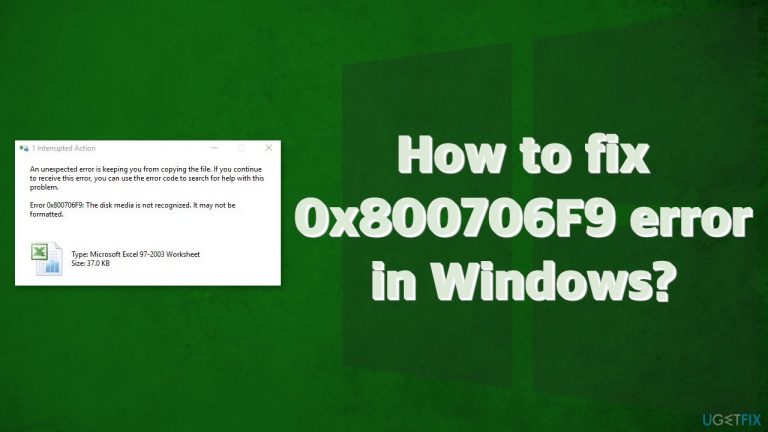
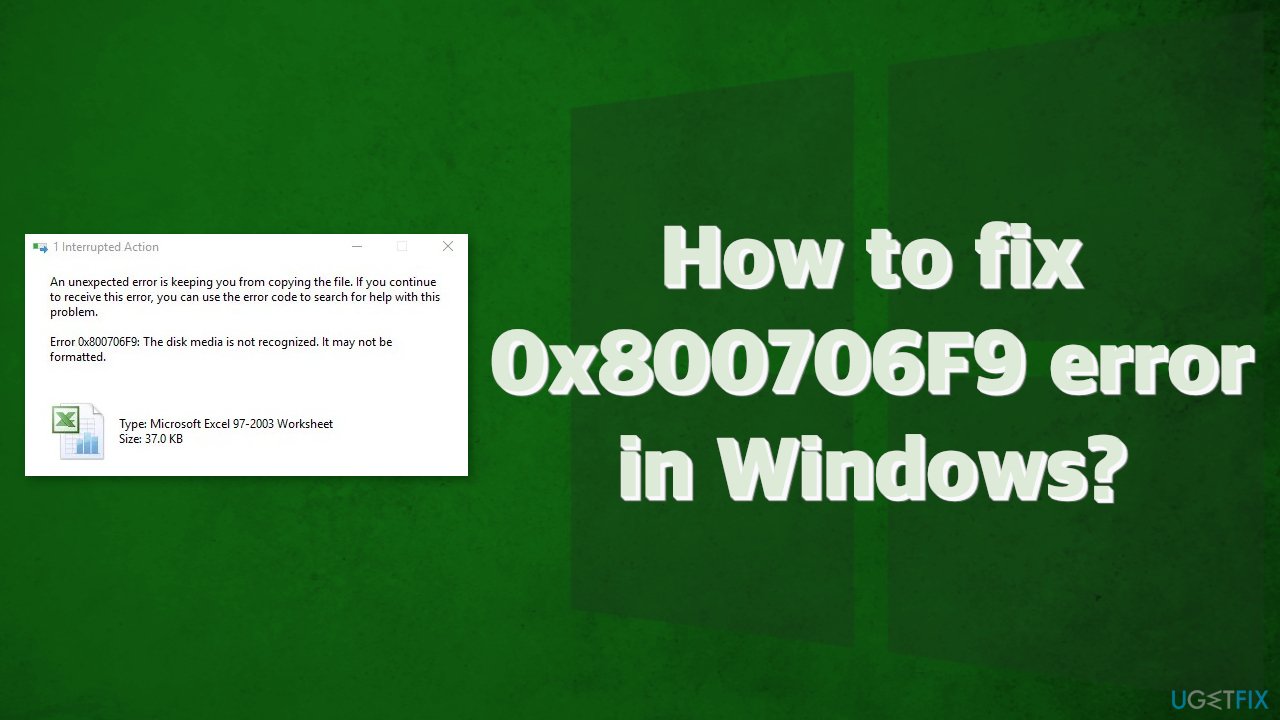
An unexpected error is keeping you from copying the file. If you continue to receive this error, you can use the error code to search for help with this problem.
Error 0x800706F9: The disk media is not recognized. It may not be formatted.
These errors can be very frustrating as they do not offer any solutions. Users are left stranded looking for fixes themselves. There are several possible reasons behind this issue, such as driver or hardware, local storage issue, corrupted excel file or word file, corrupted or missing system file, etc.
This article provides a couple of possible solutions for the "The disk media is not recognized" 0x800706F9 error. Depending on the severity of your issue, simply running an automatic built-in Windows troubleshooter could be enough, or you might have to use a Command Prompt.[ref en-2] You can try using a repair tool [d1] to avoid going through all the possible fixes. This powerful software can solve various system errors, registry issues, corrupted files, BSODs[ref en-3] and optimize the machine for maximum performance.
If you are ready to start the troubleshooting process, make sure to follow the steps carefully:
Method 1. Run Hardware and Devices Troubleshooter
- Press Windows + R keys to open the Run dialog box
- Type ms-settings:troubleshoot and hit Enter
- Scroll down the page until you find Hardware and Devices
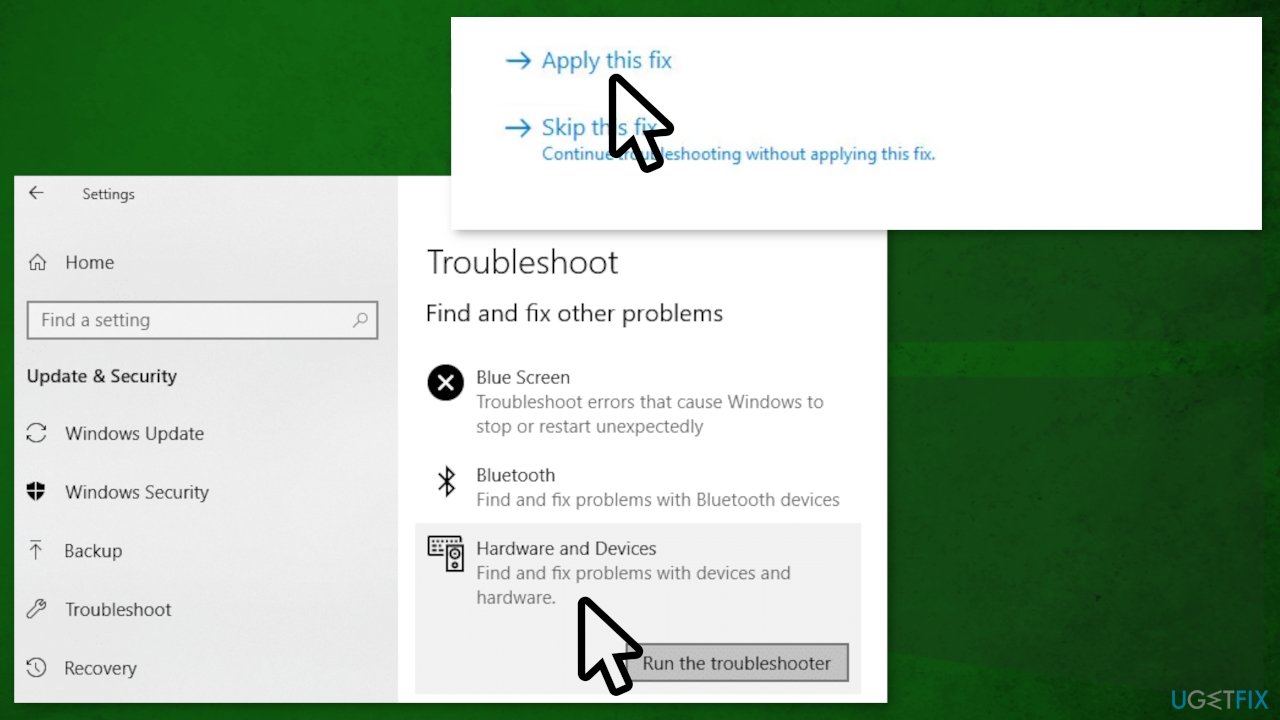
- Select Run the troubleshooter
- Click on the Apply this fix option if it is available
- Restart your PC
Method 2. Open Documents and Save Them to Rich Text
- Open File Explorer and open your floppy disk
- Double-click on the problematic document to open it
- Once you open the MS Excel or MS Word file, click on the File option from the top-left corner
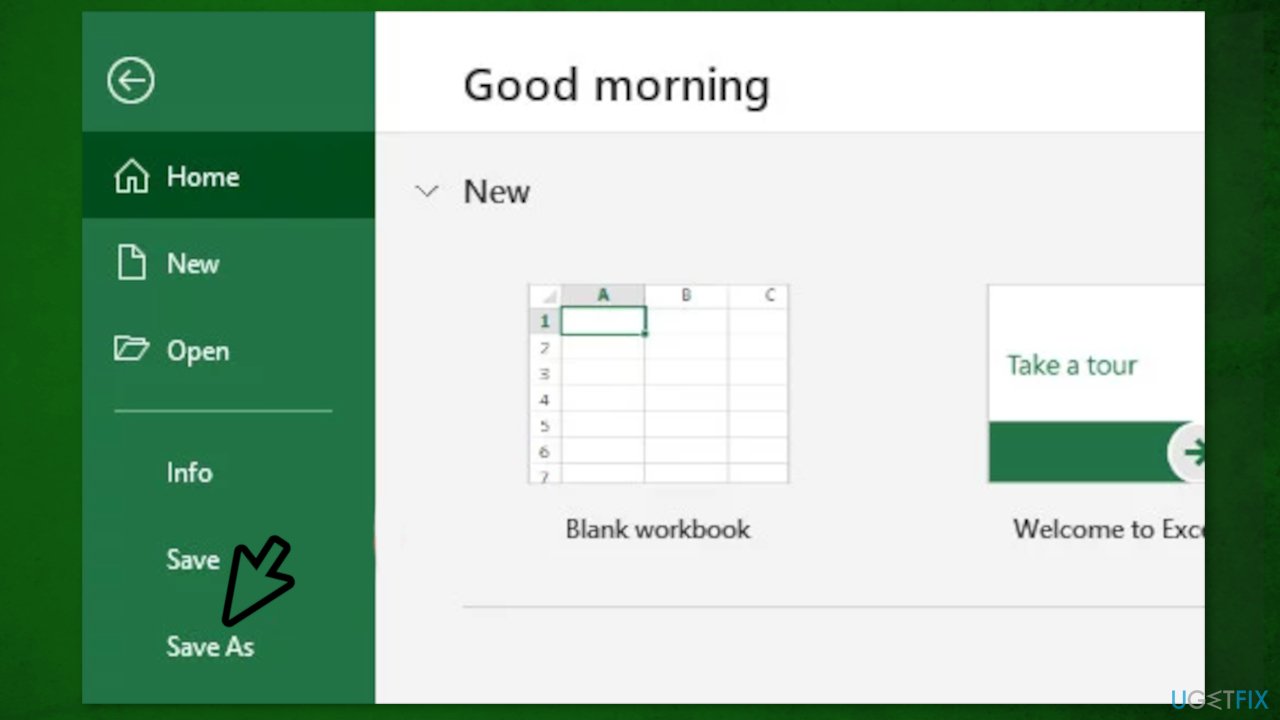
- Click on Save as, then on Browse and select a location on your SSD or HDD
- Select the Save as type to Text format for MS Excel file and Rich Text format for MS Word file
- Check whether the problem has been fixed
Method 3. Recover the Word File
- Open the MS Word application on your Windows computer
- Click on File from the top-left corner
- Click on Open from the expanded menu items and select Browse
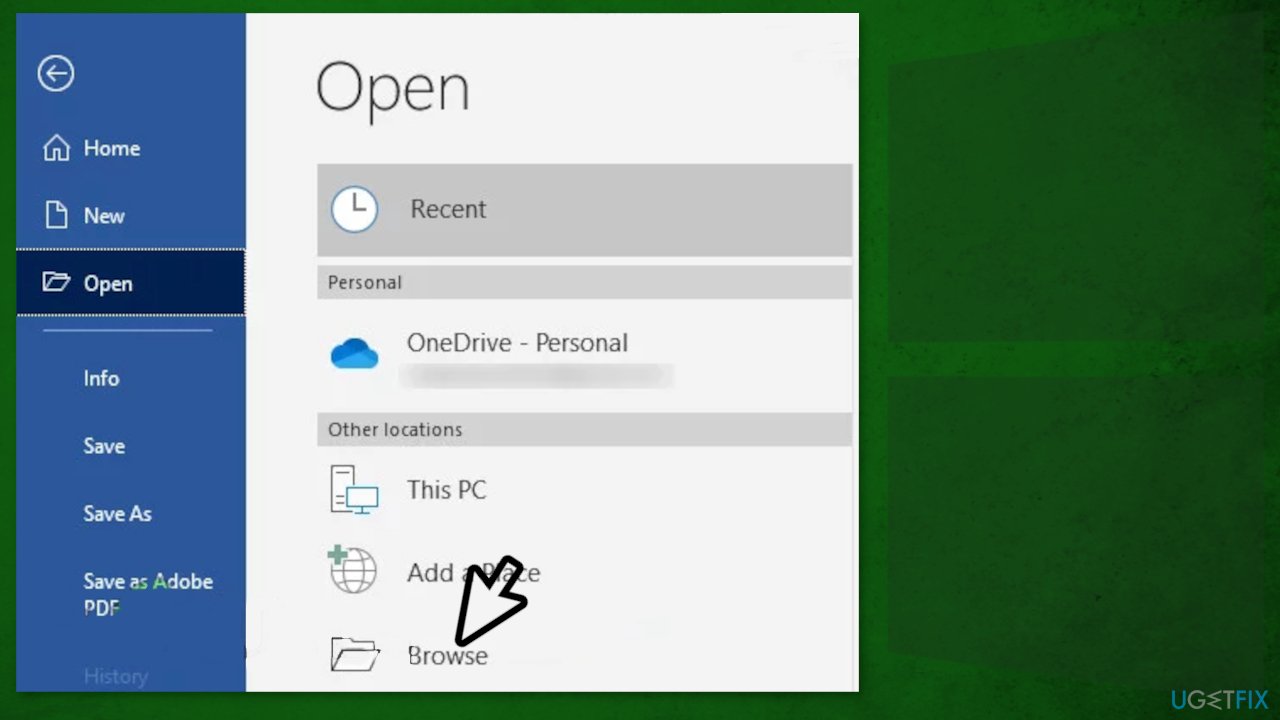
- Go to your floppy disk and select the problematic MS Word file
- Set the file type to Recover Text from Any File and press Open
- Once the word file opened in Recovery mode, you can save the file on a location outside your floppy disk (HDD/SSD)
Method 4. Recover the Excel File
- Open the problematic MS Excel file that’s saved on the floppy disk by using the MS Excel application
- Once the file is opened, click on File from the top-left corner
- Click on Open from the list
- Click on Browse and locate the Excel file
- Click on the drop-down arrow of Open
- Select Open and repair… from the list
- If prompted, click on Repair to start the process
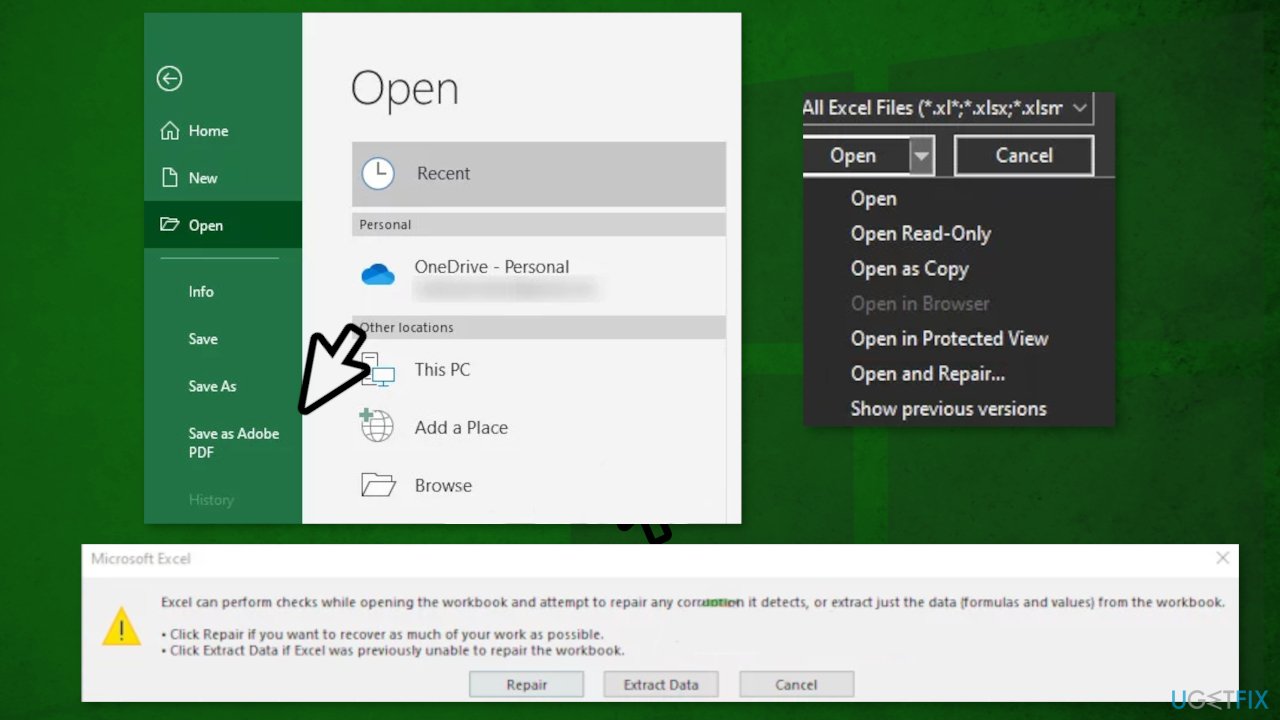
- Wait until the process completes
- If the process was successful, save that Excel file outside the floppy disk (HDD/SSD) and check if the problem is fixed
Method 5. Check Disk
- Click the Start button, and type in cmd
- Right-click Command Prompt and choose Run as Administrator
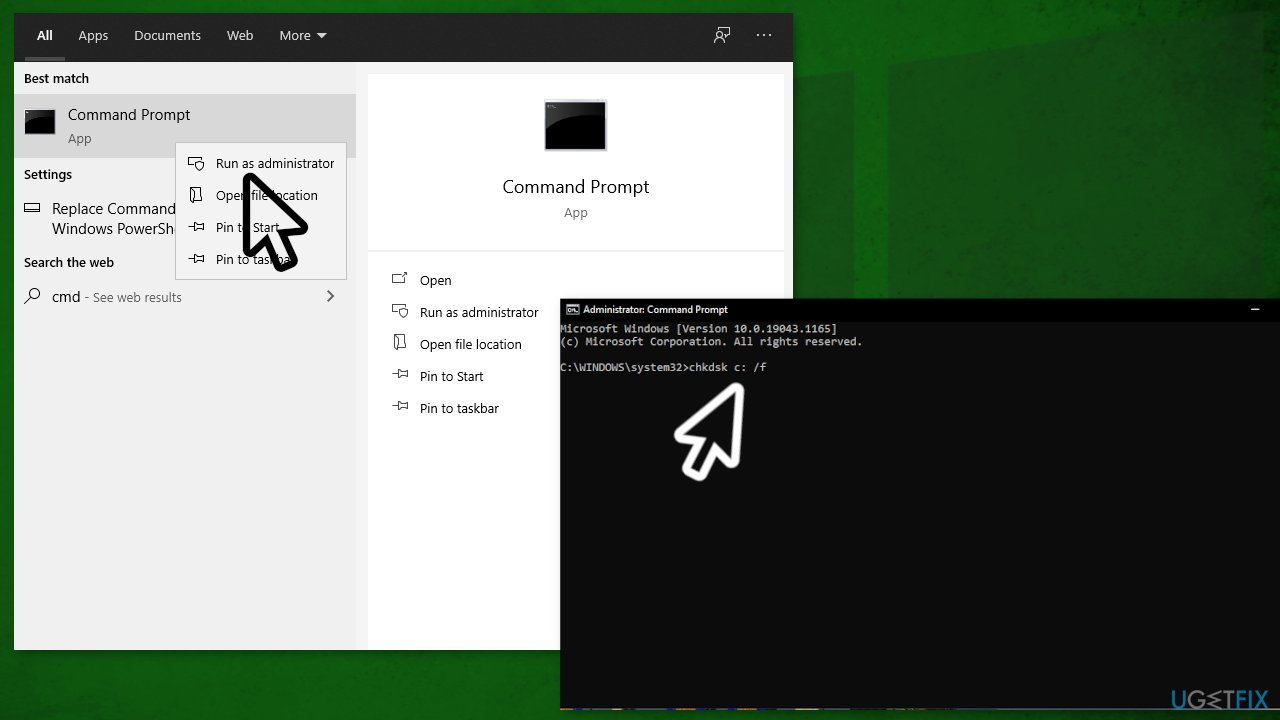
- Copy-paste this command and press Enter:
chkdsk E: /f /r - When that command completes, run this command:
chkntfs /x E: - Copy-paste this command and hit Enter:
fsutil dirty query E:
Bottom line
To fix the 0x800706F9 error, you can start by running the built-in Windows troubleshooter. If that does not resolve the issue, consider using Command Prompt or a repair tool to address system errors and optimize performance. If none of these solutions work, further investigation may be necessary.
Frequently asked questions
The 0x800706F9 error typically occurs due to issues with Windows Update or problems with the Windows Firewall settings. It can also be triggered by corrupted system files or misconfigured services.
To fix the 0x800706F9 error on Windows 11, try running the Windows Update Troubleshooter and resetting your Windows Update components. Additionally, ensure that your Windows Firewall is correctly configured.
To prevent the 0x800706F9 error in Windows 10, regularly update your system and perform routine maintenance, such as running the System File Checker and checking your services. Keeping your firewall settings properly configured also helps.




Report an issue
What's wrong with this guide? We review every report and update or remove content.
Report received — thank you. We'll review and fix it.
You need a free account to submit a report.
Be the first to comment