How to fix
0X80071AC3 “The Volume is Dirty” error
on Windows
Resolve the 0X80071AC3 "The Volume is Dirty" error on Windows 10/11 quickly and effectively with our expert-tested solutions. Fixed in minutes!

What causes How to fix 0X80071AC3 “The Volume is Dirty” error on Windows?
- Damage or corruption of the drive
- Issues with USB drives or SD cards
- Internal hard drive or SSD problems
- Improper file transfer process
- Drive lock mechanism on SD cards
Repairs Windows system files, removes malware, and restores a clean OS state — without reinstalling.
I tried to copy files to the external drive, but could not do that. The process fails all of a sudden, but they seemed to be successfully transferred. When I try to open those files, I get an error message saying that the "Volume is dirty" with an error code 0x80071AC3. I tried to delete the files and transfer them once again, but the same situation happened. What can I do?
The error "Volume is dirty" indicating a 0x80071AC3 code points out to the issue of Windows data. In other words, it means that the system can neither read nor write the data that the system's user attempts to view or write on because of damage or corruption.
Usually, the 0x80071AC3 error is related to the USD drive,[ref en-1] SD card, and similar external storages. It shows up when the PC's user attempts to transfer files from PC to the external drive, but the process is aborted at some point. According to experts, the problem can also affect internal hard drives and SSD cards.
The problem can happen on any Windows version, including but not limited to Windows 7, 8, and 10. However, the most frequently affected OS version is Windows 10.[ref en-2] In fact, the culprit of the problem is not the OS, but the USB stick, SSD card or another external (or internal) drive reporting that the "Volume is dirty."
Users that encounter the problem on SD card should slide the card lock back and forth for several times. Quite a lot of people reported that this simple trick helped them to fix 0x80071AC3 error on SD. The disks, both external and internal, require more complex solutions. We'll provide a list of fixes applicable to this problem and recommend trying them one-by-one.
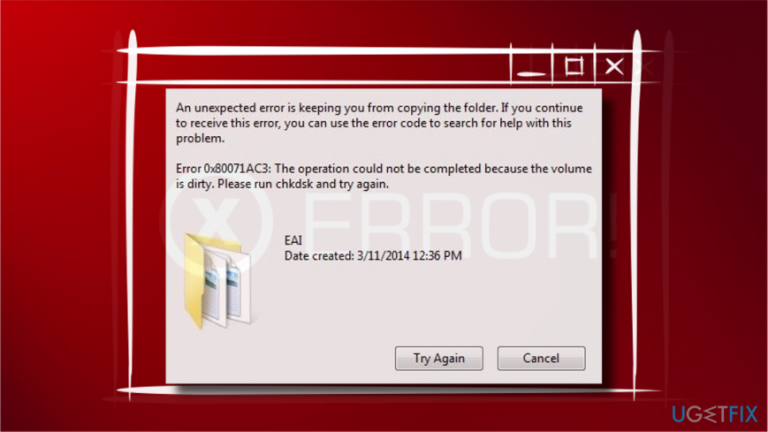
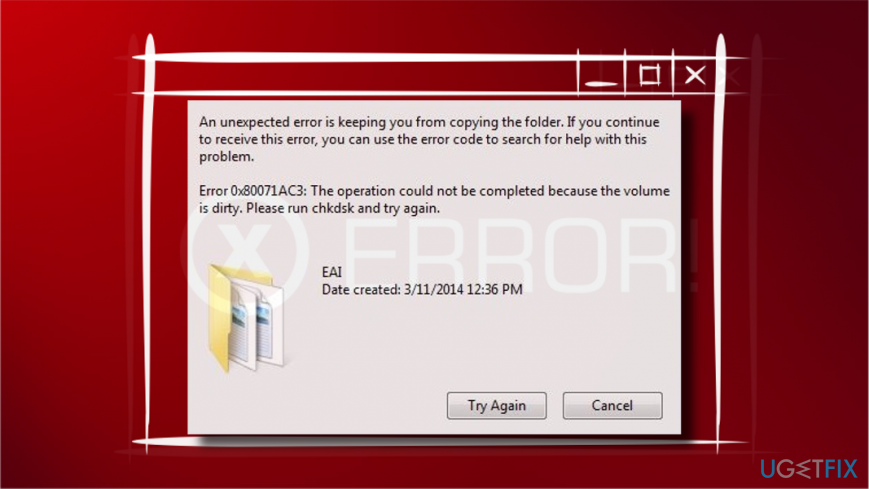
An unexpected error is keeping you from copying the files. If you continue to receive this error, you can use the error code to search for the help with this program.
Error 0x80071AC3: The operation could not be completed because the volume is dirty. Please run chkdsk and try again.
Method 1. Check the drive
No matter if the problem affects internal or external drive, it's advisable to scan the drive for errors and use [d1] for cleaning it from malware or other problems.
The error message itself recommend running CHKDSK to fix the "Volume is dirty" 0x80071AC3 error. Thus, run the script via Command Prompt:[ref en-3]
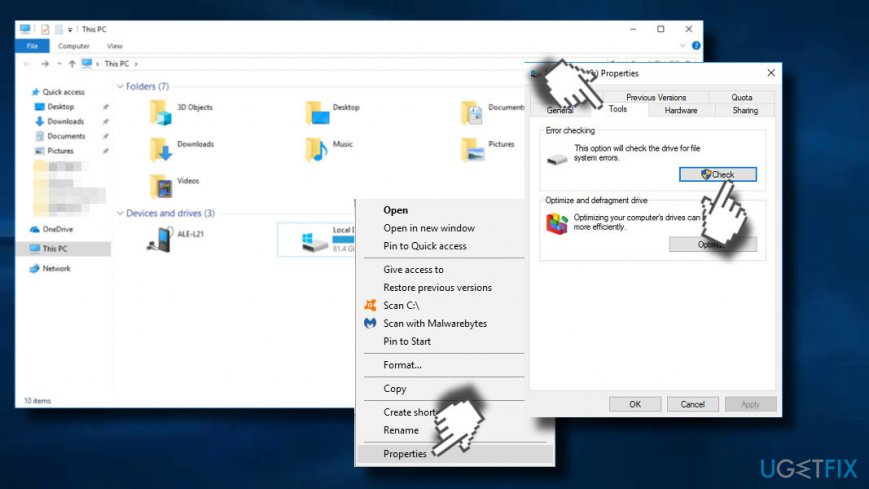
- Open This PC.
- Right-click on the drive that encounters a problem and select Properties.
- Open Tools tab and click Check or Check Now button.
- Windows 10 users should click Scan and repair drive.
- Windows 7 users should mark all options provided and click Start.
- Wait for the scan to complete and check if the drive has been fixed automatically.
Method 2. Reinstall drivers
If the issue affected one of the internal system's disks, a possible solution would be to update the drivers.
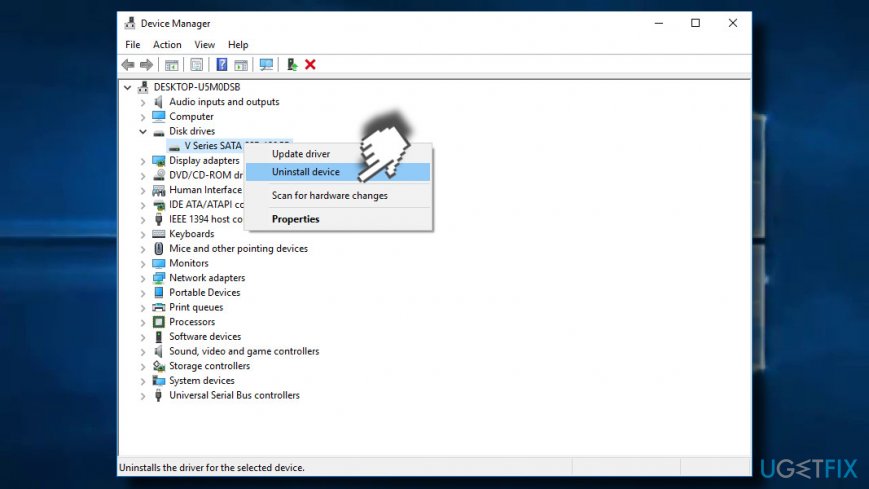
- Right-click on Windows key and select Device Manager.
- Expand Disk drivers section.
- Find the drive that displays the 0x80071AC3 error and right-click on it.
- Select Uninstall and OK to confirm the selection.
- Once done, reboot the system.
- Open Device Manager as explained above. Open Actions tab at the top of the window.
- Select Scan for hardware changes.
- The system should install missing drivers automatically.
Method 3. Initiate Registry changes
IMPORTANT: Reckless Registry modifications can cause serious system's problems. Therefore, make sure to perform the steps indicated below carefully and in the right order.
You may not be allowed to copy the files to the disk due to incorrect Registry configurations. Thus, to you should try to initiate the following changes:
- Press Windows key + R, type regedit, and press Enter.
- Click Yes on the UAC.
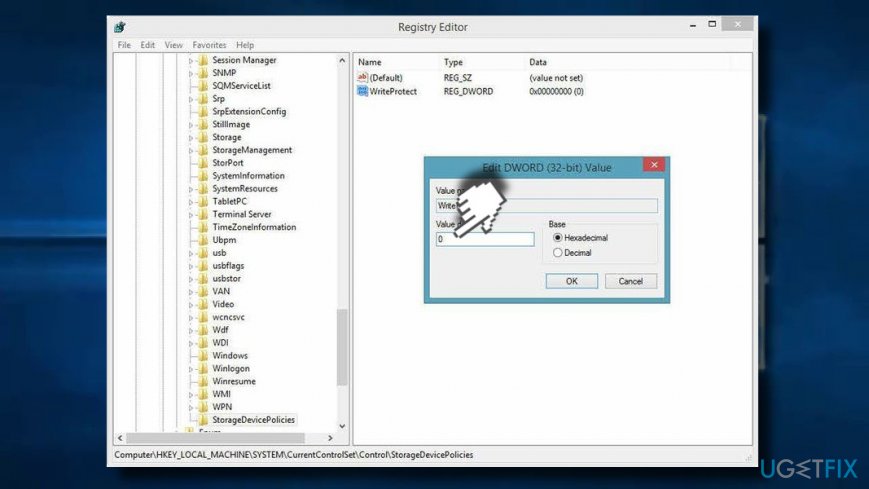
- Once Registry Editor opens, navigate to the HKEY_LOCAL_MACHINE > SYSTEM > CurrentControlSet > Control.
- Find StorageDevicePolicies key on the left pane and click on it.
- Once inside the key, open the WriteProtect entry and double-click on it.
- Change the WriteProtect value from 1 to 0. If it's 0, then keep it as it is.
- Click OK to save the changes.
- Close Registry Editor and restart the PC. Check if the problem has been solved.
Method 4. Format the drive
NOTE: formatting will remove all data stored on the drive. Make sure that you have file copies before formatting.
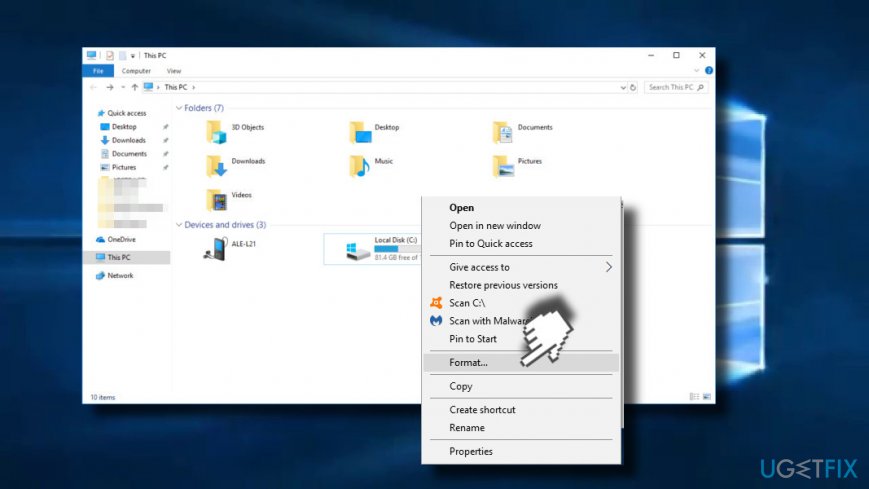
- Open This PC.
- Right-click on the drive that you want to format and select Format.
- Select Restore device defaults option.
- Click OK to start formatting.
Bottom line
To fix the 0x80071AC3 error, you can try methods such as checking the drive for errors using chkdsk, ensuring the drive is properly connected, and toggling the lock on SD cards. If these solutions do not resolve the issue, further troubleshooting may be necessary.
Frequently asked questions
The 0X80071AC3 error indicates that the volume is dirty, which means there are issues with the disk that need to be resolved before it can be used properly.
You can fix the error by running the Command Prompt as an administrator and executing the command 'chkdsk /f X:', replacing 'X' with the drive letter of the affected volume.
Yes, you can use the built-in Windows Check Disk tool or third-party disk repair utilities to scan and repair the volume that is causing the error.




Report an issue
What's wrong with this guide? We review every report and update or remove content.
Report received — thank you. We'll review and fix it.
You need a free account to submit a report.
Be the first to comment