How to fix
0x80072f05 Error
on Windows
Resolve the 0x80072f05 error on Windows 10 quickly and effortlessly with our expert-tested solutions. Get your system back on track today!

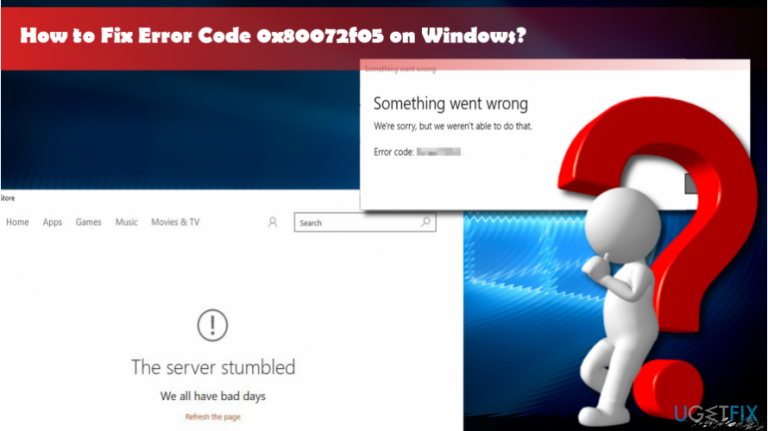
What causes How to fix 0x80072f05 Error on Windows 10?
- Incorrect Date and Time Settings
- Overloaded Windows Store servers
- Issues with Mail App or Windows Store
- Antivirus or Windows Firewall interference
- Outdated Windows version
Repairs Windows system files, removes malware, and restores a clean OS state — without reinstalling.
I cannot access new emails. The mail app returns an error code 0x80072f05. I cannot find any relevant information on this topic. Could you please help?
The Error Code 0x80072f05 is not a new kind of issue that users experience. It showed up along with Windows 10 OS release in 2015, but judging from various threads posted at that time, it seems that the problem has been resolved with the Anniversary Update.[ref en-1] However, recently people using PCs that run Windows 10 Creators Update has fallen victims to 0x80072f05 error once again.
Few people reported that the 0x80072f05 error showed up on Outlook or Windows Mail app and prevented them from accessing freshly received emails. In this case, the culprit may be Date and Time Settings, so try to reset it in the first place.
Nevertheless, the 0x80072f05 error usually is not confined to Outlook or Mail app. At the same time, the problem may occur on Windows Store during the procedure of app downloading or installing.
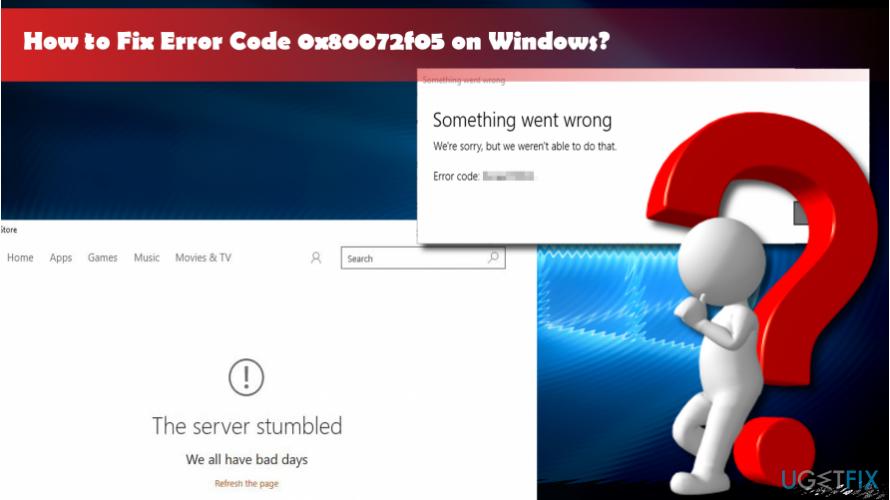
If the 0x80072f05 error shows up on Windows Store exceptionally, we would recommend closing the store and leaving it for a while. The problem may occur due to the overloaded Windows Store servers, which is especially relevant after the release of Windows Updates.
If that did not help, here are a couple of useful tips that you may try before switching to more complicated 0x80072f05 error fixes:
- Restart Mail App or Windows Store;
- Reboot the system;
- Try to install the latest Windows updates via Settings;
- Temporarily disable antivirus and Windows Firewall[ref en-2] software.
Fix 1. Change Date and Time Settings to fix 0x80072f05 error on Windows 10
- Right-click on the Date and Time widget located on the lower-right corner of the desktop.
- Select Adjust Date/Time.
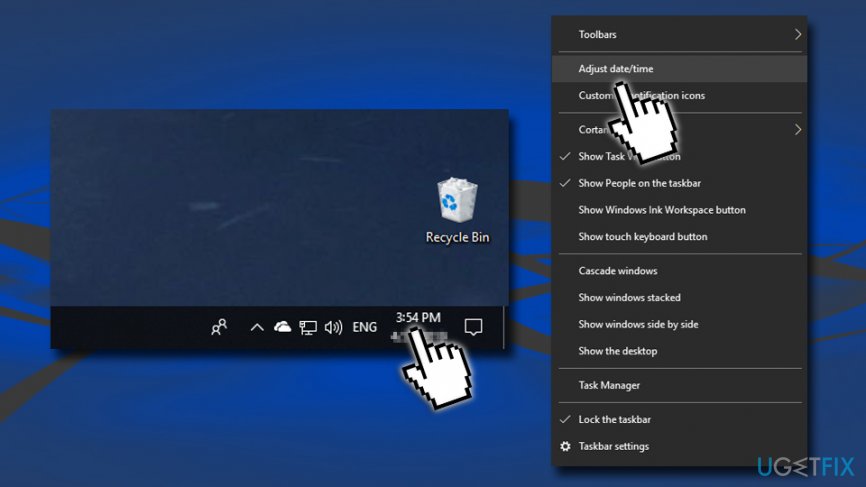
Fix 0x80072f05 error check time and date settings - Check all Date and Time options and modify them if any of them are incorrect.
- Save the changes and check if the error reoccurs.
Fix 2. Run Windows Store Apps Troubleshooter
- Right-click on the Start button and select Settings.
- Go to Update & Security.
- On the left side of the window, select Troubleshoot.
- On the right side, scroll down to locate Windows Store Apps.
- Click on it once and then select Run the troubleshooter.
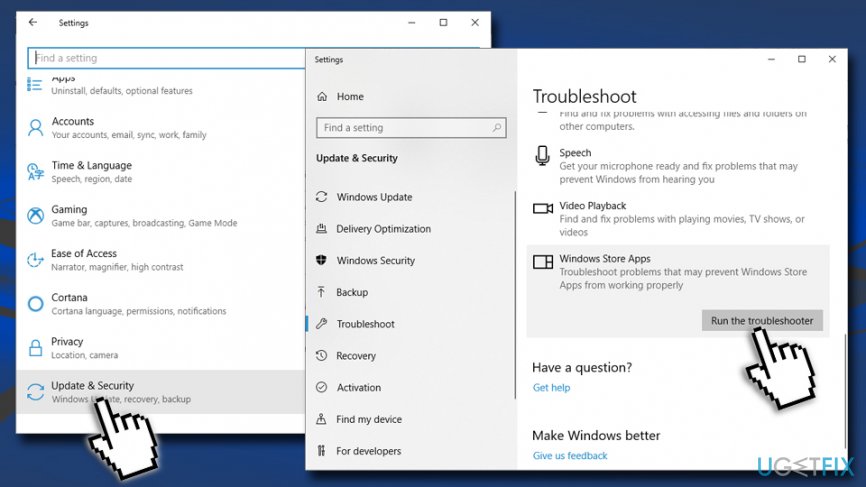
Fix 0x80072f05 error run windows store apps troubleshooter - Windows will detect all the errors and attempt to fix them.
Fix 3. Run WSReset command
- In Cortana's search bar, WSReset.
- Right-click on a wsreset option and select Run as administrator.
- Now wait (a black pop-up windows should show up and then dissappear)
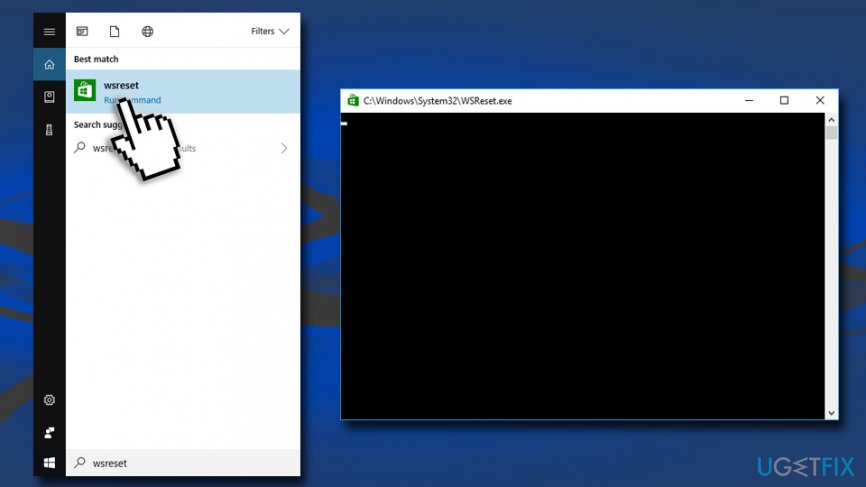
Fix 0x80072f05 error reset windows store - As soon as Windows Store cache[ref en-3] is removed, Windows Store window will automatically open.
- Check if that helped to fix 0x80072f05 error.
Fix 4. Re-register Windows Store Apps
- Right-click on Start button and select Windows PowerShell (Admin).
- Copy and paste the following: Get-AppXPackage | Foreach {Add-AppxPackage -DisableDevelopmentMode -Register “$($_.InstallLocation)\\AppXManifest.xml”}
- Press Enter to execute it.
- The system should reboot after all, but if a reboot did not happen automatically, restart it manually.
Fix 5. Change Network Location Awareness service status
- Press Windows key + R, type services.msc, and press Enter.
- Click OK on the confirmation window.
- Find the Network Location Awareness service and right-click on it.
- Select Properties and open General tab.
- Under Startup type select Automatic.
- Click on Start and then OK
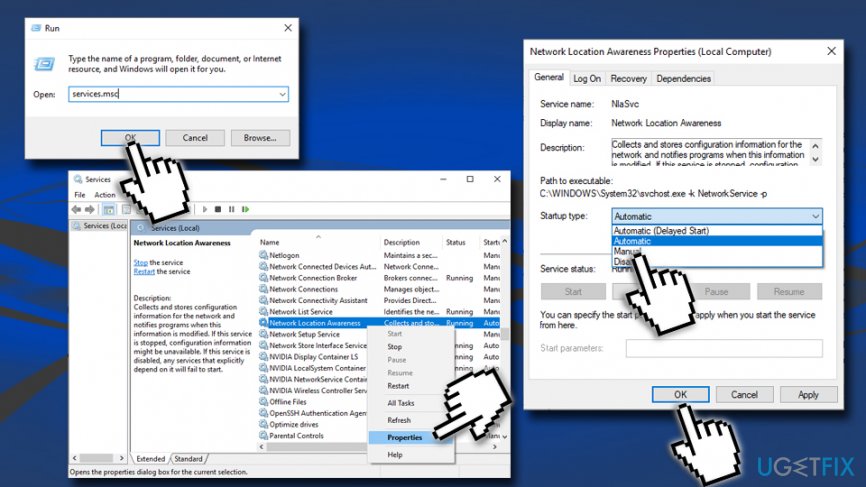
Fix 0x80072f05 error change network location awareness status
Fix 6. Update Network Adapter drivers
- Right-click on Start button and select Device Manager.
- Find the Network adapter section and expand it.
- Right-click on your Network adapter and select Update Driver Software.
- Then, go for Search automatically for updated driver software
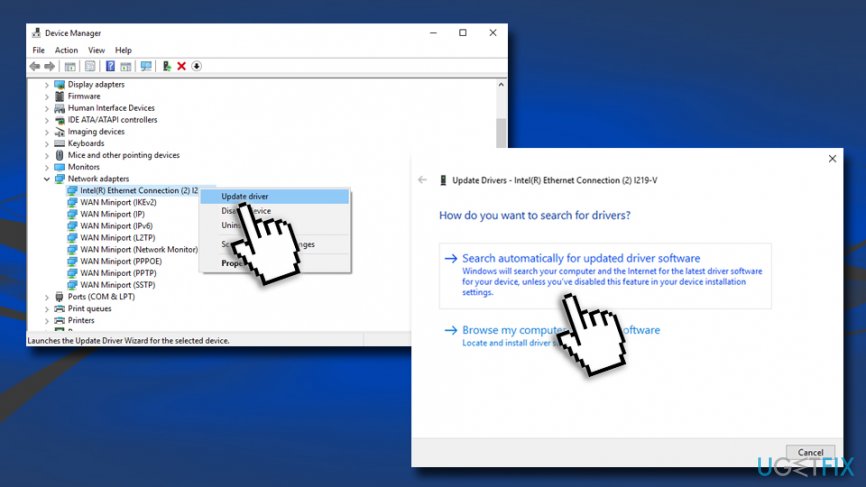
Fix 0x80072f05 error update network adapter drivers - Finally, reboot the system.
If none of these methods helped you to fix 0x80072f05 error, we would strongly recommend scanning the system with the PC repair software [d1], it might fix the error automatically.
Bottom line
To fix the 0x80072f05 error, you can start by adjusting the Date and Time settings. If the issue persists, try running the Windows Store Apps Troubleshooter, restarting the Mail App or Windows Store, and temporarily disabling antivirus and firewall software. If none of these solutions work, consider installing the latest Windows updates.
Frequently asked questions
The 0x80072f05 error typically occurs due to issues with network connectivity, incorrect date and time settings, or problems with Windows Update services.
To fix this error, ensure your internet connection is stable, check that your date and time settings are correct, and reset the Windows Update components.
If you cannot connect to the internet, you can try running the Windows Update Troubleshooter from the Settings menu to identify and fix potential issues.




Report an issue
What's wrong with this guide? We review every report and update or remove content.
Report received — thank you. We'll review and fix it.
You need a free account to submit a report.
Be the first to comment