
How to fix 0x80072F0D error in Windows?

Prefer to fix it yourself? The manual steps follow.
- 8methods
- 5 to 30 minutes
- Medium
Applies to Windows 11, Windows 10 and Windows 7: Windows Update and other Windows downloads over HTTPS
8 methods in this guide
Hello. I keep getting the 0x80072F0D error on my Windows PC. Is there a way to fix this?
Error 0x80072F0D means Windows does not trust the certificate authority that signed the secure connection, so the download stops. Most often a proxy, a VPN or HTTPS scanning in a security app sits between your PC and Microsoft. Check who issued the certificate first (Fix 1), because cache resets do not change that.
0x80072F0D is WinINet error 12045: the certificate authority of the server is unknown to Windows. Open https://www.microsoft.com in Edge and read who issued its certificate (Fix 1). If it is your antivirus, a VPN or a proxy, remove the proxy or turn off HTTPS scanning (Fix 2). If it is a normal public authority, let Windows refresh its root certificates (Fix 3) and check the clock (Fix 4).
| Error | 0x80072F0D, in Windows Update shown as Code 80072F0D. |
|---|---|
| Where it appears | When Windows Update checks for or downloads updates. Most reports are from Windows Update, many of them on Windows 7. |
| Main cause | Something between your PC and Microsoft presents a certificate Windows does not trust: a proxy, a VPN, HTTPS scanning in a security app, or a company firewall. |
| Fastest fix | Read who issued the certificate of https://www.microsoft.com in Edge (Fix 1), then remove the proxy or the HTTPS scanning (Fix 2). |
| Also written as | 80072F0D, 0x80072f0d, error code-80072F0D. Windows name: ERROR_INTERNET_INVALID_CA (12045). |
| Meaning | "The function is unfamiliar with the Certificate Authority that generated the server's certificate." |
| Affects | Windows 11, Windows 10 and Windows 7. Windows 7 left support on 14 January 2020, Windows 10 on 14 October 2025. |
| Microsoft's status | Not a bug and not tied to one update. The code comes from WinINet, the Windows internet library, and describes a trust problem on the connection. |
| Time to fix | 2 minutes to find the cause, 5 to 15 minutes to fix a proxy, clock or root certificate setting. |
Facts checked on 15 October 2026. Steps written for Windows 11 (25H2 and 26H2) and Windows 10 22H2.
What error 0x80072F0D means
The code has two parts. 0x8007 says it is a Windows system error, and 2F0D is the number 12045 in hexadecimal. In Microsoft's list of WinINet errors, 12045 is ERROR_INTERNET_INVALID_CA: "The function is unfamiliar with the Certificate Authority that generated the server's certificate."
In plain words: Windows opened a secure HTTPS connection to download something, the other side showed a certificate, and Windows could not trace that certificate to an authority it trusts. Windows then stops, because an unknown authority can mean someone is reading or changing the traffic. Your internet works, but this one secure connection is refused.
| What you see | Where | What it tells you |
|---|---|---|
| Windows could not search for new updates, with Code 80072F0D Windows Update encountered an unknown error. | Control Panel > Windows Update on Windows 7 | The update check reached a server whose certificate Windows does not trust. |
| 0x80072F0D next to an update, or in Update history | Settings > Windows Update on Windows 11 and Windows 10 | The same trust failure during a check or a download. |
| 0x80072F7D | Mostly Windows 7 | A different code: ERROR_INTERNET_SECURITY_CHANNEL_ERROR (12157). See the Windows 7 section. |
If you came here from a search for an unrelated word, such as "lalu", this page is only about the Windows error code 0x80072F0D and its close relative 0x80072F7D.
Why Windows does not trust the certificate
An unknown authority means one of two things. Either a program or a network device puts its own certificate on the connection, or the list of trusted root authorities on your PC is old or blocked. The first case is far more common on home PCs, and no update repair can fix it.
| Cause | How often | How to tell | Fix |
|---|---|---|---|
| A proxy is set in Windows, often left over by a VPN, an ad blocker or a tool you removed. | Most often | Fix 1 shows a proxy in Settings or in netsh winhttp show proxy. | Fix 2 |
| A security app scans HTTPS traffic and signs it with its own certificate. | Often | The certificate of microsoft.com in Edge is issued by your security app. | Fix 2 |
| A company, school or hotel network inspects HTTPS traffic. | Often on work PCs | The issuer is the company's firewall, or the error only appears on that network. | Fix 2 (ask IT) |
| Root certificate updates are turned off by policy, or the PC was offline for a long time. | Sometimes | The DisableRootAutoUpdate value is set to 1, or the certificate list cannot be downloaded. | Fix 3 |
| The date or time is wrong, so certificates look invalid. | Sometimes | The clock in the taskbar is off by days or years. | Fix 4 |
| Damaged network or update components. | Rarely | Fix 1 to 4 find nothing. | Fix 5 to 8 |
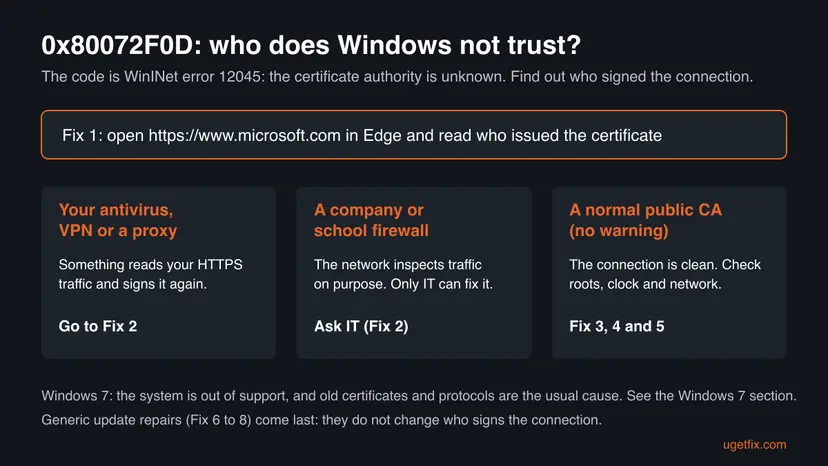
Resetting the update cache, running SFC or the troubleshooter does not change who signs the connection. If a proxy or HTTPS scanning causes the error, it comes back after every reset until that program or setting is changed.
0x80072F0D and 0x80072F7D on Windows 7
Many readers of this page see the error on Windows 7, and the oldest Microsoft Q&A thread about 80072F0D is from a Windows 7 Professional PC. Windows 7 reached the end of support on 14 January 2020. Its certificate list and its secure connection protocols are old, while Microsoft's servers and certificates keep changing.
- 0x80072F0D on Windows 7 is the same trust failure as above. Check the proxy and HTTPS scanning (Fix 1 and 2) and the clock (Fix 4) first: a dead CMOS battery on an old PC often resets the date.
- 0x80072F7D is WinINet error 12157, ERROR_INTERNET_SECURITY_CHANNEL_ERROR: "The application experienced an internal error loading the SSL libraries." It points at the secure channel on the PC itself rather than at a certificate.
- The 2012 answer accepted on Microsoft Q&A suggested a clean boot, then installing the failed update from its standalone package, and the Windows Update troubleshooter.
We could not confirm from a Microsoft source we read today which updates an unpatched Windows 7 PC still needs to reach Windows Update. Even when updates install, Windows 7 gets no new security fixes. The lasting fix is moving the PC to Windows 11, or to Linux if the hardware is too old.
How to fix error 0x80072F0D in Windows
Fix 1 shows in two minutes who signs the connection. Fix 2 removes a proxy or HTTPS scanning, Fix 3 repairs the trusted root list and Fix 4 the clock. Fixes 5 to 8 are the general network and update repairs, for the rare case when the connection itself looks clean.
| What you see or have | Start with |
|---|---|
| You do not know the cause yet. | Fix 1 |
| You use a VPN, an ad blocker, a parental filter or a security app with web protection. | Fix 2 |
| A work or school PC, or the error only on one network. | Fix 1, then ask IT |
| The certificate in Edge looks normal, and the PC was offline or tweaked for privacy. | Fix 3 |
| The clock shows the wrong date or year. | Fix 4 |
| Websites also fail in the browser, not only Windows Update. | Fix 2, then Fix 5 |
| Windows 7. | The Windows 7 section, then Fix 1, 2 and 4 |
Fix 1. Check who issued the certificate and whether a proxy is set
2 minutesNo riskAlways first. It changes nothing and takes two minutes.
0x80072F0D means the certificate authority is unknown. If a proxy or a security app sits in the middle, the issuer you see is that program, not a public authority, and that tells you the cause at once.
- Open Microsoft Edge and go to
https://www.microsoft.com. - Select the padlock (View site information) left of the address, then Connection is secure.
- Select the certificate icon to open the certificate, and read Issued By on the General tab.
- A public authority name is normal. The name of your antivirus, VPN, filter or company means that program or network signs the traffic.
- Open Settings > Network & internet > Proxy and look at Manual proxy setup. On Windows 10 it is Settings > Network & Internet > Proxy.
- Right-click Start, open Terminal (Admin) or Windows PowerShell (Admin), and run the command below. Windows Update uses this second proxy setting.
netsh winhttp show proxyDirect access (no proxy server). is the normal answer. A proxy server address means Windows Update is sent through a proxy, which can cause this error.
It worked if: You know whether a program, a network or a proxy signs the connection.
If not: A program or proxy: Fix 2. A normal public authority and no proxy: Fix 3.
Fix 2. Remove the proxy and stop HTTPS scanning in your security app
5 to 10 minutesLow riskFix 1 found a proxy, or the certificate is issued by your security app, VPN or a filter.
A proxy or an HTTPS scanner opens the secure connection, reads it and signs it again with its own certificate. Windows Update does not accept that certificate, so the error lasts as long as the proxy or the scanning stays.
- In Settings > Network & internet > Proxy, select Edit next to Use a proxy server and turn it Off, then Save. Leave Automatically detect settings on.
- On Windows 10 or 7 you can do the same in the old dialog: press Win + R, type
inetcpl.cpl, open Connections > LAN settings and clear Use a proxy server for your LAN. - In the admin terminal, run the command below to remove the WinHTTP proxy that Windows Update uses.
- In your security app, find the web protection setting that is often called HTTPS scanning, SSL/TLS filtering or scan encrypted connections, and turn only that setting off. Protection itself stays on.
- If you use a VPN or a filter you no longer need, disconnect it or uninstall it: Uninstall a program or app in Windows
- Open Settings > Windows Update and select Check for updates.
netsh winhttp reset proxy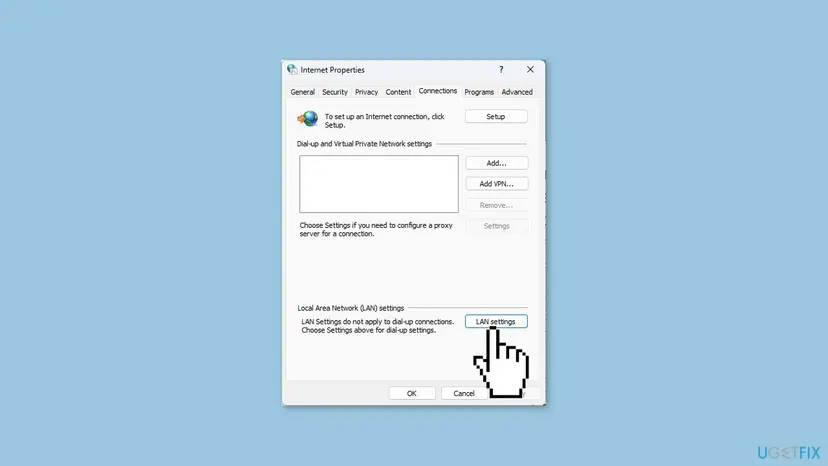
If the issuer in Fix 1 is your company's firewall, the inspection is on purpose. Do not change it yourself: send IT the code 0x80072F0D and the issuer name, so they can let Windows Update through or add their certificate correctly.
It worked if: netsh winhttp show proxy answers Direct access (no proxy server)., the issuer in Edge is a public authority, and updates download.
If not: If a proxy you did not set comes back after a restart, scan the PC with How to scan for malware with Microsoft Defender. If the connection is clean, go to Fix 3.
Fix 3. Let Windows update its trusted root certificates
10 minutesRead the warningFix 1 shows a normal public authority and no proxy, or the PC was offline for a long time or tweaked with a privacy tool.
Windows keeps a list of trusted root authorities and downloads changes to it from Windows Update. Microsoft documents a policy value, DisableRootAutoUpdate, that stops this. With it set, a new authority stays unknown and the code is exactly 0x80072F0D.
You change a policy in the registry. A wrong edit can affect other settings, so export the key first with Back up the registry before editing it. On a work or school PC, IT may set this value on purpose: ask them instead.
- Open Terminal (Admin) on Windows 11 or Windows PowerShell (Admin) on Windows 10.
- Run the first command below. ERROR: The system was unable to find the specified registry key or value is the normal answer: Microsoft says there is no key by default, and Windows then uses Windows Update.
- If the answer shows DisableRootAutoUpdate with 0x1, root updates are turned off. Run the second command to set it to 0, which turns them on.
- Run the third command. It downloads Microsoft's certificate trust lists into a folder on your desktop, which proves the PC can reach them.
- Open the ctl folder on your desktop. Files such as authrootstl.cab mean the download worked. Delete the folder afterwards.
- Restart the PC and check for updates again.
reg query "HKLM\SOFTWARE\Policies\Microsoft\SystemCertificates\AuthRoot"
reg add "HKLM\SOFTWARE\Policies\Microsoft\SystemCertificates\AuthRoot" /v DisableRootAutoUpdate /t REG_DWORD /d 0 /f
certutil -syncWithWU "%USERPROFILE%\Desktop\ctl"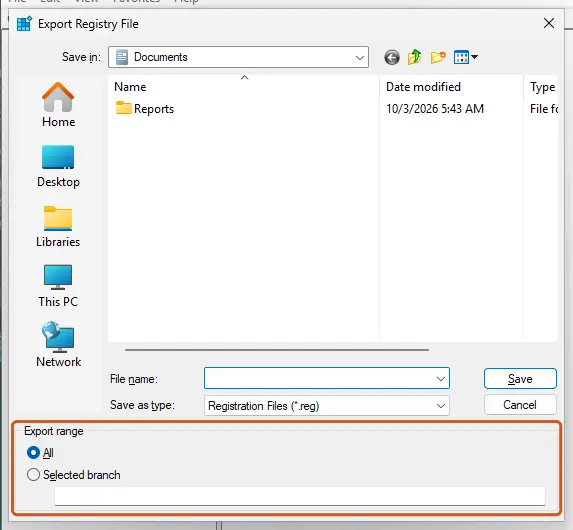
It worked if: The policy value is gone or set to 0, the trust lists download, and Windows Update checks without 0x80072F0D.
If not: If certutil cannot download, the network blocks Microsoft's certificate server: go back to Fix 2. Otherwise check the clock with Fix 4.
Fix 4. Correct the date, time and time zone
3 minutesNo riskThe clock is wrong, the PC is old, or the error came after a long time switched off.
A certificate is valid only between two dates. With the wrong year on the clock, Windows cannot build a valid chain to a trusted authority, and secure downloads fail with certificate errors like this one.
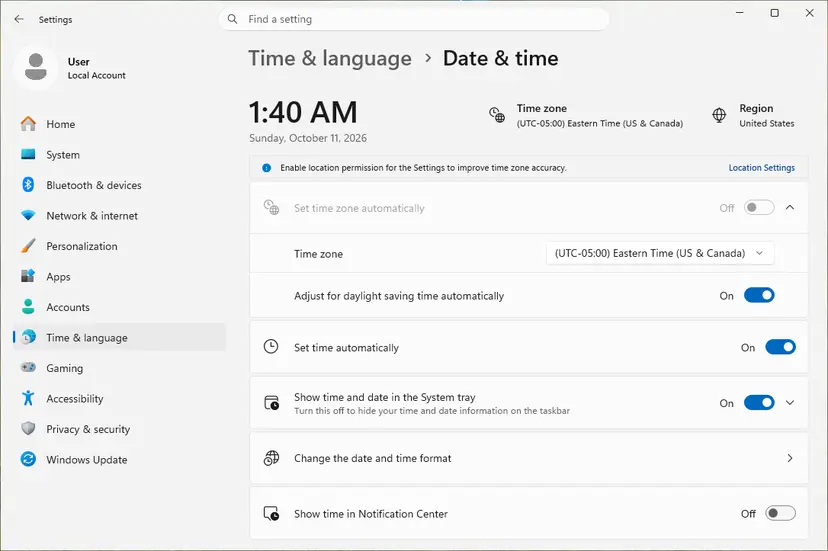
- Open Date & time. Select Start > Settings > Time & language > Date & time.
- Turn on automatic time. Make sure Set time automatically is On.
- Check the time zone. A clock that is wrong by exactly one or more hours has the wrong time zone. Turn Set time zone automatically On, or turn it Off and pick your zone in the list next to Time zone.
- Sync the clock now. Under Additional settings, select Sync now. Windows asks the time server for the current time and corrects the clock.
- Open Command Prompt as administrator. If Sync now fails or the clock is still wrong, resync the Windows Time service by hand. Select Search, type command prompt, select Run as administrator, then select Yes.
- Start the service and resync. Type the two commands below and press Enter after each. The first starts the Windows Time service. If Windows answers that the service is already started, go on. The second tells the PC to resynchronize its clock as soon as possible.
net start w32time w32tm /resync - Set the time by hand as the last step. If the PC has no internet connection, turn Set time automatically Off and select Change next to Set the date and time. Enter the date and time and select Change.
These steps were written for Windows 11 25H2 and 26H2. The full page with the other versions and what each result means: How to fix the date and time in Windows
It worked if: The clock shows the right date and time after Sync now, and updates download.
If not: If the clock is wrong again after every restart, the motherboard battery is probably flat. Replace it, then go to Fix 5.
Fix 5. Reset the network settings and Winsock
10 minutesLow riskWebsites also misbehave, or a removed VPN or filter left network changes behind.
Some VPNs and web filters hook into the network stack and stay there after removal. A Winsock and TCP/IP reset returns the network settings to their defaults, which also clears what such a tool left behind.
- Open an elevated command window. Right-click Start and select Terminal (Admin), or type cmd in the search box, right-click Command Prompt and select Run as administrator. Select Yes when Windows asks for permission.
- Flush the DNS cache. Type the command below and press Enter. Windows forgets the website addresses it looked up earlier and asks for them again.
ipconfig /flushdns - Reset Winsock. Type the command below and press Enter. It returns the Windows sockets catalog to its default state.
netsh winsock reset - Reset TCP/IP. Type the command below and press Enter. If you entered an IP address or DNS server by hand, note it first: you may need to enter it again.
netsh int ip reset - Get a new IP address. Run these two commands one after the other. The connection drops for a moment between them.
ipconfig /release ipconfig /renew - Restart the PC. Restart Windows so the Winsock and TCP/IP resets take effect, then test the connection. If it still does not work, continue with the network reset below.
- Open Network reset. Open Settings > Network & internet > Advanced network settings and select Network reset.
- Reset now. Select Reset now, then Yes to confirm. Windows removes and reinstalls all network adapters and restarts the PC.
- Reconnect. After the restart, connect to your Wi-Fi network again (you will need its password) and reinstall or reconfigure VPN software if it stopped working.
These steps were written for Windows 11 24H2 and later. The full page with the other versions and what each result means: Reset the network and flush DNS
It worked if: After the restart, the issuer in Fix 1 is a public authority and updates download.
If not: Run the Windows Update troubleshooter with Fix 6.
Fix 6. Run the Windows Update troubleshooter
5 minutesNo riskThe connection is clean in Fix 1 to 5, and only Windows Update fails.
The troubleshooter restarts the update services and resets their settings. It cannot remove a proxy or a scanner, so it only helps when the connection itself is clean.
- Open Troubleshoot settings. Select Start > Settings > System > Troubleshoot.
- Open the list of troubleshooters. Select Other troubleshooters.
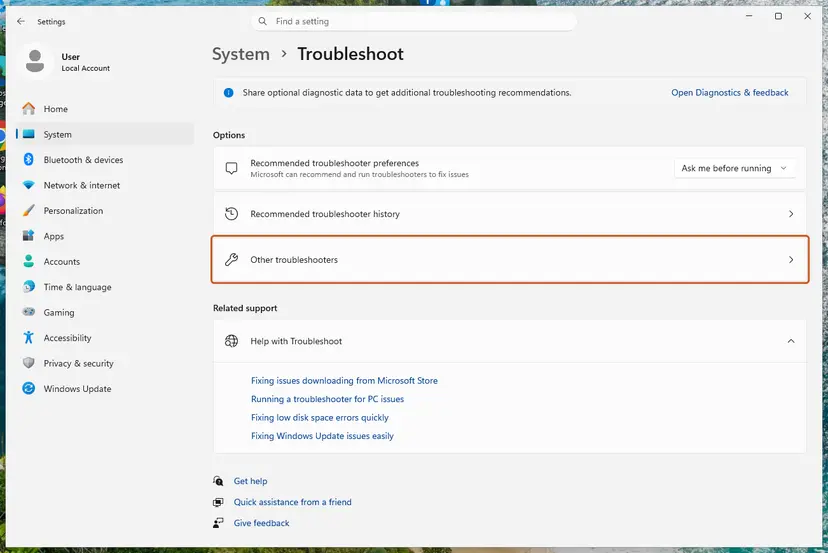
Settings, System, Troubleshoot: select Other troubleshooters. Screenshot: Windows 11 26H2. - Run the Windows Update troubleshooter. Under Most frequent, select Run next to Windows Update. The Get Help app opens and starts the checks.
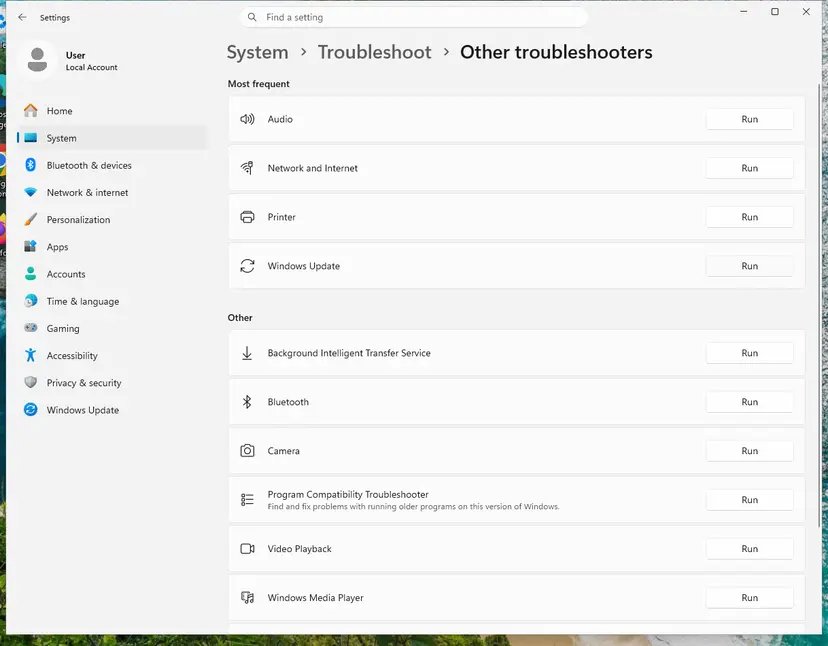
Windows Update is in the Most frequent group; select Run on its row. Screenshot: Windows 11 26H2. - Read the result. Wait until Get Help finishes. If it found and fixed a problem, it says so and asks whether this solved the problem. Answer the question so it can offer the next step.
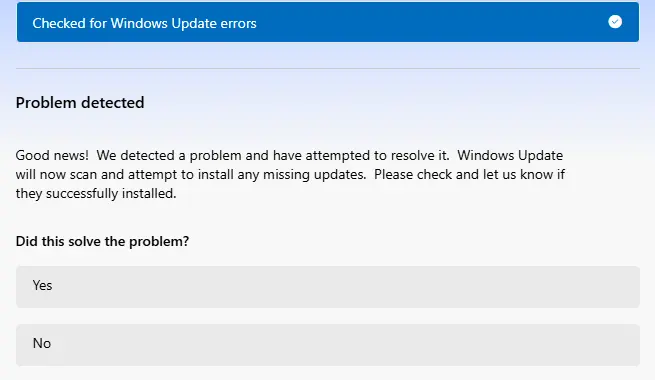
Get Help reports what it found and asks if the problem is solved. Screenshot: Windows 11 26H2. - Restart the PC. Restart when the troubleshooter finishes, even if it does not ask you to.
- Check for updates again. Select Start > Settings > Windows Update > Check for updates, and install the updates it finds.
These steps were written for Windows 11 (screenshots: 26H2). The full page with the other versions and what each result means: Run the Windows Update troubleshooter
It worked if: The troubleshooter reports a fix, and Check for updates works.
If not: Reset the update components with Fix 7.
Fix 7. Reset the Windows Update components
15 minutesLow riskThe troubleshooter did not help and the connection is clean.
A damaged update database can keep a failed download in a loop. Renaming SoftwareDistribution and catroot2 makes Windows start over. The library procedure renames the folders instead of deleting them, so you can go back.
- Open Command Prompt as administrator. Type cmd in the search box, right-click Command Prompt and select Run as administrator. Select Yes when Windows asks for permission.
- Stop the update services. Type the commands below and press Enter after each one. If Windows says that other services depend on Cryptographic Services, it stops them too. A message that a service is not started is fine.
net stop wuauserv net stop bits net stop cryptsvc - Delete the download queue files. This clears the list of downloads that the Background Intelligent Transfer Service keeps. If Windows says it cannot find the files, continue.
del "%ALLUSERSPROFILE%\Application Data\Microsoft\Network\Downloader\qmgr*.dat" - Rename the update cache folders. Renaming keeps a copy in case you need it; Windows creates new, empty folders when the services start again. If you get Access is denied, a service is still running: repeat the previous step.
ren %systemroot%\SoftwareDistribution SoftwareDistribution.old ren %systemroot%\System32\catroot2 catroot2.old - Start the services again. Type the commands below and press Enter after each one. The requested service has already been started is fine: Windows started it on its own.
net start cryptsvc net start bits net start wuauserv - Restart and check for updates. Restart the PC. Then select Start > Settings > Windows Update > Check for updates. The first check can take longer than usual because everything is downloaded again.
These steps were written for Windows 11 and Windows 10 (the steps are the same). The full page with the other versions and what each result means: Reset Windows Update components

It worked if: Windows downloads the pending updates again from the start.
If not: Test with a clean boot in Fix 8.
Fix 8. Test with a clean boot to find a program in the way
15 minutesLow riskNothing above worked, and you suspect a program but Fix 1 did not show one.
A clean boot starts Windows with only Microsoft services. If updates work then, a program that loads with Windows intercepts the connection. It was also the first step Microsoft's answer gave for 80072F0D on Windows 7.
- Open System Configuration. Select Search on the taskbar, type msconfig and select System Configuration from the results.
- Hide Microsoft services. On the Services tab, select the Hide all Microsoft services check box. Only services from other companies stay in the list.
- Disable the remaining services. Select Disable all, then select Apply.
- Open Task Manager. On the Startup tab of System Configuration, select Open Task Manager.
- Disable the startup apps. On the Startup apps tab in Task Manager, select each item whose status is Enabled and select Disable. Write down or take a screenshot of the items you disable: you need the list to turn them back on.
- Confirm the changes. Close Task Manager. On the Startup tab of System Configuration, select OK.
- Restart and test. Restart the PC. Windows now starts in a clean boot environment: try again the thing that failed (run the app, install the update, uninstall the program).
These steps were written for Windows 11 25H2 and 26H2. The full page with the other versions and what each result means: How to perform a clean boot in Windows
If updates work in the clean boot, turn the services back on in halves until the error returns. Then change the setting in that program or uninstall it. Return to a normal start afterwards, as the procedure explains.
It worked if: Updates install in the clean boot, and you know which program caused the error.
If not: Read the next section: the update log names the server and the error.
If error 0x80072F0D is still there
On Windows 11 and 10, build the readable update log with the PowerShell command below. It writes WindowsUpdate.log to your desktop. Search it for 80072F0D and read the lines just above the hit: they show which address Windows tried to reach.
Get-WindowsUpdateLog| What you find | What it means |
|---|---|
| A proxy address in the lines before the error | A proxy is still set. Repeat Fix 1 and Fix 2, including netsh winhttp reset proxy. |
| The error on one network only, for example at work | That network inspects HTTPS. Ask its administrator. |
| The error comes back after you removed a proxy | A program sets it again. Use the clean boot in Fix 8 and a Defender scan. |
| Nothing points at the network | Send the log to Microsoft Support. |
For support, send the code 0x80072F0D, the KB number if one is shown, your Windows version from Settings > System > About, the issuer name from Fix 1 and the output of netsh winhttp show proxy. This error is not a hardware fault and not a licence problem. The only hardware link is a flat motherboard battery that keeps resetting the clock.
Windows 10 reached the end of support on 14 October 2025. Without Extended Security Updates, a Windows 10 22H2 PC no longer gets monthly updates, so it may simply be offered nothing.
How to keep error 0x80072F0D from coming back
- Keep Set time automatically on, so certificates are always checked against the right date.
- After you remove a VPN, an ad blocker or a filter, check
netsh winhttp show proxyand the proxy page in Settings. - Let Windows update its root certificates. Leave the
AuthRootpolicy key absent on your own PC.
- Do not install root certificates from unknown websites to make the error go away: a trusted root you do not control can let others read your secure traffic.
- Do not turn off your antivirus for good. Turn off only its HTTPS scanning if it causes the error.
- Do not use privacy tweak tools that turn off root certificate updates.
Frequently asked questions
What does error 0x80072F0D mean?
It means Windows does not trust the certificate authority that signed a secure connection. The code is WinINet error 12045, ERROR_INTERNET_INVALID_CA. Microsoft describes it as "The function is unfamiliar with the Certificate Authority that generated the server's certificate." In practice a proxy, a VPN, HTTPS scanning in a security app or a company firewall often signs the traffic instead of Microsoft's real authority. Check the issuer in Edge with Fix 1 to see which one it is.
Is 80072F0D the same as 0x80072F0D?
Yes. Windows 7 shows the code without the 0x prefix, as Code 80072F0D, while Windows 11 and Windows 10 usually show 0x80072F0D. Small letters, as in 0x80072f0d, make no difference either. Error code-80072F0D in forum posts is also the same error, so everything on this page applies to every spelling.
How do I fix 0x80072F0D on Windows 7?
Start with the checks that work on any Windows: remove a proxy and HTTPS scanning (Fix 1 and 2), then make sure the date is right (Fix 4), because old PCs often lose the time when the motherboard battery is flat. Microsoft's own answer for Windows 7 suggested a clean boot, a standalone update package and the troubleshooter. Windows 7 has been out of support since 14 January 2020, so the lasting fix is a supported system.
What is error 0x80072F7D on Windows 7?
It is a different code from the same WinINet library: 12157, ERROR_INTERNET_SECURITY_CHANNEL_ERROR, described as "The application experienced an internal error loading the SSL libraries." So it points at the secure channel on the PC itself, not at a certificate. It shows up mostly on Windows 7, whose secure connection support is old. We could not confirm a single Microsoft fix for it from the sources we read today. Check the clock and proxy first, then consider a supported Windows.
Can my antivirus cause 0x80072F0D?
Yes, when it scans HTTPS traffic. Such scanning opens the secure connection, checks it and signs it again with the app's own certificate. Browsers may accept that certificate, but Windows Update can refuse it with 0x80072F0D. Fix 1 shows it: the certificate of microsoft.com is then issued by your security app. Turn off only the HTTPS or encrypted connection scanning, not the protection itself, and check for updates again.
Does 0x80072F0D mean my PC has a virus?
Usually not. Most often the cause is a proxy, a VPN, a security app or a company network. Some unwanted programs do set a proxy or add their own root certificate to read your traffic, though. If Fix 1 shows a proxy or an issuer you do not recognise, and it comes back after you remove it, run a full scan with Microsoft Defender: How to scan for malware with Microsoft Defender
Should I download root certificates from the Microsoft Update Catalog?
Not on Windows 11 or Windows 10. These versions download changes to the trusted root list from Windows Update on their own, unless the DisableRootAutoUpdate policy turns that off. Check that policy and test the download with Fix 3 instead. Never install a root certificate from a website that is not Microsoft's: a root you do not control can let others read your secure traffic.
Does 0x80072F0D happen on Windows 11 and Windows 10?
Yes. The code and its meaning are the same on Windows 11, Windows 10 and Windows 7, because they all use the same WinINet library. On Windows 11 and 10 the error shows next to the update in Settings > Windows Update or in Update history. Proxies and HTTPS scanning are the usual cause on these versions, so start with Fix 1 and Fix 2.
Is it safe to remove a proxy I did not set?
On a home PC, yes. Without a proxy Windows connects directly, which is the default. If a VPN or a filter needs the proxy, it sets it again when you start it, and you will see the error return with it. On a work or school PC, leave the proxy alone: the company may require it, and only IT should change it.
Sources
- Microsoft Learn: Error Messages (Wininet.h), ERROR_INTERNET_INVALID_CA 12045 and ERROR_INTERNET_SECURITY_CHANNEL_ERROR 12157 (learn.microsoft.com)
- Microsoft Learn: Configure trusted roots and disallowed certificates in Windows (DisableRootAutoUpdate, certutil -syncWithWU) (learn.microsoft.com)
- Microsoft Q&A: Windows update error code-80072F0D (Windows 7, accepted answer) (learn.microsoft.com)
Did this fix work?
One click, no account. It tells the next reader which guides are worth their time.
Questions and experiences: fix 0x80072F0D error in Windows
Still broken, or found a fix we did not cover? Ask here: members and our editors answer. Reading is open; writing needs a free account.
…