How to fix
0x80073D21 error when installing games on Xbox app
on Windows
Resolve the 0x80073D21 error on the Xbox app for Windows 10 and 11 effortlessly. Expert-tested solutions ensure your games install smoothly, fixed in mi…

What causes How to fix 0x80073D21 error when installing games on Xbox app in Windows?
- Faulty or missing installation files
- Improper installation location
- Insufficient disk space
- Cached data obstructing installation
Repairs Windows system files, removes malware, and restores a clean OS state — without reinstalling.
Hello. When I try to install any video game through the Xbox app I get the 0x80073D21 error. How do I fix this? Any tips would be appreciated.
Users who try to install or update Xbox games on their Windows PC through the Microsoft Store frequently run into the 0x80073D21 error. Many factors might lead to the occurrence of this issue, which has the particular code 0x80073d21, but the installation files and the intended installation location are the main culprits.
Users may find this issue rather annoying because it prevents them from installing or updating Xbox games without any problems. Users are perplexed about the procedures that must be taken in order to resolve the issue because the error message itself offers no insight into the precise source of the issue. Due to this circumstance, players may spend time and energy installing the game, and in some situations they may give up completely.
The Xbox game's faulty or missing installation files are to blame for the issue. Such files may interfere with the setup procedure and prevent the game from being installed or updated correctly. This error may also be brought on by issues with the installation location that was selected. The installation procedure may be hampered and result in the error number 0x80073d21 if the installation place is cramped or improperly set up.
There are a few possible methods that consumers can take into consideration in order to resolve this problem. Changing the game's installation location to the device's system drive is a useful strategy. Any problems brought on by insufficient disk space or improper installation directory settings can be resolved with the use of this approach.
Clearing the Microsoft Store's cache is another suggested action. Occasionally, cached data can obstruct the installation process and cause errors like 0x80073d21. Users may be able to fix any residual conflicts or problems that may be the source of the error by deleting the cache.
In this guide, you will find 5 steps that should help you fix 0x80073D21 error when installing games on Xbox app in Windows. You can also run a maintenance tool like [d1] that can fix most system errors, BSODs,[ref en-1] corrupted files, registry[ref en-2] issues, or clear cookies and cache.[ref en-3] Otherwise, follow the step-by-step instructions below.
Solution 1. Clear Microsoft Store Cache
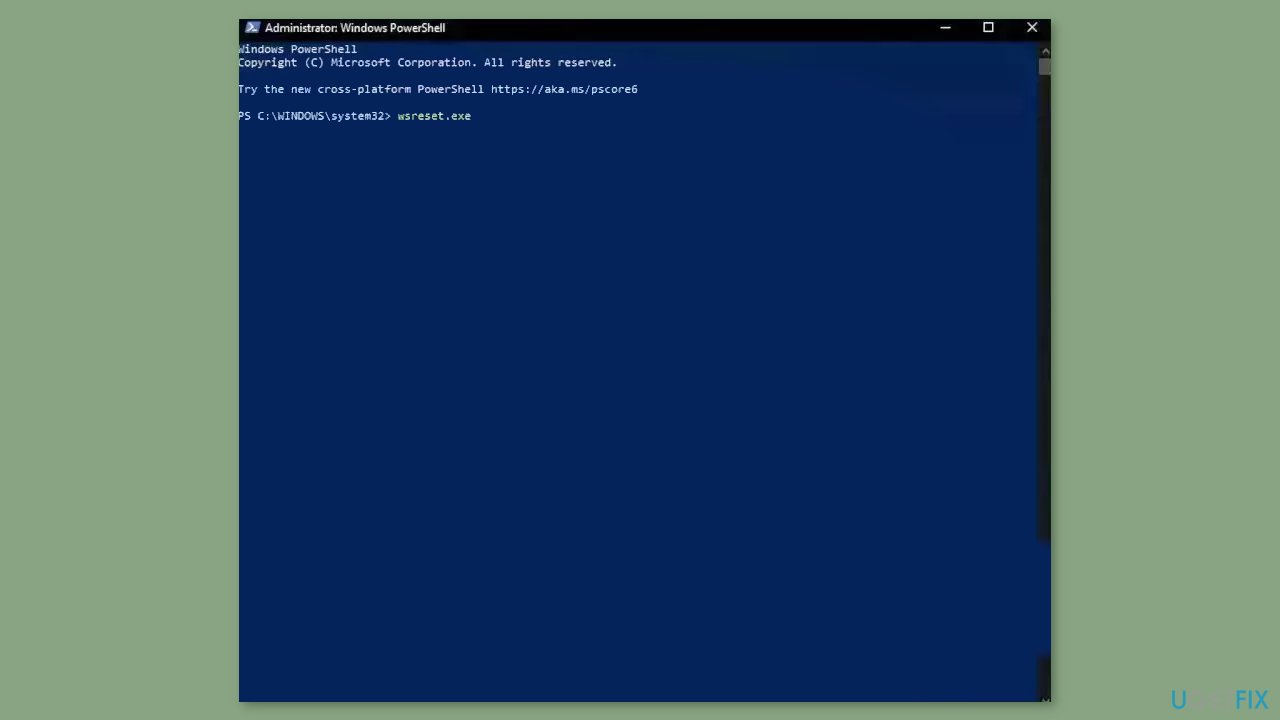
- Open the Windows Powershell from the search bar by typing powershell.
- Right-click on the search result and select Run as Administrator.
- If a UAC opens, hit Yes to provide your consent.
- Type WSReset.exe and hit Enter.
Solution 2. Run the Microsoft Store Apps Troubleshooter
- Press the Windows key + I to open Windows Settings.
- Select the System section and scroll down until you see Troubleshoot and click on it.
- Click on Other troubleshooters to see more troubleshooters available on your computer.
- Scroll down at the bottom until you see Microsoft Store Apps.
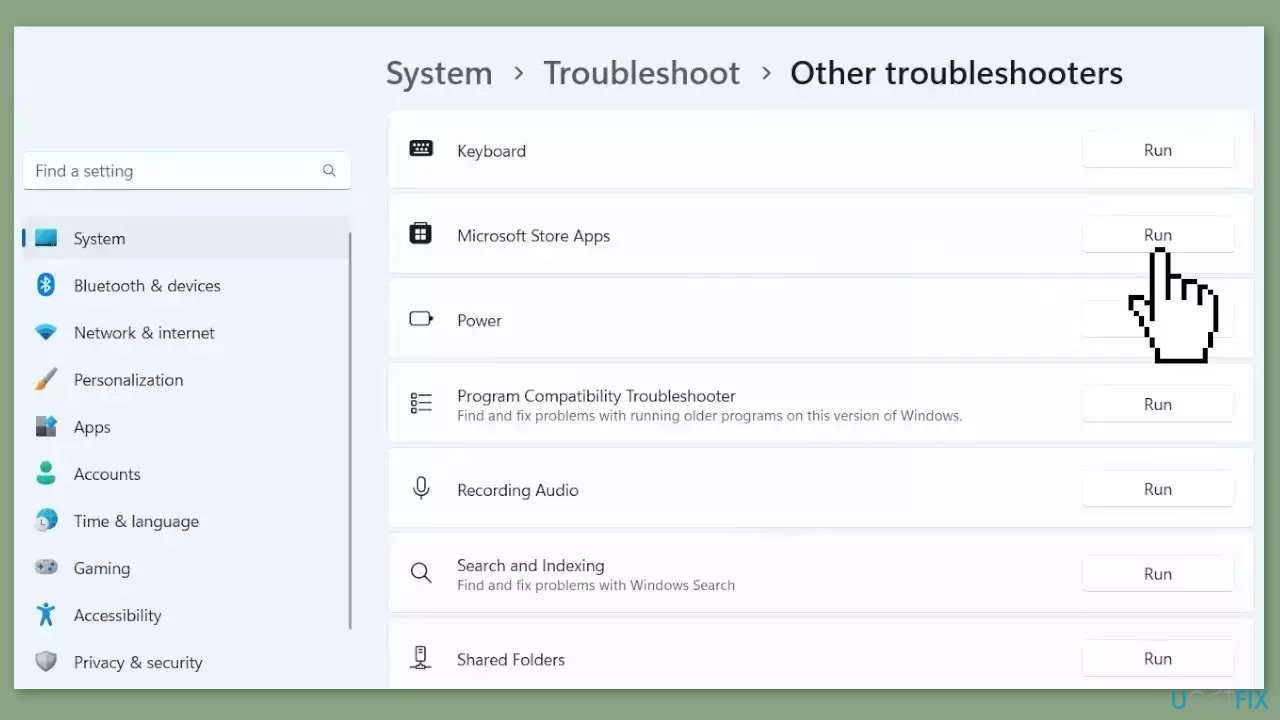
- Click on Run to start the troubleshooting process.
- Wait until the process is complete.
Solution 3. Change the Installation Location
- Press the Windows key + I to open the Windows Settings app.
- In the left pane, click on System.
- From the System settings, select Storage.
- Under Advanced storage settings, choose Where new content is saved.
- Locate the New apps will save to option.
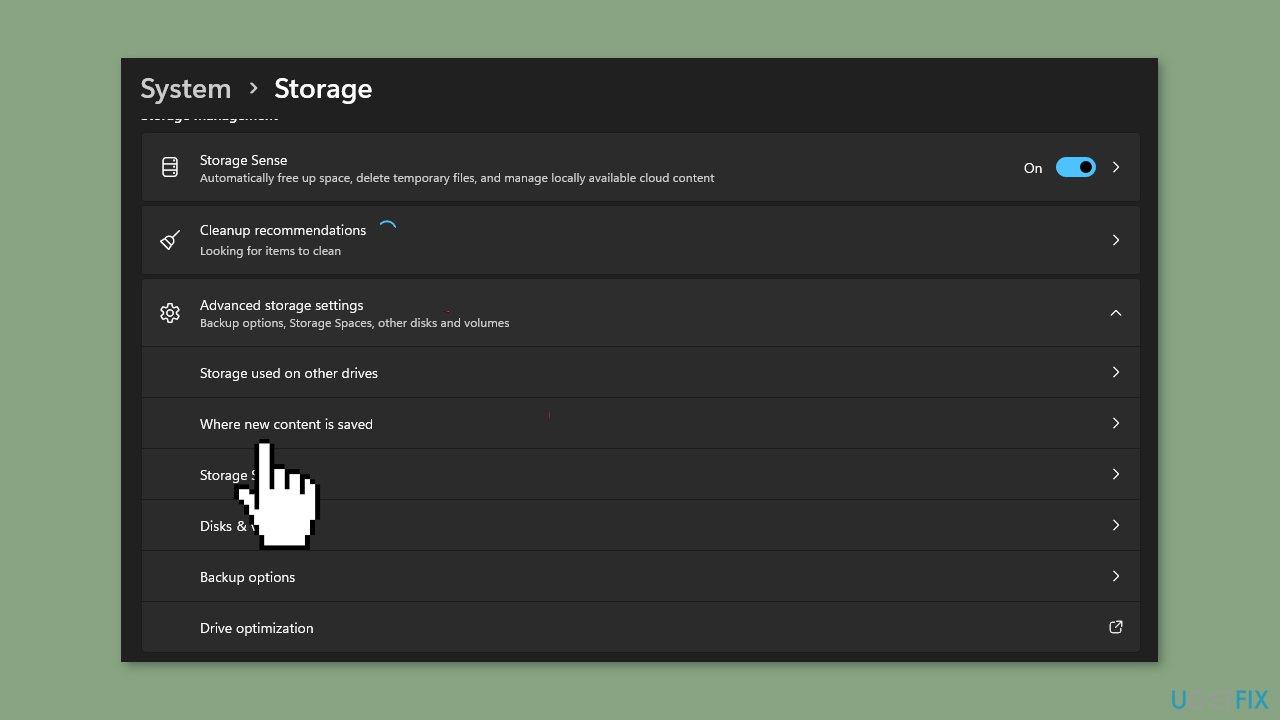
- Select the system drive associated with your device.
- Restart your computer.
- Attempt to install the game again to check if the issue has been resolved.
Solution 4. Repair or Reset the Microsoft Store
If the problem you're experiencing with the Xbox app is due to corruption, you can try repairing the app to fix the issue. To do this:
- Open the Settings app by pressing the Windows key + I, and go to the Apps tab.
- Select the Installed apps option, and then find the problematic game in the list.
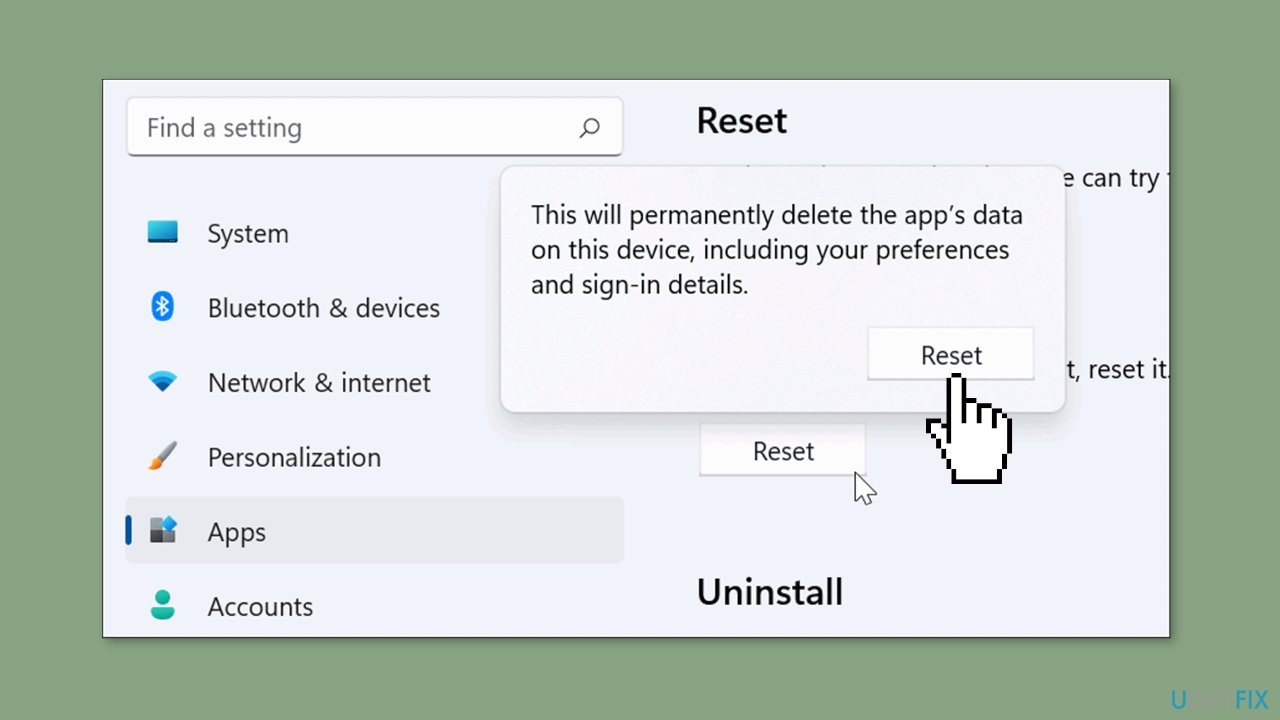
- Click the three-dot menu button, and then choose Advanced options.
- Scroll down to the Reset section, and click the Repair button.
- Once the repair process is finished, reopen the app and see if the problem has been resolved.
Solution 5. Check Xbox Services
- Press the Windows button.
- Type Services in the search bar.
- From the list of results, right-click on Services App.
- Select Run as administrator.
- Scroll to the bottom of the Services window.
- Locate the following services:
IP Helper
Xbox Live Auth Manager
Xbox Live Game Save
Xbox Live Networking Service
Gaming Services
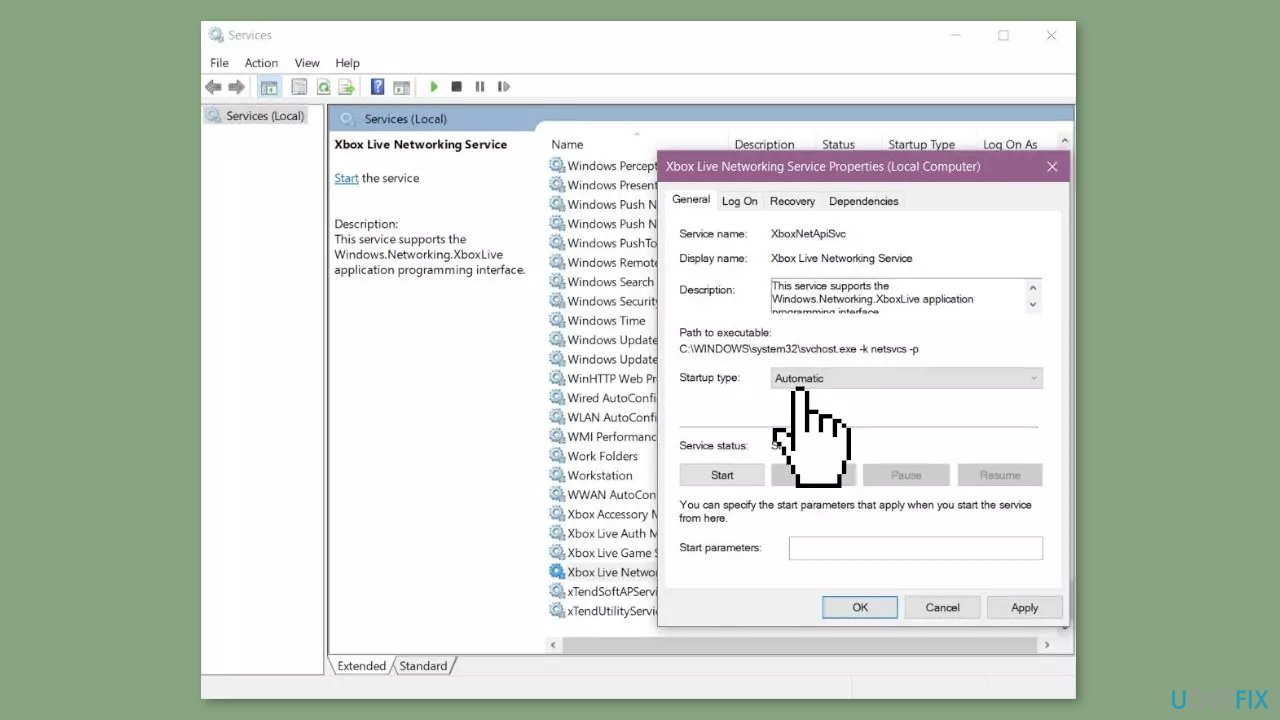
- Right-click over the service.
- Select Properties.
- In the Properties window, find the Startup type section.
- Ensure that it is set to Automatic. If not, change it to Automatic.
- If the service isn't started, click on Start to start the service.
- Restart your PC.
- Try again after the restart.
Bottom line
To fix the 0x80073D21 error, consider changing the game's installation location to the system drive and clearing the Microsoft Store's cache. If these steps do not resolve the issue, further troubleshooting may be necessary.
Frequently asked questions
The 0x80073D21 error typically occurs due to issues with the Xbox app, corrupted game files, or insufficient storage space on your device.
To troubleshoot the 0x80073D21 error, try resetting the Xbox app through Settings > Apps > Apps & features, and then select the Xbox app to reset it.
Yes, ensuring a stable internet connection can help resolve the 0x80073D21 error; try running the Windows Network Troubleshooter if you're experiencing connectivity issues.




Report an issue
What's wrong with this guide? We review every report and update or remove content.
Report received — thank you. We'll review and fix it.
You need a free account to submit a report.
Be the first to comment