How to fix
0x800c0004 error code in Mail app
on Windows
Resolve the 0x800c0004 error in the Mail app on Windows 10 or Windows 11 quickly and effectively. Get expert-tested solutions now!


What causes How to fix 0x800c0004 error code in Mail app?
- Windows Store Apps Troubleshooter not run
- Mail app not reset
- Email sync not enabled
- Mail app not reinstalled
Repairs Windows system files, removes malware, and restores a clean OS state — without reinstalling.
Hello. I cannot figure out how to add my Yahoo account to the Mail app on Windows 11. Every time I try I get the 0x800c0004 error code. What should I do?
Windows 11 is the newest version of the operating system from Microsoft. It comes with many features, including a new user interface,[ref en-1] design, and customization abilities. The same as previous versions, Windows 11 comes with Microsoft's clients for different tasks.
The Mail app in Windows is the default client to connect and manage all email accounts from one place without having to load different websites to check emails. It supports Office 365, Exchange, Outlook.com, Gmail, Yahoo! and other accounts which is very handy.
However, some people have run into issues when trying to add their Yahoo account to the Mail app in Windows 11. Users say that they get the 0x800c0004 error code and the process fails. It is unknown why exactly this could be happening but in this guide, you will find 4 steps that might help you solve the issue.
Manual troubleshooting can be a lengthy process so you can try using a maintenance tool like [d1] that could help you fix 0x800c0004 error code in Mail app. This powerful software can fix various system errors, BSODs,[ref en-2] corrupted files, and registry[ref en-3] issues. Otherwise, follow the step-by-step instructions below carefully.

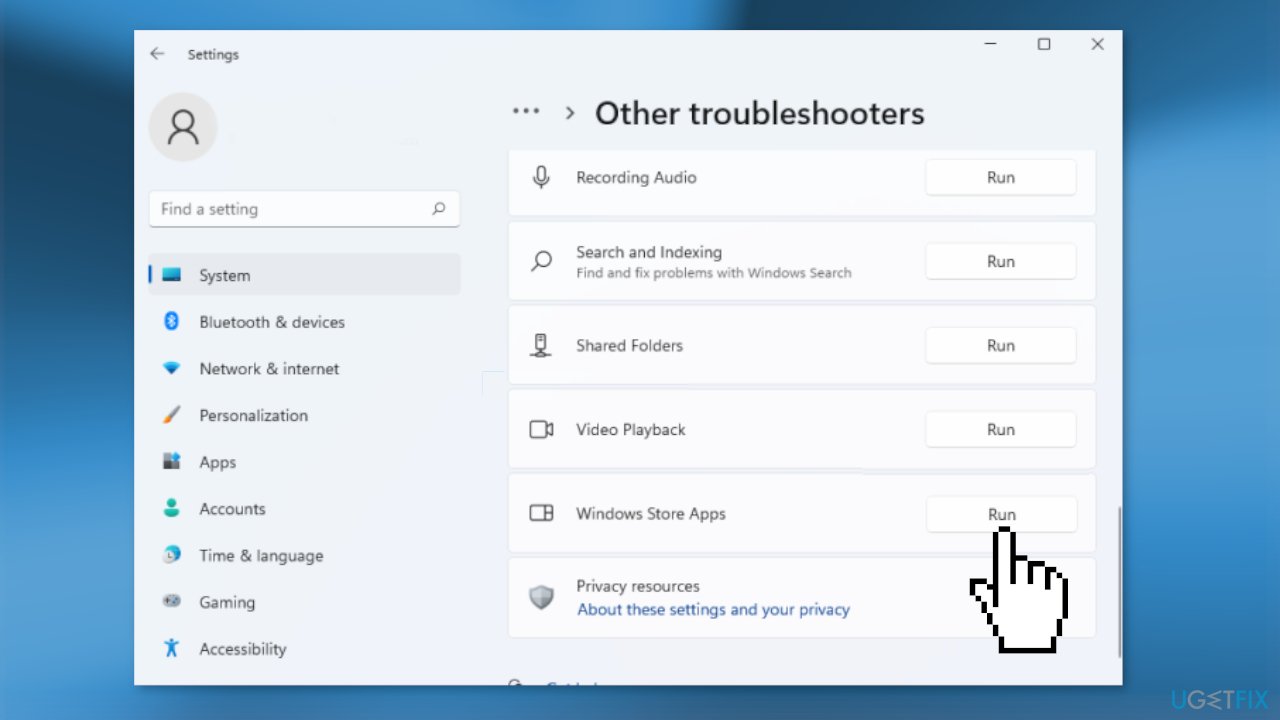
Method 1. Run Windows Store Apps Troubleshooter
- Click on Start then go to Settings and choose System
- Click on Troubleshoot on the right
- Click on Other troubleshooters
- Locate Windows Store Apps and press Run
Method 2. Reset the Mail app
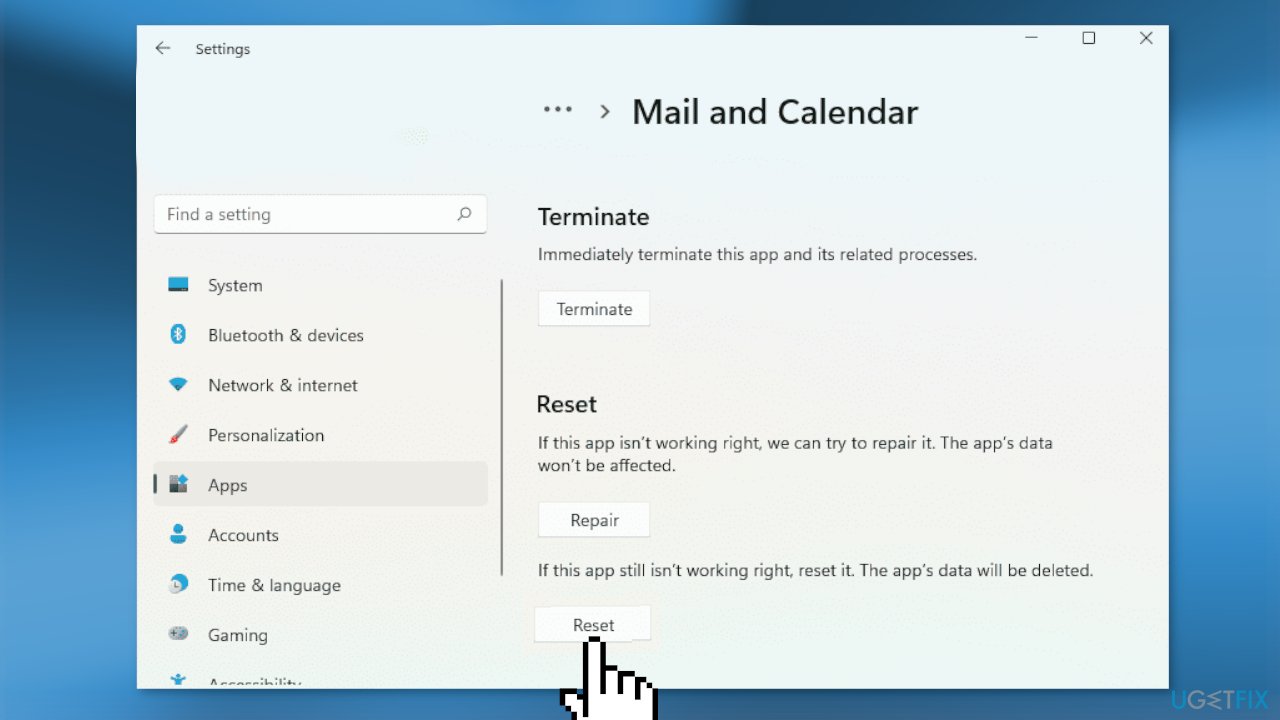
- Open Settings
- Go to System and choose Apps & features
- Click on Mail app
- Then click on Advanced options
- Press on the Reset button
Method 3. Enable Email Sync
- Go to your Settings
- Choose Accounts, then go to Email & accounts
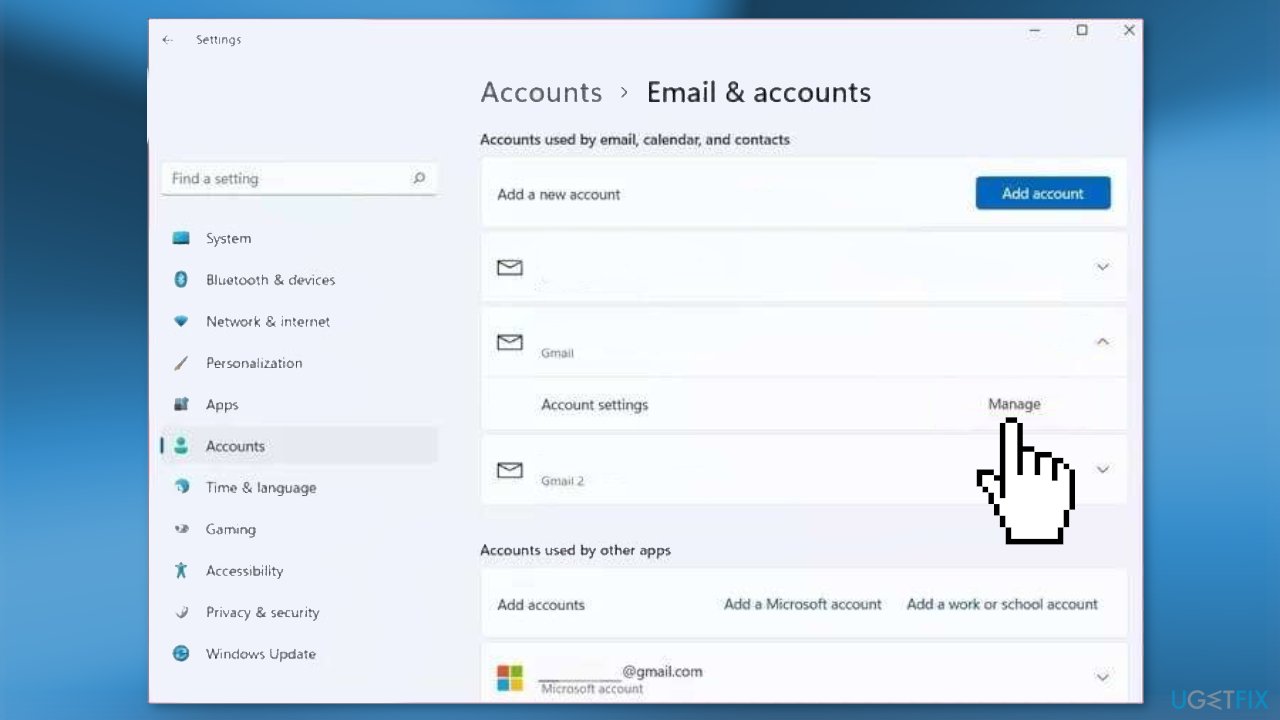
- Select Manage and at the bottom set Email sync to on
- Save the changes
Method 4. Reinstall the Mail app
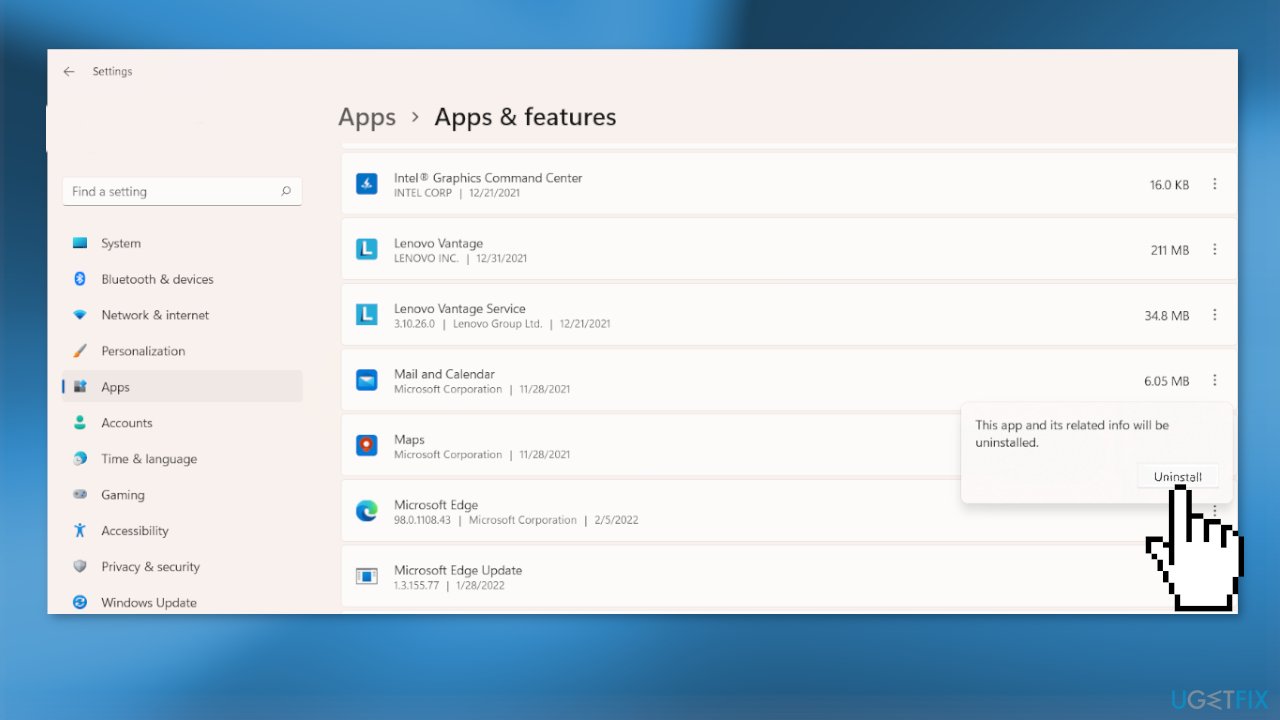
- Open the Settings
- Click Apps and choose Apps & features
- Look for Mail and Calendar
- Click on the three vertical dots next to it and click the Uninstall button
- Open the Microsoft Store app, search for the Mail and Calendar app
- Click on the Install button to download and install it
Bottom line
To fix the 0x800c0004 error code in the Mail app, you can try running the Windows Store Apps Troubleshooter, resetting the Mail app, enabling email sync, or reinstalling the Mail app. If none of these methods work, consider using a maintenance tool to help resolve the issue.
Frequently asked questions
The 0x800c0004 error code typically signifies issues with connectivity or settings, preventing the Mail app from syncing emails properly. This can be caused by network problems or incorrect account configurations.
To fix the 0x800c0004 error, try resetting the Mail app by navigating to Settings > Apps > Apps & features, selecting Mail, and clicking on 'Advanced options' to reset it. Additionally, ensure that your internet connection is stable and that your account settings are correct.
Yes, make sure that your Windows 10 firewall or antivirus is not blocking the Mail app's access to the internet and verify that your email account settings, like the server information, are accurately configured.




Report an issue
What's wrong with this guide? We review every report and update or remove content.
Report received — thank you. We'll review and fix it.
You need a free account to submit a report.
Be the first to comment