How to fix
0x80240019 error
on Windows
Resolve the 0x80240019 error on Windows 10 and 11 effortlessly. Follow our expert-tested guide for quick fixes and restore your system's functionality!

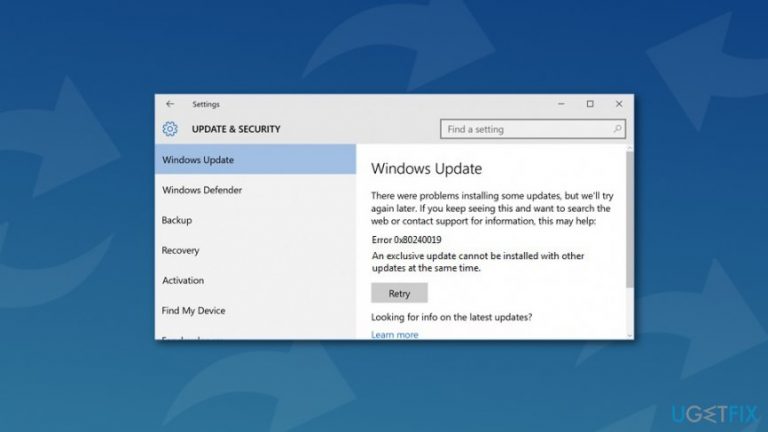
What causes How to fix 0x80240019 error on Windows?
- Corrupted or damaged registry entries
- Issues with Windows Update Service
- Other updates are available
- Malware attack
- Antivirus prevents installation of updates
Repairs Windows system files, removes malware, and restores a clean OS state — without reinstalling.
I cannot install updates on Windows 10 because of the 0x80240019 error. What does it mean?
0x80240019 is one of many Windows Update errors that prevent from installing needed software or operating system updates. There’s no doubt that updates are important for computer’s stability and security. Thus, avoiding this error is not a good idea.
The Error Code 0x80240019 is usually followed by the line WU_E_EXCLUSIVE_INSTALL_CONFLICT. Just like many other update errors, this one might be also caused by various reasons. However, the most common are these:
- corrupted or damaged registry entries or system files;
- issues with Windows Update Service;[ref en-1]
- other updates are available;
- malware[ref en-2] attack;
- antivirus prevents installation of available updates.
It’s not hard to fix 0x80240019 error and you should not delay this task. Below you can find possible methods to get rid of the above-mentioned problems. Hence, do not hesitate and start the procedure immediately.
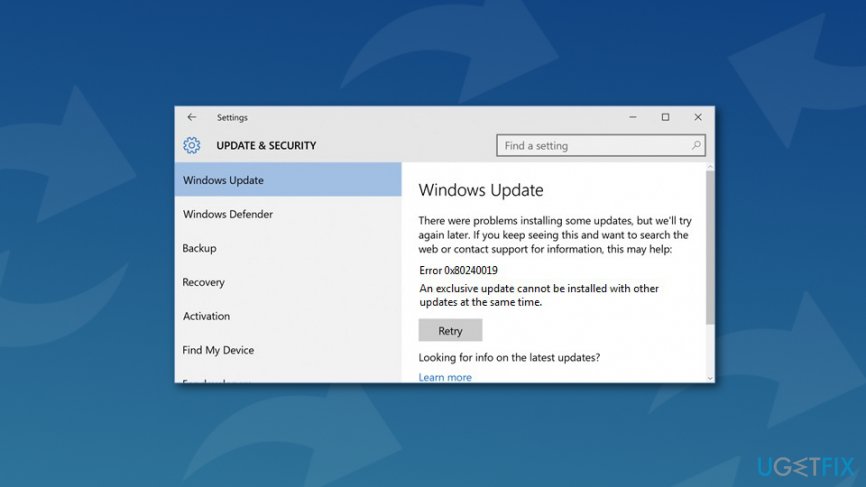
Methods to fix Error Code 0x80240019 error on Windows 10
When you cannot install needed updates due to the 0x80240019 error, you should make sure that you are connected to the internet, your antivirus does not block this procedure or any malware haven’t blocked Windows Update service. If these were not the main reasons for the error, you should try looking for compromised or damaged registry or system files.
This video will help you with this problem:
[youtube ZFf1dwWDoQo]
Option 1. Check your antivirus settings
If you have recently obtained new antivirus or anti-malware program, you should check its settings. Sometimes security programs block installation of the updates. Thus, altering some of the setting can help to get rid of the problem.
Option 2. Check the device for malware
Computer viruses[ref en-3] and malware often cause various system changes and blocks various processes or services. Hence, some malicious program residing on your PC might prevent from updating needed components. Thus, you should run a full system scan with a reputable anti-malware, for instance, [rev id=“Reimage”], and clean malware if needed.
Though, if your PC is virus-free, proceed with another method.
Option 3. Run Windows Update Troubleshooter
- Click Windows key + I in order to open Settings.
- Choose Update and Security.
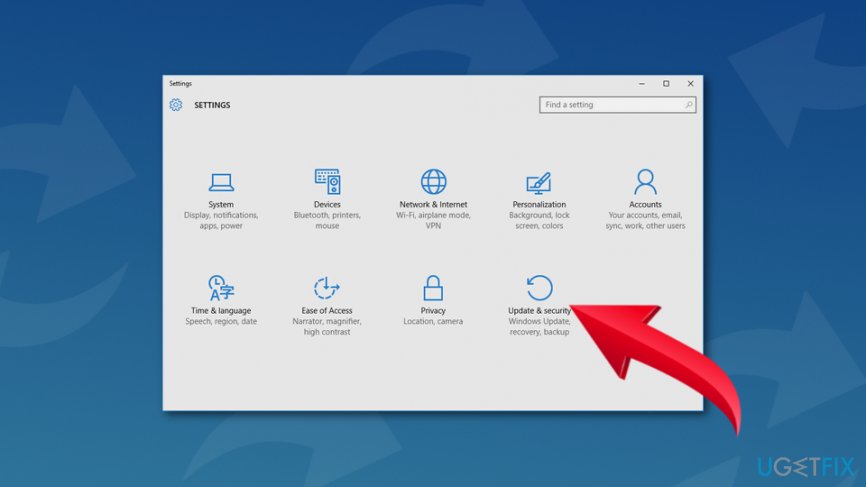
Open update and security - Click Troubleshoot in the left pane.
- Under Windows Update section, click Run the troubleshooter.
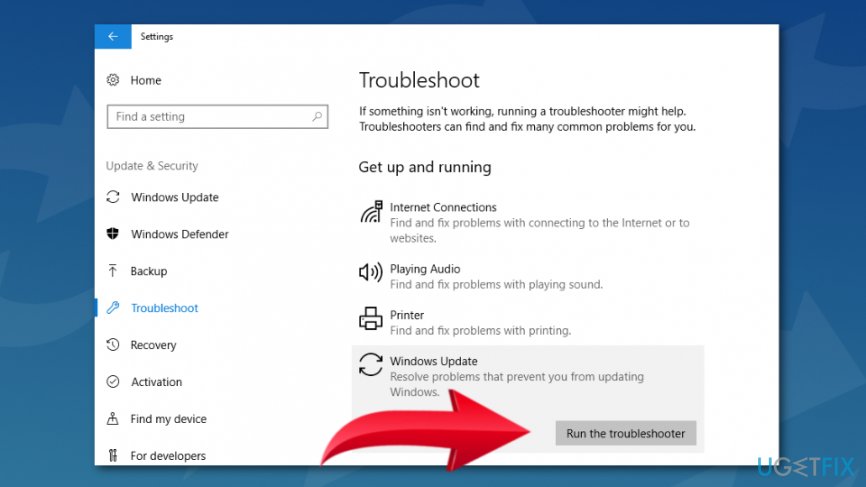
Run windows update troubleshooter - Wait for the process to end and check if it helped to fix 0x80240019 error.
Option 4. Run SFC and DISM scans
In some cases, Windows updates cannot be installed due to the corrupted registry or system files. Running SFC ad DISM scans might help to identify what files are corrupted and fix it. Start with SFC scan first:
- Type cmd in Windows search box.
- Right-click the Command Prompt and choose Run as administrator.
- In the Command Prompt type sfc /scannow and click Enter.
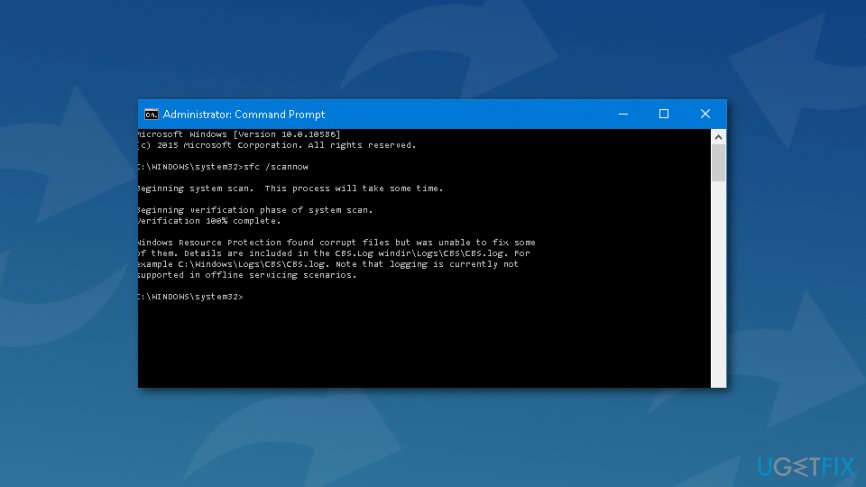
Run sfc scan - Wait until the scan is over and check if it solved the problem.
If SFC scan did not give any results and any issues were detected or fixed, you should proceed with DISM scan:
- Open Command Prompt as administrator again.
- Enter the following command and press Enter: DISM /Online /Cleanup-Image /RestoreHealth
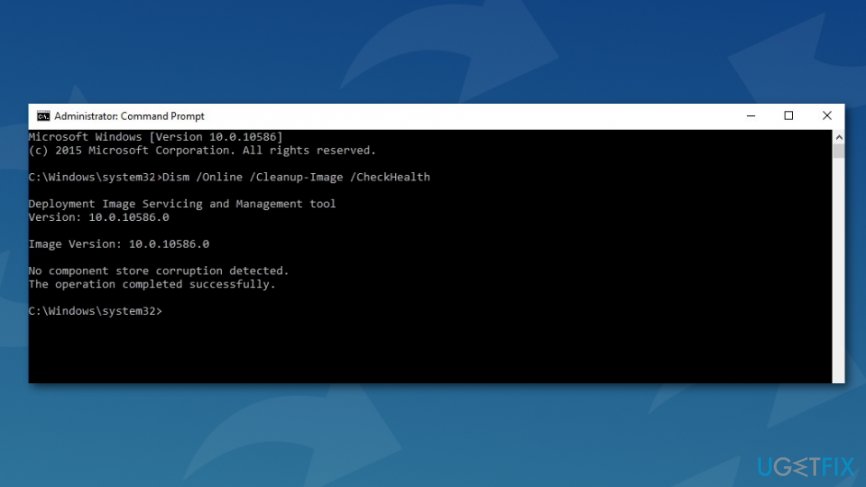
Run dism scan - The scan takes around 20 minutes. Once it’s finished, checked if 0x80240019 error is gone and you can install updates.
Option 5. Reset Windows Update components
The issue might be related to corrupted Windows Update components. In order to fix this problem, you need to stop Windows Update service and remove them:
- Click Windows key + K and choose Command Prompt (Admin) from the list.
- Stop BITS, Cryptographic, MSI Installer and the Windows Update Services by entering the following commands (do not forget click Enter after typing each of them!):
net stop wuauserv
net stop cryptSvc
net stop bits
net stop msiserver - Rename SoftwareDistribution and Catroot2 folder by typing the following commands and clicking Enter after each of them:
ren C:\\\\Windows\\\\SoftwareDistribution SoftwareDistribution.old
ren C:\\\\Windows\\\\System32\\\\catroot2 Catroot2.old - Enable the previously disabled BITS, Cryptographic, MSI Installer and the Windows Update Services by typing the commands below. Click Enter after each of them again:
net start wuauserv
net start cryptSvc
net start bits
net start msiserver - Close the Command Prompt by typing Exit.
Hopefully, this method helped to fix 0x80240019 error and you can install needed updates without any problems.
Bottom line
To fix the 0x80240019 error, you should check your antivirus settings, scan your device for malware, and run the Windows Update Troubleshooter. If these methods do not resolve the issue, further investigation into system files may be necessary.
Frequently asked questions
The 0x80240019 error typically occurs due to issues with Windows Update or corrupted system files that affect the installation of updates. It can also be triggered by problems with the Microsoft Store or third-party antivirus software.
To fix the 0x80240019 error on Windows 11, try running the Windows Update Troubleshooter and resetting the Windows Update components. Additionally, ensure that your system files are intact by running the 'sfc /scannow' command in Command Prompt.
Yes, you can fix the 0x80240019 error without reinstalling Windows 10 by using tools like the DISM command to repair the Windows image and by clearing the SoftwareDistribution folder to reset Windows Update.




Report an issue
What's wrong with this guide? We review every report and update or remove content.
Report received — thank you. We'll review and fix it.
You need a free account to submit a report.
Be the first to comment