How to fix
0x8024401c error
on Windows
Fix the 0x8024401c error on Windows 10 and 11 effortlessly. Follow our expert-tested solutions to get your system running smoothly in minutes.


What causes How to fix 0x8024401c error on Windows?
- Problems with the internet connection
- Outdated drivers
- Corrupted system files
- Misconfiguration of Windows Registry
Repairs Windows system files, removes malware, and restores a clean OS state — without reinstalling.
Windows 10 Error code 0x8024401c prevents from installing updates. What can I do about it?
The 0x8024401c error is one of many Windows Update errors. It might occur on any version of the operating system, but recently many Windows 10 users started complaining about this issue. Fortunately, just like many other errors, this one can be solved too.
The main reasons for the 0x8024401c error are:
- problems with the internet connection;
- outdated drivers;[ref en-1]
- corrupted system files;
- misconfiguration of Windows Registry.[ref en-2]
Installation of updates requires a strong internet connection. Hence, if you received Error Code 0x8024401c for the first time, you should check if internet capable is plugged in correctly or make sure that you are connected to a Wi-Fi network.[ref en-3] You should do it even though you are certain that your computer is set to connect to Wi-Fi automatically.
If there are any issues with the network connection, there might be more serious problems, but there’s no need to worry because they can be solved too. Our team offers five methods that should help to fix 0x8024401c error on Windows.
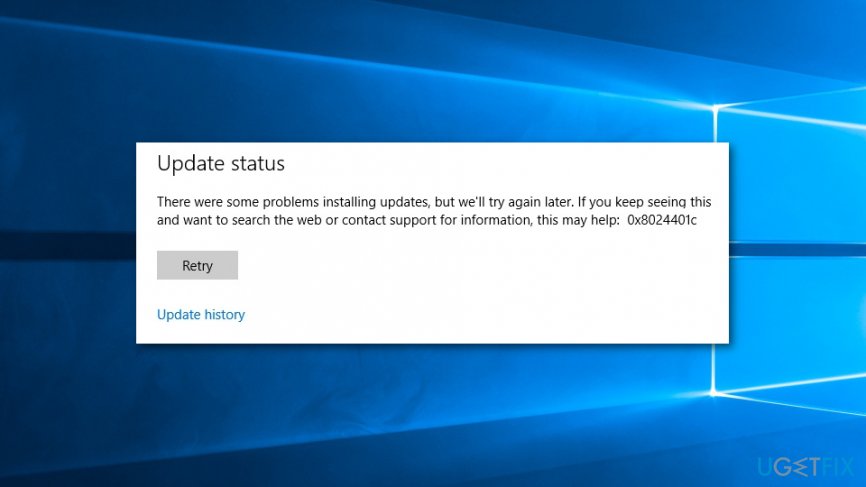
Five methods to fix 0x8024401c error on Windows computers
As we have mentioned at the beginning, you should start dealing with the problem by checking your internet connection. If you use Wi-Fi, you should switch to cable and vice versa. If this simple solution doesn’t help, try the methods explained below.
In this video you will find all the information you need:
[youtube VZTN0I_Xv2E]
Method 1. Uncheck iPv6 and use the iPv4 network
If the Internet connection is smooth, there might be issues with servers’ connection. Therefore, you can disable iPv6 protocol and us iPv4 network instead:
- Click Windows + X keys and choose Network connections from the menu.
- Right-click on the connection you use and choose Properties.
- In This connection uses the following items box, uncheck the iPv6 box.
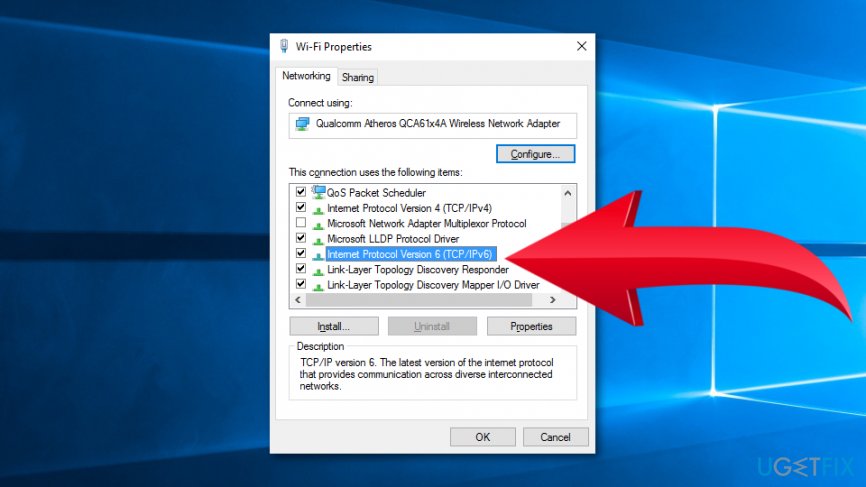
Disable ipv6 - Click OK to save the changes.
- Open Windows updates and try installing them again.
If this method did not help to fix 0x8024401c error, try the following method.
Method 2. Update drivers
- Click the Start button and enter Device Manager in the Windows search box.
- Open the Device Manager and check the drivers that might be outdated.
- Right-click the driver and choose Update Driver Software option.
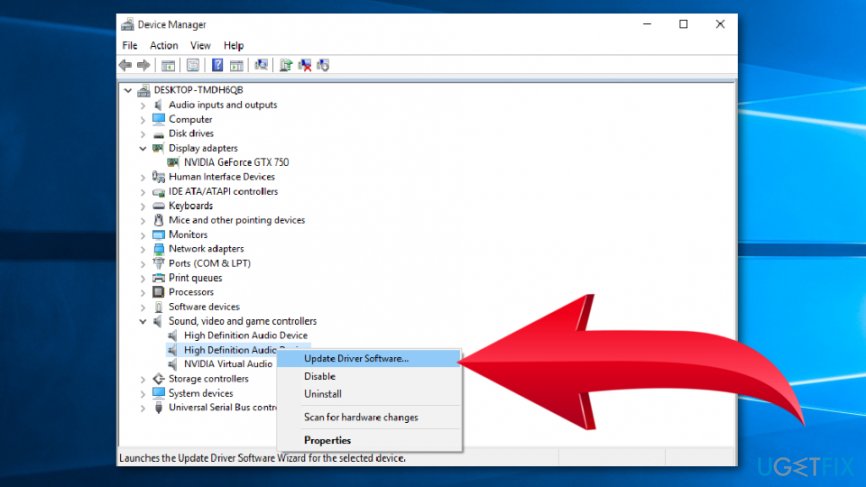
Update driver software - Click Search automatically for updated driver software.
- Wait until Windows find and install the updates. However, if the operating system does not find any updates, you can check them on the official manufacturer’s website and install them manually.
Method 3. Run SFC scan
If the 0x8024401c error still prevents from installing Windows updates, the problem might be corrupted or deleted system files. In order to check them and fix the problem, you have to run SFC scan:
- Click Windows + X keys and choose Command Prompt (Admin) from the menu.
- In the Command Prompt window type the following command and click Enter: sfc /scannow
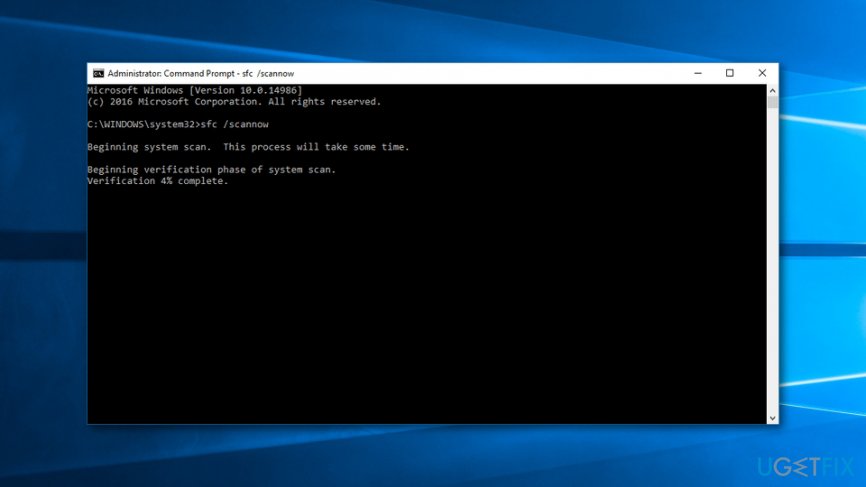
Run sfc scan - Wait until the scan is over. You will receive information about replaced files.
Method 4. Modify Windows Registry
We highly recommend creating a registry backup before you begin. In case something went wrong, backups will prevent you from the damage. Once you are done, follow these steps:
- Click Windows key + R to open Run dialog box.
- Type regedit and click OK.
- You will end up in Windows Registry. Navigate to this key: HKEY_LOCAL_MACHINE > Software > Policies > Microsoft > Windows > WindowsUpdate
- In WindowsUpdate, click AU.
- In AU folder find UseWUServer and change its value data to 0.
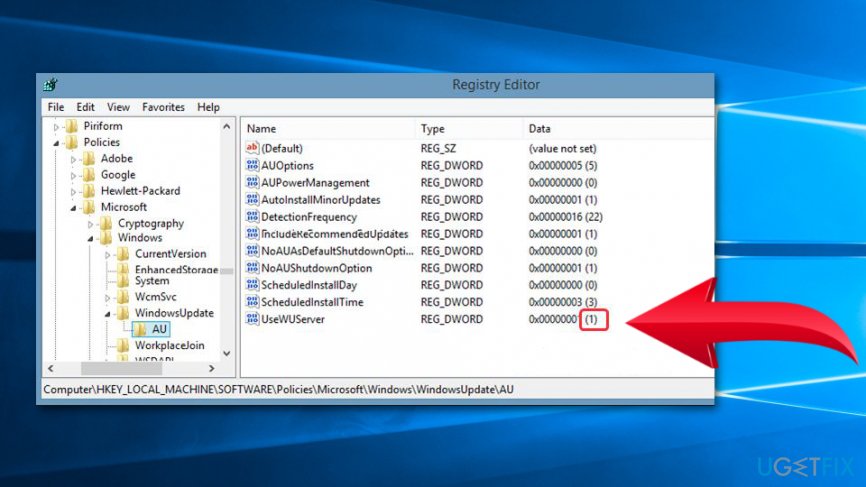
Modify windows registry - Click OK to save the changes.
- Restart the computer and check if it helped to fix error code 0x8024401c.
Method 5. Perform a clean boot
If you tried all four methods and 0x8024401c error still bothers you, this is your last chance to solve the problem. You have to clean boot Windows by following these steps:
- Click Windows key + R and type msconfig in the Run box.
- Click OK.
- In the System Configuration window, go to Services tab.
- At the end of the tab, you will see Hide all Microsoft services option. Put the tick in the box next to this entry.
- Click Disable all button and then OK.
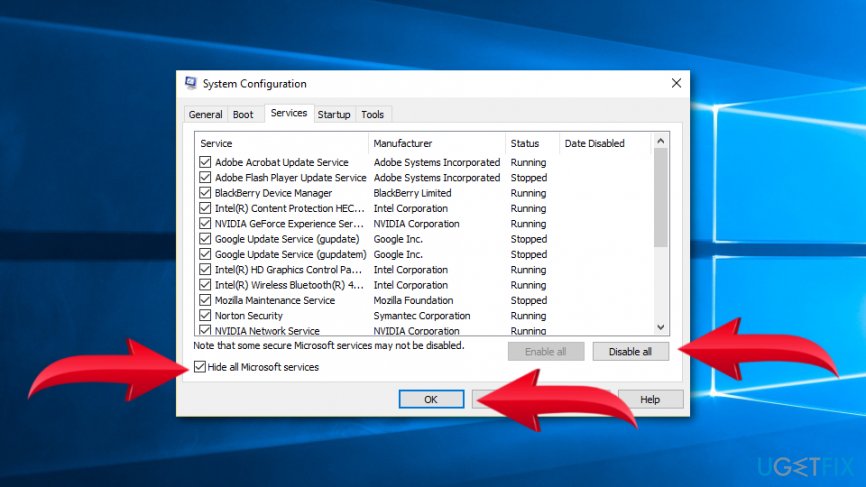
Hide all microsoft services - Restart the computer and try to install available Windows updates.
Bottom line
To fix the 0x8024401c error, start by checking your internet connection and switching between Wi-Fi and cable. If issues persist, try unchecking iPv6 and using the iPv4 network, and updating your drivers. If none of these methods work, further troubleshooting may be necessary.
Frequently asked questions
The 0x8024401c error typically indicates a problem with Windows Update, often related to network connectivity or issues with the Windows Update service. This error can prevent your system from downloading updates properly.
To fix the 0x8024401c error on Windows 11, you can try resetting the Windows Update components by running the Windows Update Troubleshooter and clearing the SoftwareDistribution folder. Additionally, ensure your internet connection is stable.
Yes, disabling proxy settings can help resolve the 0x8024401c error on Windows 10, as proxies can interfere with the Windows Update process. You can do this by navigating to the Network & Internet settings and turning off the proxy.




Report an issue
What's wrong with this guide? We review every report and update or remove content.
Report received — thank you. We'll review and fix it.
You need a free account to submit a report.
Be the first to comment