How to fix
0x8024a21e Windows update error
on Windows
Resolve the 0x8024a21e Windows update error swiftly. Follow our expert-tested solutions for Windows 10 and 11, ensuring a smooth update experience.

What causes How to fix 0x8024a21e Windows update error?
- Corrupted system files
- Malfunctioning Windows services
- Issues with update components
- Problems in the SoftwareDistribution folder
Repairs Windows system files, removes malware, and restores a clean OS state — without reinstalling.
Hello. I tries to install updates on my Windows PC but I received the 0x8024a21e error. How could this be fixed?
Microsoft regularly releases updates for the Windows operating system. They may include new features, bug fixes, and security patches. They are important for keeping the operating system running smoothly and safe from vulnerabilities that hackers can exploit for malicious purposes.[ref en-1]
It is recommended to install Windows updates as soon as they come out. However, often people are met with difficulties when trying to do so. Recently, some people encountered the 0x8024a21e error when trying to install updates. It is unknown why exactly this error code appears.
Most of the time, Windows updates fail to install because of corrupted system files, malfunctioning Windows services and update components. In this guide, you will find 7 steps that should help you fix the 0x8024a21e Windows update error. You will also learn how to use the built-in troubleshooter that can automatically fix minor OS problems.
Unfortunately, manual troubleshooting can become a lengthy process. You can try using a maintenance tool like [d1] to scan your machine. It can fix most system errors, BSODs,[ref en-2] corrupted files, and registry[ref en-3] issues. Otherwise, follow the step-by-step instructions below.
Solution 1. Run the Update Troubleshooter
- Press the Windows + X keys and go to Settings
- Go to Update and Security
- Click Troubleshooter
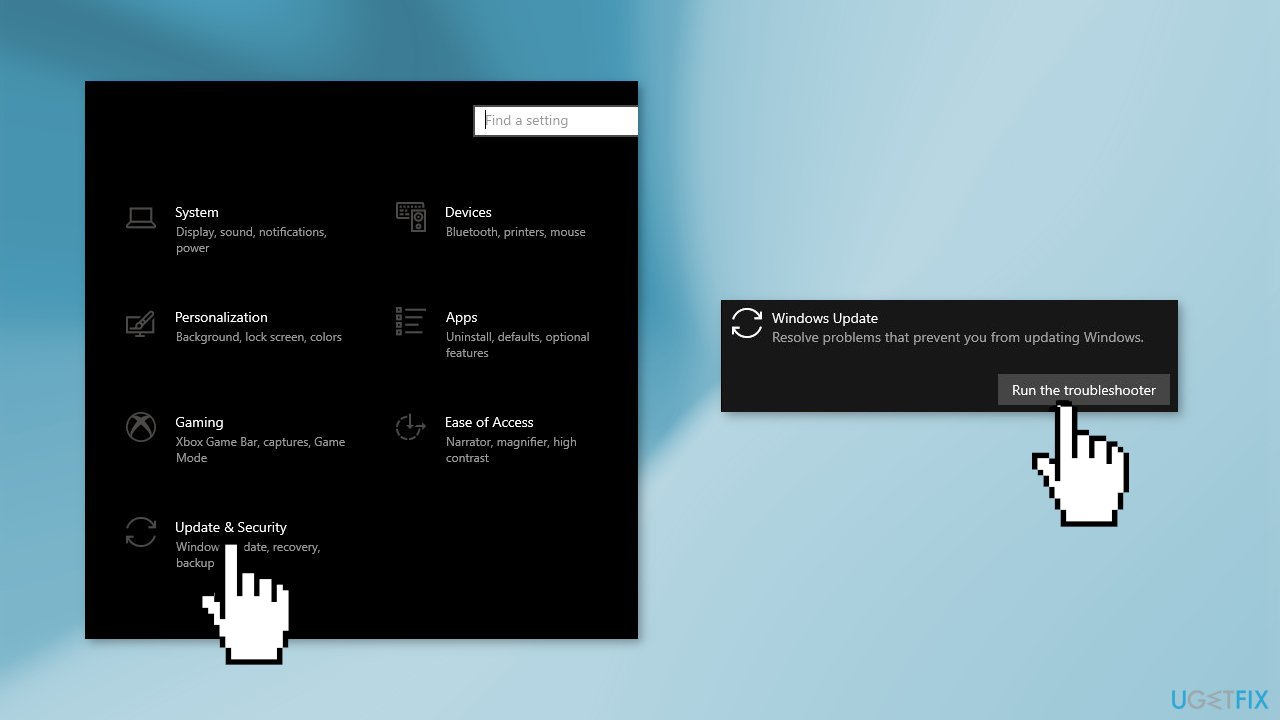
- Select Additional troubleshooters
- Run the Update troubleshooter
- Restart
Solution 2. Repair Corrupted System Files
Use Command Prompt commands to repair system file corruption:
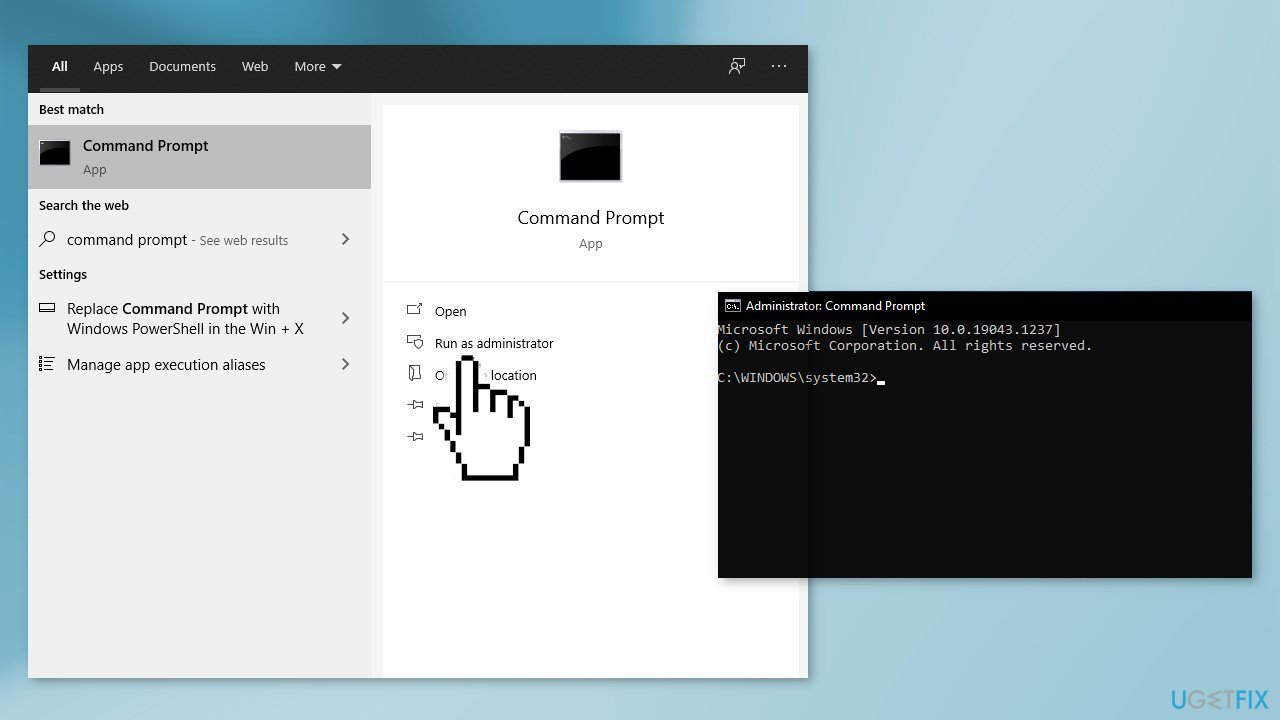
- Open Command Prompt as administrator
- Use the following command and press Enter:
sfc /scannow
- Reboot your system
- If SFC returned an error, then use the following command lines, pressing Enter after each:
DISM /Online /Cleanup-Image /CheckHealth
DISM /Online /Cleanup-Image /ScanHealth
DISM /Online /Cleanup-Image /RestoreHealth
Solution 3. Delete Files in the SoftwareDistribution Folder
- Press Windows key + R to open the Run command box
- Type services.msc and click OK
- In Services control panel locate the Windows Update service
- Right-click on Windows Update service and select Stop
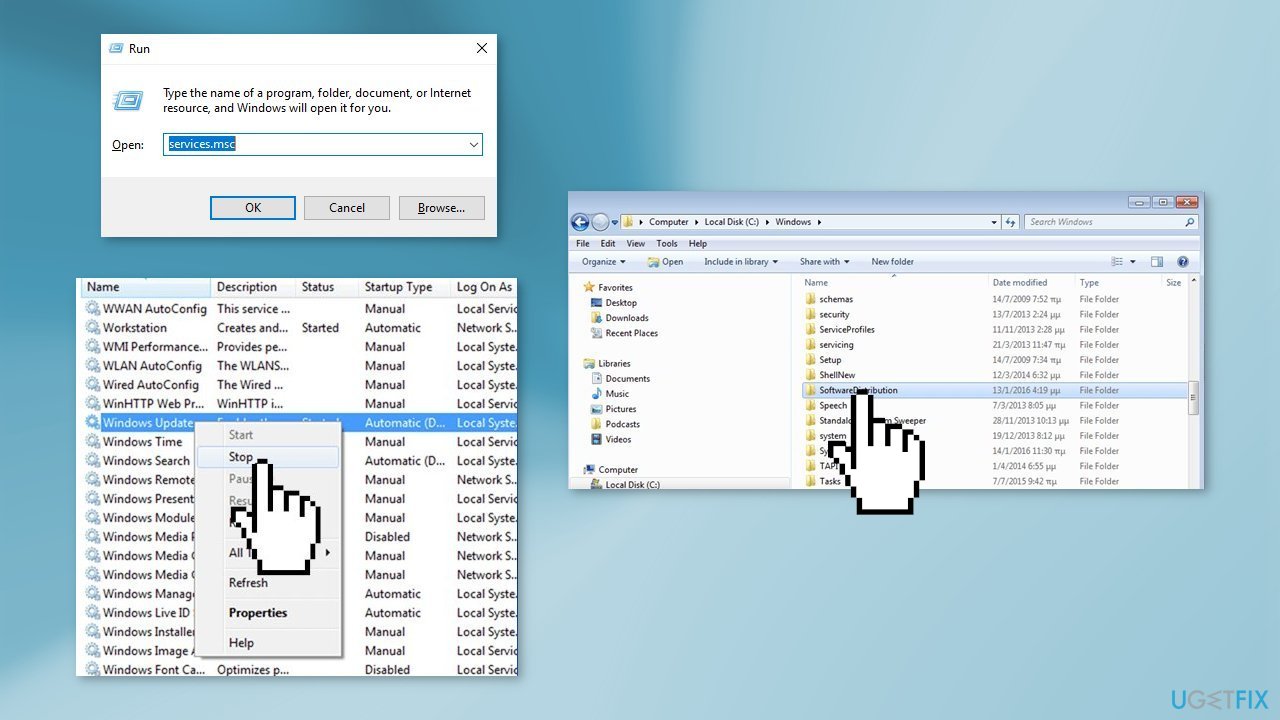
- Now open Windows Explorer and navigate to: C:\Windows folder
- Find the SoftwareDistribution folder and Delete its contents
Solution 4. Reset Services used by Windows Updates
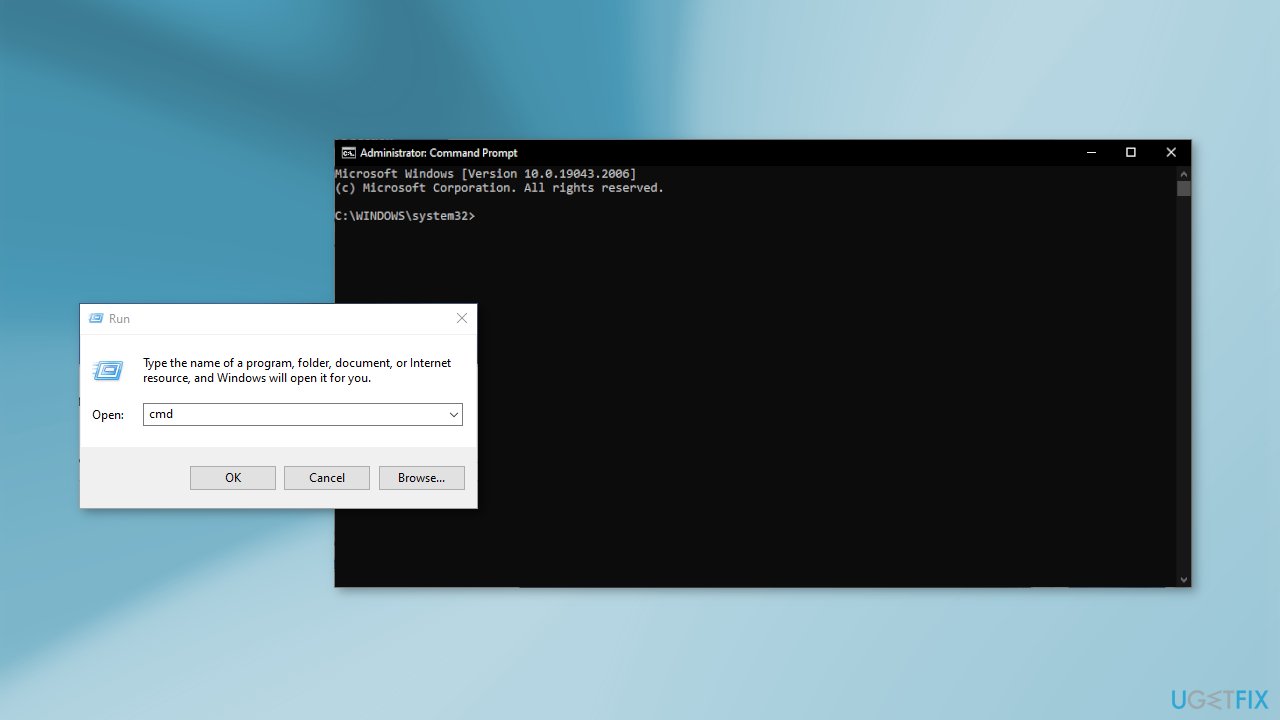
- Press the Windows key + R to open the Run box
- Type cmd and press Ctrl + Shift + Enter to open up an elevated Command Prompt
- If you’re prompted by the User Account Control (UAC), click Yes at the window
- Type the following commands and hit Enter after each one:
SC config trustedinstaller start=auto
SC config bits start=auto
SC config cryptsvc start=auto
- Perform a system reboot and check if the issue persists
Solution 5. Install the Update Manually
Whenever Windows updates fail to install automatically, you can always try doing it manually. First, you need to find out which KB number is relevant to you.
- Right-click Start button and pick Settings
- Go to Update & Security
- On the right, locate and click View update history
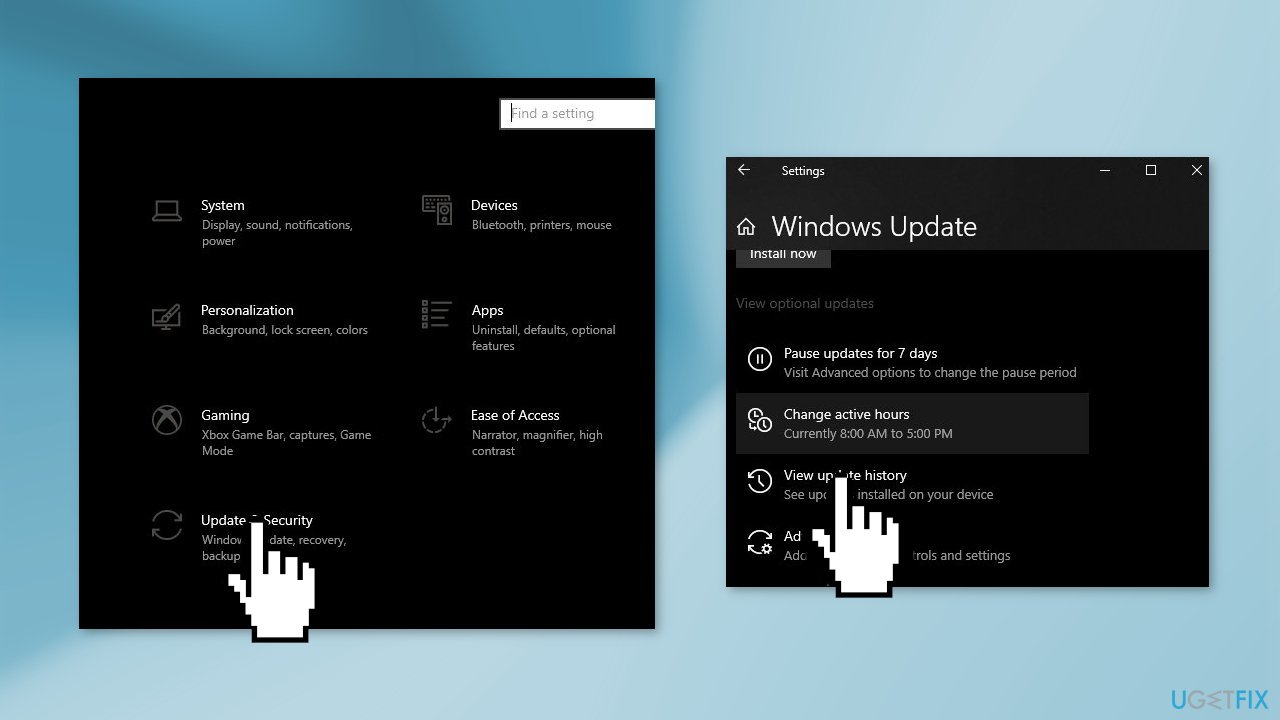
- From the list, note the KB number that fails to install with the error code
- Go to Microsoft Update Catalog page, type in the KB number and press Search
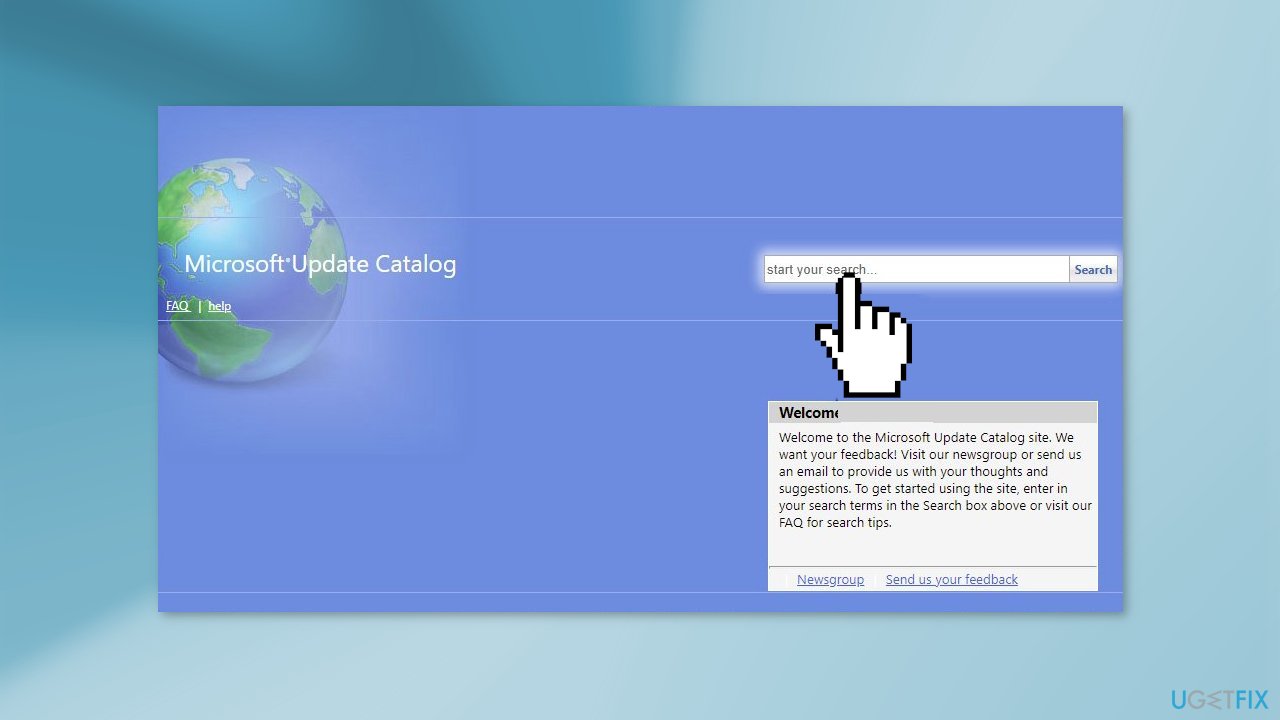
- Download the update and install it manually
Solution 6. Reset Windows Update Components
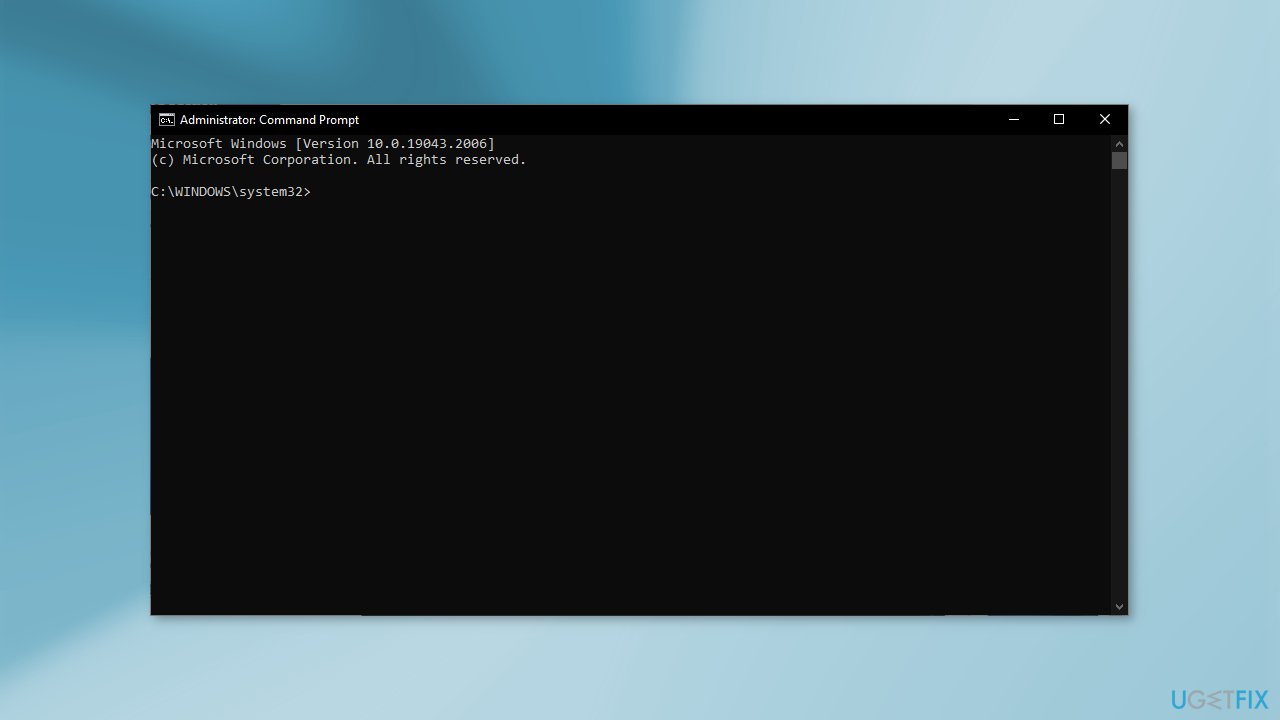
- Open Command Prompt as administrator again
- Copy and paste the following commands, pressing Enter after each:
net stop bits
net stop wuauserv
net stop appidsvc
net stop cryptsvc
Del “%ALLUSERSPROFILE%\Application Data\Microsoft\Network\Downloader\*.*”
rmdir %systemroot%\SoftwareDistribution /S /Q
rmdir %systemroot%\system32\catroot2 /S /Q
regsvr32.exe /s atl.dll
regsvr32.exe /s urlmon.dll
regsvr32.exe /s mshtml.dll
netsh winsock reset
netsh winsock reset proxy
net start bits
net start wuauserv
net start appidsvc
net start cryptsvc
- Restart your PC
Solution 7. Repair Install Windows
- Download the Windows 10 ISO file
- Now mount the ISO file
- Double-click on the file setup.exe to start the repair, install from the mounted drive
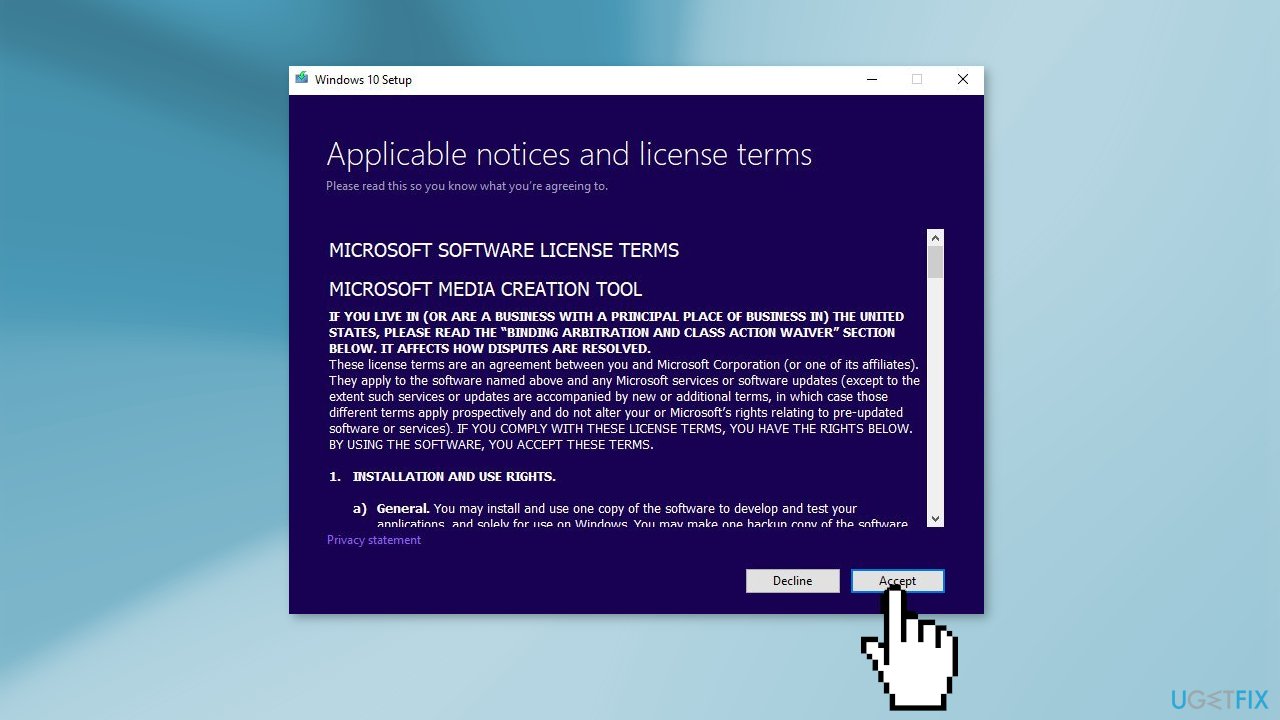
- When the installation provides the License Terms, read them and click Accept
- Windows 10 will now check for updates and will install the ones available
- When all is set, click Install
- When the installation is complete, follow the on-screen instructions
Bottom line
To fix the 0x8024a21e Windows update error, you can run the Update Troubleshooter, repair corrupted system files using Command Prompt, and delete files in the SoftwareDistribution folder. If these solutions do not resolve the issue, consider using a maintenance tool to scan your machine for further problems.
Frequently asked questions
The 0x8024a21e error code indicates a problem with the Windows Update service, often related to corrupted files or misconfigured settings preventing updates from being installed.
To fix the 0x8024a21e error on Windows 11, try running the Windows Update Troubleshooter and then reset the Windows Update components using command prompt commands.
Yes, using the DISM tool to repair system image files is safe and can help resolve the 0x8024a21e error in Windows 10 by restoring the necessary files for Windows Update.




Report an issue
What's wrong with this guide? We review every report and update or remove content.
Report received — thank you. We'll review and fix it.
You need a free account to submit a report.
Be the first to comment