How to fix
0x87e00002 when transferring games
on Windows
Resolve the 0x87e00002 error quickly when transferring games in Windows 10 and 11. Expert-tested solutions guarantee a smooth gaming experience.

What causes How to fix 0x87e00002 when transferring games in Windows?
- Interruptions or miscommunications between the operating system and the storage device
- Background processes such as pending updates or active downloads
- Limitations in the file system or compatibility issues between the drive and Windows
- Software conflicts or outdated drivers
- Corrupted system files
- Restricted permissions on the external drive
Repairs Windows system files, removes malware, and restores a clean OS state — without reinstalling.
Hello, I recently bought a new external hard drive for my games. After formatting, I transferred one game from another drive, but now I can’t move any more files - neither between drives nor from internal storage. I can still install and play games, though. It shows error code 0x87e00002. Does anyone know what’s causing this?
The 0x87e00002 error is a common Windows error that occurs when trying to move, install, or update applications and games, especially on external hard drives. This error may interrupt the file transfer between internal and external storage devices or even between two external drives.
You might notice that while installation and gameplay remain unaffected, file management tasks involving large or critical files become problematic. The error usually appears as a sudden notification, halting your ongoing process and preventing further file transfers or updates.
The 0x87e00002 error often stems from interruptions or miscommunications between the operating system and the storage device. Background processes, such as pending updates or active downloads, can interfere with file transfers, causing conflicts. In some cases, the error arises due to limitations in the file system or compatibility issues between the drive and Windows.
Additionally, software conflicts, outdated drivers, or corrupted system files may contribute to the problem. If the external drive isn’t properly recognized by the system or if permissions are restricted, it can further exacerbate the issue, preventing smooth file operations.
Several troubleshooting steps may be helpful in identifying and fixing the root cause of the 0x87e00002 error. Checking that no background processes are interfering with file transfers is usually a good starting point.
Checking for system updates, verifying the integrity of the external hard drive, and addressing any permission-related concerns are common steps. It can also prevent future occurrences by scanning for file system errors and keeping drivers up to date. These may frequently remedy the problem, but the exact solution will depend on the cause of the error.
For an automated approach, using [d1] PC repair tool can efficiently identify and fix any underlying Windows issues, saving time and effort.
Fix 1. Restart your computer and external hard drive
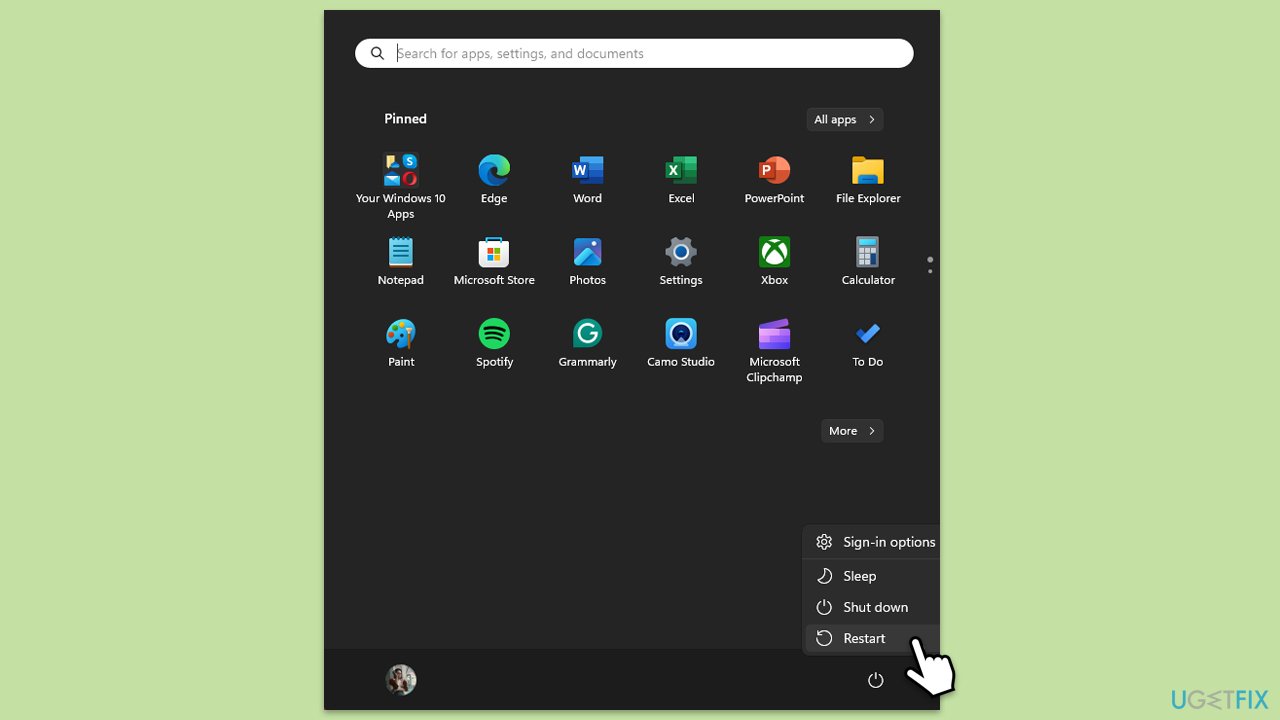
Restarting both your computer and external hard drive helps clear temporary glitches or conflicts that might prevent proper file transfers. It resets background processes and re-establishes the connection between the devices.
- Safely eject the external hard drive from your computer.
- Click on the Start menu.
- Select Restart.
- Wait for your computer to restart.
Fix 2. Check for pending Windows updates
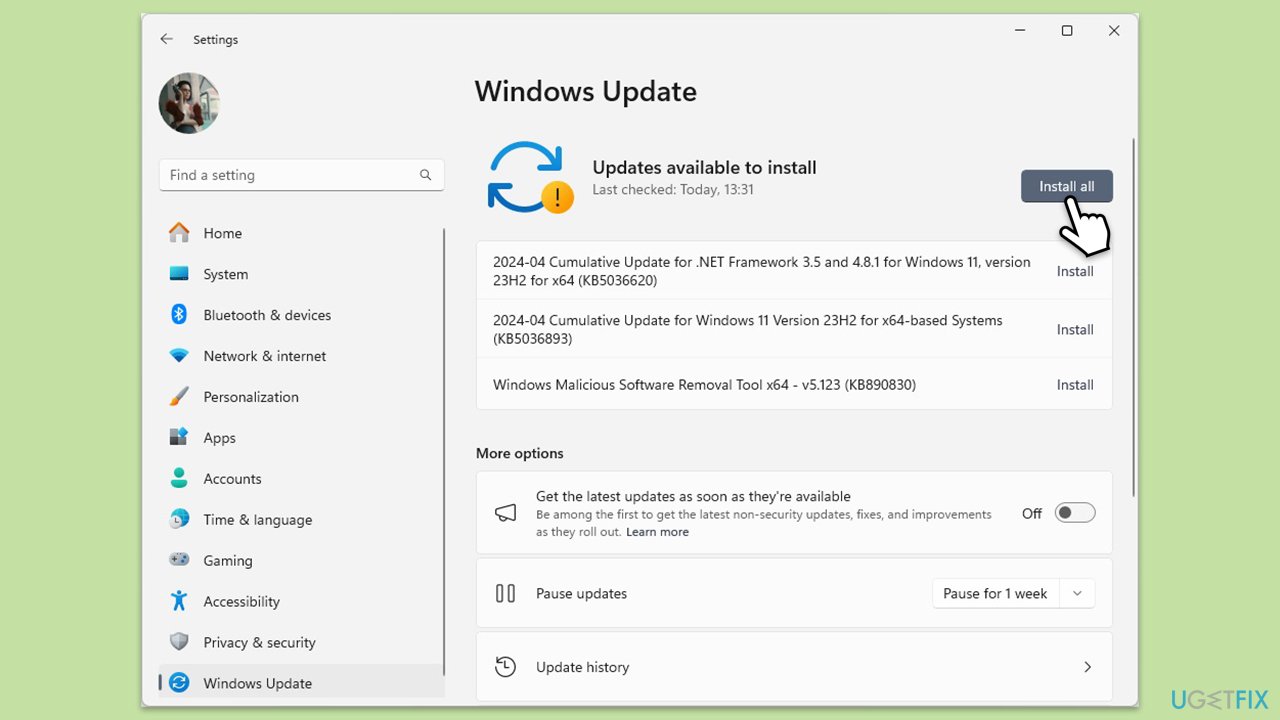
Outdated system files or missing updates can cause compatibility issues with external drives. Ensuring your Windows system is up-to-date often resolves these problems.
- Type Updates in Windows search and press Enter.
- Here, click Check for updates or Install updates, depending on which one is available.
- Wait till Windows downloads and installs all the necessary files.
- If optional updates are available, install them too.
- Restart your computer.
Fix 3. Verify external drive connection
Sometimes, connection problems such as loose cables or faulty ports can interrupt file transfers. Ensuring a stable connection helps prevent the error from recurring.
- Disconnect the external drive from your computer.
- Use a different USB port.
- If possible, try another USB cable.
- Reconnect the drive and check if the error persists.
Fix 4. Check drive permissions
Incorrect permissions can block file transfers between storage devices. Ensuring proper permissions can resolve these issues.
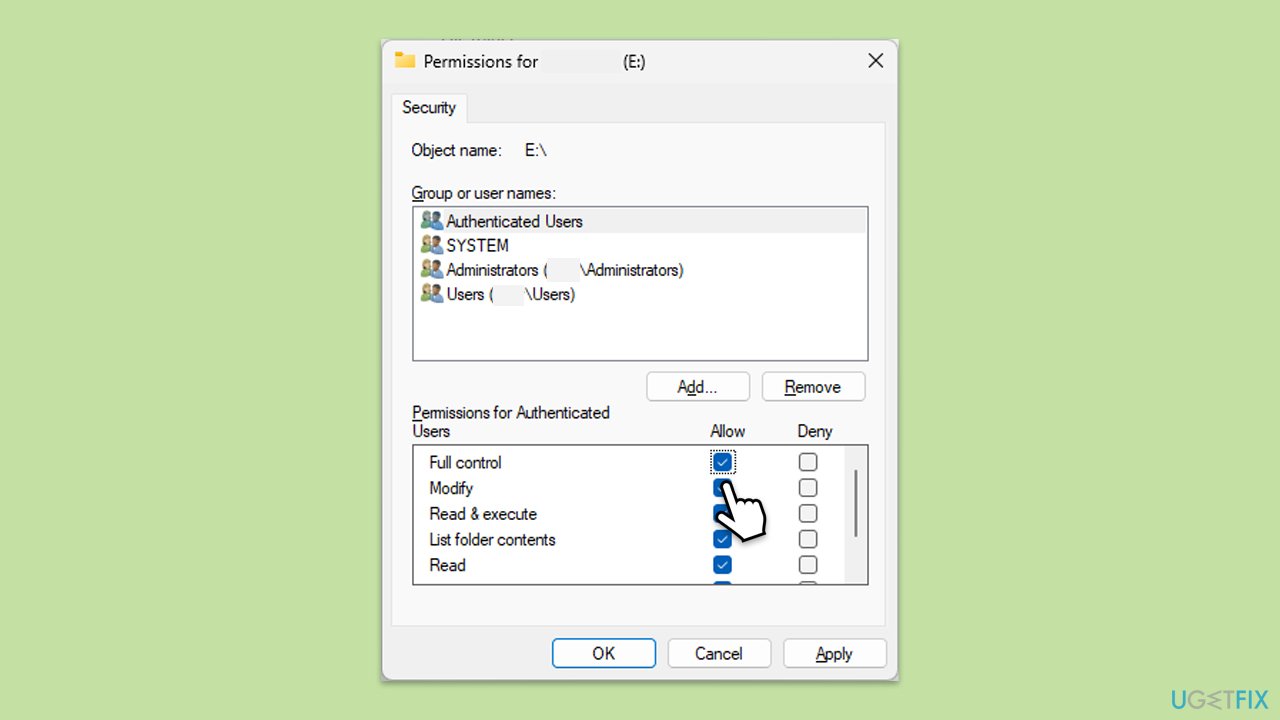
- Right-click on the external hard drive in File Explorer.
- Select Properties.
- Go to the Security tab.
- Click Edit to change permissions.
- Ensure your user account has Full Control.
- Click Apply and OK.
Fix 5. Scan and repair the external drive
Corrupted files or bad sectors on the external drive can trigger the error. Windows can scan and repair these issues automatically.
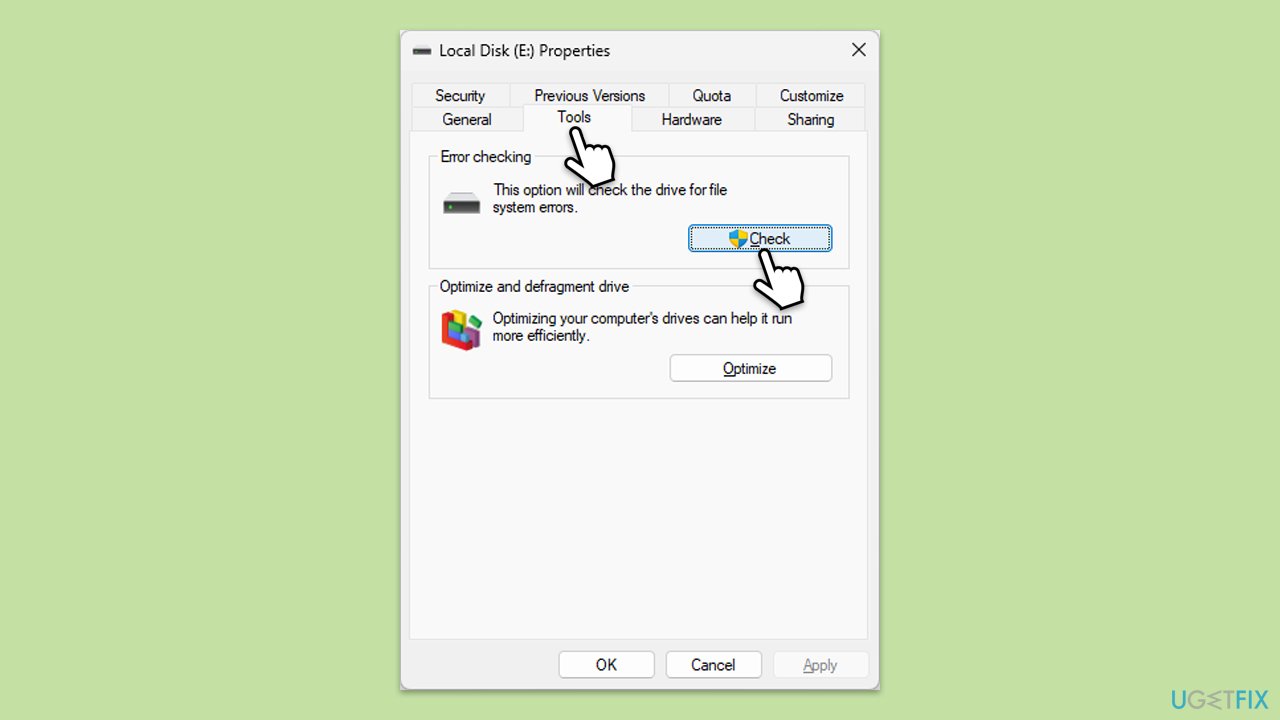
- Open File Explorer and locate your external hard drive.
- Right-click on the drive and select Properties.
- Go to the Tools tab.
- Click on Check under the Error checking section.
- Follow the on-screen instructions to complete the scan.
Fix 6. Update disk drivers
Outdated or corrupted drivers can cause compatibility issues with external hard drives. Updating them can often fix the problem.
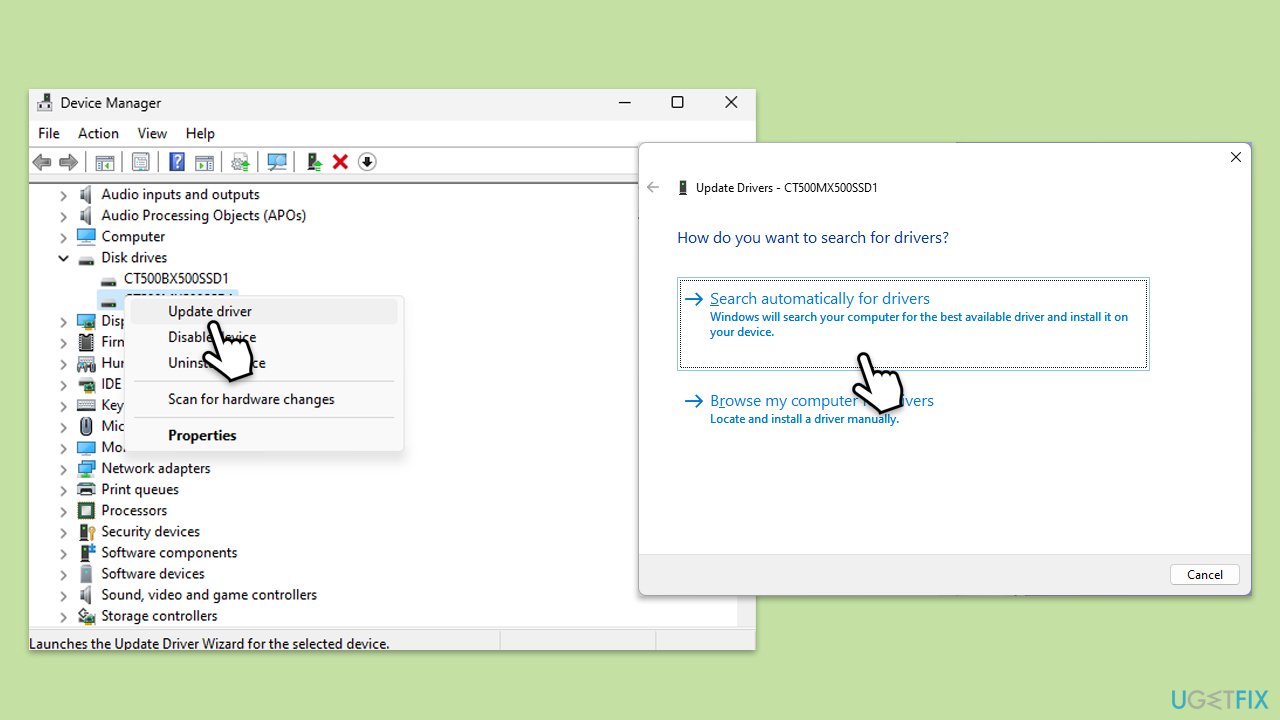
- Right-click on Start and pick Device Manager.
- Expand the Disk drives section.
- Right-click your drive and select Update driver.
- Choose Search automatically for drivers.
- Follow the prompts to update the driver.
- Restart your system.
- For a quicker way to update all your drivers, use automatic tools such as [rev id="DriverFix"].
Fix 7. Reformat the external drive
If none of the previous solutions work, reformatting the external hard drive can eliminate persistent file system errors. Note: This will erase all data on the drive, so back up important files first.
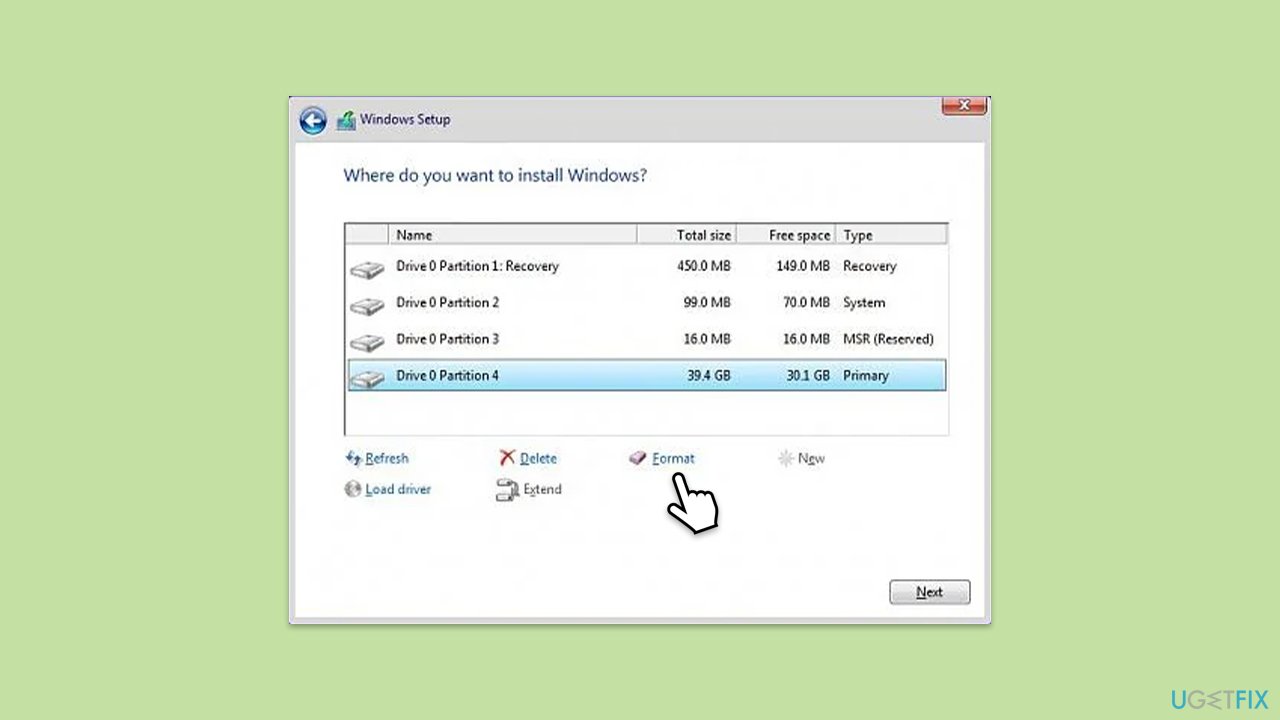
- Start the Windows installation by booting from your installation USB.
- Follow the setup prompts until you reach the screen showing available drives and partitions.
- Select the disk or partition where you want to install Windows.
- Click on Format and confirm that you want to erase the disk.
- After formatting is complete, select the disk and click Next to proceed with the installation.
Bottom line
To fix the 0x87e00002 error, check for background processes, ensure system updates are applied, verify the integrity of the external hard drive, and address any permission issues. Scanning for file system errors and keeping drivers updated can also help. If none of these solutions work, consider using a PC repair tool to identify and fix underlying Windows issues.
Frequently asked questions
The error code 0x87e00002 indicates a problem with the Xbox app or the game installation process on Windows 10, often related to network issues or corrupted files.
To resolve the 0x87e00002 error on Windows 11, try resetting the Xbox app, checking your internet connection, or reinstalling the game to ensure all files are intact.
Yes, ensure that your Windows 10 or Windows 11 firewall settings are not blocking the Xbox app and check for any pending Windows updates that could affect game transfers.




Report an issue
What's wrong with this guide? We review every report and update or remove content.
Report received — thank you. We'll review and fix it.
You need a free account to submit a report.
Be the first to comment