How to fix
0x8e5e03fb error
on Windows
Resolve the 0x8e5e03fb error in Windows 10 easily with expert-tested solutions and ensure smooth operation of your system in minutes.

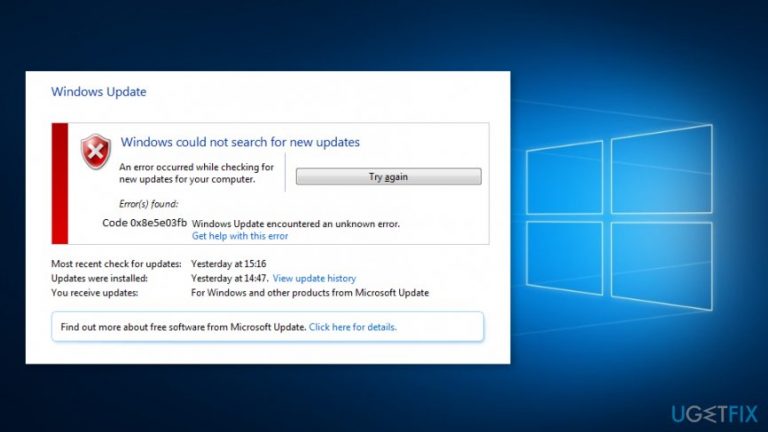
What causes How to fix 0x8e5e03fb error in Windows 10?
- Internet connection issues
- Windows operating system crashes or freezes
- Problems with system shutdown
- Incorrect time or date settings
- Issues with security software
Repairs Windows system files, removes malware, and restores a clean OS state — without reinstalling.
Windows 10 gave me an error code 0x8e5e03fb when I checked for updates. I hit “Try again” button a couple of times and restarted my PC. However, the error still occurs, and I cannot install available updates. What can I do about it?
Error 0x8e5e03fb is one of the Windows 10 update errors[ref en-1] that might occur anytime when you check for updates or try to install them. Most of the time, this problem occurs due to the Internet connection issues. However, there might be many other reasons to see the error that prevents from installing important updates, for instance:
- Windows operating system crashes or freezes;
- problems with system shutdown;
- Windows startup problems;[ref en-2]
- installation problems;
- incorrect time or date settings;
- issues with security software;[ref en-3]
- system corruption.
To fix 0x8e5e03fb error, you should begin by checking your internet connection,[ref en-4] set correct time or date, and temporarily disable security software. However, if none of these simple solutions help to get rid of the problem and install updates, follow the methods explained below.
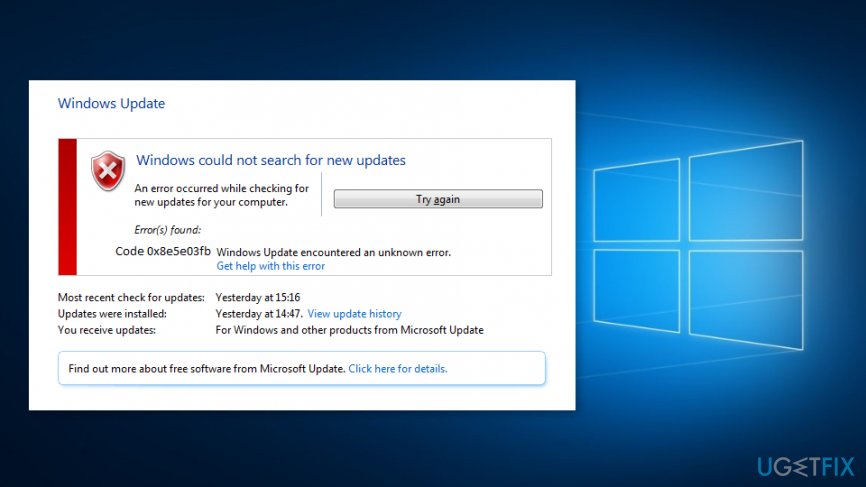
Methods to fix error code 0x8e5e03fb on Windows 10
As we have just mentioned, you should start with the easy solutions that might help to get rid of the 0x8e5e03fb error. However, if your Internet connection is strong, the time and date are correct, and security software was not an issue, follow the steps below:
Method 1. Set up .NET Framework 3.5
- Right-click Start button and choose Control Panel from the appeared list.
- Navigate to Programs.
- Choose Programs and Features.
- Click Turn Windows features on or off in the left pane.
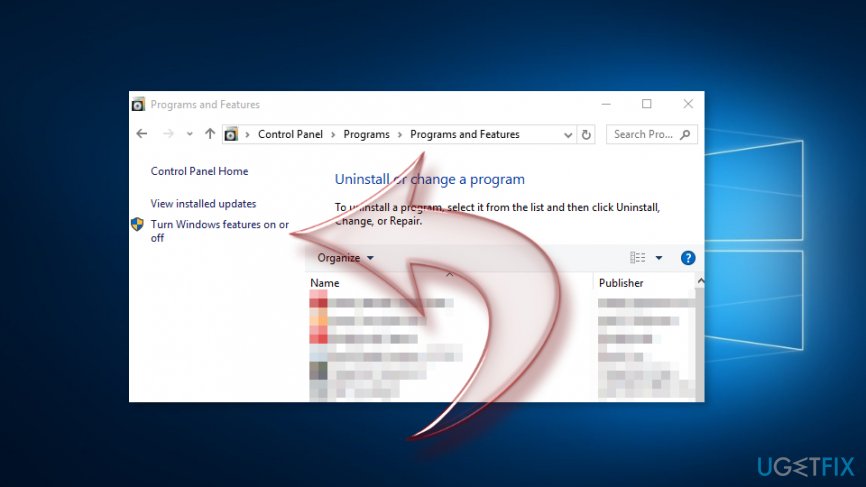
Click turn windows features on or off - Mark the tick next to .NET framework 3.5 box to install pre-requisites.
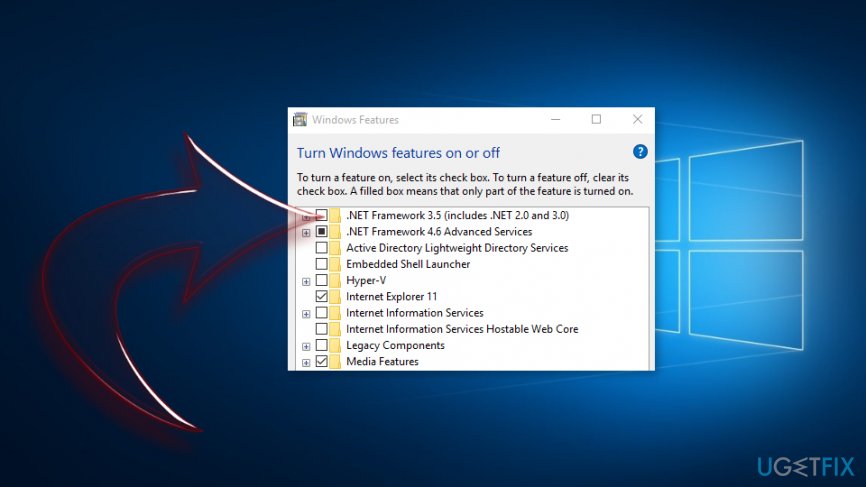
Select net framework 3 5 box - Click OK.
Method 2. Run SFC Scannow command
- Click Start and type cmd in the Windows search box.
- Right-click Command Prompt and choose Run as administrator option.
- In the Command Prompt window type sfc/scannow and click Enter key.
- Wait until Windows finishes system scan. You will be informed if any fixes were made.
Method 3. Run DISM RestoreHealth
- Click Star and enter cmd in the search field.
- Right-click Command Prompt and choose Run as administrator entry.
- In the Command Prompt enter this command and hit Enter: Dism /Online /Cleanup-Image /RestoreHealth
- Once the scan is completed, the source of the error should be fixed.
Method 4. Reset Windows update components
If previous methods were not helpful, you should try resetting Windows update components to fix error 0x8e5e03fb. However, this method requires modifying Windows registry. Thus, you should backup registry in case something goes wrong.
- Right-click Start and choose Command Prompt (Admin) from the menu.
- You will receive a confirmation window. Click Yes.
- Type the following commands and hit Enter after each of them in order to stop BITS, Cryptographic, MSI Installer, and Windows Update Services:
net stop wuauserv
net stop cryptSvc
net stop bits
net stop msiserver - Once these commands are executed, type the following ones and hit enter after each of them. They will rename SoftwareDistribution and Catroot2 folder:
ren C:\\Windows\\softwareDistribution SoftwareDistribution.old
ren C:\\Windows\\System32\\catroot2 Catroot2.old - When you have to restart ITS, Cryptographic, MSI Installer, and Windows Update Services which you have stopped in the third step. Type these commands and click Enter after each of them:
net stop wuauserv
net stop cryptSvc
net stop bits
net stop msiserver - After executing the last command, type Exit in the Command and Prompt to close the program. Check if this method helped to fix 0x8e5e03fb error.
Method 5. Perform computer reset
If none of the methods above helped to fix 0x8e5e03fb error in Windows 10, you should reset your computer. Before you start, we highly recommend creating copies of your files and storing them in the external (or cloud) drive. Once you reset your PC, Windows will be reinstalled. Therefore, all your files will be removed. After resetting your PC will include only pre-installed apps.
- Navigate to Start > Settings > Update & Security.
- Choose Recovery option in the left pane.
- Click Reset this PC option.
- Hit Get started button.
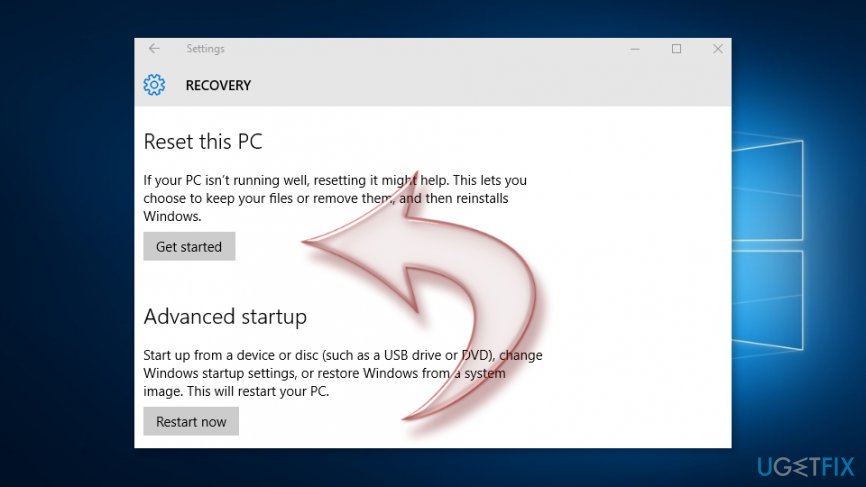
Click get started button - In the blue “Choose an option” screen select Keep my files option.
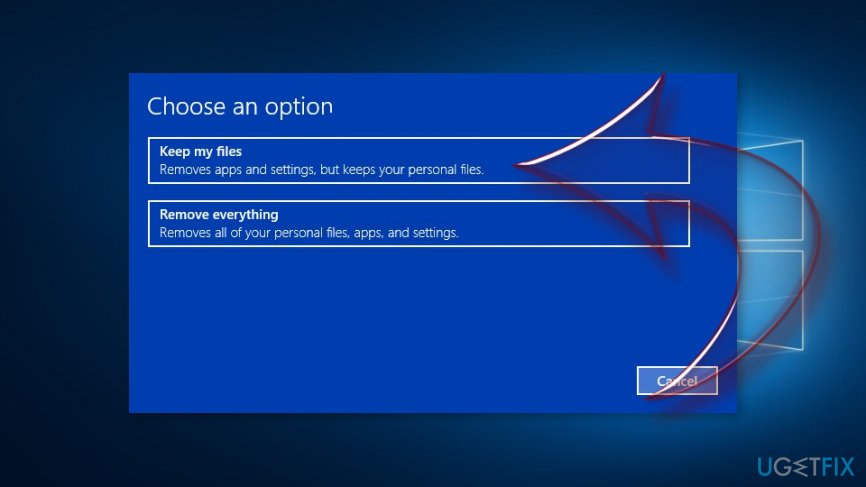
Choose keep my files option
Follow the instructions on the screen. Once computer reset is done, you should be able to install all Windows updates without any error.
Bottom line
To fix the 0x8e5e03fb error, start by checking your internet connection, ensuring the correct time and date settings, and temporarily disabling any security software. If these steps do not resolve the issue, consider setting up .NET Framework 3.5, running the SFC Scannow command, or using DISM RestoreHealth. If none of these methods work, further troubleshooting may be necessary.
Frequently asked questions
The 0x8e5e03fb error in Windows 10 is often caused by corrupted Windows Update components or issues with the Windows Store app cache.
You can reset the Windows Update components by running the Command Prompt as an administrator and executing a series of commands that stop services, delete temporary files, and restart the services.
Yes, you can try using the Windows Troubleshooter for Windows Update, which can automatically detect and fix some issues related to the 0x8e5e03fb error.




Report an issue
What's wrong with this guide? We review every report and update or remove content.
Report received — thank you. We'll review and fix it.
You need a free account to submit a report.
Be the first to comment