How to fix
0xA00F425D (0x80131500) VideoCaptureStartFailed error
on Windows
Resolve the 0xA00F425D (0x80131500) VideoCaptureStartFailed error on Windows 10 and 11 easily. Expert-tested solutions await you, fixed in minutes!

What causes How to fix 0xA00F425D (0x80131500) VideoCaptureStartFailed error?
- Corrupted system files
- Wrong registry entries
- Damaged update components
- Issues after Windows Updates
- Driver problems
Repairs Windows system files, removes malware, and restores a clean OS state — without reinstalling.
I used to use the webcam on my laptop often for recording video and audio. Any changes have been done so far, though I cannot use the webcam anymore due to a strange error code 0xA00F425D (0x80131500). I cannot find information on how to fix it so that any help would be appreciated.
Error Code 0xA00F425D (0x80131500) VideoCaptureStartFailed is an unseen Windows 10 error code, which started bothering the users of Windows 10 build 1709 in the middle of March, 2018. Strangely or not, hundreds of device users did not receive support from Microsoft up until now.[ref en-1] [ref en-2]
According to people's reports, the 0xA00F425D (0x80131500) VideoCaptureStartFailed error can strike Camera app users in two ways, i.e., absolutely unexpectedly or right (soon) after the installation of Windows Updates.
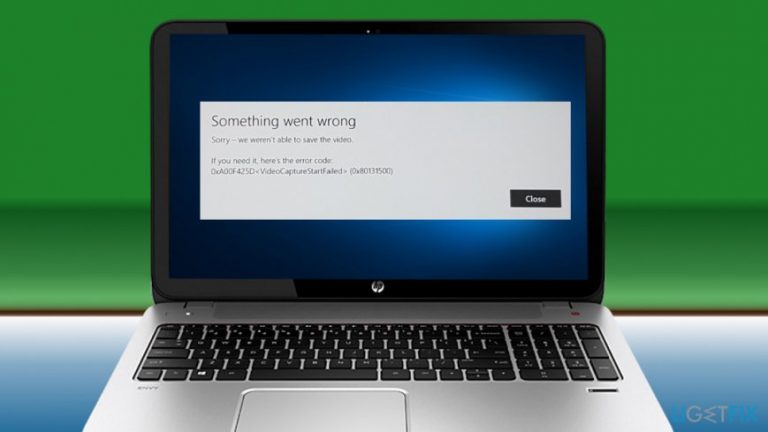
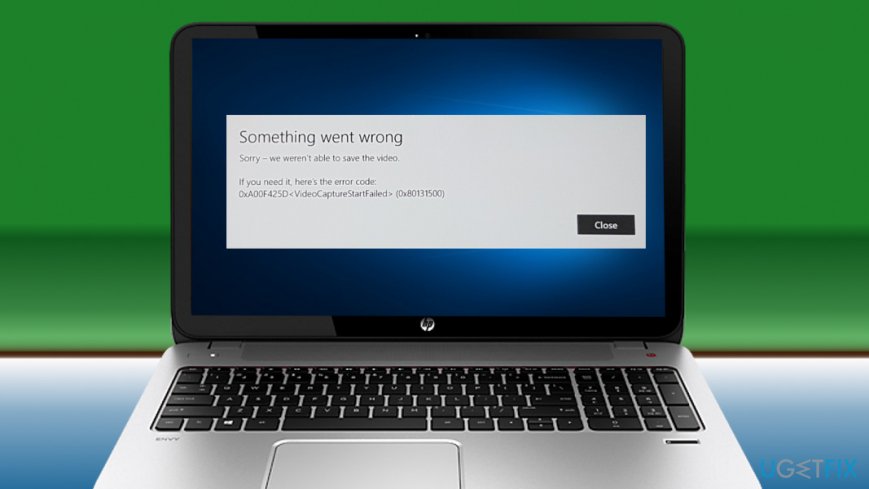
While in most of the cases the 0xA00F425D (0x80131500) pop-up emerges when trying to launch the Camera app, it can also show up when trying to record a video and save it. The following notification can occur:
Something went wrong - sorry we are unable to save the video
0xA00F425D VideoCaptureStartFailed (0x80131500)
In this case, the camera records the video and works fine, but stops responding when trying to save the video and eventually returns the 0xA00F425D. Unfortunately, there's no way to save or recover the video that might have been lost due to this Camera app error.
While exact culprit of this problem is unknown, we have a couple of guesses why your webcam might have stopped functioning. First of all, it's worth checking for available Windows updates and update/reinstall drivers.
If the problem started after the installation of Windows 10 cumulative update or new build,[ref en-3] some of the update components might have been damaged during the installation, so we would recommend uninstalling the update and redownload it. If that did not help as well, try to fix VideoCaptureStartFailed error with a simple registry tweak.
TIP: Before you skip to the following methods, please try to fix Video Capture Start Failed error with a code 0xA00F425D automatically. If the problem is triggered by corrupted system files, wrong registry entries, and similar issues, a full system scan with [d1] should solve the problem out.
Method 1. Download pending Windows 10 updates
- Navigate to Windows Settings by clicking Windows key + I buttons simultaneously.
- Open Updates and Security section.
- Click Check for Updates button.
- Now you should see a notification Checking for updates. Be patient and wait for the system to check for all updates.
- If the scan ends up with a report Your device is up to date. Last checked: Today, it means that all needed updates have already been installed.
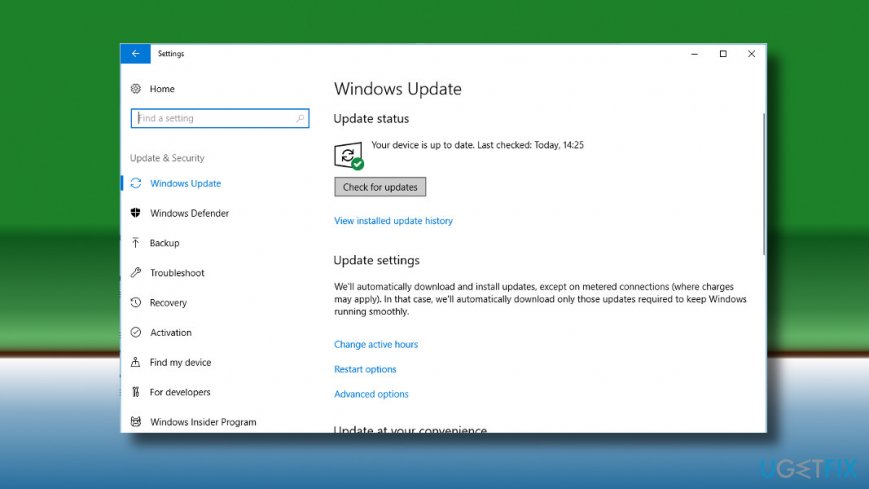
Install pending updates
Method 2. Uninstall the last Windows 10 update installed
If the 0xA00F425D (0x80131500) error started bothering you soon after you installed Windows 10 cumulative update or patch update, try to uninstall to check whether it was the culprit.
- Press Windows key + I to open Settings.
- Navigate to the Update & Security section.
- Click View installed update history.
- Select Uninstall updates link at the top of the window.
- Now find an update that was installed the last, right-click on it, and select Uninstall.
- Finally, restart the system and check if that has been sufficient to fix 0xA00F425D(0x80131500) error.
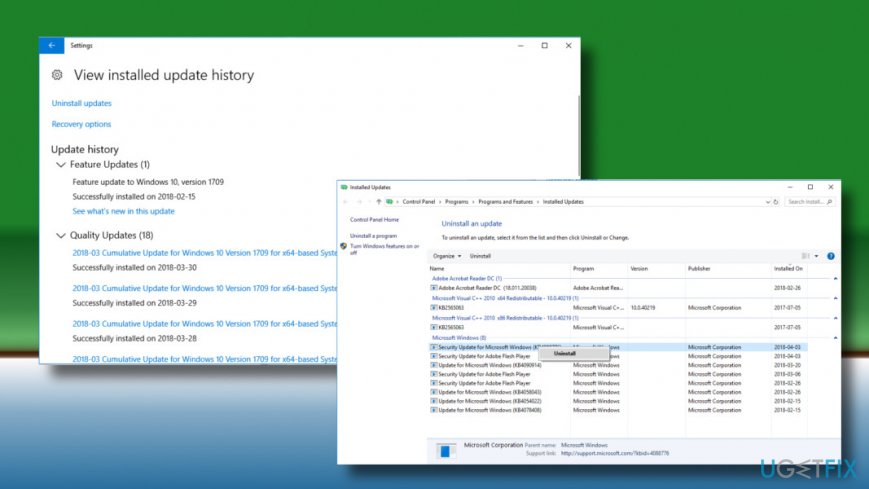
Remove wrong updates
Method 3. Update or Reinstall Imaging device drivers
- Right-click on Windows key and select Device Manager.
- Now expand Imaging devices section and right-click on webcam's entry.
- Select the Update driver option.
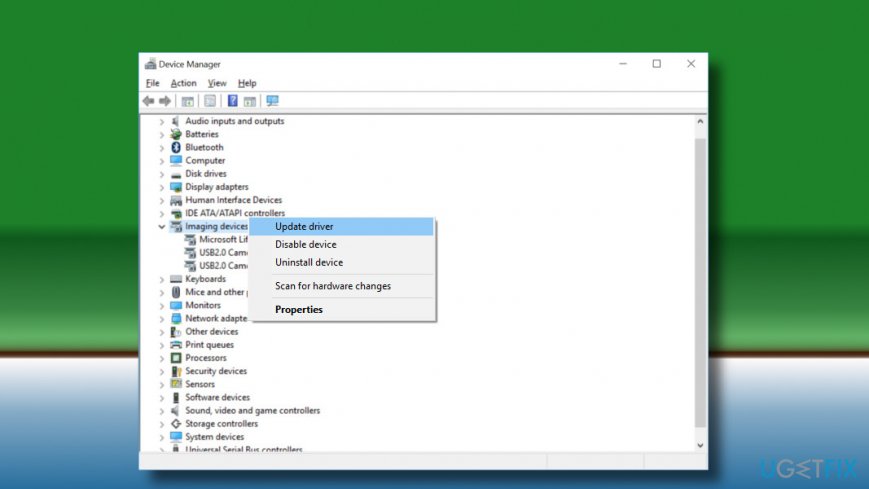
Update imaging device drivers - Click Browse my computer for software driver option on the pop-up window.
- Select Let me pick from a list of device drivers on my computer option.
- Make sure that the Show compatible hardware check box is marked. If not, then mark it.
- Select USB Video Device and click Next.
- The system should automatically update camera drivers. Once done, reboot the system.
If that did not help, repeat the same steps except that instead of Update driver, select Uninstall driver. Reboot the system and download a compatible Camera driver from the manufacturer's website.
Method 4. Change Windows Registry
- Press Windows key + R, type regedit, and press Enter.
- Navigate to HKEY_LOCAL_MACHINE\\SOFTWARE\\Microsoft\\Windows Media Foundation\\Platform.
- Right-click on the Platform folder and select New > DWORD.
- Name it EnableFrameServerMode.
- Right-click on the newly created value and select Modify.
- Change its Value data to 0.
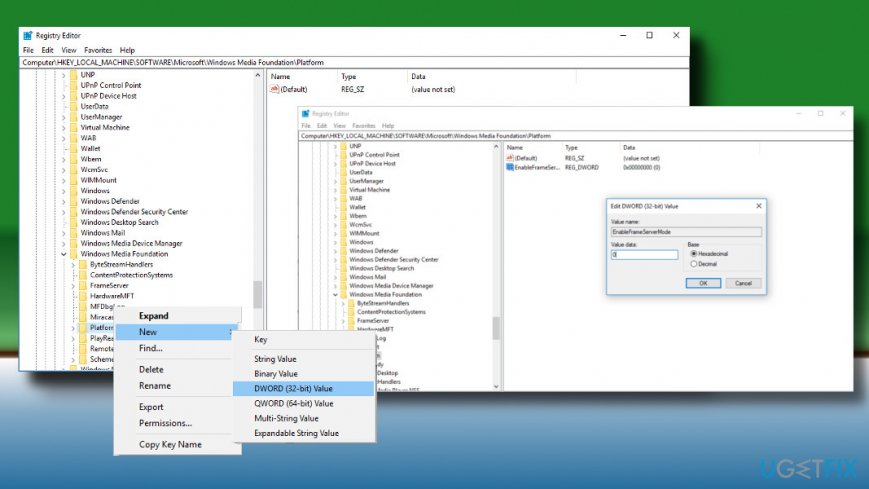
Modify registry entries - Do the same with HKEY_LOCAL_MACHINE\\SOFTWARE\\WOW6432Node\\Microsoft\\Windows Media Foundation\\Platform key.
Bottom line
To fix the 0xA00F425D (0x80131500) VideoCaptureStartFailed error, check for available Windows updates, update or reinstall drivers, and consider uninstalling recent updates if the issue began after an installation. Additionally, a registry tweak may help resolve the error. If none of these solutions work, further troubleshooting may be necessary.
Frequently asked questions
This error is typically caused by camera permission issues, outdated drivers, or conflicts with other applications accessing the camera.
You can update your camera drivers by going to Device Manager, finding the camera under 'Imaging devices', right-clicking it, and selecting 'Update driver'.
Yes, ensure that camera access is enabled in Settings under Privacy > Camera, and check that the app you're using has permission to access the camera.




Report an issue
What's wrong with this guide? We review every report and update or remove content.
Report received — thank you. We'll review and fix it.
You need a free account to submit a report.
Be the first to comment